

When it comes to using Windows operating systems, encountering errors is not uncommon. One such error that users may come across is related to the Msvbvm50.dll file. This article aims to provide a comprehensive understanding of what the Msvbvm50.dll file is, the common errors associated with it, and how to fix those errors effectively.
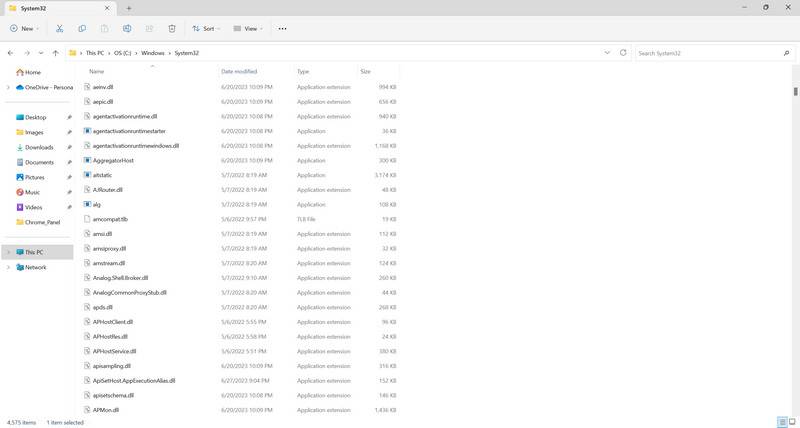
Understanding Msvbvm50.dll
The Msvbvm50.dll file is a dynamic link library file that is an essential component of the Microsoft Visual Basic Virtual Machine (VBVM). It is responsible for providing support to applications developed using Visual Basic 5.0. This file contains various functions and resources required for the proper functioning of Visual Basic applications.
When a Visual Basic 5.0 application is executed, it relies on the Msvbvm50.dll file to interpret and execute the code. Without this file, the application may fail to run or encounter errors.
Common Errors Related to Msvbvm50.dll
Users may encounter different errors related to the Msvbvm50.dll file. Some of the common errors include:
- “Msvbvm50.dll not found”
- “Msvbvm50.dll is missing”
- “Msvbvm50.dll error loading”
- “Msvbvm50.dll crash”
These errors can occur due to various reasons, such as:
- Corrupted or missing Msvbvm50.dll file
- Incorrect installation or uninstallation of applications
- Malware or virus infections
- Outdated or incompatible device drivers
How to Fix Msvbvm50.dll Errors
Now that we understand the common errors related to the Msvbvm50.dll file, let’s explore some effective methods to fix these errors:
Method 1: Reinstall the Application
If you encounter an error message stating that the Msvbvm50.dll file is missing or not found, the first step is to reinstall the application that is generating the error. Follow these steps:
- Uninstall the application causing the error through the Control Panel or using a third-party uninstaller.
- Download the latest version of the application from the official website.
- Install the application by following the on-screen instructions.
Reinstalling the application will ensure that all the necessary files, including the Msvbvm50.dll file, are properly installed.
Method 2: Scan for Malware or Viruses
Malware or virus infections can corrupt or delete important system files, including the Msvbvm50.dll file. It is crucial to scan your system for malware or viruses using a reliable antivirus software. We recommend using Malwarebytes Free, a trusted and effective antivirus tool.
Once you have installed Malwarebytes Free, perform a full system scan to detect and remove any malware or viruses that may be causing the Msvbvm50.dll errors.
Method 3: Update Device Drivers
Outdated or incompatible device drivers can also lead to Msvbvm50.dll errors. To update your device drivers, follow these steps:
- Open the Device Manager by right-clicking on the Start button and selecting “Device Manager.”
- Expand the categories and locate the device driver you want to update.
- Right-click on the device driver and select “Update driver.”
- Choose the option to search automatically for updated driver software.
- Follow the on-screen instructions to complete the driver update process.
Updating your device drivers can resolve compatibility issues and ensure the smooth functioning of your system.
Summary
The Msvbvm50.dll file is a crucial component of the Microsoft Visual Basic Virtual Machine, responsible for supporting Visual Basic 5.0 applications. Errors related to this file can occur due to various reasons, including file corruption, malware infections, and outdated drivers.
To fix Msvbvm50.dll errors, it is recommended to reinstall the application generating the error, scan for malware or viruses using reliable antivirus software like Malwarebytes Free, and update device drivers to ensure compatibility.
By following these methods, users can effectively resolve Msvbvm50.dll errors and ensure the smooth functioning of their Windows operating system.

Join the discussion
0 commentsShare your experience or ask a question about this article.
Your progress
Did these steps help?
Let us know how the guide worked for you.
Describe what you see and the step you reached. Keep passwords and other private information out.
Discussion
Start the conversation
Have a question or something useful to share? Add the first comment.