

Have you ever opened your email to find a confusing message claiming that you’ve been billed hundreds of dollars for a Norton LifeLock renewal you never authorized? You’re not alone. Millions of people are targeted yearly by scammers sending fake Norton LifeLock renewal emails. These emails create panic, prompting victims to call a fake customer service number, ultimately leading to financial loss, stolen identities, and compromised personal information.
In this comprehensive guide, we’ll thoroughly examine the Norton LifeLock Renewal Email Scam, explaining exactly how it works, and offering practical advice on what you should do if you’ve fallen victim to it. Keep reading to learn everything you need to protect yourself and your family from this dangerous form of cybercrime.
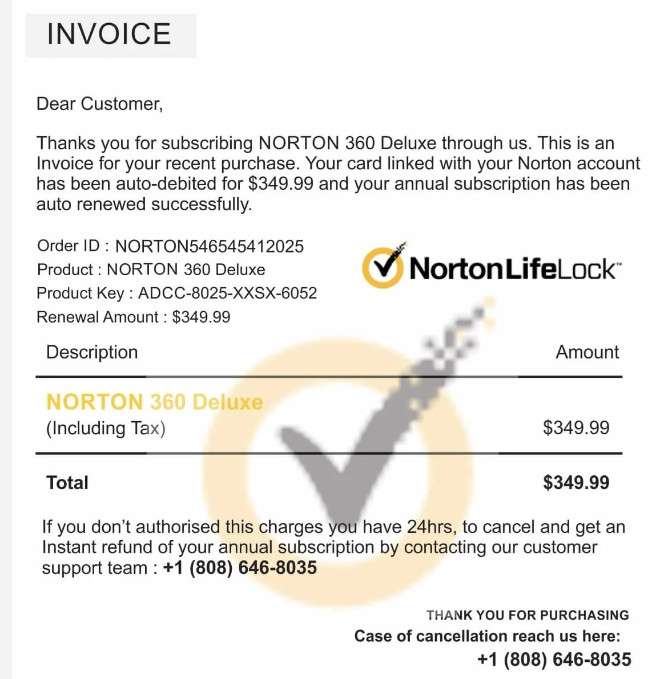
Scam Overview: What is the Norton LifeLock Renewal Email Scam?
The Norton LifeLock Renewal Email Scam is a sophisticated phishing tactic designed to trick unsuspecting victims into believing their subscription to Norton LifeLock security software has been automatically renewed. These fraudulent emails are carefully crafted to appear authentic, complete with logos, invoice numbers, fake renewal keys, and customer support numbers. The scammers prey upon fear and confusion, hoping to trigger a quick reaction from recipients who receive an unexpected charge.
How the Scam Begins
Victims typically receive an email that appears to be authentic communication from Norton. These messages are convincingly designed, using the Norton logo, official-looking support numbers, and detailed billing information. The email usually states that the recipient’s subscription to Norton LifeLock has been successfully renewed at a high price—often hundreds of dollars. The email includes a fake invoice and provides a customer support number to call if the recipient disagrees with the charge or believes it’s fraudulent.
Here is how one of these scam email might look:
Norton by Symantec
PRZ 1457 6527 3255 4123 is Your Renewal Key!
Invoice Number: ZVOW145WZ
Support: [scam phone number]
Dear User!
We appreciate your Norton LifeLock renewal for $639.99, safeguarding youronline presence, personal information, and financial details from digital dangers.
If you believe there was an issue with this payment, please contact us within 12 hours. The correction will be visible on your statement within 24 hours.
:Product Description:
Product Name Amount
Norton LifeLock For Home and Office
639.99 USD
Payment Method
Auto-debit
Date
March 17, 2025
Order ID
ZVOW145WZ
Notes: Refunds are available within 12 hours of payment, so please notify us if you do not authorize this transaction.
Customer Service: [scam phone number]
Why This Scam is Effective
The Norton LifeLock Renewal Email Scam is particularly effective for several reasons:
- Convincing Appearance:
Scammers spend considerable effort making emails look authentic, including Norton logos, recognizable brand colors, and realistic invoice details. - Fear and Urgency:
The scam relies on creating panic. Victims, worried they’ve been wrongly charged, instinctively call the provided number without verifying its legitimacy. - False Customer Service Numbers:
The fake support number provided in the email connects victims to scammers posing as legitimate Norton customer service representatives. Scammers then exploit victims’ concerns, deceiving them into handing over sensitive personal information or money. - Lack of Awareness:
Many users aren’t aware of such scams, making them easy targets. Victims often act quickly without verifying the email’s authenticity, giving scammers the advantage.
Who are the Targets?
The Norton LifeLock Renewal Email Scam doesn’t discriminate. Scammers target people of all ages, backgrounds, and technological proficiency levels. However, older adults and individuals less familiar with technology are often most vulnerable. Scammers assume that these users will be less skeptical and more likely to panic when confronted with unexpected charges.
The Goal of the Scam
The ultimate goal of the Norton LifeLock Renewal Email Scam is financial exploitation. Scammers hope to manipulate victims into providing them access to their computers remotely, allowing scammers to gather banking information, credit cards, personal identification, and other sensitive data. Additionally, scammers often push victims to buy gift cards and provide the codes, making it nearly impossible to recover lost money.
Signs of a Fake Norton LifeLock Renewal Email
To help you stay safe, here are common signs of a fake Norton LifeLock renewal email:
- Unexpected charges for a Norton subscription you never purchased.
- Misspellings, grammatical errors, and awkward phrasing.
- Email addresses that don’t match Norton’s official website domain.
- A sense of urgency, pressuring you to act quickly.
- Request to call customer service immediately via the number provided.
Recognizing these signs can prevent you from falling victim to this scam. Always verify suspicious emails by contacting Norton through their official website, not through phone numbers or links provided in suspicious emails.
How The Scam Works
Understanding exactly how this scam unfolds will help you recognize and avoid it. Here is a detailed breakdown of the Norton LifeLock Renewal Email Scam process:
Step 1: Receiving the Scam Email
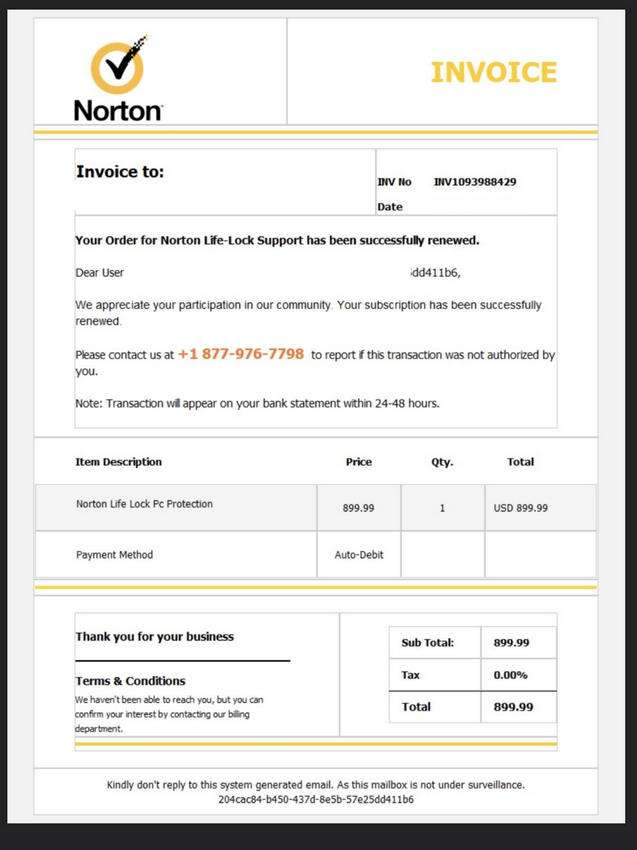
Victims receive an email claiming to be from Norton LifeLock, thanking them for renewing their subscription. The email includes a fake invoice showing a renewal charge of several hundred dollars, often around $600 to $1000, and a supposed renewal key.
Step 2: Panic and Confusion
The victim, realizing they never authorized this renewal, panics. The email states that if they believe the renewal was made in error, they should call customer support immediately (a fake number provided prominently in the email).
Step 3: Calling the Fake Customer Support Number
The victim calls the provided number and connects with scammers posing as Norton customer support representatives. These scammers convincingly act helpful, professional, and understanding, assuring victims they will resolve the issue immediately.
Step 4: Remote Connection Request
The scammer instructs the victim to download remote access software (such as AnyDesk, TeamViewer, or similar tools) to their computer or smartphone. They explain this is necessary to reverse the charge, issue a refund, or secure their device from supposed hackers.
Step 5: Scammer Takes Control
Once the remote access software is installed and connected, scammers gain complete control over the victim’s device. They pretend to perform diagnostic checks, claiming the victim’s device is infected with viruses or hacked.
Step 6: Extracting Sensitive Information
With control of the device, scammers search for sensitive files, banking information, passwords, and personal data. They may ask victims to log into their bank accounts, claiming it’s necessary to initiate the refund process.
Step 7: Manipulating Bank Transactions
Once scammers gain banking access, they can swiftly transfer funds, drain accounts, or set up unauthorized transactions. They claim these transfers are mistakenly large refunds and ask victims to return the excess funds through gift cards or wire transfers.
Step 8: Requesting Gift Cards
Scammers commonly instruct victims to purchase gift cards, such as Google Play, Apple iTunes, Amazon, or similar. Victims are then asked to provide the gift card codes, allowing scammers to quickly launder the stolen funds.
Step 9: Ending Communication
Once scammers achieve their goal—stealing money or sensitive information—they abruptly end communication, leaving victims financially and emotionally devastated.
What to Do if You Have Fallen Victim to This Scam
If you’ve realized you’ve fallen victim to the Norton LifeLock Renewal Email Scam, take immediate action. Here’s what you should do:
- Disconnect Remote Access Immediately
Close any remote access software (AnyDesk, TeamViewer, etc.) and uninstall it immediately. - Contact Your Bank
Call your bank immediately to freeze your account, cancel compromised cards, and report unauthorized transactions. - Contact Gift Card Companies
If you’ve provided gift card codes, immediately contact the gift card company to report the fraud. Provide receipts and details to help trace or block cards. - Report the Scam
Report the scam to the Federal Trade Commission (FTC) at ftc.gov/complaint and the FBI’s Internet Crime Complaint Center (IC3) at ic3.gov. These agencies track scammers and help recover stolen funds. - Change Passwords
Immediately change passwords on your email, bank accounts, social media, and other sensitive online services. - Run Security Scans
Conduct thorough scans with trusted security software to remove malware scammers might have installed. - Monitor Your Credit
Regularly check credit reports from major bureaus (Experian, Equifax, TransUnion) for unusual activity or new accounts opened in your name. - Notify Norton LifeLock
Contact Norton directly (official website or verified customer service number) to alert them about the scam.
Is Your Device Infected? Run a Free Malware Scan
Slow performance, constant pop-ups, or strange behavior? These are classic signs of a malware infection. The fastest way to find out is to scan your device with Malwarebytes Free — one of the most trusted malware removal tools available.
The free version detects and removes the most common threats, including:
- Adware — the cause of those annoying pop-ups
- Browser hijackers — unwanted redirects and changed homepages
- Trojans and spyware — hidden programs stealing your data
- Potentially unwanted programs (PUPs) — software you never asked for
👉 Select your device below — Windows, Mac, or Android — then follow the simple steps to download Malwarebytes, scan your system, and remove any threats it finds. The scan usually takes 5 to 20 minutes.
Run a Malware Scan with Malwarebytes for Windows
Malwarebytes is one of the most popular and trusted anti-malware tools for Windows — and it’s completely free for removing infections. It catches threats that many antivirus programs miss, including adware, browser hijackers, and trojans. Follow the steps below to scan and clean your PC in just a few minutes.
Download Malwarebytes
Click the button below to download the latest version of Malwarebytes for Windows from the official source. The free version is all you need — it will scan your computer and remove adware, browser hijackers, and other malicious software at no cost.
Download MalwarebytesOfficial installer for Windows 11 and 10. Your download starts right away.Want real-time protection? See Malwarebytes Premium Malwarebytes Free for WindowsScans and removes malware at no cost
-
Install Malwarebytes
When the download finishes, open your Downloads folder and double-click the MBSetup file. If Windows shows a User Account Control pop-up, click “Yes” to allow the installation.

Follow the On-Screen Prompts to Install Malwarebytes
The setup wizard will walk you through a few quick screens:
-
Choose where you’re installing the program — “Personal Computer” or “Work Computer” — then click Next.

-
Malwarebytes will now install on your device. This usually takes under a minute.

-
When installation is complete, the “Welcome to Malwarebytes” screen will open automatically.

-
On the final screen, click Open Malwarebytes to launch the program.

-
Enable “Scan for Rootkits”
Before scanning, turn on rootkit detection so Malwarebytes can find even the most hidden threats. Click the Settings gear icon on the left side of the screen.

In the settings menu, find “Scan for rootkits” and click the toggle so it turns blue.

Done? Click “Dashboard” in the left pane to return to the main screen.
Start the Scan
Click the blue Scan button. Malwarebytes will automatically update its virus database and start checking your computer for malware.

-
Wait for the Scan to Finish
The scan checks your entire system for browser hijackers and other malicious programs, so it can take 5 to 20 minutes depending on your computer. Feel free to do something else — just check back occasionally to see the progress.

-
Quarantine the Detected Threats
When the scan is done, you’ll see a list of everything Malwarebytes found — malware, adware, and potentially unwanted programs. Click the “Quarantine” button to remove all of them at once.

Malwarebytes will now remove the malicious files and registry entries and move them safely into quarantine.

-
Restart Your Computer
Some threats can only be fully removed after a reboot. If Malwarebytes asks you to restart, click Yes. Once you’re logged back in, Malwarebytes has finished removing the threats it found.

That’s it — your Windows PC is now clean of trojans, adware, and other malware, and should be back to running smoothly.
If you are still having problems with your computer after completing these instructions, then please follow one of the steps:
- Run a computer scan with ESET Online Scanner
- Ask for help in our Windows Malware Removal Help & Support forum.
Run a Malware Scan with Malwarebytes for Mac
Malwarebytes for Mac is a free on-demand scanner that removes the malware other security software tends to miss — adware, browser hijackers, and unwanted programs included. Cleaning an infected Mac with Malwarebytes has always been completely free, and it’s our go-to recommendation. Follow the steps below to scan and clean your Mac in just a few minutes.
-
Download Malwarebytes for Mac
Click the button below to download the latest version of Malwarebytes for Mac.
Download MalwarebytesOfficial installer for macOS. Your download starts right away.Want real-time protection? See Malwarebytes PremiumMalwarebytes Free for MacScans and removes malware at no cost -
Open the Malwarebytes setup file
When the download finishes, open your Downloads folder and double-click the setup file to begin the installation.

-
Follow the On-Screen Prompts to Install Malwarebytes
The Malwarebytes for Mac Installer will guide you through a few quick screens. Click “Continue” and keep following the prompts until the installation completes.



When the installation is complete, Malwarebytes opens to the Welcome to Malwarebytes screen. Click “Get started“.
-
Select “Personal Computer” or “Work Computer”
Malwarebytes will ask what type of computer you’re installing it on. Click either Personal Computer or Work Computer, whichever applies.

-
Start the Scan
Click the “Scan” button. Malwarebytes will automatically update its detection database and begin checking your Mac for malware.

-
Wait for the Scan to Finish
Malwarebytes will scan your Mac for adware, browser hijackers, and other malicious programs. This can take a few minutes, so feel free to do something else — just check back occasionally to see the progress.

-
Quarantine the Detected Threats
When the scan is done, you’ll see a list of everything Malwarebytes found. Click the “Quarantine” button to remove all the threats at once.

-
Restart Your Mac
Malwarebytes will now remove all the malicious files it found. Some threats can only be fully removed after a reboot — if Malwarebytes asks you to restart, allow it. Once you’re logged back in, your Mac is clean.

That’s it — your Mac is now free of adware, rogue browser extensions, and other potentially harmful software.
If you are still experiencing problems while trying to remove a malicious program from your computer, please ask for help in our Mac Malware Removal Help & Support forum.
Run a Malware Scan with Malwarebytes for Android
Malwarebytes for Android automatically detects and removes dangerous threats like malware and ransomware so you don’t have to worry about your most-used device being compromised. Aggressive detection of adware and potentially unwanted programs keeps your Android phone or tablet running smooth.
-
Download Malwarebytes for Android.
You can download Malwarebytes for Android by clicking the link below.
Get Malwarebytes for AndroidOpens Google Play in a new tab.Want real-time protection? See Malwarebytes Premium for AndroidMalwarebytes for AndroidScans your phone and removes malware at no cost -
Install Malwarebytes for Android on your phone.
In the Google Play Store, tap “Install” to install Malwarebytes for Android on your device.

When the installation process has finished, tap “Open” to begin using Malwarebytes for Android. You can also open Malwarebytes by tapping on its icon in your phone menu or home screen.

-
Follow the on-screen prompts to complete the setup process
When Malwarebytes will open, you will see the Malwarebytes Setup Wizard which will guide you through a series of permissions and other setup options.
This is the first of two screens that explain the difference between the Premium and Free versions. Swipe this screen to continue.
Tap on “Got it” to proceed to the next step.
Malwarebytes for Android will now ask for a set of permissions that are required to scan your device and protect it from malware. Tap on “Give permission” to continue.
Tap on “Allow” to permit Malwarebytes to access the files on your phone.
-
Update database and run a scan with Malwarebytes for Android
You will now be prompted to update the Malwarebytes database and run a full system scan.

Click on “Update database” to update the Malwarebytes for Android definitions to the latest version, then click on “Run full scan” to perform a system scan.

-
Wait for the Malwarebytes scan to complete.
Malwarebytes will now start scanning your phone for adware and other malicious apps. This process can take a few minutes, so we suggest you do something else and periodically check on the status of the scan to see when it is finished.

-
Click on “Remove Selected”.
When the scan has been completed, you will be presented with a screen showing the malware infections that Malwarebytes for Android has detected. To remove the malicious apps that Malwarebytes has found, tap on the “Remove Selected” button.

-
Restart your phone.
Malwarebytes for Android will now remove all the malicious apps that it has found. To complete the malware removal process, Malwarebytes may ask you to restart your device.
That’s it — your Android phone is now clean — no more malicious apps, adware, or browser redirects.
If you are still having problems with your phone after completing these instructions, then please follow one of the steps:
- Restore your phone to factory settings by going to Settings > General management > Reset > Factory data reset.
- Ask for help in our Mobile Malware Removal Help & Support forum.
Stay Protected: Block Ads and Malicious Sites
Now that your device is clean, keep it that way. Most infections start with a malicious ad or a fake download button — so blocking them at the source is your best defense.
We recommend AdGuard, which blocks malicious ads, phishing pages, and dangerous redirects before they can reach you.
👉 Download AdGuard and browse safely
The Bottom Line
The Norton LifeLock Renewal Key Email Scam cleverly exploits fear and confusion to steal money and sensitive data from unsuspecting victims. Staying informed and vigilant is your best defense against these harmful schemes. Always verify emails carefully, avoid calling numbers provided in suspicious communications, and immediately report any scams you encounter. By understanding how these scams operate, you can confidently safeguard yourself and your family from cyber threats, ensuring your financial security and personal information remain protected.

Join the discussion
2 commentsShare your experience or ask a question about this article.
Discussion
Thank you very much that was the way it went but a different ending. After they got my banking info they posed as the fraud dept from my bank and the federal reserve, they tried to withdraw $49,347 from my money market account at 2:30 in the morning, the bank said a text and email was sent to notafy me,
i checked for it but never got it. So the imposter fraud dept told me that they wanted to protect my money and put it in the federal reserve account so there was no way for them to follow the money and i could set up a new account then the federal reserve would put it back, I made out the transfer at the bank and did not like it.
Went home and called the bank and said not to send the transfer. The bank said to come in and they told me it was a scam. All along i felt it was.
It started with a foney norton life loc renewal fee of $533.00 in my email, then i went to the real NORTON website they they said i had no account and did a scan
for me and at the end of the scan there was a phone number to call it was the fraud dept imposter from the bank and i fell for all the rest
PS still have all my money thanks to the bank
In reply to Tom
Hi Tom, thank you for sharing this. What happened to you is extremely serious, and you did the right thing by trusting your instincts and calling the bank directly before the transfer went through.
Your case shows how these scams can escalate very quickly. What starts as a fake Norton or LifeLock renewal email can turn into full social engineering, with scammers pretending to be your bank and even the Federal Reserve to pressure you into moving your own money. That is exactly why it is so important to stop, hang up, and call the bank back using the official number on the card or the bank’s website.
I’m very glad your bank caught it in time and that you still have your money.