

Overseassale.com is an online store that claims to sell apparel, furniture and garden products and tools at wholesale prices. However, there are many reasons to doubt the legitimacy and reliability of this site. In this blog post, we will review some of the red flags and warning signs that indicate that Overseassale.com is a scam and not a safe place to shop online.
Is it safe to buy from Overseassale.com?
The short answer is no. Overseassale.com is a fake online store that is designed to scam unsuspecting customers. According to various sources , Overseassale.com is not a legitimate business, but a fraudulent website that uses deceptive tactics to lure people into giving away their personal and financial information.
Some of the red flags that indicate that Overseassale.com is a scam are:
- Overseassale.com website design is simple and unpolished.
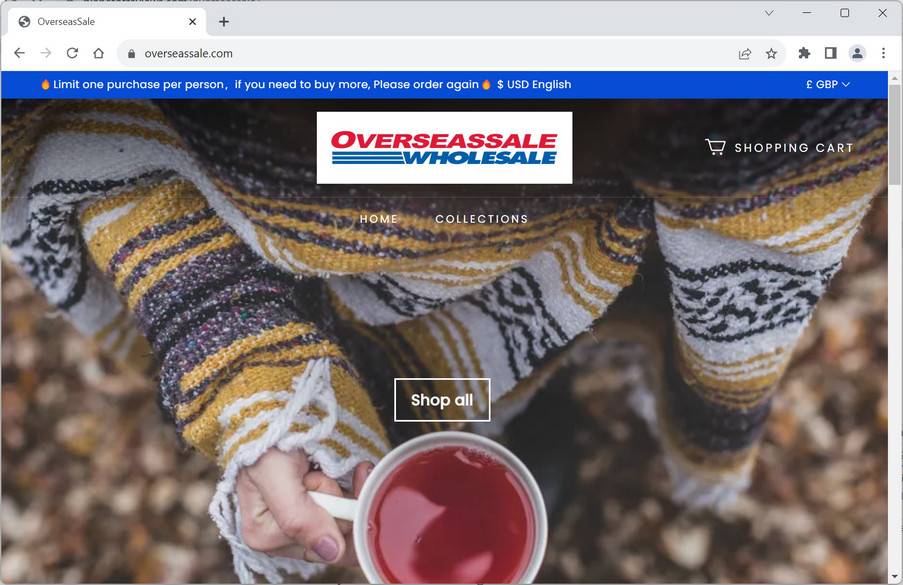
The site appears to have been created using a basic template, which suggests minimal effort has been put into its development. The site’s logo is strikingly similar to Costco’s emblem, displaying the word “Overseassale” in red letters and the word “WHOLESALE” beneath it. This imitation raises red flags for potential customers, as it seems to be an attempt to deceive users into thinking the site is affiliated with the well-established and trusted brand, Costco - Overseassale.com was recently created. The domain name was registered in May 2023. This is a common sign of a scam website that is created to deceive customers for a short period of time before disappearing.
- Overseassale.com is owned by a suspicious company: SAYHI INTERNATIONAL CO., the company behind Overseassale.com, is notorious for running many scam online stores and ripping off unsuspecting customers.
- Overseassale.com offers products at unrealistically low prices, which are too good to be true.
Certain products with steep discounts are concealed from users, making them inaccessible from the homepage or category pages. The site employs JavaScript code to obscure these discounted products from users accessing the site on a computer. As a result, mobile device users will see a product page, while computer users will encounter an empty page. Some of these hidden products include a Multifunctional Luxury Tool Chest, a Transformers 4-Wheel Remote Control Folding Mobility Scooter, and an Electronics Mystery Box. - A search for customer reviews of Overseassale.com yields no positive results, with some reviewers even claiming the site to be a scam.
The absence of positive feedback and the use of hidden, heavily discounted products as bait for customers serves as a warning sign for potential buyers. - Copied Content: Overseassale.com has stolen most of its content and product images from other legitimate online stores like Alibaba, Amazon, or Aliexpress. This shows that the website has no originality or credibility and is trying to deceive customers with fake products.
What should you do if you have shopped from Overseassale.com?
If you have already shopped from Overseassale.com, you might be wondering what you can do to get your money back or receive your order. Unfortunately, the chances of getting either are very slim. However, here are some steps you can take to minimize your losses and prevent further damage:
- Contact your bank or financial institution: If you have paid with your credit card or debit card, you should contact your bank or financial institution as soon as possible and request them to cancel the transaction and refund your money. You should also report the website as a fraudulent site and ask them to block any future charges from it.
- Change your passwords: If you have created an account on Strictlymot.com or used the same password for other online accounts, you should change your passwords immediately. You should also enable two-factor authentication for your accounts if possible. This will prevent hackers from accessing your accounts and stealing your personal information.
- Beware of phishing emails: You might receive emails from Strictlymot.com or other sources claiming to be related to your order or offering you discounts or refunds. These emails are likely to be phishing attempts that aim to trick you into clicking on malicious links or downloading attachments that can infect your device with malware or steal your information. You should delete these emails and do not open any links or attachments from them.
How to Spot scam shopping sites
Overseassale.com is one of many fake online stores that are proliferating on the internet. These stores use various methods to trick people into giving away their money and personal information, such as phishing emails, pop-up ads, fake coupons, fake reviews, etc. Therefore, it is important to be vigilant and cautious when shopping online, and to do some research before buying anything from an unfamiliar website. Some of the tips to avoid falling victim to online scams are:
- Check the Website’s URL and Domain Name: Scam websites often use domain names that are similar to well-known brands or include misspellings to deceive users. Always check the URL and domain name for any inconsistencies or errors, and be cautious of websites using domain extensions like .net or .xyz instead of .com.
- Examine the Website’s Design and Layout: Legitimate online stores typically invest in professional web design and user experience. Scam websites, on the other hand, may have poor design, low-quality images, or a layout that seems hastily put together. Be wary of sites that appear unprofessional or lack attention to detail.
- Look for Secure Connections: When shopping online, make sure the website uses a secure connection (https). The ‘s’ in ‘https’ stands for secure, indicating that your data is encrypted and protected. Avoid making purchases on websites that do not use secure connections.
- Evaluate the Website’s Contact Information: Scam websites often provide limited or fake contact information. Legitimate online stores typically have detailed contact information, including a physical address, phone number, and email address. Be cautious of sites with only a contact form or generic email address.
- Research Customer Reviews and Testimonials: Before making a purchase, search for customer reviews and testimonials to gauge the website’s reputation. Scam websites may have fake or no reviews at all, while legitimate sites usually have a mix of positive and negative feedback. Be cautious of sites with overwhelmingly positive reviews, as they may be fabricated.
- Assess the Website’s Return and Refund Policy: Legitimate online stores typically have clear and fair return and refund policies. Scam websites may have vague or non-existent policies, making it difficult for customers to return items or receive refunds. Always read the return and refund policy carefully before making a purchase.
- Beware of Unrealistic Deals and Discounts: If a deal seems too good to be true, it probably is. Scam websites often lure customers with heavily discounted or free products to obtain their personal information and credit card details. Be cautious of websites offering unbelievably low prices or products that are consistently out of stock.
- Verify Payment Methods: Reputable online stores typically offer multiple, secure payment options, such as credit cards, PayPal, and other digital wallets. Scam websites may have limited or suspicious payment methods, like direct bank transfers or cryptocurrency, which can be difficult to trace and recover.
- Check the Website’s Privacy Policy: A legitimate online store should have a clear and comprehensive privacy policy, explaining how they collect, use, and protect your personal information. Scam websites may have vague or non-existent privacy policies, putting your data at risk.
Is Your Device Infected? Run a Free Malware Scan
Slow performance, constant pop-ups, or strange behavior? These are classic signs of a malware infection. The fastest way to find out is to scan your device with Malwarebytes Free — one of the most trusted malware removal tools available.
The free version detects and removes the most common threats, including:
- Adware — the cause of those annoying pop-ups
- Browser hijackers — unwanted redirects and changed homepages
- Trojans and spyware — hidden programs stealing your data
- Potentially unwanted programs (PUPs) — software you never asked for
👉 Select your device below — Windows, Mac, or Android — then follow the simple steps to download Malwarebytes, scan your system, and remove any threats it finds. The scan usually takes 5 to 20 minutes.
Run a Malware Scan with Malwarebytes for Windows
Malwarebytes is one of the most popular and trusted anti-malware tools for Windows — and it’s completely free for removing infections. It catches threats that many antivirus programs miss, including adware, browser hijackers, and trojans. Follow the steps below to scan and clean your PC in just a few minutes.
Download Malwarebytes
Click the button below to download the latest version of Malwarebytes for Windows from the official source. The free version is all you need — it will scan your computer and remove adware, browser hijackers, and other malicious software at no cost.
Download MalwarebytesOfficial installer for Windows 11 and 10. Your download starts right away.Want real-time protection? See Malwarebytes Premium Malwarebytes Free for WindowsScans and removes malware at no cost
-
Install Malwarebytes
When the download finishes, open your Downloads folder and double-click the MBSetup file. If Windows shows a User Account Control pop-up, click “Yes” to allow the installation.

Follow the On-Screen Prompts to Install Malwarebytes
The setup wizard will walk you through a few quick screens:
-
Choose where you’re installing the program — “Personal Computer” or “Work Computer” — then click Next.

-
Malwarebytes will now install on your device. This usually takes under a minute.

-
When installation is complete, the “Welcome to Malwarebytes” screen will open automatically.

-
On the final screen, click Open Malwarebytes to launch the program.

-
Enable “Scan for Rootkits”
Before scanning, turn on rootkit detection so Malwarebytes can find even the most hidden threats. Click the Settings gear icon on the left side of the screen.

In the settings menu, find “Scan for rootkits” and click the toggle so it turns blue.

Done? Click “Dashboard” in the left pane to return to the main screen.
Start the Scan
Click the blue Scan button. Malwarebytes will automatically update its virus database and start checking your computer for malware.

-
Wait for the Scan to Finish
The scan checks your entire system for browser hijackers and other malicious programs, so it can take 5 to 20 minutes depending on your computer. Feel free to do something else — just check back occasionally to see the progress.

-
Quarantine the Detected Threats
When the scan is done, you’ll see a list of everything Malwarebytes found — malware, adware, and potentially unwanted programs. Click the “Quarantine” button to remove all of them at once.

Malwarebytes will now remove the malicious files and registry entries and move them safely into quarantine.

-
Restart Your Computer
Some threats can only be fully removed after a reboot. If Malwarebytes asks you to restart, click Yes. Once you’re logged back in, Malwarebytes has finished removing the threats it found.

That’s it — your Windows PC is now clean of trojans, adware, and other malware, and should be back to running smoothly.
If you are still having problems with your computer after completing these instructions, then please follow one of the steps:
- Run a computer scan with ESET Online Scanner
- Ask for help in our Windows Malware Removal Help & Support forum.
Run a Malware Scan with Malwarebytes for Mac
Malwarebytes for Mac is a free on-demand scanner that removes the malware other security software tends to miss — adware, browser hijackers, and unwanted programs included. Cleaning an infected Mac with Malwarebytes has always been completely free, and it’s our go-to recommendation. Follow the steps below to scan and clean your Mac in just a few minutes.
-
Download Malwarebytes for Mac
Click the button below to download the latest version of Malwarebytes for Mac.
Download MalwarebytesOfficial installer for macOS. Your download starts right away.Want real-time protection? See Malwarebytes PremiumMalwarebytes Free for MacScans and removes malware at no cost -
Open the Malwarebytes setup file
When the download finishes, open your Downloads folder and double-click the setup file to begin the installation.

-
Follow the On-Screen Prompts to Install Malwarebytes
The Malwarebytes for Mac Installer will guide you through a few quick screens. Click “Continue” and keep following the prompts until the installation completes.



When the installation is complete, Malwarebytes opens to the Welcome to Malwarebytes screen. Click “Get started“.
-
Select “Personal Computer” or “Work Computer”
Malwarebytes will ask what type of computer you’re installing it on. Click either Personal Computer or Work Computer, whichever applies.

-
Start the Scan
Click the “Scan” button. Malwarebytes will automatically update its detection database and begin checking your Mac for malware.

-
Wait for the Scan to Finish
Malwarebytes will scan your Mac for adware, browser hijackers, and other malicious programs. This can take a few minutes, so feel free to do something else — just check back occasionally to see the progress.

-
Quarantine the Detected Threats
When the scan is done, you’ll see a list of everything Malwarebytes found. Click the “Quarantine” button to remove all the threats at once.

-
Restart Your Mac
Malwarebytes will now remove all the malicious files it found. Some threats can only be fully removed after a reboot — if Malwarebytes asks you to restart, allow it. Once you’re logged back in, your Mac is clean.

That’s it — your Mac is now free of adware, rogue browser extensions, and other potentially harmful software.
If you are still experiencing problems while trying to remove a malicious program from your computer, please ask for help in our Mac Malware Removal Help & Support forum.
Run a Malware Scan with Malwarebytes for Android
Malwarebytes for Android automatically detects and removes dangerous threats like malware and ransomware so you don’t have to worry about your most-used device being compromised. Aggressive detection of adware and potentially unwanted programs keeps your Android phone or tablet running smooth.
-
Download Malwarebytes for Android.
You can download Malwarebytes for Android by clicking the link below.
Get Malwarebytes for AndroidOpens Google Play in a new tab.Want real-time protection? See Malwarebytes Premium for AndroidMalwarebytes for AndroidScans your phone and removes malware at no cost -
Install Malwarebytes for Android on your phone.
In the Google Play Store, tap “Install” to install Malwarebytes for Android on your device.

When the installation process has finished, tap “Open” to begin using Malwarebytes for Android. You can also open Malwarebytes by tapping on its icon in your phone menu or home screen.

-
Follow the on-screen prompts to complete the setup process
When Malwarebytes will open, you will see the Malwarebytes Setup Wizard which will guide you through a series of permissions and other setup options.
This is the first of two screens that explain the difference between the Premium and Free versions. Swipe this screen to continue.
Tap on “Got it” to proceed to the next step.
Malwarebytes for Android will now ask for a set of permissions that are required to scan your device and protect it from malware. Tap on “Give permission” to continue.
Tap on “Allow” to permit Malwarebytes to access the files on your phone.
-
Update database and run a scan with Malwarebytes for Android
You will now be prompted to update the Malwarebytes database and run a full system scan.

Click on “Update database” to update the Malwarebytes for Android definitions to the latest version, then click on “Run full scan” to perform a system scan.

-
Wait for the Malwarebytes scan to complete.
Malwarebytes will now start scanning your phone for adware and other malicious apps. This process can take a few minutes, so we suggest you do something else and periodically check on the status of the scan to see when it is finished.

-
Click on “Remove Selected”.
When the scan has been completed, you will be presented with a screen showing the malware infections that Malwarebytes for Android has detected. To remove the malicious apps that Malwarebytes has found, tap on the “Remove Selected” button.

-
Restart your phone.
Malwarebytes for Android will now remove all the malicious apps that it has found. To complete the malware removal process, Malwarebytes may ask you to restart your device.
That’s it — your Android phone is now clean — no more malicious apps, adware, or browser redirects.
If you are still having problems with your phone after completing these instructions, then please follow one of the steps:
- Restore your phone to factory settings by going to Settings > General management > Reset > Factory data reset.
- Ask for help in our Mobile Malware Removal Help & Support forum.
Stay Protected: Block Ads and Malicious Sites
Now that your device is clean, keep it that way. Most infections start with a malicious ad or a fake download button — so blocking them at the source is your best defense.
We recommend AdGuard, which blocks malicious ads, phishing pages, and dangerous redirects before they can reach you.
👉 Download AdGuard and browse safely
Overseassale.com Final Thoughts
In conclusion, Overseassale.com is a scam website that you should avoid at all costs. It has many red flags that indicate that it is not trustworthy or reliable. Do not waste your time or money on this website, as you will likely end up disappointed or scammed.

Reviews & discussion
0 commentsShare a firsthand experience, or ask a question.
Community reviews
overseassale.com
Moderated reader experiences, not an editorial verdict.
Start the conversation
Have a question or something useful to share? Add the first comment.