Gunshers Ltd PayPal Invoice Warning: Tech Support Refund Scam
Written by: Thomas Orsolya
Published on:
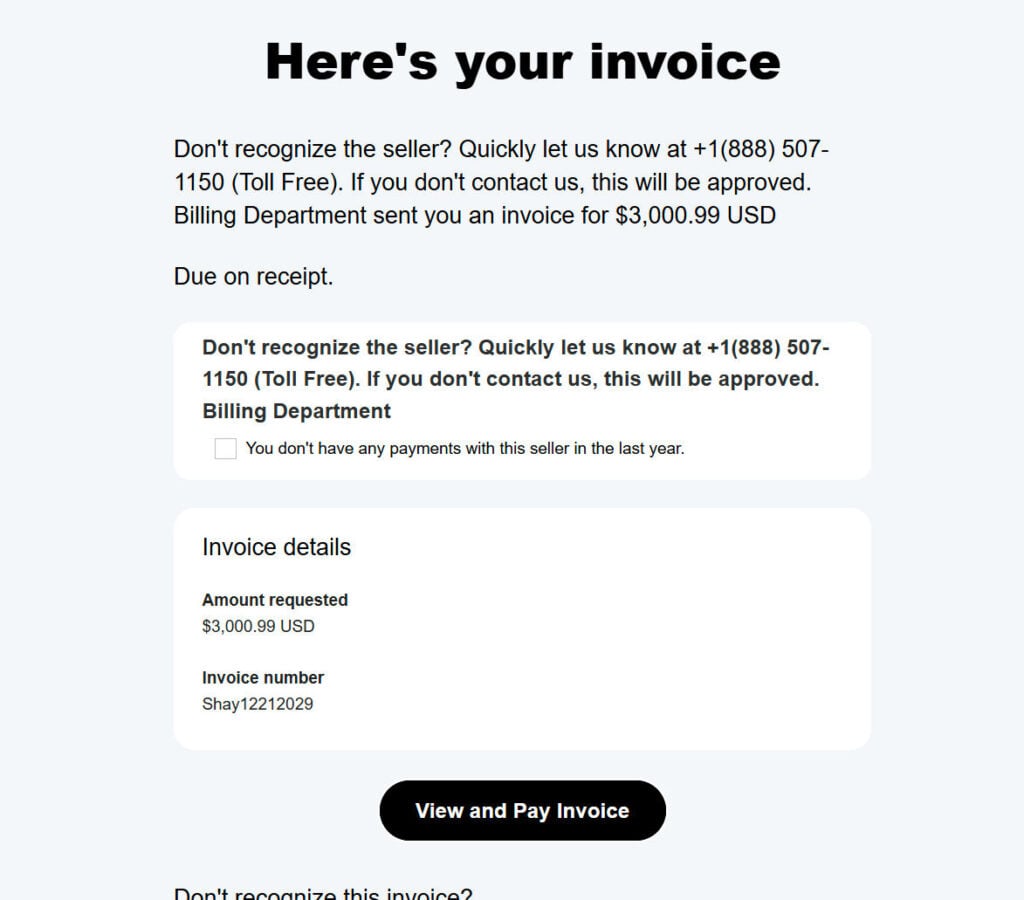
A growing number of people are receiving alarming emails that claim a payment of hundreds of dollars was just made through their PayPal account to a company named Gunshers Ltd. The message looks official at first glance. There is a transaction ID, a seller name, and even a PayPal-style layout. It urges you to call a phone number if you did not authorize the payment. This is the Gunshers Ltd PayPal Email Scam, a classic tech support and refund hustle wrapped in a fake invoice. If you have seen one of these messages, or if a friend or family member has, keep reading. Understanding the trick is the best way to beat it.
Scam Overview
The Gunshers Ltd PayPal Email Scam is a multi-stage social engineering scheme that exploits fear and urgency. The email usually arrives with a subject line that sounds like a routine confirmation. Examples include “Your PayPal payment has been processed,” “Receipt for your purchase from Gunshers LTD,” or “Invoice for 9mm Tactical Semi-Automatic Pistol,” sometimes with a shocking item description to push you into action. The scammers want one thing. They want you to react before you think.
The message is designed to imitate PayPal’s branding. It often includes the PayPal logo at the top, a transaction date, and a bogus transaction ID. It lists Gunshers Ltd as the seller, shows a dollar amount that is large enough to alarm you, and includes a “support helpline” phone number in bold blue text. Some versions link to a counterfeit “Resolution Center” page that is hosted on a hacked website or a free web host. Others skip web links and push you to call immediately. The goal is always the same. They need you to step out of the official PayPal environment and into their controlled channel, where they can manipulate you.
This is not a billing error inside PayPal. It is not a real merchant charge. It is a fake alert with nothing to do with PayPal. The criminals pick the name “Gunshers Ltd” or similar because it sounds plausible, yet unfamiliar. They also include an alarming product name, for example a firearm, to increase the sense of danger and to trigger instant panic. If the email lists a firearm, victims may worry that their identity was used to buy an illegal item. Panic short circuits critical thinking. When people are panicked, they call the number on the page.
Once you call, the scam leaps from email to voice. The call is not with PayPal, and not with any legitimate retailer. It connects to a boiler room that runs fake tech support and refund cons. The agent will introduce themselves as a PayPal support specialist or a “fraud prevention officer,” often with an American name and a scripted greeting. They will quickly ask for your full name, the email address on the account, and sometimes your phone number, which they already have from caller ID. This gives them just enough information to sound credible in the next step.
The representative will confirm the bogus charge and pretend to investigate. They may “pull up your account” on their system, which is nothing more than a web browser on a fake dashboard. They might ask you to verify the last four digits of your card or the bank name you use with PayPal. You are not seeing any real PayPal back end, and they are not seeing your account. They are improvising while they steer you to the next phase, which is remote control.
Most versions of the Gunshers Ltd PayPal Email Scam pivot into a remote access session. The agent will claim they need to help you cancel the transaction, issue a refund, or remove a hacker from your device. They will instruct you to install a remote desktop program such as AnyDesk, TeamViewer, Zoho Assist, Supremo, or QuickSupport. Sometimes they claim it is an official PayPal tool, or they say it is a “secure verification app.” The installation is quick. The software produces a session code or a PIN, which you read to the agent, and the agent gains live control of your computer or phone.
From this point, the fraud flowers into several branches. One branch is the classic refund scam. The agent will open your online banking page while they have control. They might dim your screen or place a fake overlay so you cannot see what they are doing. They will secretly move money between your accounts or edit the HTML of your bank page to show a fake temporary credit, for example a refund of 942 dollars. Then they will claim a mistake has happened. Perhaps you were supposed to get a 94 dollar refund, but “due to a system error” you supposedly received 9,400 dollars. They will plead for your help to fix this mistake. The solution, they say, is for you to buy gift cards for the difference and read them the codes, or to initiate a wire transfer, or to send cryptocurrency. Once you pay, the criminals vanish.
Another branch is the data theft branch. The agent will rummage through your files, your browser, your saved passwords, and your email. Remote access lets them install keyloggers and backdoors. They may also demand photos of your ID under the pretext of verification. The longer you stay connected, the more exposure you have. They might call you repeatedly, push you to keep your device on, and pressure you not to talk to your bank or PayPal directly. This is deliberate. Isolation helps them steal more.
A third branch is the account takeover branch. If you sign in to PayPal or to your email while the agent views your screen, they can capture your credentials. If they trick you into reading a one-time code, they can bypass two-factor authentication. With control of your email, they can reset passwords on financial accounts. With control of PayPal, they can send money or set up new funding sources. Every branch ends in theft.
The Gunshers Ltd PayPal Email Scam is part of a wider family of “invoice scams,” “billing scams,” and “vishing” scams. The shared pattern is a fake notification that prompts a phone call. Once the victim calls, the criminals shift into a tech support script. They invoke hackers, infections, compromised devices, and temporary refunds to justify remote control and emergency payments. Many victims are honest, busy, and not steeped in cybersecurity. A realistic email and a polite agent can be persuasive enough to make anyone act rashly.
Finally, it is worth repeating the central point. The alert is fake. The phone number in the email does not belong to PayPal. If you call, you reach a scam call center that will try to get remote access to your device and your money. Nothing in the email represents a real payment unless you independently log in to PayPal through the official website and see a transaction listed there. If you do not see it in your official account, it did not happen.
How the Scam Works
The Gunshers Ltd PayPal Email Scam follows a predictable flow. Seeing each step in order helps you recognize it faster and stop it before it causes harm.
Step 1: The baited email lands in your inbox
The scammers harvest email addresses from data breaches, marketing lists, and scraped websites. They send millions of messages at once. The email is formatted to mimic a PayPal invoice or receipt. The layout includes a logo, a transaction date, a fake receipt number, and a description such as “9mm Tactical Semi-Automatic Pistol, Qty 1, Amount $942.00.” The alarming amount and the controversial product choice are intentional. Fear creates urgency. Urgency overrides skepticism.
The message includes prominent instructions. It says that if you did not authorize the payment, you should call a “support helpline” immediately. The phone number is the heart of the trap. It is the only contact method that the scammers control fully. Links in the email may be disabled or replaced with a generic reference to the account history. This keeps you in the phone channel where they can manipulate you without the guardrails of a secure website.
Step 2: You call the number for help
When you dial the number, you reach a fraud call center. These centers operate in shifts, and their agents follow scripts. The agent answers with a confident greeting. They thank you for calling PayPal support, ask for your name and the transaction ID from the email, and sound sympathetic. This opening builds rapport quickly. They count on your relief at finding a “person” to talk to.
The agent will often place you on a brief hold while they “pull up your account.” In reality, they are not looking at your PayPal account. They are preparing the next lines of the script. After the fake hold, they return with a serious tone. They confirm the fraudulent purchase and tell you that your account shows signs of compromise. They warn that hackers are trying to link new devices and that immediate action is needed. Your adrenaline spikes again. You are told that you must follow their instructions exactly.
Step 3: The agent demands a “secure verification” via remote access
The next instruction is to install a remote access application. The agent calls it a secure verification tool or a PayPal helper app. They guide you to a download site and have you install AnyDesk, TeamViewer, or another remote desktop product. These tools are legitimate when used with consent. Many companies use them for real technical support. Scammers abuse the same tools.
Once installed, the program displays a session ID or a one time code. You repeat the code to the agent. The agent connects and gains control of your screen and keyboard. They can now move the mouse, open browser tabs, type searches, and view any window you open. They can also blank your display with a black screen or a “permission” prompt. If you see a black screen or a pause for “validation,” they are hiding activity from you.
Step 4: They create a narrative around refunds or security cleanup
With control of your device, the agent begins the performance. There are two common narratives.
The first is the refund narrative. The agent says they can refund the Gunshers Ltd transaction, but the refund must be processed through a secure portal. They ask you to open your bank website in a browser and sign in. While you are logged in, they secretly move money between your accounts or edit the web page to show a temporary refund amount. Then they pretend a mistake has occurred. You were supposed to receive 942 dollars. Now your balance shows a 9,420 dollar credit. They accept responsibility for the error, but beg you not to get them fired. They will ask you to return the difference through a method they choose, which is always irreversible. This includes gift cards, wire transfers, or cryptocurrency. Gift cards are a favorite because they are fast and anonymous. You buy cards at a store, read the numbers over the phone, and the money is gone.
The second narrative is the cleanup narrative. The agent claims your device is infected or that hackers from “some foreign country” are operating on your network. They show fabricated lists of IP addresses, system warnings, or fake command screens full of red text. These visuals are staged to look technical and urgent. The agent offers to clean your device, secure your network, and block the hackers. The price for this emergency service might be a few hundred dollars, or they might pretend it is free if you cooperate with their refund process. The real goal is not a service fee. It is access to your accounts and data.
Step 5: They isolate you from real support
At this point, many people feel uneasy. The agent anticipates this and uses isolation tactics. They instruct you not to hang up. They warn you not to call your bank or PayPal directly because your line “must remain open for security verification.” They may ask you to keep your device on while you go to the store to buy gift cards. If a cashier questions the purchase, they coach you to say the cards are for a personal gift. The agent remains on the line for as long as it takes to extract money.
If you try to verify anything, they react with pressure or guilt. They say the system is locked. They claim the bank will freeze your funds if you contact them. They insist that you must finish the steps now. This high pressure behavior is a hallmark of scams. Real support agents never stop you from calling your bank, and they never ask you to buy gift cards for security reasons or to correct refunds.
Step 6: The money grab and the exit
Once you pay, the criminals move fast. If you provide gift card codes, they redeem them immediately. If you send a wire, they route it through a chain of accounts to make it hard to reverse. If you transfer cryptocurrency, it is gone. If you gave them passwords, they log in and harvest more. The remote access software gives them continued entry until you remove it. Some scammers install startup services or browser extensions that reactivate their access later. When they have extracted everything they can, they end the call politely or suddenly, and the number often goes dark soon after.
Step 7: Aftermath and further exploitation
The harm does not always end with one call. Your phone number and email are now marked as responsive. They may sell your information to other gangs. You might receive follow-up calls about “case updates,” fake refunds of the money you lost, or offers to help you recover funds. These are secondary scams. They exploit the same fear and hope, and they try to draw you back into remote sessions. If you disclosed IDs or financial information, you may also face identity theft attempts. That is why a rapid response is essential.
How to Recognize the Gunshers Ltd PayPal Email Scam Before You Engage
Red flags inside the email
Unexpected invoice. You did not buy the listed item. Legitimate invoices from PayPal show up in your account dashboard. If it is not in your PayPal Activity tab, treat the email as bogus.
Urgent phone number. The message urges you to call a phone number, often displayed multiple times. PayPal instructs customers to log in to the account and use the Resolution Center, not to call a random hotline printed in an email.
Odd merchant name or item. “Gunshers Ltd” is not a familiar brand. Scammers pick names that are obscure or slightly misspelled. They also choose controversial items like firearms to produce fear.
Generic greeting. Many versions say “Hello, customer,” or they use the first part of your email address. PayPal usually uses the first and last name you registered.
Spelling and formatting quirks. The layout might look convincing at a glance, but there are subtle inconsistencies, such as broken grammar, inconsistent capitalization, and odd spacing.
No matching transaction in your account. Always the decisive test. Log in directly by typing paypal.com in your browser. If you do not see the transaction in your Activity, the email is fake.
Red flags during the call
Claims of device infection or hackers. PayPal agents do not diagnose malware.
Requests to install AnyDesk, TeamViewer, or similar. No financial institution requires remote control of your device to cancel a payment or issue a refund.
Pressure not to hang up. Real support encourages you to contact your bank if you suspect fraud.
Gift card requests. No legitimate company will ask you to pay with gift cards for refunds, security services, or identity verification.
Warnings that your line must remain open. This is a tactic to prevent you from verifying the story.
Story of a refund error that you must fix. Real refunds are processed through your PayPal account. If a mistake ever happened, it would be corrected internally and would never require you to buy gift cards or send wires.
What To Do If You Receive the Email But Have Not Called
Do not call the number. The email is the trap. Delete it.
Do not click links or download attachments. Some variants include links to phishing pages or malware.
Log in to PayPal directly. Type paypal.com in your browser or use the mobile app. Check your Activity tab. If you do not see the transaction, you are safe.
Report the email to PayPal. Forward it to spoof@paypal.com, then delete it from your inbox and trash.
Consider tightening your account security. Enable two-factor authentication in PayPal, use strong unique passwords, and consider a password manager.
What To Do If You Answered The Call or Installed Remote Access
If you engaged with the scammers, act quickly. Fast, calm action limits damage.
Disconnect your device from the internet. Turn off Wi-Fi and unplug the Ethernet cable. Power off your device if necessary. This immediately cuts the scammer’s live control.
Uninstall any remote access software. Remove AnyDesk, TeamViewer, Zoho Assist, or whatever you installed. On Windows, check Apps and Features. On macOS, drag the app to Trash and remove helper services. On mobile, uninstall the app in Settings.
Run a reputable antivirus or anti-malware scan. Use trusted tools to check for leftover remote agents, keyloggers, or backdoors. Update your operating system and all security software.
Change passwords from a clean device. Use a different computer or phone that the scammer never touched. Change your email, PayPal, bank, and any other passwords you used while connected. Enable two-factor authentication wherever possible.
Contact your bank and PayPal directly. Explain that you were targeted by a tech support refund scam. Ask them to monitor for unauthorized transactions, to reverse any transfers if possible, and to place extra verification on your accounts.
Freeze or lock credit where appropriate. If you provided sensitive information, consider placing a credit freeze or fraud alert with your credit bureaus.
Watch for follow-up contacts. Treat any calls or emails about refunds or recovery services as scams. The same criminals often try again.
What To Do If You Have Fallen Victim To This Scam
If you already sent money or exposed information, follow these steps in order. Move through them calmly but quickly.
Stop all contact with the scammers. Hang up. Do not reply to emails or texts. Block the numbers and addresses that contacted you. Continued conversation only gives them more opportunities.
Disconnect and secure your device. If they had remote access, disconnect from the internet immediately. Uninstall AnyDesk, TeamViewer, or any other remote tool you installed at their request. Restart in Safe Mode if you can, then run a full scan with trusted security software. Update your operating system to the latest version.
Call your bank and card issuer using the number on the back of your card. Tell them you were scammed and request an immediate freeze or hold on your accounts if suspicious transactions appear. Ask them to review recent activity for fraudulent wires, Zelle transfers, internet transfers, or debit card charges. If you sent a wire, ask the bank to submit a recall request. If you sent money via Zelle or another faster payment, report it as fraud.
Contact PayPal through the official app or website only. Go to the Resolution Center and report unauthorized activity. If the scammers initiated any payments while they controlled your device, open disputes on each transaction.
If you paid with gift cards, contact the issuer now. Call the gift card company’s fraud department and request a hold on the card numbers. Provide the purchase receipts and card codes. Results vary, but speed improves your chances. Keep the physical cards and receipts.
If you transferred cryptocurrency, contact the exchange. If you sent crypto from an exchange account, open a fraud ticket with the exchange immediately. Ask them to flag the receiving address and freeze funds if they have not yet been withdrawn.
Report the crime to the authorities.
File a report with your local police. A case number helps with bank and card disputes.
In the United States, report at reportfraud.ftc.gov.
Report to the Internet Crime Complaint Center at ic3.gov.
If you are outside the United States, report to your national cybercrime center or consumer protection agency.
Change all relevant passwords from a clean device. Start with email, since email can reset most other accounts. Then change PayPal, banking, cloud storage, shopping accounts, and any account you accessed while on the call. Use unique passwords and enable two-factor authentication.
Check for unauthorized logins and account rules. In your email and PayPal settings, look for unfamiliar forwarding rules, recovery emails, and linked devices. Remove anything you do not recognize.
Place a credit freeze or fraud alert. If you sent photos of your driver’s license or provided your Social Security number, place a credit freeze with the major bureaus. This blocks new credit lines from being opened in your name.
Document everything. Keep copies of the email, screenshots of the fake invoice, bank statements, wire transfer receipts, gift card receipts, and any chat or call logs. Documentation strengthens your dispute cases.
Tell your family and employer if relevant. If the scammers accessed work accounts or devices, notify your IT team. If they collected contacts, warn friends and family that they may receive suspicious messages pretending to be you.
Review your router and network devices. Reset your router to factory settings, update its firmware, and set a strong Wi-Fi password. Remove any unfamiliar port forwarding rules or DNS changes.
Monitor your accounts for at least 12 months. Set up alerts for large transactions and new payees. Consider a credit monitoring service if your identity information was exposed.
Do not pay anyone who offers “fund recovery.” Recovery scams are common after tech support and refund frauds. No legitimate company can guarantee to get your money back for a fee. If someone promises quick refunds or claims to be from law enforcement asking for more money, end the conversation.
Is Your Device Infected? Run a Free Malware Scan
Slow performance, constant pop-ups, or strange behavior? These are classic signs of a malware infection. The fastest way to find out is to scan your device with Malwarebytes Anti-Malware Free — one of the most trusted malware removal tools available.
The free version detects and removes the most common threats, including:
Adware — the cause of those annoying pop-ups
Browser hijackers — unwanted redirects and changed homepages
Trojans and spyware — hidden programs stealing your data
Potentially unwanted programs (PUPs) — software you never asked for
👉 Select your device below — Windows, Mac, or Android — then follow the simple steps to download Malwarebytes, scan your system, and remove any threats it finds. The whole process takes about 5 minutes.
Malwarebytes for WindowsMalwarebytes for MacMalwarebytes for Android
Run a Malware Scan with Malwarebytes for Windows
Malwarebytes is one of the most popular and trusted anti-malware tools for Windows — and it’s completely free for removing infections. It catches threats that many antivirus programs miss, including adware, browser hijackers, and trojans. Follow the steps below to scan and clean your PC in just a few minutes.
Download Malwarebytes
Click the button below to download the latest version of Malwarebytes for Windows from the official source. The free version is all you need — it will scan your computer and remove adware, browser hijackers, and other malicious software at no cost.
(The link opens in a new page where your download will start)
Install Malwarebytes
When the download finishes, open your Downloads folder and double-click the MBSetup file. If Windows shows a User Account Control pop-up, click “Yes” to allow the installation.
Follow the On-Screen Prompts to Install Malwarebytes
The setup wizard will walk you through a few quick screens:
Choose where you’re installing the program — “Personal Computer” or “Work Computer” — then click Next.
Malwarebytes will now install on your device. This usually takes under a minute.
When installation is complete, the “Welcome to Malwarebytes” screen will open automatically.
On the final screen, click Open Malwarebytes to launch the program.
Enable “Scan for Rootkits”
Before scanning, turn on rootkit detection so Malwarebytes can find even the most hidden threats. Click the Settings gear icon on the left side of the screen.
In the settings menu, find “Scan for rootkits” and click the toggle so it turns blue.
Done? Click “Dashboard” in the left pane to return to the main screen.
Start the Scan
Click the blue Scan button. Malwarebytes will automatically update its virus database and start checking your computer for malware.
Wait for the Scan to Finish
The scan checks your entire system for browser hijackers and other malicious programs, so it can take several minutes. Feel free to do something else — just check back occasionally to see the progress.
Quarantine the Detected Threats
When the scan is done, you’ll see a list of everything Malwarebytes found — malware, adware, and potentially unwanted programs. Click the “Quarantine” button to remove all of them at once.
Malwarebytes will now remove the malicious files and registry entries and move them safely into quarantine.
Restart Your Computer
Some threats can only be fully removed after a reboot. If Malwarebytes asks you to restart, click Yes. Once you’re logged back in, your PC is clean and you can continue with the next steps in this guide.
When the scan finishes, click Quarantine to remove everything Malwarebytes found. That’s it — your Windows PC is now clean of trojans, adware, and other malware, and should be back to running smoothly.
If your current antivirus allowed this malicious program on your computer, you may want to consider purchasing Malwarebytes Premium to protect against these types of threats in the future. If you are still having problems with your computer after completing these instructions, then please follow one of the steps:
Malwarebytes for Mac is a free on-demand scanner that removes the malware other security software tends to miss — adware, browser hijackers, and unwanted programs included. Cleaning an infected Mac with Malwarebytes has always been completely free, and it’s our go-to recommendation. Follow the steps below to scan and clean your Mac in just a few minutes.
Download Malwarebytes for Mac
Click the button below to download the latest version of Malwarebytes for Mac.
When the download finishes, open your Downloads folder and double-click the setup file to begin the installation.
Follow the On-Screen Prompts to Install Malwarebytes
The Malwarebytes for Mac Installer will guide you through a few quick screens. Click “Continue” and keep following the prompts until the installation completes.
When the installation is complete, Malwarebytes opens to the Welcome to Malwarebytes screen. Click “Get started“.
Select “Personal Computer” or “Work Computer”
Malwarebytes will ask what type of computer you’re installing it on. Click either Personal Computer or Work Computer, whichever applies.
Start the Scan
Click the “Scan” button. Malwarebytes will automatically update its detection database and begin checking your Mac for malware.
Wait for the Scan to Finish
Malwarebytes will scan your Mac for adware, browser hijackers, and other malicious programs. This can take a few minutes, so feel free to do something else — just check back occasionally to see the progress.
Quarantine the Detected Threats
When the scan is done, you’ll see a list of everything Malwarebytes found. Click the “Quarantine” button to remove all the threats at once.
Restart Your Mac
Malwarebytes will now remove all the malicious files it found. Some threats can only be fully removed after a reboot — if Malwarebytes asks you to restart, allow it. Once you’re logged back in, your Mac is clean.
Once the scan is done, remove every threat it detected. Your Mac is now free of adware, rogue browser extensions, and other potentially harmful software.
If your current antivirus allowed a malicious program on your computer, you might want to consider purchasing the full-featured version of Malwarebytes Anti-Malware to protect against these types of threats in the future. If you are still experiencing problems while trying to remove a malicious program from your computer, please ask for help in our Mac Malware Removal Help & Support forum.
Run a Malware Scan with Malwarebytes for Android
Malwarebytes for Android automatically detects and removes dangerous threats like malware and ransomware so you don’t have to worry about your most-used device being compromised. Aggressive detection of adware and potentially unwanted programs keeps your Android phone or tablet running smooth.
Download Malwarebytes for Android.
You can download Malwarebytes for Android by clicking the link below.
In the Google Play Store, tap “Install” to install Malwarebytes for Android on your device.
When the installation process has finished, tap “Open” to begin using Malwarebytes for Android. You can also open Malwarebytes by tapping on its icon in your phone menu or home screen.
Follow the on-screen prompts to complete the setup process
When Malwarebytes will open, you will see the Malwarebytes Setup Wizard which will guide you through a series of permissions and other setup options. This is the first of two screens that explain the difference between the Premium and Free versions. Swipe this screen to continue. Tap on “Got it” to proceed to the next step. Malwarebytes for Android will now ask for a set of permissions that are required to scan your device and protect it from malware. Tap on “Give permission” to continue. Tap on “Allow” to permit Malwarebytes to access the files on your phone.
Update database and run a scan with Malwarebytes for Android
You will now be prompted to update the Malwarebytes database and run a full system scan.
Click on “Update database” to update the Malwarebytes for Android definitions to the latest version, then click on “Run full scan” to perform a system scan.
Wait for the Malwarebytes scan to complete.
Malwarebytes will now start scanning your phone for adware and other malicious apps. This process can take a few minutes, so we suggest you do something else and periodically check on the status of the scan to see when it is finished.
Click on “Remove Selected”.
When the scan has been completed, you will be presented with a screen showing the malware infections that Malwarebytes for Android has detected. To remove the malicious apps that Malwarebytes has found, tap on the “Remove Selected” button.
Restart your phone.
Malwarebytes for Android will now remove all the malicious apps that it has found. To complete the malware removal process, Malwarebytes may ask you to restart your device.
After the scan, tap Remove Selected to delete all detected threats. Your Android phone is now clean — no more malicious apps, adware, or browser redirects.
If your current antivirus allowed a malicious app on your phone, you may want to consider purchasing the full-featured version of Malwarebytes to protect against these types of threats in the future. If you are still having problems with your phone after completing these instructions, then please follow one of the steps:
Restore your phone to factory settings by going to Settings > General management > Reset > Factory data reset.
Now that your device is clean, keep it that way. Most infections start with a malicious ad or a fake download button — so blocking them at the source is your best defense.
We recommend AdGuard, which blocks malicious ads, phishing pages, and dangerous redirects before they can reach you.
Understanding the psychology behind the Gunshers Ltd PayPal Email Scam can help you resist it.
Authority. The email imitates PayPal, a trusted brand. Authority by association suppresses skepticism.
Urgency. A large payment for a shocking item creates a sense of immediate danger. Urgency pushes people to act fast.
Scarcity of time. Phrases like “You have 24 hours to dispute” imply a ticking clock. Scarcity sharpens panic.
Reciprocity and guilt. In the refund narrative, the agent pretends to make a mistake in your favor, then asks you to return the difference. The script uses guilt to override logic.
Consistency. Once you begin cooperating, you feel pressure to remain consistent with your earlier decision to trust the agent.
Isolation. The agent keeps you on the phone, blocking outside advice. Isolation increases compliance.
These tactics are not random. They come from well-worn social engineering playbooks. Recognizing them makes them less effective.
Variations You Might See
The core of the scam is stable, yet the packaging changes.
Different merchant names. If Gunshers Ltd becomes widely recognized as a scam label, the attackers will switch to new names. Watch for slight misspellings, for example “Gunshers LTD,” “Gunsher’s Limited,” or unrelated companies.
Different dollar amounts. The amount might be 389 dollars, 742 dollars, or over 1,000 dollars. The number is chosen to provoke urgency.
Different items. Firearms, electronics, and subscription renewals are common. Some emails say “Norton Auto Renewal” or “Geek Squad Protection Plan.”
Different contact methods. Some versions push a phone number. Others embed a “Cancel Now” button that leads to a phishing page where you enter your PayPal credentials.
SMS and voice messages. You might receive a text with similar wording or a voicemail that urges you to call back. The substance is the same.
Regional formatting. Spelling, currency, and date formats might match your country to appear authentic.
No matter the variation, requests for remote access and gift cards are the clearest signs of a scam.
How To Protect Yourself Long Term
Build a verification habit
When you receive any financial alert, stop and verify using a trusted path. Instead of using phone numbers or links in an email, open your browser, type the company’s official address, and sign in. Check your account directly. If you need to call, use the phone number on the official site or on your card. This habit neutralizes many scams at once.
Harden your accounts
Use a password manager. Unique, strong passwords reduce the blast radius if one site is breached.
Turn on two factor authentication. Prefer an authenticator app over SMS when available.
Set up account alerts. PayPal and banks let you enable notifications for new devices, large transactions, and login attempts.
Review linked apps and devices periodically. Remove any that you no longer use.
Harden your devices
Keep systems updated. Apply operating system and browser updates promptly.
Install reputable security software. Enable real time protection and web filtering.
Limit admin access. Use a standard user account for daily tasks.
Back up your data. Offline or cloud backups help you recover if a scammer deletes files or installs malware.
Share knowledge
Talk openly with family members, especially those who are less tech comfortable. Share the warning signs, and agree on a rule. No one installs software or sends money based on an unsolicited call or email. If anything seems off, hang up and verify.
Frequently Asked Questions
Is the Gunshers Ltd PayPal email ever real?
No. The invoice or receipt email is a fabrication. It is a tech support scam that impersonates PayPal. If a real merchant charged you, you would see the transaction in your official PayPal Activity, and you would not be asked to call an unknown phone number.
Why do the scammers use gift cards?
Gift cards are fast, irreversible, and anonymous. The moment you read the code over the phone, the value can be redeemed anywhere in the world. You cannot charge back a gift card. That is why legitimate companies never request them for refunds, deposits, or security services.
Can remote access tools like AnyDesk be safe?
Yes, in the right context. Companies use them legitimately. The danger comes when strangers on the phone instruct you to install them to fix a problem you did not ask about. If you did not initiate the support request through an official channel, do not install remote access software.
What if the invoice shows in my real PayPal account?
Sometimes scammers send a PayPal “invoice” through PayPal’s own invoicing feature. You can still ignore it or cancel it. If you did not request the invoice, do not pay it. Report it inside your account and block the sender. A request or invoice is not the same as a completed charge.
Will PayPal call me to fix it?
PayPal does not call out of the blue to fix charges or to install software on your device. If anyone calls claiming to be PayPal and asks for remote access, codes, or gift card payments, hang up and contact PayPal through the official app or website.
I already gave my email and name. Am I in danger?
Sharing your name and email alone is not ideal, but it is less critical than passwords or banking details. Expect more phishing attempts. Strengthen your security and be extra cautious with new messages and calls.
The Bottom Line
The Gunshers Ltd PayPal Email Scam is a tech support and refund con that begins with a fake invoice. The email is not from PayPal. The phone number leads to a boiler room where agents pressure you to install remote access software and to send money through gift cards, wires, or crypto. Their goal is to take control of your device, to steal your banking details, and to empty your accounts. The antidote is simple. Do not call numbers in unexpected emails. Verify inside your real PayPal account. Never let strangers connect to your device. If you have already engaged, break contact, secure your accounts, and talk directly to your bank and PayPal. Share what you learn. A quick conversation today can save someone else thousands tomorrow.
10 Rules to Avoid Online Scams
Here are 10 practical safety rules to help you avoid malware, online shopping scams, crypto scams, and other online fraud. Each tip includes a quick “if you already got hit” action.
Stop and verify before you click, log in, download, or pay.
Most scams win by creating urgency. Verify using a trusted method: type the website address yourself, use the official app, or call a known number (not the one in the message).
If you already clicked: close the page, do not enter passwords, and run a malware scan.
Keep your operating system, browser, and apps updated.
Updates patch security holes used by malware and malicious ads. Turn on automatic updates where possible.
If you saw a scary “update now” pop-up: close it and update only through your device settings or the official app store.
Use layered protection: antivirus plus an ad blocker.
Antivirus helps block malware. An ad blocker reduces scam redirects, phishing pages, and malvertising.
If your browser is acting weird: remove unknown extensions, reset the browser, then run a full scan.
Install apps, software, and extensions only from official sources.
Avoid cracked software, “keygens,” and random downloads. During installs, choose Custom/Advanced and decline bundled offers you do not recognize.
If you already installed something suspicious: uninstall it, restart, and scan again.
Treat links and attachments as untrusted by default.
Phishing often impersonates delivery services, banks, and popular brands. If it is unexpected, do not open attachments or log in through the message.
If you entered credentials: change the password immediately and enable 2FA.
Shop safely: research the store, then pay with protection.
Be cautious with brand-new stores, “closing sale” stories, and prices that make no sense. Prefer credit cards or PayPal for dispute options. Avoid wire transfers, gift cards, and crypto payments.
If you already paid: contact your card issuer or PayPal quickly to dispute the transaction.
Crypto rule: never pay a “fee” to withdraw or recover money.
Common patterns include fake profits, then “tax,” “gas,” or “verification” fees. Another is a “recovery agent” who demands upfront crypto.
If you already sent crypto: stop paying, save evidence (wallet addresses, TXIDs, chats), and report the scam to the platform used.
Secure your accounts with unique passwords and 2FA (start with email).
Use a password manager and unique passwords for every account. Enable 2FA using an authenticator app when possible.
If you suspect an account takeover: change passwords, sign out of all devices, and review recent logins and recovery settings.
Back up important files and keep one backup offline.
Backups protect you from ransomware and device failure. Keep at least one backup on an external drive that is not always connected.
If you suspect infection: do not connect backup drives until the system is clean.
If you think you are a victim: stop losses, document evidence, and escalate fast.
Move quickly. Speed matters for disputes, account recovery, and limiting damage.
Stop payments and contact: do not send more money or respond to the scammer.
Call your bank or card issuer: block transactions, replace the card if needed, and start a dispute or chargeback.
Secure your email first: change the email password, enable 2FA, and remove unfamiliar recovery options.
Secure other accounts: change passwords, enable 2FA, and log out of all sessions.
Scan your device: remove suspicious apps or extensions, then run a full malware scan.
Save evidence: screenshots, emails, order pages, tracking pages, wallet addresses, TXIDs, and chat logs.
Report it: to the payment provider, marketplace, social platform, exchange, or wallet service involved.
These rules are intentionally simple. Most online losses happen when decisions are rushed. Slow down, verify independently, and use payment methods and account controls that give you recourse.
Thomas is an expert at uncovering scams and providing in-depth reporting on cyber threats and online fraud. As an editor, he is dedicated to keeping readers informed on the latest developments in cybersecurity and tech.