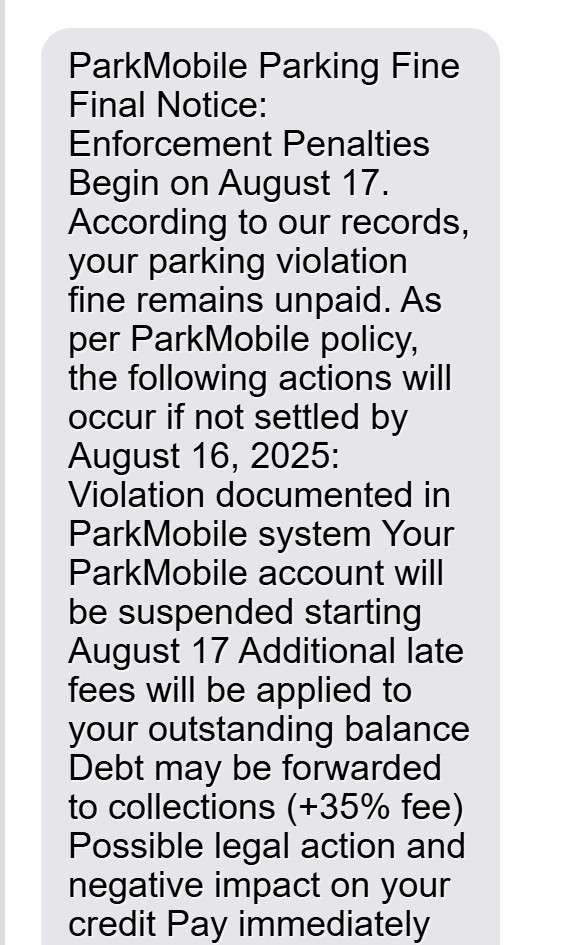
A new text message scam is making the rounds, tricking people into believing they owe a parking fine. The message looks official, references ParkMobile, and pressures recipients with threats of late fees, account suspensions, and even legal action. At first glance, it seems legitimate. But in reality, it is a carefully crafted scam designed to steal sensitive personal and financial information.
If you’ve received a text stating “ParkMobile Parking Fine Final Notice: Enforcement Penalties Begin”, you are not alone. Thousands of people across the country have reported this exact scam. In this article, we’ll break down everything you need to know about the ParkMobile Parking Fine Final Notice Text Scam, how it works, and what to do if you’ve already fallen victim.
Scam Overview
The ParkingMobile Parking Fine Final Notice text scam is a sophisticated phishing scheme designed to steal sensitive personal and financial data from unsuspecting victims. While the messages appear to come from ParkMobile, a legitimate mobile parking app used by millions of drivers across the United States, they are actually fraudulent communications sent by scammers.
These messages follow a clear pattern of social engineering. They attempt to scare recipients with claims of unpaid parking violations, account suspensions, additional fees, and potential legal consequences. To add urgency, the scam includes specific dates, such as penalties beginning the next day, making the victim feel that action must be taken immediately.
The scam messages typically contain:
Alarming language – Words like “Final Notice,” “Suspension,” “Debt Collection,” and “Legal Action” are deliberately chosen to create panic.
Fake deadlines – Specific dates are used to make the message look more credible and to pressure victims into acting quickly without verifying the legitimacy.
A malicious link – Victims are directed to a fraudulent website, often disguised with URLs resembling ParkMobile’s real domain but containing slight alterations (such as “parkmobile.io” instead of the official “parkmobile.com”).
Instructions to reply – Some scam versions encourage the victim to reply with a letter like “Y” to reactivate the link or confirm the payment process.
Once the victim clicks on the link, they are redirected to a scam website designed to mimic ParkMobile’s payment portal. The site may request:
Full name
Phone number
Home address
Vehicle information
Credit card details
The scammers present these requests under the pretense of processing a small fine, typically between $5 and $10. This low amount is strategic—it reduces suspicion and makes victims more likely to comply without hesitation. But in reality, the scammers use this opportunity to steal credit card data, which can then be sold on the dark web or used to commit fraud and identity theft.
Why the Scam Is So Effective
Several factors make this scam especially dangerous:
Familiar brand: ParkMobile is widely used, particularly in urban areas where parking is scarce. Many recipients of the scam message may have legitimately used the app before, making the threat more believable.
Plausibility: Parking violations and fines are common, so the idea of an outstanding balance does not seem unusual.
Urgency: Threats of account suspension, additional fees, and legal consequences trigger immediate anxiety. People often react quickly in an attempt to avoid bigger problems.
Professional appearance: The messages mimic official formatting, numbering, and tone, which tricks victims into thinking they are authentic.
Key Red Flags to Watch Out For
The text comes from a short code (like “976965”) or an unfamiliar international number.
The URL provided is not the official ParkMobile domain. Instead, it often includes unusual extensions like “.io” or random subdomains.
The grammar or phrasing may feel slightly off, even if it appears polished.
Real parking enforcement agencies do not typically demand payment through text message links.
This combination of urgency, plausibility, and a professional look explains why so many people fall for the ParkingMobile Parking Fine Final Notice text scam.
How the Scam Works
Understanding the mechanics of the scam is crucial for prevention. Below is a detailed step-by-step breakdown of how scammers operate:
Step 1: The Setup – Sending the Fake Message
Scammers use mass-texting tools, often powered by SMS spoofing, to send thousands of fraudulent messages at once. The message header may look like it comes from a trusted source, such as “ParkMobile” or a short code number, but in reality, it is a disguise.
The message includes threatening statements, like:
“Your ParkMobile account will be suspended starting [date].”
“Debt may be forwarded to collections (+35% fee).”
“Possible legal action and negative impact on your credit.”
This wording is intentionally designed to scare recipients into immediate action.
The fraudulent text typically reads something like this:
“ParkMobile Parking Fine Final Notice: Enforcement Penalties Begin on [date]
According to our records, your parking violation fine remains unpaid. As per ParkMobile policy, the following actions will occur if not settled by [date]:
Violation documented in ParkMobile system
Your ParkMobile account will be suspended starting [date]
Additional late fees will be applied to your outstanding balance
Debt may be forwarded to collections (+35% fee)
Possible legal action and negative impact on your credit
Pay immediately here: [Malicious link included]
(Reply Y and re-open this message to make the link work, or copy it to your browser.)
ParkMobile Parking Fine”
Step 2: The Hook – Creating a Sense of Urgency
The message emphasizes a deadline, typically within a few days. Scammers know that if victims take the time to verify the information, they may discover the fraud. By creating urgency, they push victims to act impulsively.
Psychologically, people are more likely to pay a small fine quickly rather than risk larger consequences like debt collection or legal issues.
Step 3: The Trap – Redirecting to a Fake Website
The scam message contains a malicious link. Once clicked, it redirects the victim to a fraudulent website that closely mimics ParkMobile’s official design.
The fake site may include:
ParkMobile logos and branding.
Professional-looking payment forms.
Fake “secure payment” icons to increase trust.
Everything is staged to trick victims into believing the site is legitimate.
Step 4: The Data Harvest – Collecting Personal Information
On the fake site, victims are prompted to enter:
Full name
Phone number
Home or billing address
Vehicle details
Credit card information
While the site pretends to charge only $5 to $10 for a supposed parking fine, its real goal is to steal this sensitive personal and financial data.
Step 5: The Theft – Exploiting the Stolen Information
Once the scammers capture the victim’s information, they exploit it in several ways:
Immediate unauthorized charges – The scammers may test the stolen credit card with small purchases before draining larger amounts.
Identity theft – Using the victim’s personal details, scammers can apply for loans, open accounts, or commit other forms of fraud.
Data resale – Stolen credit card data and personal profiles are sold on underground markets, often fetching high prices.
Step 6: The Aftermath – Victim Impact
Victims may not realize they’ve been scammed until unauthorized transactions appear on their credit card statements. By then, the scammers may have already made off with hundreds or thousands of dollars.
Beyond financial loss, victims face:
Stress and anxiety from dealing with fraud.
Time-consuming credit card disputes.
Potential damage to credit scores if identity theft occurs.
What to Do if You Have Fallen Victim to This Scam
If you clicked the link, entered your information, or paid the fake fine, take immediate action. Here are the steps to minimize damage:
1. Contact Your Bank or Credit Card Provider
Inform them that your card details were compromised.
Request to block or replace the card immediately.
Dispute any unauthorized charges.
2. Monitor Your Accounts Closely
Check your bank and credit card statements daily for unusual activity.
Set up alerts for transactions above a certain amount.
3. Report the Scam
File a report with the Federal Trade Commission (FTC) at identitytheft.gov.
Report the phishing text to the FCC by forwarding it to 7726 (SPAM).
Notify your local police department if financial loss occurred.
4. Place a Fraud Alert or Credit Freeze
Contact one of the three major credit bureaus (Experian, Equifax, or TransUnion).
A fraud alert makes it harder for scammers to open accounts in your name.
A credit freeze blocks all new credit applications until lifted.
5. Change Your Passwords
If you used the same password for multiple accounts, change them immediately.
Enable two-factor authentication for extra security.
6. Stay Informed
Follow official ParkMobile updates to check for scam alerts.
Educate family and friends so they do not fall for the same scheme.
Is Your Device Infected? Scan for Malware
If your computer or phone is slow, showing unwanted pop-ups, or acting strangely, malware could be the cause. Running a scan with Malwarebytes Anti-Malware Free is one of the most reliable ways to detect and remove harmful software. The free version can identify and clean common infections such as adware, browser hijackers, trojans, and other unwanted programs.
Malwarebytes works on Windows, Mac, and Android devices. Choose your operating system below and follow the steps to scan your device and remove any malware that might be slowing it down.
Malwarebytes for WindowsMalwarebytes for MacMalwarebytes for Android
Run a Malware Scan with Malwarebytes for Windows
Malwarebytes stands out as one of the leading and widely-used anti-malware solutions for Windows, and for good reason. It effectively eradicates various types of malware that other programs often overlook, all at no cost to you. When it comes to disinfecting an infected device, Malwarebytes has consistently been a free and indispensable tool in the battle against malware. We highly recommend it for maintaining a clean and secure system.
Download Malwarebytes
Download the latest version of Malwarebytes for Windows using the official link below. Malwarebytes will scan your computer and remove adware, browser hijackers, and other malicious software for free.
(The above link will open a new page from where you can download Malwarebytes)
Install Malwarebytes
After the download is complete, locate the MBSetup file, typically found in your Downloads folder. Double-click on the MBSetup file to begin the installation of Malwarebytes on your computer. If a User Account Control pop-up appears, click “Yes” to continue the Malwarebytes installation.
Follow the On-Screen Prompts to Install Malwarebytes
When the Malwarebytes installation begins, the setup wizard will guide you through the process.
You’ll first be prompted to choose the type of computer you’re installing the program on—select either “Personal Computer” or “Work Computer” as appropriate, then click on Next.
Malwarebytes will now begin the installation process on your device.
When the Malwarebytes installation is complete, the program will automatically open to the “Welcome to Malwarebytes” screen.
On the final screen, simply click on the Open Malwarebytes option to start the program.
Enable “Rootkit scanning”.
Malwarebytes Anti-Malware will now start, and you will see the main screen as shown below. To maximize Malwarebytes’ ability to detect malware and unwanted programs, we need to enable rootkit scanning. Click on the “Settings” gear icon located on the left of the screen to access the general settings section.
In the settings menu, enable the “Scan for rootkits” option by clicking the toggle switch until it turns blue.
Now that you have enabled rootkit scanning, click on the “Dashboard” button in the left pane to get back to the main screen.
Perform a Scan with Malwarebytes.
To start a scan, click the Scan button. Malwarebytes will automatically update its antivirus database and begin scanning your computer for malicious programs.
Wait for the Malwarebytes scan to complete.
Malwarebytes will now scan your computer for browser hijackers and other malicious programs. This process can take a few minutes, so we suggest you do something else and periodically check the status of the scan to see when it is finished.
Quarantine detected malware
Once the Malwarebytes scan is complete, it will display a list of detected malware, adware, and potentially unwanted programs. To effectively remove these threats, click the “Quarantine” button.
Malwarebytes will now delete all of the files and registry keys and add them to the program’s quarantine.
Restart your computer.
When removing files, Malwarebytes may require a reboot to fully eliminate some threats. If you see a message indicating that a reboot is needed, please allow it. Once your computer has restarted and you are logged back in, you can continue with the remaining steps.
Once the scan completes, remove all detected threats. Your Windows computer should now be clean and running smoothly again, free of trojans, adware, and other malware.
If your current antivirus allowed this malicious program on your computer, you may want to consider purchasing Malwarebytes Premium to protect against these types of threats in the future. If you are still having problems with your computer after completing these instructions, then please follow one of the steps:
Malwarebytes for Mac is an on-demand scanner that can destroy many types of malware that other software tends to miss without costing you absolutely anything. When it comes to cleaning up an infected device, Malwarebytes has always been free, and we recommend it as an essential tool in the fight against malware.
Download Malwarebytes for Mac.
You can download Malwarebytes for Mac by clicking the link below.
When Malwarebytes has finished downloading, double-click on the setup file to install Malwarebytes on your computer. In most cases, downloaded files are saved to the Downloads folder.
Follow the on-screen prompts to install Malwarebytes.
When the Malwarebytes installation begins, you will see the Malwarebytes for Mac Installer which will guide you through the installation process. Click “Continue“, then keep following the prompts to continue with the installation process.
When your Malwarebytes installation completes, the program opens to the Welcome to Malwarebytes screen. Click the “Get started” button.
Select “Personal Computer” or “Work Computer”.
The Malwarebytes Welcome screen will first ask you what type of computer are you installing this program, click either Personal Computer or Work Computer.
Click on “Scan”.
To scan your computer with Malwarebytes, click on the “Scan” button. Malwarebytes for Mac will automatically update the antivirus database and start scanning your computer for malware.
Wait for the Malwarebytes scan to complete.
Malwarebytes will scan your computer for adware, browser hijackers, and other malicious programs. This process can take a few minutes, so we suggest you do something else and periodically check on the status of the scan to see when it is finished.
Click on “Quarantine”.
When the scan has been completed, you will be presented with a screen showing the malware infections that Malwarebytes has detected. To remove the malware that Malwarebytes has found, click on the “Quarantine” button.
Restart computer.
Malwarebytes will now remove all the malicious files that it has found. To complete the malware removal process, Malwarebytes may ask you to restart your computer.
After scanning, delete any detected threats. Your Mac should now be free from adware, unwanted extensions, and other potentially harmful software.
If your current antivirus allowed a malicious program on your computer, you might want to consider purchasing the full-featured version of Malwarebytes Anti-Malware to protect against these types of threats in the future. If you are still experiencing problems while trying to remove a malicious program from your computer, please ask for help in our Mac Malware Removal Help & Support forum.
Run a Malware Scan with Malwarebytes for Android
Malwarebytes for Android automatically detects and removes dangerous threats like malware and ransomware so you don’t have to worry about your most-used device being compromised. Aggressive detection of adware and potentially unwanted programs keeps your Android phone or tablet running smooth.
Download Malwarebytes for Android.
You can download Malwarebytes for Android by clicking the link below.
In the Google Play Store, tap “Install” to install Malwarebytes for Android on your device.
When the installation process has finished, tap “Open” to begin using Malwarebytes for Android. You can also open Malwarebytes by tapping on its icon in your phone menu or home screen.
Follow the on-screen prompts to complete the setup process
When Malwarebytes will open, you will see the Malwarebytes Setup Wizard which will guide you through a series of permissions and other setup options. This is the first of two screens that explain the difference between the Premium and Free versions. Swipe this screen to continue. Tap on “Got it” to proceed to the next step. Malwarebytes for Android will now ask for a set of permissions that are required to scan your device and protect it from malware. Tap on “Give permission” to continue. Tap on “Allow” to permit Malwarebytes to access the files on your phone.
Update database and run a scan with Malwarebytes for Android
You will now be prompted to update the Malwarebytes database and run a full system scan.
Click on “Update database” to update the Malwarebytes for Android definitions to the latest version, then click on “Run full scan” to perform a system scan.
Wait for the Malwarebytes scan to complete.
Malwarebytes will now start scanning your phone for adware and other malicious apps. This process can take a few minutes, so we suggest you do something else and periodically check on the status of the scan to see when it is finished.
Click on “Remove Selected”.
When the scan has been completed, you will be presented with a screen showing the malware infections that Malwarebytes for Android has detected. To remove the malicious apps that Malwarebytes has found, tap on the “Remove Selected” button.
Restart your phone.
Malwarebytes for Android will now remove all the malicious apps that it has found. To complete the malware removal process, Malwarebytes may ask you to restart your device.
When the scan is finished, remove all detected threats. Your Android phone should now be free of malicious apps, adware, and unwanted browser redirects.
If your current antivirus allowed a malicious app on your phone, you may want to consider purchasing the full-featured version of Malwarebytes to protect against these types of threats in the future. If you are still having problems with your phone after completing these instructions, then please follow one of the steps:
Restore your phone to factory settings by going to Settings > General management > Reset > Factory data reset.
After cleaning your device, it’s important to protect it from future infections and annoying pop-ups. We recommend installing an ad blocker such as AdGuard. AdGuard blocks malicious ads, prevents phishing attempts, and stops dangerous redirects, helping you stay safe while browsing online.
Frequently Asked Questions About the ParkMobile Parking Fine Final Notice Text Scam
1. What is the ParkMobile Parking Fine Final Notice Text Scam?
The ParkMobile Parking Fine Final Notice Text Scam is a phishing scheme where scammers send fake text messages pretending to be from ParkMobile. The text claims you have an unpaid parking violation and threatens penalties such as account suspension, late fees, debt collection, or legal action. The message includes a malicious link that leads to a fake website. Once you enter your personal or financial details, scammers steal your information to commit fraud or identity theft.
2. How can I recognize the scam text message?
There are several warning signs that reveal the message is fraudulent:
It uses scare tactics with urgent language like “Final Notice” or “Enforcement Penalties Begin.”
The text includes a specific date to pressure you into acting quickly.
It provides a payment link that looks suspicious or unfamiliar.
It may come from a short code, an unusual international number, or a random contact.
ParkMobile does not issue fines through text messages, which makes the claim itself suspicious.
If you receive such a message, do not click any links or reply.
3. Does ParkMobile really send parking fine notices via text?
No. ParkMobile does not send parking fines or penalty notices via text message. If you receive such a message, it is a scam. ParkMobile is only a payment processing app for parking meters and garages. It does not issue parking tickets, fines, or legal notices. Any legitimate parking violation would come from your local parking authority, not from ParkMobile.
4. What happens if I click the link in the scam message?
If you click the link, you will be redirected to a fake website that looks like ParkMobile’s official portal. This phishing site will ask you to enter personal details such as your name, email, address, phone number, and credit card information. Once you submit the information, scammers steal it in real time. They may use your credit card to make fraudulent charges or sell your data to other criminals.
5. Why does the scam only ask for a small payment, like $5 or $10?
The scammers deliberately keep the “fine” amount small to reduce suspicion. Most people won’t think twice about paying a low fee if they believe it avoids bigger penalties like collections or legal action. However, the payment is just a trick to get you to enter your credit card information, which is far more valuable to the scammers than the small “fine.”
6. What should I do if I already entered my information on the fake website?
If you have entered your details on the fraudulent site, act immediately:
Contact your bank or credit card provider and cancel the compromised card. Request a replacement.
Monitor your bank statements for unauthorized charges. Dispute any fraudulent transactions.
Set up fraud alerts with credit bureaus to protect against identity theft.
Change your passwords if you reused them on other accounts.
Report the scam to the FTC, your mobile carrier, and ParkMobile’s official support.
Quick action can limit financial loss and prevent long-term damage.
7. How do scammers get my phone number?
Scammers often obtain phone numbers through:
Data breaches from companies that leaked user information.
Purchasing phone number lists from illegal data brokers.
Randomized auto-dialing systems that send bulk text messages.
Even if you’ve never used ParkMobile, you can still receive the scam text because scammers cast a wide net to increase their chances of finding victims.
8. Will I face real penalties if I ignore the scam message?
No. The threats in the text message are fake. You will not face late fees, account suspension, debt collection, or legal action for ignoring the scam. The scammers invented these consequences to pressure you into clicking the link and paying. Deleting and reporting the message is the safest action.
9. How can I verify if a parking fine is real?
If you suspect you might actually have a parking violation, follow these steps:
Check directly with your city’s parking authority or government website.
Look for official mail notifications rather than text messages.
Log into your legitimate ParkMobile app (not through a text link) to confirm activity.
Call your local parking enforcement office using an official phone number.
Never trust links or phone numbers provided in suspicious messages.
10. How do I report the ParkMobile scam text?
You can report the scam in several ways:
Forward the text to 7726 (SPAM), which alerts your mobile carrier.
Report the phishing message to the Federal Trade Commission (FTC) at reportfraud.ftc.gov.
Notify ParkMobile through their official website so they can issue warnings.
Report the fake website to Google Safe Browsing to help block it.
The more reports are filed, the faster authorities and tech companies can act to shut down phishing operations.
The Bottom Line
The ParkingMobile Parking Fine Final Notice text scam is a highly deceptive phishing scheme that exploits fear, urgency, and familiarity to trick victims into revealing sensitive financial data. By posing as a trusted service and demanding small payments, scammers successfully steal valuable credit card details.
If you receive such a message, remember this: legitimate companies and parking authorities will not demand fine payments via unsolicited text messages with suspicious links. Always verify before paying, and never click on untrusted links.
Staying alert, informed, and cautious is the best defense against these increasingly sophisticated scams.
Thomas is an expert at uncovering scams and providing in-depth reporting on cyber threats and online fraud. As an editor, he is dedicated to keeping readers informed on the latest developments in cybersecurity and tech.