

A new text message scam is making the rounds, tricking people into believing they owe a parking fine. The message looks official, references ParkMobile, and pressures recipients with threats of late fees, account suspensions, and even legal action. At first glance, it seems legitimate. But in reality, it is a carefully crafted scam designed to steal sensitive personal and financial information.
If you’ve received a text stating “ParkMobile Parking Fine Final Notice: Enforcement Penalties Begin”, you are not alone. Thousands of people across the country have reported this exact scam. In this article, we’ll break down everything you need to know about the ParkMobile Parking Fine Final Notice Text Scam, how it works, and what to do if you’ve already fallen victim.
Scam Overview
The ParkingMobile Parking Fine Final Notice text scam is a sophisticated phishing scheme designed to steal sensitive personal and financial data from unsuspecting victims. While the messages appear to come from ParkMobile, a legitimate mobile parking app used by millions of drivers across the United States, they are actually fraudulent communications sent by scammers.
These messages follow a clear pattern of social engineering. They attempt to scare recipients with claims of unpaid parking violations, account suspensions, additional fees, and potential legal consequences. To add urgency, the scam includes specific dates, such as penalties beginning the next day, making the victim feel that action must be taken immediately.
The scam messages typically contain:
- Alarming language – Words like “Final Notice,” “Suspension,” “Debt Collection,” and “Legal Action” are deliberately chosen to create panic.
- Fake deadlines – Specific dates are used to make the message look more credible and to pressure victims into acting quickly without verifying the legitimacy.
- A malicious link – Victims are directed to a fraudulent website, often disguised with URLs resembling ParkMobile’s real domain but containing slight alterations (such as “parkmobile.io” instead of the official “parkmobile.com”).
- Instructions to reply – Some scam versions encourage the victim to reply with a letter like “Y” to reactivate the link or confirm the payment process.
Once the victim clicks on the link, they are redirected to a scam website designed to mimic ParkMobile’s payment portal. The site may request:
- Full name
- Phone number
- Home address
- Vehicle information
- Credit card details
The scammers present these requests under the pretense of processing a small fine, typically between $5 and $10. This low amount is strategic—it reduces suspicion and makes victims more likely to comply without hesitation. But in reality, the scammers use this opportunity to steal credit card data, which can then be sold on the dark web or used to commit fraud and identity theft.
Why the Scam Is So Effective
Several factors make this scam especially dangerous:
- Familiar brand: ParkMobile is widely used, particularly in urban areas where parking is scarce. Many recipients of the scam message may have legitimately used the app before, making the threat more believable.
- Plausibility: Parking violations and fines are common, so the idea of an outstanding balance does not seem unusual.
- Urgency: Threats of account suspension, additional fees, and legal consequences trigger immediate anxiety. People often react quickly in an attempt to avoid bigger problems.
- Professional appearance: The messages mimic official formatting, numbering, and tone, which tricks victims into thinking they are authentic.
Key Red Flags to Watch Out For
- The text comes from a short code (like “976965”) or an unfamiliar international number.
- The URL provided is not the official ParkMobile domain. Instead, it often includes unusual extensions like “.io” or random subdomains.
- The grammar or phrasing may feel slightly off, even if it appears polished.
- Real parking enforcement agencies do not typically demand payment through text message links.
This combination of urgency, plausibility, and a professional look explains why so many people fall for the ParkingMobile Parking Fine Final Notice text scam.
How the Scam Works
Understanding the mechanics of the scam is crucial for prevention. Below is a detailed step-by-step breakdown of how scammers operate:
Step 1: The Setup – Sending the Fake Message
Scammers use mass-texting tools, often powered by SMS spoofing, to send thousands of fraudulent messages at once. The message header may look like it comes from a trusted source, such as “ParkMobile” or a short code number, but in reality, it is a disguise.
The message includes threatening statements, like:
- “Your ParkMobile account will be suspended starting [date].”
- “Debt may be forwarded to collections (+35% fee).”
- “Possible legal action and negative impact on your credit.”
This wording is intentionally designed to scare recipients into immediate action.
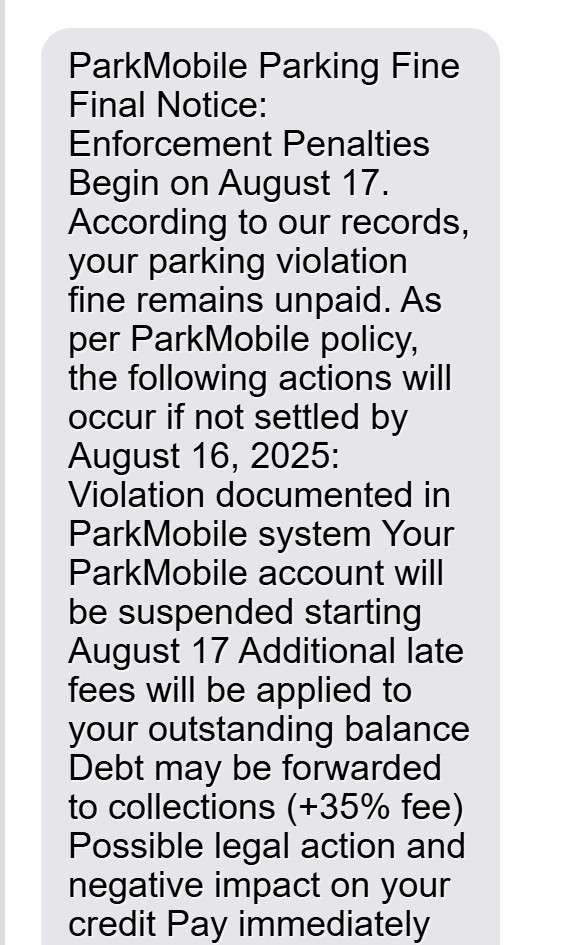
The fraudulent text typically reads something like this:
“ParkMobile Parking Fine Final Notice: Enforcement Penalties Begin on [date]
According to our records, your parking violation fine remains unpaid. As per ParkMobile policy, the following actions will occur if not settled by [date]:
- Violation documented in ParkMobile system
- Your ParkMobile account will be suspended starting [date]
- Additional late fees will be applied to your outstanding balance
- Debt may be forwarded to collections (+35% fee)
- Possible legal action and negative impact on your credit
Pay immediately here:
[Malicious link included](Reply Y and re-open this message to make the link work, or copy it to your browser.)
ParkMobile Parking Fine”
Step 2: The Hook – Creating a Sense of Urgency
The message emphasizes a deadline, typically within a few days. Scammers know that if victims take the time to verify the information, they may discover the fraud. By creating urgency, they push victims to act impulsively.
Psychologically, people are more likely to pay a small fine quickly rather than risk larger consequences like debt collection or legal issues.
Step 3: The Trap – Redirecting to a Fake Website
The scam message contains a malicious link. Once clicked, it redirects the victim to a fraudulent website that closely mimics ParkMobile’s official design.
The fake site may include:
- ParkMobile logos and branding.
- Professional-looking payment forms.
- Fake “secure payment” icons to increase trust.
Everything is staged to trick victims into believing the site is legitimate.
Step 4: The Data Harvest – Collecting Personal Information
On the fake site, victims are prompted to enter:
- Full name
- Phone number
- Home or billing address
- Vehicle details
- Credit card information
While the site pretends to charge only $5 to $10 for a supposed parking fine, its real goal is to steal this sensitive personal and financial data.
Step 5: The Theft – Exploiting the Stolen Information
Once the scammers capture the victim’s information, they exploit it in several ways:
- Immediate unauthorized charges – The scammers may test the stolen credit card with small purchases before draining larger amounts.
- Identity theft – Using the victim’s personal details, scammers can apply for loans, open accounts, or commit other forms of fraud.
- Data resale – Stolen credit card data and personal profiles are sold on underground markets, often fetching high prices.
Step 6: The Aftermath – Victim Impact
Victims may not realize they’ve been scammed until unauthorized transactions appear on their credit card statements. By then, the scammers may have already made off with hundreds or thousands of dollars.
Beyond financial loss, victims face:
- Stress and anxiety from dealing with fraud.
- Time-consuming credit card disputes.
- Potential damage to credit scores if identity theft occurs.
What to Do if You Have Fallen Victim to This Scam
If you clicked the link, entered your information, or paid the fake fine, take immediate action. Here are the steps to minimize damage:
1. Contact Your Bank or Credit Card Provider
- Inform them that your card details were compromised.
- Request to block or replace the card immediately.
- Dispute any unauthorized charges.
2. Monitor Your Accounts Closely
- Check your bank and credit card statements daily for unusual activity.
- Set up alerts for transactions above a certain amount.
3. Report the Scam
- File a report with the Federal Trade Commission (FTC) at identitytheft.gov.
- Report the phishing text to the FCC by forwarding it to 7726 (SPAM).
- Notify your local police department if financial loss occurred.
4. Place a Fraud Alert or Credit Freeze
- Contact one of the three major credit bureaus (Experian, Equifax, or TransUnion).
- A fraud alert makes it harder for scammers to open accounts in your name.
- A credit freeze blocks all new credit applications until lifted.
5. Change Your Passwords
- If you used the same password for multiple accounts, change them immediately.
- Enable two-factor authentication for extra security.
6. Stay Informed
- Follow official ParkMobile updates to check for scam alerts.
- Educate family and friends so they do not fall for the same scheme.
Is Your Device Infected? Run a Free Malware Scan
Slow performance, constant pop-ups, or strange behavior? These are classic signs of a malware infection. The fastest way to find out is to scan your device with Malwarebytes Free — one of the most trusted malware removal tools available.
The free version detects and removes the most common threats, including:
- Adware — the cause of those annoying pop-ups
- Browser hijackers — unwanted redirects and changed homepages
- Trojans and spyware — hidden programs stealing your data
- Potentially unwanted programs (PUPs) — software you never asked for
👉 Select your device below — Windows, Mac, or Android — then follow the simple steps to download Malwarebytes, scan your system, and remove any threats it finds. The scan usually takes 5 to 20 minutes.
Run a Malware Scan with Malwarebytes for Windows
Malwarebytes is one of the most popular and trusted anti-malware tools for Windows — and it’s completely free for removing infections. It catches threats that many antivirus programs miss, including adware, browser hijackers, and trojans. Follow the steps below to scan and clean your PC in just a few minutes.
Download Malwarebytes
Click the button below to download the latest version of Malwarebytes for Windows from the official source. The free version is all you need — it will scan your computer and remove adware, browser hijackers, and other malicious software at no cost.
Download MalwarebytesOfficial installer for Windows 11 and 10. Your download starts right away.Want real-time protection? See Malwarebytes Premium Malwarebytes Free for WindowsScans and removes malware at no cost
-
Install Malwarebytes
When the download finishes, open your Downloads folder and double-click the MBSetup file. If Windows shows a User Account Control pop-up, click “Yes” to allow the installation.

Follow the On-Screen Prompts to Install Malwarebytes
The setup wizard will walk you through a few quick screens:
-
Choose where you’re installing the program — “Personal Computer” or “Work Computer” — then click Next.

-
Malwarebytes will now install on your device. This usually takes under a minute.

-
When installation is complete, the “Welcome to Malwarebytes” screen will open automatically.

-
On the final screen, click Open Malwarebytes to launch the program.

-
Enable “Scan for Rootkits”
Before scanning, turn on rootkit detection so Malwarebytes can find even the most hidden threats. Click the Settings gear icon on the left side of the screen.

In the settings menu, find “Scan for rootkits” and click the toggle so it turns blue.

Done? Click “Dashboard” in the left pane to return to the main screen.
Start the Scan
Click the blue Scan button. Malwarebytes will automatically update its virus database and start checking your computer for malware.

-
Wait for the Scan to Finish
The scan checks your entire system for browser hijackers and other malicious programs, so it can take 5 to 20 minutes depending on your computer. Feel free to do something else — just check back occasionally to see the progress.

-
Quarantine the Detected Threats
When the scan is done, you’ll see a list of everything Malwarebytes found — malware, adware, and potentially unwanted programs. Click the “Quarantine” button to remove all of them at once.

Malwarebytes will now remove the malicious files and registry entries and move them safely into quarantine.

-
Restart Your Computer
Some threats can only be fully removed after a reboot. If Malwarebytes asks you to restart, click Yes. Once you’re logged back in, Malwarebytes has finished removing the threats it found.

That’s it — your Windows PC is now clean of trojans, adware, and other malware, and should be back to running smoothly.
If you are still having problems with your computer after completing these instructions, then please follow one of the steps:
- Run a computer scan with ESET Online Scanner
- Ask for help in our Windows Malware Removal Help & Support forum.
Run a Malware Scan with Malwarebytes for Mac
Malwarebytes for Mac is a free on-demand scanner that removes the malware other security software tends to miss — adware, browser hijackers, and unwanted programs included. Cleaning an infected Mac with Malwarebytes has always been completely free, and it’s our go-to recommendation. Follow the steps below to scan and clean your Mac in just a few minutes.
-
Download Malwarebytes for Mac
Click the button below to download the latest version of Malwarebytes for Mac.
Download MalwarebytesOfficial installer for macOS. Your download starts right away.Want real-time protection? See Malwarebytes PremiumMalwarebytes Free for MacScans and removes malware at no cost -
Open the Malwarebytes setup file
When the download finishes, open your Downloads folder and double-click the setup file to begin the installation.

-
Follow the On-Screen Prompts to Install Malwarebytes
The Malwarebytes for Mac Installer will guide you through a few quick screens. Click “Continue” and keep following the prompts until the installation completes.



When the installation is complete, Malwarebytes opens to the Welcome to Malwarebytes screen. Click “Get started“.
-
Select “Personal Computer” or “Work Computer”
Malwarebytes will ask what type of computer you’re installing it on. Click either Personal Computer or Work Computer, whichever applies.

-
Start the Scan
Click the “Scan” button. Malwarebytes will automatically update its detection database and begin checking your Mac for malware.

-
Wait for the Scan to Finish
Malwarebytes will scan your Mac for adware, browser hijackers, and other malicious programs. This can take a few minutes, so feel free to do something else — just check back occasionally to see the progress.

-
Quarantine the Detected Threats
When the scan is done, you’ll see a list of everything Malwarebytes found. Click the “Quarantine” button to remove all the threats at once.

-
Restart Your Mac
Malwarebytes will now remove all the malicious files it found. Some threats can only be fully removed after a reboot — if Malwarebytes asks you to restart, allow it. Once you’re logged back in, your Mac is clean.

That’s it — your Mac is now free of adware, rogue browser extensions, and other potentially harmful software.
If you are still experiencing problems while trying to remove a malicious program from your computer, please ask for help in our Mac Malware Removal Help & Support forum.
Run a Malware Scan with Malwarebytes for Android
Malwarebytes for Android automatically detects and removes dangerous threats like malware and ransomware so you don’t have to worry about your most-used device being compromised. Aggressive detection of adware and potentially unwanted programs keeps your Android phone or tablet running smooth.
-
Download Malwarebytes for Android.
You can download Malwarebytes for Android by clicking the link below.
Get Malwarebytes for AndroidOpens Google Play in a new tab.Want real-time protection? See Malwarebytes Premium for AndroidMalwarebytes for AndroidScans your phone and removes malware at no cost -
Install Malwarebytes for Android on your phone.
In the Google Play Store, tap “Install” to install Malwarebytes for Android on your device.

When the installation process has finished, tap “Open” to begin using Malwarebytes for Android. You can also open Malwarebytes by tapping on its icon in your phone menu or home screen.

-
Follow the on-screen prompts to complete the setup process
When Malwarebytes will open, you will see the Malwarebytes Setup Wizard which will guide you through a series of permissions and other setup options.
This is the first of two screens that explain the difference between the Premium and Free versions. Swipe this screen to continue.
Tap on “Got it” to proceed to the next step.
Malwarebytes for Android will now ask for a set of permissions that are required to scan your device and protect it from malware. Tap on “Give permission” to continue.
Tap on “Allow” to permit Malwarebytes to access the files on your phone.
-
Update database and run a scan with Malwarebytes for Android
You will now be prompted to update the Malwarebytes database and run a full system scan.

Click on “Update database” to update the Malwarebytes for Android definitions to the latest version, then click on “Run full scan” to perform a system scan.

-
Wait for the Malwarebytes scan to complete.
Malwarebytes will now start scanning your phone for adware and other malicious apps. This process can take a few minutes, so we suggest you do something else and periodically check on the status of the scan to see when it is finished.

-
Click on “Remove Selected”.
When the scan has been completed, you will be presented with a screen showing the malware infections that Malwarebytes for Android has detected. To remove the malicious apps that Malwarebytes has found, tap on the “Remove Selected” button.

-
Restart your phone.
Malwarebytes for Android will now remove all the malicious apps that it has found. To complete the malware removal process, Malwarebytes may ask you to restart your device.
That’s it — your Android phone is now clean — no more malicious apps, adware, or browser redirects.
If you are still having problems with your phone after completing these instructions, then please follow one of the steps:
- Restore your phone to factory settings by going to Settings > General management > Reset > Factory data reset.
- Ask for help in our Mobile Malware Removal Help & Support forum.
Stay Protected: Block Ads and Malicious Sites
Now that your device is clean, keep it that way. Most infections start with a malicious ad or a fake download button — so blocking them at the source is your best defense.
We recommend AdGuard, which blocks malicious ads, phishing pages, and dangerous redirects before they can reach you.
👉 Download AdGuard and browse safely
Frequently Asked Questions About the ParkMobile Parking Fine Final Notice Text Scam
1. What is the ParkMobile Parking Fine Final Notice Text Scam?
The ParkMobile Parking Fine Final Notice Text Scam is a phishing scheme where scammers send fake text messages pretending to be from ParkMobile. The text claims you have an unpaid parking violation and threatens penalties such as account suspension, late fees, debt collection, or legal action. The message includes a malicious link that leads to a fake website. Once you enter your personal or financial details, scammers steal your information to commit fraud or identity theft.
2. How can I recognize the scam text message?
There are several warning signs that reveal the message is fraudulent:
- It uses scare tactics with urgent language like “Final Notice” or “Enforcement Penalties Begin.”
- The text includes a specific date to pressure you into acting quickly.
- It provides a payment link that looks suspicious or unfamiliar.
- It may come from a short code, an unusual international number, or a random contact.
- ParkMobile does not issue fines through text messages, which makes the claim itself suspicious.
If you receive such a message, do not click any links or reply.
3. Does ParkMobile really send parking fine notices via text?
No. ParkMobile does not send parking fines or penalty notices via text message. If you receive such a message, it is a scam. ParkMobile is only a payment processing app for parking meters and garages. It does not issue parking tickets, fines, or legal notices. Any legitimate parking violation would come from your local parking authority, not from ParkMobile.
4. What happens if I click the link in the scam message?
If you click the link, you will be redirected to a fake website that looks like ParkMobile’s official portal. This phishing site will ask you to enter personal details such as your name, email, address, phone number, and credit card information. Once you submit the information, scammers steal it in real time. They may use your credit card to make fraudulent charges or sell your data to other criminals.
5. Why does the scam only ask for a small payment, like $5 or $10?
The scammers deliberately keep the “fine” amount small to reduce suspicion. Most people won’t think twice about paying a low fee if they believe it avoids bigger penalties like collections or legal action. However, the payment is just a trick to get you to enter your credit card information, which is far more valuable to the scammers than the small “fine.”
6. What should I do if I already entered my information on the fake website?
If you have entered your details on the fraudulent site, act immediately:
- Contact your bank or credit card provider and cancel the compromised card. Request a replacement.
- Monitor your bank statements for unauthorized charges. Dispute any fraudulent transactions.
- Set up fraud alerts with credit bureaus to protect against identity theft.
- Change your passwords if you reused them on other accounts.
- Report the scam to the FTC, your mobile carrier, and ParkMobile’s official support.
Quick action can limit financial loss and prevent long-term damage.
7. How do scammers get my phone number?
Scammers often obtain phone numbers through:
- Data breaches from companies that leaked user information.
- Purchasing phone number lists from illegal data brokers.
- Randomized auto-dialing systems that send bulk text messages.
Even if you’ve never used ParkMobile, you can still receive the scam text because scammers cast a wide net to increase their chances of finding victims.
8. Will I face real penalties if I ignore the scam message?
No. The threats in the text message are fake. You will not face late fees, account suspension, debt collection, or legal action for ignoring the scam. The scammers invented these consequences to pressure you into clicking the link and paying. Deleting and reporting the message is the safest action.
9. How can I verify if a parking fine is real?
If you suspect you might actually have a parking violation, follow these steps:
- Check directly with your city’s parking authority or government website.
- Look for official mail notifications rather than text messages.
- Log into your legitimate ParkMobile app (not through a text link) to confirm activity.
- Call your local parking enforcement office using an official phone number.
Never trust links or phone numbers provided in suspicious messages.
10. How do I report the ParkMobile scam text?
You can report the scam in several ways:
- Forward the text to 7726 (SPAM), which alerts your mobile carrier.
- Report the phishing message to the Federal Trade Commission (FTC) at reportfraud.ftc.gov.
- Notify ParkMobile through their official website so they can issue warnings.
- Report the fake website to Google Safe Browsing to help block it.
The more reports are filed, the faster authorities and tech companies can act to shut down phishing operations.
The Bottom Line
The ParkingMobile Parking Fine Final Notice text scam is a highly deceptive phishing scheme that exploits fear, urgency, and familiarity to trick victims into revealing sensitive financial data. By posing as a trusted service and demanding small payments, scammers successfully steal valuable credit card details.
If you receive such a message, remember this: legitimate companies and parking authorities will not demand fine payments via unsolicited text messages with suspicious links. Always verify before paying, and never click on untrusted links.
Staying alert, informed, and cautious is the best defense against these increasingly sophisticated scams.

Join the discussion
0 commentsShare your experience or ask a question about this article.
Discussion
Start the conversation
Have a question or something useful to share? Add the first comment.