

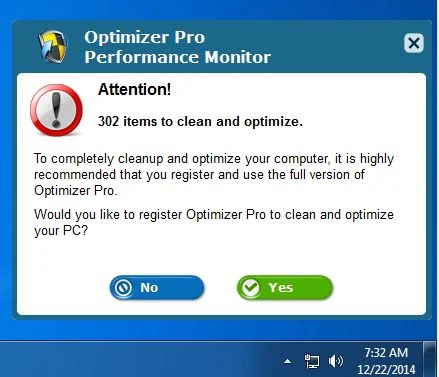
PC Optimizer Pro is a potentially unwanted program, which is advertised as a system optimizer, and once installed it claims that several issues were been detected on your computer. However, if you try to fix these issues, PC Optimizer Pro will state that you need to buy its full version before being able to do so.
![[Image: PC Optimizer Pro scam]](https://malwaretips.com/blogs/wp-content/uploads/mwt-media/80/80c10caf9ff2da584d113ced71ddba4f6067e0cf456056736fccfd41d6110c9d/eeeaa5d3fc2c9fcf5734abe886f032973d2285bcf23dffbf2712ce20876c7b78-934.webp "How to remove PC Optimizer Pro from Windows (Removal Guide) 1")
![[Image: PC Optimizer Pro fake registry cleaner]](https://malwaretips.com/blogs/wp-content/uploads/mwt-media/9e/9e73bcf812a4eb9d33da7046a46bc5279fc51b4db745ea28988112bb00330515/26e66cfa350a62ccb01d03073dad49d1b8c6f85657bf215f4b921010b8cf19a6-805.webp "How to remove PC Optimizer Pro from Windows (Removal Guide) 2")
![[Image: PC Optimizer Pro virus]](https://malwaretips.com/blogs/wp-content/uploads/mwt-media/12/12aa5cdc823778f24d9495b07866166fae5f00f2322b46000805277b88824b97/669362fdb35cc39dfc069d8943011093d315643c5b025a2386c2803308eed2fc-803.webp "How to remove PC Optimizer Pro from Windows (Removal Guide) 4")
![[Image: PC Optimizer Pro]](https://malwaretips.com/blogs/wp-content/uploads/mwt-media/78/7842a5c5cdcdd8bad9c0dbacb3d6b31cb3d5539123e4cbc22dd88740c6a31ccb/7b176df2ac124c22c0bb960a940f489b8e1e6d0151449dc953d6f8cb8750d1bf-803.webp "How to remove PC Optimizer Pro from Windows (Removal Guide) 5")
PC Optimizer Pro is bundled with other free software that you download off of the Internet. Unfortunately, some free downloads do not adequately disclose that other software will also be installed and you may find that you have installed adware without your knowledge.
The Windows registry is a database that Windows and its applications store their settings in. It contains hundreds of thousands of entries. Some of the entries may be slightly outdated — maybe you’ve uninstalled a program and it left a key or two behind, or maybe a there’s a file extension with no associated application.
PC Optimizer Pro scan your registry for these outdated entries and offer to remove them. Because there are so many registry entries to go through, this program may sometimes also remove useful registry entries, causing you problems. The Web is full of stories from people who have run a registry cleaner and encountered problems. In a best case scenario, PC Optimizer Pro will remove a few hundred unnecessary entries and reduce the size of your registry by a few kilobytes. This makes no difference in perceptible performance.
If you must use a registry cleaner, you don’t have to pay anything. Using a free registry cleaner, such as the registry cleaner included with the respected CCleaner utility, is good enough.
Always opt for the custom installation and deselect anything that is not familiar, especially optional software that you never wanted to download and install in the first place. It goes without saying that you should not install software that you don’t trust.
How to remove PC Optimizer Pro (Uninstall Guide)
Please perform all the steps in the correct order. If you have any questions or doubt at any point, STOP and ask for our assistance.
- STEP 1: Uninstall PC Optimizer Pro from Windows
- STEP 2: Use Malwarebytes to Scan for Malware and Unwanted Programs
- STEP 3: Double-check for malicious programs with HitmanPro
STEP 1 : Uninstall PC Optimizer Pro from Windows
In this first step, we will try to uninstall PC Optimizer Pro by using the Windows Control Panel.
- Go to the uninstall menu.
Windows 10 or Windows 8.1
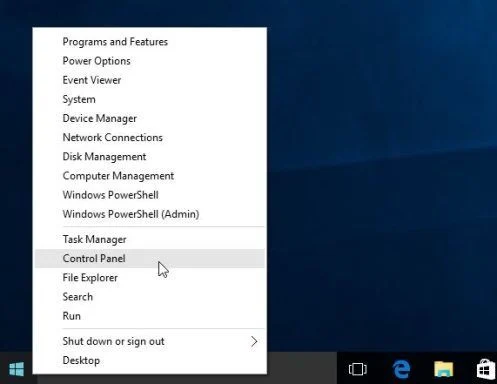
- To uninstall a program on Windows 10 or Windows 8, right-click on the Windows Start button and choose “Control Panel” from the pop-up menu.
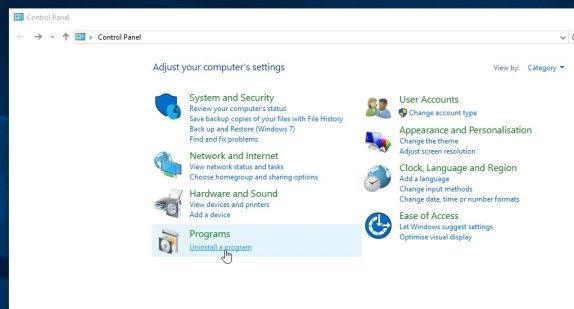
- When the “Control Panel” window opens click on the “Uninstall a program” option under “Programs” category.
Windows 7
- If you are using Windows XP, Windows Vista or Windows 7, click the “Start” button, then click on the “Control Panel” menu option.
![[Image: Control Panel in Windows Start Menu]](https://malwaretips.com/blogs/wp-content/uploads/mwt-media/56/56ac005bf149366d33075df70182d7933c19b066be2e500869e031cc9cac279b/273fcfd76a87bfc0fcd3b6b019be9066a9342174ed0b81f9002efcb804ca5be8-346.webp "Control Panel in Windows Start Menu")
- When the “Control Panel” window opens click on the “Uninstall a program” option under “Programs” category.
![[Image: Uninstall a program]](https://malwaretips.com/blogs/wp-content/uploads/mwt-media/2a/2a46a9e643eeeb764fb164177551c571817a8b4d4fe8141504dca801f8abc8cc/f2a64da5c9bbae588b1c04059e9f6a1e9a413554048666c6db3aa65196a7b99a-557.webp "Click on Uninstall a program")
- To uninstall a program on Windows 10 or Windows 8, right-click on the Windows Start button and choose “Control Panel” from the pop-up menu.
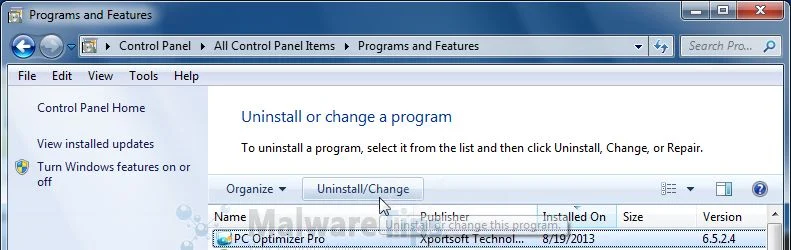
- When the “Programs and Features” screen is displayed, scroll through the list of currently installed programs and uninstall PC Optimizer Pro.
To view the most recently installed programs, you can click on the “Installed On” column to sort your program by the installation date. Scroll through the list, and uninstall any unwanted or unknown programs.If you cannot find any unwanted programs on your computer, then you can proceed with the next step.If you are having issues while trying to uninstall the PC Optimizer Pro program, you can use Revo Uninstaller to completely remove this unwanted program from your machine.
STEP 2: Use Malwarebytes to Scan for Malware and Unwanted Programs
Malwarebytes is a powerful on-demand scanner which will scan and remove from your PC any malicious program that may have been installed along with PC Optimizer Pro. It is important to note that Malwarebytes will run alongside antivirus software without conflicts.
- You can download download Malwarebytes from the below link.
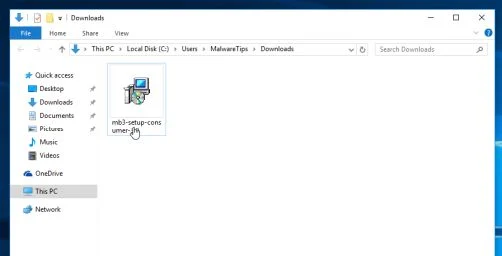
Download MalwarebytesFree official installer. Your download starts right away. - When Malwarebytes has finished downloading, double-click on the “mb3-setup-consumer” file to install Malwarebytes on your computer.
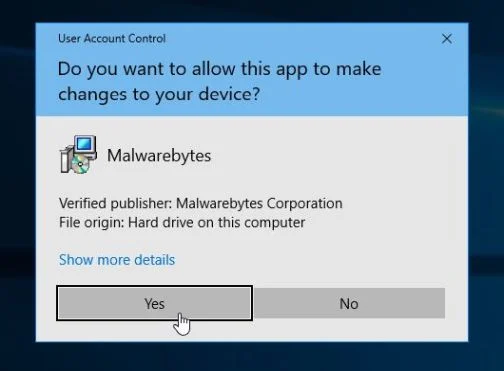
You may be presented with an User Account Control pop-up asking if you want to allow Malwarebytes to make changes to your device. If this happens, you should click “Yes” to continue with the installation.
- When the Malwarebytes installation begins, you will see the Malwarebytes Setup Wizard which will guide you through the installation process.
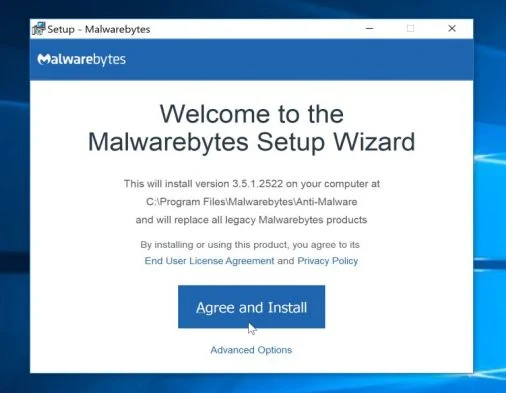
To install Malwarebytes on your machine, keep following the prompts by clicking the “Next” button.
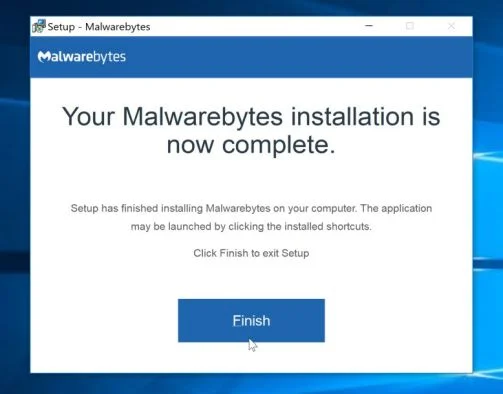
- Once installed, Malwarebytes will automatically start and update the antivirus database. To start a system scan you can click on the “Scan Now” button.
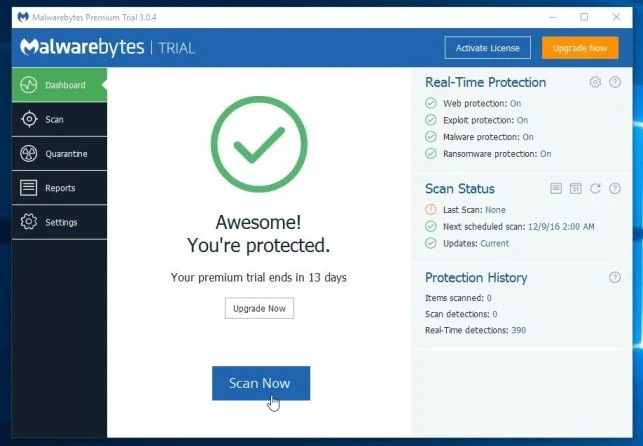
- Malwarebytes will now start scanning your computer for malicious programs.
This process can take a few minutes, so we suggest you do something else and periodically check on the status of the scan to see when it is finished.
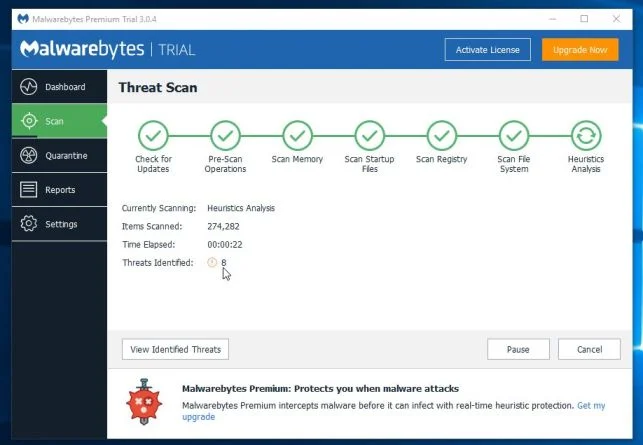
- When the scan has completed, you will be presented with a screen showing the malware infections that Malwarebytes has detected.
To remove the malicious programs that Malwarebytes has found, click on the “Quarantine Selected” button.
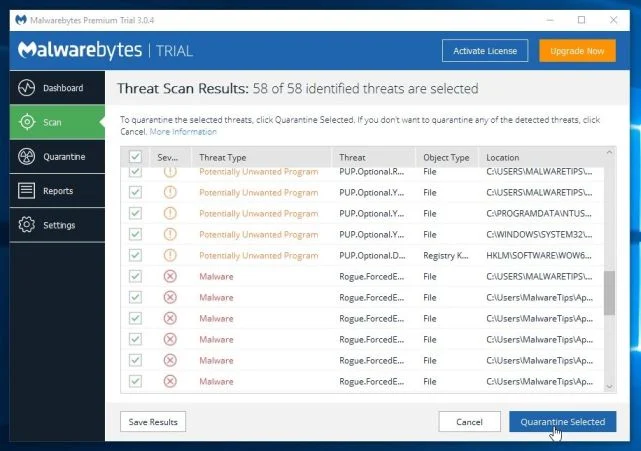
- Malwarebytes will now quarantine all the malicious files and registry keys that it has found.
To complete the malware removal process, Malwarebytes may ask you to restart your computer.
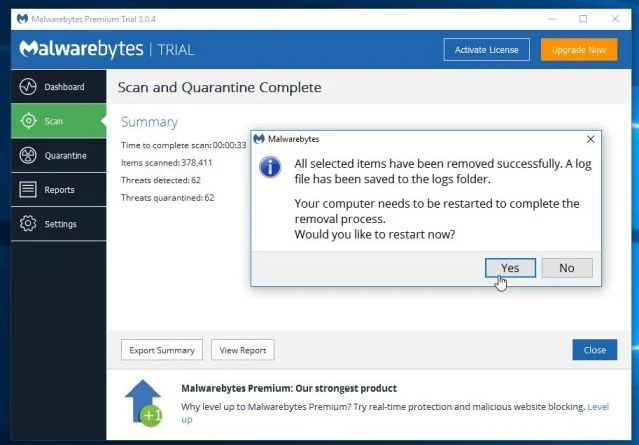
When the malware removal process is complete, you can close Malwarebytes and continue with the rest of the instructions.
STEP 3: Double-check for malicious programs with HitmanPro
HitmanPro can find and remove malware, adware, bots, and other threats that even the best antivirus suite can oftentimes miss. HitmanPro is designed to run alongside your antivirus suite, firewall, and other security tools.
- You can download HitmanPro from the below link:
Download HitmanProOfficial Sophos download. Free scan, free 30-day trial to remove threats. - When HitmanPro has finished downloading, double-click on the “hitmanpro” file to install this program on your computer.
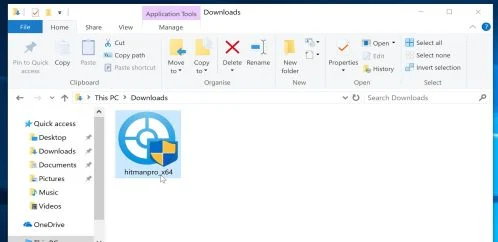
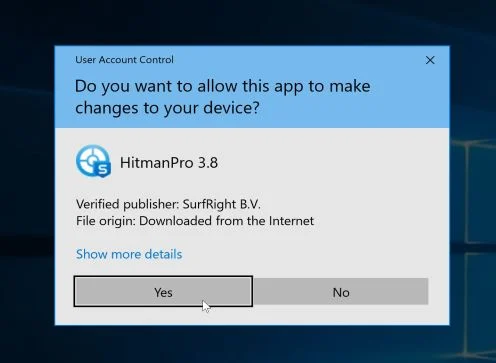
You may be presented with an User Account Control pop-up asking if you want to allow HitmanPro to make changes to your device. If this happens, you should click “Yes” to continue with the installation.
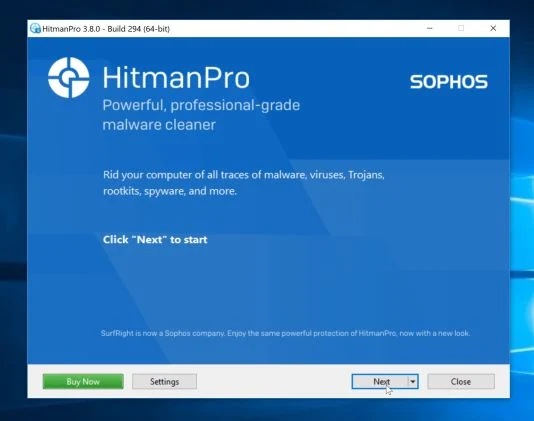
- When the program starts you will be presented with the start screen as shown below. Now click on the Next button to continue with the scan process.
- HitmanPro will now begin to scan your computer for malware.
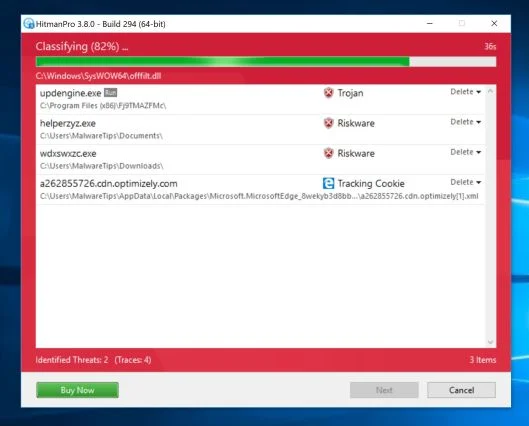
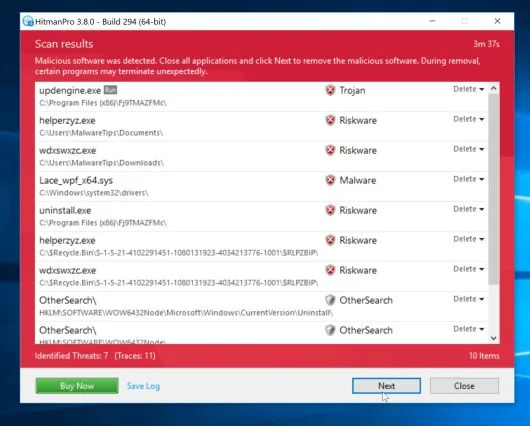
- When it has finished it will display a list of all the malware that the program found as shown in the image below. Click on the “Next” button, to remove malware.
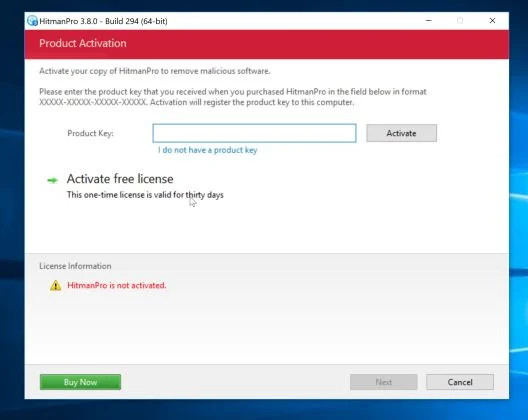
- Click on the “Activate free license” button to begin the free 30 days trial, and remove all the malicious files from your computer.
Your computer should now be free of the PC Optimizer Pro. If you are still experiencing problems while trying to remove PC Optimizer Pro from your machine, please do one of the following:
- Run a system scan with Zemana AntiMalware
- Start a new thread in our Malware Removal Assistance forum.

Join the discussion
64 commentsShare your experience or ask a question about this article.
Your progress
Did these steps help?
Let us know how the guide worked for you.
Describe what you see and the step you reached. Keep passwords and other private information out.
Discussion
Thank you ,Thank you,Thank you,,,,,I just cant say it enough,that optimiser pro was driving me nuts,did’nt know what I was gonna do until I tried step#3 and it worked like a charm,but I dont know why malware bytes didnot work,I tried it first.
This was great, I thank you so much for the time you took to create this comprehensive list of programs to remove this malware. If only people would quit creating these types of programs.
Thanks so much for the wonderful step-by-step instructions. I was worried as I started to get increased pop-up ads at step 3, but the Malwarebytes scan seemed to have cleaned them up. Beautiful work. Thank you for sharing your knowledge with us neophytes!
Thank you!! Step 3 is what removed the optima pro and step 1 removed the rest of the junk
Great post, very concise… My Missus downloaded Mozilla fire fox ad by mistake and it downloaded all sorts of stuff… all clean now though thx…
How do you ever know if these things are real or not? After getting hit with Optimizer Pro from downloading CamStudio (don’t ever do that!) I checked around and so many things looked like they could be something else tricking me. But I took the plunge and used these steps and everything seems back to normal. Thanks for the help!
Awesome post. Very helpful. Thanks
Fantastic help. Such clear instructions. Would like to add that resetting the browser settings got rid of the left over pop up ads. Thanks a million
I had the same situation as Doc T. Thanks so much for your help!
Saved my effing life mate! Thanks a lot! :)
Thanks a million – I seem to have gotten Optimizer Pro when I downloaded VLC Media Player from a site that my Norton Security said was OK. I have followed all of your instructions here and I am so relieved to NOT have browser windows popping up all the time! I knew something was not right, but I wasn’t sure what was the source – and very quickly suspected this Optimizer Pro. I had declined all of the various other software options that came with the free VLC Media Player download, so I didn’t understand how Optimizer Pro showed up.
Now, my question that remains is: I wanted VLC Media player, and I appear to have it. However, in Step 1, you recommend uninstalling any other software that was installed at the same time as Optimizer Pro. Does that mean I should also uninstall VLC Media player? Or, now that I followed all of your instructions, is it safe to keep the VLC Media player I have or do you think this is still intertwined with the malicious Optimizer Pro?
After going through all of this, I am leery of deleting VLC Media player and then finding another one to try to download from the internet! Who knows what will come bundled with the next one I download?
Aside from this one point that wasn’t very clear to me, I found the instructions extremely clear and helpful and plan to make a donation as soon as I can next afford to – will definitely make a point of it.
Quite frankly, with your writing skills and ability to bring very clear step-by-step instructions to the largely computer illiterate public (many of us are barely able to keep up with the technology), you should be a highly paid consultant or employee of a company like Microsoft whose instructions in trouble-shooting and training are often as clear as mud….
Keep up the good work.
In reply to DocT
I got it with VLC also. I did NOT select this. It piggybacked in on it.
Thank you, thank you, thank you! I’ve been wrestling with this virus for days after a “free” download of ilivid. My computer is back to normal again. BTW, I may be wrong, but I don’t think HitmanPro offers a free 30 day trial anymore. It was worth the small subscription to make sure I’ve rid my machine of this nonsense. Just made donation. Keep up the good work!
Thank you for all your work putting this together, Stelian!
Thanks u very much and may u be happy, peaceful n well..Warmesr Regards fm EM
PC Optimizer pro is really good utility , help me in keeping my PC optimized and running write. They are running a offer these days . Just superb guys . Best in customer service.
Great write up thank you!
Thank you SO much! My mom downloaded the optimizer pro accidentally and called me in tears. Thanks to you we are up and running again with out having to wipe out the whole lap top and start all over. Saved us so much time. A million times Thank You!
You are the shining white fire that burns the dreaded infection on the computers of the people who read your advice. Thank you so much for preventing a computer catastrophe!
Wow, thank you doesn’t seem to be enough! This is a huge help and absolutely wonderful to know there are people out there that want to help! Thank you! Great site and great work you are doing!
Well done…thank you. You should accept donations in Bitcoin. :)