

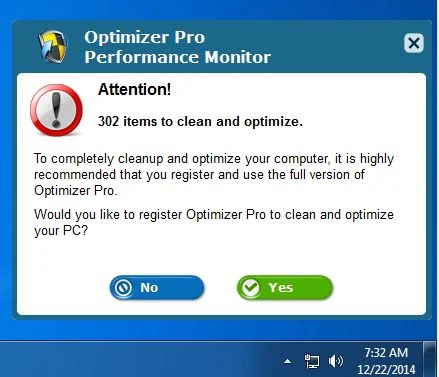
PC Optimizer Pro is a potentially unwanted program, which is advertised as a system optimizer, and once installed it claims that several issues were been detected on your computer. However, if you try to fix these issues, PC Optimizer Pro will state that you need to buy its full version before being able to do so.
![[Image: PC Optimizer Pro scam]](https://malwaretips.com/blogs/wp-content/uploads/mwt-media/80/80c10caf9ff2da584d113ced71ddba4f6067e0cf456056736fccfd41d6110c9d/eeeaa5d3fc2c9fcf5734abe886f032973d2285bcf23dffbf2712ce20876c7b78-934.webp "How to remove PC Optimizer Pro from Windows (Removal Guide) 1")
![[Image: PC Optimizer Pro fake registry cleaner]](https://malwaretips.com/blogs/wp-content/uploads/mwt-media/9e/9e73bcf812a4eb9d33da7046a46bc5279fc51b4db745ea28988112bb00330515/26e66cfa350a62ccb01d03073dad49d1b8c6f85657bf215f4b921010b8cf19a6-805.webp "How to remove PC Optimizer Pro from Windows (Removal Guide) 2")
![[Image: PC Optimizer Pro virus]](https://malwaretips.com/blogs/wp-content/uploads/mwt-media/12/12aa5cdc823778f24d9495b07866166fae5f00f2322b46000805277b88824b97/669362fdb35cc39dfc069d8943011093d315643c5b025a2386c2803308eed2fc-803.webp "How to remove PC Optimizer Pro from Windows (Removal Guide) 4")
![[Image: PC Optimizer Pro]](https://malwaretips.com/blogs/wp-content/uploads/mwt-media/78/7842a5c5cdcdd8bad9c0dbacb3d6b31cb3d5539123e4cbc22dd88740c6a31ccb/7b176df2ac124c22c0bb960a940f489b8e1e6d0151449dc953d6f8cb8750d1bf-803.webp "How to remove PC Optimizer Pro from Windows (Removal Guide) 5")
PC Optimizer Pro is bundled with other free software that you download off of the Internet. Unfortunately, some free downloads do not adequately disclose that other software will also be installed and you may find that you have installed adware without your knowledge.
The Windows registry is a database that Windows and its applications store their settings in. It contains hundreds of thousands of entries. Some of the entries may be slightly outdated — maybe you’ve uninstalled a program and it left a key or two behind, or maybe a there’s a file extension with no associated application.
PC Optimizer Pro scan your registry for these outdated entries and offer to remove them. Because there are so many registry entries to go through, this program may sometimes also remove useful registry entries, causing you problems. The Web is full of stories from people who have run a registry cleaner and encountered problems. In a best case scenario, PC Optimizer Pro will remove a few hundred unnecessary entries and reduce the size of your registry by a few kilobytes. This makes no difference in perceptible performance.
If you must use a registry cleaner, you don’t have to pay anything. Using a free registry cleaner, such as the registry cleaner included with the respected CCleaner utility, is good enough.
Always opt for the custom installation and deselect anything that is not familiar, especially optional software that you never wanted to download and install in the first place. It goes without saying that you should not install software that you don’t trust.
How to remove PC Optimizer Pro (Uninstall Guide)
Please perform all the steps in the correct order. If you have any questions or doubt at any point, STOP and ask for our assistance.
- STEP 1: Uninstall PC Optimizer Pro from Windows
- STEP 2: Use Malwarebytes to Scan for Malware and Unwanted Programs
- STEP 3: Double-check for malicious programs with HitmanPro
STEP 1 : Uninstall PC Optimizer Pro from Windows
In this first step, we will try to uninstall PC Optimizer Pro by using the Windows Control Panel.
- Go to the uninstall menu.
Windows 10 or Windows 8.1
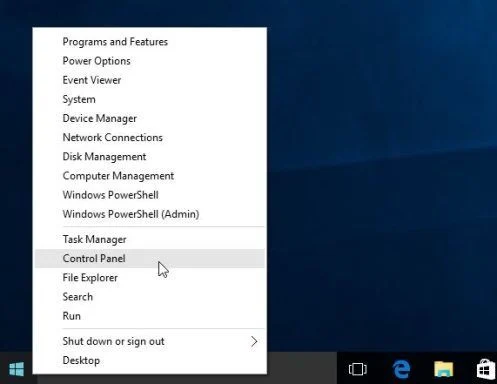
- To uninstall a program on Windows 10 or Windows 8, right-click on the Windows Start button and choose “Control Panel” from the pop-up menu.
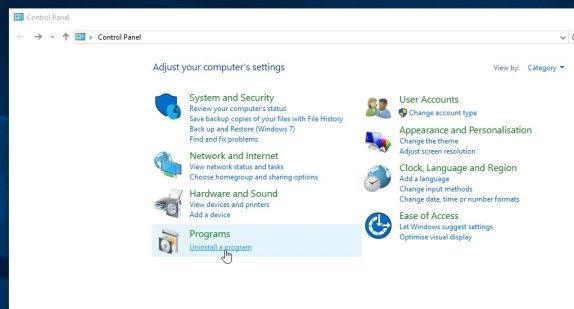
- When the “Control Panel” window opens click on the “Uninstall a program” option under “Programs” category.
Windows 7
- If you are using Windows XP, Windows Vista or Windows 7, click the “Start” button, then click on the “Control Panel” menu option.
![[Image: Control Panel in Windows Start Menu]](https://malwaretips.com/blogs/wp-content/uploads/mwt-media/56/56ac005bf149366d33075df70182d7933c19b066be2e500869e031cc9cac279b/273fcfd76a87bfc0fcd3b6b019be9066a9342174ed0b81f9002efcb804ca5be8-346.webp "Control Panel in Windows Start Menu")
- When the “Control Panel” window opens click on the “Uninstall a program” option under “Programs” category.
![[Image: Uninstall a program]](https://malwaretips.com/blogs/wp-content/uploads/mwt-media/2a/2a46a9e643eeeb764fb164177551c571817a8b4d4fe8141504dca801f8abc8cc/f2a64da5c9bbae588b1c04059e9f6a1e9a413554048666c6db3aa65196a7b99a-557.webp "Click on Uninstall a program")
- To uninstall a program on Windows 10 or Windows 8, right-click on the Windows Start button and choose “Control Panel” from the pop-up menu.
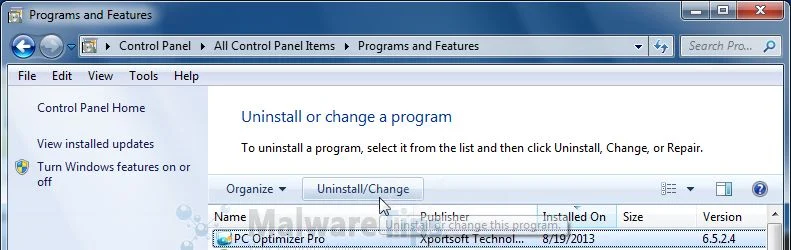
- When the “Programs and Features” screen is displayed, scroll through the list of currently installed programs and uninstall PC Optimizer Pro.
To view the most recently installed programs, you can click on the “Installed On” column to sort your program by the installation date. Scroll through the list, and uninstall any unwanted or unknown programs.If you cannot find any unwanted programs on your computer, then you can proceed with the next step.If you are having issues while trying to uninstall the PC Optimizer Pro program, you can use Revo Uninstaller to completely remove this unwanted program from your machine.
STEP 2: Use Malwarebytes to Scan for Malware and Unwanted Programs
Malwarebytes is a powerful on-demand scanner which will scan and remove from your PC any malicious program that may have been installed along with PC Optimizer Pro. It is important to note that Malwarebytes will run alongside antivirus software without conflicts.
- You can download download Malwarebytes from the below link.
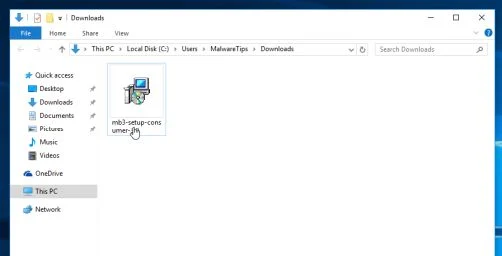
Download MalwarebytesFree official installer. Your download starts right away. - When Malwarebytes has finished downloading, double-click on the “mb3-setup-consumer” file to install Malwarebytes on your computer.
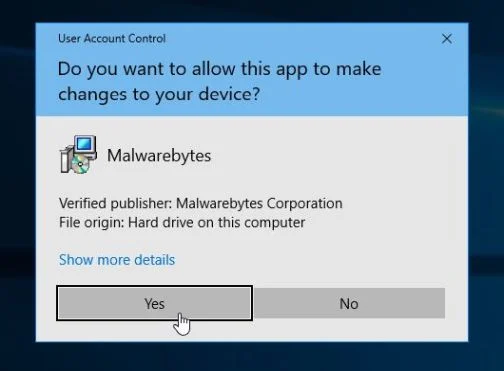
You may be presented with an User Account Control pop-up asking if you want to allow Malwarebytes to make changes to your device. If this happens, you should click “Yes” to continue with the installation.
- When the Malwarebytes installation begins, you will see the Malwarebytes Setup Wizard which will guide you through the installation process.
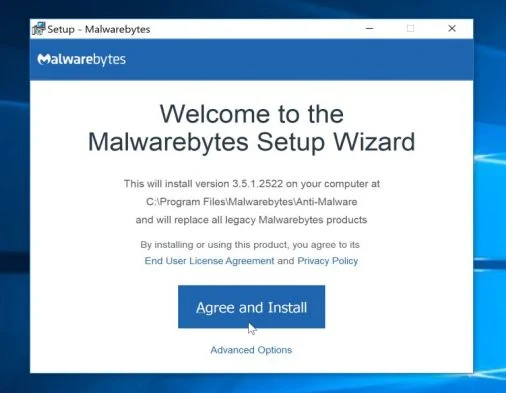
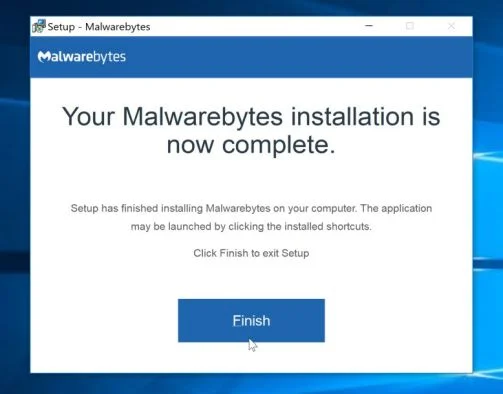
To install Malwarebytes on your machine, keep following the prompts by clicking the “Next” button.
- Once installed, Malwarebytes will automatically start and update the antivirus database. To start a system scan you can click on the “Scan Now” button.
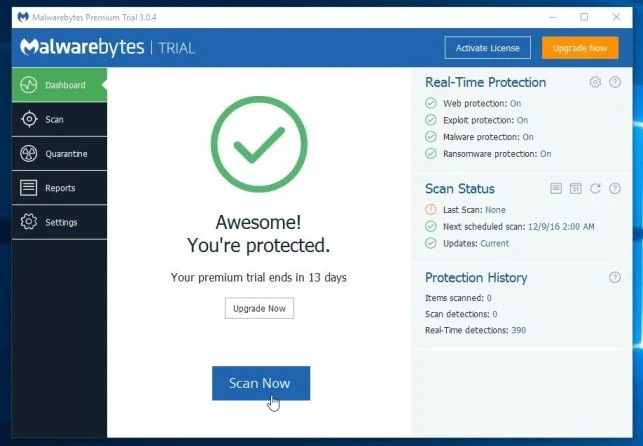
- Malwarebytes will now start scanning your computer for malicious programs.
This process can take a few minutes, so we suggest you do something else and periodically check on the status of the scan to see when it is finished.
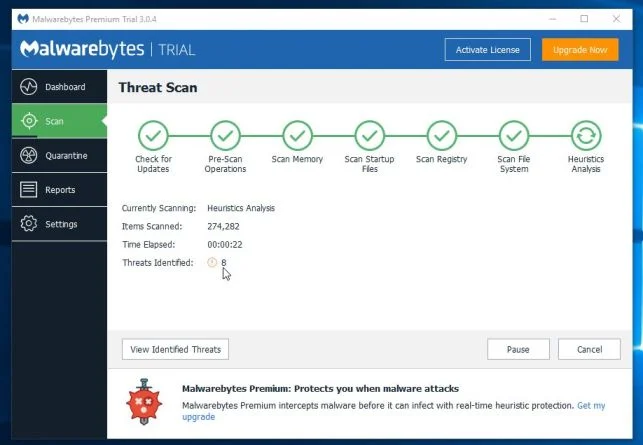
- When the scan has completed, you will be presented with a screen showing the malware infections that Malwarebytes has detected.
To remove the malicious programs that Malwarebytes has found, click on the “Quarantine Selected” button.
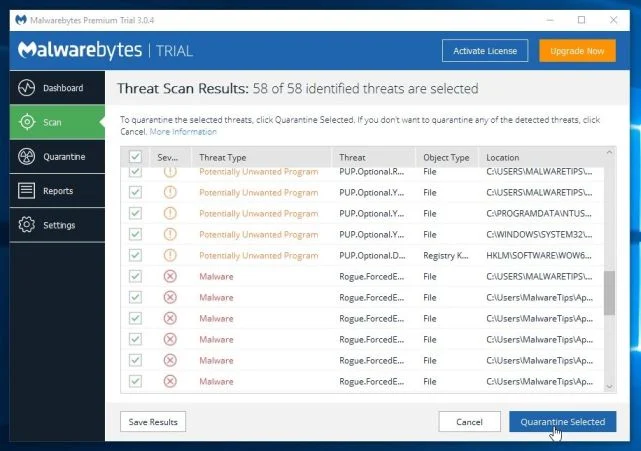
- Malwarebytes will now quarantine all the malicious files and registry keys that it has found.
To complete the malware removal process, Malwarebytes may ask you to restart your computer.
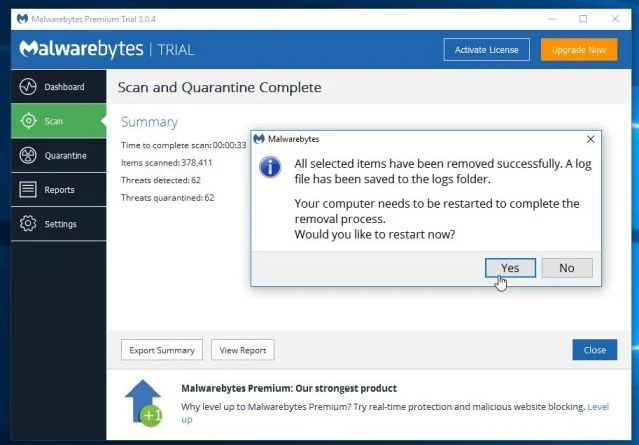
When the malware removal process is complete, you can close Malwarebytes and continue with the rest of the instructions.
STEP 3: Double-check for malicious programs with HitmanPro
HitmanPro can find and remove malware, adware, bots, and other threats that even the best antivirus suite can oftentimes miss. HitmanPro is designed to run alongside your antivirus suite, firewall, and other security tools.
- You can download HitmanPro from the below link:
Download HitmanProOfficial Sophos download. Free scan, free 30-day trial to remove threats. - When HitmanPro has finished downloading, double-click on the “hitmanpro” file to install this program on your computer.
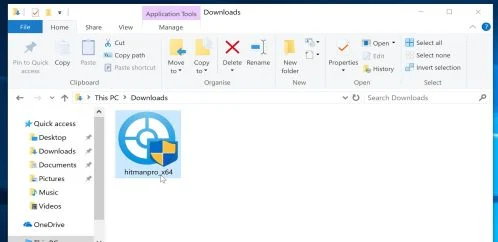
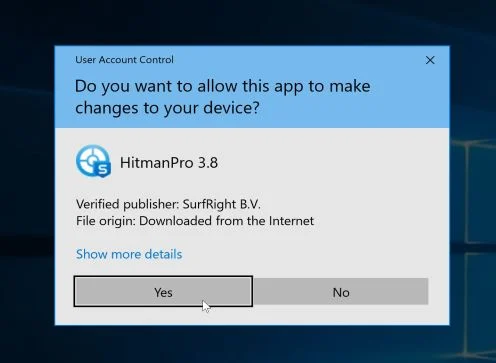
You may be presented with an User Account Control pop-up asking if you want to allow HitmanPro to make changes to your device. If this happens, you should click “Yes” to continue with the installation.
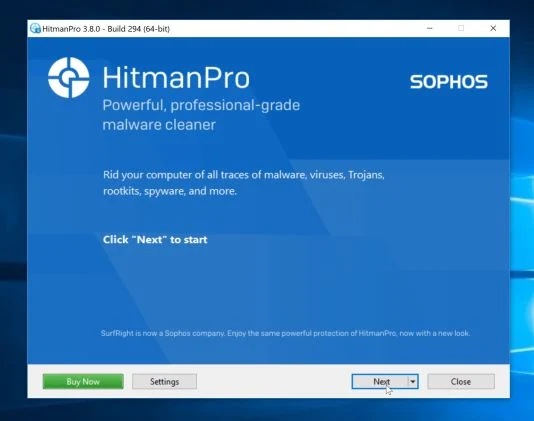
- When the program starts you will be presented with the start screen as shown below. Now click on the Next button to continue with the scan process.
- HitmanPro will now begin to scan your computer for malware.
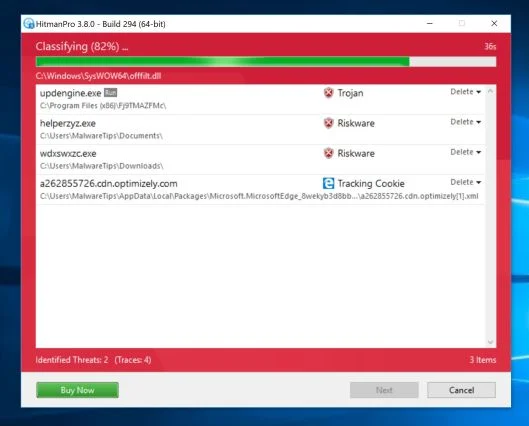
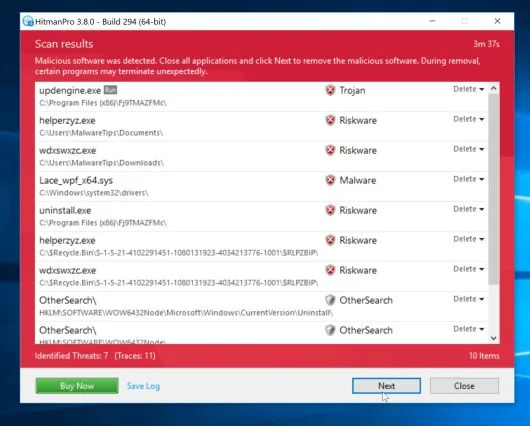
- When it has finished it will display a list of all the malware that the program found as shown in the image below. Click on the “Next” button, to remove malware.
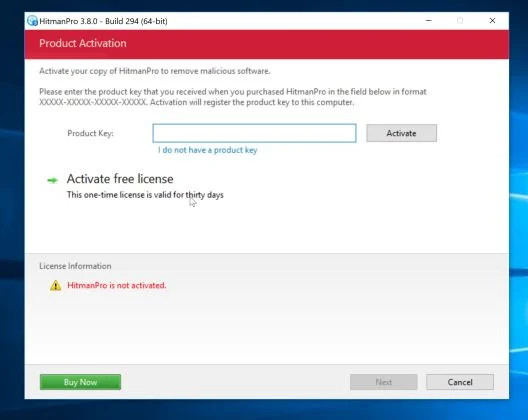
- Click on the “Activate free license” button to begin the free 30 days trial, and remove all the malicious files from your computer.
Your computer should now be free of the PC Optimizer Pro. If you are still experiencing problems while trying to remove PC Optimizer Pro from your machine, please do one of the following:
- Run a system scan with Zemana AntiMalware
- Start a new thread in our Malware Removal Assistance forum.

Join the discussion
64 commentsShare your experience or ask a question about this article.
Your progress
Did these steps help?
Let us know how the guide worked for you.
Describe what you see and the step you reached. Keep passwords and other private information out.
Discussion
god bless you man thanks finnaly i get rid of the pc optimizir pro
HitmanPro is the only program that worked and it did it fast. Thank you, thank you, thank you. Amazing!!!!
Thanks for information .Any one want to Optimize PC use our Product TunePRO360 – pc optimization tool which is free of Cost .
ran through everything, fantastic guide. Thanks so much, so far so good…that crap had rendered my windows tablet useless.
Thx bro Im justdoing it
Oh my thank you so much! worked like a dream so far.
Perfect! Thanks so much
Hey Guys, my kid apparently got this on his computer after downloading some mod for his minecraft game. I read the directions, but can’t even get to step 1.
When I boot up his computer and type in his password to get to his desktop, I only see a PC Optimizer Pro window asking to purchase their product. When I hit cancel, I just get a black screen with no way to get to the control panel. When I hit yes to purchase, it just takes me to a window pop up where they want me to continue to purchase.
Do I need to boot up in safemode or something and if so, how? Thank you
In reply to Joseph
Joseph, here is what I did. When you get the black screen hit CTL ALT DELETE simultaneously. Then select TASK MANAGER. When it come up look at processes. There were a couple called RUN ONCE WRAPPER and something else very similar. THAT was what was causing to black screen. Once I turned off those I got to my desk top and was able to delete this PRO OPTIMIZER crap. I have not rebooted yet but it appears things are fine. In my situation if I clicked that I wanted to register it PRO would open a browser window to let me pay.I could then open a new tab and THAT is how I got to THIS page. GOOD LUCK!
In reply to Bern Bradley
I struggled for hours and these simple steps were all it took THANK YOU
U are a f****** god thank u so much.
In reply to kaman191125
Yes, THANK YOU. Amazing.
THX FOR THIS EPIC MIX OF KICKASS PROGRAMS <3 <3 <3
I came to this website as an alternative to the $70 that McAfee would’ve charged me to get rid of my viruses. THANK GOD. Oh wait, thank YOU. (:
I’ve used this website a couple of time, unfortunately, and it is great. Thank you for helping out the PC illiterate. You guys are lifesavers.
Thank you!!!! Thank you!!!! Thank you!!!!
thank you
thank god my computer is my baby and just saved it from a crash <3 <3
thank god my computer is my baby and just saved it from a crash <3 <3
Thanks for the advice! It worked!
You are the man :) Thank you !!
I followed Stefan’s clear, detailed and instructions and was able to remove a whole bunch of infections and malware. My computer is now running a lot better.
I needed to do each step several times to get rid or it, I don’t know if this did anything but one of the programs was un-findable and yet I could not “remove” it because it was “still running” So I went through the file folders and found the program (the search will not find it so go to programs) and opened the file and what ever ones I could delete I deleted and then moved the other that could not be deleted, I “moved” to another folder which had a nasty name on it, and the changed the name of the actual file so that it could not be found by the program. Shut down and opened under the “visitor” user (if you have not created a visitor or other user, DO SO!!!!) and the program either did not load because I was in a different user which was restricted and had no record of the program or if it was my deleting and move and renaming of the files could not open but I was then able to “remove” the program and then went through the process again to clean up. I am amazed that for four or more times oin a row more and more junk was found,,,, talk about cleaning, reminds me of them pesky flees on my dog, tricky little bustards… ya gotta find em, catch em, and crush em and smear them so only a mark remains. Same here.
Thank you, thank you and thank you! You have caused me to feel better about not charging for my legal help even though ‘Im dead broke.. when I am no longer broke I must send you a donation… in the mean time perhaps you need my help or have a relative that does? With the institution of the UCC most businesses can be captured in any court by the same rules world wide. I say this because most if not all of “Debt Collections” Mortgages, credit cards etc and most tickets, etc can be shown to be a criminal act or series of criminal acts which makse you the Plaintiff and them liable for thousands if not millions depending on how well you put the case together to cause them to come to negotiations of amount to pay you off to not speak of such things as the actual laws and Statutes, Constitutions, rules, policy etc. The funny thing is that the public servants in every country every State, every county, district, etc etc DO NOT KNOW THE LAWS THEMSELVES AND AS SUCH VIOLATE THEM ALL THE TIME. If they are violating the law then they have no capacity or standing and the court can not grant them anything they ask for and once proving your case on paper ahead of time letting them know you are likely to prevail with a jury trial, they come running and start throwing millions at you so that you will sign a non disclosure… be sure to have put in there that you will abide with it so long as it is lawful and only so far a as the civil claims. This will leave you open to pursue criminal actions by “making known to some Judge or other officer of the United States” the crimes and then hound them to take action or they are committing a crime which deprive you of the “equal protections of the law”. (see 18 USC sec. 4 and 14th Constitutional amendment. (you can find similar in every country which has laws, constitutions etc. Just learn the laws and find where they have breached them…
We have to clean up the mess that our parents and grand parents left us with by not studying the very laws created by us to protect us from these very thefts and violations of something somewhere. Turn the spot light one them and their criminal activities and show how you were injured as a result.. end of story. Be sure to gather the evidence without wining, bitching or moaning and especially any attitude at all.. it is a dead give away and we must be stealthy.. “float like a butterfly sting like a bee” Do not “advertise your punch” The written laws, statutes, Codes, etc. are our “arms” “to have and to bear”…
Blessings=may your desires be fulfilled.. truthmonger
In reply to truthmonger
Malware tips your info and site ROCK and your def doing a great service to all. I hope you don’t mind but I read this comment and would like to try to get in touch with the commenter about their services. God bless