

PC Speed Maximizer is a system optimizer utility, which is promoted via other free downloads, and once installed it claims that several issues were been detected on your computer.
If you try to fix these problems, PC Speed Maximizer will state that you need to buy its full version before being able to do so.
![[Image: PC Speed Maximizer virus]](http://malwaretips.com/blogs/wp-content/uploads/2013/09/pc-speed-maximizer-virus.jpg "PC Speed Maximizer system optimizer")
PC Speed Maximizer is a paid system optimizer program that is typically added when you install another free software (video recording/streaming, download-managers or PDF creators) that had bundled into their installation this program. Very often users have no idea where did it come from, so it’s not surprising at all that most of them assume that PC Speed Maximizer is a virus. This program is also bundled within the custom installer on many reputable download sites, so if you have downloaded a software from these websites, chances are that PC Speed Maximizer was installed during the software setup process.
PC Speed Maximizer it’s technically not a virus, but it does exhibit plenty of malicious traits, such as rootkit capabilities to hook deep into the operating system, browser hijacking, and in general just interfering with the user experience. The industry generally refers to it as a “PUP,” or potentially unwanted program.
Some examples of the interface, fake alerts, fake scanning results, and pop-ups displayed by PC Speed Maximizer are shown below:
![[Image: PC Speed Maximizer maware]](http://malwaretips.com/blogs/wp-content/uploads/2013/09/pc-speed-maximizer-malware.jpg "PC Speed Maximizer malware")
![[Image: PC Speed Maximizer alert]](http://malwaretips.com/blogs/wp-content/uploads/2013/09/pc-speed-maximizer-alert.jpg "PC Speed Maximizer alert")
![[Image: PC Speed Maximizer infection]](http://malwaretips.com/blogs/wp-content/uploads/2013/09/pc-speed-maximizer-infection.jpg "PC Speed Maximizer infection")
The Windows registry is a database that Windows and its applications store their settings in. It contains hundreds of thousands of entries. Some of the entries may be slightly outdated — maybe you’ve uninstalled a program and it left a key or two behind, or maybe a there’s a file extension with no associated application.
PC Speed Maximizer scan your registry for these outdated entries and offer to remove them. Because there are so many registry entries to go through, this program may sometimes also remove useful registry entries, causing you problems. The Web is full of stories from people who have run a registry cleaner and encountered problems. In a best case scenario, PC Speed Maximizer will remove a few hundred unnecessary entries and reduce the size of your registry by a few kilobytes. This makes no different in perceptible performance.
If you must use a registry cleaner, you don’t have to pay anything. Using a free registry cleaner, such as the registry cleaner included with the respected CCleaner utility, is good enough.
You should always pay attention when installing software because often, a software installer includes optional installs, such as this PC Speed Maximizer. Be very careful what you agree to install.
Always opt for the custom installation and deselect anything that is not familiar, especially optional software that you never wanted to download and install in the first place. It goes without saying that you should not install software that you don’t trust.
How to remove PC Speed Maximizer – Virus Removal Guide
This page is a comprehensive guide, which will remove PC Speed Maximizer pop-ups from your computer, and any other adware program that may have been installed during the setup process.
Please perform all the steps in the correct order. If you have any questions or doubt at any point, STOP and ask for our assistance.
STEP 1: Uninstall PC Speed Maximizer programs from your computer
STEP 2: Remove PC Speed Maximizer adware with AdwCleaner
STEP 3: Remove PC Speed Maximizer browser hijackers with Junkware Removal Tool
STEP 4: Remove PC Speed Maximizer virus with Malwarebytes Anti-Malware Free
STEP 5: Double-check for the PC Speed Maximizer infection with HitmanPro
STEP 1 : Uninstall PC Speed Maximizer programs from your computer
- To uninstall the PC Speed Maximizer program from your computer, click the Start button, then select Control Panel, and click on Uninstall a program.
If you are using Windows 8, simply drag your mouse pointer to the right edge of the screen, select Search from the list and search for “control panel“. Or you can right-click on a bottom left hot corner (formerly known as the Start button) and select Control Panel from there, then select Uninstall a program.
![[Image: Uninstall a program]](data:image/gif;base64,R0lGODlhAQABAAAAACH5BAEKAAEALAAAAAABAAEAAAICTAEAOw== "Click on Uninstall a program")
- When the Add/Remove Programs or the Uninstall a Program screen is displayed, scroll through the list of currently installed programs and uninstall PC Speed Maximizer v3.2 and any other unknown programs from your computer.
![[Image: Uninstall a program]](http://malwaretips.com/blogs/wp-content/uploads/2013/03/uninstall-a-program-windows.jpg "Click on Uninstall a program")
![[Image: Uninstall PC Speed Maximizer program from Windows]](http://malwaretips.com/blogs/wp-content/uploads/2013/09/pc-speed-maximizer-uninstall.jpg "Uninstall PC Speed Maximizer program from Windows")
If you are having issues while trying to uninstall the PC Speed Maximizer program, you can use Revo Uninstaller to completly remove this unwated program from your machine.
STEP 2: Remove PC Speed Maximizer adware from your computer with AdwCleaner
The AdwCleaner utility will scan your computer for PC Speed Maximizer adware, that may have been installed on your computer without your knowledge.
- You can download AdwCleaner utility from the below link.
ADWCLEANER DOWNLOAD LINK (This link will automatically download AdwCleaner on your computer) - Before starting AdwCleaner, close all open programs and internet browsers, then double-click on the AdwCleaner icon.
If Windows prompts you as to whether or not you wish to run AdwCleaner, please allow it to run. - When the AdwCleaner program will open, click on the Scan button as shown below.
AdwCleaner will now start to search for PC Speed Maximizer malicious files that may be installed on your computer. - To remove the PC Speed Maximizer malicious files that were detected in the previous step, please click on the Clean button.
AdwCleaner will now prompt you to save any open files or data as the program will need to reboot the computer. Please do so and then click on the OK button.
![[Image: AdwCleaner Icon]](http://malwaretips.com/blogs/wp-content/uploads/2013/08/adwcleaner-icon.jpg "AdwCleaner Icon")
![[Image: Adwcleaner Scan]](http://malwaretips.com/blogs/wp-content/uploads/2013/08/adwcleaner-scan.jpg "Click on Scan button to search for PC Speed Maximizer infection")
![[Image: AdwCleaner removing infections]](http://malwaretips.com/blogs/wp-content/uploads/2013/08/adwcleaner-cleanup.jpg "Click on the Clean button to remove PC Speed Maximizer")
STEP 3: Remove PC Speed Maximizer browser hijackers with Junkware Removal Tool
Junkware Removal Tool is a powerful utility, which will remove PC Speed Maximizer browser hijacker from Internet Explorer, Firefox or Google Chrome.
- You can download the Junkware Removal Tool utility from the below link:
JUNKWARE REMOVAL TOOL DOWNLOAD LINK (This link will automatically download the Junkware Removal Tool utility on your computer) - Once Junkware Removal Tool has finished downloading, please double-click on the JRT.exe icon as seen below.
If Windows prompts you as to whether or not you wish to run Junkware Removal Tool, please allow it to run. - Junkware Removal Tool will now start, and at the Command Prompt, you’ll need to press any key to perform a scan for the PC Speed Maximizer virus.
Please be patient as this can take a while to complete (up to 10 minutes) depending on your system’s specifications. - When the scan Junkware Removal Tool will be completed, this utility will display a log with the malicious files and registry keys that were removed from your computer.
![[Image: Junkware Removal Tool]](http://malwaretips.com/blogs/wp-content/uploads/2013/06/Junkware-icon.jpg "Double-click on the Junkware Removal Tool utility")
![[Image: Junkware Removal Tool scanning for PC Speed Maximizer virus]](http://malwaretips.com/blogs/wp-content/uploads/2013/06/junkware-removal-tool.jpg "Junkware Removal Tool scanning for PC Speed Maximizer virus")
![[Image: Junkware Removal Tool final log]](http://malwaretips.com/blogs/wp-content/uploads/2013/06/Junkware-log.jpg "Junkware Removal Tool final log")
STEP 4: Remove PC Speed Maximizer virus with Malwarebytes Anti-Malware Free
- You can download Malwarebytes Anti-Malware Free from the below link, then double-click on the icon named mbam-setup.exe to install this program.
MALWAREBYTES ANTI-MALWARE DOWNLOAD LINK(This link will open a download page in a new window from where you can download Malwarebytes Anti-Malware Free) - When the installation begins, keep following the prompts in order to continue with the setup process, then at the last screen click on the Finish button.
- On the Scanner tab, select Perform quick scan, and then click on the Scan button to start searching for the PC Speed Maximizer malicious files.
- Malwarebytes’ Anti-Malware will now start scanning your computer for PC Speed Maximizer as shown below.
- When the Malwarebytes Anti-Malware scan has finished, click on the Show Results button.
- You will now be presented with a screen showing you the computer infections that Malwarebytes Anti-Malware has detected. Make sure that everything is Checked (ticked), then click on the Remove Selected button.
![[Image: Malwarebytes Anti-Malware final installation screen]](http://malwaretips.com/blogs/wp-content/uploads/2013/01/malwarebytes-installation.jpg "Malwarebytes Anti-Malware installation screen")
![[Image: Malwarebytes Anti-Malware Quick Scan]](http://malwaretips.com/blogs/wp-content/uploads/2013/01/malwarebytes-quick-scan.jpg "Run a Quick Scan with Malwarebytes Anti-Malware")
![[Image: Malwarebytes Anti-Malware scanning for PC Speed Maximizer virus]](http://malwaretips.com/blogs/wp-content/uploads/2013/01/malwarebytes-scan.jpg "Malwarebytes Anti-Malware scanning for PC Speed Maximizer")
![[Image: Malwarebytes Anti-Malware scan results]](http://malwaretips.com/blogs/wp-content/uploads/2013/01/malwarebytes-scan-results.jpg "Malwarebytes when the system scan has completed")
![[Image: Malwarebytes Anti-Malwar removing PC Speed Maximizer]](http://malwaretips.com/blogs/wp-content/uploads/2013/01/malwarebytes-virus-removal.jpg "Malwarebytes Anti-Malwar removing PC Speed Maximizer")
STEP 5: Double-check for the PC Speed Maximizer infection with HitmanPro
HitmanPro is a second opinion scanner, designed to rescue your computer from malware (viruses, trojans, rootkits, etc.) that have infected your computer despite all the security measures you have taken (such as anti virus software, firewalls, etc.).
- You can download HitmanPro from the below link:
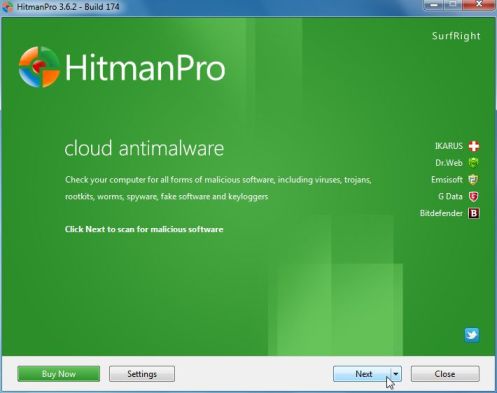
HITMANPRO DOWNLOAD LINK (This link will open a web page from where you can download HitmanPro) - Double-click on the file named HitmanPro.exe (for 32-bit versions of Windows) or HitmanPro_x64.exe (for 64-bit versions of Windows). When the program starts you will be presented with the start screen as shown below.
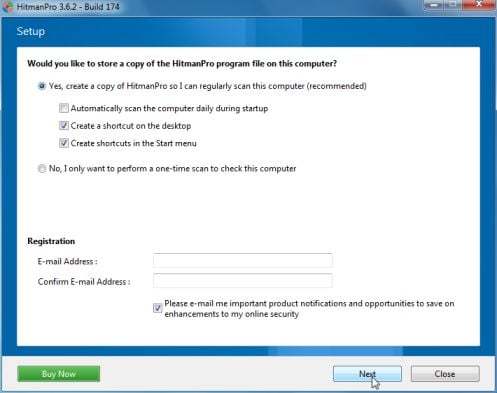
Click on the Next button, to install HitmanPro on your computer.
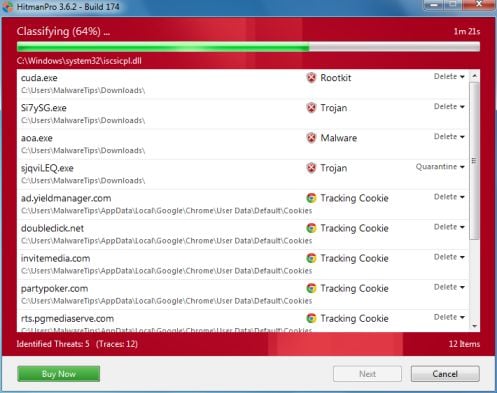
- HitmanPro will now begin to scan your computer for PC Speed Maximizer malicious files.
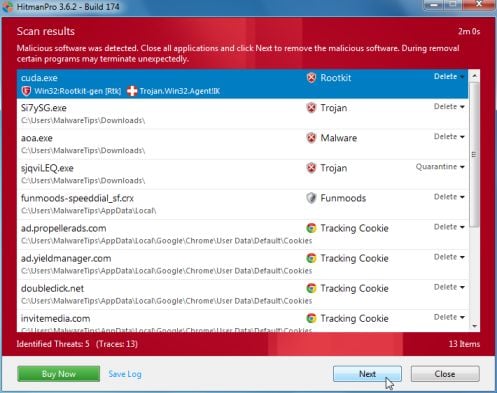
- When it has finished it will display a list of all the malware that the program found as shown in the image below. Click on the Next button, to remove PC Speed Maximizer adware.
- Click on the Activate free license button to begin the free 30 days trial, and remove all the malicious files from your computer.
![[Image: HitmanPro 30 days activation button]](http://malwaretips.com/blogs/wp-content/uploads/2012/11/hitmanpro-activation.jpg "HitmanPro free 30 days trial")
Your computer should now be free of the PC Speed Maximizer infection. If your current anti-virus solution let this infection through, you may want to consider purchasing the PRO version of Malwarebytes Anti-Malware to protect against these types of threats in the future, and perform regular computer scans with HitmanPro.
If you are still experiencing problems while trying to remove PC Speed Maximizer virus from your machine, please start a new thread in our Malware Removal Assistance









Thank youvery much! From a hopeless amateur
Thank you so much, I could of cried xD
I can’t find it in my list of programs D’: what do I do?
Use ADWCleaner (see Step 2 in the article). It worked like a charm for me, and PC Speed Maximizer wasn’t in my program list either.
Worked just fine…:)
BILLION THANKS BRAD GOD WILL REWARD YOU WHEN THE CALL IS ROLL UP YONDER GOD BLESS YOU REALLY
Your the Man!! thanks for helping people all over the world, your a Superhero!! it’s people like you that makes this world a better place to live. Keep up the Awesome work!! Internet Man.
I am so thankful for this!