


A security investigation does not always begin with a suspicious program you can uninstall. Sometimes the important clue is a service that looks entirely ordinary.
RemotePE belongs to that quieter kind of incident. Understanding its place in the attack helps explain which cleanup actions matter and which can destroy evidence.
Overview
A Windows Implant With Two Preceding Loaders
RemotePE is a remote-access Trojan documented by Fox-IT in investigations involving financial and cryptocurrency organizations.
The reported chain involves DPAPILoader, RemotePELoader, and the final RemotePE payload. The researchers associate the toolset with a Lazarus subgroup.
Those names describe different roles, not three ordinary programs a user should search for and delete. Identification needs the actual system evidence.
The Final Payload Runs in Memory
Fox-IT’s original analysis explains that RemotePE executes in memory while preceding stages and configuration can leave disk artifacts.
Calling the entire incident invisible would therefore be misleading. Memory-focused investigation and examination of persistent components can both matter.
The reported RAT supports commands, process and file management, and additional modules. Remote access creates risk even when the desktop remains usable.
Containment Matters More Than Hunting a Familiar Filename
- A credible detection on a work system needs the security team’s immediate attention.
- Rebooting can change memory evidence without removing persistent loader components.
- A Windows-looking service name does not establish a trusted origin.
- Do not delete legitimate system files based on a name mentioned in an article.
- Account exposure and network access need assessment alongside endpoint cleanup.
This is a malware-removal and incident-response case, not a browser warning that can be dismissed by closing a tab.
How the RemotePE Attack Chain Works
Step 1: An Existing Foothold Allows the Loader to Be Planted
The toolset’s presence does not by itself reveal the first point of entry. Reconstruct that from your incident, rather than assuming one universal phishing message.
A financial organization may need to assess several access paths. User accounts, software distribution, exposed services, and earlier alerts can all provide relevant context.
Do not treat a lack of remembered email interaction as reassurance. A person can be affected without knowingly opening a particular attachment.
Likewise, an unusual email is not proof it delivered RemotePE. Keep the evidence connected through timestamps and observed execution rather than guesswork.
Step 2: A Persistent Component Uses a Plausible Windows Identity
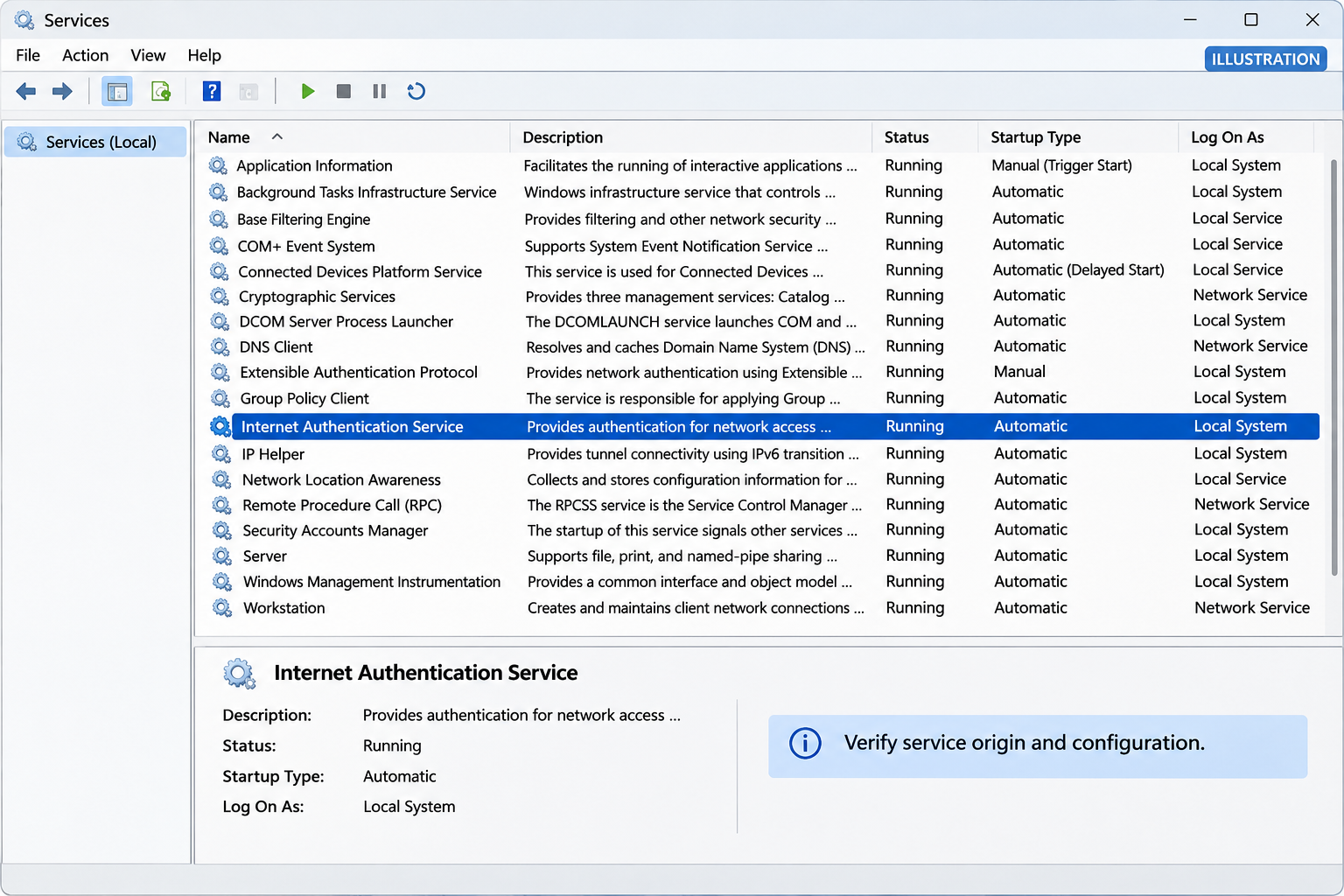
In one documented configuration, DPAPILoader masqueraded as an Internet Authentication Service. It could start again when the system booted.
Windows also has legitimate authentication components. The displayed name alone cannot tell you whether an entry is malicious or required by the environment.
Responders should check the actual configuration, file identity, origin, and history. A user should not disable authentication services based on a matching phrase.
This distinction prevents two mistakes: trusting a convincing label and damaging Windows by removing a genuine component with a similar name.
Step 3: Environment-Bound Loading Makes Simple File Checks Incomplete
The reported loader uses Windows-provided data protection to bind encrypted material to its environment. A copied artifact may not behave the same elsewhere.
For the affected organization, that makes context valuable. Preserve the system and relevant evidence under a plan rather than sending random files to public scanners.
A public upload may expose private information and still fail to explain the incident. Consult the response team before sharing business artifacts externally.
Do not try to extract protected operating-system secrets yourself. The useful action is preserving access for qualified analysis, not experimenting with decryption commands.
Step 4: The Next Loader Retrieves the In-Memory RAT
RemotePELoader obtains the final component from command infrastructure. The reported RemotePE payload is loaded into memory rather than saved as an ordinary installed application.
That means the Apps list is an incomplete place to look. The absence of a program named RemotePE does not settle the question.
It also explains why rebooting is not a complete cure. Ending a memory-resident process does not necessarily remove whatever can load it again.
A meaningful recovery plan addresses the persistent chain, not only the part that happens to be running when someone checks Task Manager.
Step 5: Remote Commands Extend the Incident Beyond the First Host
Once an operator can issue commands and manage files, the potential impact depends on accessible resources and the privileges available.
A device used for sensitive business operations deserves a different response from an isolated test system. Identify the actual access before deciding what is safe.
Logs, account activity, and network records help establish what happened. A capability described in research is not proof that it was used against every victim.
Keep that distinction in incident communications. Be clear about confirmed actions, possible exposure, and what is still being assessed.
What to Do If RemotePE Is Suspected
For a work-managed system, involve the real incident-response team before starting consumer cleanup. The order below prioritizes containment and preservation.
- Restrict the affected device’s network access.
Follow the organization’s isolation process or disconnect its network connection. Avoid ordinary business activity while possible remote access remains unresolved.
- Contact trusted responders from another device.
Use your established security contact. Provide the detection name, affected asset, discovery time, and what you were doing when the alert appeared.
- Ask before rebooting, scanning, or uninstalling.
Those actions can change evidence. Your responders may need memory collection or forensic imaging before approving a removal attempt.
- Preserve reports without publishing sensitive artifacts.
Keep detection logs and relevant messages privately. Do not upload full memory captures, protected configuration, or company documents to a public support thread.
- Assess exposed access through clean systems.
Identify affected identities and business services with administrators. Perform any necessary credential rotation and session revocation from an unaffected device.
- Choose a recovery standard appropriate to the system.
A financial or administrative endpoint may require a controlled rebuild. A successful consumer scan is not sufficient authorization to return it to service.
- Look for related activity before closing the incident.
Review relevant endpoints and accounts, not only the first detection. Document what was found and the basis for resuming normal operations.
Remove RemotePE-Related Malware From Windows
Step 1: Decide Whether Consumer Cleanup Is Appropriate
The procedure below is for an unmanaged personal Windows system or a scan explicitly approved by your responder.
On organizational equipment, keep the machine isolated and follow the incident plan. Do not erase memory evidence simply to begin a routine reboot sequence.
Keep backups separate and arrange trusted installation media. If confidence in the system cannot be restored, plan a clean rebuild before reconnecting sensitive resources.
Step 2: Follow the Malwarebytes Installation and Scan Procedure
Download the Correct Windows Installer
Use the download below for Malwarebytes for Windows. Obtain the installer on a trusted computer if the affected machine cannot browse safely.
Download MalwarebytesOpens the official free-scanner page. Choose the Windows download.Optional real-time protection: Malwarebytes Premium
On the official page, choose the free scanner download for Windows. Save the installer; manual scanning and quarantine do not require a Premium purchase.
MalwareTips may earn a commission through its product links. Buying ongoing protection is optional and is not a condition for following this cleanup procedure.
Do not run an installer supplied by the suspicious message, a remote caller, or a search advertisement pretending to offer urgent technical help.
Install and Open Malwarebytes
Open Downloads and double-click the MBSetup installer. Approve the Windows permission prompt only after confirming that it belongs to the installer you obtained.

Follow the setup screens and choose the appropriate personal or work option. On a managed computer, obtain your security team’s approval before installing another tool.
Read optional offers carefully. You can skip an unwanted trial, browser add-on, or paid plan without abandoning a normal manual Windows scan.
Open the application when installation finishes. Let its detection information update if safe connectivity is available; do not reconnect an isolated business endpoint without authorization.
Run a Threat Scan, Then Check Other Affected Locations
From the dashboard, select Scan to start a Threat Scan. This checks common infection locations, memory, startup items, and the registry.
A Threat Scan is not a complete inspection of every drive. Use the Scanner tile’s three-dot menu and Advanced Scan for additional scanning choices.
Choose Custom Scan to inspect specific drives or folders. Select the Windows system drive and any other affected location your responder has approved.
Rootkit scanning is an optional Custom Scan setting on supported systems. Its absence on Windows ARM is not a reason to disable Windows protection.

Allow the selected scan to finish. The duration depends on its scope, available storage, and the computer’s condition, so avoid a promised completion time.
If the application cannot update, start, or finish, save its error message. Repeatedly forcing a broken scanner is not a substitute for incident-response help.
When a report becomes available, review the detected names, locations, and actions. Keep a copy for whoever is helping investigate the compromise.
Review Detections and Quarantine Threats
Leave confirmed malicious items selected and choose Quarantine. Do not create an exclusion simply because a familiar program or system-looking filename appears in the report.
If a finding is unclear, record the detection and ask for advice. Do not manually delete random Windows files based only on their names.

Quarantine isolates the items the tool identifies. Keep them there while the incident is assessed rather than restoring a suspicious file to test it.
Save the scan report after applying the actions. It can show a responder whether the original threat, related components, or potentially unwanted software was found.
A clean result does not undo earlier data theft. Continue the account and recovery actions relevant to this incident even when no active threat remains.
Restart if Requested and Review the Result
Save open work and allow a restart if Malwarebytes requests one. A managed-system responder may need to preserve evidence before approving that restart.
Keep backup storage disconnected during cleanup. Do not interpret a restart as permission to restore files or resume sensitive sign-ins immediately.

After Windows returns, reopen Malwarebytes and check the report. Run the follow-up scan appropriate to the affected locations and note any recurring detections.
Keep Windows Security and other established protection enabled. If threats return, stop ordinary use and obtain help rather than repeatedly excluding or deleting files.
For unresolved personal-device infections, ask in the MalwareTips malware-removal help forum. Do not post passwords, private logs, or confidential work documents publicly.
Step 3: Review Persistent Access, Not Just Scan Results
Keep records of detections that recur after restart. Continuing alerts may indicate a remaining component or another infection requiring specialist assessment.
Do not delete svchost.exe or legitimate authentication libraries. A system-looking name must be evaluated in context, not treated as an automatic removal target.
If the scanner cannot operate, protection repeatedly stops, or the suspected compromise involves privileged access, stop everyday use and obtain qualified help.
A controlled offline assessment or rebuilding process may be needed. Do not bypass security restrictions to force a particular tool to run.
Step 4: Re-establish a Trusted Working Environment
When rebuilding, preserve necessary data under guidance, use trusted operating-system media, and reinstall applications from approved sources.
Do not restore an unexamined system image from the compromise period. It can reintroduce a persistent component along with the applications you wanted back.
Validate restored documents and security controls before returning to normal use. Maintain a separate record of any accounts or keys that still need attention.
What Not to Do With a Windows-Looking Service
Do not make a deletion list from this article. Service display names, filenames, and ordinary Windows host processes can appear in legitimate configurations too.
The appropriate question is what the component actually loads and whether that configuration belongs on this particular machine.
A responder can compare approved baselines, file signatures, service parameters, timestamps, and endpoint behavior. No single visual clue provides an equivalent assessment.
Deleting the wrong component may interrupt authentication or make the computer harder to examine. It does not guarantee that a malicious loader was removed.
Similarly, a familiar publisher label in a file description is not the same as a verified digital signature. Keep the full artifact details for analysis.
If you found the name while searching online rather than through a credible detection, ask for help establishing whether any infection exists first.
How to Judge Recovery Without a False All-Clear
Define what successful recovery means for the device. That may include an approved rebuild, account review, restored protection, and checks for related activity.
For a personal computer, document the scans, detections, applied actions, and any continuing symptoms. This makes a follow-up support request more useful.
For an organization, connect endpoint findings to identity and network evidence. A threat that enables remote commands cannot be assessed solely through application appearance.
Do not assume every accessible file was stolen, but do not equate an absence of visible damage with an absence of access.
Separate the conclusion about active malware from the conclusion about data exposure. Each needs its own evidence and may reach a different confidence level.
Finally, address the entry route. Restoring a clean device without resolving the way it was reached can leave the same organization open to another intrusion.
Frequently Asked Questions
Is RemotePE a remote-support application?
No. It is a malicious remote-access implant. Authorized support software and a confirmed malware detection require different responses.
Does memory-only execution mean there are no files to investigate?
No. The final payload runs in memory, while the reported chain includes persistent loaders and configuration. Investigators should assess both.
Will rebooting remove RemotePE permanently?
Not reliably. A restart can remove current memory state while a persistent loader remains capable of starting the chain again.
Should I delete Internet Authentication Service?
Not based on its displayed name. Legitimate Windows components use similar naming; confirm the actual configuration with a qualified responder.
Can I rely on a clean malware scan?
Use it as one result, not a complete incident history. Advanced remote access may require forensic investigation and a controlled rebuild.
Does the report mean every cryptocurrency user is targeted?
No. The research describes organizational incidents. Apply the guidance to credible exposure or detection, not merely to ownership of cryptocurrency.
The Bottom Line
Take a credible RemotePE detection to trusted responders immediately. Isolate the affected system and preserve evidence before attempting broad cleanup.
Do not delete Windows components by name or trust a reboot as a cure. Address the persistent chain, exposed access, and any need for rebuilding.

Join the discussion
0 commentsShare your experience or ask a question about this article.
Your progress
Did these steps help?
Let us know how the guide worked for you.
Describe what you see and the step you reached. Keep passwords and other private information out.
Discussion
Start the conversation
Have a question or something useful to share? Add the first comment.