

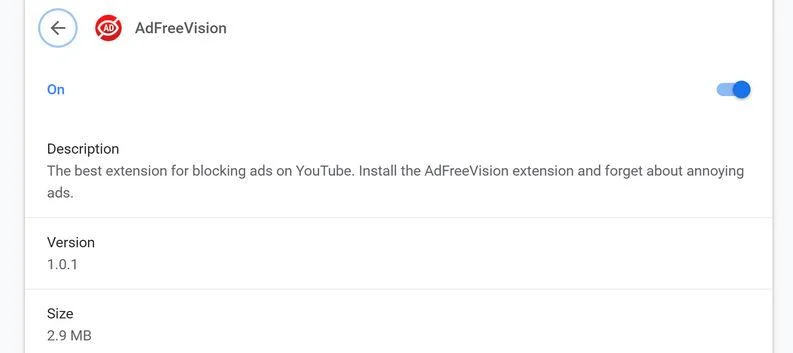
AdFreeVision is an adware program that displays pop-up ads and unwanted advertisements not originating from the sites you are browsing.
What is AdFreeVision?
AdFreeVision is an adware program that displays advertisements trying to sell software, pushes fake software updates, and tech support scams. To do this, the AdFreeVision adware uses either a browser extension or a program.
When the AdFreeVision browser hijacker is installed on a computer, common symptoms include:
- The AdFreeVision program or browser extension is installed on your computer.
- Advertisements appear in places they shouldn’t be.
- Website links redirect to sites different from what you expected.
- Browser popups appear which recommend fake updates or other software.
- Other unwanted programs might get installed without your knowledge.
How did AdFreeVision get on my computer?
AdFreeVision is installed by the users, whether that is knowingly or not. Often, this type of program is offered through advertisements or bundled with other software, leaving the user puzzled where this software came from.
Unfortunately, some free downloads do not adequately disclose that other software will also be installed and you may find that you have installed AdFreeVision without your knowledge.
You should always pay attention when installing software because often, a software installer includes optional installs. Be very careful what you agree to install.
Always opt for the custom installation and deselect anything that is not familiar, especially optional software that you never wanted to download and install in the first place. It goes without saying that you should not install software that you don’t trust.
To remove the AdFreeVision adware and check your computer for other malicious programs, please use the free malware removal guide below.
Remove AdFreeVision adware (Virus Removal Guide)
This malware removal guide may appear overwhelming due to the number of steps and numerous programs that are being used. We have only written it this way to provide clear, detailed, and easy to understand instructions that anyone can use to remove malware for free.
Please perform all the steps in the correct order. If you have any questions or doubts at any point, stop and ask for our assistance.
- STEP 1: Use Malwarebytes to remove AdFreeVision browser hijacker
- STEP 2: Use HitmanPro to scan for malware and unwanted programs
- STEP 3: Double-check for malicious programs with AdwCleaner
- STEP 4: Remove AdFreeVision from your browser
STEP 1: Use Malwarebytes to remove AdFreeVision browser hijacker
In this first step, we will install Malwarebytes to scan and remove AdFreeVision browser hijacker from your computer. Malwarebytes Free is one of the most popular and most used anti-malware software for Windows, and for good reasons. It is able to destroy many types of malware that other software tends to miss, without costing you absolutely nothing. When it comes to cleaning up an infected device, Malwarebytes has always been free and we recommend it as an essential tool in the fight against malware.
It is important to note that Malwarebytes Free will run alongside antivirus software without conflicts.
-
Download Malwarebytes for Windows.
You can download Malwarebytes for Windows by clicking the link below.
 Malwarebytes Free for WindowsScans and removes malware at no cost
Download MalwarebytesOfficial installer for Windows 11 and 10. Your download starts right away.Want real-time protection? See Malwarebytes Premium
-
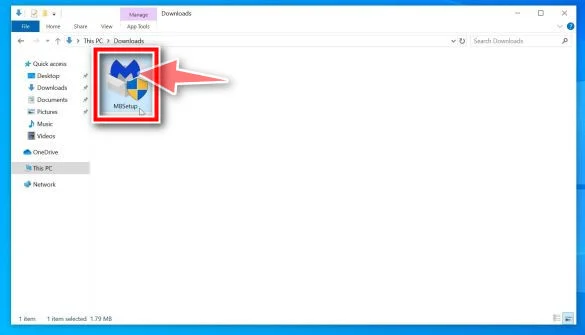
Double-click on the Malwarebytes setup file.
When Malwarebytes has finished downloading, double-click on the MBSetup file to install Malwarebytes on your computer. In most cases, downloaded files are saved to the Downloads folder.
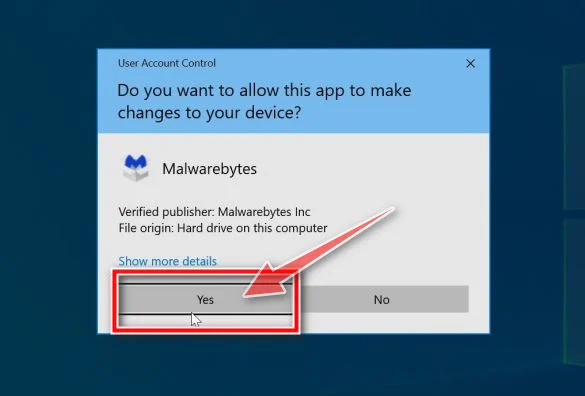
You may be presented with an User Account Control pop-up asking if you want to allow Malwarebytes to make changes to your device. If this happens, you should click “Yes” to continue with the Malwarebytes installation.
-
Follow the on-screen prompts to install Malwarebytes.
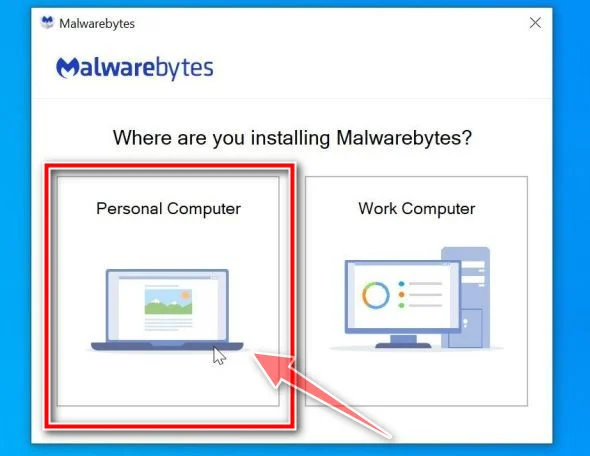
When the Malwarebytes installation begins, you will see the Malwarebytes setup wizard which will guide you through the installation process. The Malwarebytes installer will first ask you on what type of computer are you installing this program, click either Personal Computer or Work Computer.
On the next screen, click “Install” to install Malwarebytes on your computer.
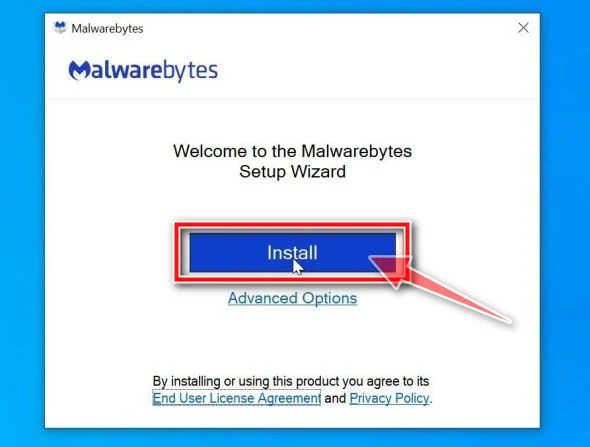
When your Malwarebytes installation completes, the program opens to the Welcome to Malwarebytes screen. Click the “Get started” button.
-
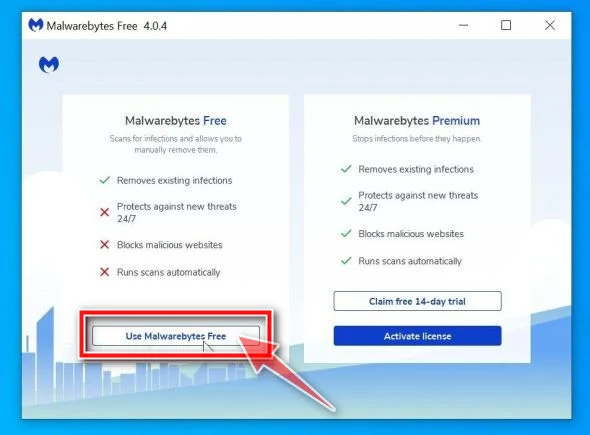
Select “Use Malwarebytes Free”.
After installing Malwarebytes, you’ll be prompted to select between the Free and the Premium version. The Malwarebytes Premium edition includes preventative tools like real-time scanning and ransomware protection, however, we will use the Free version to clean up the computer.
Click on “Use Malwarebytes Free“.
-
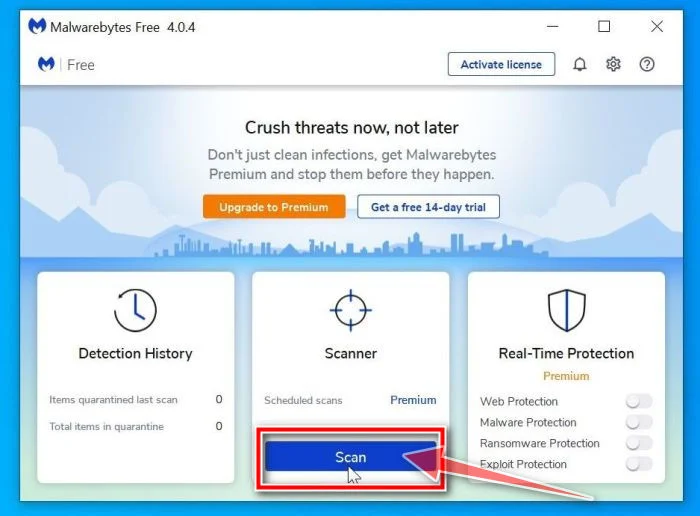
Click on “Scan”.
To scan your computer with Malwarebytes, click on the “Scan” button. Malwarebytes will automatically update the antivirus database and start scanning your computer for malware.
-
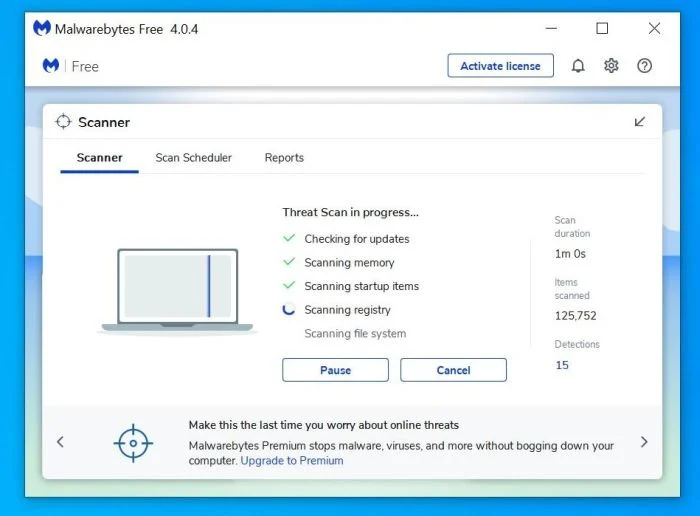
Wait for the Malwarebytes scan to complete.
Malwarebytes will scan your computer for adware and other malicious programs. This process can take a few minutes, so we suggest you do something else and periodically check on the status of the scan to see when it is finished.
-
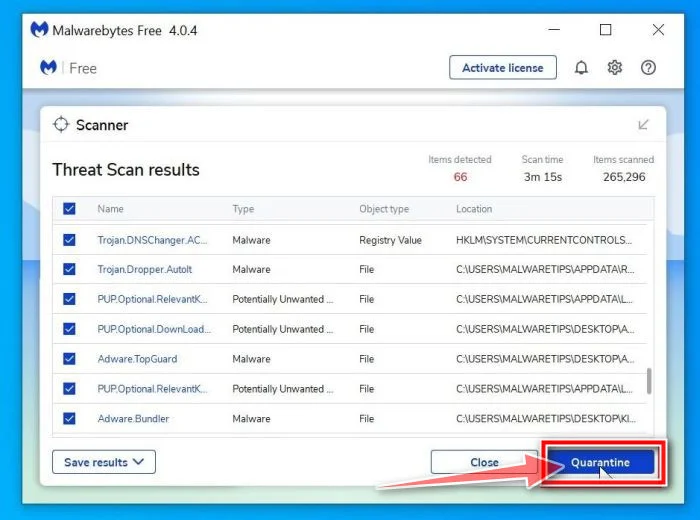
Click on “Quarantine”.
When the scan has completed, you will be presented with a screen showing the malware infections that Malwarebytes has detected. To remove the malicious programs that Malwarebytes has found, click on the “Quarantine” button.
-
Restart computer.
Malwarebytes will now remove all the malicious files and registry keys that it has found. To complete the malware removal process, Malwarebytes may ask you to restart your computer.
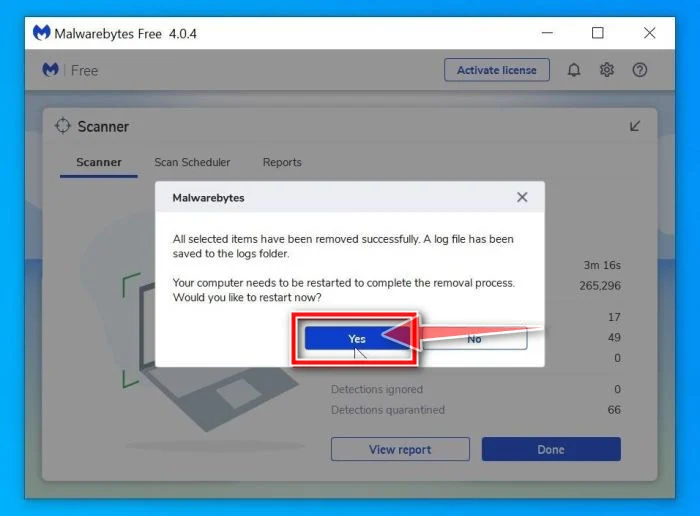
When the malware removal process is complete, you can close Malwarebytes and continue with the rest of the instructions.
STEP 2: Use HitmanPro to scan for malware and unwanted programs
In this second step, we will use HitmanPro to scan your computer for potentially unwanted programs and Trojan Horses. HitmanPro is a second opinion scanner that takes a unique cloud-based approach to malware scanning. HitmanPro scans the behavior of active files and also files in locations where malware normally resides for suspicious activity. If it finds a suspicious file that’s not already known, HitmanPro sends it to their clouds to be scanned by two of the best antivirus engines today, which are Bitdefender and Kaspersky.
Although HitmanPro is shareware and costs $24.95 for 1 year on 1 PC, there is actually no limit in scanning. The limitation only kicks in when there is a need to remove or quarantine detected malware by HitmanPro on your system and by then, you can activate the one time 30-days trial to enable the cleanup.
-
Download HitmanPro.
You can download HitmanPro by clicking the link below.
 HitmanProSecond-opinion malware scanner from Sophos
Download HitmanProFree scan. Removing threats needs the free 30-day trial. Your download starts right away.
-
Install HitmanPro.
When HitmanPro has finished downloading, double-click on “hitmanpro.exe” (for 32-bit versions of Windows) or “hitmanpro_x64.exe” (for 64-bit versions of Windows) to install this program on your PC. In most cases, downloaded files are saved to the Downloads folder.
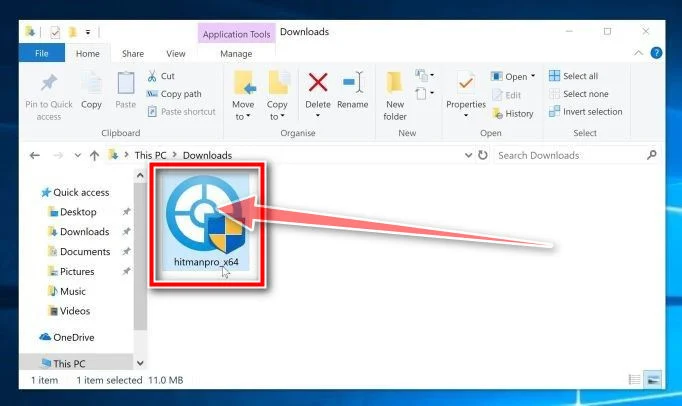
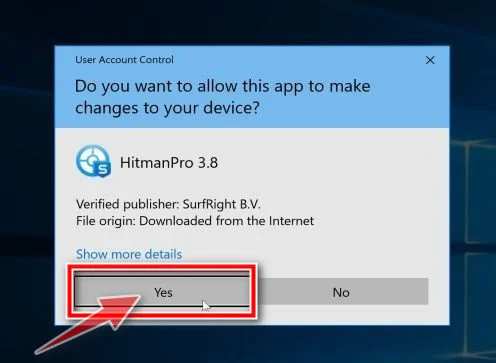
You may be presented with an User Account Control pop-up asking if you want to allow HitmanPro to make changes to your device. If this happens, you should click “Yes” to continue with the installation.
-
Follow the on-screen prompts.
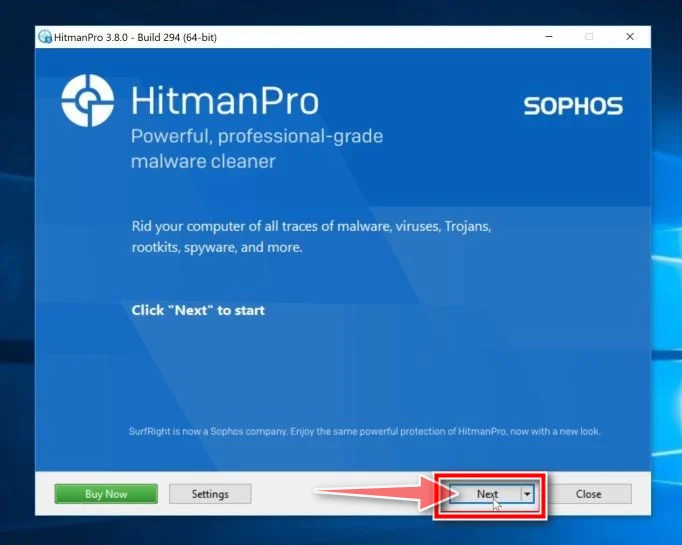
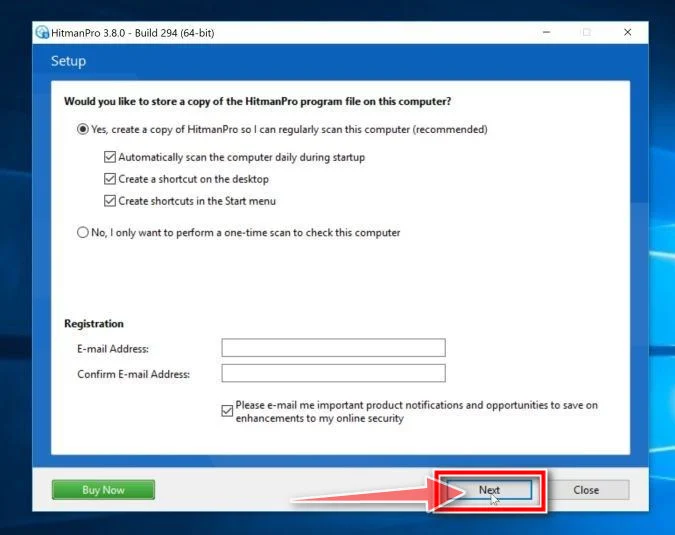
When HitmanPro starts you will be presented with the start screen as shown below. Click on the “Next” button to perform a system scan.
-
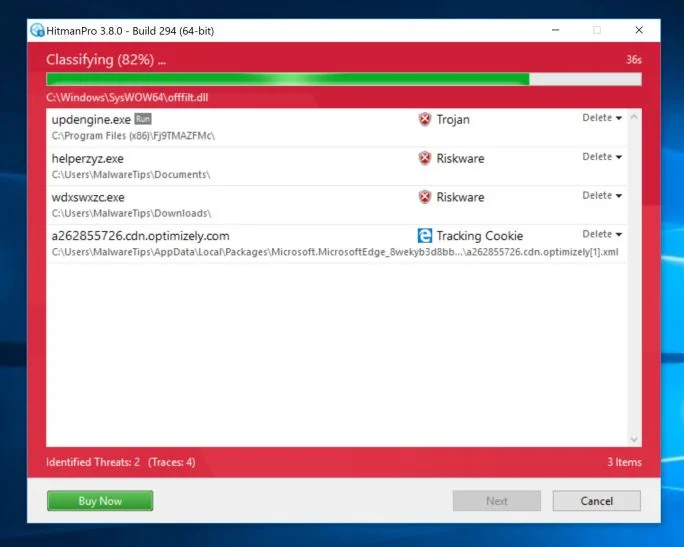
Wait for the HitmanPro scan to complete.
HitmanPro will now begin to scan your computer for malicious programs. This process will take a few minutes.
-
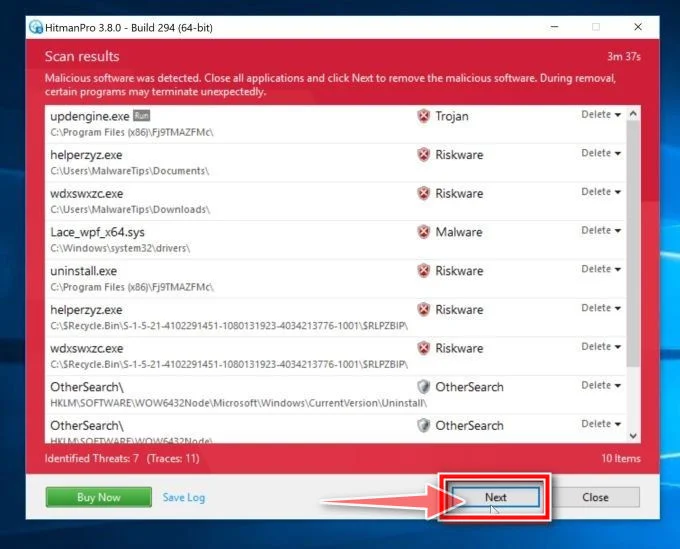
Click on “Next”.
When HitmanPro has finished the scan, it will display a list of all the malware that the program has found. Click on the “Next” button to remove the malicious programs.
-
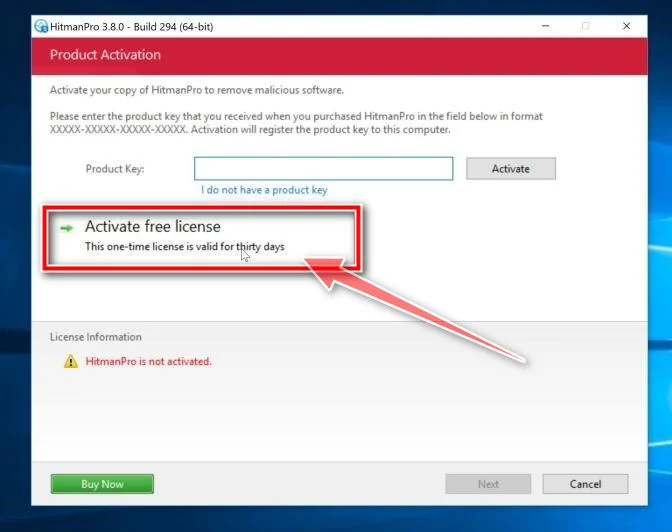
Click on “Activate free license”.
Click on the “Activate free license” button to begin the free 30 days trial and remove all the malicious files from your PC.
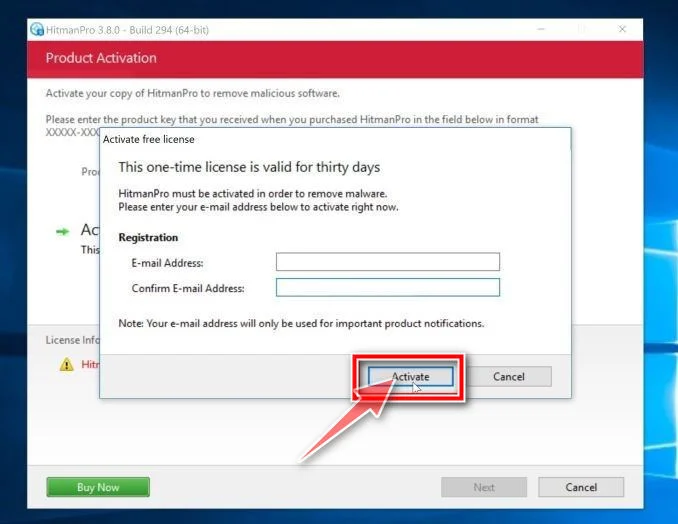
When the process is complete, you can close HitmanPro and continue with the rest of the instructions.
STEP 3: Double-check for malicious programs with AdwCleaner
In this third step, we will use AdwCleaner to scan for other malicious programs or browser settings that may have been changed on your computer. AdwCleaner is a free popular on-demand scanner which can detect and remove malware that even the most well-known anti-virus and anti-malware applications fail to find.
While the Malwarebytes and HitmanPro scans are more than enough, we’re recommending AdwCleaner to users who still have malware related issues or just want to make sure their computer is 100% clean.
-
Download AdwCleaner.
You can download AdwCleaner by clicking the link below.
 Malwarebytes AdwCleanerRemoves adware and unwanted programs at no cost
Download AdwCleanerOfficial download. Your download starts right away.
-
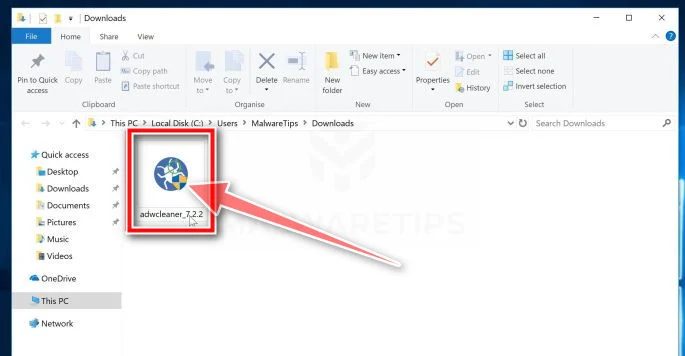
Double-click on the setup file.
Double-click on the file named “adwcleaner_x.x.x.exe” to start AdwCleaner. In most cases, downloaded files are saved to the Downloads folder.
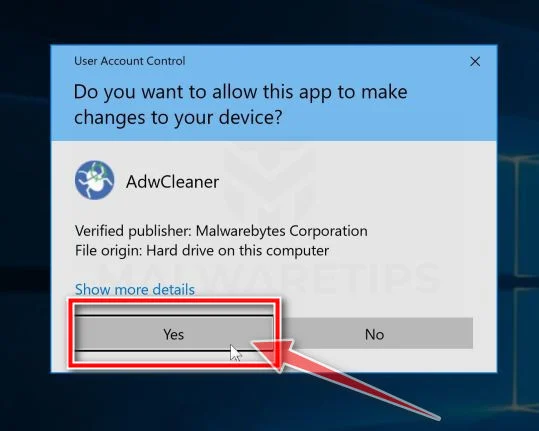
You may be presented with a User Account Control dialog asking you if you want to run this file. If this happens, you should click “Yes” to continue with the installation.
-
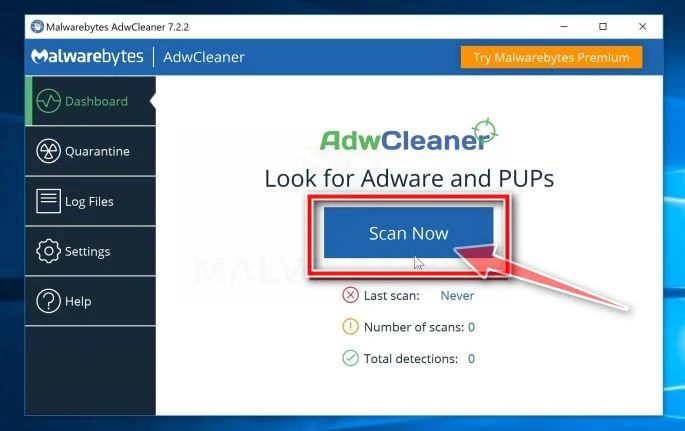
Click on “Scan Now”.
When AdwCleaner will start, click on the “Scan Now” button to perform a system scan.
-
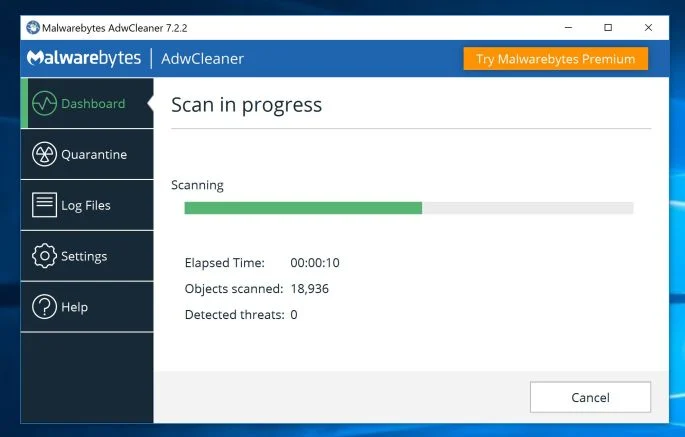
Wait for the AdwCleaner scan to complete.
AdwCleaner will now scan your PC for malicious files. This process can take a few minutes.
-
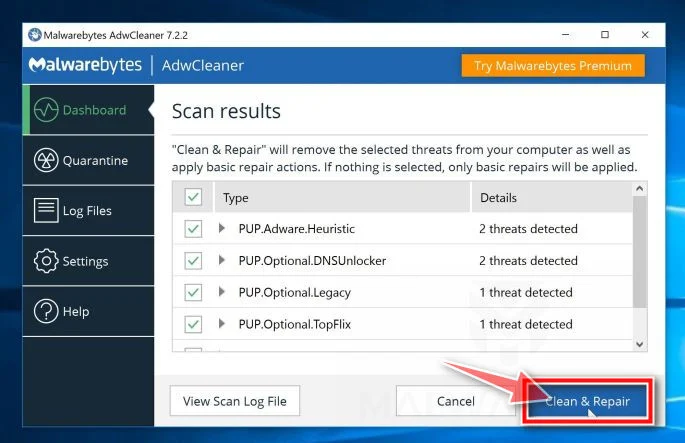
Click on “Clean & Repair”.
When AdwCleaner has finished it will display a list of all the malware that the program found. Click on the “Clean & Repair” button to remove the malicious files from your computer.
-
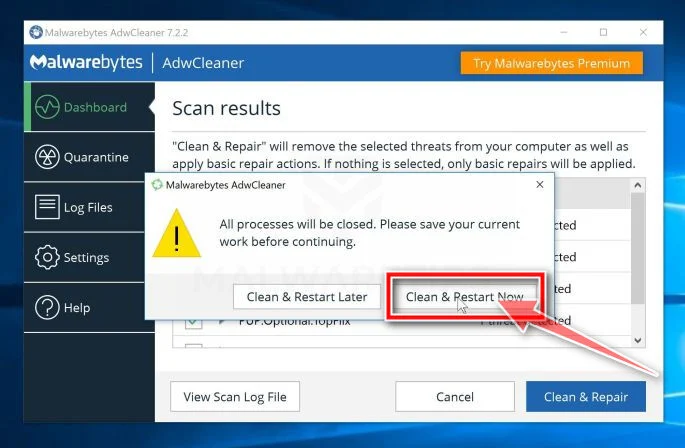
Click on “Clean & Restart Now”
When the malware removal process is complete, AdwCleaner may need to restart your device. Click on the “Clean & Restart Now” button to finish the removal process.
When the process is complete, you can close Adwcleaner and continue with the rest of the instructions.
STEP 4: Remove AdFreeVision from your browser
In this final step, if your browser is still redirected to AdFreeVision, we will need to reset the web browser settings to their original defaults. This step should be performed only if your issues have not been solved by the previous steps.
Remove AdFreeVision browser hijacker from Google Chrome
To remove the AdFreeVision adware from Chrome we will reset the browser settings to its default. Resetting your browser settings will reset the unwanted changes caused by installing other programs. However, your saved bookmarks and passwords will not be cleared or changed.
-
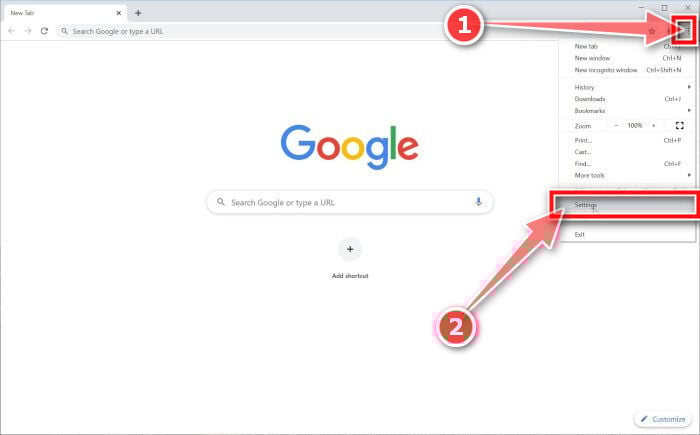
Click the menu icon, then click on “Settings”.
In the top right corner, click on Chrome’s main menu button, represented by three vertical dots. When the drop-down menu appears, click on “Settings“.
-
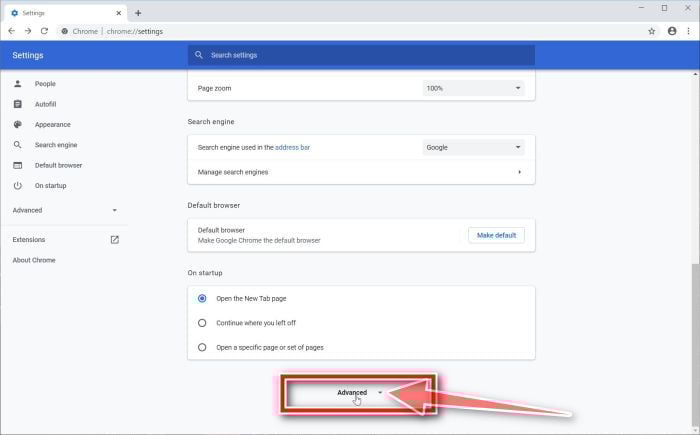
Click “Advanced”.
Chrome’s “Settings” should now be displayed in a new tab or window, depending on your configuration. Next, scroll to the bottom of the page and click on the “Advanced” link.
-
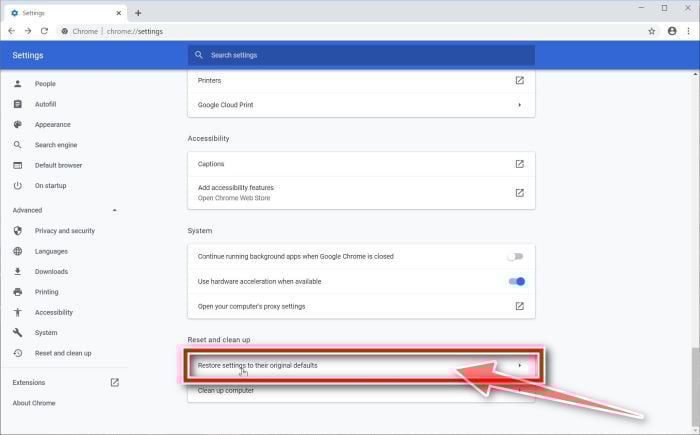
Click “Reset settings to their original defaults”.
Scroll down until the “Reset and clean up” section is visible, as shown in the example below. Click on “Reset settings to their original defaults“.
-
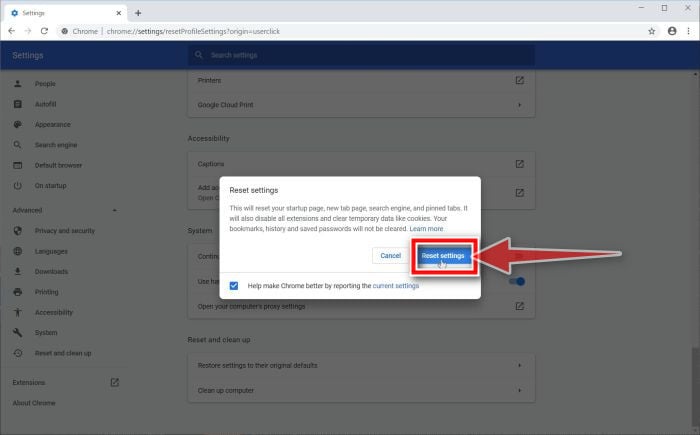
Click “Reset Settings”.
A confirmation dialog should now be displayed, detailing the components that will be restored to their default state should you continue on with the reset process. To complete the restoration process, click on the “Reset Settings” button.
Remove AdFreeVision browser hijacker from Firefox
To remove the AdFreeVision adware from Firefox we will reset the browser settings to its default. The reset feature fixes many issues by restoring Firefox to its factory default state while saving your essential information like bookmarks, passwords, web form auto-fill information, browsing history, and open tabs.
-
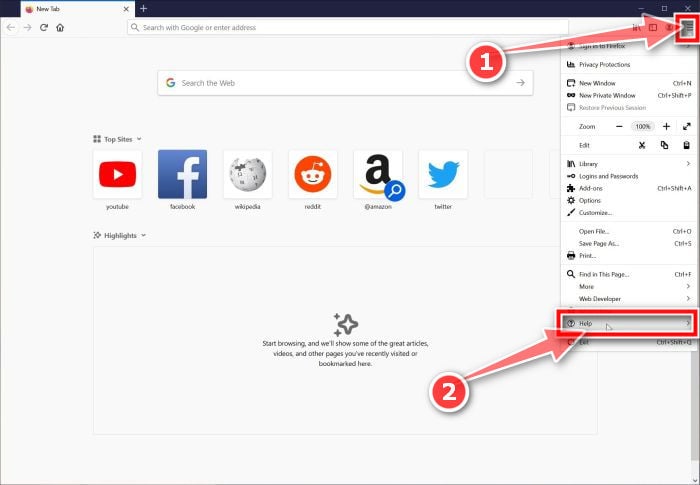
Click the menu icon, then click on “Help”.
Click on Firefox’s main menu button, represented by three horizontal lines. When the drop-down menu appears, select the option labeled “Help“.
-
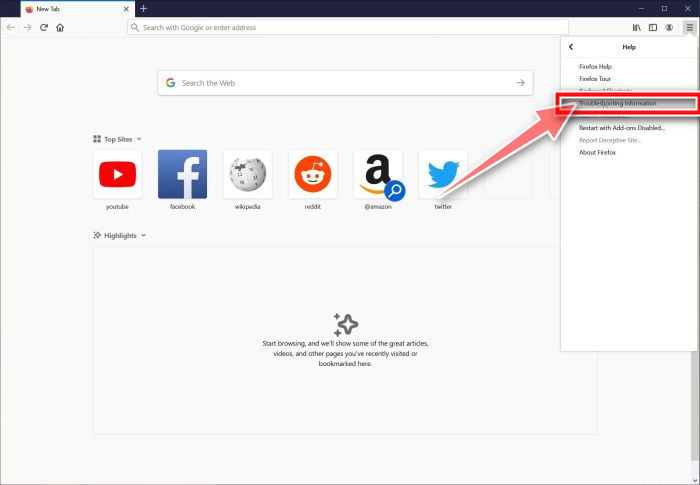
Click “Troubleshooting Information”.
From the Help menu, click on “Troubleshooting Information“.
-
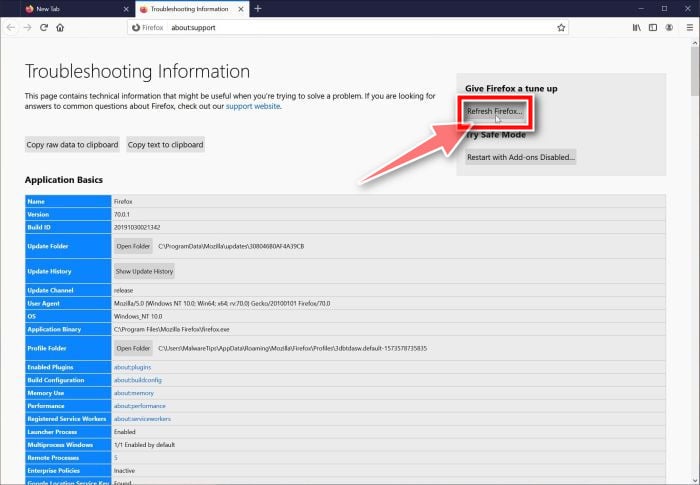
Click on “Refresh Firefox”
Click the “Refresh Firefox” button in the upper-right corner of the “Troubleshooting Information” page.
-
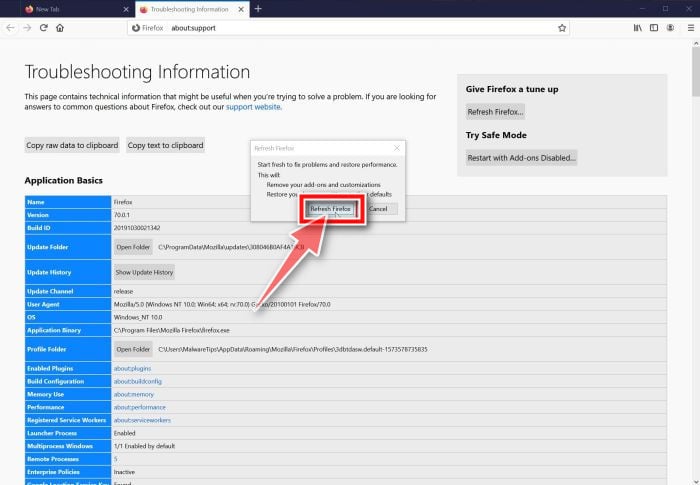
Confirm.
To continue, click on the “Refresh Firefox” button in the new confirmation window that opens.
-
Click “Finish”.
Firefox will close itself and will revert to its default settings. When it’s done, a window will list the information that was imported. Click on “Finish“.
Your old Firefox profile will be placed on your desktop in a folder named “Old Firefox Data“. If the reset didn’t fix your problem you can restore some of the information not saved by copying files to the new profile that was created. If you don’t need this folder any longer, you should delete it as it contains sensitive information.
Remove AdFreeVision browser hijacker from Microsoft Edge
To remove the AdFreeVision adware from Microsoft Edge we will reset the browser settings to its default. This will reset your startup page, new tab page, search engine, and pinned tabs. It will also disable all extensions and clear temporary data like cookies. Your favorites, history and saved passwords will not be cleared.
-
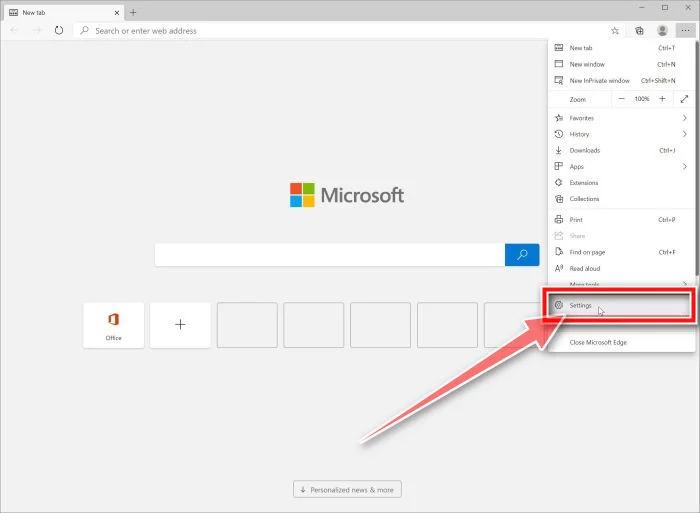
Open the “Settings” menu.
In the top right corner, click on Microsoft Edge’s main menu button, represented by three horizontal dots. When the drop-down menu appears, click on “Settings“.”.
-
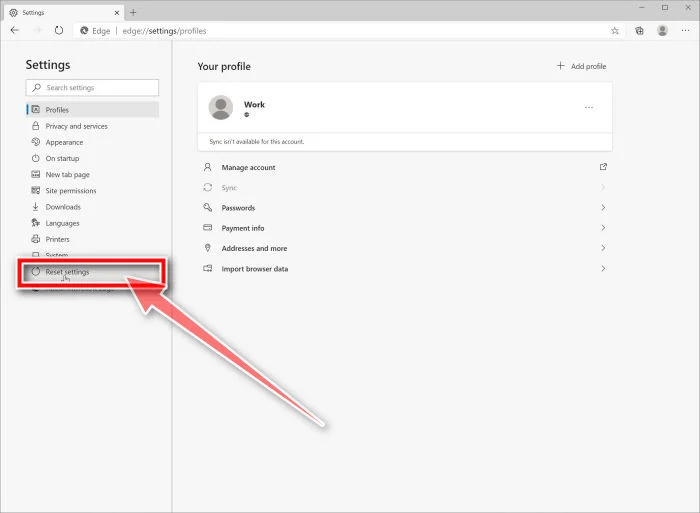
Click on “Reset Settings”.
On the left side of the window, click on “Reset Settings”.
-
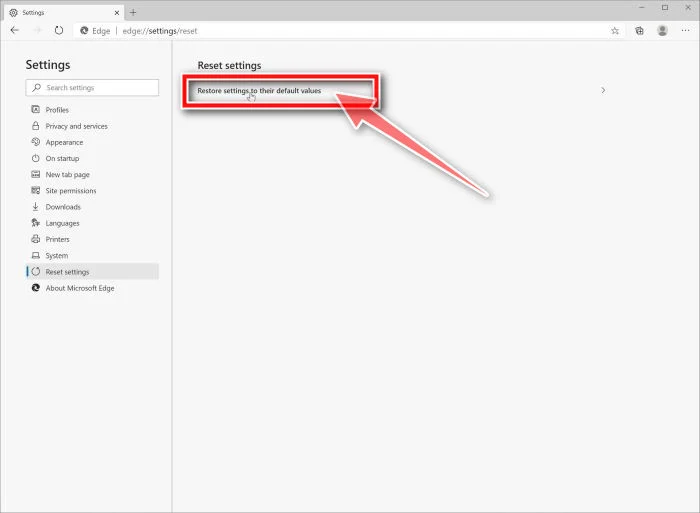
Click on “Restore settings to their default values”.
In the main window, click on “Restore settings to their default values”.
-
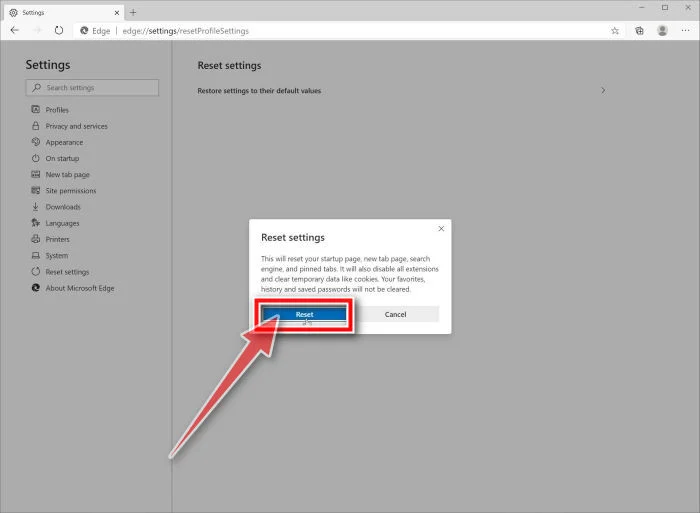
Click “Reset”.
A confirmation dialog should now be displayed, detailing the components that will be restored to their default state should you continue on with the reset process. To complete the restoration process, click on the “Reset” button.
Remove AdFreeVision browser hijacker from Internet Explorer
To remove the AdFreeVision adware from Internet Explorer we will reset the browser settings to its default. You can reset Internet Explorer settings to return them to the state they were in when Internet Explorer was first installed on your computer.
-
Go to “Internet Options”.
Open Internet Explorer, click on the gear icon in the upper right part of your browser, then select “Internet Options“.
-
Select the “Advanced” tab, then click “Reset”
In the “Internet Options” dialog box, select the “Advanced” tab, then click on the “Reset” button.
-
Click on “Reset”.
In the “Reset Internet Explorer settings” section, select the “Delete personal settings” checkbox, then click on the “Reset” button.
-
Click on “Close”.
When Internet Explorer has completed its task, click on the “Close” button in the confirmation dialogue box.
Close your browser and then you can open Internet Explorer again.
Your computer should now be free of the AdFreeVision browser hijacker. If your current antivirus allowed this malicious program on your computer, you may want to consider purchasing Malwarebytes Premium to protect against these types of threats in the future.
If you are still having problems with your computer after completing these instructions, then please follow one of the steps:
- Run a computer scan with ESET Online Scanner
- Ask for help in our Windows Malware Removal Help & Support forum.

Join the discussion
0 commentsShare your experience or ask a question about this article.
Your progress
Did these steps help?
Let us know how the guide worked for you.
Describe what you see and the step you reached. Keep passwords and other private information out.
Discussion
Start the conversation
Have a question or something useful to share? Add the first comment.