

If your web browser is randomly being redirected to the “Ads not by this site” advertisements then your computer is infected with an adware program.

The “Ads not by this site” adware program is bundled with other free software that you download off of the Internet. Unfortunately, some free downloads do not adequately disclose that other software will also be installed and you may find that you have installed adware without your knowledge.
Once this malicious program is installed, whenever you will browse the Internet, an ad from Ads not by this site will randomly pop-up.
These ads are aimed to promote the installation of additional questionable content including web browser toolbars, optimization utilities and other products, all so the adware publisher can generate pay-per-click revenue.
When infected with the “Ads not by this site” adware, other common symptoms include:
- Advertising banners are injected with the web pages that you are visiting.
- Random web page text is turned into hyperlinks.
- Browser popups appear which recommend fake updates or other software.
- Other unwanted adware programs might get installed without the user’s knowledge.
Always opt for the custom installation and deselect anything that is not familiar, especially optional software that you never wanted to download and install in the first place. It goes without saying that you should not install software that you don’t trust.
How to remove Ads not by this site pop-ups (Virus Removal Guide)
Please perform all the steps in the correct order. If you have any questions or doubt at any point, STOP and ask for our assistance.
-
To remove Ads not by this site pop-ups, follow these steps:
- STEP 1: Uninstall malicious programs from Windows
- STEP 2: Use AdwCleaner to remove “Ads not by this site” adware
- STEP 3: Scan and clean your computer with Malwarebytes Anti-Malware
- STEP 4: Double-check for malicious programs with HitmanPro
- (OPTIONAL) STEP 5: Reset your browser to default settings
STEP 1 : Uninstall malicious programs from Windows
In this first step, we will try to identify and remove any malicious program that might be installed on your computer.
- Go to the uninstall menu.
Windows 10 or Windows 8
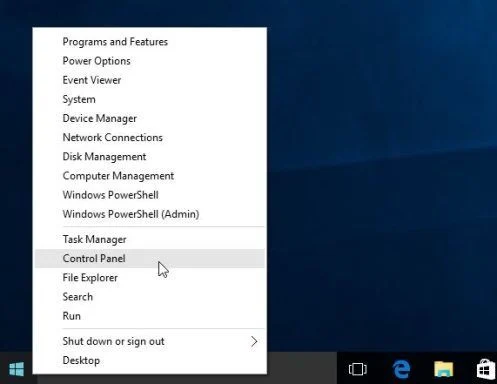
- To uninstall a program on Windows 10 or Windows 8, right-click on the Windows Start button and choose “Control Panel” from the pop-up menu.
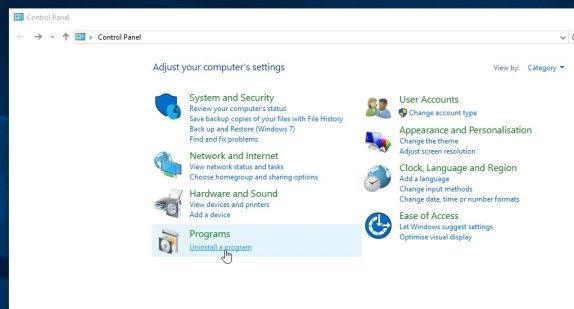
- When the “Control Panel” window opens click on the “Uninstall a program” option under “Programs” category.
Windows 7 or Windows Vista
- If you are using Windows XP, Windows Vista or Windows 7, click the “Start” button, then click on the “Control Panel” menu option.
![[Image: Control Panel in Windows Start Menu]](https://malwaretips.com/blogs/wp-content/uploads/mwt-media/56/56ac005bf149366d33075df70182d7933c19b066be2e500869e031cc9cac279b/273fcfd76a87bfc0fcd3b6b019be9066a9342174ed0b81f9002efcb804ca5be8-346.webp "Control Panel in Windows Start Menu")
- When the “Control Panel” window opens click on the “Uninstall a program” option under “Programs” category.
![[Image: Uninstall a program]](https://malwaretips.com/blogs/wp-content/uploads/mwt-media/2a/2a46a9e643eeeb764fb164177551c571817a8b4d4fe8141504dca801f8abc8cc/f2a64da5c9bbae588b1c04059e9f6a1e9a413554048666c6db3aa65196a7b99a-557.webp "Click on Uninstall a program")
- To uninstall a program on Windows 10 or Windows 8, right-click on the Windows Start button and choose “Control Panel” from the pop-up menu.
- When the “Programs and Features” screen is displayed, scroll through the list of currently installed programs and uninstall any unwanted programs.
Known malicious programs: Dns Unlocker, Cinema Plus, Price Minus, SalesPlus, New Player, MediaVideosPlayers, Browsers_Apps_Pro, PriceLEess, Pic Enhance, Sm23mS, Salus, Network System Driver, SS8, Save Daily Deals, Word Proser, Desktop Temperature Monitor, CloudScout Parental Control, Savefier, Savepass, HostSecurePlugin, CheckMeUp and HD-V2.2.The malicious program may have a different name on your computer. To view the most recently installed programs, you can click on the “Installed On” column to sort your program by the installation date. Scroll through the list, and uninstall any unwanted or unknown programs.
If you cannot find any unwanted programs on your computer, you can proceed with the next step.
If you are having issues while trying to uninstall a program, you can use Revo Uninstaller to completely remove this unwanted program from your machine.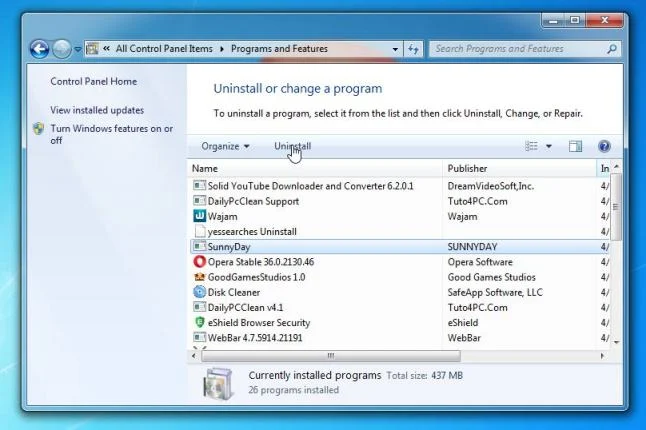
STEP 2: Use AdwCleaner to “Ads not by this site” remove adware
Malwarebytes AdwCleaner is a free utility that will scan your computer for “Ads not by this site” adware and other malicious programs that may be installed.
- You can download Malwarebytes AdwCleaner from the below link.
Download AdwCleanerFree official download. Nothing to install. - When Malwarebytes AdwCleaner has finished downloading, please double-click on the AdwCleaner icon to perform a system scan with this program.
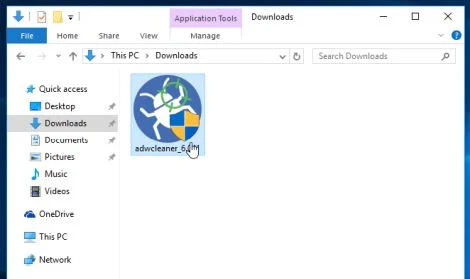
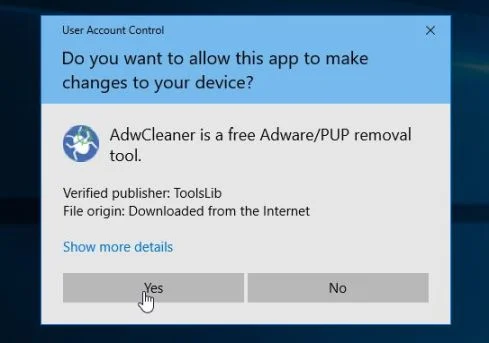
If Windows prompts you as to whether or not you wish to run Malwarebytes AdwCleaner, please allow it to run.
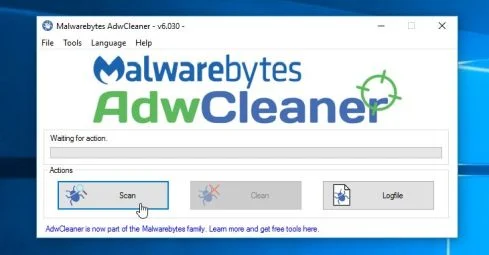
- When the Malwarebytes AdwCleaner program will open, click on the “Scan” button as shown below.
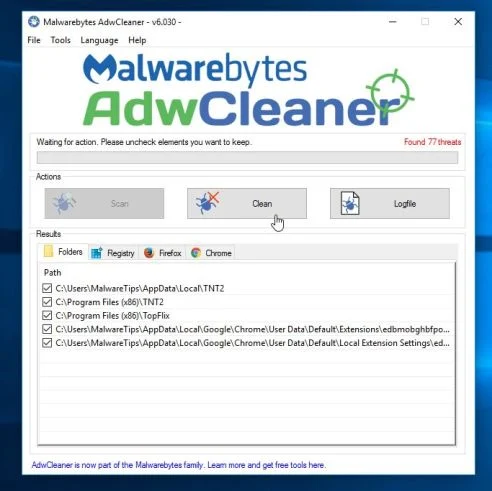
Malwarebytes AdwCleaner will now start to search for the Ads not by this site adware and other malicious programs. - To remove the malicious files that were detected in the previous step, please click on the “Clean” button.
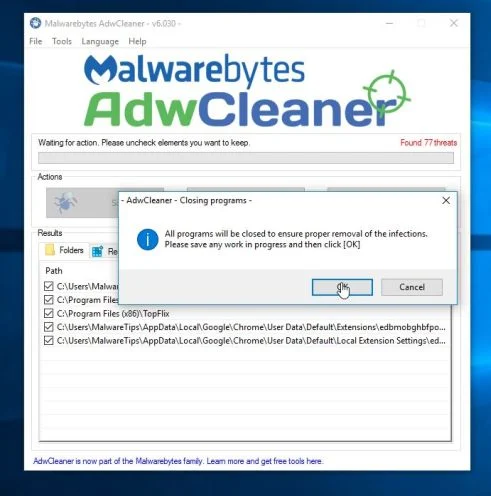
- Malwarebytes AdwCleaner will prompt you to save any open files or documents, as the program will need to reboot the computer to complete the cleaning process. Please do so, and then click on the “OK” button.
When your computer reboots and you are logged in, Malwarebytes AdwCleaner will automatically open a log file that contains the files, registry keys, and programs that were removed from your computer. Please review this log file and then close the notepad window. You can now continue with the rest of the instructions.
STEP 3: Scan and clean your computer with Malwarebytes Anti-Malware
Malwarebytes Anti-Malware is a powerful on-demand scanner which should remove the Ads not by this site pop-ups from your machine. It is important to note that Malwarebytes Anti-Malware will run alongside antivirus software without conflicts.
- You can download download Malwarebytes Anti-Malware from the below link.
Download MalwarebytesFree official installer. Your download starts right away. - When Malwarebytes has finished downloading, double-click on the “mb3-setup-consumer” file to install Malwarebytes Anti-Malware on your computer.
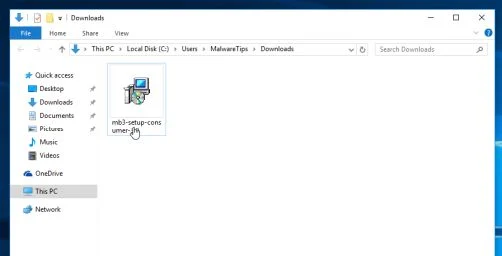
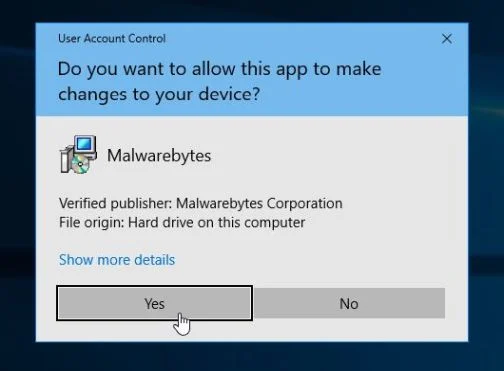
You may be presented with an User Account Control pop-up asking if you want to allow Malwarebytes to make changes to your device. If this happens, you should click “Yes” to continue with the installation.
- When the Malwarebytes installation begins, you will see the Malwarebytes Setup Wizard which will guide you through the installation process.
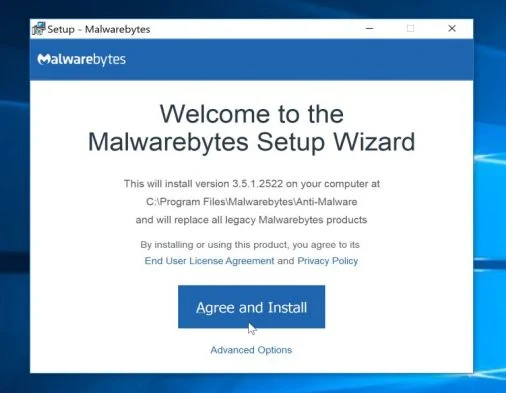
To install Malwarebytes Anti-Malware on your machine, keep following the prompts by clicking the “Next” button.
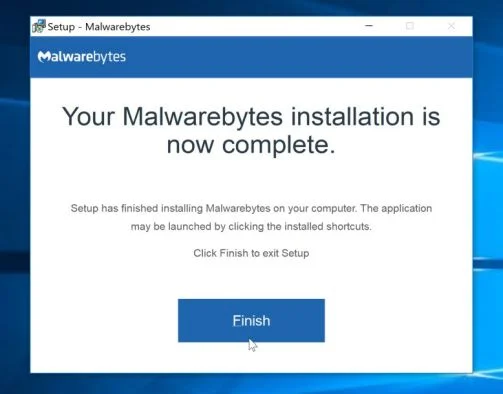
- Once installed, Malwarebytes will automatically start and update the antivirus database. To start a system scan you can click on the “Scan Now” button.
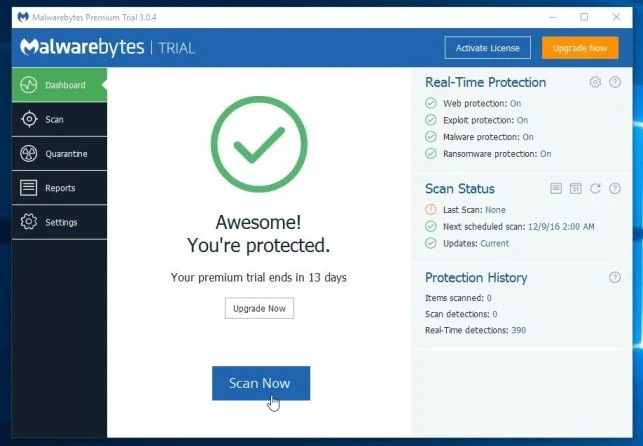
- Malwarebytes Anti-Malware will now start scanning your computer for malicious programs.
This process can take a few minutes, so we suggest you do something else and periodically check on the status of the scan to see when it is finished.
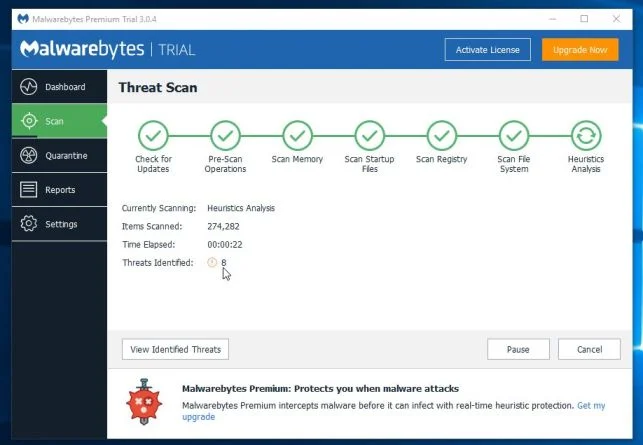
- When the scan has completed, you will be presented with a screen showing the malware infections that Malwarebytes Anti-Malware has detected.
To remove the malicious programs that Malwarebytes has found, click on the “Quarantine Selected” button.
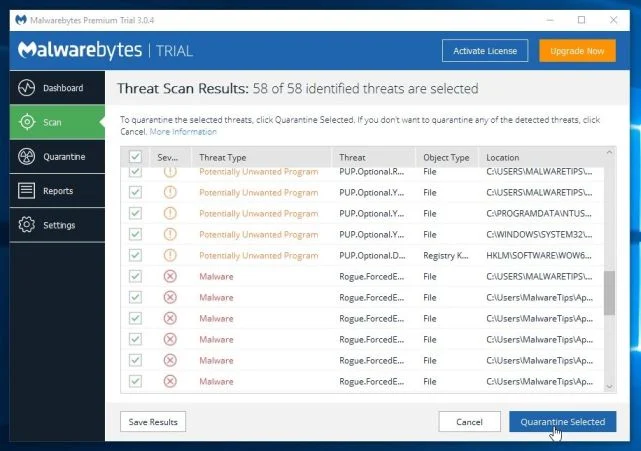
- Malwarebytes Anti-Malware will now quarantine all the malicious files and registry keys that it has found.
To complete the malware removal process, Malwarebytes may ask you to restart your computer.
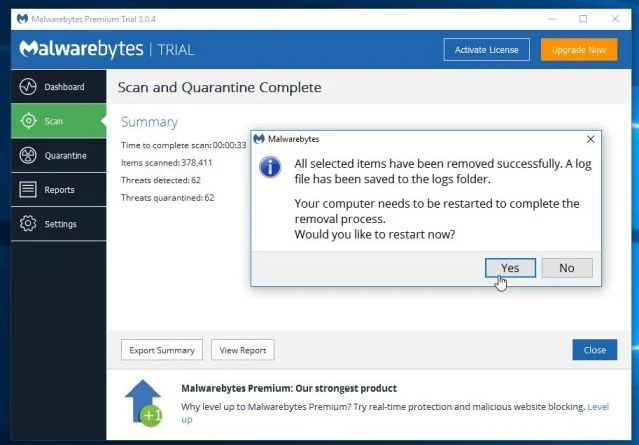
When the malware removal process is complete, you can close Malwarebytes Anti-Malware and continue with the rest of the instructions.
STEP 4: Double-check for malicious programs with HitmanPro
HitmanPro can find and remove malware, adware, bots, and other threats that even the best antivirus suite can oftentimes miss. HitmanPro is designed to run alongside your antivirus suite, firewall, and other security tools.
- You can download HitmanPro from the below link:
Download HitmanProOfficial Sophos download. Free scan, free 30-day trial to remove threats. - When HitmanPro has finished downloading, double-click on the “hitmanpro” file to install this program on your computer.
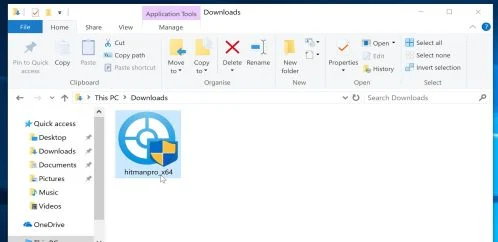
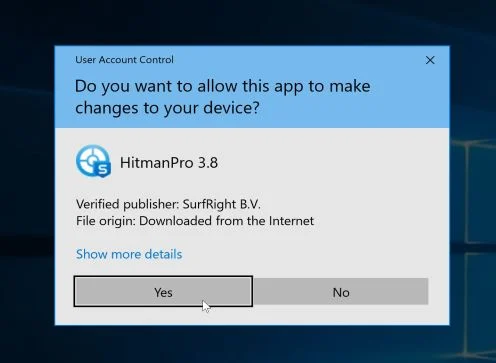
You may be presented with an User Account Control pop-up asking if you want to allow HitmanPro to make changes to your device. If this happens, you should click “Yes” to continue with the installation.
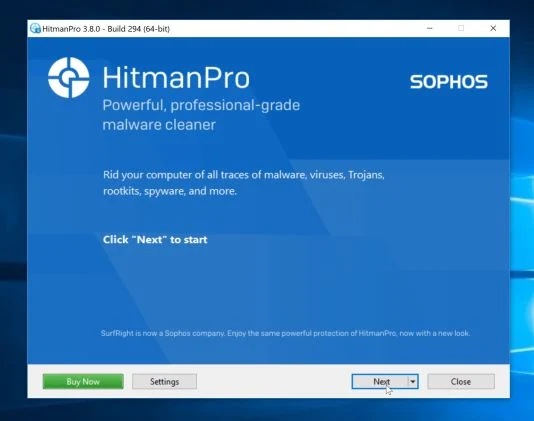
- When the program starts you will be presented with the start screen as shown below. Now click on the Next button to continue with the scan process.
- HitmanPro will now begin to scan your computer for malware.
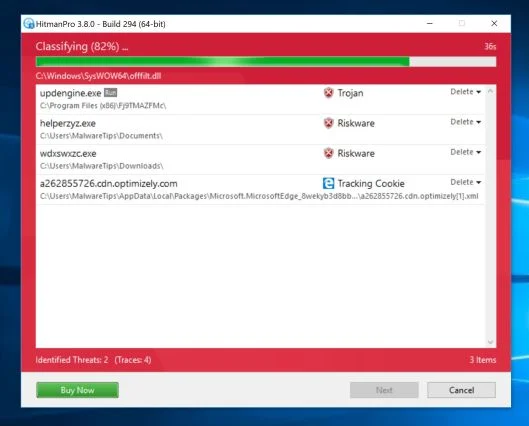
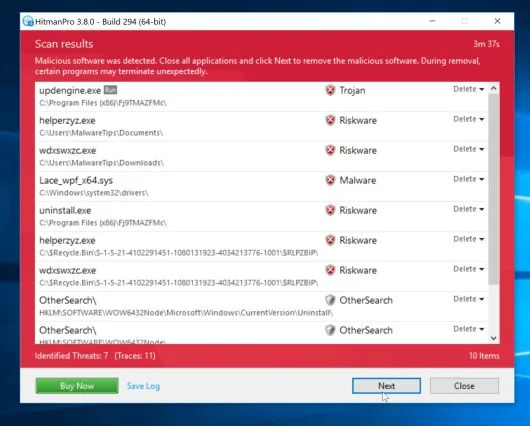
- When it has finished it will display a list of all the malware that the program found as shown in the image below. Click on the “Next” button, to remove malware.
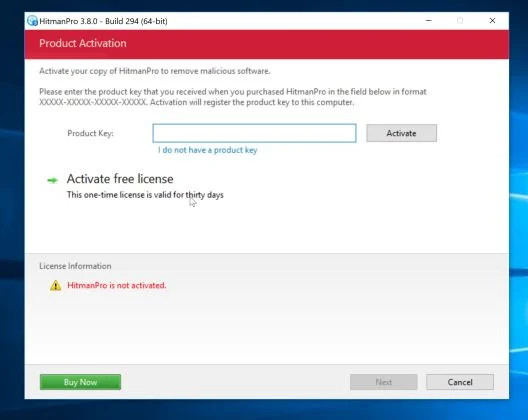
- Click on the “Activate free license” button to begin the free 30 days trial, and remove all the malicious files from your computer.
When the process is complete, you can close HitmanPro and continue with the rest of the instructions.
(OPTIONAL) STEP 5: Reset your browser to default settings
This step should be performed only if your issues have not been solved by the previous steps.
Google Chrome
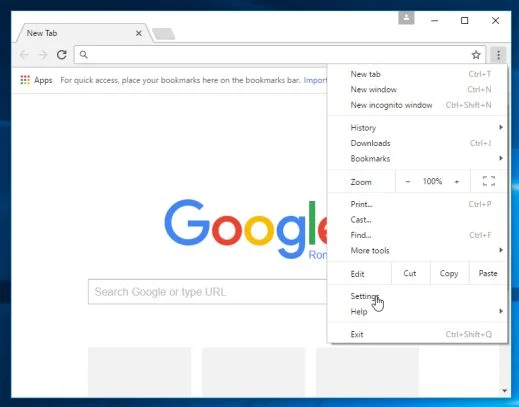
- Click on Chrome’s main menu button, represented by three horizontal lines. When the drop-down menu appears, select the option labeled Settings.
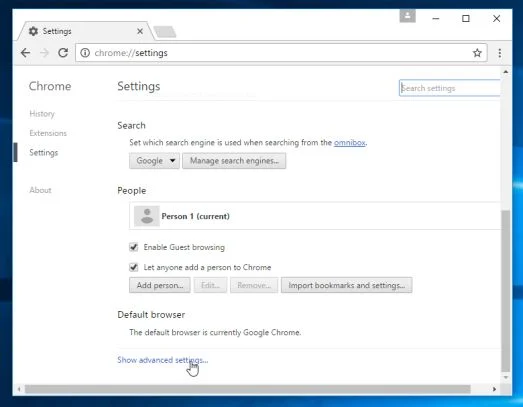
- Chrome’s Settings should now be displayed in a new tab or window, depending on your configuration. Next, scroll to the bottom of the page and click on the Show advanced settings link (as seen in the below example).
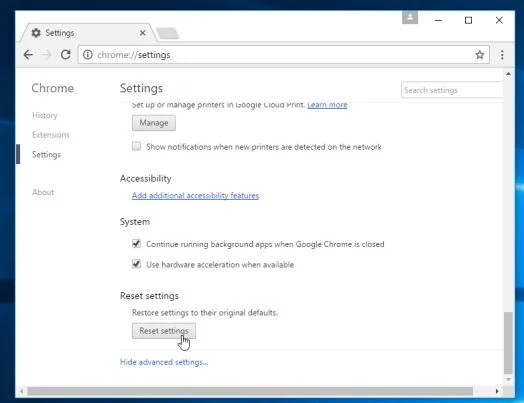
- Chrome’s advanced Settings should now be displayed. Scroll down until the Reset browser settings section is visible, as shown in the example below. Next, click on the Reset browser settings button.
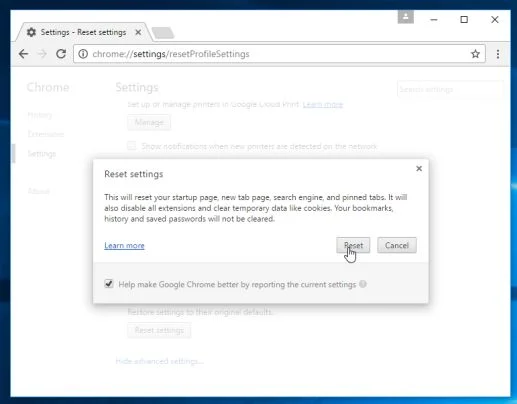
- A confirmation dialog should now be displayed, detailing the components that will be restored to their default state should you continue on with the reset process. To complete the restoration process, click on the Reset button.
Internet Explorer
- Open Internet Explorer, click on the “gear icon” in the upper right part of your browser, then click again on Internet Options.
![[Image: Internet Options in Internet Explorer]](https://malwaretips.com/blogs/wp-content/uploads/mwt-media/52/522e9c30de2b8b1009dec93b1735a5e5ec22f4d7d2e025c30c251ca96799dec2/45442bf30d44812b12c1d4152796bddfd0d05542d55e7c907b8edde3ac50c4d7-625.webp "Click on the Gear Icon then on Internet Options")
- In the “Internet Options” dialog box, click on the “Advanced” tab, then click on the “Reset” button.
![[Image: Reset Internet Explorer]](https://malwaretips.com/blogs/wp-content/uploads/mwt-media/89/89e96623f76134cd3bfd7a5579d40fefa7118a81811be6e9888bb8b92ac84adf/ca946d49c693e69239029b3c145713bf590c959486dc4af7bbae81db5ec5a627-613.webp "In the Advanced tab click on the Reset button")
- In the “Reset Internet Explorer settings” section, select the “Delete personal settings” check box, then click on “Reset” button.
![[Image: Reset Internet Explorer to its default settings]](https://malwaretips.com/blogs/wp-content/uploads/mwt-media/f2/f240d9aad8df73300edecc78c67f33cd5fccb1f5732245b8d5990b4524313abb/c2ef750ff5d9642431fc10968d9e8699c75c0b149affcf506387fa0c948e4874-626.webp "Click on the Reset button to revert IE to its default settings")
- When Internet Explorer has completed its task, click on the “Close” button in the confirmation dialogue box. You will now need to close your browser, and then you can open Internet Explorer again.
![[Image Reset Internet Explorer settings]](https://malwaretips.com/blogs/wp-content/uploads/mwt-media/22/22bcd4ddf7b1a0aac3fcb25d72a4d24b8d1748a2ee365e4f52181e6d57a4ef94/7d992d833ea0dbef9fbfdfbe664c145a6a794975aa5980dfbdde3369647953b4-621.webp "Click on the Close button")
Mozilla Firefox
- In the upper-right corner of the Firefox window, click the Firefox menu button, then click on the “Help”
![[Image: Firefox Help button]](https://malwaretips.com/blogs/wp-content/uploads/mwt-media/da/dad9a8056176398d90be70e0b13e0181d2f95a3cd817a0f9bd296d3e00b47109/feab1435cad07dba7dbf1e08f210872708ea08865694c59cfbac294ba8583f2a-16.webp "Firefox Help button") button.
button.
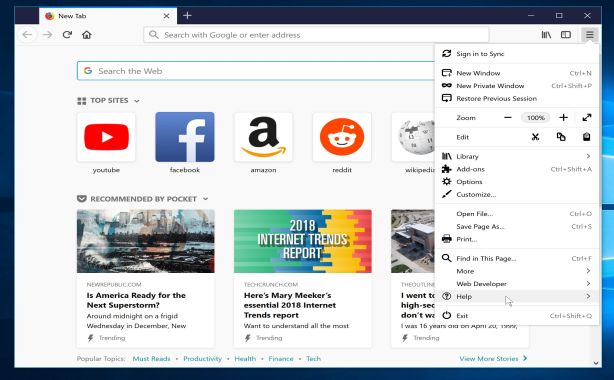
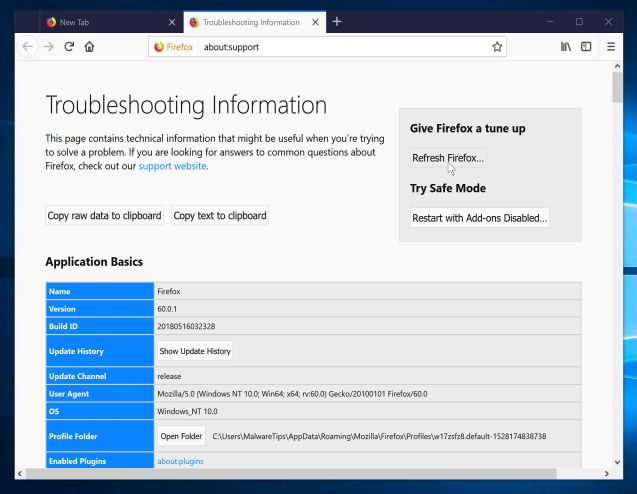
- From the Help menu, choose Troubleshooting Information.
If you’re unable to access the Help menu, type about:support in your address bar to bring up the Troubleshooting information page.
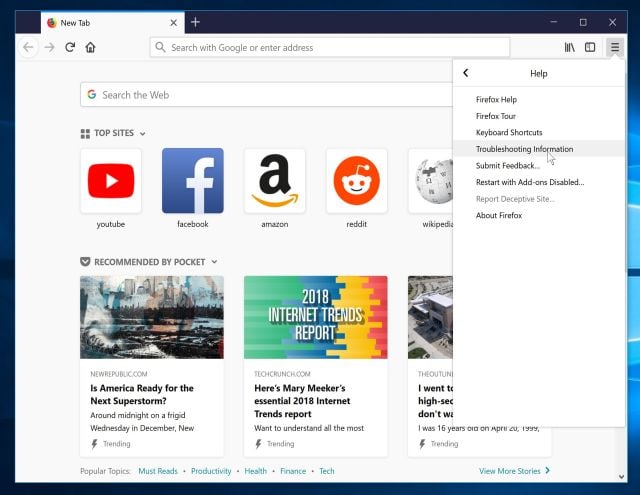
- Click the “Refresh Firefox” button in the upper-right corner of the “Troubleshooting Information” page.
- To continue, click on the “Refresh Firefox” button in the new confirmation window that opens.
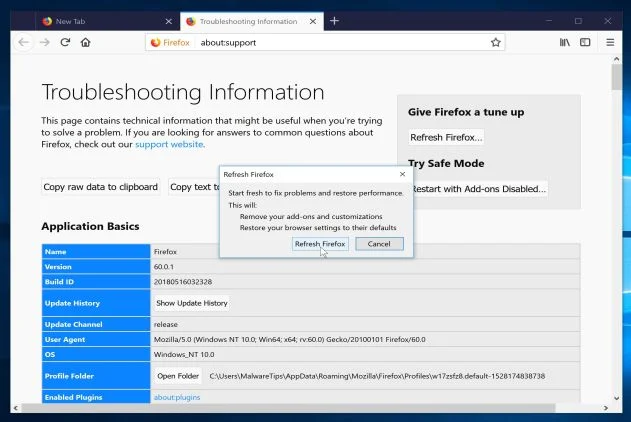
- Firefox will close itself and will revert to its default settings. When it’s done, a window will list the information that was imported. Click on the “Finish“.
If you are still experiencing problems while trying to remove Ads not by this site adware from your computer, please do one of the following:
- Run a system scan with Zemana AntiMalware
- Ask for help in our Malware Removal Assistance forum.

Join the discussion
175 commentsShare your experience or ask a question about this article.
Your progress
Did these steps help?
Let us know how the guide worked for you.
Describe what you see and the step you reached. Keep passwords and other private information out.
Discussion
thanks mate…just removed ads from google chrome using your guidelines…had installed an HD Codec, which was the source of everything. it was getting too very frustrating! by the way, I have also installed installed chrome extension adblock plus, but your tips did the trick.
thanks once again
rob
thanks!! it worked just… great!!! i had been going like this for 6 months at least!! thank you!!
I went through all the steps; unfortunately it did not work. In my extensions I have PSdToPng which does not allow removal. Could it be this?
In reply to Lulu
Hello,
You will need to follow this removal guide: http://malwaretips.com/blogs/installed-enterprise-policy-removal/
Dude, thank you alot, you solve a headache I had since months with my browser
Marry me. That was so annoying. Thank you.
It worked! Thank you! :-*
THAAAAANK YOUUUUU
Thank you so much for your instruction…………..
Praise God!!! this was an answer to a prayer. I really need to complete a presentation and could not do any research especially on youtube omg it was like adwere central. cant thank you enough and keep doing what you do. your a brother from another mother :) and a real life hero blessings and thanks to you again, advise was really effective and worked. I did not trust you at first to be honest thought I could be downloading more viruses but that was deff not the case
thank you
hello, IT WORKED! Thanks so much for your help!
hi,
the ONLY extension it shows is “PDFViewer 1.1
Permissions
ID: hafjilfochochfhhojdjldgdaoobjnlg
(This extension is managed and cannot be removed or disabled.)
Inspect views: background.html
Allow in incognito”
and it does not have a delete or disable button
In reply to ChrisTopher Hance-George
Hello,
So you found the culprit, and you’ve got a newer version of this adware, which is harder to remove.
Now, you have two options:
1. Follow our Installed by enterprise policy removal guide: http://malwaretips.com/blogs/installed-enterprise-policy-removal/ …. At step 1, search and uninstall PDF Viewer 1.1.
2. Ask for support in our Malware Removal Assistance forum: http://malwaretips.com/forums/malware-removal-assistance.10/
Hi, thanks for the great instructions, BUT NONE of this worked for me, this malware seems ingrained in my browser, I use chrome, I’ve performed all the steps twice now and still can’t remove the malware
In reply to ChrisTopher Hance-George
Hello,
What browser extensions do you have installed on Chrome?
OK, success! You were right about disabling extensions one by one. It was the last thing I had to try. The extension was called Flash Player 11. All clear. great job, great site!
Thank you so much!!! Step 1 did the trick for me! This was really easy!!!!
THANK YOU AGAIN!!!!!!
This didn’t work for me. I followed the instructions meticulously. The optional step 5 in my version of FF (27.0.1) did not have a reset button in the troubleshooting guide. I can say it worked partially since I get less offensive adds now, but the pop-ups are still coming on many but not all pages (not on Facebook or any Google sites) and now not on this site either. But it’s still trying to redirect and failing. I still get the redirect on some pages and of course when that happens you can’t hit the back button because it loses the page I was trying to go to. I keep MalwareByte anti-malware running now too.
One of the redirects I see flashing at the bottom of the FF screen is for shopping-guide-onlines.com. Yes it has the “s” at the end. I also see lookup.bluecava.com. According to Disconnect I’m getting 94 advertising requests (not on this page).
Oddly, none of the scans with any of the software in 1-4 found anything from Ads not from this site. They all found stuff. But some of it has been on my HD for years.
I attached a screen cap of the popup from the lower left corner of the screen. Note how it’s transparent, but you can still see the red close icon with white x. Occasionally a visible ad will appear. In this case the text on the webpage is visible without the ad running in the window. also attached is the Jumba ad from the higher on the page.
One more note: I think I got hit by the java or flash update ploy Curlygirly in DC below mentions.
Any ideas? Thanks.
In reply to Thornybastard
Hello,
You have run both AdwCleaner and Junkware Removal tool right? Lets see what extension you have installed:
1. At the top of the Firefox window, click on the Firefox button, and then click Add-ons. The Add-ons Manager tab will open.
2.In the Add-ons Manager tab, select the Extensions or Appearance panel.
3. Let me know which extensions you have installed.
In reply to Stelian Pilici
Extensions:
AVG Privacy Fix
Better Privacy
Disconnect
Download Helper
Flash player 11
https everywhere
lightbeam
MaskMe
QQ Mail plugin for FF
Skype click to call
Tencent storage plug-in
Adblock plus (disabled)
DoNoTrackMe (disabled)
Real downloader (disabled)
Appearance:
Night before Christmas
Default (disabled)
Homestyle Christmas (disabled) (yeah, i know, xmas is over)
In reply to Stelian Pilici
And yes, I ran everything exactly like the instructions said and in the same order. Adwcleaner, Junkware, etc Everything. Should I keep FF closed while running everything?
Thank you so much this worked great and your instructions were very easy to follow.
Thank You, Angel
Hello,
I would not recommend a tool that I would not personal use. You can search reviews for it, basically is a tool that is used by IT professional to easily remove unwanted programs. :)
thanks alot for these instructions. It works !
Thanks alot for the guide worked really well, I don’t even know how it got on my computer but the first program u suggested got rid of it.
I consider myself pretty tech savvy and can’t remember the last time I ever had a virus. This thing sucker punched me when I thought I was allowing Java or Adobe update. The pop-ups were beyond obnoxious and I couldn’t click on anything without being overcome by the ads. Your article was easy to follow and seems to have resolved the issue. I could never have done this on my own. I’m sharing it with my friends and colleagues and will be making a donation as you saved me hours of headaches. Thank you so much!!!!!!!!!!