

The BUNDESPOLIZEI Ukash Ransom alert is a computer virus (Trojan Ransomware) that has locked your machine, and posing as an official notice from a law enforcement agency, claims that your computer has been blocked due to it being involved with the distribution of pornographic material, SPAM and copyrighted content.
In reality, the BUNDESPOLIZEI notification is a scam, and this alert is only used to scare you into paying for a 100 Euro non-existing fine via PaySafeCard or Ukash.
If you’ve got a BUNDESPOLIZEI virus , you’ll be seeing this screens :
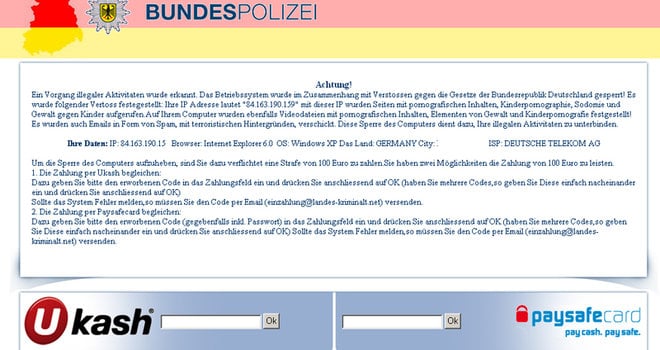
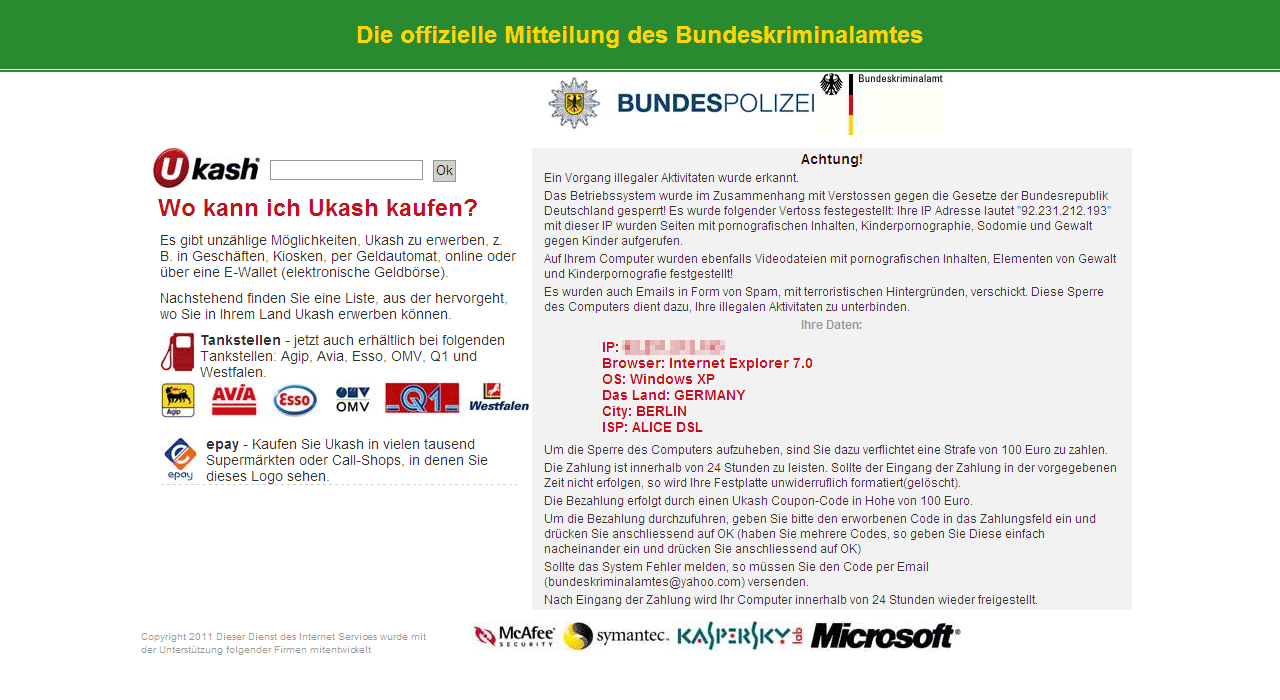
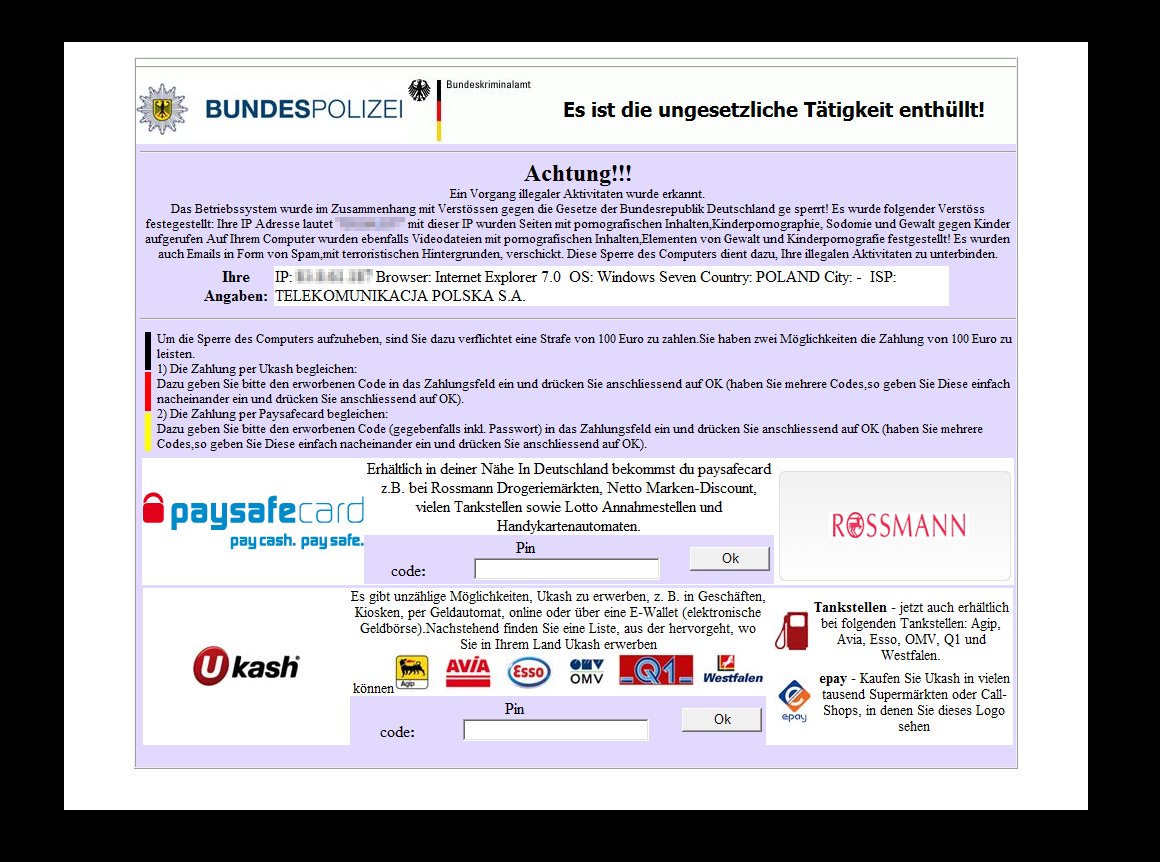
The bogus BUNDESPOLIZEI notification will dispay the following message:
Achtung!!!
Ein Vorgang illegaler Aktivitäten wurde erkannt.
Das Betriebssystem wurde im Zusammenhang mit Versto?en gegen die Gesetze der Bundesrepublik Deutschland gesperrt! Es wurde folgender Verto? festegestellt: Ihre IP Adresse lautet “87.244.147.69″ mit dieser IP wurden Seiten mit pornografischen Inhalten .Kinderpornographie, Sodomie und Gewalt gegen Kinder aufgerufen Auf Ihrem Computer wurden ebenfalls Videodateien mit pornografischen Inhalten. Elementen von Gewalt und Kinderpornografie festgestellt! Es wurden auch Emails in Form von Spam,mit terroristischen Hintergründen, verschickt. Diese Sperre des Computers dient dazu, Ihre illegalen
Aktivitäten zu unterbinden.
Um die Sperre des Computers aufzuheben, sind Sie dazu verflichtet eine Strafe von 100 Euro zu zahlen.Sie haben zwei Möglichkeiten die Zahlung von 100 Euro zu leisten.
1) Die Zahlung per Ukash begleichen:
Dazu geben Sie bitte den erworbenen Code in das Zahlungsfeld ein und drücken Sie anschliessend auf OK (haben Sie mehrere Codes,so geben Sie Diese einfach nacheinander ein und drücken Sie
anschliessend auf OK)
Sollte das System Fehler melden,so müssen Sie den Code per Email (info@stopkriminal.net)
versenden.
2) Die Zahlung per Paysafecard begleichen:
Dazu geben Sie bitte den erworbenen Code (gegebenfalls inkl. Passwort) in das Zahlungsfeld ein und drücken Sie anschliessend auf OK (haben Sie mehrere Codes,so geben Sie Diese einfach nacheinander ein und drücken Sie anschliessend auf OK) Sollte das System Fehler melden,so müssen Sie den Code per Email(einzahlung@landes-kriminalt.net) versenden.
We strongly advise you to follow our BUNDESPOLIZEI. Es ist die ungesetzliche Tätigkeit enthüllt removal guide and ignore any alerts that this malicious software might generate.Under no circumstance should you send any any money to this cyber criminals as this could lead to identity theft.
Removal Instructions for BUNDESPOLIZEI Ukash Ransom
STEP 1: Remove BUNDESPOLIZEI lock screen from your computer
The BUNDESPOLIZEI Ukash Ransomware has modified your Windows registry so that when you’re trying to boot your computer it will launch instead its bogus notification.To remove this malicious registry change,we can use any of the below methods:
Method 1: Restore Windows to a previous state using System Restore
- Restart your computer, and then press and hold F8 during the initial startup to start your computer in safe mode with a Command prompt.
Note: With some computers, if you press and hold a key as the computer is booting you will get a stuck key message. If this occurs, instead of pressing and holding the “F8 key”, tap the “F8 key” continuously until you get the Advanced Boot Options screen. - Use the arrow keys to select the Safe mode with a Command prompt option.
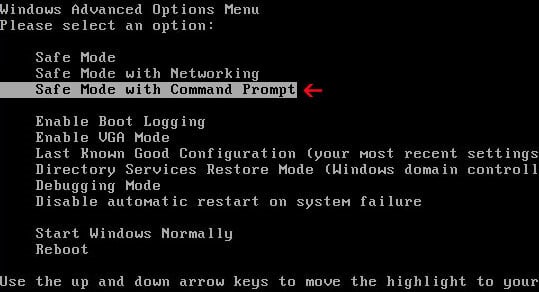
- At the command prompt, type cd restore, and then press ENTER.
Next,we will type rstrui.exe , and then press ENTER

- The System Restore window will start and you’ll need to select a restore point previous to this infection.
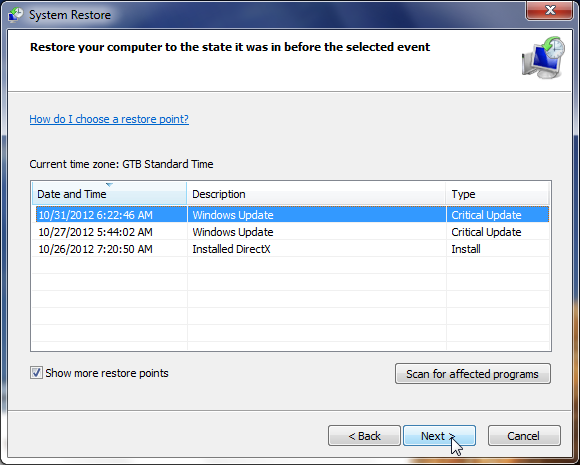
- After System Restore has completed its task,you should be able to boot in Windows normal mode,from there you’ll need to perform a system scan (as seen on STEP 2) with Malwarebytes Anti-Malware and HitmanPro to remove the malicious files from your machine.
Method 2: Use a Kaspersky Kaspersky Rescue Disk CD to remove the bogus BUNDESPOLIZEI lock screen
IF you cannot access Safe Mode with Command Prompt we will need to use a Kaspersky Rescue Disk Bootable CD to clean the Windows registry and to perform a system scan to remove the malicious files.
What you’ll need to perform this removal guide :
- A computer with Internet access.
- 1 blank DVD or CD
- 1 DVD/CD Burner
- Software which can create a bootable CD
- A copy of the latest Kaspersky Rescue Disc
- About 1 -2 hours depending on how much data you have on C:
STEP A: Download and create a bootable Kaspersky Rescue Disk CD
- Download the Kaspersky Rescue Disk ISOimage from below.
Download Kaspersky Rescue DiskOpens the download page in a new tab. - Download ImgBurn, a software that will help us create this bootable disk.
Download ImgBurnOpens the download page in a new tab. - You can now insert your blank DVD/CD in your burner.
- Install ImgBurn by following the prompts and then start this program.
- Click on the Write image file to disc button.
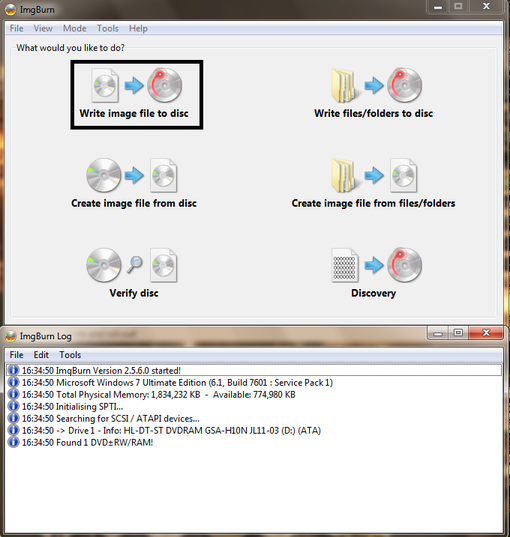
- Under ‘Source’ click on the Browse for file button, then browse to the location where you previously saved the Kaspersky Rescue Disk ISO file.(kav_rescue_10.iso)
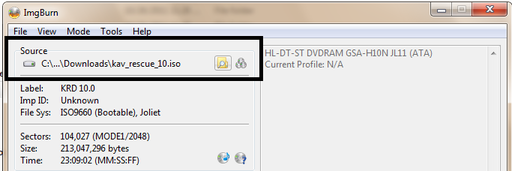
- Click on the big Write button.

- The disc creation process will now start and it will take around 5-10 minutes to complete.
STEP B:Configure the computer to boot from CD-ROM
On some machines,if you restart the computer and repeatedly tap the F11 key it should bring up the Boot Menu, from there you can select to boot from the CD.
IF this doesn’t happen then you’ll need to configure your computer to boot for a CD like you’ll see below.
- Use the Delete or F2 keys, to load the BIOS menu.Information how to enter the BIOS menu is displayed on the screen at the start of the OS boot:
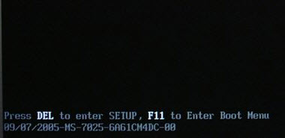
- In your PC BIOS settings select the Boot menu and set CD/DVD-ROM as a primary boot device.
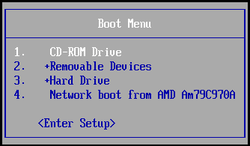
- Insert your Kaspersky Rescue Disk and restart your computer.
STEP C:Boot your computer from Kaspersky Rescue Disk
- Your computer will now boot from the Kaspersky Rescue Disk,and you’ll be asked to press any key to proceed with this process
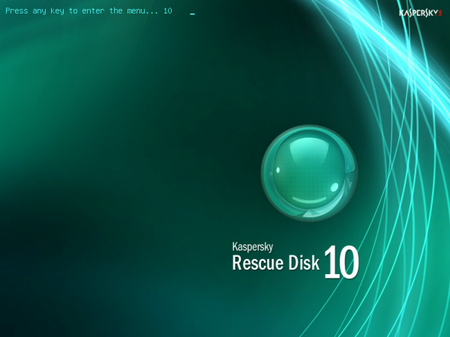
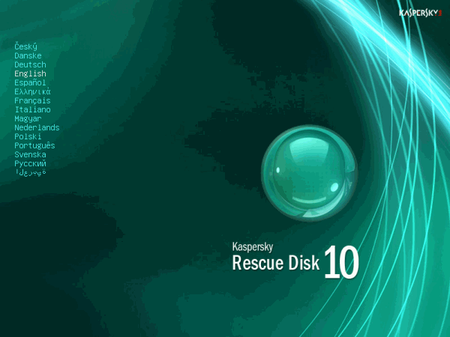
- In the start up wizard window that will open, select your language using the cursor moving keys. Press the ENTER key on the keyboard.
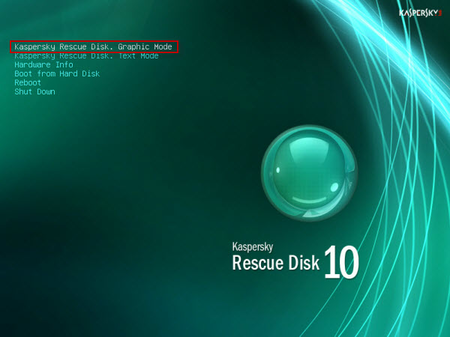
- On the next screen, select Kaspersky Rescue Disk. Graphic Mode then press ENTER.
- The End User License Agreement of Kaspersky Rescue Disk will be displayed on the screen. Read carefully the agreement then press the C button on your keyboard.
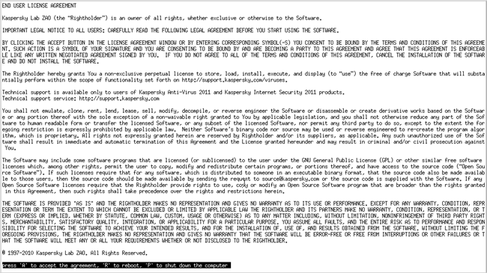
- Once the actions described above have been performed, the Kasprsky operating system will start.
STEP D: Launch Kaspersky WindowsUnlocker to remove the malicious registry changes
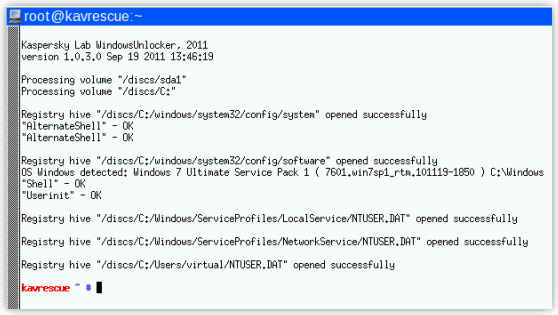
This ransomware trojan has modified your Windows system registry so that when you’re trying to boot your computer it will instead launch his lock screen.To remove this malicious registry changes we need to use the Kasersky WindowsUnlocker from Kaspersky Rescue Disk.
- Click on the Start button located in the left bottom corner of the screen and select the Kaspersky WindowsUnlocker.
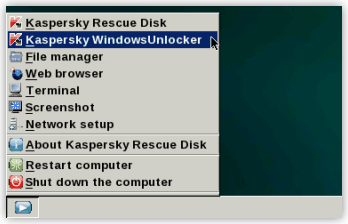
IF you can’t find the WindowsUnlocker button, you can select Terminal and in the command prompt type windowsunlocker and then press Enter on the keyboard. - A white colored console window will appear and will automatically start loading the registry files for scanning and disinfection. The whole process will take only a couple of seconds and after this process you should be able to boot your computer in normal mode.
STEP E:Scan your system with Kaspersky Rescue Disk
- Click on the Start button located in the left bottom corner of the screen and select the Kaspersky Rescue Disk then click on My Update Center and press Start update.
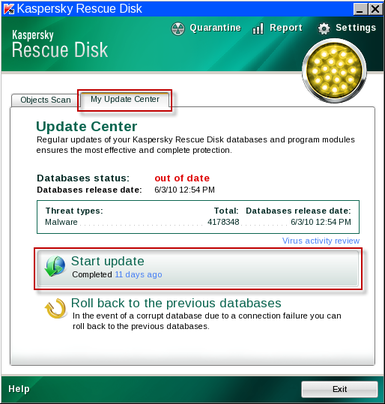
- When the update process has completed, the light at the top of the window will turn green, and the databases release date will be updated.
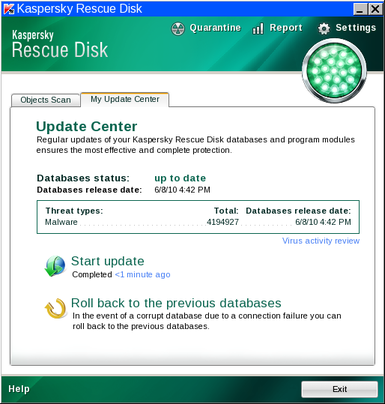
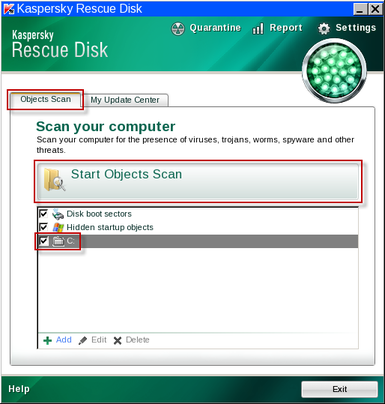
- Click on the Objects Scan tab, then click Start Objects Scanto begin the scan.
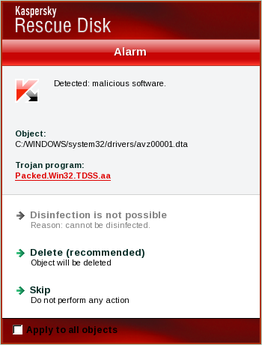
- If any malicious items are found, the default settings are to prompt you for action with a red popup window on the bottom right. Delete is the recommended action in most cases but we strongly recommend that you try first to disinfect , and if it doesn’t work chose to quarantine the infected files just to be on the safe side.
- When all detected items have been processed and removed, the light in the window will turn green and the scan will show as completed.
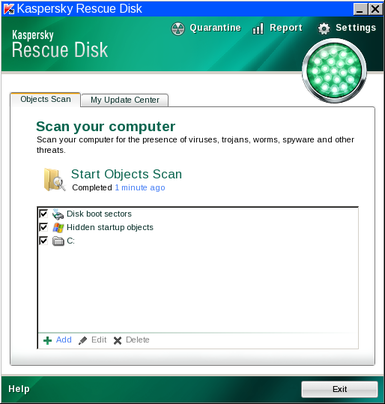
- When done you can close the Kaspersky Rescue Disk window and use the Start Menu to Restart the computer.
STEP 2: Remove the malicious BUNDESPOLIZEI ransomware files from your computer
STEP A: Run a system scan with Malwarebytes Anti-Malware FREE
- Download the latest official version of Malwarebytes Anti-Malware FREE.
Download MalwarebytesFree official installer. Your download starts right away. - Start the Malwarebytes’ Anti-Malware installation process by double clicking on mbam-setup file.
![[Image: Malwarebytes Installer]](//malwaretips.com/images/removalguide/malwarebytes-setup.png "Malwarebytes Anti-Malware Installer")
- When the installation begins, keep following the prompts in order to continue with the setup process. Do not make any changes to default settings and when the program has finished installing, make sure you leave both the Update Malwarebytes’ Anti-Malware and Launch Malwarebytes’ Anti-Malware checked. Then click on the Finish button. If Malwarebytes’ prompts you to reboot, please do not do so.
![[Image: Finishing Malwarebytes installation]](//malwaretips.com/images/removalguide/update-malwarebytes.png "Malwarebytes last setup screen")
- Malwarebytes Anti-Malware will now start and you’ll be prompted to start a trial period , please select ‘Decline‘ as we just want to use the on-demand scanner.
![[Image: Decline Malwarebytes trial]](//malwaretips.com/images/removalguide/malwarebytes-trial.png "Decline trial period in Malwarebytes Anti-Malware")
- On the Scanner tab,select Perform quick scan and then click on the Scan button to start scanning your computer.
![[Image: Starting a full system sca]](//malwaretips.com/images/removalguide/start-scan-malwarebytes.png "Perform a Full System Scan with Malwarebytes Anti-Malware")
- Malwarebytes’ Anti-Malware will now start scanning your computer for malicious files as shown below.
![[Image: Malwarebytes scanning for malicious files]](//malwaretips.com/images/removalguide/scan-malwarebytes.png "Malwarebytes Anti-Malware scanning for malware")
- When the scan is finished a message box will appear, click OK to continue.
![[Image: Malwarebytes scan results]](//malwaretips.com/images/removalguide/results-malwarebytes.png "Malwarebytes when the system scan has finished")
- You will now be presented with a screen showing you the malware infections that Malwarebytes’ Anti-Malware has detected.Please note that the infections found may be different from what is shown in the image.Make sure that everything is Checked (ticked) and click on the Remove Selected button.
![[Image: Infections found by Malwarebytes]](//malwaretips.com/images/removalguide/detection-malwarebytes.png "Removing the infections found by Malwarebytes")
![[Image: Malwarebytes Installer]](http://malwaretips.com/images/removalguide/malwarebytes-setup.png "Malwarebytes Anti-Malware Installer")
![[Image: Finishing Malwarebytes installation]](http://malwaretips.com/images/removalguide/update-malwarebytes.png "Malwarebytes last setup screen")
![[Image: Decline Malwarebytes trial]](http://malwaretips.com/images/removalguide/malwarebytes-trial.png "Decline trial period in Malwarebytes Anti-Malware")
![[Image: Starting a full system sca]](http://malwaretips.com/images/removalguide/start-scan-malwarebytes.png "Perform a Full System Scan with Malwarebytes Anti-Malware")
![[Image: Malwarebytes scanning for malicious files]](http://malwaretips.com/images/removalguide/scan-malwarebytes.png "Malwarebytes Anti-Malware scanning for malware")
![[Image: Malwarebytes scan results]](http://malwaretips.com/images/removalguide/results-malwarebytes.png "Malwarebytes when the system scan has finished")
![[Image: Infections found by Malwarebytes]](http://malwaretips.com/images/removalguide/detection-malwarebytes.png "Removing the infections found by Malwarebytes")
STEP B: Run a system scan with HitmanPro
- Download the latest official version of HitmanPro from the below link.
Download HitmanProOfficial Sophos download. Free scan, free 30-day trial to remove threats. - Double click on the previously downloaded file to start the HitmanPro installation.
![[Image: HitmanPro Icon]](//malwaretips.com/images/removalguide/hpro1.png "HitmanPro Installer")
IF you are experiencing problems while trying to start HitmanPro, you can use the Force Breach mode.To start HitmanPro in Force Breach mode, hold down the left CTRL-key when you start HitmanPro and all non-essential processes are terminated, including the malware process. (How to start HitmanPro in Force Breach mode – Video) - Click on Next to install HitmanPro on your system.
![[Image: Starting HitmanPro]](//malwaretips.com/images/removalguide/hitmanpro36-start.png "HitmanPro installation process")
- The setup screen is displayed, from which you can decide whether you wish to install HitmanPro on your machine or just perform a one-time scan, select an option then click on Next to start a system scan.
![[Image: HitmanPro installation screen]](//malwaretips.com/images/removalguide/hitmanpro36-installation.png "HitmanPro setup options")
- HitmanPro will start scanning your system for malicious files as seen in the image below.
![[Image: HitmanPron scanning]](//malwaretips.com/images/removalguide/hitmanpro36-scan.png "HitmanPro while scanning for malware")
- Once the scan is complete,you’ll see a screen which will display all the malicious files that the program has found.Click on Next to remove this malicious files.
![[Image: HitmanPro scan results]](//malwaretips.com/images/removalguide/hitmanpro36-results.png "HitmanPro displaying scan results")
- Click Activate free license to start the free 30 days trial and remove the malicious files.
![[Image: Activate HitmanPro license]](//malwaretips.com/images/removalguide/hitmanpro36-activation.png "Activate the HitmanPro free 30 days trial to remove any detected infections")
- HitmanPro will now start removing the infected objects.If this program will ask you to restart your computer,please allow this request.
![[Image: HitmanPro Icon]](http://malwaretips.com/images/removalguide/hpro1.png "HitmanPro Installer")
![[Image: Starting HitmanPro]](http://malwaretips.com/images/removalguide/hitmanpro36-start.png "HitmanPro installation process")
![[Image: HitmanPro installation screen]](http://malwaretips.com/images/removalguide/hitmanpro36-installation.png "HitmanPro setup options")
![[Image: HitmanPron scanning]](http://malwaretips.com/images/removalguide/hitmanpro36-scan.png "HitmanPro while scanning for malware")
![[Image: HitmanPro scan results]](http://malwaretips.com/images/removalguide/hitmanpro36-results.png "HitmanPro displaying scan results")
![[Image: Activate HitmanPro license]](http://malwaretips.com/images/removalguide/hitmanpro36-activation.png "Activate the HitmanPro free 30 days trial to remove any detected infections")








