


Mac Speedup Pro is a potentially unwanted application, which is advertised as a system optimizer, and once installed it claims that several issues were been detected on your Mac. However, if you try to fix these issues, Mac Speedup Pro will state that you need to buy the full version before being able to do so.
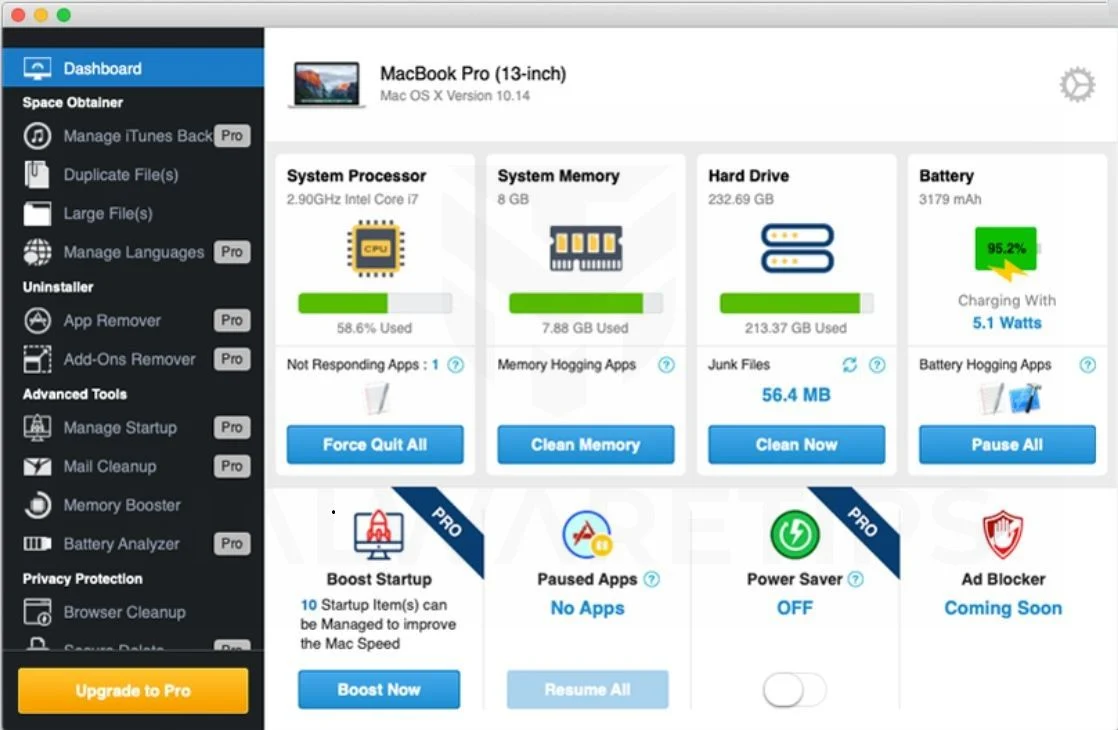
Mac Speedup Pro is bundled with other free software that you download off of the Internet. Unfortunately, some free downloads do not adequately disclose that other software will also be installed and you may find that you have installed adware without your knowledge.
You should always pay attention when installing software because often, a software installer includes optional installs, such as this Mac Speedup Pro potentially unwanted program. Be very careful what you agree to install.
Always opt for the custom installation and deselect anything that is not familiar, especially optional software that you never wanted to download and install in the first place. It goes without saying that you should not install software that you don’t trust.
How to remove Mac Speedup Pro redirect (Virus Removal Guide)
Please perform all the steps in the correct order. If you have any questions or doubt at any point, STOP and ask for our assistance.
STEP 1: Remove Mac Speedup Pro from Mac
In this first step, we will try to identify and remove any malicious app that might be installed on your device.
-
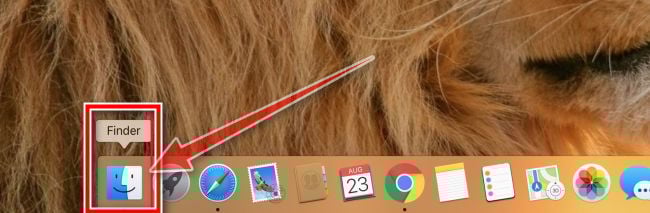
Open “Finder”
Click the Finder application on your dock.
-
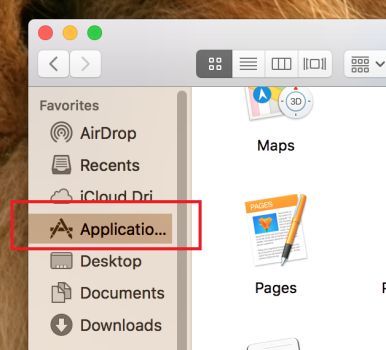
Click on “Applications”
In the Finder left pane, click on “Applications“.
-
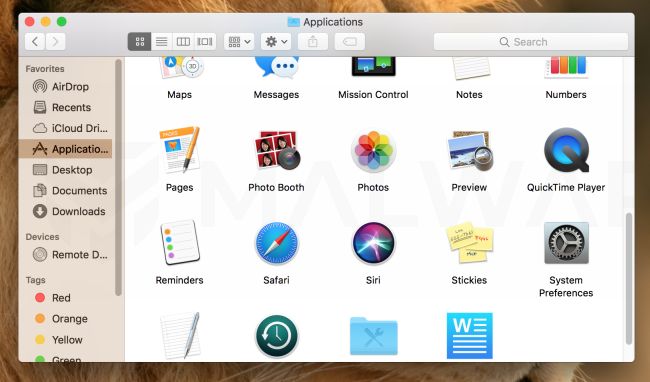
Find and remove the malicious app.
The “Applications” screen will be displayed with a list of all the apps installed on your device. Scroll through the list until you find the Mac Speedup Pro app, right-click it, and then click “Move to Trash”.
The malicious app may have a different name on your device. If you cannot find any malicious apps, you can proceed with the next step
.
-
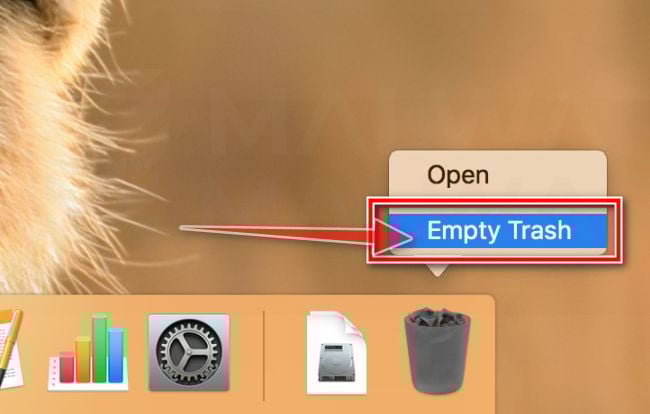
Click “Empty Trash”
On the dock, right-click on the trash icon and select “Empty Trash”. Doing so deletes the Trash’s contents, including the program that you just sent to the Trash.
This program may add a widget on the menu bar, if you see the Mac Speedup Pro icon in the right end of the menu bar, click on it and then select “Close”.
Next, click the desktop to make sure you’re in the Finder, choose Go > Go to Folder, type in /Users/Shared/, then delete the Mac Speedup Pro files and folders.
Some types of malware may also create a new group policy for your device, before we proceed with the other steps we need to remove these unwanted changes.
- Go to System Preferences.
- Click Profiles.
- The list will include an item “AdminPrefs“. Select this and click the remove “–” button in the lower left corner.
STEP 2: Use Malwarebytes for Mac to remove Mac Speedup Pro
Malwarebytes is one of the most popular and most used anti-malware apps, and for good reasons. It is able to destroy many types of malware that other software tends to miss, without costing you absolutely nothing. When it comes to cleaning up an infected device, Malwarebytes has always been free and we recommend it as an essential tool in the fight against malware.
The first time you install Malwarebytes, you’re given a free 30-days trial of the premium edition, which includes preventative tools like real-time scanning and specific protection from ransomware. After 30 days, it automatically reverts to the basic free version that will detect and clean up malware infections only when you run a scan.
-
Download Malwarebytes.
You can download Malwarebytes by clicking the link below.
 Malwarebytes Free for MacScans and removes malware at no cost
Download MalwarebytesOfficial installer for macOS. Your download starts right away.Want real-time protection? See Malwarebytes Premium
-
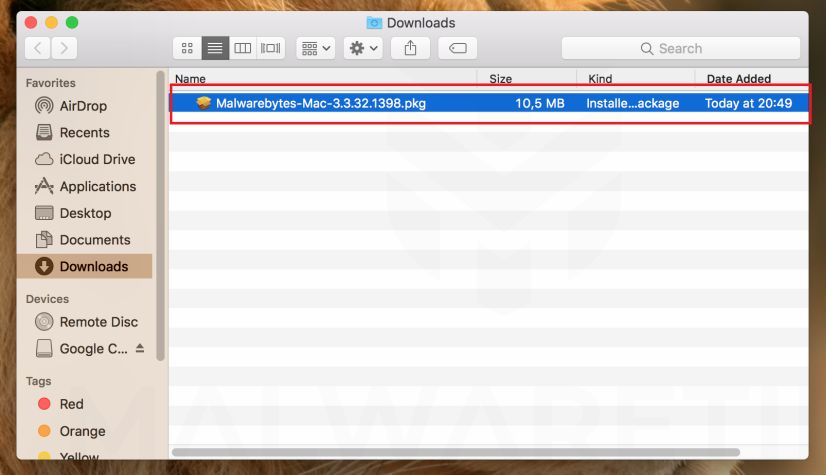
Double-click on the Malwarebytes setup file.
When Malwarebytes has finished downloading, double-click on the Malwarebytes-Mac-3.x.y.zzz.pkg file to install Malwarebytes on your device. In most cases, downloaded files are saved to the Downloads folder.
-
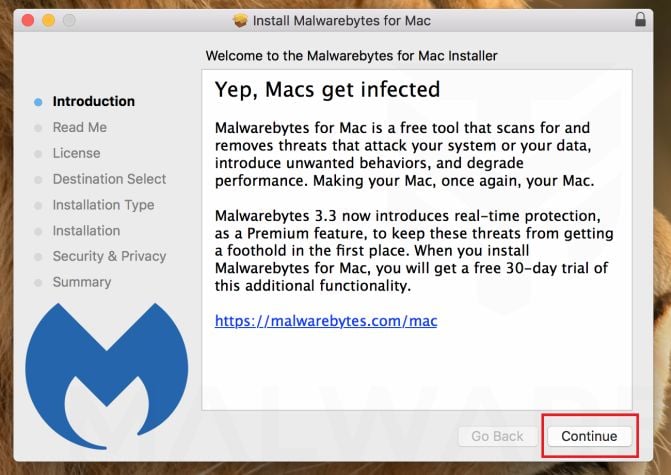
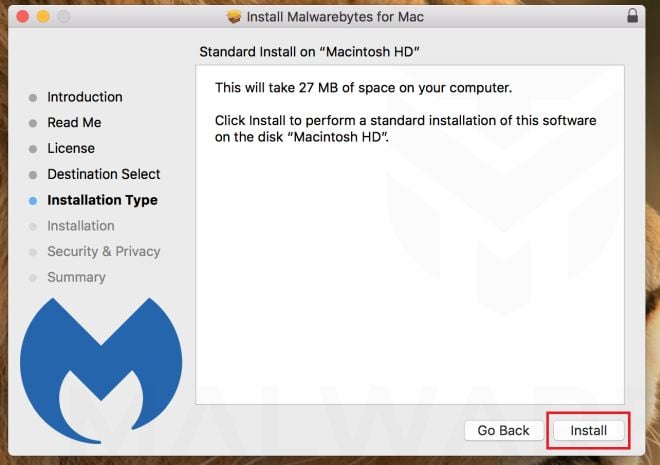
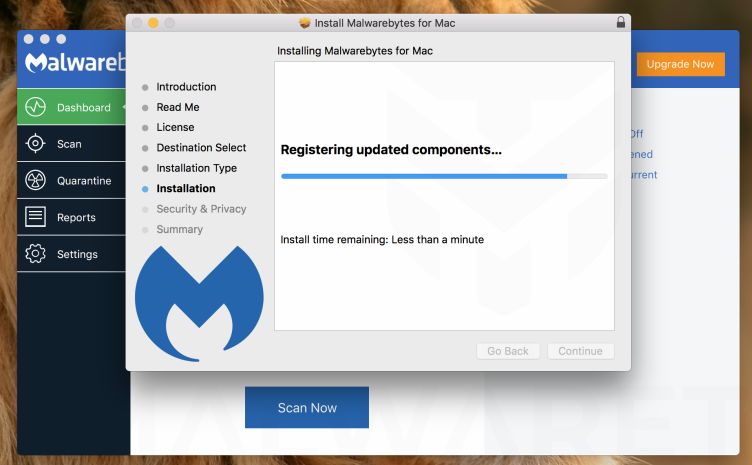
Follow the on-screen prompts to install Malwarebytes.
When the Malwarebytes installation begins, you will see the Malwarebytes Setup Wizard which will guide you through the installation process. The setup wizard displays an introduction to Malwarebytes for Mac. Click on “Continue” to complete the installation process.
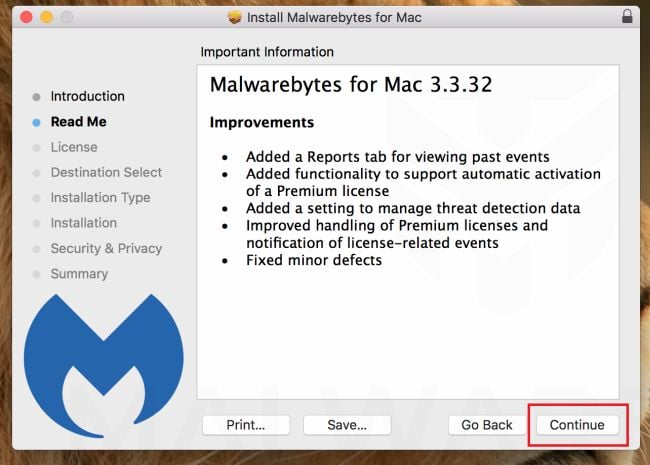
Next, click on “Install“.
-
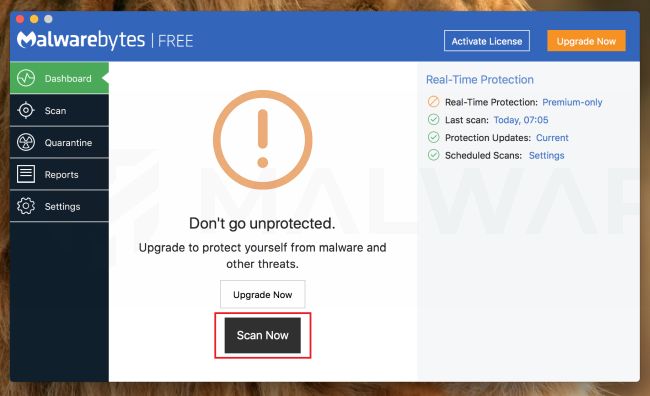
Click on “Scan Now”.
Once installed, Malwarebytes will automatically start and update the antivirus database. To perform a system scan, click on the “Scan Now” button.
-
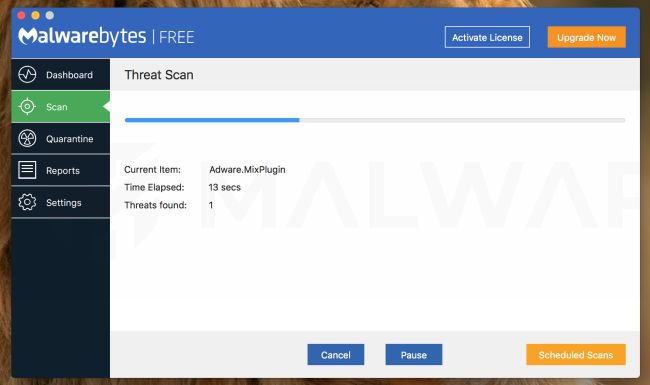
Wait for the Malwarebytes scan to complete.
Malwarebytes will now start scanning your Mac for adware and other malicious apps. This process can take a few minutes, so we suggest you do something else and periodically check on the status of the scan to see when it is finished.
-
Click on “Confirm”.
When the scan has completed, you will be presented with a screen showing the malware infections that Malwarebytes has detected. To remove the malicious apps that Malwarebytes has found, click on the “Confirm” button.
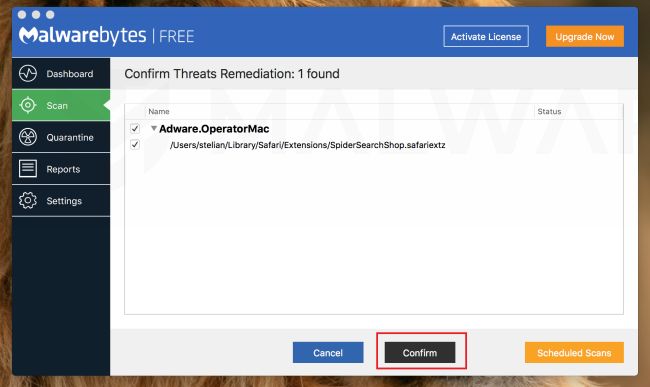
Malwarebytes will now remove all the malicious files that it has found. To complete the malware removal process, Malwarebytes may ask you to restart your device.
Mac Speedup Pro should have now be competently removed from your device. If you are still experiencing problems while trying to remove Mac Speedup Pro, please ask for help in our Malware Removal Assistance for Mac forum.

Join the discussion
0 commentsShare your experience or ask a question about this article.
Your progress
Did these steps help?
Let us know how the guide worked for you.
Describe what you see and the step you reached. Keep passwords and other private information out.
Discussion
Start the conversation
Have a question or something useful to share? Add the first comment.