

MyStart by IncrediBar toolbar is an adware program that has changed your browser homepage,default search engine and is causing browsing redirects.
The IncrediBar got on your computer after you have installed other programs that have bundled in their installers this IncrediBar.
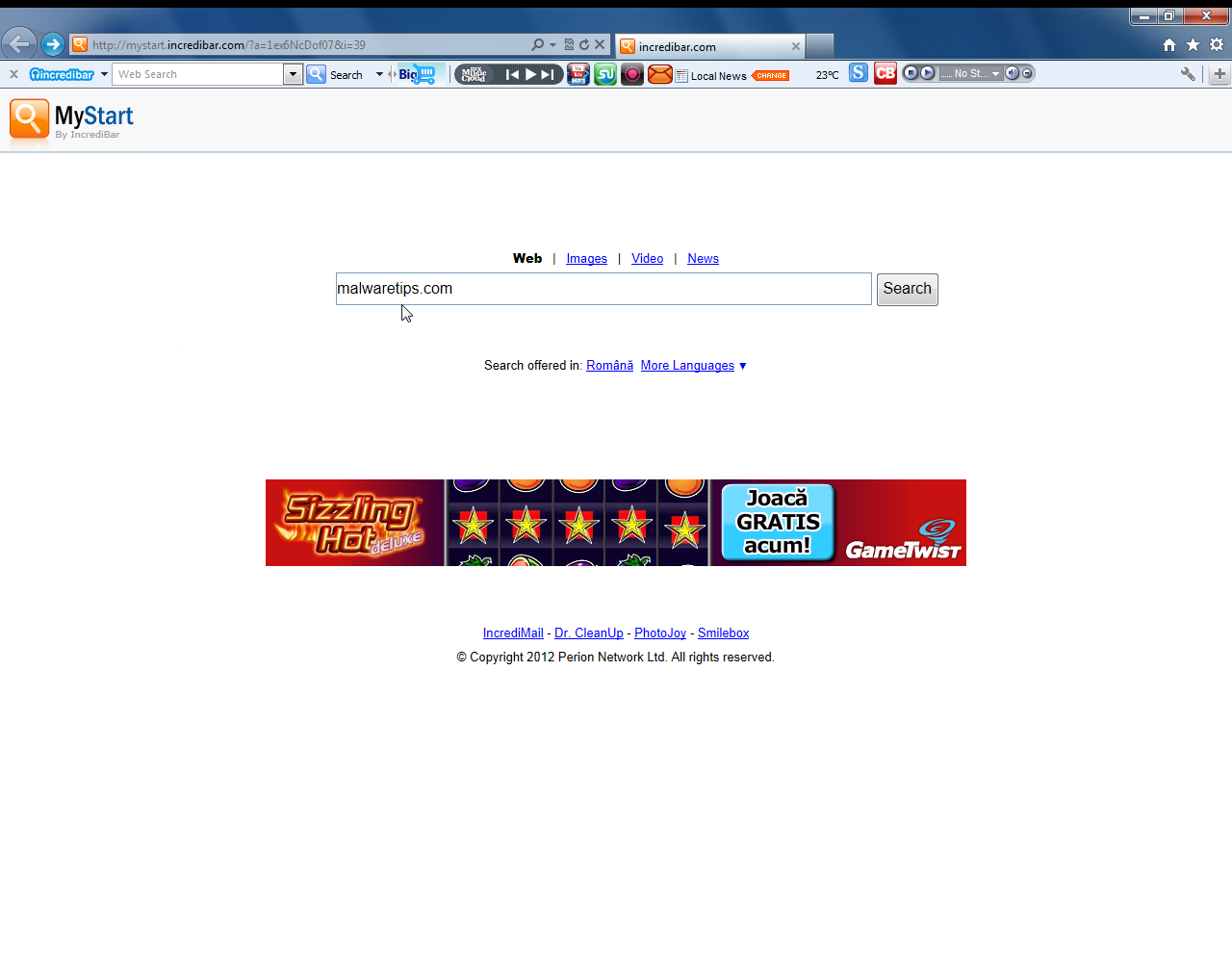
This adware has different names depending on which one you’ve installed on your computer: Incredibar Games, Incredibar Essentials, Incredibar Community or Incredibar Music however this is how MyStart by IncrediBar looks on Internet Explorer 9 :
You should always pay attention when installing software because often, a software installer includes optional installs, such as this Incredibar toolbar. Be very careful what you agree to install.Always opt for the custom installation and deselect anything that is not familiar, especially optional software that you never wanted to download and install in the first place.
It goes without saying that you should not install software that you don’t trust.
How to remove MyStart by IncrediBar hijack (Virus Removal Guide)
This page is a comprehensive guide, which will remove “MyStart by IncrediBar” virus from your computer and any other adware program that may have been installed during the setup process.
Please perform all the steps in the correct order. If you have any questions or doubt at any point, STOP and ask for our assistance.
STEP 1: Remove MyStart by IncrediBar redirect with AdwCleaner
STEP 2: Remove MyStart by IncrediBar virus with Malwarebytes Anti-Malware Free
STEP 3: Double-check for the “MyStart by IncrediBar” malware with HitmanPro
(Optional) STEP 4: Remove MyStart by IncrediBar from Internet Explorer, Firefox and Google Chrome
STEP 1: Remove MyStart by IncrediBar redirect with AdwCleaner
The AdwCleaner utility will scan your computer and web browser for the MyStart by IncrediBar malicious files, browser extensions and registry keys, that may have been installed on your computer without your knowledge.
- You can download AdwCleaner from the below link.
Download AdwCleanerFree official download. Nothing to install. - Before starting AdwCleaner, close all open programs and internet browsers, then double-click on the AdwCleaner icon.
If Windows prompts you as to whether or not you wish to run AdwCleaner, please allow it to run. - When the AdwCleaner program will open, click on the “Scan” button as shown below.
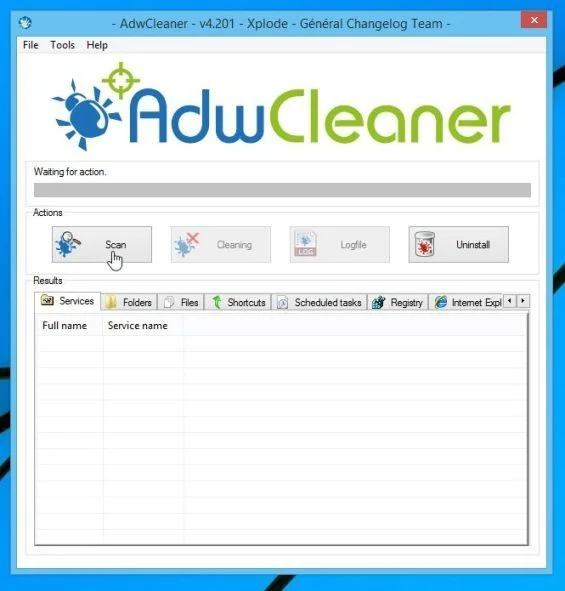
AdwCleaner will now start to search for the “MyStart by IncrediBar” malicious files that may be installed on your computer. - To remove the “MyStart by IncrediBar” malicious files that were detected in the previous step, please click on the “Clean” button.
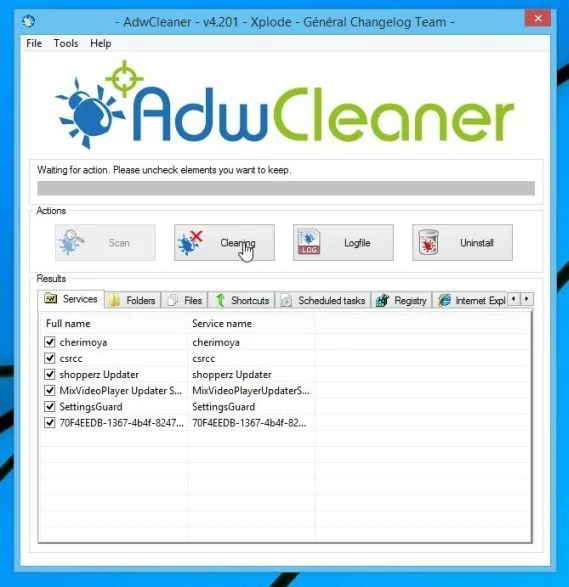
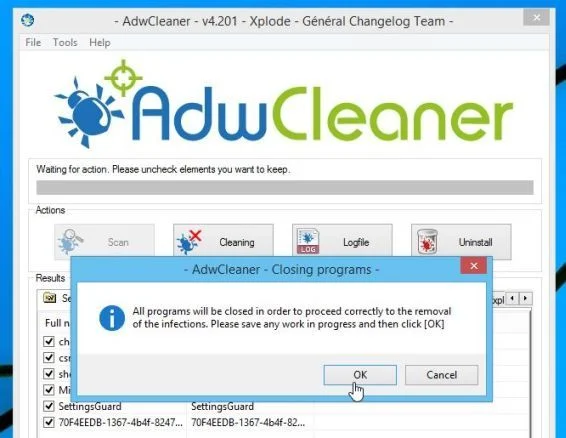
- AdwCleaner will prompt you to save any open files or documents, as the program will need to reboot the computer. Please do so and then click on the OK button.
STEP 2: Remove MyStart by IncrediBar virus with Malwarebytes Anti-Malware Free
Malwarebytes Anti-Malware Free uses industry-leading technology to detect and remove all traces of malware, including worms, Trojans, rootkits, rogues, dialers, spyware, and more.
It is important to note that Malwarebytes Anti-Malware works well and should run alongside antivirus software without conflicts.
- You can download download Malwarebytes Anti-Malware from the below link.
Download MalwarebytesFree official installer. Your download starts right away. - Once downloaded, close all programs, then double-click on the icon on your desktop named “mbam-setup” to start the installation of Malwarebytes Anti-Malware.
 You may be presented with a User Account Control dialog asking you if you want to run this file. If this happens, you should click “Yes” to continue with the installation.
 - When the installation begins, you will see the Malwarebytes Anti-Malware Setup Wizard which will guide you through the installation process.
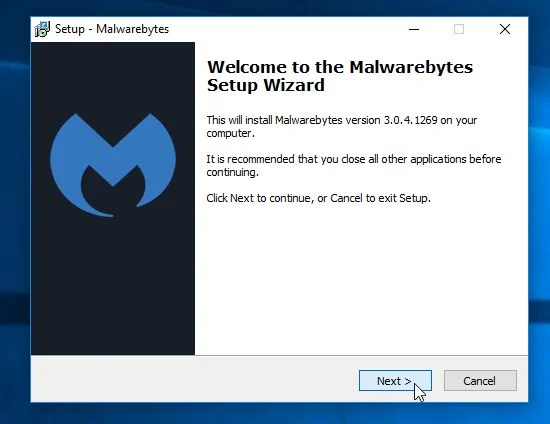
To install Malwarebytes Anti-Malware on your machine, keep following the prompts by clicking the “Next” button.
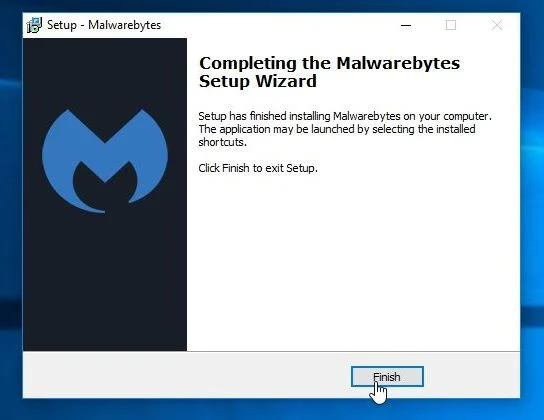
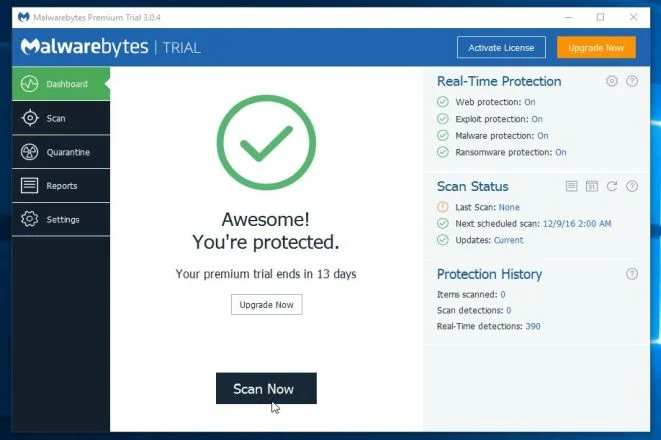
- Once installed, Malwarebytes Anti-Malware will automatically start and you will see a message stating that you should update the program, and that a scan has never been run on your system. To start a system scan you can click on the “Scan Now” button.
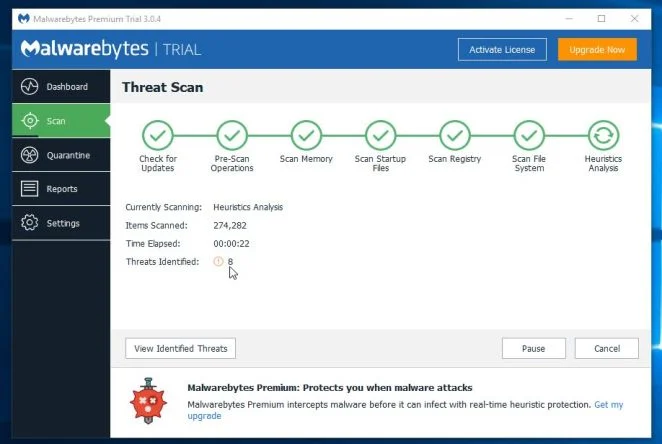
- Malwarebytes Anti-Malware will now start scanning your computer for the MyStart by IncrediBar virus. When Malwarebytes Anti-Malware is scanning it will look like the image below.
- When the scan has completed, you will now be presented with a screen showing you the malware infections that Malwarebytes Anti-Malware has detected. To remove the malicious programs that Malwarebytes Anti-malware has found, click on the “Remove Seletected” button.
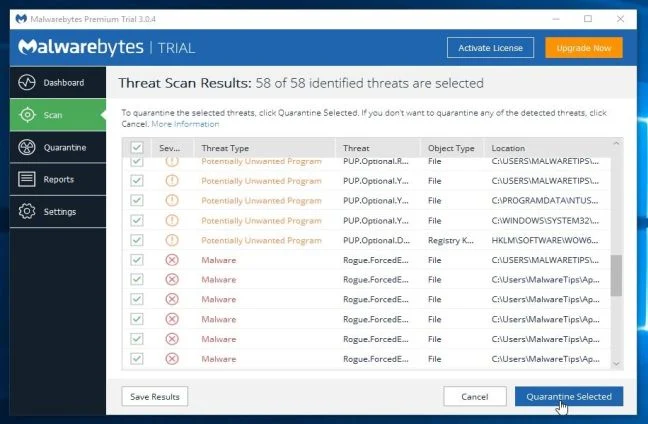
Please note that the infections found may be different than what is shown in the image. - Malwarebytes Anti-Malware will now quarantine all the malicious files and registry keys that it has found. When removing the files, Malwarebytes Anti-Malware may require a reboot in order to remove some of them. If it displays a message stating that it needs to reboot your computer, please allow it to do so.
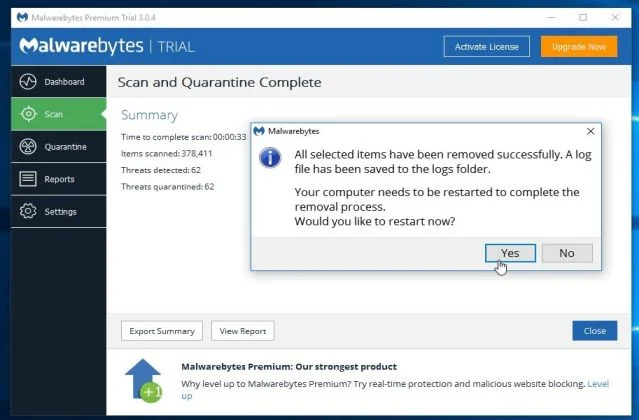
After your computer will restart, you should open Malwarebytes Anti-Malware and perform another “Threat Scan” scan to verify that there are no remaining threats
STEP 3: Double-check for the “MyStart by IncrediBar” malware infection with HitmanPro
HitmanPro is a second opinion scanner, designed to rescue your computer from malware (viruses, trojans, rootkits, etc.) that have infected your computer despite all the security measures you have taken (such as anti-virus software, firewalls, etc.). HitmanPro is designed to work alongside existing security programs without any conflicts. It scans the computer quickly (less than 5 minutes) and does not slow down the computer.
- You can download HitmanPro from the below link:
Download HitmanProOfficial Sophos download. Free scan, free 30-day trial to remove threats. - Double-click on the file named “HitmanPro.exe” (for 32-bit versions of Windows) or “HitmanPro_x64.exe” (for 64-bit versions of Windows). When the program starts you will be presented with the start screen as shown below.
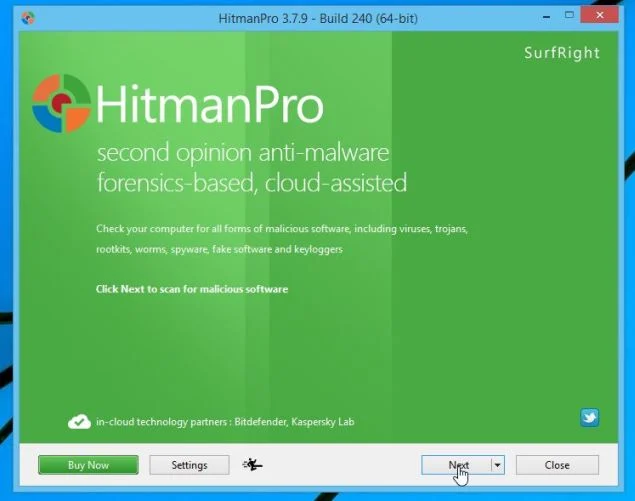
Click on the “Next” button, to install HitmanPro on your computer.
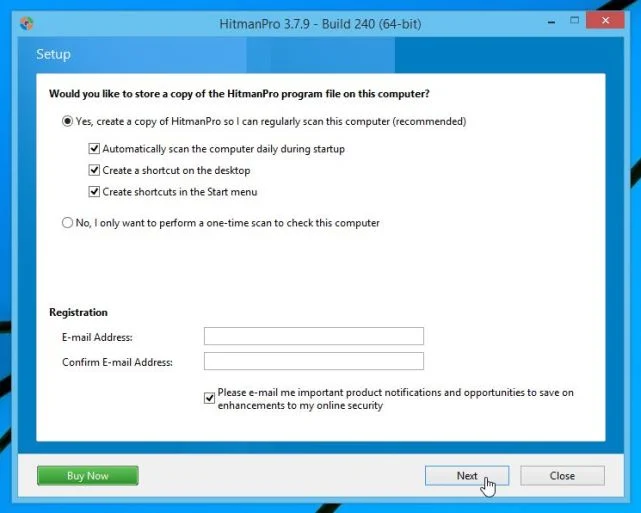
- HitmanPro will now begin to scan your computer for MyStart by IncrediBar malicious files.
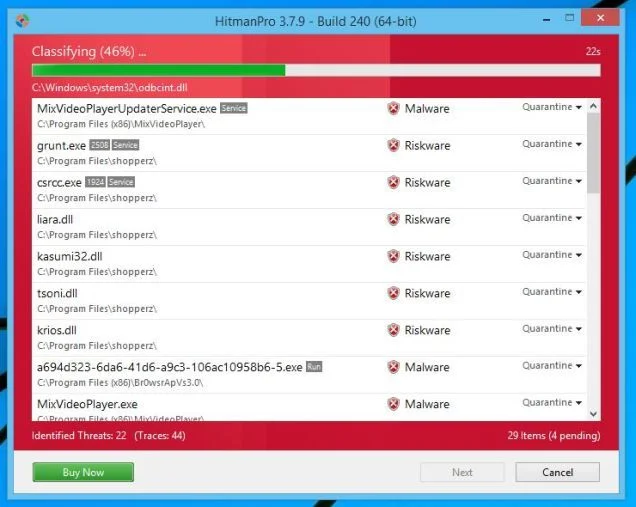
- When it has finished it will display a list of all the malware that the program found as shown in the image below. Click on the “Next” button, to remove MyStart by IncrediBar virus.
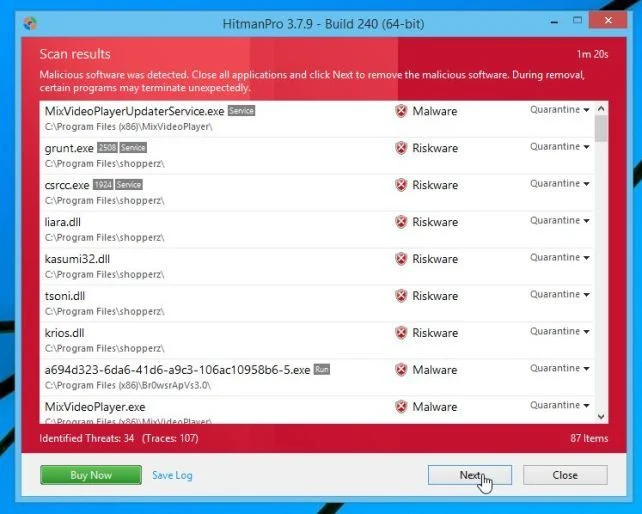
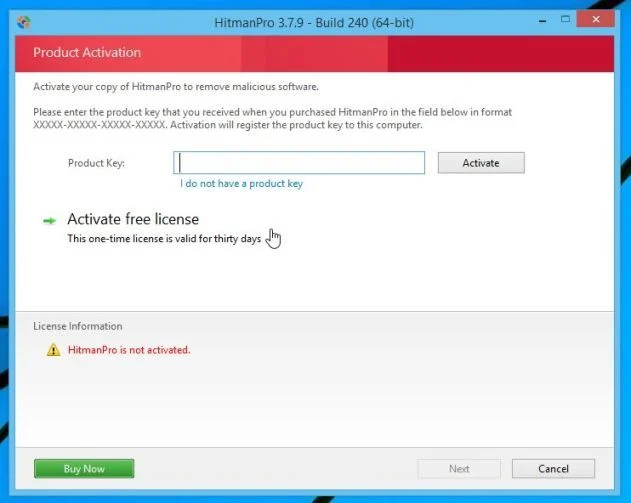
- Click on the “Activate free license” button to begin the free 30 days trial, and remove all the malicious files from your computer.
(Optional) STEP 4: Remove MyStart by IncrediBar from Internet Explorer, Firefox and Google Chrome
If you are still experiencing issues with the MyStart by IncrediBar browser hijacker in Internet Explorer, Firefox or Chrome, we will need to reset your browser to its default settings. This step needs to be performed only if your issues have not been solved by the previous steps.
Reset Internet Explorer
- Open Internet Explorer, click on the “gear icon”
 in the upper right part of your browser, then click again on Internet Options.
![[Image: Internet Options in Internet Explorer]](https://malwaretips.com/blogs/wp-content/uploads/mwt-media/52/522e9c30de2b8b1009dec93b1735a5e5ec22f4d7d2e025c30c251ca96799dec2/45442bf30d44812b12c1d4152796bddfd0d05542d55e7c907b8edde3ac50c4d7-625.webp "Click on the Gear Icon then on Internet Options")
- In the “Internet Options” dialog box, click on the “Advanced” tab, then click on the “Reset” button.
![[Image: Reset Internet Explorer]](https://malwaretips.com/blogs/wp-content/uploads/mwt-media/89/89e96623f76134cd3bfd7a5579d40fefa7118a81811be6e9888bb8b92ac84adf/ca946d49c693e69239029b3c145713bf590c959486dc4af7bbae81db5ec5a627-613.webp "In the Advanced tab click on the Reset button")
- In the “Reset Internet Explorer settings” section, select the “Delete personal settings” check box, then click on “Reset” button.
![[Image: Reset Internet Explorer to its default settings]](https://malwaretips.com/blogs/wp-content/uploads/mwt-media/f2/f240d9aad8df73300edecc78c67f33cd5fccb1f5732245b8d5990b4524313abb/c2ef750ff5d9642431fc10968d9e8699c75c0b149affcf506387fa0c948e4874-626.webp "Click on the Reset button to revert IE to its default settings")
- When Internet Explorer has completed its task, click on the “Close” button in the confirmation dialogue box. You will now need to close your browser, and then you can open Internet Explorer again.
![[Image Reset Internet Explorer settings]](https://malwaretips.com/blogs/wp-content/uploads/mwt-media/22/22bcd4ddf7b1a0aac3fcb25d72a4d24b8d1748a2ee365e4f52181e6d57a4ef94/7d992d833ea0dbef9fbfdfbe664c145a6a794975aa5980dfbdde3369647953b4-621.webp "Click on the Close button")
Reset Mozilla Firefox
- In the upper-right corner of the Firefox window, click the Firefox menu button (
![[Image: Firefox Menu button]](https://malwaretips.com/blogs/wp-content/uploads/mwt-media/6f/6f648cb445905efd8b48fc51022903baf5a0db5eb5c8478d587f29d3dc216d6c/03f95ff9f91ad81d0407ba6842827f193c40eb3d4b407eda9f698f330de02814-16.webp "Firefox Menu button") ), then click on the “Help” (
), then click on the “Help” (![[Image: Firefox Help button]](https://malwaretips.com/blogs/wp-content/uploads/mwt-media/da/dad9a8056176398d90be70e0b13e0181d2f95a3cd817a0f9bd296d3e00b47109/feab1435cad07dba7dbf1e08f210872708ea08865694c59cfbac294ba8583f2a-16.webp "Firefox Help button") ) button.
) button.
![[Image: Click on the Menu button then Help]](https://malwaretips.com/blogs/wp-content/uploads/mwt-media/b3/b377cb8cff0bee416c3d3119f3b297121b11a191b03960f59042d04eaf1b024f/e6666aaf95fdc45769a3ad8643bf420b9a6bbfb926d8f9f5c085273ceab43042-639.webp "Click on the Menu button then question mark button")
- From the Help menu, choose Troubleshooting Information.
If you’re unable to access the Help menu, type about:support in your address bar to bring up the Troubleshooting information page.
![[Image: Troubleshooting Information in Firefox]](https://malwaretips.com/blogs/wp-content/uploads/mwt-media/69/69762affb073db88c58031bb0921652382117b19b00bddaf65ff209f7f251209/02317ac4d0bd202b13a64cc831d8b76e93d8de421c502f4e620fbe4ddc59ff3a-635.webp "Troubleshooting Information in Firefox")
- Click the “Reset Firefox” button in the upper-right corner of the “Troubleshooting Information” page.
![[Image: Reset Firefox to its default settings]](https://malwaretips.com/blogs/wp-content/uploads/mwt-media/71/71b1ebcca7d6b615ce3847771661140188cc56e13ef5a22c4e7e81b496117d17/3c21366391fc1ca103f62493d5f9e237d72648b740577a599cd03a125d63bf06-642.webp "Reset Firefox to its default settings")
- To continue, click on the “Reset Firefox” button in the new confirmation window that opens.
![[Image: Click on the Reset Firefox button]](https://malwaretips.com/blogs/wp-content/uploads/mwt-media/54/54ef1813bb040e2ebcfc2633c0583795c99e285d9fed97ca760618dbfc71a704/7c01c1595c602bbdad2a46e822b7761992e499c61b42e52bc1a239371b8f2b9c-637.webp "Click on the Reset Firefox button")
- Firefox will close itself and will revert to its default settings. When it’s done, a window will list the information that was imported. Click on the “Finish“.
Note: Your old Firefox profile will be placed on your desktop in a folder named “Old Firefox Data“. If the reset didn’t fix your problem you can restore some of the information not saved by copying files to the new profile that was created. If you don’t need this folder any longer, you should delete it as it contains sensitive information.
Reset Google Chrome
- Click on the “Chrome menu button” (
 ) on the browser toolbar, select “Settings“, and then click on “Extensions“.
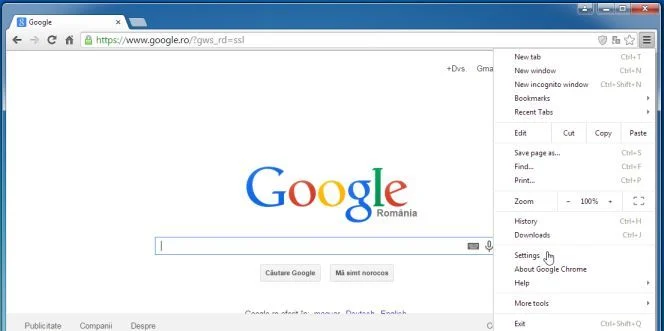
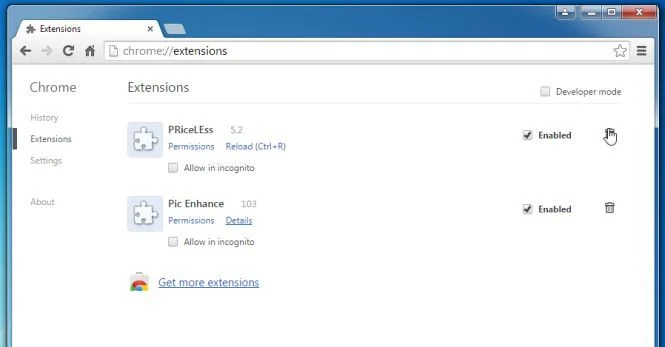
- In the “Extensions” tab, remove SavePass, Pic Enhance, Sm23mS, Salus, SS8, Save Daily Deals, Word Proser, Desktop Temperature Monitor, PriceLEess, Savefier, Savepass, Couponarific and any other unknown extensions, by clicking the trash can
![[Image: Remove an extension from Chrome]](https://malwaretips.com/blogs/wp-content/uploads/mwt-media/15/15312192a9e993d0b47828bcc4a4243b8327edfe01567c83ac4ac59042b1ed49/ef971b5a6abccddf090910da018056c4845ae3d8fc7de8265833328ba64c0041-20.webp "Remove an extension from Chrome") icon.
icon.
Basically, if you have not installed an extension then you should remove it from Google Chrome.
If you are still experiencing problems while trying to remove MyStart by IncrediBara adware from your machine, please start a new thread in our Malware Removal Assistance forum.

Join the discussion
174 commentsShare your experience or ask a question about this article.
Your progress
Did these steps help?
Let us know how the guide worked for you.
Describe what you see and the step you reached. Keep passwords and other private information out.
Discussion
Finally got rid of Incredibar – it was driving me crazy. Thank You!
Worked a treat. Thank you especially for the clear and through step-by-step instruction. Easy to understand and difficult to go wrong. I hope your business continues to prosper ,your philanthropic attitude with regard to sharing this information deserves to be rewarded. I can only offer my heartfelt thanks.
Incredibar was removed
You’re the man! Way to go!
Worked like a dream, thanks a lot.
thanks.was able to remove my start.increbar,from my computer by ADWCLEANER
Thank you, Stelian! Your generosity is amazing.
JVN from Los Angeles
Thank you SOOOOOO much!!!!!!!! This has been driving me nuts and I had done several scans and uninstalls to try to get rid of this darn thing. I couldn’t open my internet or install any updates because of that darn incredibar, I tried Malwarebytes by itself but it didn’t remove everything. I was on the verge of giving up and doing a system recovery but I followed you instructions and it did the trick. I am so happy that I finally got rid of it and my computer is working better than ever now. Thank you again.
Whenever my computer is infected with malware, I always turn to you! Great help, keep up the good work!
THANKS…..100% succes
Good work Stelian! Not sure what I didn’t read but it got on my computer nonetheless! This worked very well. I will use this post for my customers as well and be sending this link out soon on my profiles.
All the best!
Chip :)
worked beautifully. Finally got rid of that ANNOYING incredibar and everything it came with!! THANK YOU!!
what if it is your new tab than what do i do
In reply to Delaine Aranha
Hello,
If you’ve got the News Tab extension in Chrome,then click on the “Trash Can” in the far right to remove it from this browser.That’s it!
I have been trying to get rid of some malware. I have finished your recommendations and it worked beautifully. Thank you so much for your efforts. I will be spreading your blog to my list and beyond.
Thanks again,
AJ
thank you so much…
Thank you so much! My little guy managed to ignore every warning the computer gave, and downloaded this piece of crap while trying to get a minecraft mod. It appears that he was on a rogue site someone set up to collect donations for a popular mod. There is no way I would have been able to figure this out on my own. :D
Thank you kind sir.
Thank you very much, Stelian. But I have a lot of other problems. I have also installed Babylon search and MyWebSearch. Do you have any idea how to delete them? I’ve tried on many ways, but it didn’t work. :(
In reply to LeXy
Did you run Adwcleaner and you still have them?
In reply to Stelian Pilici
Yes.
In reply to LeXy
What’s your default browser?
Gente, foi maravilhoso encontrar estas valiosas colaborações para deixar mais eficiente meu Notebook. Obrigada
It worked!!!!! Thank you Thank you Thank you.