

Plugins Button 0.9 (by pluginsbutton.com) is a malicious Google Chrome extension (Rogue.ForcedExtension) which may hijack your default search engine or display pop-up ads and unwanted advertisements on web pages that you visit.
The Plugins Button Chrome extension is promoted via a malicious JavaScript code from pluginsbutton.com, which will force the users to install this unwanted extension. Most often, your browser will be redirect to the pluginsbutton.com malicious websites from a crack, keygen, or adult entertainment site.
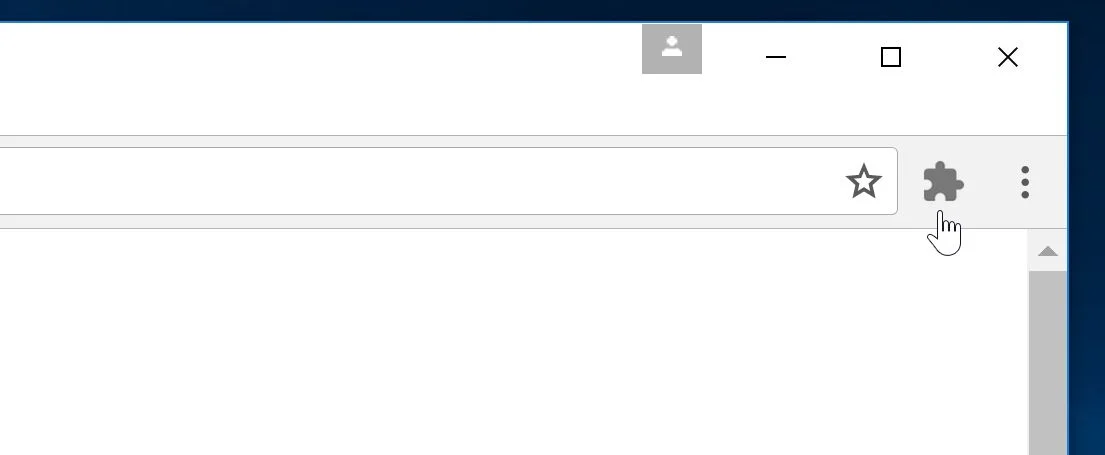
The pluginsbutton.com malicious site runs a JavaScript producing a dialog box, telling you you’ll have to “Add Extension to Leave”. Clicking “Cancel” once changes it to add a tick box marked “Prevent this page from creating additional dialogs” Thinking that this is the ticket out of the page, you will tick that box and click “OK”. At this point, your tab will go into “Full Screen” mode, and you will be prompted to install the Plugins Button extension.
A typical behavior for the Plugins Button malicious extensions is:
- Advertising banners are injected with the web pages that you are visiting.
- Random web page text is turned into hyperlinks.
- Browser popups appear which recommend fake updates or other software.
- Your browser homepage and default search may be changed
- Your browser search queries are being redirected or tracked
If your Windows machine gets stuck on a malicious site like pluginsbutton.com, use the Ctrl-Alt-Del key combination to open the Task Manager. Use “End Process” on every active “chrome.exe” process until the browser shuts down.
How to remove Plugins Button extension (Virus Removal Guide)
Please perform all the steps in the correct order. If you have any questions or doubt at any point, STOP and ask for our assistance.
- STEP 1: Reset the Group Policy to the default settings to remove Plugins Button extension
- STEP 2: Reset Google Chrome to the default settings
- STEP 3: Use Zemana AntiMalware Portable to remove adware
- STEP 4: Scan and clean your computer with Malwarebytes
- STEP 5: Double-check for malicious programs with HitmanPro
STEP 1: Reset the Group Policy to the default settings to remove Plugins Button extension
- Open the Command Prompt by pressing “Windows Key + X”, and click on “Command Prompt (Admin)” to open it in Administrator mode.
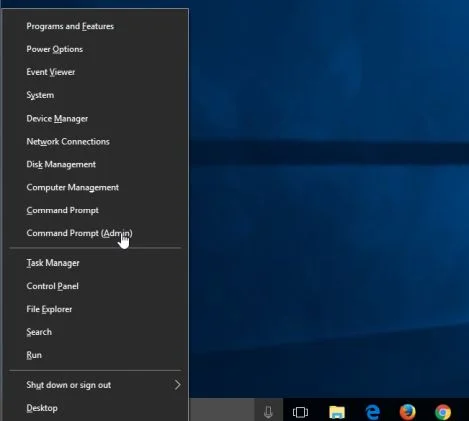 You can easily open the command prompt by typing “cmd” into the search box (Win + S), then right-click and choose Run as Administrator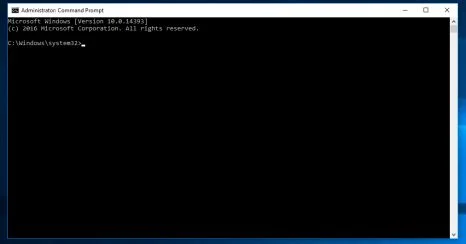
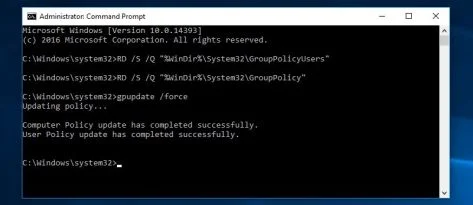
- In the Command prompt type (or copy/paste) the following commands:
- Type:
rd /S /Q "%WinDir%\System32\GroupPolicyUsers"
Press Enter. - Type:
rd /S /Q "%WinDir%\System32\GroupPolicy"
Press Enter. - Type:
gpupdate /force
Press Enter.
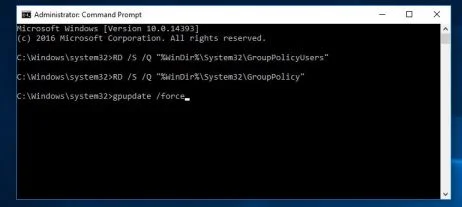 You should see the following notifications after the commands been run:
User Policy update has completed successfully.
Computer Policy update has completed successfully
- Type:
- The “Installed by enterprise policy” permissions will now be removed from Chrome, and you should be able to remove the Plugins Button extension.
STEP 2: Reset Google Chrome to the default settings
Google Chrome has an option that will reset itself to its default settings. You might need to do this if apps or extensions you installed changed your settings without your knowledge. Your saved bookmarks and passwords won’t be cleared or changed.
- On your computer, open Google Chrome.
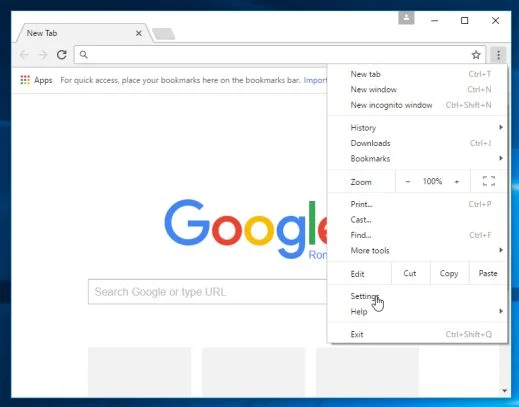
- At the top right, click “More” (represented by the three dots) and then “Settings”
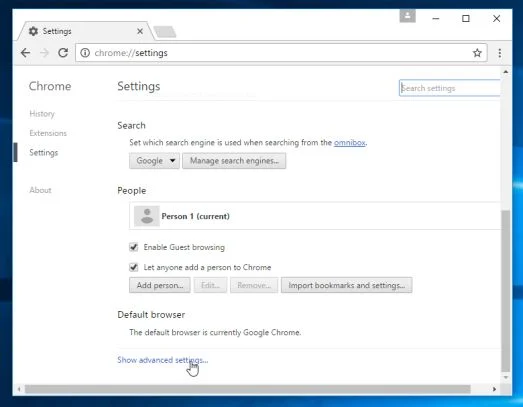
- At the bottom, click “Show advanced settings”.
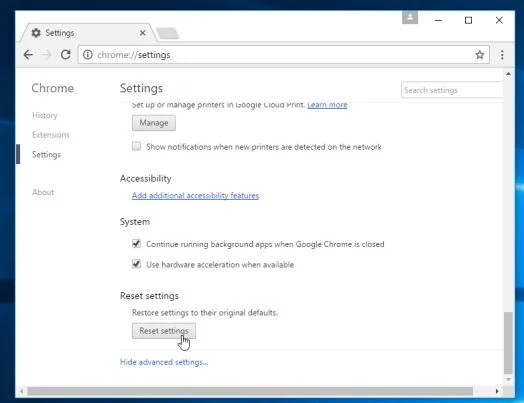
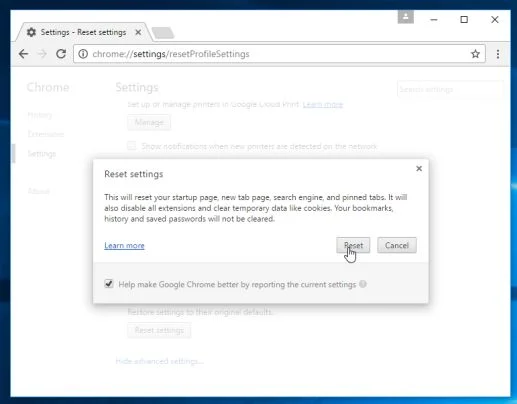
- Under the section “Reset settings”, click Reset settings.
- In the box that appears, click Reset.
STEP 3: Use Zemana AntiMalware Portable to remove adware
Zemana AntiMalware Portable is a free utility that will scan your computer for the Plugins Button extension and other malicious programs.
- You can download Zemana AntiMalware Portable from the below link:
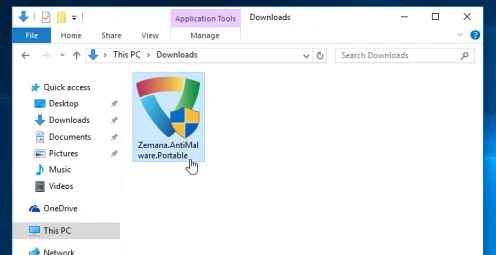
Download Zemana AntiMalwareOpens the download page in a new tab. - Double-click on the file named “Zemana.AntiMalware.Portable” to perform a system scan with Zemana AntiMalware Free.
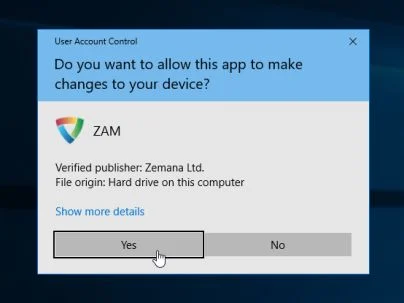
You may be presented with a User Account Control dialog asking you if you want to run this program. If this happens, you should click “Yes” to allow Zemana AntiMalware to run.
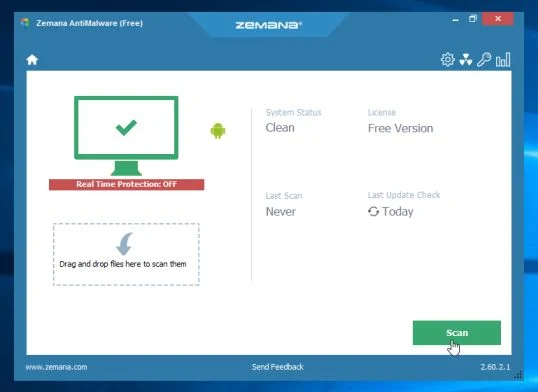
- When Zemana AntiMalware will start, click on the “Scan” button to perform a system scan.
- Zemana AntiMalware will now scan your computer for malicious programs. This process can take up to 10 minutes.
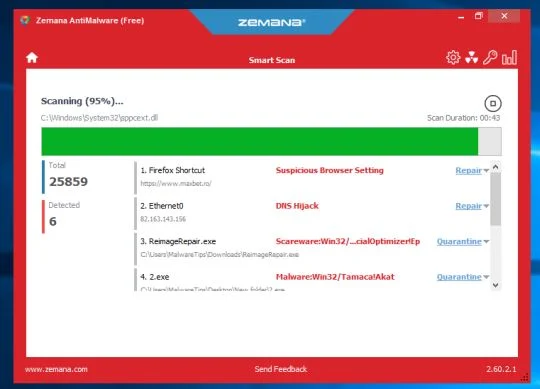
- When Zemana has finished finished scanning it will show a screen that displays any malware that has been detected. To remove all the malicious files, click on the “Next” button.
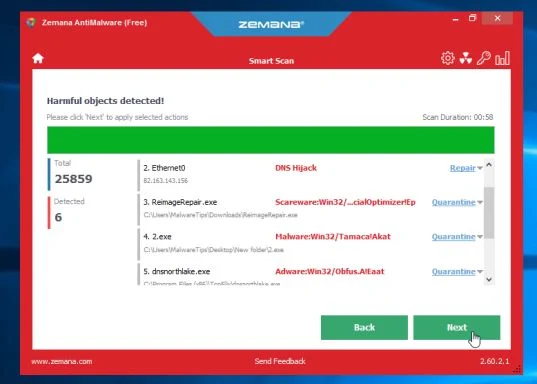
Zemana AntiMalware will now start to remove all the malicious programs from your computer. When the process is complete, you can close Zemana AntiMalware and continue with the rest of the instructions.
STEP 4: Scan and clean your computer with Malwarebytes
Malwarebytes is a powerful on-demand scanner which should remove the Plugins Button extension from Windows. It is important to note that Malwarebytes will run alongside antivirus software without conflicts.
- You can download download Malwarebytes from the below link.
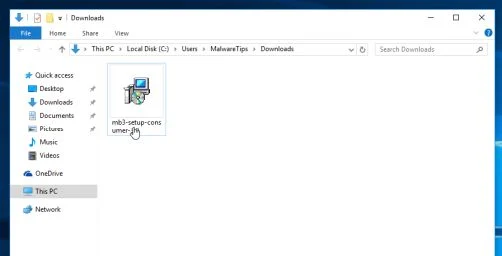
Download MalwarebytesFree official installer. Your download starts right away. - When Malwarebytes has finished downloading, double-click on the “mb3-setup-consumer” file to install Malwarebytes on your computer.
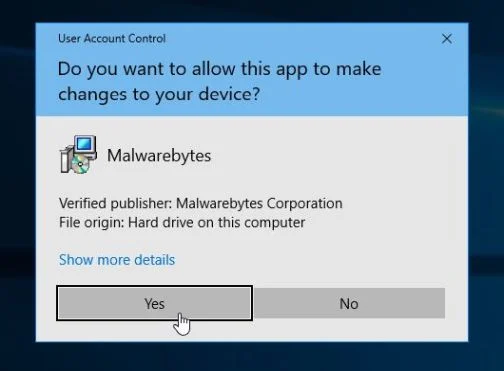
You may be presented with an User Account Control pop-up asking if you want to allow Malwarebytes to make changes to your device. If this happens, you should click “Yes” to continue with the installation.
- When the Malwarebytes installation begins, you will see the Malwarebytes Setup Wizard which will guide you through the installation process.
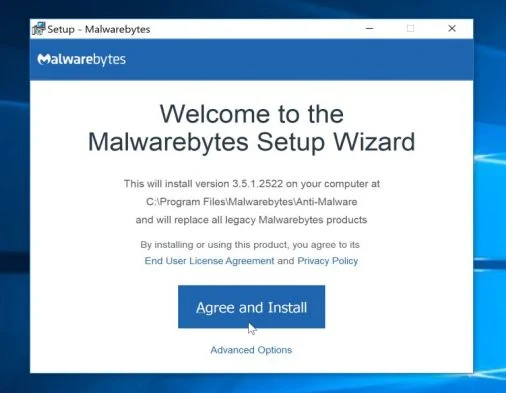
To install Malwarebytes on your machine, keep following the prompts by clicking the “Next” button.
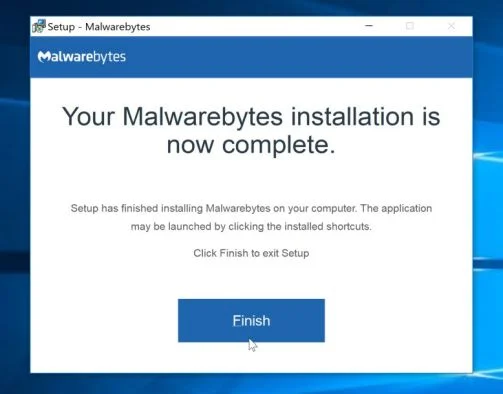
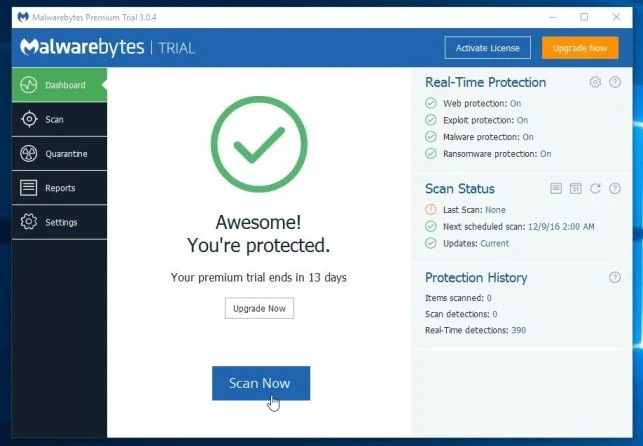
- Once installed, Malwarebytes will automatically start and update the antivirus database. To start a system scan you can click on the “Scan Now” button.
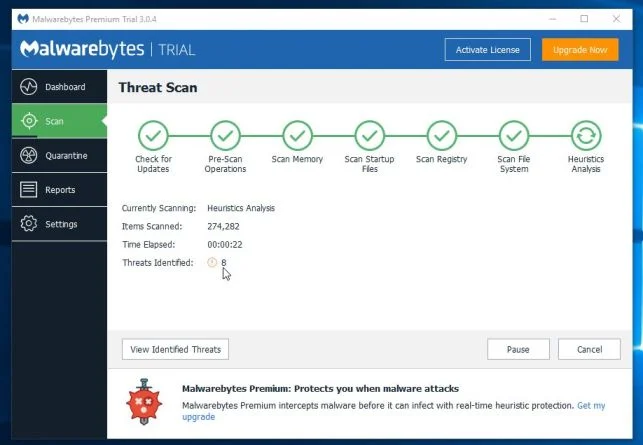
- Malwarebytes will now start scanning your computer for malicious programs.
This process can take a few minutes, so we suggest you do something else and periodically check on the status of the scan to see when it is finished.
- When the scan has completed, you will be presented with a screen showing the malware infections that Malwarebytes has detected.
To remove the malicious programs that Malwarebytes has found, click on the “Quarantine Selected” button.
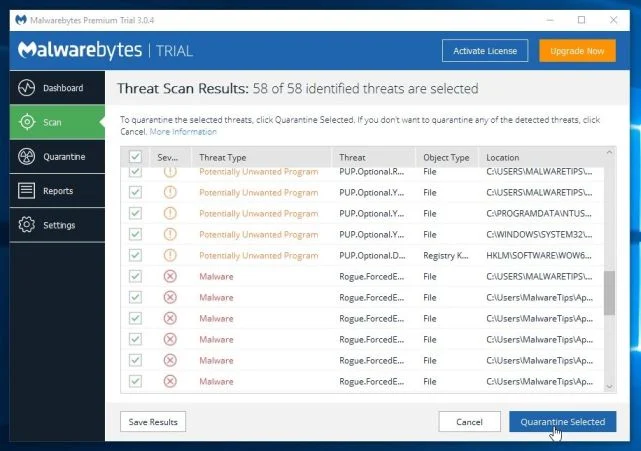
- Malwarebytes will now quarantine all the malicious files and registry keys that it has found.
To complete the malware removal process, Malwarebytes may ask you to restart your computer.
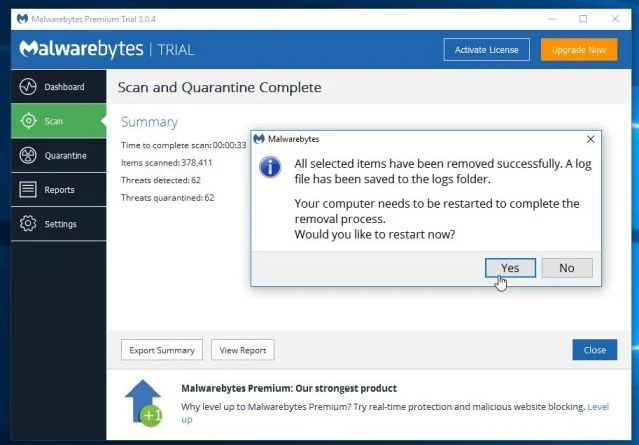
When the malware removal process is complete, you can close Malwarebytes and continue with the rest of the instructions.
STEP 5: Double-check for malicious programs with HitmanPro
HitmanPro can find and remove malware, adware, bots, and other threats that even the best antivirus suite can oftentimes miss. HitmanPro is designed to run alongside your antivirus suite, firewall, and other security tools.
- You can download HitmanPro from the below link:
Download HitmanProOfficial Sophos download. Free scan, free 30-day trial to remove threats. - When HitmanPro has finished downloading, double-click on the “hitmanpro” file to install this program on your computer.
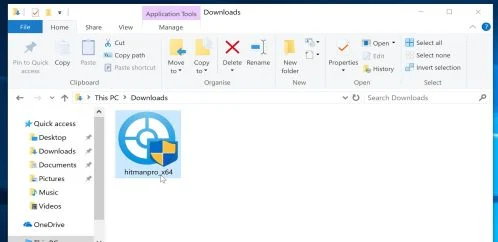
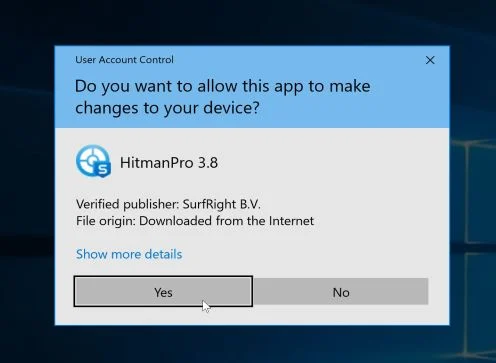
You may be presented with an User Account Control pop-up asking if you want to allow HitmanPro to make changes to your device. If this happens, you should click “Yes” to continue with the installation.
- When the program starts you will be presented with the start screen as shown below. Now click on the Next button to continue with the scan process.
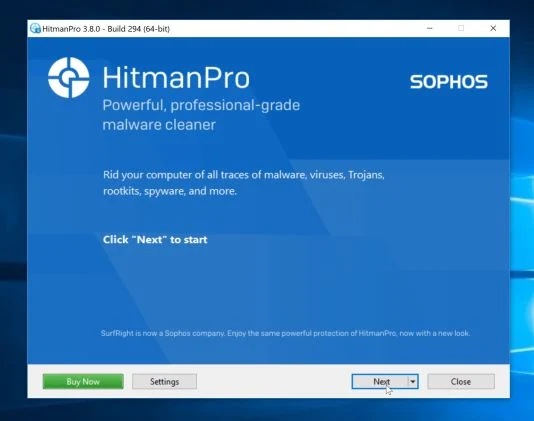
- HitmanPro will now begin to scan your computer for malware.
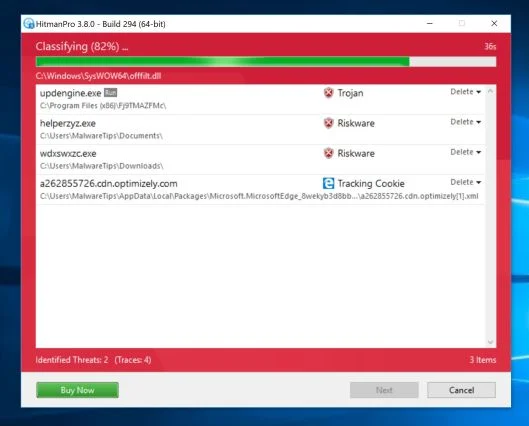
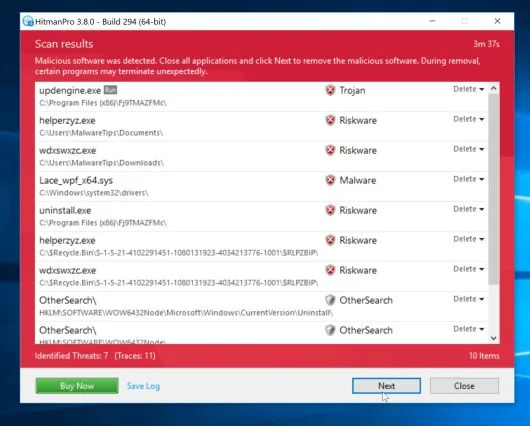
- When it has finished it will display a list of all the malware that the program found as shown in the image below. Click on the “Next” button, to remove malware.
- Click on the “Activate free license” button to begin the free 30 days trial, and remove all the malicious files from your computer.
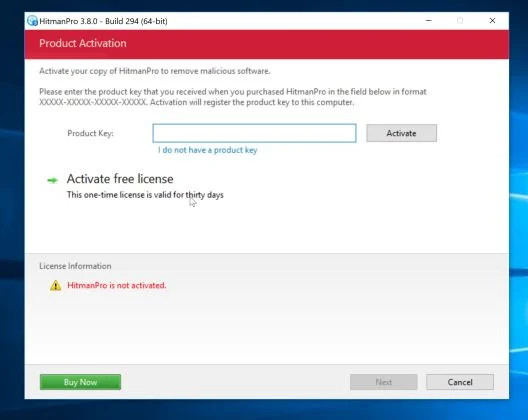
When the process is complete, you can close HitmanPro and continue with the rest of the instructions.

Join the discussion
14 commentsShare your experience or ask a question about this article.
Your progress
Did these steps help?
Let us know how the guide worked for you.
Describe what you see and the step you reached. Keep passwords and other private information out.
Discussion
THANKS A LOOOOOOOT
In reply to Subhrangshu Bose
You are very welcome – glad it sorted it out. If anything comes back, or you hit a step that does not behave as described, post it here and I will help.
THANK YOU FOR GODS SAKE U SAVED MY LIFE BY POSTING THIS POST*
In reply to abhay
Very glad it helped – though I hope your life was not in quite that much danger. Thanks for taking the time to say so.
If it comes back, post what you are seeing and I will help. And keep a real-time scanner running, since the thing that made the change is usually still on the machine even after the symptom disappears.
This works! If anyone has any issues with this, especially the “Access Denied” message when typing it into CMD, make sure you have opened the Admin CMD. Thank you so much for allowing me to get rid of my malware problem. Kudos!
In reply to Pathfinder Ryder
Thank you for adding that detail. Commands that modify protected browser or system settings do need an elevated Command Prompt, and the “Access Denied” message is an important clue that the window was not opened as administrator. I am glad the extension was removed successfully.
Thank you so much Go heaven
In reply to Turgut
You are very welcome – thank you for the kind words. If it ever comes back, post what you are seeing and I will help.
Funciono comigo, muito obrigado único método que realmente funciono!
In reply to WolfBR_
Fico muito contente que tenha funcionado – obrigado pelo retorno. Se voltar a acontecer, escreva aqui a descrever o que está a ver e eu ajudo.
Uma sugestão: vale a pena fazer depois uma verificação completa com o Malwarebytes, porque aquilo que alterou as configurações costuma continuar no computador mesmo depois de o sintoma desaparecer.
THXXXXX so much i thought i would be hacked
In reply to GetR6kt
You are welcome – and that fear is very common with this one, because a browser suddenly behaving as though someone else is in control looks far worse than it is. In most of these cases nothing was hacked in any meaningful sense: a program changed a setting, and changing it back is the whole fix.
Two things worth doing anyway, just for peace of mind. Run a full scan with something like Malwarebytes, since the program that made the change is often still there after the symptom stops. And if you typed any passwords while the redirects were happening, change them – not because the machine is compromised, but because redirected pages sometimes lead to convincing fake login screens.
Valeu Brother deu certo na primeira pelo CMD obrigadoooo
In reply to Angelina Leardini
Que bom que funcionou logo na primeira, obrigado pelo retorno! Se voltar, escreva aqui a descrever o que aparece e eu ajudo.
Só uma dica: depois vale a pena fazer uma verificação completa com o Malwarebytes, porque o programa que alterou as configurações muitas vezes continua no computador mesmo depois de o problema desaparecer.