

If your computer is locked, and you are seeing an “Enter Windows Product Key” notification asking you to call “Customer Support: 1-844-459-8882 “, then your machine is infected with a piece of malware known as Rogue.Tech-Support.
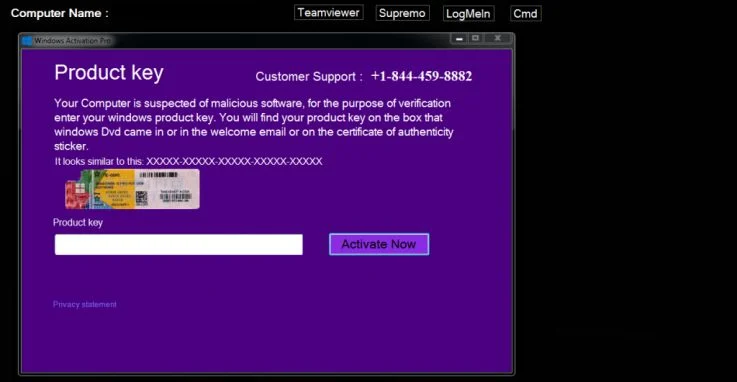
This ransomware program displays an “Product Key – Customer Support: 1-844-459-8882” lock screen when you start Windows that attempts to scare users into calling a remote tech support number (1-888-414-4284).
These alerts are shown in such a way as to trick the user into thinking their computer has crashed or that a virus has been detected on the computer. It does this to try and scare the infected user into calling one of the listed numbers in order to receive support. In reality, though, they will only be greeted with people who are trying to sell them unneeded support contracts and services.
When you call the number listed in the “Product Key – Customer Support: 1-844-459-8882” lock screen , you will be told that your Windows product key is invalid and that you will need to pay $99.99 USD for a new one.
When the “Product Key – Customer Support: 1-844-459-8882” malicious program is installed it will also change a variety of Windows settings. This allows it to display the fake “Product Key – Customer Support: 1-844-459-8882” lock screen, which overlaps your entire screen, without fear that you can terminate it.
The text of the “Product Key – Customer Support: 1-844-459-8882” lock screen is:
Product Key – Customer Support: 1-844-459-8882
Your product key should be on the box that the Windows DVD came in or in an email that shows you bought Windows. The product key looks similar to this:
Product Key: XXXXX-XXXXX-XXXXX-XXXXX-XXXXXActivate this edition of Windows
The “Product Key – Customer Support: 1-844-459-8882” lock screen is a complete scam, and you should not purchase anything from numbers listed in these alerts. If you have already purchased services from them, I would advise you to dispute the charges on your credit card company or bank.
How to remove “Product Key – Customer Support: 1-844-459-8882” lock screen (Removal Guide)
This page is a comprehensive guide which will remove the “Product Key – Customer Support: 1-844-459-8882” malware from your computer. Please perform all the steps in the correct order. If you have any questions or doubt at any point, STOP and ask for our assistance.
To remove the “Product Key – Customer Support: 1-844-459-8882” lock screen, follow these steps:
STEP 1: Remove the “Product Key – Customer Support: 1-844-459-8882” lock screen
STEP 2: Scan your computer with Malwarebytes Anti-Malware
STEP 3: Scan your computer with HitmanPro
(OPTIONAL) STEP 4: Scan your computer with Zemana AntiMalware
STEP 1 : Remove the “Product Key – Customer Support: 1-844-459-8882” lock screen
In this first step we will remove the “Product Key – Customer Support: 1-844-459-8882” lock screen from Windows. Because there are many versions of this malware, which behave differently, we have provided multiple options to remove the malicious lock screen.
OPTION 1: Start your computer in Safe Mode with Networking
If the above options did not work for your machine, then we will need to start the computer in Safe Mode with Networking to bypass the lock screen.
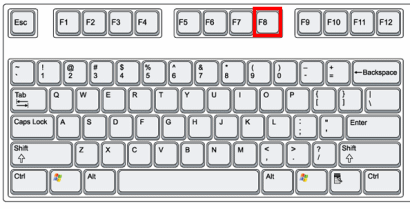
- Immediately after the computer is powered on or restarted (usually after you hear your computer beep), tap the F8 key in 1 second intervals.
- After your computer displays hardware information and runs a memory test, the Advanced Boot Options menu will appear.
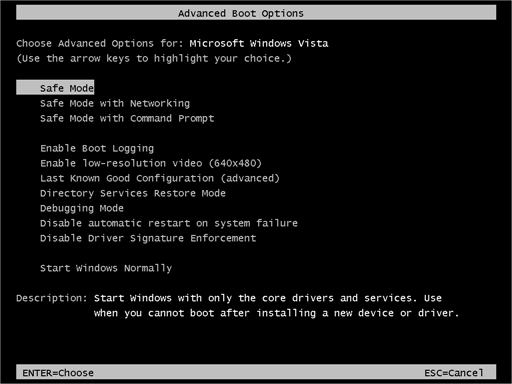
- Use the arrow keys to select Safe Mode with Networking and press ENTER.
- After you have started your machine in Safe Mode with Networking, run a system scan with Malwarebytes Anti-Malware as seen in the below step.
OPTION 2: Remove the malicious lock screen with HitmanPro.Kickstart
HitmanPro.Kickstart is the solution against ransomware and other persistent malware that has taken your computer hostage or prevents normal computer use.
Because this infection has locked you out of your computer, we will need to create a bootable USB drive that contains the HitmanPro.Kickstart program. We will then boot the infected machine with the HitmanPro.Kickstart USB drive, and use the program to clean the infection.
- Using a “clean” (non-infected) computer, please download HitmanPro from the below link.
Download HitmanProOfficial Sophos download. Free scan, free 30-day trial to remove threats. - Once HitmanPro has been downloaded on the clean machine, insert an USB flash drive and double-click on the file named HitmanPro.exe (for 32-bit versions of Windows) or HitmanPro_x64.exe (for 64-bit versions of Windows).
To create a bootable HitmanPro USB drive, please follow the instructions from this video:
- Once you have created the bootable HitmanPro.Kickstart USB drive, insert the USB into the computer infected with the “Windows Activation Pro” lock screen.
- After you have inserted the HitmanPro Kickstart USB drive, boot your machine from the HitmanPro.Kickstart USB as seen in the below video.
- The malicious lock screen should be removed from your machine. It’s recommended that you perform a system scan with Malwarebytes and HitmanPro as see in the below steps.
STEP 2: Scan your computer with Malwarebytes Anti-Malware
Malwarebytes Anti-Malware is a powerful on-demand scanner which should remove the Product Key – Customer Support: 1-844-459-8882 ransomware. It is important to note that Malwarebytes Anti-Malware will run alongside antivirus software without conflicts.
- You can download download Malwarebytes Anti-Malware from the below link.
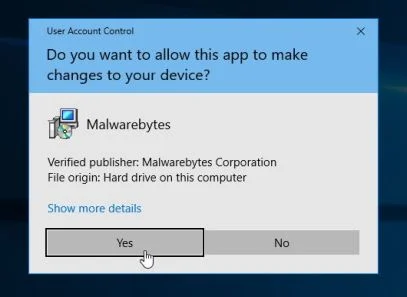
Download MalwarebytesFree official installer. Your download starts right away. - Once downloaded, close all programs, then double-click on the icon on your desktop named “mbam-setup” to start the installation of Malwarebytes Anti-Malware.
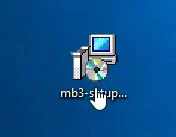
You may be presented with a User Account Control dialog asking you if you want to run this file. If this happens, you should click “Yes” to continue with the installation.
- When the installation begins, you will see the Malwarebytes Anti-Malware Setup Wizard which will guide you through the installation process.
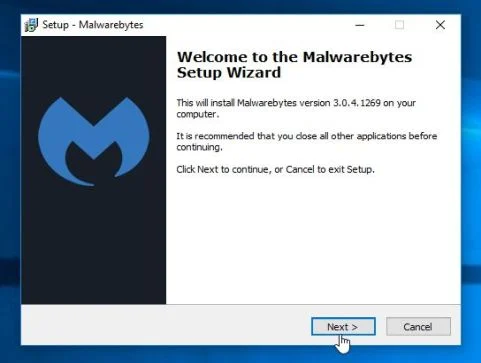
To install Malwarebytes Anti-Malware on your machine, keep following the prompts by clicking the “Next” button.
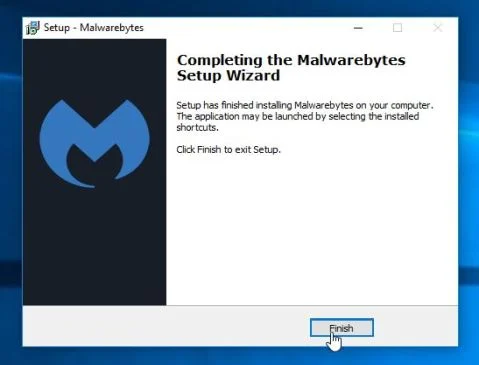
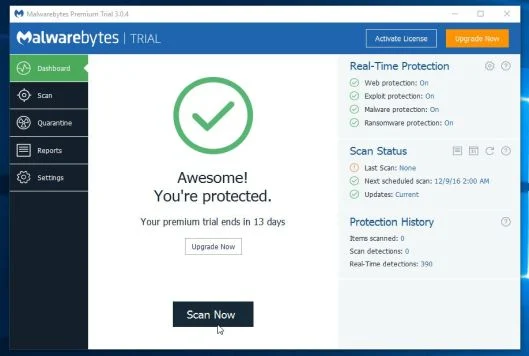
- Once installed, Malwarebytes Anti-Malware will automatically start and will update the antivirus database. To start a system scan you can click on the “Scan Now” button.
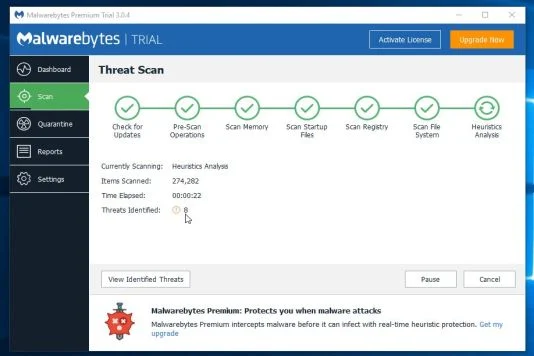
- Malwarebytes Anti-Malware will now start scanning your computer for malware. When Malwarebytes Anti-Malware is scanning it will look like the image below.
- When the scan has completed, you will be presented with a screen showing the malware infections that Malwarebytes Anti-Malware has detected. To remove the malicious programs that Malwarebytes Anti-malware has found, click on the “Remove Selected” button.
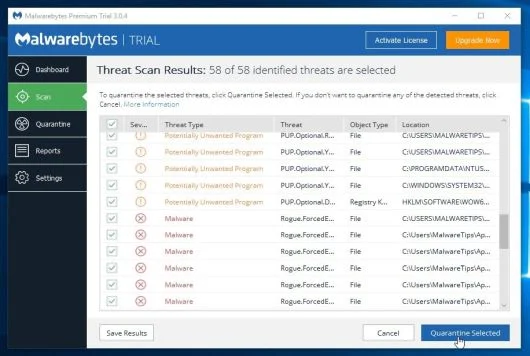
- Malwarebytes Anti-Malware will now quarantine all the malicious files and registry keys that it has found. When removing the files, Malwarebytes Anti-Malware may require a reboot in order to remove some of them. If it displays a message stating that it needs to reboot your computer, please allow it to do so.
STEP 3: Double-check for malware with HitmanPro
HitmanPro can find and remove malware, adware, bots, and other threats that even the best antivirus suite can oftentimes miss. HitmanPro is designed to run alongside your antivirus suite, firewall, and other security tools.
- You can download HitmanPro from the below link:
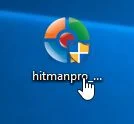
Download HitmanProOfficial Sophos download. Free scan, free 30-day trial to remove threats. - Double-click on the file named “HitmanPro.exe” (for 32-bit versions of Windows) or “HitmanPro_x64.exe” (for 64-bit versions of Windows).
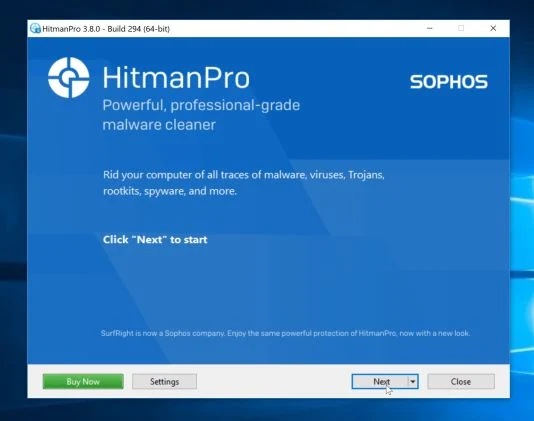
Click on the “Next” button, to install HitmanPro on your computer.
- HitmanPro will now begin to scan your computer for malware.
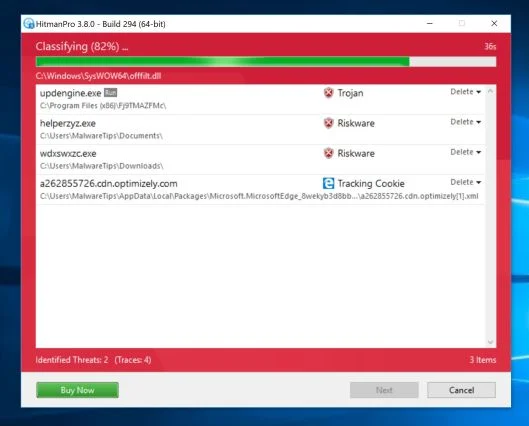
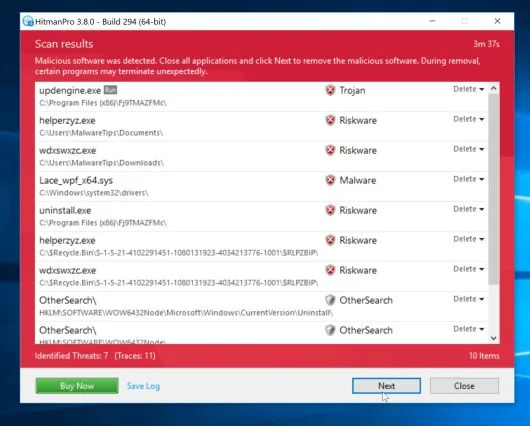
- When it has finished it will display a list of all the malware that the program found as shown in the image below. Click on the “Next” button, to remove malware.
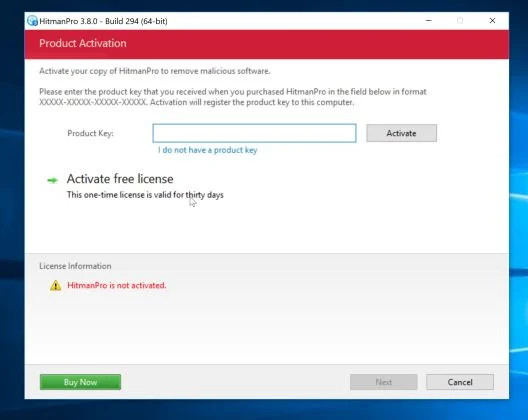
- Click on the “Activate free license” button to begin the free 30 days trial, and remove all the malicious files from your computer.
(OPTIONAL) STEP 4: Scan your computer with Zemana AntiMalware
Zemana AntiMalware is a powerful utility which will remove Product Key – Customer Support: 1-844-459-8882 malware.
- You can download Zemana AntiMalware from the below link:
Download Zemana AntiMalwareOpens the download page in a new tab. - Double-click on the file named “Zemana.AntiMalware.Setup.exe” to start the installation of Zemana AntiMalware.
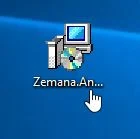
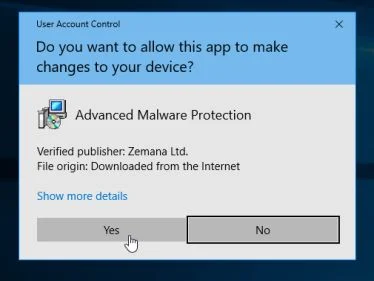
You may be presented with a User Account Control dialog asking you if you want to run this file. If this happens, you should click “Yes” to continue with the installation.
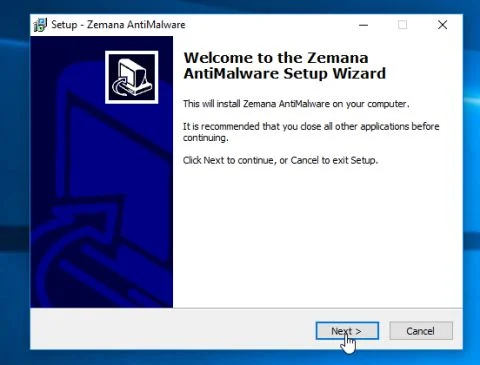
- Click on the “Next” button, to install Zemana AntiMalware on your computer.
- When Zemana AntiMalware will start, click on the “Scan” button.
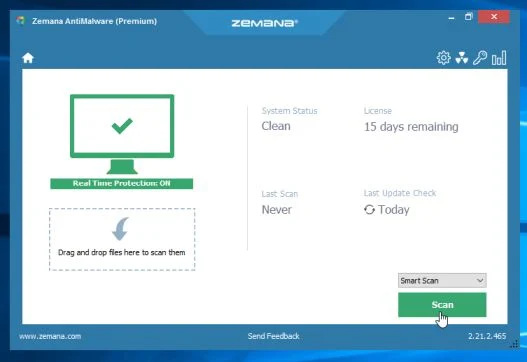
- Zemana AntiMalware will now scan computer for malicious files. This process can take up to 10 minutes.
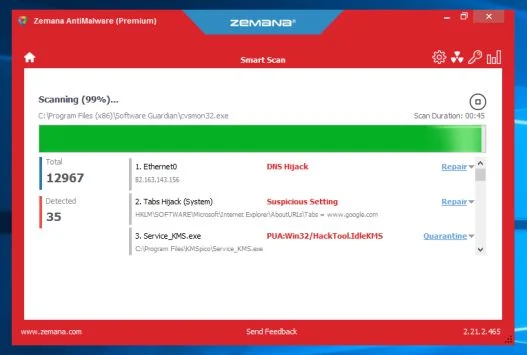
- When Zemana AntiMalware has finished it will display a list of all the malware that the program found. Click on the “Next” button, to remove the malicious files from your computer.
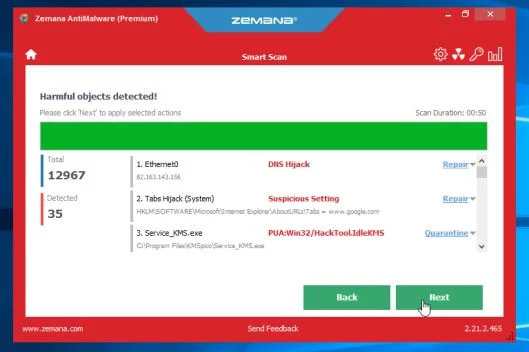
Zemana AntiMalware will now remove all the detected malicious files, and at the end a system reboot may be required to remove all traces of malware.
Your computer should now be free of the Product Key – Customer Support: 1-844-459-8882 lock screen.
If you are still experiencing problems while trying to remove Product Key – Customer Support: 1-844-459-8882 virus from your machine, please start a new thread in our Malware Removal Assistance forum.

Join the discussion
0 commentsShare your experience or ask a question about this article.
Your progress
Did these steps help?
Let us know how the guide worked for you.
Describe what you see and the step you reached. Keep passwords and other private information out.
Discussion
Start the conversation
Have a question or something useful to share? Add the first comment.