

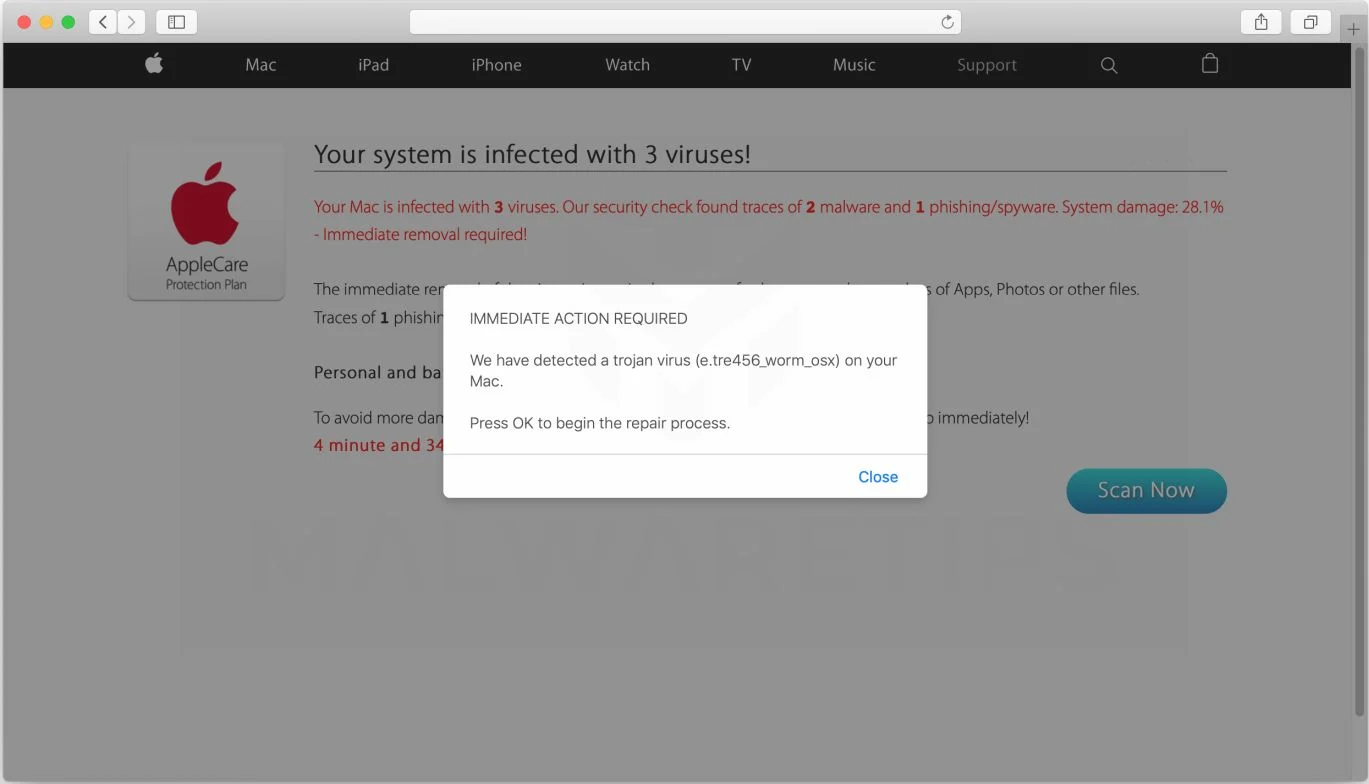
SimpleSearchApp is an adware program that displays pop-up ads and unwanted advertisements not originating from the sites you are browsing. These SimpleSearchApp advertisements will be shown as boxes containing coupons, as underlined keywords (in-text ads), pop-up ads or advertising banners.
What is SimpleSearchApp?
SimpleSearchApp is advertised as a program that will improve the way you search the Internet. Though this may sound like a useful service, SimpleSearchApp can be intrusive and will display advertisements whether you want them to or not.
The SimpleSearchApp advertisements may have a different text under the pop-up: “SimpleSearchApp Promos”, “Powered by SimpleSearchApp”, “Advertisements by SimpleSearchApp”, “Brought to you by SimpleSearchApp”, “Ads by SimpleSearchApp” or “Ads powered by SimpleSearchApp”. The SimpleSearchApp ads will typically be shown in the header in strange positions or overlaying the content of the web page.
These SimpleSearchApp ads are for adult sites, online web games, fake software updates, and unwanted programs.
When the SimpleSearchApp browser hijacker is installed on a computer, common symptoms include:
- Advertisements appear in places they shouldn’t be.
- Your web browser’s homepage has mysteriously changed without your permission.
- Web pages that you typically visit are not displaying properly.
- Website links redirect to sites different from what you expected.
- Browser popups appear which recommend fake updates or other software.
- Other unwanted programs might get installed without your knowledge.
How did SimpleSearchApp get on my computer?
SimpleSearchApp is installed by the users, whether that is knowingly or not. Often, this type of program is offered through advertisements or bundled with other software, leaving the user puzzled where this software came from.
Unfortunately, some free downloads do not adequately disclose that other software will also be installed and you may find that you have installed SimpleSearchApp without your knowledge.
You should always pay attention when installing software because often, a software installer includes optional installs. Be very careful what you agree to install.
Always opt for the custom installation and deselect anything that is not familiar, especially optional software that you never wanted to download and install in the first place. It goes without saying that you should not install software that you don’t trust.
To remove the SimpleSearchApp adware and check your computer for other malicious programs, please use the free malware removal guide below.
How to remove SimpleSearchApp adware (Virus Removal Guide)
Please perform all the steps in the correct order. If you have any questions or doubt at any point, STOP and ask for our assistance.
- STEP 1: Remove SimpleSearchApp from macOS
- STEP 2: Uninstall SimpleSearchApp extension from Safari, Chrome, or Firefox
- STEP 3: Use Malwarebytes for Mac to remove SimpleSearchApp adware
STEP 1: Remove SimpleSearchApp from macOS
In this first step, we will try to identify and remove any malicious app that might be installed on your device.
This browser hijacker may also create a new group policy for your device, so before we proceed with the other steps we need to remove these unwanted changes.
- Go to System Preferences.
- Click Profiles.
- The list will include an item “AdminPrefs“. Select this and click the remove “–” button in the lower-left corner.
If there isn’t a Profiles icon, you don’t have any profiles installed, which is normal.
-
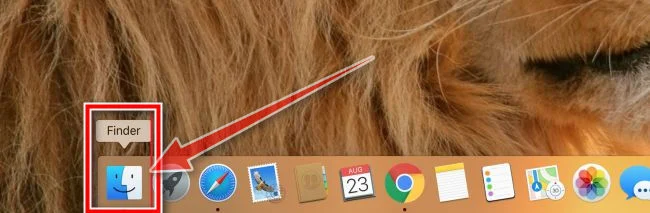
Open “Finder”
Click the Finder application on your dock.
-
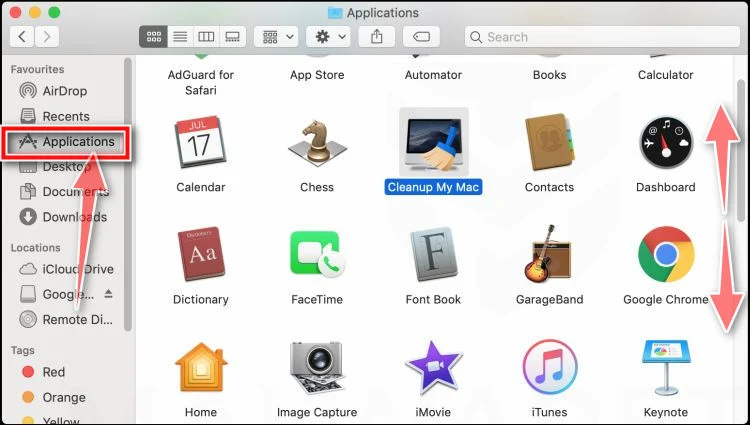
Click on “Applications”
In the Finder left pane, click on “Applications“.
-
Find and remove the SimpleSearchApp app.
The “Applications” screen will be displayed with a list of all the apps installed on your device. Scroll through the list until you find the SimpleSearchApp app, right-click it, and then click “Move to Trash”.
The malicious app may have a different name on your device. If you cannot find any malicious apps, you can proceed with the next step.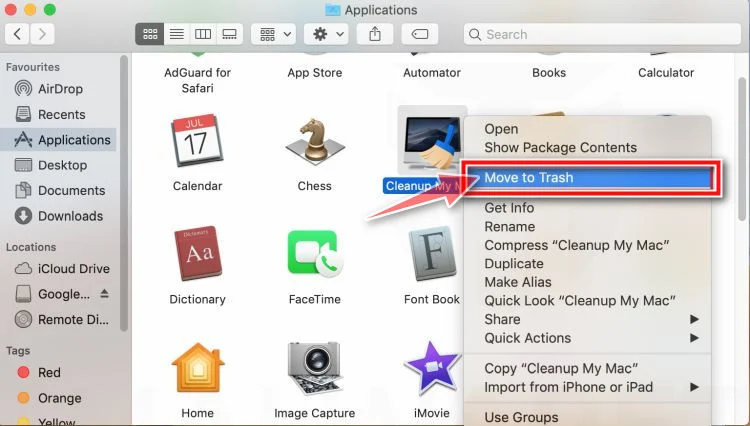
-
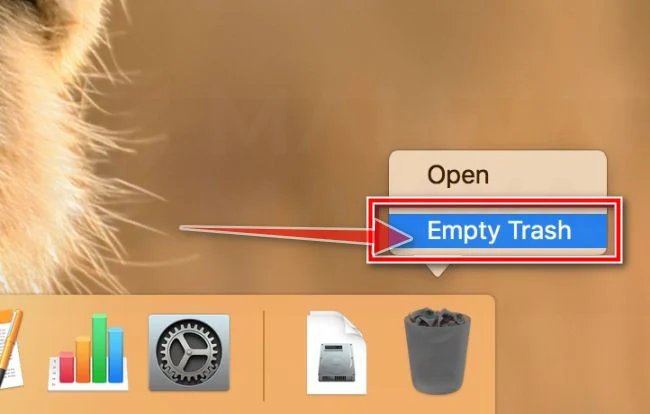
Click “Empty Trash”
On the dock, right-click on the trash icon and select “Empty Trash”. Doing so deletes the Trash’s contents, including the program that you just sent to the Trash.
Next, click the desktop to make sure you’re in the Finder, choose Go > Go to Folder, then go to the below folders and delete the SimpleSearchApp files or folders.
/Library/LaunchAgents

/Library/Application Support

~/Library/LaunchAgents

/Library/LaunchDaemons

/Users/Shared/STEP 2: Uninstall SimpleSearchApp extension from Safari, Chrome, or Firefox
Safari
-
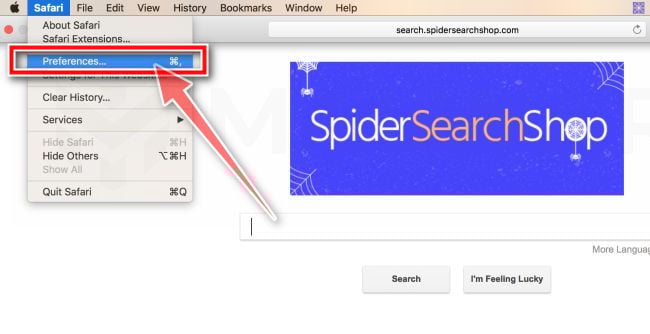
Go to Safari’s “Preferences”.
On the menu bar, click the “Safari” menu and select “Preferences”.
-
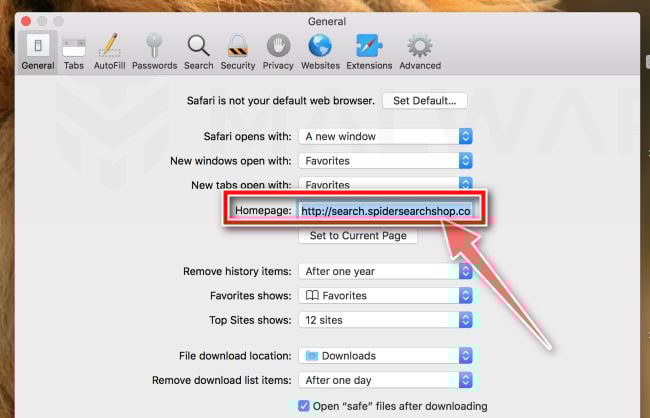
Check Homepage.
This will open a new window with your Safari preferences, opened to the “General” tab. Some browser hijackers may change your default homepage, so in the Homepage field make sure it’s a web page you want to use as your start-up page.
-
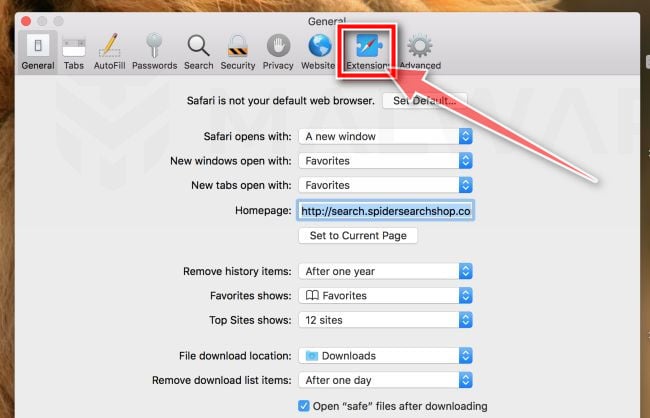
Click “Extensions”
Next, click on the “Extensions” tab.
-
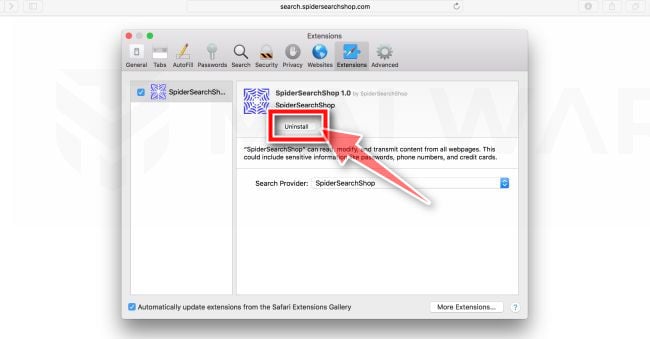
Find and uninstall the SimpleSearchApp extension.
The “Extensions” screen will be displayed with a list of all the extensions installed on Safari. Scroll through the list until you find the SimpleSearchApp extension, and then click on “Uninstall” to remove it. By default, there are no extensions installed on Safari.
The malicious extension may have a different name on your device. If you cannot find any malicious extension, you can proceed with the next step.
Google Chrome
-
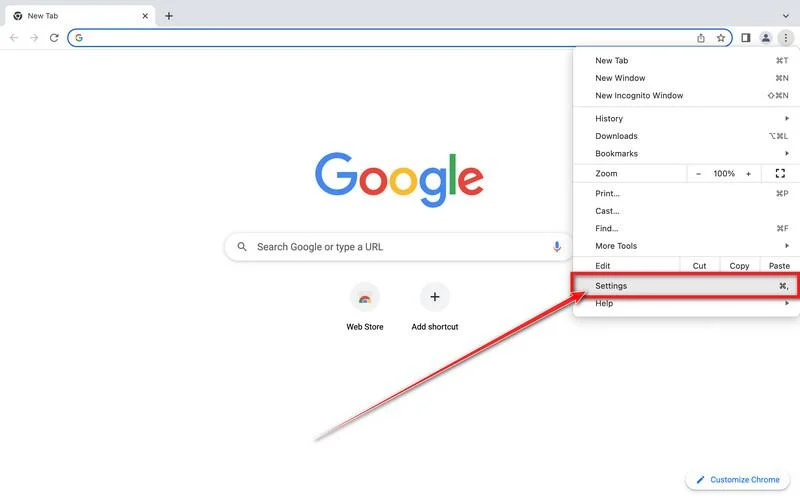
Click on the three dots at the top right and click “Settings”.
Click on Chrome’s main menu button, represented by three dots at the top right corner. Now click on the menu option labeled Settings as shown by the arrow in the picture below, which will open the basic settings screen.
-
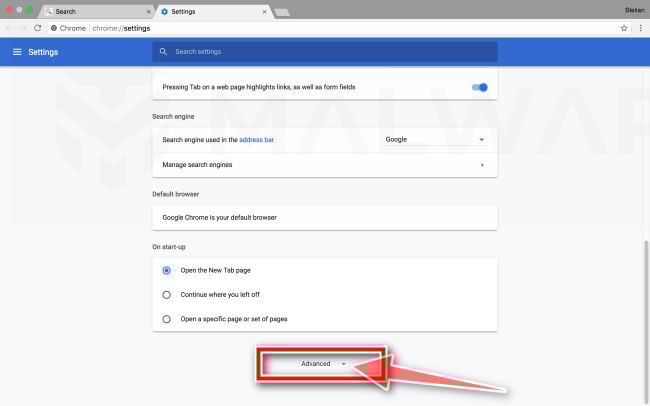
At the bottom, click “Advanced”.
Chrome’s “Settings” should now be displayed in a new tab or window, depending on your configuration. Next, scroll to the bottom of the page and click on the “Advanced” link (as seen in the below example).
-
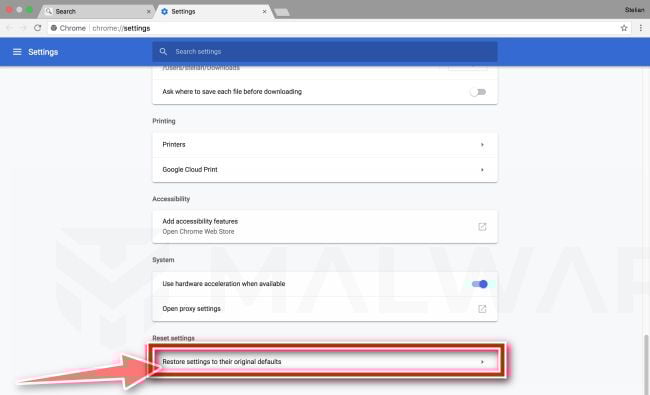
Under the section “Reset,” click “Reset”.
Chrome’s advanced settings should now be displayed. Scroll down until the “Reset and clean up” section is visible, as shown in the example below. Next, click on the “Reset settings to their original defaults” button.
-
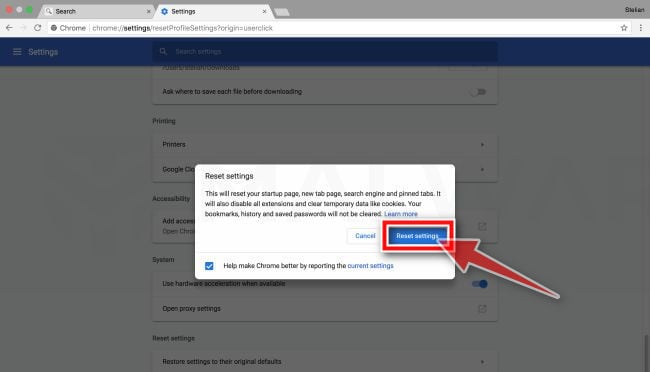
Confirm by clicking “Reset”.
A confirmation dialog should now be displayed, detailing the components that will be restored to their default state should you continue on with the reset process. To complete the restoration process, click on the “Reset Settings” button.
In many cases, changes to Chrome may not be fixed with a simple browser reset. In such a case, it’s very possible that a malicious program has created unwanted policies on your browser. You can check if any unwanted policies are loaded into the browser by typing chrome://policy into the URL bar.
To reset these policies, follow these steps:
- Open a new Terminal window. (Finder > Go > Utilities > Terminal)
- Enter the following commands, pressing enter after each line:
defaults write com.google.Chrome HomepageIsNewTabPage -bool false

defaults write com.google.Chrome NewTabPageLocation -string "https://www.google.com/"

defaults write com.google.Chrome HomepageLocation -string "https://www.google.com/"

defaults delete com.google.Chrome DefaultSearchProviderSearchURL

defaults delete com.google.Chrome DefaultSearchProviderNewTabURL

defaults delete com.google.Chrome DefaultSearchProviderName - After running these commands, quit Chrome if you haven’t already done so, then launch it again and check chrome://policy to see if the same keys are still present (you may need to click the “Reload policies” button for changes to show up). If they’re gone, you should be able to change your search engine and home page back to your preferred defaults in Chrome’s settings.
If resetting the Google Chrome policies didn’t fix the issue, it will be easier to completely remove Chrome and all data, then reinstall the browser. To do this, click the Finder icon, from the menu bar. Choose Go, and click Go to Folder, then paste one of the below paths into the window that opens.
You will need to delete all of the below items, but before doing this be aware that this will delete all data for all Google apps you have installed, such as your bookmarks, so you will need to export them before doing this.
/Applications/Chrome.app

/Library/Application Support/Google/

/Library/Google/

~/Library/Application Support/Google/

~/Library/Google/

~/Library/Preferences/com.google.Chrome.plist
After deleting all of the above files, restart your device. You can now download and re-install Google Chrome on your device. You will need to import any exported bookmarks or other data, and may need to reinstall any other Google apps that you use.
Mozilla Firefox
-
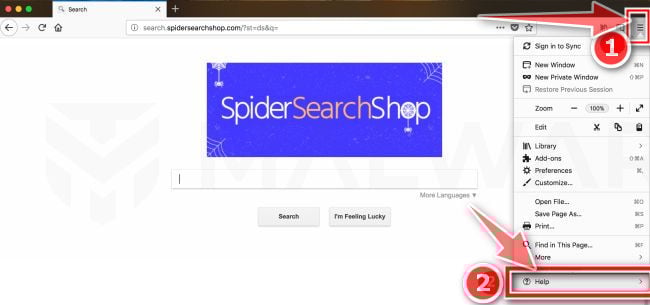
Go to the “Help” menu.
Click on Firefox’s main menu button, represented by three horizontal lines. When the drop-down menu appears, select the option labeled “Help“.
-
Click “Troubleshooting Information”.
From the Help menu, click on “Troubleshooting Information“.
If you’re unable to access the “Help” menu, type about:support in your address bar to bring up the Troubleshooting information page.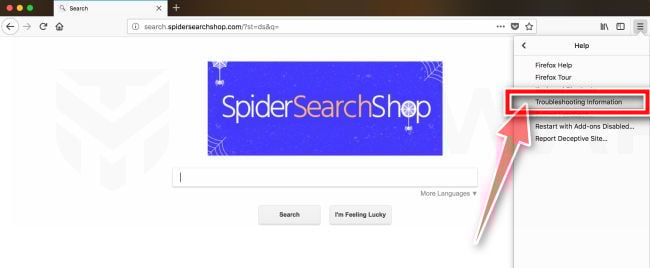
-
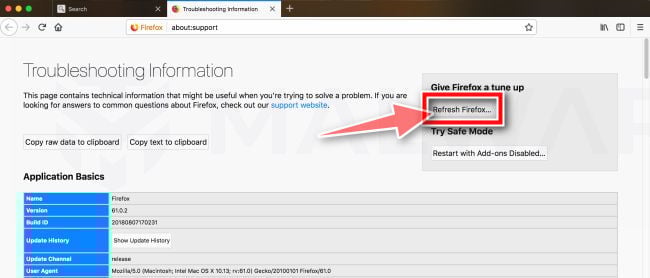
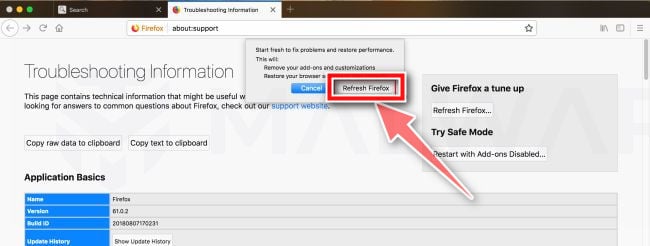
Click on “Refresh Firefox”
Click the “Refresh Firefox” button in the upper-right corner of the “Troubleshooting Information” page.
-
Confirm.
To continue, click on the “Refresh Firefox” button in the new confirmation window that opens.
-
Click on “Finish”.
Firefox will close itself and will revert to its default settings. When it’s done, a window will list the information that was imported. Click on the “Finish“.
STEP 3: Use Malwarebytes for Mac to remove SimpleSearchApp adware
Malwarebytes Free is one of the most popular and most used anti-malware software for Windows, and for good reasons. It is able to destroy many types of malware that other software tends to miss, without costing you absolutely nothing. When it comes to cleaning up an infected device, Malwarebytes has always been free and we recommend it as an essential tool in the fight against malware.
-
Download Malwarebytes Free.
You can download Malwarebytes for Mac by clicking the link below.
 Malwarebytes Free for MacScans and removes malware at no cost
Download MalwarebytesOfficial installer for macOS. Your download starts right away.Want real-time protection? See Malwarebytes Premium
-
Double-click on the Malwarebytes setup file.
When Malwarebytes has finished downloading, double-click on the setup file to install Malwarebytes on your computer. In most cases, downloaded files are saved to the Downloads folder.

-
Follow the on-screen prompts to install Malwarebytes.
When the Malwarebytes installation begins, you will see the Malwarebytes for Mac Installer which will guide you through the installation process. Click “Continue“, then keep following the prompts in order to continue with the installation process.



When your Malwarebytes installation completes, the program opens to the Welcome to Malwarebytes screen. Click the “Get started” button.
-
Select “Personal Computer” or “Work Computer”.
The Malwarebytes Welcome screen will first ask you on what type of computer are you installing this program, click either Personal Computer or Work Computer.

-
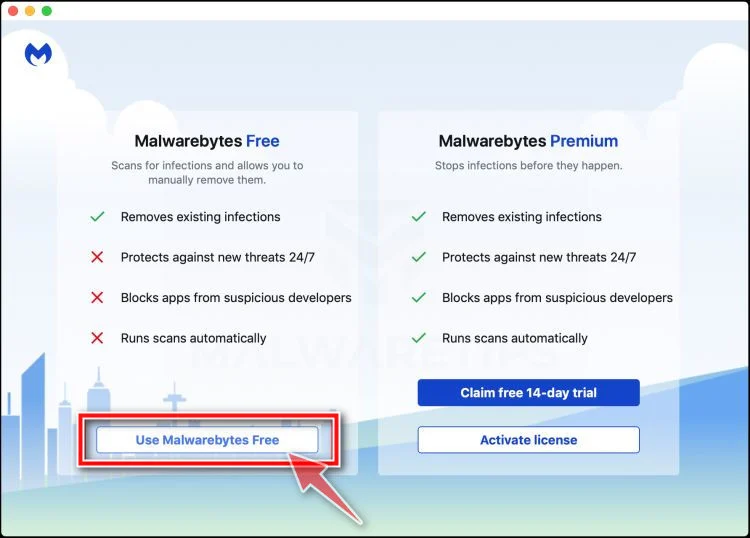
Select “Use Malwarebytes Free”.
You’ll be then prompted to select between the Malwarebytes Free and the Premium version. The Malwarebytes Premium edition includes preventative tools like real-time scanning and ransomware protection, however, we will use the Free version to clean up the computer.
Click on “Use Malwarebytes Free“.
-
Click on “Scan”.
To scan your computer with Malwarebytes, click on the “Scan” button. Malwarebytes will automatically update the antivirus database and start scanning your computer for malware.

-
Wait for the Malwarebytes scan to complete.
Malwarebytes will scan your computer for adware and other malicious programs. This process can take a few minutes, so we suggest you do something else and periodically check on the status of the scan to see when it is finished.

-
Click on “Quarantine”.
When the scan has completed, you will be presented with a screen showing the malware infections that Malwarebytes has detected. To remove the malicious programs that Malwarebytes has found, click on the “Quarantine” button.

-
Restart computer.
Malwarebytes will now remove all the malicious files that it has found. To complete the malware removal process, Malwarebytes may ask you to restart your computer.

Your computer should now be free of the SimpleSearchApp adware. If your current antivirus allowed this malicious program on your computer, you may want to consider purchasing the full-featured version of Malwarebytes Anti-Malware to protect against these types of threats in the future.
If you are still experiencing problems while trying to remove the SimpleSearchApp adware from your Mac computer, please ask for help in our Malware Removal Assistance for Mac forum.

Join the discussion
0 commentsShare your experience or ask a question about this article.
Your progress
Did these steps help?
Let us know how the guide worked for you.
Describe what you see and the step you reached. Keep passwords and other private information out.
Discussion
Start the conversation
Have a question or something useful to share? Add the first comment.