

Trojan:Win32/Barlaiy.A!dha is a heuristic detection (from Windows Defender) designed to generically detect a Trojan Horse.
This Trojan connects to an attacker-controlled forum, blog, or profile webpage on legitimate websites in order to retrieve embedded information about command-and-control (C&C) to be used in the next stage. The C&C information is in encoded form.
This behavior makes this threat a multi-stage remote access Trojan. The technique, sometimes referred to as “dead drop resolver technique”, is used by malware authors to make the initial network activity look like legitimate network traffic. This technique is also used to hide the actual C&C address in a webpage controlled by the attacker. This means that the attacker can update the C&C address anytime. It then attempts to establish connection with the C&C node.
Trojan:Win32/Barlaiy.A!dha may have random hash value because the dropper, detected as TrojanDropper:Win32/Barlaiy.A!dha, appends a large amount of randomly generated data at the end of the DLL file before dropping it.
Trojan:Win32/Barlaiy.A!dha will try to do one or all of the following:
- Download and install other malware.
- Use your computer for click fraud.
- Record your keystrokes and the sites you visit.
- Send information about your PC, including usernames and browsing history, to a remote malicious hacker.
- Give a remote malicious hacker access to your PC.
How to remove Trojan:Win32/Barlaiy.A!dha (Removal Guide)
Please perform all the steps in the correct order. If you have any questions or doubt at any point, STOP and ask for our assistance.
-
To remove Trojan:Win32/Barlaiy.A!dha, follow these steps:
- STEP 1: Scan your computer with Malwarebytes Anti-Malware
- STEP 2: Scan your computer with HitmanPro
- (OPTIONAL) STEP 3: Scan your computer with Zemana AntiMalware
STEP 1: Scan your computer with Malwarebytes Anti-Malware
Malwarebytes Anti-Malware is a powerful on-demand scanner which will remove the Trojan:Win32/Barlaiy.A!dha malware from your machine. It is important to note that Malwarebytes Anti-Malware will run alongside antivirus software without conflicts.
- You can download download Malwarebytes Anti-Malware from the below link.
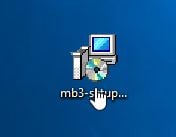
MALWAREBYTES ANTI-MALWARE DOWNLOAD LINK (This link will open a new web page from where you can download “Malwarebytes Anti-Malware”) - Once downloaded, close all programs, then double-click on the icon on your desktop named “mbam-setup” to start the installation of Malwarebytes Anti-Malware.
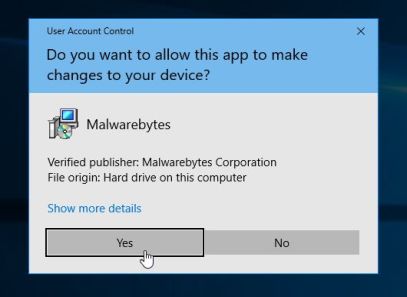
You may be presented with a User Account Control dialog asking you if you want to run this file. If this happens, you should click “Yes” to continue with the installation.
- When the installation begins, you will see the Malwarebytes Anti-Malware Setup Wizard which will guide you through the installation process.
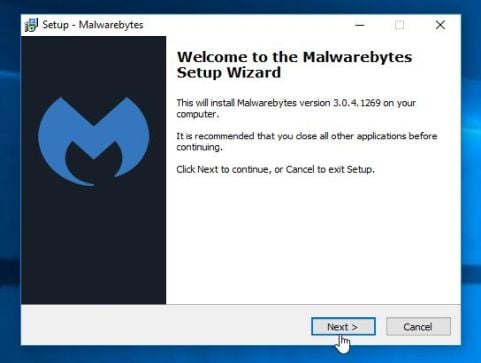
To install Malwarebytes Anti-Malware on your machine, keep following the prompts by clicking the “Next” button.
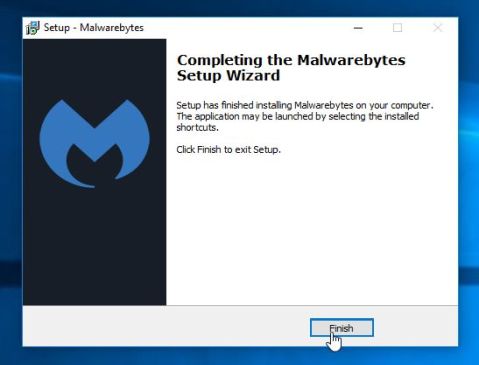
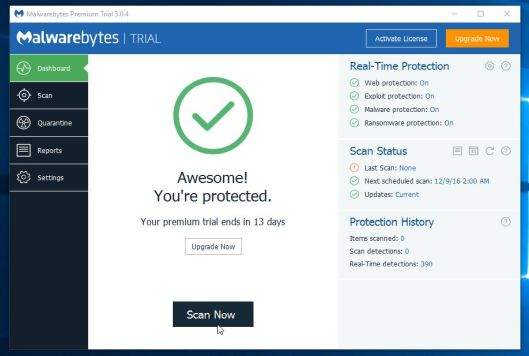
- Once installed, Malwarebytes Anti-Malware will automatically start and will update the antivirus database. To start a system scan you can click on the “Scan Now” button.
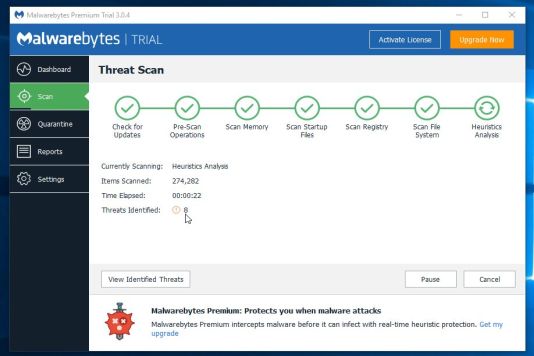
- Malwarebytes Anti-Malware will now start scanning your computer for the Trojan:Win32/Barlaiy.A!dha browser hijacker. When Malwarebytes Anti-Malware is scanning it will look like the image below.
- When the scan has completed, you will be presented with a screen showing the malware infections that Malwarebytes Anti-Malware has detected. To remove the malicious programs that Malwarebytes Anti-malware has found, click on the “Remove Selected” button.
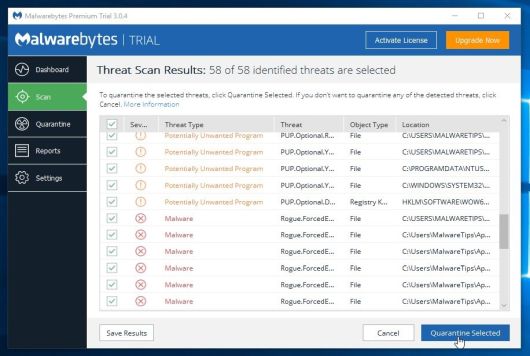
- Malwarebytes Anti-Malware will now quarantine all the malicious files and registry keys that it has found. When removing the files, Malwarebytes Anti-Malware may require a reboot in order to remove some of them. If it displays a message stating that it needs to reboot your computer, please allow it to do so.
STEP 2: Scan your computer with HitmanPro
HitmanPro finds and removes malware, adware, bots and other threats that even the best antivirus suite can oftentimes miss. It’s designed to run alongside your antivirus suite, firewall and other security tools.
- You can download HitmanPro from the below link:
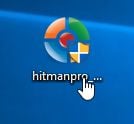
HITMANPRO DOWNLOAD LINK (This link will open a new web page from where you can download “HitmanPro”) - Double-click on the file named “HitmanPro.exe” (for 32-bit versions of Windows) or “HitmanPro_x64.exe” (for 64-bit versions of Windows).
Click on the “Next” button, to install HitmanPro on your computer.
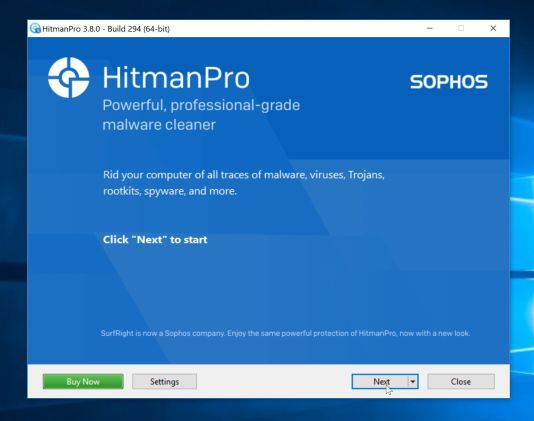
- HitmanPro will now begin to scan your computer for malware.
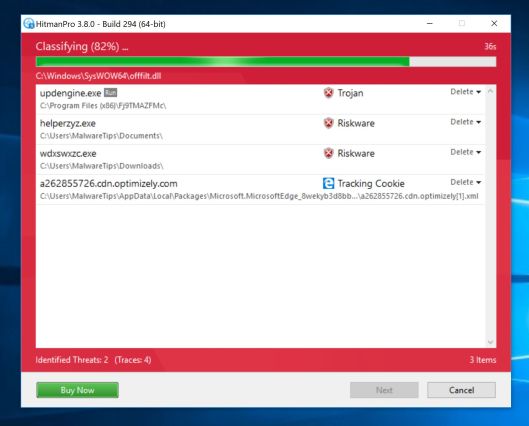
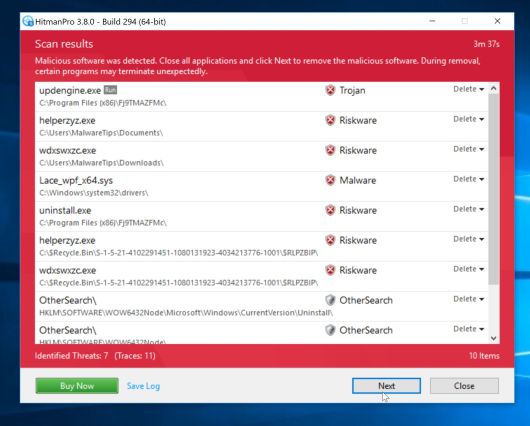
- When it has finished it will display a list of all the malware that the program found as shown in the image below. Click on the “Next” button, to remove malware.
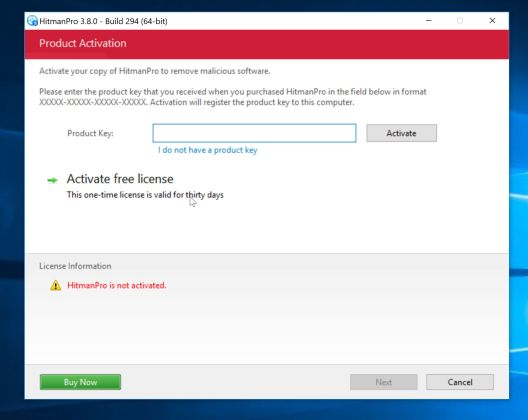
- Click on the “Activate free license” button to begin the free 30 days trial and remove all the malicious files from your computer.
(OPTIONAL) STEP 3: Scan your computer with Zemana AntiMalware
This step should be performed only if your issues have not been solved by the previous steps.
- You can download Zemana AntiMalware from the below link:
ZEMANA ANTIMALWARE DOWNLOAD LINK (This link will start the download of “Zemana AntiMalware”) - Double-click on the file named “Zemana.AntiMalware.Setup.exe” to start the installation of Zemana AntiMalware.
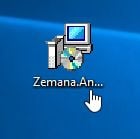
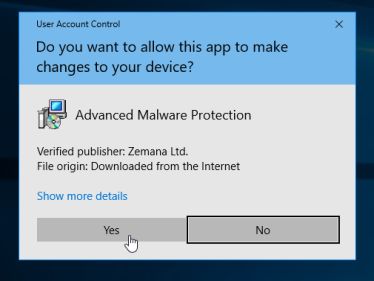
You may be presented with a User Account Control dialog asking you if you want to run this file. If this happens, you should click “Yes” to continue with the installation.
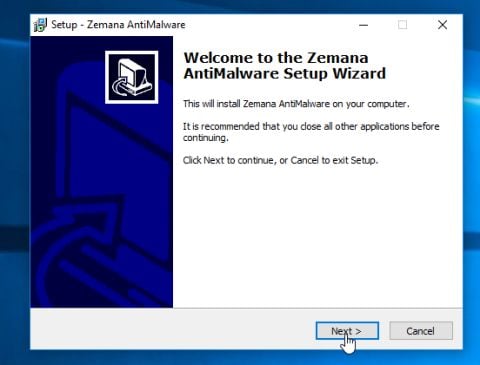
- Click on the “Next” button, to install Zemana AntiMalware on your computer.
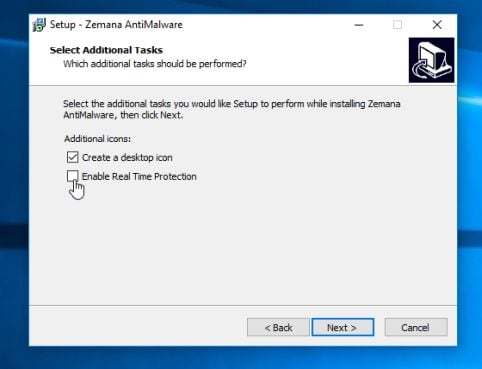
When you reach the “Select Additional Tasks” screen, you can opt-out the “Enable Real Time Protection” option, then click on the “Next” button.
- When Zemana AntiMalware will start, click on the “Scan” button.
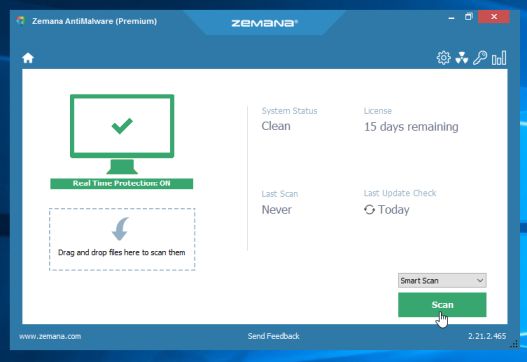
- Zemana AntiMalware will now scan computer for malicious files. This process can take up to 10 minutes.
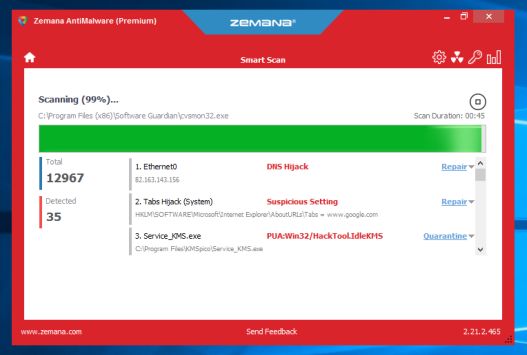
- When Zemana AntiMalware has finished it will display a list of all the malware that the program found. Click on the “Next” button, to remove the malicious files from your computer.
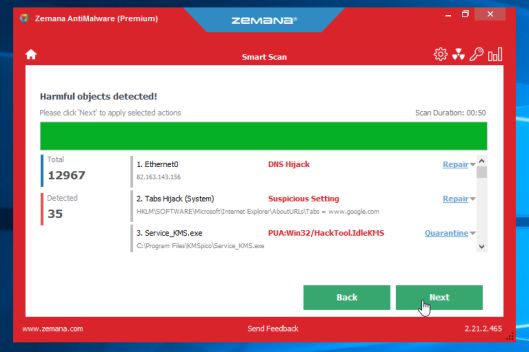
Zemana AntiMalware will now remove all the detected malicious files and at the end a system reboot may be required to remove all traces of malware.
Your computer should now be free of the Trojan:Win32/Barlaiy.A!dha. If you are still experiencing problems while trying to remove Trojan:Win32/Barlaiy.A!dha malware, please ask for help in our Malware Removal Assistance forum.








