

ZeroAccess is a sophisticated kernel-mode rootkit that is rapidly becoming one of the most widespread threats in the current malware ecosystem. ZeroAccess’ ability to run on both 32-bit and 64-bit versions of Windows, resilient peer-to-peer command and control infrastructure and constant updates to its functionality over time show that ZeroAccess is a modern threat capable of thriving on modern networks and modern Operating Systems.
ZeroAccess remains hidden on an infected machine while downloading more visible components that generate revenue for the botnet owners. Currently the downloaded malware is mostly aimed at sending spam and carrying out click fraud, but previously the botnet has been instructed to download other malware and it is likely that this will be the case again in the future. ZeroAccess should be considered an advanced and dangerous threat that requires a fully featured, multi-layered protection strategy.
ZeroAccess employs mechanisms that are themselves hard to remove such as a kernel-mode rootkit and patched driver files, patched system files such as services.exe and data hidden in NTFS Extended Attributes, removal of NTFS permissions on files used; and because ZeroAccess often employs several autostart points on an infected machine and usually other files that can re-install the malware.
How to remove ZeroAccess rootkit virus (Virus Removal Guide)
Please perform all the steps in the correct order. If you have any questions or doubt at any point, STOP and ask for our assistance.
-
To remove ZeroAccess rootkit virus, follow these steps:
- STEP 1: Use ESETSirfefCleaner tool to remove ZeroAccess rootkit
- STEP 2: Use RKill to stop the ZeroAccess rootkit malicious processes
- STEP 3: Scan your computer with Malwarebytes Anti-Malware to remove ZeroAccess rootkit
- STEP 4: Double-check for malicious programs with HitmanPro
- (OPTIONAL) STEP 5: Use Zemana AntiMalware Portable to remove ZeroAccess rootkit
STEP 1: Use ESETSirfefCleaner tool to remove ZeroAccess rootkit
In this first step, we will use the ESETSirefefCleaner tool to remove the ZeroAccess rootkit from your computer.
- You can download ESETSirefefCleaner from the below link.
Download ESET Sirefef CleanerYour download starts right away.Unable to download “ESETSirefefCleaner.exe contained a virus and was deleted”.
More recent variants of Sirefef might prevent you from downloading this removal tool. If you cannot download the tool, follow the steps below:- Click Start → Computer → Local Disk (C:) → Program Files.
- Right-click the Windows Defender folder and select Rename from the context menu.
- Add a unique variation to the filename, such as .old (for example, Windows Defender.old).
- Click the link above to download the ESETSirefefCleaner tool.When the download is complete, make sure to rename the Windows Defender folder back to its original filename before running the ESET SirefefCleaner tool.
- Double-click on ESETSirefefCleaner.exe to start this utility. You may be presented with an User Account Control pop-up asking if you want to allow this to make changes to your device. If this happens, you should click “Yes” to continue.
- The message “Win32/Sirefef.EV found in your system” will be displayed if an infection is found. To remove ZeroAccess rootkit from your computer, press the Y key on your keyboard
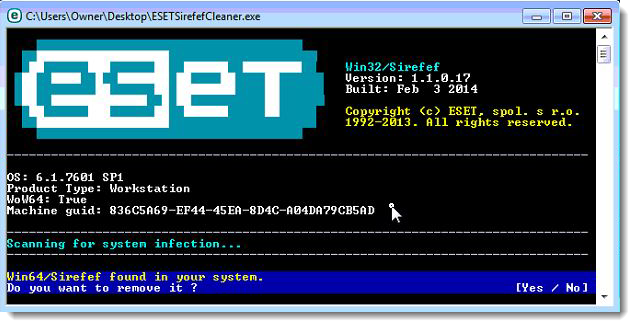
- Once the tool has run, you will be prompted to restore system services after you restart your computer. Press Y on your keyboard to restore system services and restart your computer.
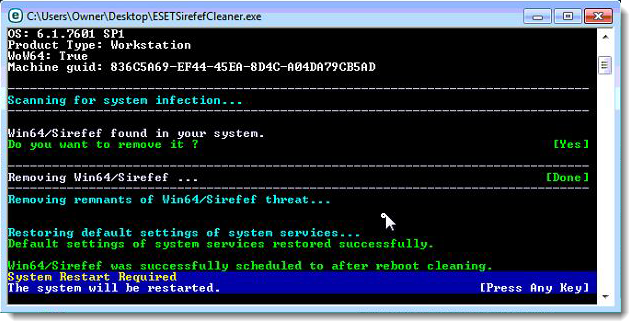
- Once your computer has restarted, if you are presented with a security notification click Yes or Allow. and then continue wit the next step.
STEP 2: Use RKill to stop the ZeroAccess rootkit malicious processes
RKill is a program that will attempt to terminate all malicious processes associated with ZeroAccess rootkit, so that we will be able to perform the next step without being interrupted by this malicious software.
- You can download Rkill from the below link.
Download RKillOpens the download page in a new tab. - Double click on Rkill program to stop the malicious programs from running.
- RKill will now start working in the background, please be patient while this utiltiy looks for malicious process and tries to end them.
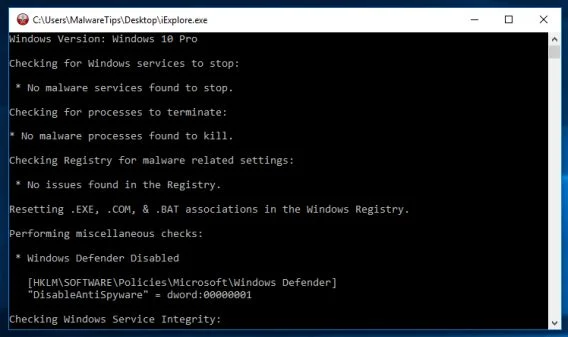
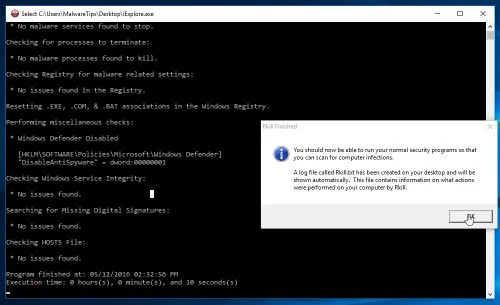
- When the Rkill tool has completed its task, it will generate a log. Do not reboot your computer after running RKill as the malware programs will start again.
STEP 3: Scan your computer with Malwarebytes Anti-Malware to remove ZeroAccess rootkit
Malwarebytes Anti-Malware is a powerful on-demand scanner which should remove the ZeroAccess rootkit virus from your machine. It is important to note that Malwarebytes Anti-Malware will run alongside antivirus software without conflicts.
- You can download download Malwarebytes Anti-Malware from the below link.
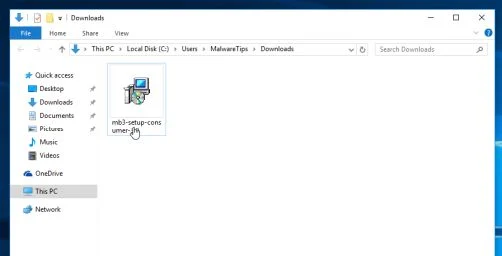
Download MalwarebytesFree official installer. Your download starts right away. - When Malwarebytes has finished downloading, double-click on the “mb3-setup-consumer” file to install Malwarebytes Anti-Malware on your computer.
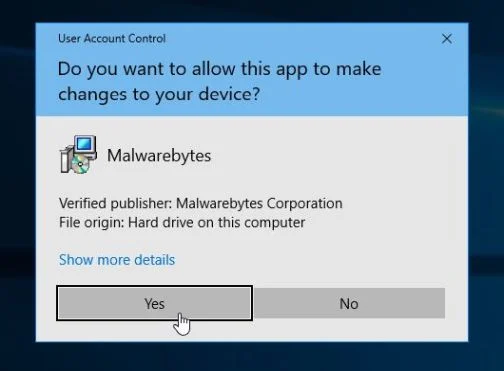
You may be presented with an User Account Control pop-up asking if you want to allow Malwarebytes to make changes to your device. If this happens, you should click “Yes” to continue with the installation.
- When the Malwarebytes installation begins, you will see the Malwarebytes Setup Wizard which will guide you through the installation process.
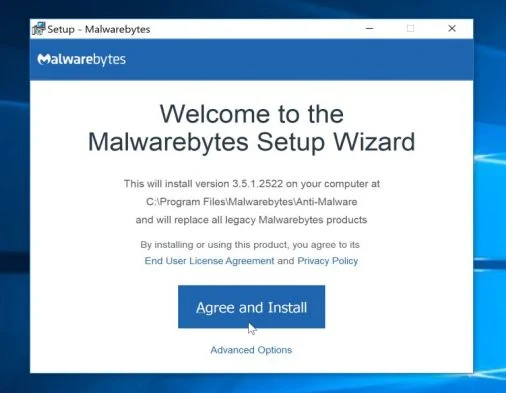
To install Malwarebytes Anti-Malware on your machine, keep following the prompts by clicking the “Next” button.
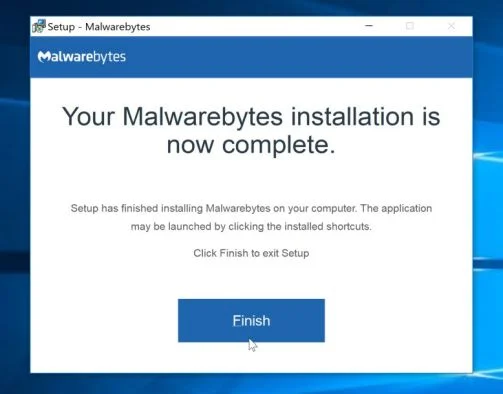
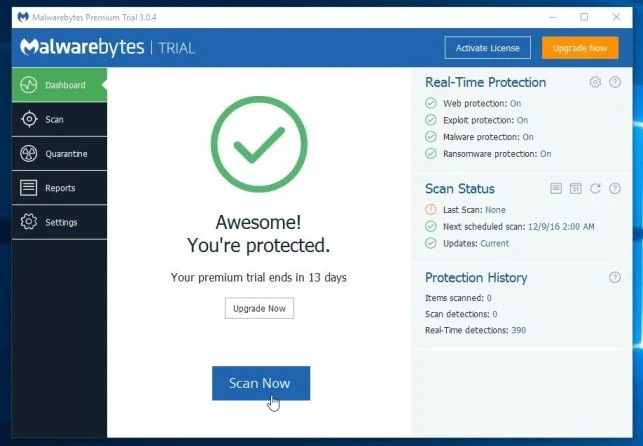
- Once installed, Malwarebytes will automatically start and update the antivirus database. To start a system scan you can click on the “Scan Now” button.
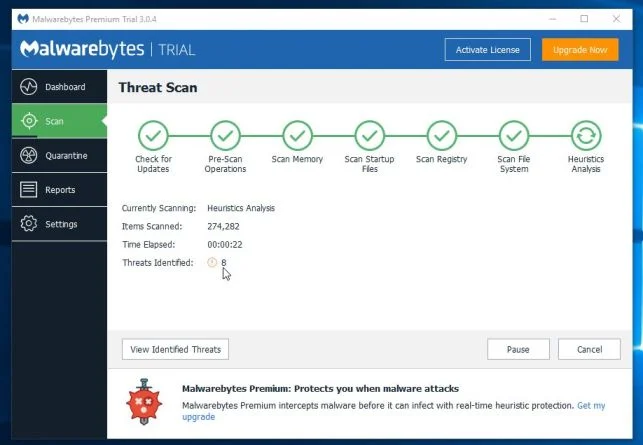
- Malwarebytes Anti-Malware will now start scanning your computer for malicious programs.
This process can take a few minutes, so we suggest you do something else and periodically check on the status of the scan to see when it is finished.
- When the scan has completed, you will be presented with a screen showing the malware infections that Malwarebytes Anti-Malware has detected.
To remove the malicious programs that Malwarebytes has found, click on the “Quarantine Selected” button.
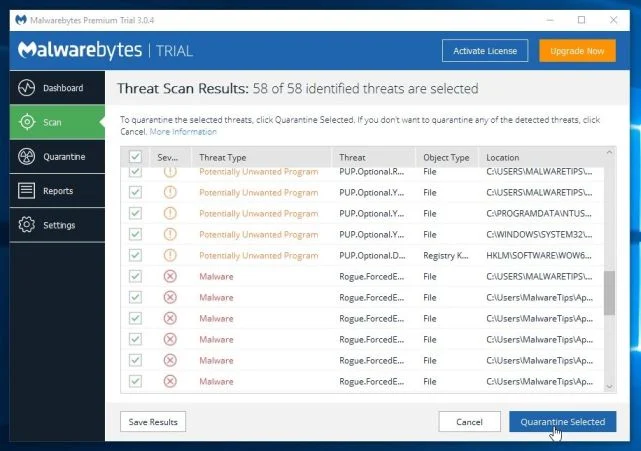
- Malwarebytes Anti-Malware will now quarantine all the malicious files and registry keys that it has found.
To complete the malware removal process, Malwarebytes may ask you to restart your computer.
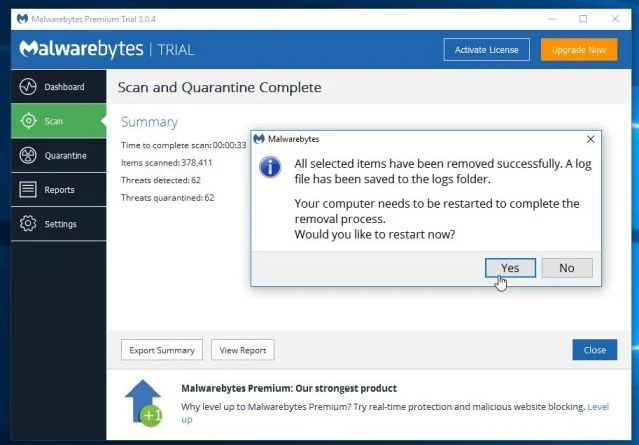
When the malware removal process is complete, you can close Malwarebytes Anti-Malware and continue with the rest of the instructions.
STEP 4: Double-check for malicious programs with HitmanPro
HitmanPro can find and remove malware, adware, bots, and other threats that even the best antivirus suite can oftentimes miss. HitmanPro is designed to run alongside your antivirus suite, firewall, and other security tools.
- You can download HitmanPro from the below link:
Download HitmanProOfficial Sophos download. Free scan, free 30-day trial to remove threats. - When HitmanPro has finished downloading, double-click on the “hitmanpro” file to install this program on your computer.
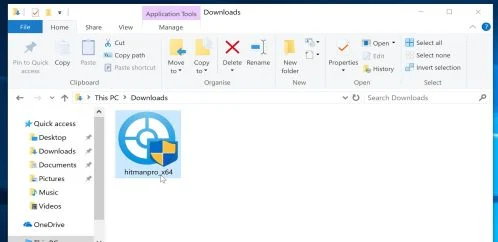
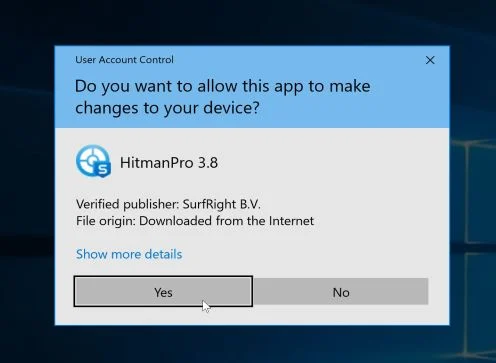
You may be presented with an User Account Control pop-up asking if you want to allow HitmanPro to make changes to your device. If this happens, you should click “Yes” to continue with the installation.
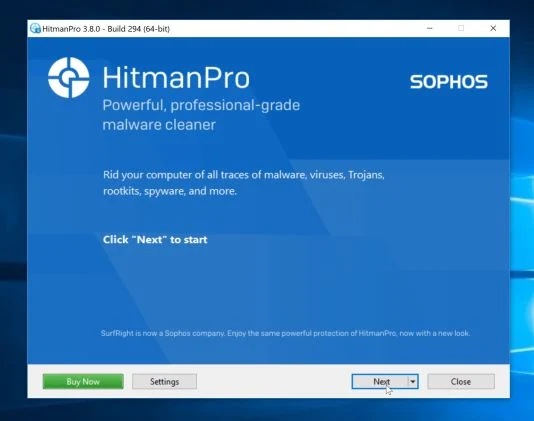
- When the program starts you will be presented with the start screen as shown below. Now click on the Next button to continue with the scan process.
- HitmanPro will now begin to scan your computer for malware.
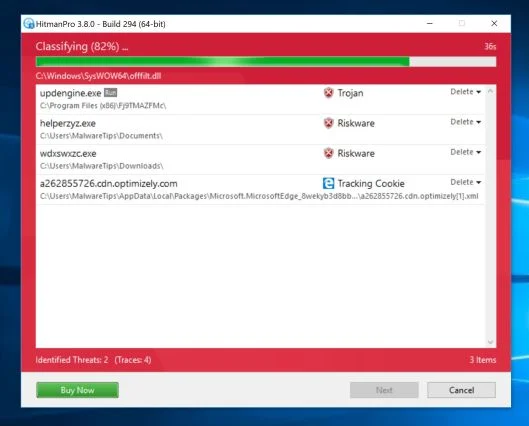
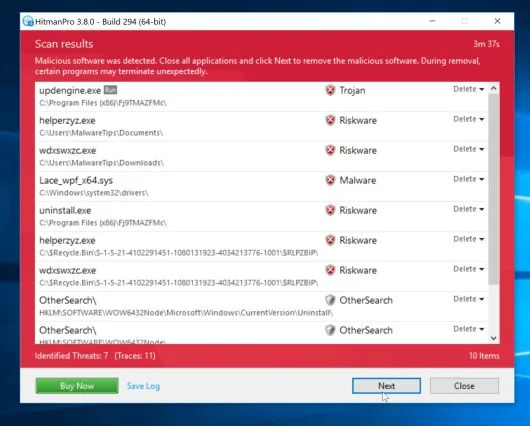
- When it has finished it will display a list of all the malware that the program found as shown in the image below. Click on the “Next” button, to remove malware.
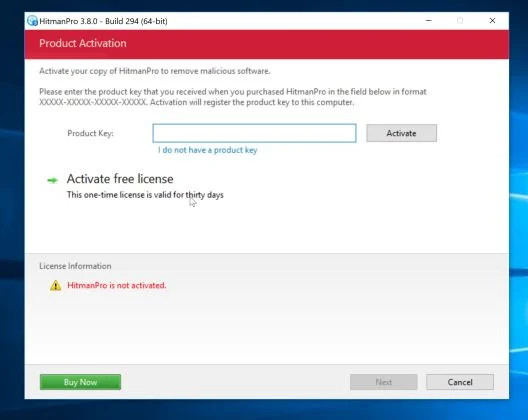
- Click on the “Activate free license” button to begin the free 30 days trial, and remove all the malicious files from your computer.
When the process is complete, you can close HitmanPro and continue with the rest of the instructions.
(OPTIONAL) STEP 5: Use Zemana AntiMalware Portable to remove ZeroAccess rootkit
This step should be performed only if your issues have not been solved by the previous steps.
- You can download Zemana AntiMalware Portable from the below link:
Download Zemana AntiMalwareOpens the download page in a new tab. - Double-click on the file named “Zemana.AntiMalware.Portable” to perform a system scan with Zemana AntiMalware Free.
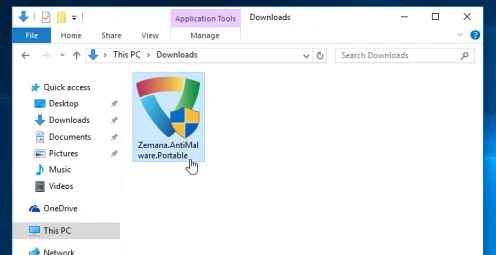
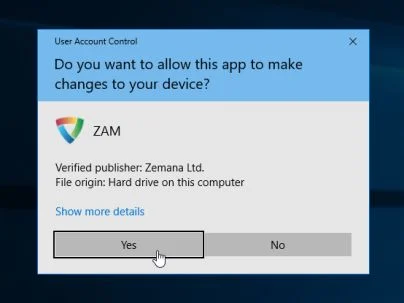
You may be presented with a User Account Control dialog asking you if you want to run this program. If this happens, you should click “Yes” to allow Zemana AntiMalware to run.
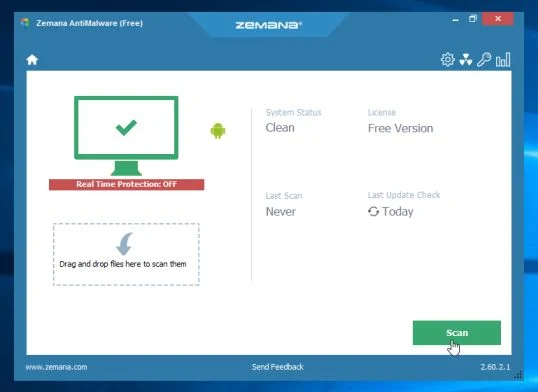
- When Zemana AntiMalware will start, click on the “Scan” button to perform a system scan.
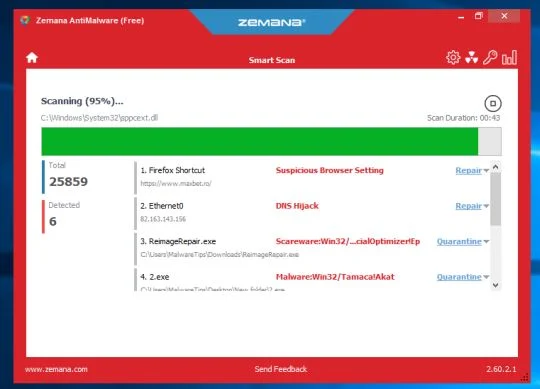
- Zemana AntiMalware will now scan your computer for malicious programs. This process can take up to 10 minutes.
- When Zemana has finished finished scanning it will show a screen that displays any malware that has been detected. To remove all the malicious files, click on the “Next” button.
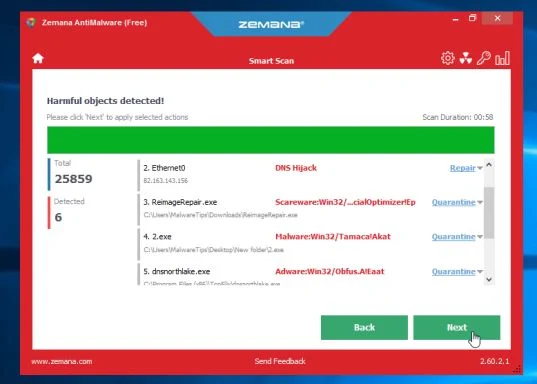
Zemana AntiMalware will now start to remove all the malicious programs from your computer.

Join the discussion
59 commentsShare your experience or ask a question about this article.
Discussion
I was infected with some unidentified malware that hijacked my yahoo-webmail and disabled the W7x64-Firewall services (error code 0x80070424).
To my dismay, Malwarebytes, MS-Security-Essentials, AdvancedSystemCare, CCleaner we NOT able to prevent, identify or remove this infection.
After reviewing & considering a clutch of other proposed-solutions (complicated, risky, suspect, etc.), I stumbled upon your website.
So, I thank you so much for your efforts on this most-useful website to counter-attack such malwares.
Your Step 2 (combofix .exe) was most effective for me and did repair that “error code”.
If anyone suspects their PC is infected, I recommend they follow all the steps listed here. Worked for me.
Thank you so much Stelian!
There were so many conflicting guides on the internet saying to do different things but I followed yours from start to finish and my PC seems to be fine now :D
Great site. 1 problem. I have disable Mcaffee but the Combofix continues to show that I have them enabled. Am I safe to run the scan or do you have another option. At this point I cannot afford unpredictable results”.
Thanks
In reply to SIGMA
Hello Sigma,
If you actually disabled the antivirus,firewall and other real-time protection software,than you can go ahead with the scan!
Hello Stelian
Thank you so much for your help and advice. I have been following the links you gave me to download and cure the problem with no windows update and no firewall after the SMART virus.
Got to Combofix it found two files for deletion and rebooted, however on starting up I forgot that I have an automatic pop up of ‘Control panel’ that appears. This caused the Combofix to stall, after waiting about 10 mins I turned the computer off and restared with the Malwarebytes Anti-Malware. I have no problem now dowloading new windows updates, so that part seems to have worked. However, the next step would not allow me to complete a full Malware scan, but did let me follow a short scan. Both the Malware and the Hitmanpro did not throw up any more virus programmes.
I am having trouble with the last part finding the link WINDOWS REPAIR ALL IN ONE DOWNLOAD LINK you recommended – I have found a Tweaking.com – Windows Repair (All in One) v1.9.1 Released 10.22.2012 would this be an updated version and should I download this one?
Thank you.
Jan
In reply to Jan
Hello Jan,
You can download WINDOWS REPAIR ALL IN ONE from here.
Thanks to Stelian for another great removal guide.
I’m not 100 % sure I had ZeroAccess Rootkit on my system. An antivirus program called Stinger identified “FakeAlert!fakealert–REP trojan” but another forum mentioned this is related to ZeroAccess, so I ran Stelian’s Removal Steps just in case.
The symptoms were rundll32.exe showing in processes, Adobe Flash suddenly installing (even though latest is installed) and some unexpected redirects taking me to (what looked like) legitimate websites.
Application Data\wcsuie.dll”,DestroyWindow – wcsuie.dll (was identified as malware by Hitman Pro) and there were some hidden entries just called “n” in a hidden RECYCLER directory I’ve never seen before (on XP). I removed all with Hitman Pro.
ComboFix seemed to hang, even when I renamed it Combo-Fix before downloading it to desktop. Stelian’s guide mentions “report back here” if a problem occurs with ComboFix – So I’ve reported it in this post. I think I’m virus free now, but as ZeroAccess is a particularly persistent rootkit, any expert advice welcomed.
Kind Regards, NB
In reply to nbwriter
Hello nbwriter,
It should be gone from your machine,however if you want to do a double check, you can run a scan with the following tools:
STEP 1: Run a scan with Eset Online Scanner.
ESET Online Scanner Download Link (This link will automatically download ESET Online Scanner on your computer.)
STEP 2: Run a scan with Emsisoft Emergency Kit.
EMSISOFT EMERGENCY KIT DOWNLOAD LINK (This link will open a download page in a new window from where you can download Emsisoft Emergency Kit)
In reply to Stelian Pilici
Thanks for speedy feedback, Stelian. I’ll run those scans as advised.
I’m still curious why ComboFix (appeared) to stall. It’s likely the answer is highly technical. What actually happened when I got to Step 2 in your ZeroAccess Removal Guide is ComboFix ran for 30 minutes, then appeared to freeze the machine. I uninstalled ComboFix, updated to latest version, renamed it Combo-Fix and installed the “Console” it requested.
Some AV Sites suggest stopping ComboFix EX3 processes while its executing will speed it up. Not sure about that… I noted the EX3 process takes up a large amount of RAM while executing. My machine is only fitted with 700MB RAM, I’m wondering (as with many newer programs) if ComboFix simply needed more RAM to execute quickly?
Kind Regards, NB
You are awesome! To have someone so smart, be so helpful, and for no charge is a blessing. Thank You!
Fantastic! Thanks so much for a thorough and terrifically brutal counterattack on this bug! It saved my friend’s laptop from being flung out of his window!
Fantastic guide. My firewall is finally up and staying up
Kaspersky TDSSKiller did not successfully remove the infections what do you think I should do?
In reply to Ruby
Please go ahead and follow all the guide.Good luck!
In reply to Stelian Pilici
Thanks a lot! it worked!! :D :D
I’m 30 now and been working on computers for 15 years at least and I’ve discovered some new tools that I haven’t ran before. RogueKiller and TDSSKiller have been added to my arsenal. It’s nice to see that not everyone in the trade hides their techniques. I’m wary when trying new tools but with such a detail write up with responses, I had to give them a shot.
10/15/2012
Killer ran fine, but found nothing. Said system was not infected.
However, I know I have the ZA rootkit. It is running out of the C:\recycler directory.
Is it correct this is a brand new variation?
Please help if you can.
In reply to George A.
Hello George,
Can you please post the Combofix log (You should be able to find it at C:\Combofix.txt).
Next,empty your Recycle Bin and then for our peace of mind please perform this two scans:
STEP 1: Run a scan with Emsisoft Emergency Kit.
EMSISOFT EMERGENCY KIT DOWNLOAD LINK (This link will open a download page in a new window from where you can download Emsisoft Emergency Kit)
STEP 2: Run a scan with Eset Online Scanner.
ESET Online Scanner Download Link (This link will automatically download ESET Online Scanner on your computer.)
Un-freaking believable how amazing this is! I have never had my butt kicked by a virus so bad before until now. Followed your steps to the T and no more Zero rootkit. What a life saver you are sir! I had over a terabyte of steam games, pictures,documents etc and was about to throw in the towel until finding your blog! Thanks again for doing what you do.
Great set of instructions for someone like me who is not that savy.
Thank you, thank you, thank you. I’ve been battling this virus for weeks and your efforts were the only thing that worked for me.
Thanks Stelian,
I followed your detailed instructions on “Remove System Progressive Protection” Thanks for this. It removed lots of Malware. At the end Rogue Killer had a flashing ZeroAccess image with exclamation mark in the top left hand corner of the screen. It also openned a Firefox webpage with French instructions. I can’t read French so I followed this link. However, TDSSKiller could find no infection. Am I clean?
Thanks again.
In reply to Bruce
Hello Bruce,
It looks like you still have some left over files….Can you please do a scan with the following tools:
1.Run a scan with Kaspersky Virus Removal Tool
Click here to download the Kaspersky Virus Removal Tool.
2.Run a scan with Eset Online Scanner.
ESET Online Scanner Download Link (This link will automatically download ESET Online Scanner on your computer.)
In reply to Stelian Pilici
Thank you again Stelian!
That was an excellent reply. I found an additional 12 threats – 4 with Kaspersky and 8 with ESET. I ran Rogue Killer once more: no flahing warning this time, but 1 more threat to kill.
How do I get reasonable protection. Until very recently I have not had problems with malware, but in the last 3 months I’ve been infected 3 times – this was the worst. I’ve got McAfee Security Scan Plus and McAfee AntiVirus Plus and always have a firewall up, but they seem to be powerless and are deactivated once an infection gets going. I’m never entirelky sure of how an infection get’s in. Windows & always asks if I want to allow software to make changes to my harddrive, but at least once I was tricked – I think it was a bogus Adobe Flash Update. I’m sure on other occasions the infection started via Facebook or just opening a window!
Thanks again.
exellent webpage! thanks so much! really outstanding. so kind of you to share like this! this is such an enormous help– it’s just wonderful.
we are now in STEP 6, with the windows repair all in one tool. everything has been perfect up to this point.
now the instructions above say in #7. Put a checkmark in the following item:
Repair Temp Files
REPAIR? repair temp files?
Now, I am looking at the boxes to check in the tool and the ONLY one that says anything about TEMPORARY FILES is “REMOVE temporary files.” there is not one that says REPAIR temp files, as in the instructions.
do you mean we should check the box for REMOVE temporary files? or was it meant to REPAIR something else, not the temporary files? i did already check the boxes by the other three choices (Repair Hosts File, Remove Policies Set By Infections, Set Windows Services To Default Startup).
thank you so much once again. your assistance is just the best.
kind regards…
In reply to Stjarn Goss
Hello Stjarn Goss,
Yes,that was a typo, Remove Temp Files is the the one you need to check. :D
I ran TDSSKiller. It shows win64.Zaccess.a infecting ..\system32\services.exe. It could not remove/repair the infected file. I then tried in safe mode… smae thing.
Can I go to step 2, then retry step 1? If not, how should I proceed?
Thanks…
In reply to Guy Manning
Hello
Please go ahead with STEP 2.Good luck!