

ZeroAccess is a sophisticated kernel-mode rootkit that is rapidly becoming one of the most widespread threats in the current malware ecosystem. ZeroAccess’ ability to run on both 32-bit and 64-bit versions of Windows, resilient peer-to-peer command and control infrastructure and constant updates to its functionality over time show that ZeroAccess is a modern threat capable of thriving on modern networks and modern Operating Systems.
ZeroAccess remains hidden on an infected machine while downloading more visible components that generate revenue for the botnet owners. Currently the downloaded malware is mostly aimed at sending spam and carrying out click fraud, but previously the botnet has been instructed to download other malware and it is likely that this will be the case again in the future. ZeroAccess should be considered an advanced and dangerous threat that requires a fully featured, multi-layered protection strategy.
ZeroAccess employs mechanisms that are themselves hard to remove such as a kernel-mode rootkit and patched driver files, patched system files such as services.exe and data hidden in NTFS Extended Attributes, removal of NTFS permissions on files used; and because ZeroAccess often employs several autostart points on an infected machine and usually other files that can re-install the malware.
How to remove ZeroAccess rootkit virus (Virus Removal Guide)
Please perform all the steps in the correct order. If you have any questions or doubt at any point, STOP and ask for our assistance.
-
To remove ZeroAccess rootkit virus, follow these steps:
- STEP 1: Use ESETSirfefCleaner tool to remove ZeroAccess rootkit
- STEP 2: Use RKill to stop the ZeroAccess rootkit malicious processes
- STEP 3: Scan your computer with Malwarebytes Anti-Malware to remove ZeroAccess rootkit
- STEP 4: Double-check for malicious programs with HitmanPro
- (OPTIONAL) STEP 5: Use Zemana AntiMalware Portable to remove ZeroAccess rootkit
STEP 1: Use ESETSirfefCleaner tool to remove ZeroAccess rootkit
In this first step, we will use the ESETSirefefCleaner tool to remove the ZeroAccess rootkit from your computer.
- You can download ESETSirefefCleaner from the below link.
Download ESET Sirefef CleanerYour download starts right away.Unable to download “ESETSirefefCleaner.exe contained a virus and was deleted”.
More recent variants of Sirefef might prevent you from downloading this removal tool. If you cannot download the tool, follow the steps below:- Click Start → Computer → Local Disk (C:) → Program Files.
- Right-click the Windows Defender folder and select Rename from the context menu.
- Add a unique variation to the filename, such as .old (for example, Windows Defender.old).
- Click the link above to download the ESETSirefefCleaner tool.When the download is complete, make sure to rename the Windows Defender folder back to its original filename before running the ESET SirefefCleaner tool.
- Double-click on ESETSirefefCleaner.exe to start this utility. You may be presented with an User Account Control pop-up asking if you want to allow this to make changes to your device. If this happens, you should click “Yes” to continue.
- The message “Win32/Sirefef.EV found in your system” will be displayed if an infection is found. To remove ZeroAccess rootkit from your computer, press the Y key on your keyboard
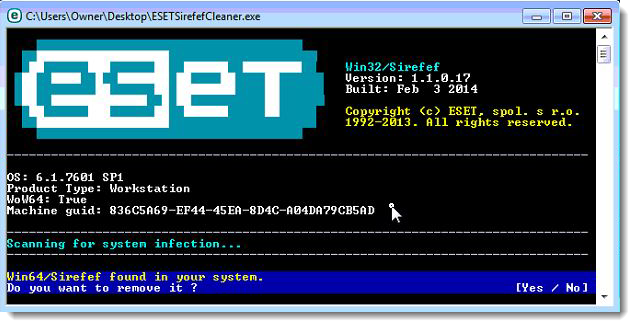
- Once the tool has run, you will be prompted to restore system services after you restart your computer. Press Y on your keyboard to restore system services and restart your computer.
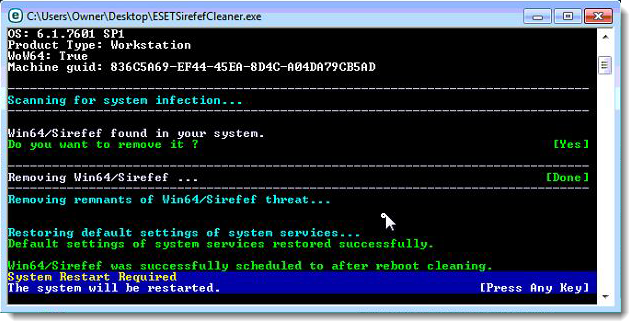
- Once your computer has restarted, if you are presented with a security notification click Yes or Allow. and then continue wit the next step.
STEP 2: Use RKill to stop the ZeroAccess rootkit malicious processes
RKill is a program that will attempt to terminate all malicious processes associated with ZeroAccess rootkit, so that we will be able to perform the next step without being interrupted by this malicious software.
- You can download Rkill from the below link.
Download RKillOpens the download page in a new tab. - Double click on Rkill program to stop the malicious programs from running.
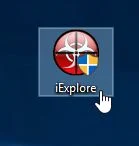
- RKill will now start working in the background, please be patient while this utiltiy looks for malicious process and tries to end them.
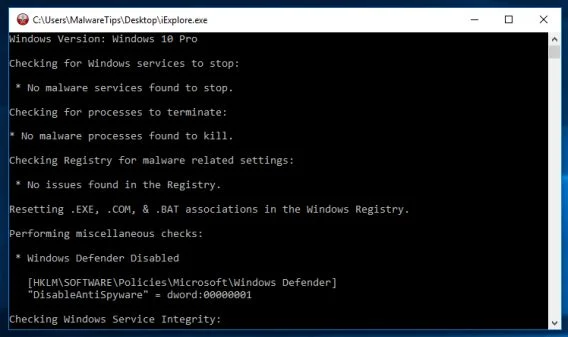
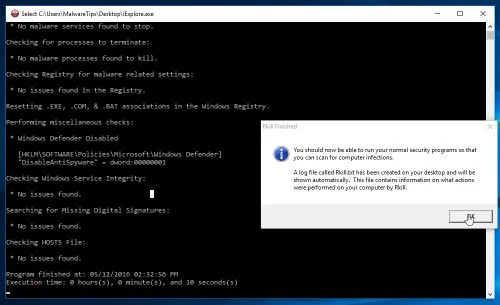
- When the Rkill tool has completed its task, it will generate a log. Do not reboot your computer after running RKill as the malware programs will start again.
STEP 3: Scan your computer with Malwarebytes Anti-Malware to remove ZeroAccess rootkit
Malwarebytes Anti-Malware is a powerful on-demand scanner which should remove the ZeroAccess rootkit virus from your machine. It is important to note that Malwarebytes Anti-Malware will run alongside antivirus software without conflicts.
- You can download download Malwarebytes Anti-Malware from the below link.
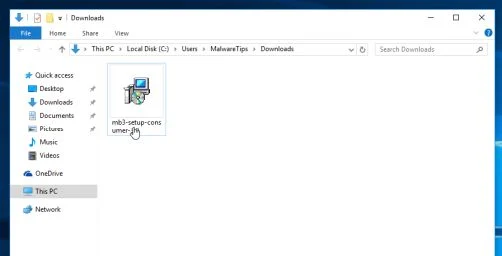
Download MalwarebytesFree official installer. Your download starts right away. - When Malwarebytes has finished downloading, double-click on the “mb3-setup-consumer” file to install Malwarebytes Anti-Malware on your computer.
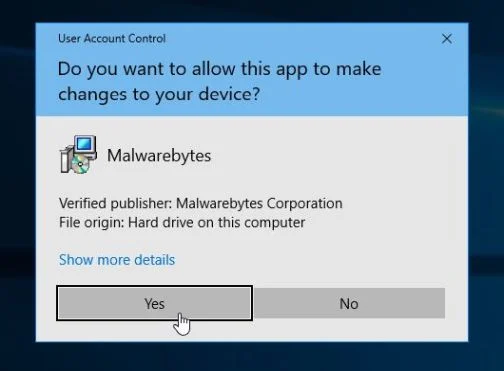
You may be presented with an User Account Control pop-up asking if you want to allow Malwarebytes to make changes to your device. If this happens, you should click “Yes” to continue with the installation.
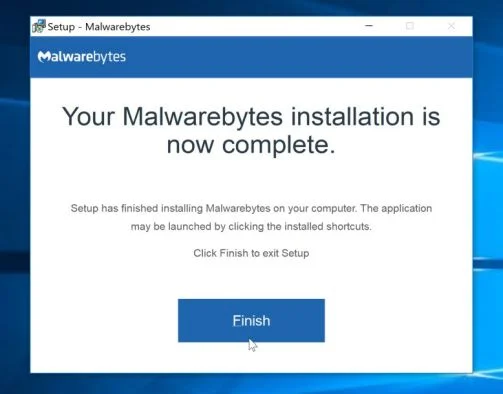
- When the Malwarebytes installation begins, you will see the Malwarebytes Setup Wizard which will guide you through the installation process.
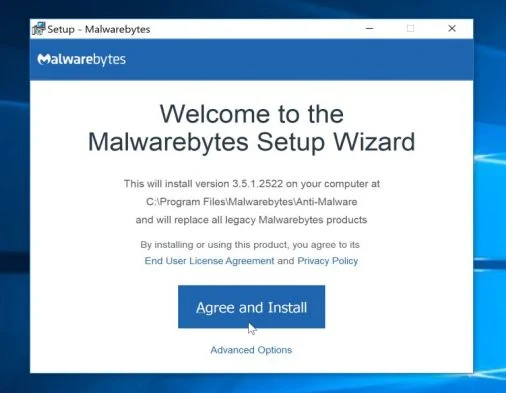
To install Malwarebytes Anti-Malware on your machine, keep following the prompts by clicking the “Next” button.
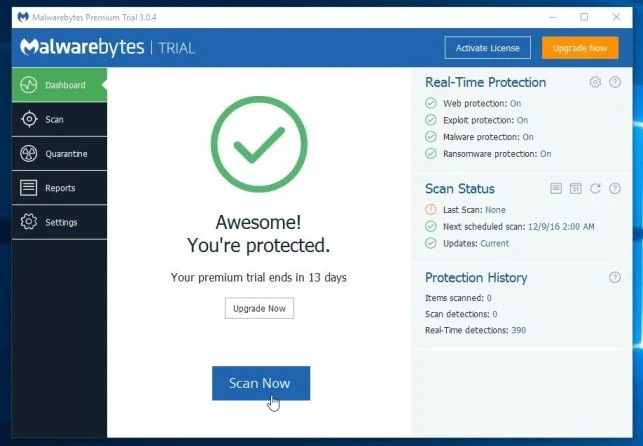
- Once installed, Malwarebytes will automatically start and update the antivirus database. To start a system scan you can click on the “Scan Now” button.
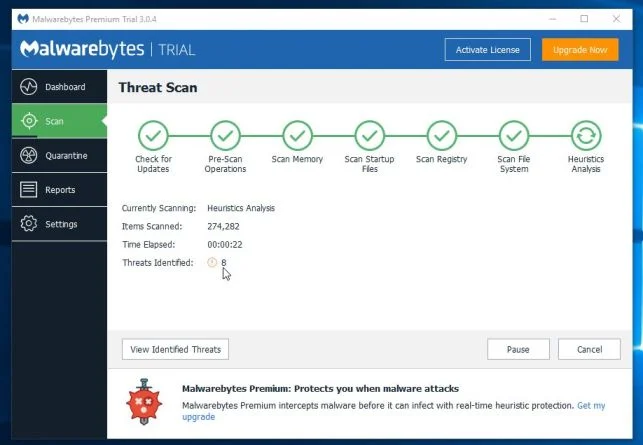
- Malwarebytes Anti-Malware will now start scanning your computer for malicious programs.
This process can take a few minutes, so we suggest you do something else and periodically check on the status of the scan to see when it is finished.
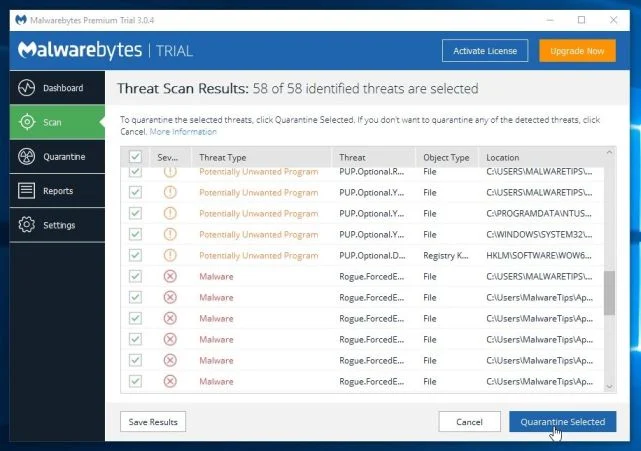
- When the scan has completed, you will be presented with a screen showing the malware infections that Malwarebytes Anti-Malware has detected.
To remove the malicious programs that Malwarebytes has found, click on the “Quarantine Selected” button.
- Malwarebytes Anti-Malware will now quarantine all the malicious files and registry keys that it has found.
To complete the malware removal process, Malwarebytes may ask you to restart your computer.
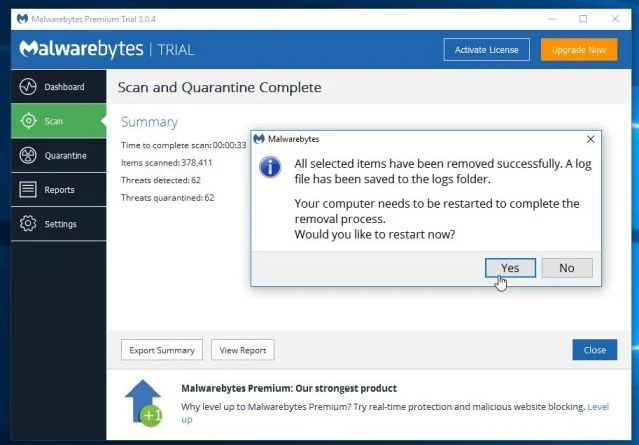
When the malware removal process is complete, you can close Malwarebytes Anti-Malware and continue with the rest of the instructions.
STEP 4: Double-check for malicious programs with HitmanPro
HitmanPro can find and remove malware, adware, bots, and other threats that even the best antivirus suite can oftentimes miss. HitmanPro is designed to run alongside your antivirus suite, firewall, and other security tools.
- You can download HitmanPro from the below link:
Download HitmanProOfficial Sophos download. Free scan, free 30-day trial to remove threats. - When HitmanPro has finished downloading, double-click on the “hitmanpro” file to install this program on your computer.
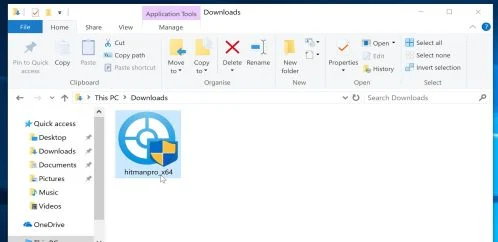
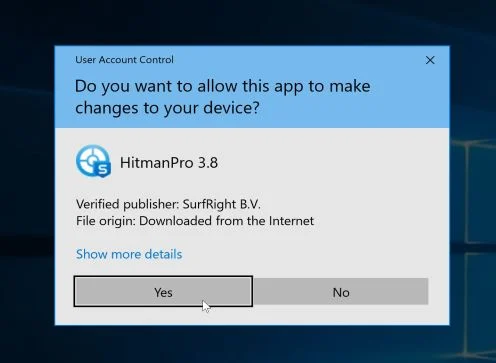
You may be presented with an User Account Control pop-up asking if you want to allow HitmanPro to make changes to your device. If this happens, you should click “Yes” to continue with the installation.
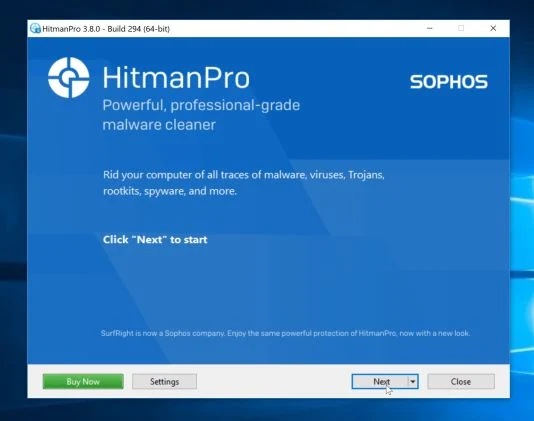
- When the program starts you will be presented with the start screen as shown below. Now click on the Next button to continue with the scan process.
- HitmanPro will now begin to scan your computer for malware.
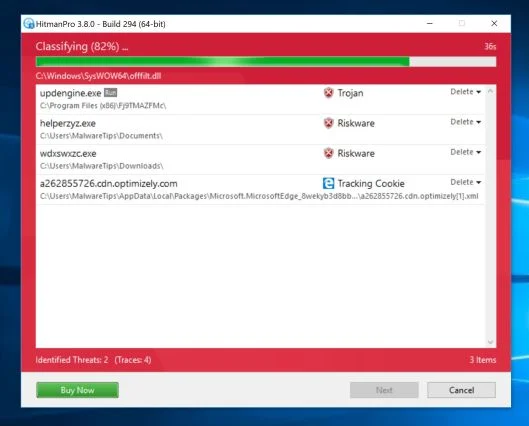
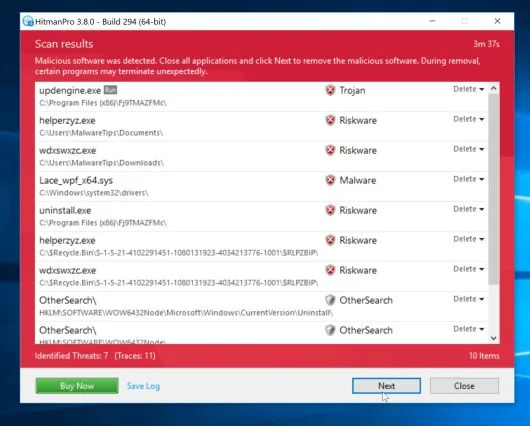
- When it has finished it will display a list of all the malware that the program found as shown in the image below. Click on the “Next” button, to remove malware.
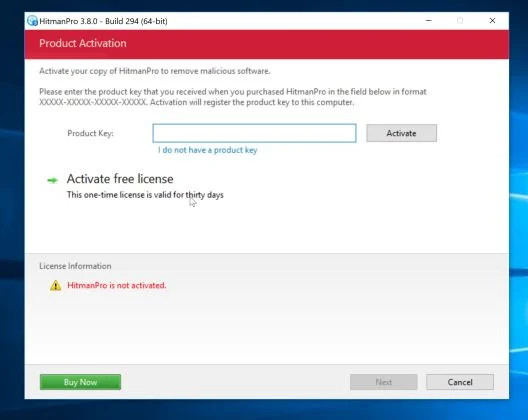
- Click on the “Activate free license” button to begin the free 30 days trial, and remove all the malicious files from your computer.
When the process is complete, you can close HitmanPro and continue with the rest of the instructions.
(OPTIONAL) STEP 5: Use Zemana AntiMalware Portable to remove ZeroAccess rootkit
This step should be performed only if your issues have not been solved by the previous steps.
- You can download Zemana AntiMalware Portable from the below link:
Download Zemana AntiMalwareOpens the download page in a new tab. - Double-click on the file named “Zemana.AntiMalware.Portable” to perform a system scan with Zemana AntiMalware Free.
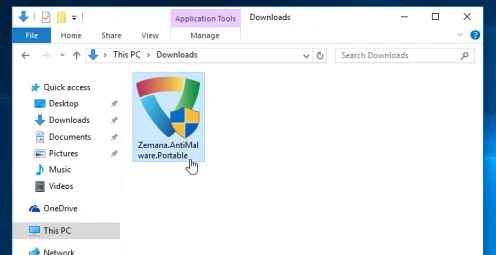
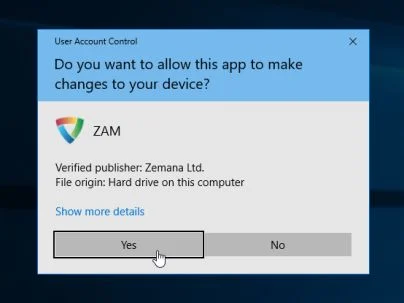
You may be presented with a User Account Control dialog asking you if you want to run this program. If this happens, you should click “Yes” to allow Zemana AntiMalware to run.
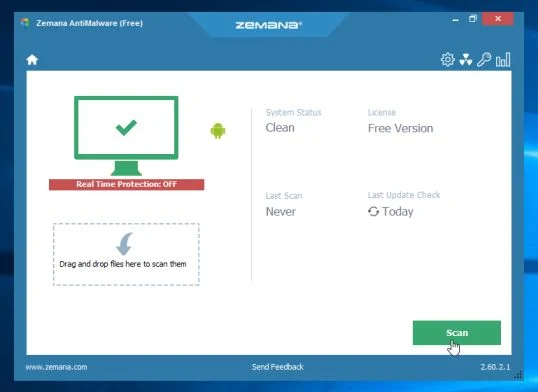
- When Zemana AntiMalware will start, click on the “Scan” button to perform a system scan.
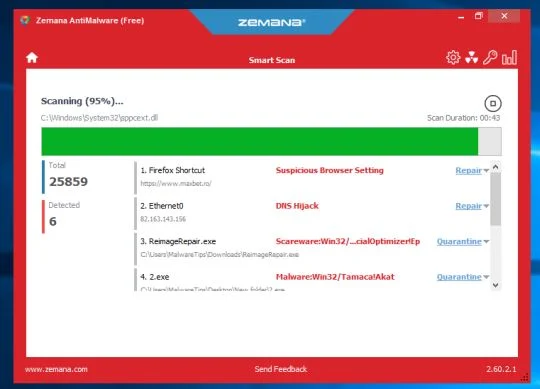
- Zemana AntiMalware will now scan your computer for malicious programs. This process can take up to 10 minutes.
- When Zemana has finished finished scanning it will show a screen that displays any malware that has been detected. To remove all the malicious files, click on the “Next” button.
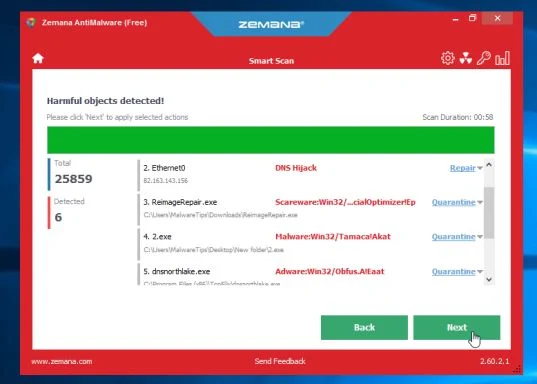
Zemana AntiMalware will now start to remove all the malicious programs from your computer.

Join the discussion
59 commentsShare your experience or ask a question about this article.
Discussion
I have run all of this step by step. when i ran Kaspersky, Combo fix, Rouge killer, malwarebytes, hitman pro, they all found the viruses and said they either deleted or quarantined them and i started to run the eset scanner. When i ran the eset scanner it was still showing a lot of the viruses on my laptop and i waited 10 and a half hours for it to finish scanning but it was stuck at 28%. i stoped it and started my computer over and started everything over starting with kaspersky and as i went through each program none of them detected any threats so i thought i was in the clear until i started running the eset scanner again. as it ran it was still finding all the viruses. I was going to go ahead and do the emisoft but have no clue how to unpack it and im not sure if its what i need for the viruses eset keeps finding.
Here is what eset shows that i have: C:\ProgramData\Tarma Installer\{889DF117-14D1-44EE-9F31-C5FB5D47F68B}\_Setupx.dll a variant of Win32/Adware.Yontoo.B application
C:\ProgramData\Tarma Installer\{DA00D550-BB91-4A26-AAE5-9172D626CAAE}\_Setupx.dll a variant of Win32/Adware.Yontoo.B application
etc
is my laptop just too far gone to fix?? please help!!!
In reply to Monica
Hello Monica,
Apart from this ESET detection on your computer, how is everything running??Any issues?
Let remove the adware from your computer computer:
Please download AdwCleaner by Xplode onto your desktop.
Waiting your reply to tell me if everything is ok… :)
In reply to Stelian Pilici
Hi Stelian Pilici!!
Wow you guys respond fast, I’m used to having to wait days to get a reply on other websites. I downloaded the adwclener.exe and it did exactly what you said it would. I’m running the ESET Scanner again to see if there is anymore adware on my laptop.
My laptop is running fine it even runs bit faster esp when its booting up but I’m pretty sure i still have the redirectware because when i use search engines i cant click on a site without it redirecting me to another page.
Before i ran the Kaspersky, Combo fix, Rouge killer, malwarebytes, hitman pro, my firewall was down and i couldn’t put it back up but afterwords i could control all of my security settings and i no longer have that problem.
the only other thing is when i go to uninstall things an error message pops up that says The windows installer can not be accessed.
Also I’m not sure if it matters but I’m doing everything through sandboxie now, i don’t use my web browser without it. I just thought id ask you guys if that’s a good idea or if that could be causing any problems I’m unaware of.
Thank you guys so much for taking the time out to help!!!
In reply to Monica
The ESET scanner just finished and didn’t find any threats on my computer but i still have problems with being redirected to another site when i use the search engine and cant uninstall anything.
In reply to Monica
Hello Monica,
Can you please start a thread in our Malware Removal Assistance forum, so that we may take a look at the Combofix logs and try to help you: http://malwaretips.com/Forum-Malware-Removal-Assistance