

Zemana AntiMalware is a free popular on-demand antivirus scanner which can detect and remove malware that even the most well-known anti-virus and anti-malware applications fail to find.
This page is a quick guide on how to install and run a system scan with Zemana AntiMalware.
-
Download Zemana AntiMalware.
You can download Zemana AntiMalware Free by clicking the link below.
 Zemana AntiMalwareLightweight second-opinion malware scanner
Download Zemana AntiMalwareOpens the download page in a new tab.
-
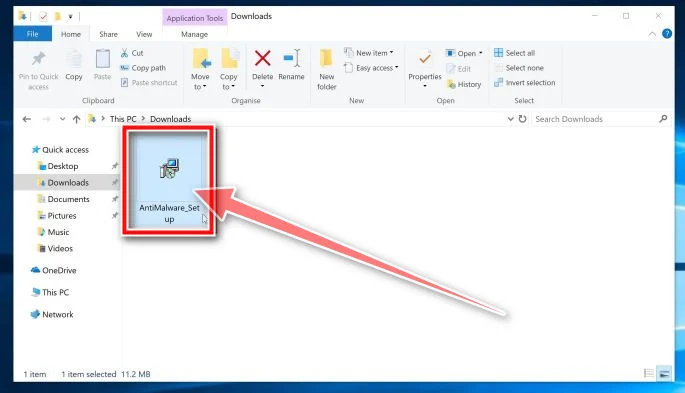
Double-click on the setup file.
Double-click on the file named “Zemana.AntiMalware.Setup.exe” to start the installation of Zemana AntiMalware. In most cases, downloaded files are saved to the Downloads folder.
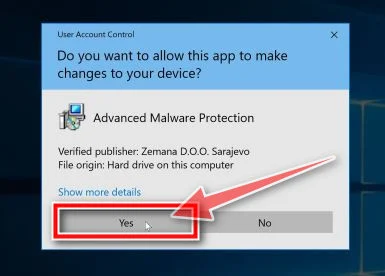
You may be presented with a User Account Control dialog asking you if you want to run this file. If this happens, you should click “Yes” to continue with the installation.
-
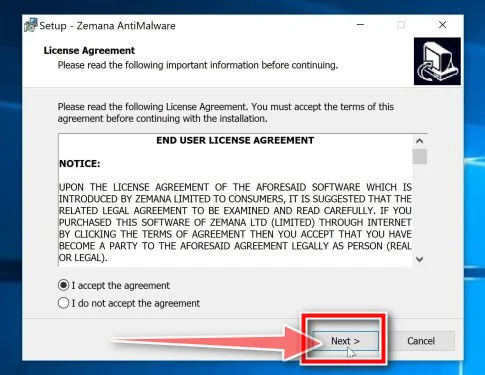
Install Zemana AntiMalware Free.
Click on the “Next” button to install Zemana AntiMalware on your PC. Follow the on-screen prompts to complete the install process.
-
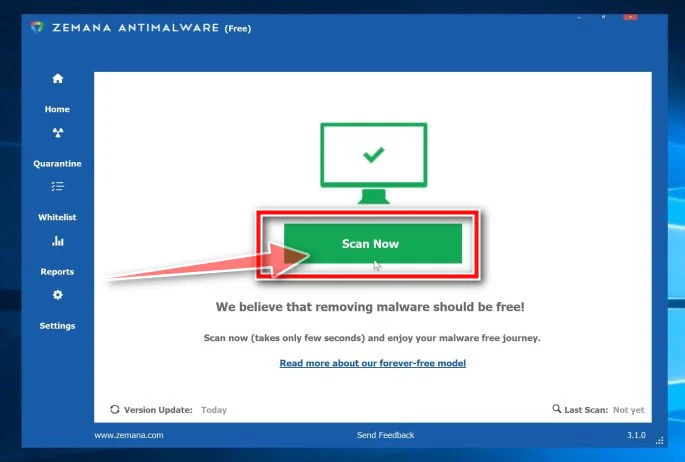
Click on “Scan Now”.
When Zemana AntiMalware will start, click on the “Scan Now” button to perform a system scan.
-
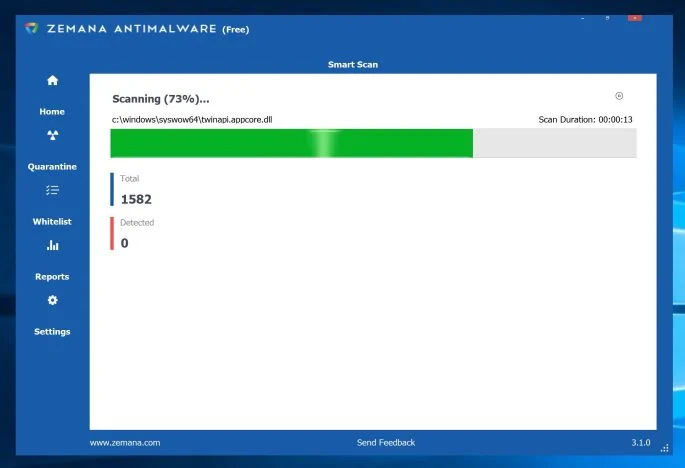
Wait for the Zemana AntiMalware scan to complete.
Zemana AntiMalware will now scan your PC for malicious files. This process can take a few minutes.
-
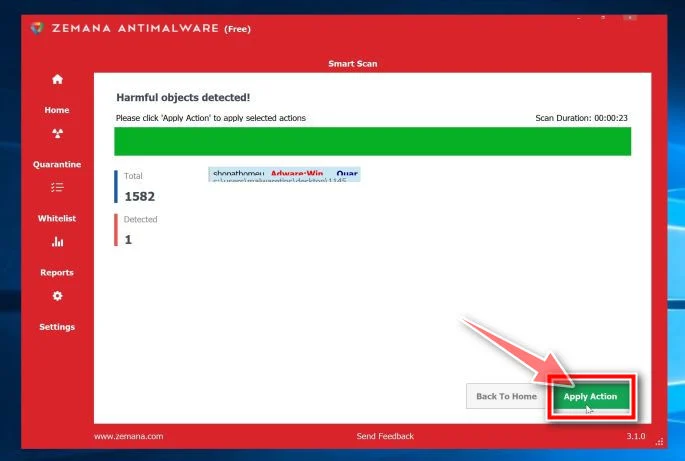
Click on “Apply Action”.
When Zemana AntiMalware has finished it will display a list of all the malware that the program found. Click on the “Apply Action” button to remove the malicious files from your computer.
-
Restart your PC.
When the malware removal process is complete, Zemana AntiMalware may need to restart your computer. Click on the “Reboot” button to reset your PC.
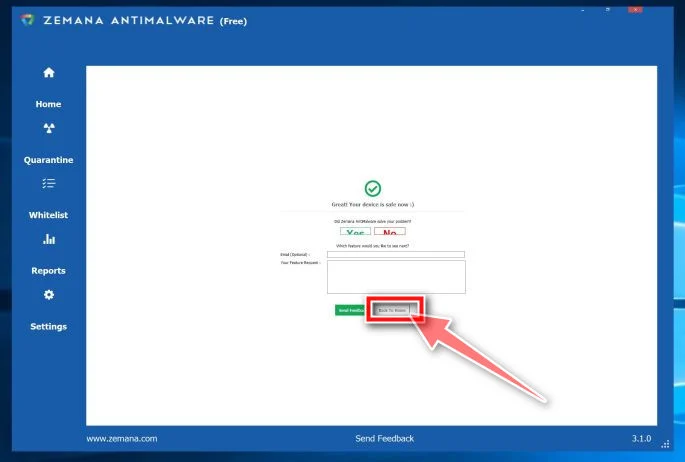
Your computer should now be free of malware. If you are still experiencing problems while trying to remove malware from your device, please do one of the following:
- Run a system scan with Emsisoft Emergency Kit
- Ask for help in our Malware Removal Assistance for Windows forum.

Join the discussion
6 commentsShare your experience or ask a question about this article.
Your progress
Did these steps help?
Let us know how the guide worked for you.
Describe what you see and the step you reached. Keep passwords and other private information out.
Discussion
Zemana really helped!
Wow, This worked for something other than zipperfly, I was able to backtrack to find you because of the zipperfly having shown up on another computer, and someone had shown me your link. I used it to help someone who had infected their computer, and they had active virus protection. Thank you for your time to do this, and I will highly recommend your instructions to anyone that views this. It found something using each of the 3 different malware removal tools. Thanks I agree with Brett Strobridge Zemana found the final IE home page infection.
Zemana was the only one that would remove a persistent IE home page infection that everything else missed! Thanks for sharing this.
Thank you so much for your help!
It took me a while to clean my pc, but after following your advice i succeeded. :-)
Thanks alot!
Kind Regards from Denmrak
Simona
Hi,
Thanks – I used anti-malware and it picked up pup.optional.outbrowse file
I am – hopefully was after restart getting shopping deals ads on amazon and elsewhere + http://www.tradeadexchange.com/ would open in new tab then redirect to other windows that would require double close after pop up to close.
Don’t know what it came buried in – hopefully it’s gone
Thank you for taking the time to write this.
Thank ytou the programs you advised seemed to have done what you state.
I cannot afford to financially support you but will recommend you to to others and I am sure some of them will be able to contribute to your overhead