

If you’ve got S.M.A.R.T Repair alert on your computer,then as you probably already suspect you’re computer has been infected with a rogue software.
S.M.A.R.T Repair has changed your desktop background,hidden your files and shortcuts and it’s causing browsing redirects.T
S.M.A.R.T Repair is a malicious software that will display fake alerts, claiming that several hard drive errors were detected on your computer.In reality, none of the reported issues are real, and are only used to scare you into buying S.M.A.R.T Repair and stealing your personal financial information.
This rogue software has changed your desktop background,hidden your files and shortcuts and it’s causing browsing redirects.
We strongly advise you to follow our S.M.A.R.T Repair removal guide and ignore any alerts that this malicious software might generate.Under no circumstance should you buy this rogue security software as this could lead to identity theft.
If you’ve got a S.M.A.R.T Repair infection , you’ll be seeing this screens :
![[Image: Smart-HDD.png]](https://malwaretips.com/blogs/wp-content/uploads/mwt-media/76/76745db2abb00a4205d12bdea1c6b0e9bf3595af13eacd860c111c3d87c4dada/5de2d330f5cf6012b6e9ff4cd11983b79c9fcbb3d90e30cf67027911a4231a3e-715.webp "S.M.A.R.T Repair")
![[Image: Smart-HDD.png]](https://malwaretips.com/blogs/wp-content/uploads/mwt-media/2c/2ce2504070f721f471c8489d95da3ce4c910f4203d5453c83a4e4604e092791e/74e32ae2a9a69b0ac8948e56a5066e0e329f912138445d5d9c2b9a660d7b2981-715.webp "S.M.A.R.T Repair")
![[Image: Smart-HDD.png]](https://malwaretips.com/blogs/wp-content/uploads/mwt-media/f1/f1ceb2f793541e453f26d2ff8d09133861e2907646af0c76ebd8c54627a6aad8/ec239ebfc6fea776304b1a2cc45036893c150328e62fcd642a90115509bad525-586.webp "S.M.A.R.T Repair")
Registration codes for S.M.A.R.T Repair
As an optional step,you can use the following license key to register S.M.A.R.T Repair and stop the fake alerts.
08869246386344953972969146034087
Please keep in mind that entering the above registration code will NOT remove S.M.A.R.T Repair from your computer , instead it will just stop the fake alerts so that you’ll be able to complete our removal guide more easily.
Removal guide for S.M.A.R.T Repair
STEP 1 : Start your computer in Safe Mode with Networking
- Remove all floppy disks, CDs, and DVDs from your computer, and then restart your computer.
- Press and hold the F8 key as your computer restarts.Please keep in mind that you need to press the F8 key before the Windows start-up logo appears.
- On the Advanced Boot Options screen, use the arrow keys to highlight Safe Mode with Networking , and then press ENTER.
![[Image: Safemode.jpg]](//malwaretips.com/images/removalguide/safemode.jpg "Safe Mode with Networking screen")
- Log on to your computer with a user account that has administrator rights
![[Image: Safemode.jpg]](http://malwaretips.com/images/removalguide/safemode.jpg "Safe Mode with Networking screen")
STEP 2: Remove S.M.A.R.T Repair malicious proxy server
S.M.A.R.T Repair may add a proxy server which prevents the user from accessing the internet,follow the below instructions to remove the proxy.
- Start Internet Explorer
![[Image: S.M.A.R.T Repair- IE]](//malwaretips.com/images/removalguide/Ieicon.png "IE 9") and if you are using Internet Explorer 9 ,click on the gear icon
and if you are using Internet Explorer 9 ,click on the gear icon ![[Image: IE gear icon]](//malwaretips.com/images/removalguide/icongear.jpg "Gear Icon") (Tools for Internet Explorer 8 users) ,then select Internet Options.
(Tools for Internet Explorer 8 users) ,then select Internet Options.
![[Image: Internet-options-IE.png]](//malwaretips.com/images/removalguide/ie1.png "Internet Options in IE")
- Go to the tab Connections.At the bottom, click on LAN settings.
![[Image: Remove-proxy-server2.png]](//malwaretips.com/images/removalguide/ie2.png "Connections tab in Internet Explorer")
- Uncheck the option Use a proxy server for your LAN. This should remove the malicious proxy server and allow you to use the internet again.
![[Image: Remove-proxy-server3.png]](//malwaretips.com/images/removalguide/ie3.png "Uncheck the option Use a proxy server for your LAN")
![[Image: S.M.A.R.T Repair- IE]](http://malwaretips.com/images/removalguide/Ieicon.png "IE 9") and if you are using Internet Explorer 9 ,click on the gear icon
and if you are using Internet Explorer 9 ,click on the gear icon ![[Image: IE gear icon]](http://malwaretips.com/images/removalguide/icongear.jpg "Gear Icon") (Tools for Internet Explorer 8 users) ,then select Internet Options.
(Tools for Internet Explorer 8 users) ,then select Internet Options.![[Image: Internet-options-IE.png]](http://malwaretips.com/images/removalguide/ie1.png "Internet Options in IE")
![[Image: Remove-proxy-server2.png]](http://malwaretips.com/images/removalguide/ie2.png "Connections tab in Internet Explorer")
![[Image: Remove-proxy-server3.png]](http://malwaretips.com/images/removalguide/ie3.png "Uncheck the option Use a proxy server for your LAN")
If you are a Firefox users, go to Firefox(upper left corner) → Options → Advanced tab → Network → Settings → Select No Proxy
STEP 3: Run RKill to terminate known malware processes associated with S.M.A.R.T Repair.
RKill is a program that attempts to terminate any malicious processes associated with S.M.A.R.T Repair ,so that your normal security software can then run and clean your computer of infections.
As RKill only terminates a program’s running process, and does not delete any files, after running it you should not reboot your computer as any malware processes that are configured to start automatically will just be started again.
- While your computer is in Safe Mode with Networking ,please download the latest official version of RKill.

- Double-click on the RKill iconin order to automatically attempt to stop any processes associated with S.M.A.R.T Repair.
![[Image: run-rkill-1.png]](//malwaretips.com/images/removalguide/rkill1.png "RKILL ICON")
- RKill will now start working in the background, please be patient while the program looks for various malware programs and tries to terminate them.
![[Image: run-rkill-2.png]](//malwaretips.com/images/removalguide/rkill2.png "RKILL Command prompt")
IF you receive a message that RKill is an infection, that is a fake warning given by the rogue. As a possible solution we advise you to leave the warning on the screen and then try to run RKill again.Run RKill until the fake program is not visible but not more than ten times.
IF you continue having problems running RKill, you can download the other renamed versions of RKill from here. - When Rkill has completed its task, it will generate a log. You can then proceed with the rest of the guide.
![[Image: S.M.A.R.T Repair rkill3.jpg]](//malwaretips.com/images/removalguide/rkill3.png "RKILL LOG")
![[Image: run-rkill-1.png]](http://malwaretips.com/images/removalguide/rkill1.png "RKILL ICON")
![[Image: run-rkill-2.png]](http://malwaretips.com/images/removalguide/rkill2.png "RKILL Command prompt")
![[Image: S.M.A.R.T Repair rkill3.jpg]](http://malwaretips.com/images/removalguide/rkill3.png "RKILL LOG")
WARNING: Do not reboot your computer after running RKill as the malware process will start again , preventing you from properly performing the next step.
STEP 4: Remove S.M.A.R.T Repair malicious files with Malwarebytes Anti-Malware FREE
- Please download the latest official version of Malwarebytes Anti-Malware FREE.
- Install Malwarebytes’ Anti-Malware by double clicking on mbam-setup.
![[Image: malwarebytes-installer.png]](//malwaretips.com/images/removalguide/mbam1.png "Malwarebytes Anti-Malware Installer")
- When the installation begins, keep following the prompts in order to continue with the installation process. Do not make any changes to default settings and when the program has finished installing, make sure you leave both the Update Malwarebytes’ Anti-Malware and Launch Malwarebytes’ Anti-Malware checked. Then click on the Finishbutton. If Malwarebytes’ prompts you to reboot, please do not do so.
![[Image: install-malwarebytes.png]](//malwaretips.com/images/removalguide/mbam2.png "Install Malwarebytes Anti-Malware")
- Malwarebytes Anti-Malware will now start and you’ll be prompted to start a trial period , please select ‘Decline‘ as we just want to use the on-demand scanner.
![[Image: decline-trial-malwarebytes.png]](//malwaretips.com/images/removalguide/mbam3.PNG "Decline trial period in Malwarebytes Anti-Malware")
- On the Scanner tab,please select Perform full scan and then click on the Scan button to start scanning your computer for any possible infections.
![[Image: malwarebytes-full-system-scan.png]](//malwaretips.com/images/removalguide/mbam4.png "Perform a Full System Scan")
- Malwarebytes’ Anti-Malware will now start scanning your computer for S.M.A.R.T Repair malicious files as shown below.
![[Image: malwarebytes-scanning.png]](//malwaretips.com/images/removalguide/mbam5.png "Malwarebytes Anti-Malware scanning for S.M.A.R.T Repair")
- When the scan is finished a message box will appear, click OK to continue.
![[Image: malwarebytes-scan-finish.png]](//malwaretips.com/images/removalguide/mbam9.png "Malwarebytes when the scan is finished")
- You will now be presented with a screen showing you the malware infections that Malwarebytes’ Anti-Malware has detected.Please note that the infections found may be different than what is shown in the image.Make sure that everything is Checked (ticked) and click on the Remove Selected button.
![[Image: malwarebytes-scan-results.png]](//malwaretips.com/images/removalguide/mbam6.png "S.M.A.R.T Repair infection scan results")
- Malwarebytes’ Anti-Malware will now start removing the malicious files.If during the removal process Malwarebytes will display a message stating that it needs to reboot, please allow this request.
![[Image: malwarebytes-reboot-prompt.png]](//malwaretips.com/images/removalguide/mbam10.png "Reboot prompt from Malwarebytes")
![[Image: malwarebytes-installer.png]](http://malwaretips.com/images/removalguide/mbam1.png "Malwarebytes Anti-Malware Installer")
![[Image: install-malwarebytes.png]](http://malwaretips.com/images/removalguide/mbam2.png "Install Malwarebytes Anti-Malware")
![[Image: decline-trial-malwarebytes.png]](http://malwaretips.com/images/removalguide/mbam3.PNG "Decline trial period in Malwarebytes Anti-Malware")
![[Image: malwarebytes-full-system-scan.png]](http://malwaretips.com/images/removalguide/mbam4.png "Perform a Full System Scan")
![[Image: malwarebytes-scanning.png]](http://malwaretips.com/images/removalguide/mbam5.png "Malwarebytes Anti-Malware scanning for S.M.A.R.T Repair")
![[Image: malwarebytes-scan-finish.png]](http://malwaretips.com/images/removalguide/mbam9.png "Malwarebytes when the scan is finished")
![[Image: malwarebytes-scan-results.png]](http://malwaretips.com/images/removalguide/mbam6.png "S.M.A.R.T Repair infection scan results")
![[Image: malwarebytes-reboot-prompt.png]](http://malwaretips.com/images/removalguide/mbam10.png "Reboot prompt from Malwarebytes")
STEP 5: Double check your system for any left over infections with HitmanPro
- This step can be performed in Normal Mode ,so please download the latest official version of HitmanPro.
- Double click on the previously downloaded file to start the HitmanPro installation.
![[Image: hitmanpro-icon.png]](//malwaretips.com/images/removalguide/hpro1.png "HitmanPro Installer")
NOTE : If you have problems starting HitmanPro, use the “Force Breach” mode. Hold down the left CTRL-key when you start HitmanPro and all non-essential processes are terminated, including the malware process. (How to start HitmanPro in Force Breach mode – Video) - Click on Next to install HitmanPro on your system.
![[Image: installing-hitmanpro.png]](//malwaretips.com/images/removalguide/hpro2.png "HitmanPro installation process")
- The setup screen is displayed, from which you can decide whether you wish to install HitmanPro on your machine or just perform a one-time scan, select a option then click on Next to start a system scan.
![[Image: hitmanpro-setup-options.png]](//malwaretips.com/images/removalguide/hpro3.png "HitmanPro setup options")
- HitmanPro will start scanning your system for malicious files. Depending on the size of your hard drive, and the performance of your computer, this step will take several minutes.
![[Image: hitmanpro-scanning.png]](//malwaretips.com/images/removalguide/hpro4.png "HitmanPro scanning for S.M.A.R.T Repair")
- Once the scan is complete,a screen displaying all the malicious files that the program found will be shown as seen in the image below.After reviewing each malicious object click Next.
![[Image: hitmanpro-scan-results.png]](https://malwaretips.com/blogs/wp-content/uploads/mwt-media/9f/9feb7abb654153bc5a2bf97edc3d34ffb7aea688f5c28914a45fb58e7daae6c0/0aa5d57daf07172341f1f30474be2c55820b88d105c13d5f3f0847b03570180d-532.webp "HitmanPro S.M.A.R.T Repair scan results")
- Click Activate free license to start the free 30 days trial and remove the malicious files.
![[Image: hitmanpro-activation.png]](//malwaretips.com/images/removalguide/hpro6.png "Activate HitmanPro free license to remove detected infections")
- HitmanPro will now start removing the infected objects, and in some instances, may suggest a reboot in order to completely remove the malware from your system. In this scenario, always confirm the reboot action to be on the safe side.
![[Image: hitmanpro-icon.png]](http://malwaretips.com/images/removalguide/hpro1.png "HitmanPro Installer")
![[Image: installing-hitmanpro.png]](http://malwaretips.com/images/removalguide/hpro2.png "HitmanPro installation process")
![[Image: hitmanpro-setup-options.png]](http://malwaretips.com/images/removalguide/hpro3.png "HitmanPro setup options")
![[Image: hitmanpro-scanning.png]](http://malwaretips.com/images/removalguide/hpro4.png "HitmanPro scanning for S.M.A.R.T Repair")
![[Image: hitmanpro-activation.png]](http://malwaretips.com/images/removalguide/hpro6.png "Activate HitmanPro free license to remove detected infections")
STEP 6: Unhide your files and folders
S.M.A.R.T Repair modifies your file system in such a way that all files and folders become hidden, to restore the default settings , you’ll need to run the below program.
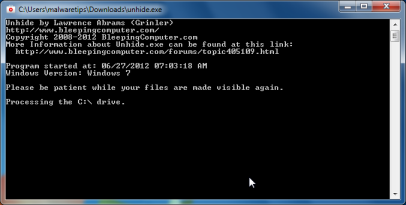
- Download Unhide.exe, to unhide your files and folders.
- Double-click on the Unhide.exe icon on your desktop and allow the program to run.The whole process should not take more than 5 minutes to complete,and at the end this utility will generate a report.
STEP 7 : Restore your shortcuts and remove any left over malicious registry keys
S.M.A.R.T Repair has moved your shortcuts files in the Temporary Internet folder and added some malicious registry keys to your Windows installation , to restore your files we will need to perform a scan with RogueKiller.
- Please download the latest official version of RogueKiller.
- Double click on RogueKiller.exe to start this utility and then wait for the Prescan to complete.This should take only a few seconds and then you can click the Start button to perform a system scan.
![[Image: roguekiller-1.png]](https://malwaretips.com/blogs/wp-content/uploads/mwt-media/a0/a0d25d880942dfa26618376c62dfb6122db4dce6da1f98af88226492d891c726/3b18c4b4589830dce38a71c95707969fb78876e99bee478a38dc5859de121469-600.webp "Click on the Start button to perform a system scan")
- After the scan has completed, press the Delete button to remove any malicious registry keys.
![[Image: roguekiller-2.png]](https://malwaretips.com/blogs/wp-content/uploads/mwt-media/9f/9f4f19530cf788dadd63ca5cb2b699db64b2c458570562cf64119031399aa734/977a2f35e7391111faf80a98edc26af95eb5f7edac47e879725c2d4fde16a6b2-600.webp "Press Delete to remove the malicious registry keys")
- Next we will need to restore your shortcuts, so click on the ShortcutsFix button and allow the program to run.
![[Image: roguekiller-1.png]](https://malwaretips.com/blogs/wp-content/uploads/mwt-media/d2/d2d5b2f67b85190aa179638d6aa94e89ca7023db0ec35f9c16d68935570e08b6/2de9d31cb58b1ff8a2e883c0d10cdfea8395222e382421e03405f12bab6af683-600.webp "Click on the Start button to perform a system scan")
STEP 8: Get your desktop look back!
S.M.A.R.T Repair changes your desktop background to a solid black color,to change it back to default one follow the below instruction.
- Windows XP : Click on the Start button and then select Control Panel. When the Control Panel opens, please click on the Display icon. From this screen you can now change your Theme and desktop background.
- Windows 7 and Vista : Click on the Start button and then select Control Panel. When the Control Panel opens, please click on the Appearance and Personalization category. Then select Change the Theme or Change Desktop Background to revert back to your original Theme and colors.
What’s next? Join our amazing community and build up your malware defenses !

Join the discussion
75 commentsShare your experience or ask a question about this article.
Discussion
Hi, a family member of mine accidently ordered the igooseberry suff with team viewer and everything because he thought the computer might be destroyed, but seeing it now i hear its all a scam and what not. He went along and made some payments and its been awhile. Is there a way to stop all payments and make them leave him alone? if you can help then thank you
In reply to Joe
Hello Joe,
He needs to contact its bank and inform them that he has been the victim of a scam and possible phishing attack, the bank staff should know how to proceed from there.
NEXT,please run a scan with the tool from this guide to remove the malicious software from your computer.
Good luck!
Dear Contributors,
Big thank you to Stelian Pilici for this thorough, clear guide.
I’m not sure how I picked up S.M.A.R.T Rogue Virus. Would be interesting to find out. I work as a technician and would advise any one infected to keep calm – the fake alert messages seem disturbing at first.
When you see a repeated message reproduce itself on the desktop, this is an old hacker technique. Reports indicate this is an old style virus that’s been updated. (I did not press anything when the SMART Scan appeared. It was obviously bogus).
SMART Rogue Virus hijacks the desktop and sets registry entries to 0 so its difficult to navigate once the virus has “taken over”. The main virus executable file places itself in Documents&Settings\AllUsers\WINDOWS\ApplicationData\ as fA9kENasc6uYJ2.exe (in my case).
I was able to follow Stelian’s Guide with the one exception. Hitman Pro 3.6.2’s “Next” button was greyed-out when I downloaded it to the (still infected) desktop. The solution is to run MBAM in safe mode first, remove the PUM malware, ensure their is no proxy setup in IE8/9, connect to the Net with IE8/9, visit Hitman Pro or Majorgeeks website and select Run rather than download at the prompts, so Hitman Pro’s “next” button is accessible. (I had not heard of Hitman Pro before, but its an excellent malware remover that even spotted and deleted the notorious “Ask” toolbar entries that MBAM missed, as well as SMART Rogue).
In my case, Rogue had disabled my internet connections, but the Open Network Connections function was still available in the system tray (bottom right on all Windows where the clock is). Open network connections, select the connection you always use, right click, choose enable from the pulldown list.
SMART Rogue Virus also disables taskmanager (and in my case) Firefox browser. Following Stelian’s Removal Guide does restore these vital functions.
For the really thorough (or paranoid) I recommend ATF-Cleaner (freeware) and CCleaner (famous freeware) after completing all Stelian’s removal steps. 14.2MB of temp data was removed by ATF-Cleaner. I’m pretty sure my PC is clean.. But I’ll be running regular MBAM’s and Hitman Pro Scans for awhile…
Live long and prosper.
Regards, OldSchoolTech
Thanks so much for your guidance on removing the S.M.A.R.T. virus.
Your instrucitions were clear, precise and worked exactly as you stated.
There is no way I could have done this on my own.
Thanks again and keep up the good work.
THank you for your help removing the S.M.A.R.T. virus….. it was fantastic help!! Wonderful.
Hello Stelian,
Thank you! you are incredible!!!
I spent hours yesterday trying to remove this virus. Your steps FINALLY removed this virus. Thank you SO much! You saved me from having to pay to have it removed.
Worked great! Thanks for a nice job!
Merci !!!
Thank you so much, this was incredibly helpful!
Thank you so much! Superbly written and wonderfully ACCURATE! This saved the user from my brunt of my wrath since he waited until 2pm on a FRIDAY to tell me even though “it had been acting funny for a few days…”
Thanks so much! Your instructions were great and so far so good. When I started I couldn’t even boot into safe mode and get anything done but I was able to go into msconfig and disable the program from starting up on boot, that let me follow your procedure. I got infected going to a website, not opening e-mail or specifically downloading software so this one is really nasty.
Great solution!!! Many thanks….
I want to say THANK YOU! I freaked out when I got the virus, but I read your tutorial and fixed it myself. BTW, what do you think of Kaspersky TDSS Killer? I downloaded it too but am wondering if it’s also a malware. While downloading it, PC Performer also downloaded. I removed PC Performer immediately, but left me wondering about TDSSKiller. Please advise. Thanks.
In reply to Erika
Hello Erika,
Kaspersky TDSSKiller is a legit and good utiltiy , however it’s not need it if you scanned with the software that I’ve recommended in this guide.
Regarding PC Performer , you have made the right decision as I have never heard of this utility and overall this type of software don’t help that much…so stay away from it.
Stay safe!:D
Hi Stelian. Good job with this and thanks. I can’t get Rkill to work even with the other names. I’m thinking SMART may have already countered your latest version. I get a quick black report screen that pops back off almost immediately.
In reply to Royce Logan
Hello,
Hello,
STEP 1. While in NORMAL MODE,download HitmanPro and then start this program in ForceBreach Mode
1.Here are the direct download links for HitmanPro,
– http://dl.surfright.nl/HitmanPro36.exe (For 32bit)
– http://dl.surfright.nl/HitmanPro36_x64.exe (For 64bit)
2.Hold down the left CTRL-key when you start HitmanPro and all non-essential processes are terminated, including this rogue malicious process
Here is a video that explains with graphic details how to do this : http://www.youtube.com/watch?v=m6eRWTv2STk
3. Let HitmanPro scan and remove the detected threats.
Step 2: While in NORMAL MODE,download/Run Rkill and then run a scan with Malwarebytes
1.Download any re-named version of Rkill (direct download links bellow):
http://download.bleepingcomputer.com/grinler/WiNlOgOn.exe
http://download.bleepingcomputer.com/grinler/uSeRiNiT.exe
http://download.bleepingcomputer.com/grinler/rkill.scr
2.Next,please follow the guide starting with the Malwarebytes scan.
Let me know , how everything goes.
In reply to Royce Logan
I got the same thing, after running RKill the black screen whould show and then disapear but after running thru the other steps I had the reports from RKill, i guess they where just being hidden like every thing else.
Thanks much! Stelian
In reply to David
Stay safe David!:)
Well done man!
Great job! If SW/HW tutorials were done done like this, the entire world population would be skilled on computer science!!!
You are a genius!! This worked for me, and was very clearly written without being over my head. Thank God there are smart people like you out there to combat these malicious hackers. Thanks so much!
My only question is, “Where is your donate button??” I totally would!
Thanks again
SIS
In reply to Sis
We do it for the FUN :D … You don’t need to ‘donate’anything!Just stay safe!:D
I have been trying all day to clear this thing off my Dell laptop comp. This is my 5th go-around trying to get things downloaded from these instructions. I’ll have so many new downloads, who knows how long it will take to start my comp up now?!? And, I still am having SMART -a$$ issues!! Anybody know a good comp scrapyard I can take this thing to???? I’m done!!
In reply to CKR
Hello,
So what’s your status?Did you manage to download Rkill,Malwarebytes and HitmanPro?Did your run this scanners?
Thanks for the instructions on how to remove s.m.a.r.t. repair.
There are two things that concern me.
1. How did it get onto my computer?
2. In doing the scans, some programs on my computer were listed as dangerous & needing to be deleted. But they are programs that I want. Is it possible that some software might not really be dangerous but have characteristics that make it appear dangerous to the “doctor” softwares? If so, how can I tell when something really needs to be deleted and when it’s OK to keep?
In reply to Nathan
Hello,
1.There are several ways for this rogue to get on your computer..Some users have reported that they got infected after opening a malicious email attachment , while other say that they have downloaded a fake video codec….Anyway you can read this article: http://malwaretips.com/blogs/from-where-did-my-pc-got-infected/
2.If you have on your PC some programs that you KNOW that they are good ,you should chose the “SKIP” action for HitmanPro……all products can have a false possitive detection so this is not a big thing.
I would suggest that you upload the detected file to virustotal.com and make sure it’s really safe.
Good luck!
Helping out a friend with a Vista system and the S.M.A.R.T Repair issue. Followed your instructions through and seemed to get everything back in safe mode. Windows will now not start in normal mode. The automatic system repair did not resolve the issue and system restore doesn’t seem like a good option since it would probably restore what I just painstakingly removed. The user is not sure she received a Windows disk with this HP desktop. Suggestions? Thanks. BTW your instructions were excellent and really appreciated. This just seems to be a glitch in this system.
In reply to V. Reinecker
Hello,
Please try this steps:
1. Boot from the Windows 7 installation DVD
2. Select Repair your computer option
3. Advanced options
4. Command prompt
5. On the command prompt enter diskpart.
Disk 0 Online
Type: DISKPART> SELECT DISK 0
Type: DISKPART> LIST PARTITION
(this is an example list)
Partition 1 OEM 39 MB
Partition 2 Primary 750 MB
Partition 3 Primary 297 GB < select the partition with Windows, which is probably the first one larger than 16 GB
Type: DISKPART> SELECT PARTITION 3 < select the partition number that has Windows
Partition 3 is now the selected partition
Type: DISKPART> ACTIVE
DiskPart marked the current partition as active
Type: DISKPART> EXIT
Leaving DiskPart…
Type the following commands:
bootrec.exe /fixmbr
bootrec.exe /fixboot
bootrec.exe /rebuildbcd
Scanning
Total identified Windows Installations: 1
Add installation to boot list? Y
Operation completed successfully
6.Restart the computer.
Now if the BOOTMGR is missing, we need to fix that too.
1. Again, insert the Windows 7 installation disc into the disc drive, and then start the computer.
2. Select Repair your computer option
3. In the System Recovery Options dialog box, choose the drive of your Windows installation and click Next.
4. At the System Recovery Options Dialog Box, click on Repair your computer.
5. Click the operating system that you want to repair, and then click Next
6. In the System Recovery Options dialog box, click Startup Repair
7. Restart
Now the computer should work again. Be sure to run Windows Update and scan it again with HitmanPro to remove any residual infections (if there are any).
Please let us know if you need any further assistance. We are happy to help.
In reply to Stelian Pilici
I am assuming you mean from a Widows Vista disk on a Vista system or would a Windows 7 disk work too?
In reply to VR
Yes,this will work also for Windows Vista!
Thanks, this was very helpful. I would start with disabling the process first. then unhiding the files. You can then restore most of the user functions after that manually. While your antivirus does the rest.