

The promise is tempting: Get paid to review music on Spotify, earn up to $45/hour, and join a community of passionate music lovers. But that promise, as advertised by sites like SpotifyReview.com, is not what it seems. Instead of leading you to a legitimate job opportunity, it sends you straight into a deceptive funnel of affiliate offers, spam traps, and potential financial harm.
In this in-depth exposé, we’ll uncover the truth behind the SpotifyReview.com scam, explain exactly how it works, and show you what to do if you’ve already been tricked. Whether you’re a job seeker, a student, or just someone who clicked out of curiosity, this article will give you the tools to spot the red flags and stay protected. We’ll also explore similar scams, warning signs to watch for, and how these schemes exploit economic uncertainty and the remote work boom to reach a broader audience.
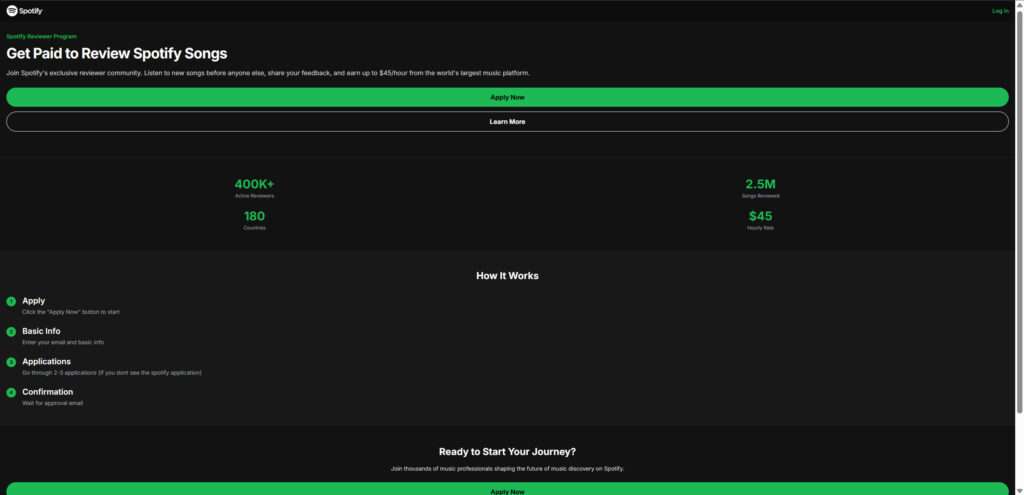
Scam Overview: The Deceptive Promise of SpotifyReview.com
At first glance, SpotifyReview.com looks polished and professional. The branding mimics Spotify’s own aesthetic, the interface feels sleek, and the pitch is simple: “Get paid to review songs.” The site goes on to promise $45/hour in compensation, 400,000+ active reviewers, and a global community across 180 countries.
But these numbers are fake.
The entire platform is built on deception. It leverages the name of a legitimate company—Spotify—to appear trustworthy. However, Spotify has no affiliation with this website. There’s no legitimate reviewer program endorsed by Spotify where users can get paid simply for listening to music.
The scam preys on job seekers, music lovers, and anyone looking for flexible, easy income opportunities. These groups are especially vulnerable because the offer appears low-effort and high-reward. But the consequences go beyond disappointment.
Fabricated Credibility
To lure users in, SpotifyReview.com relies heavily on manufactured legitimacy. This includes:
- Fake Stats: Claims of 2.5 million songs reviewed and 400,000+ active users are unsubstantiated and unverifiable.
- False Testimonials: Generic reviews are shown with stock images or no real user verification. Some testimonials are even AI-generated.
- Fake Job Listing: The “$45/hour” wage is an arbitrary number chosen to maximize appeal and urgency.
These tactics are common in affiliate scams. They exploit trust in big brand names to lower users’ defenses and drive clicks and conversions.
Hidden Motive
The real goal of SpotifyReview.com isn’t to hire music reviewers. Instead, the site is a lead generation funnel designed to:
- Capture your personal information
- Redirect you to third-party offers and downloads
- Trick you into signing up for paid subscriptions
- Push downloads that may include adware or malware
- Collect affiliate revenue from each click, signup, or install
Every step you take on the site helps the operators earn affiliate commissions, not deliver a job. These affiliate networks often pay for traffic, form submissions, and even completed fake transactions. You’re not just being deceived—you’re being monetized.
Not Listed on Official Channels
You won’t find SpotifyReview.com linked from any official Spotify domain, blog, or social media account. That’s because it has no connection to the actual music streaming service. If you try contacting Spotify support about it, they will confirm it’s a scam. In fact, Spotify has publicly disavowed similar fake promotions in the past.
High Risk for Users
People who fall for the scam often end up with:
- Flooded inboxes full of spam and promotional emails
- Unexpected charges from hidden subscriptions or auto-renewals
- Compromised personal data sold to marketing networks, spammers, or worse
- Device infections from software installs prompted by the site
- Long-term security issues if login credentials are reused across platforms
Once your information is compromised, it can take months to clean up the aftermath—and in some cases, victims never fully recover their digital privacy.
How the Scam Works
The SpotifyReview.com scam is engineered to keep you engaged, clicking, and providing data. It’s a well-oiled machine optimized for deception and user manipulation. Here’s exactly how it unfolds:
Step 1: High-Value Clickbait
The scam starts with social media ads, job board listings, or video ads claiming:
- “Spotify is hiring music reviewers!”
- “Earn $45/hour listening to songs!”
- “Remote job! No experience needed!”
The goal is to create urgency and curiosity, especially for people looking for side income or remote work. Many victims report seeing these ads on platforms like Facebook, Instagram, or even through email newsletters posing as job bulletins.
Step 2: Convincing Landing Page
Once you click, you’re taken to SpotifyReview.com. It features:
- A bold headline with the $45/hour offer
- A call-to-action button like “Apply Now”
- Claims of huge user bases and global participation
- Simple instructions: “Apply, Enter Info, Complete Offers, Get Paid”
The design mimics legitimate company sites, but there are subtle giveaways:
- No company address or legal documentation
- No verifiable privacy policy
- No contact information or customer support
- No actual job listings or employment terms
In some cases, these scam pages even use pop-ups with fake job chat messages to simulate real-time activity and add false urgency.
Step 3: Data Collection
You’re asked to enter:
- Your name
- Your email address
- Sometimes your phone number, zip code, or mailing address
This info is used to create targeted marketing profiles and sold to third-party advertisers. It can also be exploited in phishing attacks or used to reset your passwords on other platforms if you reuse login credentials.
Step 4: Affiliate Offer Wall
Next, you’re told to “complete 2-3 short applications” to unlock your reviewer account. This is where the real scam begins:
- Offers lead to gambling sites, subscription services, or adult content
- Many ask for credit card information under the guise of a “free trial”
- Some require you to download software that may install malicious files
- Others encourage you to complete surveys that never lead to any job access
With every click or completed form, the scammers earn commission, while you earn nothing. You’re unknowingly fueling their business model.

Step 5: No Real Job in Sight
After completing the offers, users expect access to a dashboard or reviewer portal. Instead, they:
- Get redirected again
- Receive no follow-up emails
- Are added to mailing lists or recurring subscription traps
You’ll never review a song or get paid. In fact, you may end up paying for things you never wanted in the first place.
Step 6: Viral Expansion Through Referrals
Some versions of the scam prompt users to “invite friends” to speed up approval. This turns victims into unknowing promoters. Some users post their referral links in Facebook groups or forums, spreading the scam organically. It’s a classic pyramid-style manipulation, benefiting the top while exploiting the bottom.
What to Do If You’ve Fallen Victim to This Scam
If you interacted with SpotifyReview.com or entered any data, take these steps immediately:
1. Stop Using the Site
Close all tabs and block the website in your browser settings. Don’t revisit it, and avoid clicking on any further ads from similar sites.
2. Change Passwords
If you reused a password on this site, change it everywhere else it’s used:
- Social media
- Online banking
- Streaming services
Use a password manager to create strong, unique passwords for every platform. Enable two-factor authentication (2FA) where available.
3. Scan for Malware
If you downloaded anything from the site, run a full malware and antivirus scan. Use reputable software like Malwarebytes, Norton, or Bitdefender. Delete any flagged or unknown files immediately.
4. Monitor Financial Accounts
If you entered payment info, watch your bank or credit card statements closely. Look for small test charges and unknown subscriptions. Cancel suspicious charges and inform your financial institution of potential fraud.
5. Report the Scam
Report SpotifyReview.com to:
- Spotify (via their help center)
- FTC: reportfraud.ftc.gov
- IC3 (Internet Crime Complaint Center): ic3.gov
- Better Business Bureau
- Your local consumer protection agency or cybercrime division
6. Warn Others
Share this article or post about your experience on forums like Reddit, Quora, Trustpilot, and scam reporting websites. You could save someone else from making the same mistake.
7. Use Identity Monitoring Services
If sensitive data was shared, consider subscribing to services like:
- LifeLock
- Aura
- IdentityForce
These platforms provide alerts for suspicious activity involving your personal information, including identity theft, credit monitoring, and new account openings.
Is Your Device Infected? Run a Free Malware Scan
Slow performance, constant pop-ups, or strange behavior? These are classic signs of a malware infection. The fastest way to find out is to scan your device with Malwarebytes Free — one of the most trusted malware removal tools available.
The free version detects and removes the most common threats, including:
- Adware — the cause of those annoying pop-ups
- Browser hijackers — unwanted redirects and changed homepages
- Trojans and spyware — hidden programs stealing your data
- Potentially unwanted programs (PUPs) — software you never asked for
👉 Select your device below — Windows, Mac, or Android — then follow the simple steps to download Malwarebytes, scan your system, and remove any threats it finds. The scan usually takes 5 to 20 minutes.
Run a Malware Scan with Malwarebytes for Windows
Malwarebytes is one of the most popular and trusted anti-malware tools for Windows — and it’s completely free for removing infections. It catches threats that many antivirus programs miss, including adware, browser hijackers, and trojans. Follow the steps below to scan and clean your PC in just a few minutes.
Download Malwarebytes
Click the button below to download the latest version of Malwarebytes for Windows from the official source. The free version is all you need — it will scan your computer and remove adware, browser hijackers, and other malicious software at no cost.
Download MalwarebytesOfficial installer for Windows 11 and 10. Your download starts right away.Want real-time protection? See Malwarebytes Premium Malwarebytes Free for WindowsScans and removes malware at no cost
-
Install Malwarebytes
When the download finishes, open your Downloads folder and double-click the MBSetup file. If Windows shows a User Account Control pop-up, click “Yes” to allow the installation.

Follow the On-Screen Prompts to Install Malwarebytes
The setup wizard will walk you through a few quick screens:
-
Choose where you’re installing the program — “Personal Computer” or “Work Computer” — then click Next.

-
Malwarebytes will now install on your device. This usually takes under a minute.

-
When installation is complete, the “Welcome to Malwarebytes” screen will open automatically.

-
On the final screen, click Open Malwarebytes to launch the program.

-
Enable “Scan for Rootkits”
Before scanning, turn on rootkit detection so Malwarebytes can find even the most hidden threats. Click the Settings gear icon on the left side of the screen.

In the settings menu, find “Scan for rootkits” and click the toggle so it turns blue.

Done? Click “Dashboard” in the left pane to return to the main screen.
Start the Scan
Click the blue Scan button. Malwarebytes will automatically update its virus database and start checking your computer for malware.

-
Wait for the Scan to Finish
The scan checks your entire system for browser hijackers and other malicious programs, so it can take 5 to 20 minutes depending on your computer. Feel free to do something else — just check back occasionally to see the progress.

-
Quarantine the Detected Threats
When the scan is done, you’ll see a list of everything Malwarebytes found — malware, adware, and potentially unwanted programs. Click the “Quarantine” button to remove all of them at once.

Malwarebytes will now remove the malicious files and registry entries and move them safely into quarantine.

-
Restart Your Computer
Some threats can only be fully removed after a reboot. If Malwarebytes asks you to restart, click Yes. Once you’re logged back in, Malwarebytes has finished removing the threats it found.

That’s it — your Windows PC is now clean of trojans, adware, and other malware, and should be back to running smoothly.
If you are still having problems with your computer after completing these instructions, then please follow one of the steps:
- Run a computer scan with ESET Online Scanner
- Ask for help in our Windows Malware Removal Help & Support forum.
Run a Malware Scan with Malwarebytes for Mac
Malwarebytes for Mac is a free on-demand scanner that removes the malware other security software tends to miss — adware, browser hijackers, and unwanted programs included. Cleaning an infected Mac with Malwarebytes has always been completely free, and it’s our go-to recommendation. Follow the steps below to scan and clean your Mac in just a few minutes.
-
Download Malwarebytes for Mac
Click the button below to download the latest version of Malwarebytes for Mac.
Download MalwarebytesOfficial installer for macOS. Your download starts right away.Want real-time protection? See Malwarebytes PremiumMalwarebytes Free for MacScans and removes malware at no cost -
Open the Malwarebytes setup file
When the download finishes, open your Downloads folder and double-click the setup file to begin the installation.

-
Follow the On-Screen Prompts to Install Malwarebytes
The Malwarebytes for Mac Installer will guide you through a few quick screens. Click “Continue” and keep following the prompts until the installation completes.



When the installation is complete, Malwarebytes opens to the Welcome to Malwarebytes screen. Click “Get started“.
-
Select “Personal Computer” or “Work Computer”
Malwarebytes will ask what type of computer you’re installing it on. Click either Personal Computer or Work Computer, whichever applies.

-
Start the Scan
Click the “Scan” button. Malwarebytes will automatically update its detection database and begin checking your Mac for malware.

-
Wait for the Scan to Finish
Malwarebytes will scan your Mac for adware, browser hijackers, and other malicious programs. This can take a few minutes, so feel free to do something else — just check back occasionally to see the progress.

-
Quarantine the Detected Threats
When the scan is done, you’ll see a list of everything Malwarebytes found. Click the “Quarantine” button to remove all the threats at once.

-
Restart Your Mac
Malwarebytes will now remove all the malicious files it found. Some threats can only be fully removed after a reboot — if Malwarebytes asks you to restart, allow it. Once you’re logged back in, your Mac is clean.

That’s it — your Mac is now free of adware, rogue browser extensions, and other potentially harmful software.
If you are still experiencing problems while trying to remove a malicious program from your computer, please ask for help in our Mac Malware Removal Help & Support forum.
Run a Malware Scan with Malwarebytes for Android
Malwarebytes for Android automatically detects and removes dangerous threats like malware and ransomware so you don’t have to worry about your most-used device being compromised. Aggressive detection of adware and potentially unwanted programs keeps your Android phone or tablet running smooth.
-
Download Malwarebytes for Android.
You can download Malwarebytes for Android by clicking the link below.
Get Malwarebytes for AndroidOpens Google Play in a new tab.Want real-time protection? See Malwarebytes Premium for AndroidMalwarebytes for AndroidScans your phone and removes malware at no cost -
Install Malwarebytes for Android on your phone.
In the Google Play Store, tap “Install” to install Malwarebytes for Android on your device.

When the installation process has finished, tap “Open” to begin using Malwarebytes for Android. You can also open Malwarebytes by tapping on its icon in your phone menu or home screen.

-
Follow the on-screen prompts to complete the setup process
When Malwarebytes will open, you will see the Malwarebytes Setup Wizard which will guide you through a series of permissions and other setup options.
This is the first of two screens that explain the difference between the Premium and Free versions. Swipe this screen to continue.
Tap on “Got it” to proceed to the next step.
Malwarebytes for Android will now ask for a set of permissions that are required to scan your device and protect it from malware. Tap on “Give permission” to continue.
Tap on “Allow” to permit Malwarebytes to access the files on your phone.
-
Update database and run a scan with Malwarebytes for Android
You will now be prompted to update the Malwarebytes database and run a full system scan.

Click on “Update database” to update the Malwarebytes for Android definitions to the latest version, then click on “Run full scan” to perform a system scan.

-
Wait for the Malwarebytes scan to complete.
Malwarebytes will now start scanning your phone for adware and other malicious apps. This process can take a few minutes, so we suggest you do something else and periodically check on the status of the scan to see when it is finished.

-
Click on “Remove Selected”.
When the scan has been completed, you will be presented with a screen showing the malware infections that Malwarebytes for Android has detected. To remove the malicious apps that Malwarebytes has found, tap on the “Remove Selected” button.

-
Restart your phone.
Malwarebytes for Android will now remove all the malicious apps that it has found. To complete the malware removal process, Malwarebytes may ask you to restart your device.
That’s it — your Android phone is now clean — no more malicious apps, adware, or browser redirects.
If you are still having problems with your phone after completing these instructions, then please follow one of the steps:
- Restore your phone to factory settings by going to Settings > General management > Reset > Factory data reset.
- Ask for help in our Mobile Malware Removal Help & Support forum.
Stay Protected: Block Ads and Malicious Sites
Now that your device is clean, keep it that way. Most infections start with a malicious ad or a fake download button — so blocking them at the source is your best defense.
We recommend AdGuard, which blocks malicious ads, phishing pages, and dangerous redirects before they can reach you.
👉 Download AdGuard and browse safely
Frequently Asked Questions About the SpotifyReview.com Scam
Is SpotifyReview.com a legitimate website?
No, SpotifyReview.com is not affiliated with Spotify or any legitimate music reviewing job. It’s a deceptive website designed to trick users into submitting personal information and completing affiliate offers under the false promise of paid music reviews.
Does Spotify actually pay users to review music?
No. Spotify does not pay users to review songs. Any website claiming otherwise is likely a scam or part of a deceptive marketing funnel. Spotify does have internal programs for data gathering and research, but they are never promoted through public “get paid to listen” job offers.
What is the purpose of SpotifyReview.com?
The true purpose of SpotifyReview.com is affiliate revenue generation. It collects user data and redirects visitors through third-party promotions, surveys, app downloads, or subscription offers. Every interaction potentially earns the scammers money, while users get nothing in return.
What happens if I gave them my email or phone number?
If you submitted your contact details, expect:
- Spam emails or texts
- Phishing attempts
- Potential resale of your data to third-party marketing lists
You should update your privacy settings, block unwanted senders, and monitor for suspicious activity.
Can SpotifyReview.com charge my bank account?
Not directly. But if you entered your card info while completing their affiliate offers (such as fake trials), you may be enrolled in unwanted subscriptions or billed without clear consent. Check your bank statements and dispute any unauthorized charges immediately.
How can I check if I downloaded malware?
Run a full scan using trusted security tools like:
- Malwarebytes
- Bitdefender
- Norton
- Windows Defender (for basic detection)
Delete any suspicious files, especially if the download came from an unknown source pushed by the site.
What should I do if I signed up and completed the offers?
Immediately:
- Change your passwords (especially if reused)
- Scan your device for malware
- Monitor bank activity if you provided card details
- Unsubscribe from any email lists or services
- Report the scam to the FTC, IC3, and Spotify
How can I avoid scams like this in the future?
- Always verify the URL—legitimate Spotify links end in
.spotify.com - Look for signs of a scam: no contact info, vague terms, fake reviews
- Don’t trust “too good to be true” job offers
- Never provide payment info during an application process
Why do these scams keep popping up?
Because they work. Scammers make money through affiliate programs, data harvesting, and user manipulation. These sites multiply quickly, changing domains often to avoid detection. Public awareness is key to slowing them down.
Can I get my data back?
Unfortunately, once your data is submitted to a scam site, it’s likely already sold or shared. While you can’t retrieve it, you can:
- Reduce risk by securing your accounts
- Use identity protection services
- Limit future exposure by avoiding shady websites and using browser protection tools
The Bottom Line
SpotifyReview.com is a fraudulent website that tricks users into thinking they’re applying for a music reviewing job with Spotify. In reality, it funnels users through affiliate offers to make money off their time, data, and sometimes, bank accounts.
There is no real job.
If you see a “$45/hour to review music” ad, run the other way. Only trust job offers listed directly on official company websites or verified hiring platforms. Never submit personal data to a company you haven’t thoroughly vetted.
Stay alert, protect your data, and help others avoid falling victim to online job scams like this one. By staying informed and sharing this knowledge, you can help dismantle these deceptive networks and keep the internet a safer place for everyone.
Always verify opportunities. Trust official sources. And remember: legitimate jobs will never ask you to pay or jump through hoops just to apply.

Reviews & discussion
0 commentsShare a firsthand experience, or ask a question.
Community reviews
spotifyreview.com
Moderated reader experiences, not an editorial verdict.
Reviews
Be the first to review
Approved reviews for this site or product will appear here.