


Have you seen ads promising you can earn hundreds of dollars a week just by reviewing TikTok videos? Maybe you came across a site called TokPayz.com, claiming to let users become paid TikTok reviewers after completing a few simple steps. The offer sounds irresistible — make money from home, no experience required, just by watching and reviewing short videos. But if it sounds too good to be true, it almost always is.
TokPayz.com is not an official TikTok opportunity. It’s a deceptive scam built to steal personal data, push affiliate deals, and make money from users who think they’re signing up for a legitimate job. Victims are lured in by professional-looking pages, fake testimonials, and logos that imitate TikTok branding. However, no one actually gets paid for reviewing anything.
In this detailed guide, we’ll break down everything you need to know about the TokPayz.com TikTok Reviewer Scam — including how it works, what signs to watch for, and what to do if you’ve already fallen for it.
Scam Overview
A Fake TikTok Reviewer Program
The TokPayz.com TikTok Reviewer Scam is a fraudulent website that pretends to offer a job reviewing TikTok videos. It typically appears as an ad on social media platforms such as Facebook, Instagram, or YouTube, using headlines like:
- “Earn $800 weekly reviewing TikTok videos.”
- “Get paid to rate TikTok content from home.”
- “Join TikTok’s official reviewer team.”
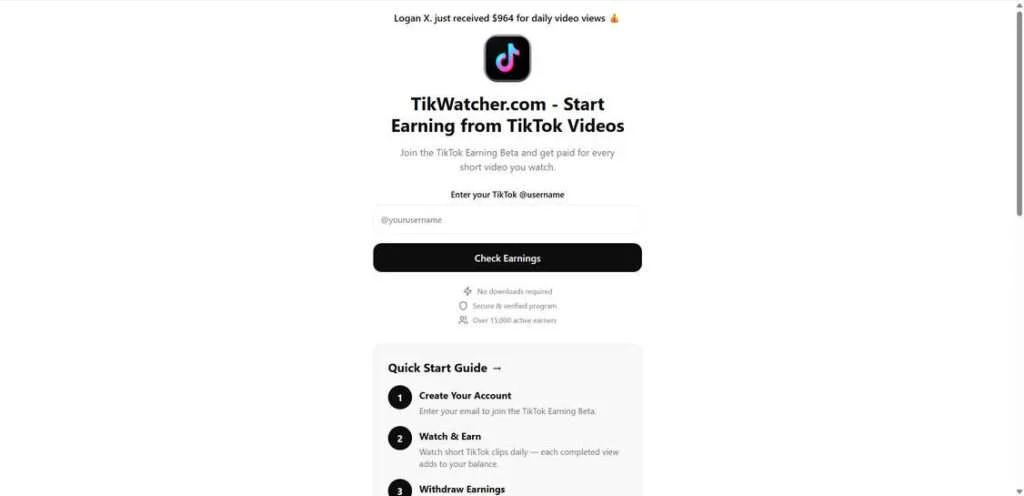
When you click the link, you’re taken to TokPayz.com, which imitates the look and feel of legitimate job recruitment pages. The page usually displays a TikTok logo, a “Quick Start Guide,” and claims you can begin earning money in minutes.
It often includes fake notifications like:
“Emma V. earned $828 reviewing videos this week.”
These are fabricated to create the illusion of a thriving community of people earning real income. In reality, no one is getting paid — the entire site is structured to generate affiliate revenue for the scammers behind it.
The Illusion of Legitimacy
At first glance, TokPayz.com looks believable. It uses a clean design, professional typography, and the recognizable TikTok logo to lower your guard. However, there are immediate warning signs:
- No official TikTok domain: The real TikTok website uses tiktok.com. TokPayz.com is an unrelated third-party domain.
- No contact information: There’s no email address, company name, or physical office listed anywhere on the site.
- Generic text: The same vague instructions appear on multiple scam sites that reuse identical templates.
- No privacy policy or terms of service: Legitimate employers always provide clear legal documentation.
Scammers rely on the fact that most users won’t investigate these details. They play on curiosity and the appeal of easy money.
The Promise That Hooks Users
TokPayz.com promises that users can start reviewing TikTok videos immediately after providing some basic information. The supposed process is outlined as:
- Provide your email and basic information.
- Complete 2–3 “recommended deals.”
- Start reviewing videos and earning money.
It sounds simple, but this process has nothing to do with TikTok or real job opportunities. Those “deals” are affiliate marketing offers that generate income for the scammers every time someone completes one. The scammers make money when users sign up for free trials, download apps, or provide contact details to third-party advertisers.
The Hidden Affiliate Scheme
The scam is structured around affiliate marketing abuse. Instead of promoting real products, scammers push fake job offers that redirect users through affiliate networks.
When you click “Get Started Now,” TokPayz.com routes you through multiple affiliate tracking links — often hosted on platforms like go2cloud.org or similar networks. Each completed “deal” earns the scammer a commission, usually a few dollars per person.
Meanwhile, users never receive payment, job instructions, or any follow-up communication.
Unauthorized Use of TikTok’s Brand
TokPayz.com uses TikTok’s logo, name, and imagery without authorization. This is a deliberate tactic to gain credibility and mislead users into believing it’s an official TikTok recruitment site. However, TikTok has no such paid video reviewer program.
This kind of brand misuse is a serious violation of intellectual property rights and a common feature in online scams. The visual similarity convinces people that they’re joining something real, even though TikTok has never run a campaign of this nature.
Fake Social Proof and Testimonials
To strengthen the illusion, the site often displays fabricated “live” notifications like:
“Samantha P. just earned $732 reviewing TikTok videos.”
These pop-ups are fake and automatically generated by scripts to simulate real activity. They create urgency and make users believe they’re missing out on an opportunity that others are already benefiting from.
Why People Fall for It
There are several psychological tricks at play:
- Social proof: Fake names and earnings make the offer seem legitimate.
- Low barrier to entry: You don’t need experience or qualifications.
- Instant gratification: The promise of quick cash triggers emotional decisions.
- FOMO (Fear of Missing Out): Countdown timers or “limited positions” make users act fast.
The combination of trust signals and urgency makes TokPayz.com an effective scam that preys on people looking for easy, remote income opportunities.
Evidence of a Scam
Several red flags confirm TokPayz.com is fraudulent:
- The domain was recently registered, suggesting a short-term scam setup.
- The site lacks HTTPS security, meaning user data isn’t encrypted.
- Identical design templates appear on other scam websites promoting fake Amazon or Walmart job offers.
- There are no verifiable payment proofs or legitimate reviews from real users.
Reports from victims on scam-tracking websites confirm that people who engaged with TokPayz.com ended up with spam emails, unwanted subscriptions, and even small charges for “trial” offers.
In short, TokPayz.com is not a job site or a TikTok partner. It is a fraudulent platform built to collect data and generate affiliate commissions. The scammers behind it exploit the popularity of TikTok and people’s desire for remote income to trick them into completing worthless offers.
How the TokPayz.com Scam Works
Now let’s look at how this scam operates from beginning to end. Understanding the process helps you identify similar schemes in the future.
Step 1: The Lure – Social Media Ads
The scam starts with advertisements on Facebook, Instagram, YouTube, and sometimes even TikTok itself. These ads usually feature attention-grabbing messages like:
- “Make $25 per video reviewing TikToks!”
- “TikTok is hiring home reviewers – apply now!”
- “Earn up to $800/week reviewing videos from your phone!”
They include fake TikTok logos, smiling faces, and fake testimonials. The ads often feature countdown timers or statements like “Limited spots left today!” to pressure people into clicking immediately.
Step 2: Redirection to TokPayz.com
Once you click, you’re sent to TokPayz.com, a simple landing page that looks somewhat professional. At the top, you’ll usually see the TikTok logo and a large headline:
“Complete the steps to start reviewing for TikTok.”
The design mimics a real recruitment portal, with a “Get Started Now” button and a “Quick Start Guide” outlining how to begin. The steps seem clear and easy — exactly what most people want in a side hustle.
Step 3: Collecting Personal Data
When you click “Get Started,” the site asks for your email address, name, and sometimes phone number. This is the first major red flag. There’s no verification or job description, just a form asking for contact details.
This data is collected and stored, often sold to third-party marketing companies that will spam you with irrelevant offers and surveys.
Step 4: Redirecting to Affiliate Offers
After entering your details, you’re told to “complete 2–3 recommended deals.” These deals might include:
- Downloading specific mobile apps.
- Signing up for “free” subscription trials.
- Completing surveys.
- Providing payment details for product samples.
Every time you complete a deal, the scammers earn a small commission through affiliate networks. You, however, get nothing in return.
Step 5: Continuous Loop of Offers
Once you’ve finished a few offers, the site claims you’re “almost done” and asks you to complete more to “unlock your account.” This loop never ends because the entire goal is to maximize affiliate commissions.
No matter how many offers you complete, there’s no payment or reviewing work waiting at the end.
Step 6: Hidden Subscription Traps
Some of the offers redirect to third-party sites that require credit card information for “trial” memberships. These trials often convert into paid subscriptions automatically, charging your card monthly.
Victims report discovering recurring charges from unfamiliar companies after interacting with TokPayz.com.
Step 7: Fake Status Updates
To keep you hooked, the site may display fake status bars like “Step 3 of 4 completed” or “You’re now approved as a TikTok reviewer.” These graphics are designed to encourage you to continue completing offers, believing you’re making progress toward the promised job.
Step 8: The Outcome
In the end, victims realize there’s no TikTok reviewer job, no payment, and no confirmation email. Instead, they receive:
- Floods of spam emails and calls.
- Subscription fees from free trials they forgot to cancel.
- Frustration from wasted time and effort.
The scammers, however, profit from every completed deal and data submission.
Step 9: Domain Recycling
Once TokPayz.com gains negative attention, the scammers usually shut it down and relaunch under a new domain like TikRateReview.com, TokPayz.comiewJobs.com, or similar. They reuse the same layout, wording, and structure to continue deceiving new victims.
Step 10: The Bigger Picture
TokPayz.com is part of a wider web of affiliate scams that exploit major brand names like TikTok, Amazon, or Netflix. These operations are often managed by networks of marketers who use fake promotions to harvest leads and earn commissions illegally.
What to Do If You Have Fallen Victim to the TokPayz.com Scam
If you’ve entered your information, completed deals, or signed up for trials on TokPayz.com, take immediate action to protect your identity and finances.
1. Stop Using the Site
Exit TokPayz.com immediately and do not click any additional links or complete more offers.
2. Change Your Passwords
If you used your email and password combination that matches other accounts, change your passwords right away. Enable two-factor authentication for added security.
3. Monitor Your Email and Phone
You’ll likely start receiving spam or scam messages. Do not click any suspicious links or open attachments. Use your email provider’s spam filter to block unwanted messages.
4. Cancel Any Subscriptions or Trials
If you signed up for any “deals” that required credit card information, contact your bank or credit card company. Cancel any subscriptions and dispute unauthorized charges.
5. Run a Device Security Scan
Some of the linked offers might lead to unsafe downloads. Run an antivirus or anti-malware scan on your computer or smartphone to ensure it’s clean.
6. Report the Scam
Report TokPayz.com and related offers to:
- Federal Trade Commission (FTC): reportfraud.ftc.gov
- Internet Crime Complaint Center (IC3): ic3.gov
- TikTok’s official support team: to alert them of brand misuse.
7. Remove Installed Apps
If you downloaded any apps from offers promoted on the site, uninstall them immediately. Review app permissions to ensure none are accessing personal data.
8. Watch for Identity Theft Signs
If you provided detailed personal information (like address or birthdate), consider using an identity protection service. Monitor your credit reports for suspicious activity.
9. Educate Others
Warn friends and family about the TokPayz.com scam. Many victims fall prey after hearing about it through social media. Sharing your experience can help prevent others from losing money or data.
10. Stay Alert for Similar Scams
Scammers often recycle their tactics. Be wary of any site offering unrealistic jobs or rewards involving well-known brands. Always verify the domain and contact details before submitting personal information.
Is Your Device Infected? Run a Free Malware Scan
Slow performance, constant pop-ups, or strange behavior? These are classic signs of a malware infection. A quick way to check is to scan your device with Malwarebytes Free, one of the most trusted malware removal tools available. If you only visited a scam page and didn’t download or install anything, this scan is optional.
The free version detects and removes the most common threats, including:
- Adware — the cause of those annoying pop-ups
- Browser hijackers — unwanted redirects and changed homepages
- Trojans and spyware — hidden programs stealing your data
- Potentially unwanted programs (PUPs) — software you never asked for
👉 Select your device below — Windows, Mac, or Android — then follow the simple steps to download Malwarebytes, scan your system, and remove any threats it finds. The scan usually takes 5 to 20 minutes.
Run a Malware Scan with Malwarebytes for Windows
Malwarebytes is one of the most popular and trusted anti-malware tools for Windows — and it’s completely free for removing infections. It catches threats that many antivirus programs miss, including adware, browser hijackers, and trojans. Follow the steps below to scan your PC and remove what Malwarebytes finds.
Download Malwarebytes
Click the button below to download the latest version of Malwarebytes for Windows from the official source. The free version is all you need — it will scan your computer and remove adware, browser hijackers, and other malicious software at no cost.
Download MalwarebytesOfficial installer for Windows 11 and 10. Your download starts right away.Want real-time protection? See Malwarebytes Premium Malwarebytes Free for WindowsScans and removes malware at no cost
-
Install Malwarebytes
When the download finishes, open your Downloads folder and double-click the MBSetup file. If Windows shows a User Account Control pop-up, click “Yes” to allow the installation.

Follow the On-Screen Prompts to Install Malwarebytes
The setup wizard will walk you through a few quick screens:
-
Choose where you’re installing the program — “Personal Computer” or “Work Computer” — then click Next.

-
Malwarebytes will now install on your device. This usually takes under a minute.

-
When installation is complete, the “Welcome to Malwarebytes” screen will open automatically.

-
On the final screen, click Open Malwarebytes to launch the program.

-
Optional: Check for rootkits with a Custom Scan
You don’t need to change any settings for a normal scan. The standard Threat Scan in the next step is enough for most problems, so you can go straight to it.
If you also want to check for rootkits, use a Custom Scan. In current versions of Malwarebytes, rootkit scanning is only available there:
- On the Scanner tile, click the three-dot menu and select Advanced Scan.
- Choose Custom Scan. In its options, check Scan for rootkits.
- Select your system drive (usually C:\) as the location to scan, then start the scan. It takes longer than a Threat Scan.
- When it finishes, review and quarantine the results as described in the steps below.
Rootkit scanning isn’t available on Windows devices with ARM processors.
Start the Scan
Click the blue Scan button. Malwarebytes will automatically update its virus database and start checking your computer for malware.

-
Wait for the Scan to Finish
The scan checks your entire system for browser hijackers and other malicious programs, so it can take 5 to 20 minutes depending on your computer. Feel free to do something else — just check back occasionally to see the progress.

-
Quarantine the Detected Threats
When the scan is done, you’ll see a list of everything Malwarebytes found — malware, adware, and potentially unwanted programs. Click the “Quarantine” button to remove all of them at once.

Malwarebytes will now remove the malicious files and registry entries and move them safely into quarantine.

-
Restart Your Computer
Some threats can only be fully removed after a reboot. If Malwarebytes asks you to restart, click Yes. Once you’re logged back in, Malwarebytes has finished removing the threats it found.

When the scan is done, check whether the problems you noticed have stopped. If they continue, see the options below.
If you are still having problems with your computer after completing these instructions, then please follow one of the steps:
- Run a computer scan with ESET Online Scanner
- Ask for help in our Windows Malware Removal Help & Support forum.
Run a Malware Scan with Malwarebytes for Mac
Malwarebytes for Mac is a free on-demand scanner that removes the malware other security software tends to miss — adware, browser hijackers, and unwanted programs included. Cleaning an infected Mac with Malwarebytes has always been completely free, and it’s our go-to recommendation. Follow the steps below to scan your Mac and remove what Malwarebytes finds.
-
Download Malwarebytes for Mac
Click the button below to download the latest version of Malwarebytes for Mac.
Download MalwarebytesOfficial installer for macOS. Your download starts right away.Want real-time protection? See Malwarebytes PremiumMalwarebytes Free for MacScans and removes malware at no cost -
Open the Malwarebytes setup file
When the download finishes, open your Downloads folder and double-click the setup file to begin the installation.

-
Follow the On-Screen Prompts to Install Malwarebytes
The Malwarebytes for Mac Installer will guide you through a few quick screens. Click “Continue” and keep following the prompts until the installation completes.



When the installation is complete, Malwarebytes opens to the Welcome to Malwarebytes screen. Click “Get started“.
Malwarebytes needs Full Disk Access to check your whole Mac. When it asks, open System Settings > Privacy & Security > Full Disk Access, turn on Malwarebytes (it may be listed as Malwarebytes Protection), and confirm with your password or Touch ID. Then return to Malwarebytes. On macOS Monterey and earlier, this setting is in System Preferences > Security & Privacy > Privacy.
-
Select “Personal Computer” or “Work Computer”
Malwarebytes will ask what type of computer you’re installing it on. Click either Personal Computer or Work Computer, whichever applies.

-
Start the Scan
Click the “Scan” button. Malwarebytes will automatically update its detection database and begin checking your Mac for malware.

-
Wait for the Scan to Finish
Malwarebytes will scan your Mac for adware, browser hijackers, and other malicious programs. This can take a few minutes, so feel free to do something else — just check back occasionally to see the progress.

-
Quarantine the Detected Threats
When the scan is done, you’ll see a list of everything Malwarebytes found. Click the “Quarantine” button to remove all the threats at once.

-
Restart Your Mac
Malwarebytes will now remove all the malicious files it found. Some threats can only be fully removed after a reboot — if Malwarebytes asks you to restart, allow it. Once you’re logged back in, check whether the problems you noticed have stopped. If they come back, save the scan report and ask for help in our forum.

If the problems you noticed continue after the scan, see the options below.
If you are still experiencing problems while trying to remove a malicious program from your computer, please ask for help in our Mac Malware Removal Help & Support forum.
Run a Malware Scan with Malwarebytes for Android
Malwarebytes for Android scans your phone or tablet for malware, adware, and potentially unwanted apps. The free version scans only when you start a scan. Real-time protection, which checks apps automatically, is part of the paid Premium version.
-
Download Malwarebytes for Android.
You can download Malwarebytes for Android by clicking the link below.
Get Malwarebytes for AndroidOpens Google Play in a new tab.Want real-time protection? See Malwarebytes Premium for AndroidMalwarebytes for AndroidScans your phone and removes malware at no cost -
Install Malwarebytes for Android on your phone.
In the Google Play Store, tap “Install” to install Malwarebytes for Android on your device.

When the installation process has finished, tap “Open” to begin using Malwarebytes for Android. You can also open Malwarebytes by tapping on its icon in your phone menu or home screen.

-
Follow the on-screen prompts to complete the setup process
When Malwarebytes opens, it walks you through a short setup. Tap Get started and follow the prompts. If you see an offer for a trial or a paid plan, read it before you accept. You can skip it and keep using the free scanner.
Malwarebytes will ask for permission to access the files on your phone so it can scan them. Tap Allow, or turn on the permission in the Android screen that opens, then return to Malwarebytes.
-
Run a scan with Malwarebytes for Android
On the main screen, tap Scan now. In some versions, you open the menu, tap Scanner, and then tap Run a scan.
-
Wait for the Malwarebytes scan to complete.
Malwarebytes will now start scanning your phone for adware and other malicious apps. This process can take a few minutes, so we suggest you do something else and periodically check on the status of the scan to see when it is finished.

-
Remove the detected apps.
When the scan has been completed, you will see a list of the threats that Malwarebytes for Android has detected. Next to each detected item, tap the menu icon (three dots), then choose to uninstall the app or delete the file. Android then asks you to confirm. Tap OK or Uninstall to remove the app.
-
Restart your phone.
When the detected apps are removed, restart your phone if Malwarebytes asks you to. Then check whether the problems you noticed have stopped.
If the problems you noticed continue after the scan, see the options below.
If you are still having problems with your phone after completing these instructions, then please follow one of the steps:
- Ask for help in our Mobile Malware Removal Help & Support forum.
- Only as a last resort, reset your phone to factory settings. Read the warning below first.
- Back up your photos, videos, files, and messages, for example to your Google account or a computer.
- Make sure you know your Google account email and password. The phone asks for them after the reset. If you changed the password recently, Google recommends waiting 24 hours before you reset.
- On a Samsung phone, also make sure you know your Samsung account password.
- If you use an authenticator app for two-step verification, move your accounts to another device or save your backup codes first.
Stay Protected: Block Ads and Malicious Sites
No scan can prove a device is completely clean, so it helps to block threats before they reach you. Most infections start with a malicious ad or a fake download button — so blocking them at the source is your best defense.
We recommend AdGuard, which blocks malicious ads, phishing pages, and dangerous redirects before they can reach you.
👉 Download AdGuard and browse safely
The Bottom Line
The TokPayz.com TikTok Reviewer Scam is a clear example of how cybercriminals exploit social media and brand recognition to deceive people. By pretending to offer legitimate jobs reviewing TikTok videos, the scammers behind TokPayz.com collect user data, generate affiliate income, and sometimes cause victims to incur unwanted charges.
No legitimate company, including TikTok, will ever require you to complete “deals” or “offers” to start working. Real job opportunities are listed through official company channels, not random third-party websites.
If you’ve encountered TokPayz.com or similar sites, remember: the promise of easy money for minimal effort is a red flag. Always verify any opportunity before submitting personal information.
Staying informed and cautious online is the best defense. Recognize scams like TokPayz.com for what they are — fake schemes designed to profit off your curiosity and trust. Protect your data, spread awareness, and help others avoid falling into the same trap.
Frequently Asked Questions
What is the TokPayz.com TikTok Reviewer Scam?
The TokPayz.com TikTok Reviewer Scam is a fraudulent website that pretends to offer paid opportunities to “review TikTok videos.” It lures users with promises of easy income, claiming you can earn hundreds of dollars per week simply by watching and rating videos. In reality, TokPayz.com has no connection to TikTok or any legitimate reviewing program. The site collects personal data, directs users through affiliate marketing links, and profits from every completed “deal” or offer. Victims never receive payment or access to any real reviewing jobs.
Is TokPayz.com officially connected to TikTok?
No, TokPayz.com is not affiliated with TikTok in any way. TikTok does not have a paid video reviewing program or any job that involves reviewing random content for cash. Scammers behind TokPayz.com use TikTok’s logo, name, and imagery without permission to create a false sense of legitimacy. This unauthorized use of branding is one of the biggest red flags indicating that the site is a scam. Always verify job offers directly on TikTok’s official website or verified social media pages before sharing any information.
How does the TokPayz.com scam work?
The TokPayz.com scam uses deceptive tactics to convince people they can make money online. The process generally follows these steps:
- Advertisement lure: Users see social media ads claiming you can earn $25 per TikTok video reviewed.
- Landing page deception: Clicking the ad redirects you to TokPayz.com, which imitates TikTok’s design and branding.
- Personal data collection: You’re asked to enter your name, email address, and sometimes your phone number.
- Affiliate deal phase: The site then instructs you to complete several “recommended deals” like downloading apps, signing up for free trials, or filling out surveys. Each of these actions earns the scammers a commission.
- False progress indicators: You’re shown fake progress bars or messages like “Step 3 of 4 completed” to make it appear as if you’re about to start reviewing videos.
- No payment, no job: Once the steps are complete, you never receive any legitimate work or compensation.
Why is TokPayz.com considered a scam?
TokPayz.com is considered a scam because it misrepresents its purpose and exploits users for financial gain. The website promises paid work but only exists to harvest personal data and generate affiliate commissions. The scammers benefit every time someone completes a “deal,” while victims are left with spam emails, potential charges from unwanted subscriptions, and no real earnings. There’s no employment verification, no job portal, and no way to contact a legitimate company representative. Everything about the site points to deceptive intent.
What happens if I sign up on TokPayz.com?
If you sign up on TokPayz.com, you’ll likely face several consequences:
- Spam and unwanted messages: Your email and phone number will be shared with marketers or third parties who bombard you with ads and promotions.
- Possible financial charges: Some of the “deals” or “free trials” require payment details and later result in automatic billing.
- Data privacy risks: Your personal information could be sold or used for phishing attempts.
- No income: Despite completing tasks, you will never receive payment from TokPayz.com or TikTok.
What kind of information does TokPayz.com collect?
TokPayz.com typically asks for personal information such as your full name, email address, and sometimes phone number or ZIP code. In certain cases, the “deals” require entering credit card details to sign up for trials or apps. Once submitted, this data can be stored, sold, or used to spam you with irrelevant offers. This type of data harvesting is one of the main ways online scams make money.
Are the earnings claims on TokPayz.com real?
No, the claims are completely fake. The notifications that say “Emma V. earned $828 reviewing this week” or similar messages are automatically generated by scripts. They’re designed to make the website appear active and legitimate. These false testimonials play on psychological triggers like social proof and urgency, convincing users that others are successfully earning money when in fact no one gets paid.
What should I do if I already entered my information?
If you have entered personal details on TokPayz.com, you should take immediate action:
- Stop using the site and close the page right away.
- Change your passwords on all accounts that use the same email address.
- Monitor your bank statements for any unauthorized charges.
- Report the scam to the FTC and the Internet Crime Complaint Center (IC3).
- Unsubscribe or block spam emails that start appearing in your inbox.
- Run antivirus and anti-malware scans on your devices if you downloaded any apps or clicked unknown links.
Can TokPayz.com steal my money or identity?
Yes, indirectly. While TokPayz.com itself might not directly take money from you, it can expose you to identity theft and unwanted charges. The “deals” you complete may involve entering payment information for trial services that later begin billing you. Additionally, your data could be sold to companies that use it for phishing or other scams. Always treat sites that request personal or financial details without verification as dangerous.
Are there any real TikTok reviewer jobs?
No, there are currently no official TikTok reviewer jobs available to the public. TikTok employs internal moderation teams to review content, but these positions are handled through formal hiring processes on TikTok’s official website and job boards like LinkedIn. They do not offer easy sign-up roles that pay per video review. Any website claiming you can “earn money reviewing TikTok videos” is fake.
How can I confirm if a TikTok job offer is real?
To verify a TikTok job offer:
- Check TikTok’s official careers page at careers.tiktok.com.
- Look for contact details linked to official company domains, not random sites like TokPayz.com.
- Search the company name and job title along with the word “scam” to see if others have reported issues.
- Avoid any job that asks for payment, trial sign-ups, or completion of deals before work begins.
What should I do if I provided credit card information?
If you entered your credit card details while completing offers from TokPayz.com:
- Contact your bank or credit card provider immediately to cancel or block your card.
- Dispute any unauthorized or recurring charges.
- Monitor your statements for further suspicious transactions.
- Avoid entering card information on unfamiliar websites in the future.
How can I report TokPayz.com?
You can report TokPayz.com and similar scams to the following authorities:
- Federal Trade Commission (FTC): reportfraud.ftc.gov
- Internet Crime Complaint Center (IC3): ic3.gov
- Better Business Bureau (BBB): bbb.org/scamtracker
- TikTok’s official support team to alert them about brand misuse.
Providing screenshots, links, and details about the scam helps investigators take action faster.

Reviews & discussion
0 commentsShare a firsthand experience, or ask a question.
Community reviews
tokpayz.com
Moderated reader experiences, not an editorial verdict.
Start the conversation
Have a question or something useful to share? Add the first comment.