

“Congratulations! You’re eligible for a $800 Trader Joe’s gift card!” Sound familiar? If you’ve seen a site like TraderSettement.lovable.app, promising high-value gift cards in exchange for a few clicks and some basic information, you’re not alone—and you’re not looking at a legitimate offer. Instead, you’re likely staring down the start of a scam.
This article pulls back the curtain on the TraderSettement.lovable.app gift card scam, explaining how it works, why it’s dangerous, and what to do if you’ve already fallen for it. Let’s break down the red flags, the tactics used, and how to protect yourself and others from being misled by too-good-to-be-true “settlement” payouts.
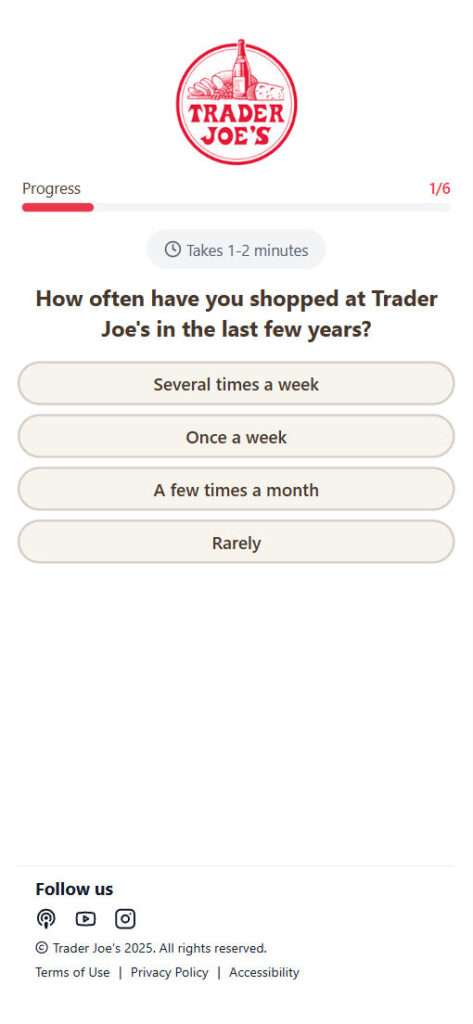
Scam Overview: The Truth About TraderSettement.lovable.app’s $800 Offer
TraderSettement.lovable.app presents itself as an official-looking website tied to Trader Joe’s, complete with branding, logos, and a smooth user experience. It promises users that they can receive up to $800 in compensation—either via gift card, PayPal, or Cash App—by completing a short survey and 2-3 “verification” deals.
The entire setup is designed to mimic the structure of legitimate class-action settlement websites. Users are led to believe that by answering simple questions and verifying their eligibility, they can receive free money or gift cards. The site claims that the settlement relates to purchases of Trader Joe’s products labeled as “100% natural.”
But here’s the catch: there is no real settlement, and no one actually receives the gift card.
Instead, the site funnels users through a chain of third-party offers that include:
- Subscribing to services with hidden fees
- Downloading software or apps
- Filling out personal surveys
- Signing up for paid trials
The true goal of the site is not to distribute rewards. It’s to collect your personal data, harvest affiliate revenue, and, in some cases, lead you into deceptive or even malicious downloads.
Why It Feels Legitimate
Several tactics are used to create the illusion of legitimacy:
- Progress Bars and Timers: These create urgency, making you feel like you’re on a deadline to claim your money.
- Brand Mimicry: The Trader Joe’s logo is used throughout the site, giving users false confidence.
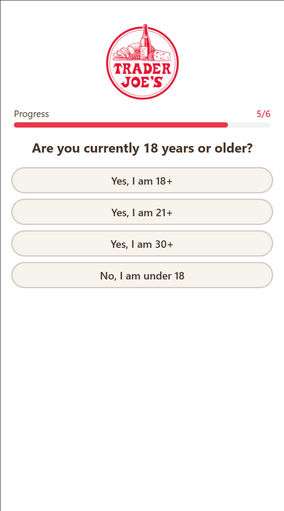
- Structured Questionnaires: You’re asked about your age, your shopping habits, and your knowledge of a supposed settlement—exactly the kind of information a real claims site would collect.
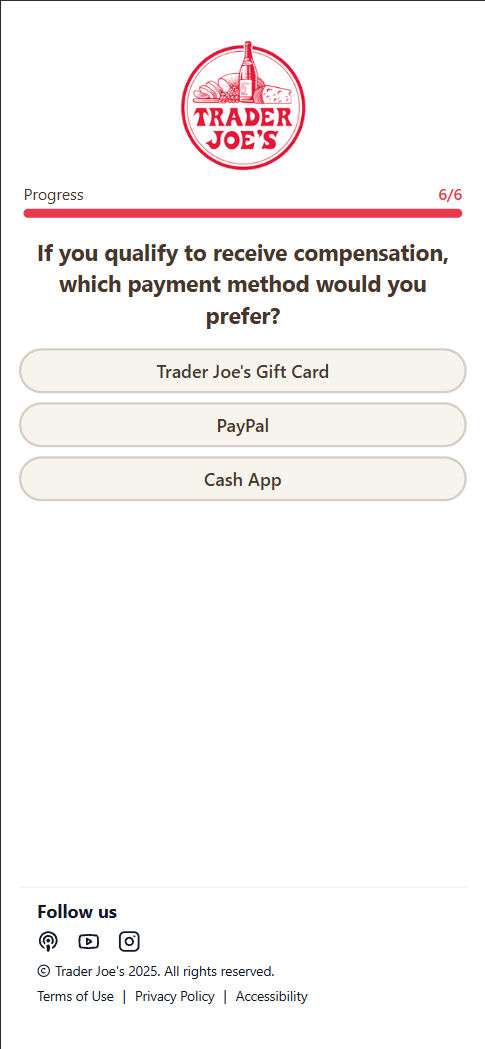
- Payment Method Selection: You’re asked whether you want a gift card, PayPal payout, or Cash App transfer. This reinforces the idea that a reward is coming.
- Pop-Up Notifications: Fake “live” updates like “Ella from California just claimed her gift card” create false social proof.
But none of it holds up under scrutiny. There’s no verifiable settlement case, no legal documentation, and no official affiliation with Trader Joe’s.
The Real Risk
The risk isn’t just wasting your time. Victims of this scam have reported:
- Receiving spam calls and texts after submitting their information
- Being charged for services they never intended to sign up for
- Having malware installed after downloading promoted apps
- Facing phishing attacks from third-party companies they didn’t consent to
This isn’t just a harmless trick—it can lead to real financial and data loss.
How the TraderSettement.lovable.app Scam Works: Step-by-Step Breakdown
Understanding how the TraderSettement.lovable.app scam unfolds can help you avoid falling for it—or recognize if you already have. Here’s how the operation typically plays out:
Step 1: Ad or Link Discovery
You might see a post on social media or a sponsored ad reading:
- “Claim Your $800 Trader Joe’s Gift Card Settlement!”
- “Trader Joe’s Agrees to Pay Customers—See If You’re Eligible!”
- “You May Qualify for a Payout from Trader Joe’s Settlement!”
The copy sounds urgent and official. It uses emotional appeals like fairness, entitlement, and opportunity to make users click through to TraderSettement.lovable.app.
Step 2: Landing Page Deception
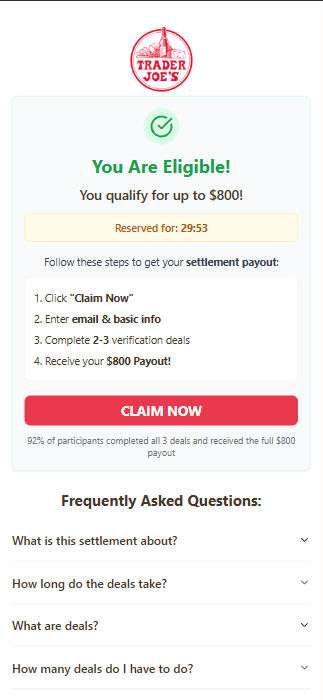
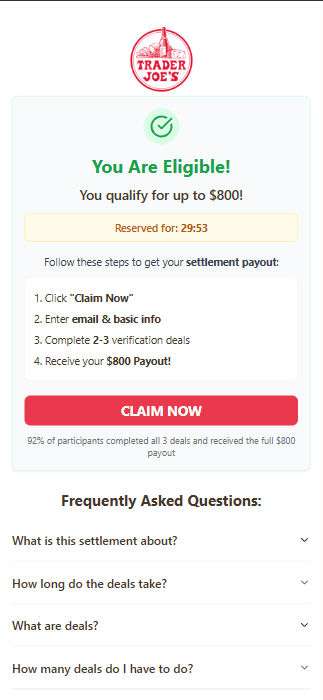
Once on the site, you’re presented with a page that feels professional and familiar:
- Trader Joe’s branding is front and center
- You see a large green “You Are Eligible” notice
- A countdown timer suggests urgency
- Instructions are clearly laid out: Click, enter info, complete offers, claim payout
This onboarding process lowers your guard and creates the illusion of authenticity.
Step 3: Data Harvesting
To move forward, you’re asked to:
- Enter your email address
- Provide your name and basic demographics
- Sometimes even share your phone number or zip code
This information is often sold to lead generation companies or data brokers. In other words, the site is monetizing your data.
Step 4: The Offer Wall Trap
Next, you’re taken to a series of “verification” tasks. These may include:
- Signing up for subscription boxes
- Completing surveys that ask for sensitive information
- Installing apps or browser extensions
- Registering for sweepstakes or trial offers
Every completed task earns affiliate revenue for the scam operator. In many cases, these tasks involve:
- Hidden monthly fees
- Unclear cancellation policies
- Malware or tracking software
You’re told you must complete 2-3 offers to qualify. But often, the requirements never end, and no payout is ever sent.
Step 5: No Payout, No Contact
After completing your tasks, one of two things typically happens:
- You’re redirected to another site entirely
- You remain on the same site with a generic “processing your reward” message that never completes
There is no support, no contact email, no confirmation. The site may appear inactive or vanish altogether.
Step 6: The Aftermath
In the days following, you may experience:
- Increased spam emails or scam texts
- Unexpected charges on your card if you submitted payment info
- Calls from telemarketers
- Security issues with your devices
In some cases, users report their email being sold or added to phishing lists. Worse yet, if malware was installed, your device may now be compromised.
What to Do If You’ve Fallen Victim to the TraderSettement.lovable.app Scam
If you interacted with TraderSettement.lovable.app or submitted any personal or financial information, it’s important to act quickly. Here’s what you should do:
1. Stop Interacting Immediately
Exit the site and do not click on any further links or offers.
2. Change Your Passwords
If you used the same password elsewhere, change it immediately—especially for your email, bank, or social accounts.
3. Scan Your Device
Use a reputable antivirus or anti-malware tool to check for malicious software. Remove anything suspicious that may have come from a downloaded app or extension.
4. Monitor Your Bank Accounts
If you entered any payment information during the offer process, review your credit card or bank statements for unexpected charges. Report fraudulent activity to your bank.
5. Unsubscribe and Block Spam
Start filtering spam emails and texts. Use your email provider’s unsubscribe tools and mark unwanted messages as spam. Block unfamiliar numbers sending SMS links.
6. Report the Scam
Help prevent others from falling victim:
- Report to the Federal Trade Commission at reportfraud.ftc.gov
- Report to your local consumer protection agency
- File a complaint with Trader Joe’s directly so they can issue a public clarification
7. Use Identity Protection Services
If you shared sensitive information (such as your address, phone, or payment details), consider using an identity monitoring service like:
- LifeLock
- IdentityForce
- Aura
These services can help you detect suspicious activity and secure your accounts.
8. Spread the Word
Share this article or your experience on forums like Reddit, Facebook groups, and scam-reporting sites. Your warning might stop someone else from becoming a victim.
Is Your Device Infected? Run a Free Malware Scan
Slow performance, constant pop-ups, or strange behavior? These are classic signs of a malware infection. The fastest way to find out is to scan your device with Malwarebytes Free — one of the most trusted malware removal tools available.
The free version detects and removes the most common threats, including:
- Adware — the cause of those annoying pop-ups
- Browser hijackers — unwanted redirects and changed homepages
- Trojans and spyware — hidden programs stealing your data
- Potentially unwanted programs (PUPs) — software you never asked for
👉 Select your device below — Windows, Mac, or Android — then follow the simple steps to download Malwarebytes, scan your system, and remove any threats it finds. The scan usually takes 5 to 20 minutes.
Run a Malware Scan with Malwarebytes for Windows
Malwarebytes is one of the most popular and trusted anti-malware tools for Windows — and it’s completely free for removing infections. It catches threats that many antivirus programs miss, including adware, browser hijackers, and trojans. Follow the steps below to scan and clean your PC in just a few minutes.
Download Malwarebytes
Click the button below to download the latest version of Malwarebytes for Windows from the official source. The free version is all you need — it will scan your computer and remove adware, browser hijackers, and other malicious software at no cost.
Download MalwarebytesOfficial installer for Windows 11 and 10. Your download starts right away.Want real-time protection? See Malwarebytes Premium Malwarebytes Free for WindowsScans and removes malware at no cost
-
Install Malwarebytes
When the download finishes, open your Downloads folder and double-click the MBSetup file. If Windows shows a User Account Control pop-up, click “Yes” to allow the installation.

Follow the On-Screen Prompts to Install Malwarebytes
The setup wizard will walk you through a few quick screens:
-
Choose where you’re installing the program — “Personal Computer” or “Work Computer” — then click Next.

-
Malwarebytes will now install on your device. This usually takes under a minute.

-
When installation is complete, the “Welcome to Malwarebytes” screen will open automatically.

-
On the final screen, click Open Malwarebytes to launch the program.

-
Enable “Scan for Rootkits”
Before scanning, turn on rootkit detection so Malwarebytes can find even the most hidden threats. Click the Settings gear icon on the left side of the screen.

In the settings menu, find “Scan for rootkits” and click the toggle so it turns blue.

Done? Click “Dashboard” in the left pane to return to the main screen.
Start the Scan
Click the blue Scan button. Malwarebytes will automatically update its virus database and start checking your computer for malware.

-
Wait for the Scan to Finish
The scan checks your entire system for browser hijackers and other malicious programs, so it can take 5 to 20 minutes depending on your computer. Feel free to do something else — just check back occasionally to see the progress.

-
Quarantine the Detected Threats
When the scan is done, you’ll see a list of everything Malwarebytes found — malware, adware, and potentially unwanted programs. Click the “Quarantine” button to remove all of them at once.

Malwarebytes will now remove the malicious files and registry entries and move them safely into quarantine.

-
Restart Your Computer
Some threats can only be fully removed after a reboot. If Malwarebytes asks you to restart, click Yes. Once you’re logged back in, Malwarebytes has finished removing the threats it found.

That’s it — your Windows PC is now clean of trojans, adware, and other malware, and should be back to running smoothly.
If you are still having problems with your computer after completing these instructions, then please follow one of the steps:
- Run a computer scan with ESET Online Scanner
- Ask for help in our Windows Malware Removal Help & Support forum.
Run a Malware Scan with Malwarebytes for Mac
Malwarebytes for Mac is a free on-demand scanner that removes the malware other security software tends to miss — adware, browser hijackers, and unwanted programs included. Cleaning an infected Mac with Malwarebytes has always been completely free, and it’s our go-to recommendation. Follow the steps below to scan and clean your Mac in just a few minutes.
-
Download Malwarebytes for Mac
Click the button below to download the latest version of Malwarebytes for Mac.
Download MalwarebytesOfficial installer for macOS. Your download starts right away.Want real-time protection? See Malwarebytes PremiumMalwarebytes Free for MacScans and removes malware at no cost -
Open the Malwarebytes setup file
When the download finishes, open your Downloads folder and double-click the setup file to begin the installation.

-
Follow the On-Screen Prompts to Install Malwarebytes
The Malwarebytes for Mac Installer will guide you through a few quick screens. Click “Continue” and keep following the prompts until the installation completes.



When the installation is complete, Malwarebytes opens to the Welcome to Malwarebytes screen. Click “Get started“.
-
Select “Personal Computer” or “Work Computer”
Malwarebytes will ask what type of computer you’re installing it on. Click either Personal Computer or Work Computer, whichever applies.

-
Start the Scan
Click the “Scan” button. Malwarebytes will automatically update its detection database and begin checking your Mac for malware.

-
Wait for the Scan to Finish
Malwarebytes will scan your Mac for adware, browser hijackers, and other malicious programs. This can take a few minutes, so feel free to do something else — just check back occasionally to see the progress.

-
Quarantine the Detected Threats
When the scan is done, you’ll see a list of everything Malwarebytes found. Click the “Quarantine” button to remove all the threats at once.

-
Restart Your Mac
Malwarebytes will now remove all the malicious files it found. Some threats can only be fully removed after a reboot — if Malwarebytes asks you to restart, allow it. Once you’re logged back in, your Mac is clean.

That’s it — your Mac is now free of adware, rogue browser extensions, and other potentially harmful software.
If you are still experiencing problems while trying to remove a malicious program from your computer, please ask for help in our Mac Malware Removal Help & Support forum.
Run a Malware Scan with Malwarebytes for Android
Malwarebytes for Android automatically detects and removes dangerous threats like malware and ransomware so you don’t have to worry about your most-used device being compromised. Aggressive detection of adware and potentially unwanted programs keeps your Android phone or tablet running smooth.
-
Download Malwarebytes for Android.
You can download Malwarebytes for Android by clicking the link below.
Get Malwarebytes for AndroidOpens Google Play in a new tab.Want real-time protection? See Malwarebytes Premium for AndroidMalwarebytes for AndroidScans your phone and removes malware at no cost -
Install Malwarebytes for Android on your phone.
In the Google Play Store, tap “Install” to install Malwarebytes for Android on your device.

When the installation process has finished, tap “Open” to begin using Malwarebytes for Android. You can also open Malwarebytes by tapping on its icon in your phone menu or home screen.

-
Follow the on-screen prompts to complete the setup process
When Malwarebytes will open, you will see the Malwarebytes Setup Wizard which will guide you through a series of permissions and other setup options.
This is the first of two screens that explain the difference between the Premium and Free versions. Swipe this screen to continue.
Tap on “Got it” to proceed to the next step.
Malwarebytes for Android will now ask for a set of permissions that are required to scan your device and protect it from malware. Tap on “Give permission” to continue.
Tap on “Allow” to permit Malwarebytes to access the files on your phone.
-
Update database and run a scan with Malwarebytes for Android
You will now be prompted to update the Malwarebytes database and run a full system scan.

Click on “Update database” to update the Malwarebytes for Android definitions to the latest version, then click on “Run full scan” to perform a system scan.

-
Wait for the Malwarebytes scan to complete.
Malwarebytes will now start scanning your phone for adware and other malicious apps. This process can take a few minutes, so we suggest you do something else and periodically check on the status of the scan to see when it is finished.

-
Click on “Remove Selected”.
When the scan has been completed, you will be presented with a screen showing the malware infections that Malwarebytes for Android has detected. To remove the malicious apps that Malwarebytes has found, tap on the “Remove Selected” button.

-
Restart your phone.
Malwarebytes for Android will now remove all the malicious apps that it has found. To complete the malware removal process, Malwarebytes may ask you to restart your device.
That’s it — your Android phone is now clean — no more malicious apps, adware, or browser redirects.
If you are still having problems with your phone after completing these instructions, then please follow one of the steps:
- Restore your phone to factory settings by going to Settings > General management > Reset > Factory data reset.
- Ask for help in our Mobile Malware Removal Help & Support forum.
Stay Protected: Block Ads and Malicious Sites
Now that your device is clean, keep it that way. Most infections start with a malicious ad or a fake download button — so blocking them at the source is your best defense.
We recommend AdGuard, which blocks malicious ads, phishing pages, and dangerous redirects before they can reach you.
👉 Download AdGuard and browse safely
Frequently Asked Questions About the TraderSettement.lovable.app Gift Card Scam
Is TraderSettement.lovable.app a real Trader Joe’s website?
No, TraderSettement.lovable.app is not affiliated with Trader Joe’s in any way. It is a scam website designed to look official by copying Trader Joe’s branding. Legitimate promotions or settlements from Trader Joe’s would only be announced on their official website or through trusted legal channels.
Can I actually receive a $800 gift card from TraderSettement.lovable.app?
No. Despite the claims on the website, no users have reported receiving a real payout. The promise of a $800 Trader Joe’s gift card is part of a deceptive funnel to trick you into completing offers that generate revenue for scammers.
What are the “deals” or “verification offers” I have to complete?
These are affiliate marketing offers that may include:n
- Subscribing to trial services with hidden charges
- Filling out surveys that collect personal data
- Downloading apps that could contain malware or adware
The scammers make money when you complete these actions. You receive no compensation in return.
Why does TraderSettement.lovable.app look so legitimate?
The site uses several psychological tactics to appear credible:n
- The Trader Joe’s logo and colors
- Progress bars and countdown timers
- Payment method selection (PayPal, Cash App, gift card)
- Fake notifications and user activity (e.g., “Ella from California just claimed her card”)
These are all meant to lower your guard and keep you engaged.
What happens after I complete the verification steps?
In most cases, you won’t receive anything. Some users are redirected to other sites, some are stuck in an endless loop of offers, and others may begin receiving spam or fraudulent charges if they entered payment details.
Is it safe to enter my email and phone number?
No. Your data will likely be sold to third-party advertisers or used in spam campaigns. Many victims report an increase in scam emails, robocalls, and phishing texts shortly after providing their contact information.
What if I submitted my credit card info?
If you entered your credit card on any offer linked from TraderSettement.lovable.app:n
- Immediately contact your bank to report the charge
- Cancel or freeze the card if needed
- Dispute any unauthorized transactions
You should also monitor your accounts for recurring charges tied to trial subscriptions.
Can I report TraderSettement.lovable.app?
Yes. You should report the scam to:n
- FTC: reportfraud.ftc.gov
- IC3 (FBI Internet Crime Center): www.ic3.gov
- Your local consumer protection agency
- Trader Joe’s customer support, so they are aware of brand misuse
How can I protect myself from similar scams in the future?
- Be skeptical of too-good-to-be-true offers
- Avoid entering personal or payment details on unverified websites
- Check for official sources (like the FTC’s website or Trader Joe’s press page)
- Use tools like antivirus software and browser ad blockers
- Research before participating in online promotions
Will Trader Joe’s ever offer settlement payouts?
If there is a legitimate settlement, it will be handled by a court-approved administrator and covered by the news or official company channels—not a random site like TraderSettement.lovable.app. Always verify through reputable legal and consumer protection sources.
The Bottom Line
TraderSettement.lovable.app is a scam designed to mimic legitimate settlement sites while profiting from your personal information and clicks. Despite using Trader Joe’s branding and offering large gift card rewards, the site has no affiliation with the company and provides no actual payout.
Its purpose is to:
- Gather your data
- Monetize your clicks
- Push offers that lead to hidden charges or security risks
Always approach “free money” offers online with skepticism, especially when they ask for personal details or require completing third-party deals.
If you’re ever unsure whether a settlement or offer is legitimate, go directly to the brand’s official website or check resources like the FTC’s database. Scams like TraderSettement.lovable.app thrive on urgency and deception—your best defense is informed caution.
Stay safe, stay smart, and always double-check before you click.

Reviews & discussion
0 commentsShare a firsthand experience, or ask a question.
Community reviews
tradersettement.lovable.app
Moderated reader experiences, not an editorial verdict.
Start the conversation
Have a question or something useful to share? Add the first comment.