

Ulta Beauty is a popular beauty retailer that offers makeup, skincare, haircare, fragrances, and more. They routinely run product testing and reviewing campaigns to get feedback on new products before launch. However, scammers are now taking advantage of this by creating fake Ulta Beauty product reviewer offers that trick people into handing over their personal information and money.
This article will uncover everything you need to know about the Ulta Beauty product reviewer scam, including how it works, warning signs to watch out for, and most importantly, how to protect yourself.
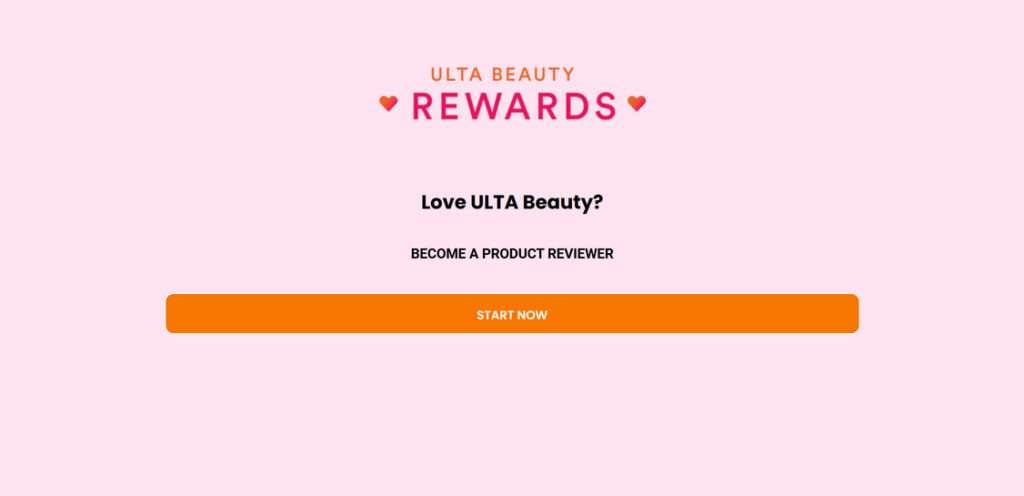
Overview of the Ulta Beauty Product Reviewer Scam
The scam works like this:
Scammers will run ads on social media platforms like Facebook and Instagram, or send out emails and text messages, that promote a fake “Ulta Beauty Product Tester” offer.
The ads claim that Ulta Beauty is looking for people to test and review new makeup, skincare, haircare and other products, in exchange for a $500 Ulta gift card.
When people click on the ad, they are taken to a scam website dressed up to look like an official Ulta Beauty domain. The site will have a message like “Get Yours Now” or “Sign Up Here” to become a product tester.
If people enter their information, they are taken to another website and told they have to complete a certain number of “deals” or offers to qualify for the $500 gift card. These deals include:
- Filling out surveys
- Signing up for trial offers
- Making purchases
- Downloading apps
- Submitting email addresses, phone numbers, and other personal info
Often, completing one “deal” will unlock more and more, with people having to complete 10-30 deals in total. The more deals completed, the more money the scammers earn through commissions and selling people’s data.
However, after completing all these deals, people find that the promised $500 Ulta gift card never arrives. The entire thing is a scam designed to gather information and make money at the victim’s expense.
How the Ulta Beauty Product Reviewer Scam Works
Here is a step-by-step breakdown of how the Ulta product reviewer scam typically operates:
1. Scam Ads on Social Media
The scam starts with an ad posted on platforms like Facebook, Instagram, or TikTok. The ad is made to look like an official offer from Ulta Beauty, often using their logo and brand images.
Headlines may say things like:
“Ulta Beauty Product Testers Wanted – Get a $500 Gift Card!”
“We need 500 people to test our new makeup line before launch – apply now to get a $500 Ulta gift card!”
The goal is to make it look like a legitimate opportunity to review products.
2. Landing Page with a Call to Action
When someone clicks on the ad, they are taken to a landing page dressed up to resemble the official Ulta Beauty website.
The landing page will have a prominent call-to-action like “Click Here to Get Started” or “Apply Now.” This is meant to get people to enter their information right away.
Red flags here include:
- The URL being completely different from Ulta.com
- No links in the top navigation bar
- Spelling and grammar errors
- Stock photos instead of real Ulta Beauty images
3. Enter Personal Information
If people click the call-to-action, they are taken to a form asking for their personal information:
- Full name
- Email address
- Phone number
- Home address
- Date of birth
The form says this info is needed to “confirm eligibility” for the product tester program. In reality, it’s just gathering data for the scammers’ own use.
4. More Deals Unlock
After entering information, people are redirected to a third-party website for “deal completion.” This site reveals that to get the $500 gift card, you must complete 10-30 deals.
These deals include:
- Online surveys
- Signing up for trial subscription offers
- Downloading apps or browser extensions
- Making purchases for products
- Submitting contact info to other sites
Completing one deal will unlock more, with people having to complete every deal before the “gift card” is sent.
5. Never Get the Reward
The victims complete all the deals, hand over their personal information, and may even spend money. But the $500 Ulta gift card never arrives.
The sites collect payment info and personal data to earn commissions, but there is no actual reward. People are simply scammed out of their time, money, and privacy.
Warning Signs of the Ulta Beauty Product Reviewer Scam
There are several red flags to watch out for to identify this scam:
- Ads leading to unofficial domains – Real Ulta Beauty offers would never lead to sketchy third-party sites.
- Too good to be true reward – Ulta would not give $500 gift cards for simple product testing. Big rewards are dangled to get people hooked.
- Requests for personal information – Asking for full name, DOB, address, etc. is invasive for a product test program.
- Having to complete deals/offers – Real market research would never make you fill out endless surveys or sign up for subs.
- No clear connection to Ulta Beauty – Scam sites lack official branding, links, contact info, or approval.
- Spelling/grammar mistakes – Sloppy text is a giveaway of scammers, not a real company.
- Stock photos used – Real Ulta ads would feature genuine product and brand images.
- Pushy calls to action – Language urging you to “act now” or “claim yours today” is manipulative.
If you spot any of these red flags, it’s safest to avoid the offer entirely.
What to Do If You Already Fell for the Ulta Beauty Product Reviewer Scam
If you already entered your information or completed deals associated with this scam, here are important steps to take right away:
1. Contact your bank if you paid anything
If the scammers got you to make any purchases as part of the “deals”, call your bank immediately. Report the charges as fraudulent. Your bank may be able to reverse the charges and monitor your account for further suspicious activity.
2. Change passwords on all accounts
Reset the passwords for your email, Amazon, social media, and any other accounts the scammers may now have access to due to the info you provided. Enable two-factor authentication wherever possible.
3. Place fraud alert on your credit
Contact one of the three credit bureaus (Experian, TransUnion, Equifax) to place an initial 90-day fraud alert on your credit. This makes it harder for scammers to open new credit in your name.
4. Monitor bank and credit card statements
Watch closely for any unauthorized charges on your financial accounts in the upcoming weeks. Report any strange or fraudulent activity immediately.
5. Beware of recovery scammers
Realize that initial scammers will sometimes sell your info to “recovery scammers” who contact you claiming they can retrieve the lost money from the first scam. Do not engage with any unsolicited contacts.
6. Report the scam
File a complaint with the FTC at ReportFraud.ftc.gov and your state attorney general’s office. This helps authorities track and stop these scams.
7. Learn from the experience
In the future, remember that offers that seem too good to be true usually are. Protect your personal information closely. Research offers directly through a brand’s official site or customer service before providing any data.
Is Your Device Infected? Run a Free Malware Scan
Slow performance, constant pop-ups, or strange behavior? These are classic signs of a malware infection. The fastest way to find out is to scan your device with Malwarebytes Free — one of the most trusted malware removal tools available.
The free version detects and removes the most common threats, including:
- Adware — the cause of those annoying pop-ups
- Browser hijackers — unwanted redirects and changed homepages
- Trojans and spyware — hidden programs stealing your data
- Potentially unwanted programs (PUPs) — software you never asked for
👉 Select your device below — Windows, Mac, or Android — then follow the simple steps to download Malwarebytes, scan your system, and remove any threats it finds. The scan usually takes 5 to 20 minutes.
Run a Malware Scan with Malwarebytes for Windows
Malwarebytes is one of the most popular and trusted anti-malware tools for Windows — and it’s completely free for removing infections. It catches threats that many antivirus programs miss, including adware, browser hijackers, and trojans. Follow the steps below to scan and clean your PC in just a few minutes.
Download Malwarebytes
Click the button below to download the latest version of Malwarebytes for Windows from the official source. The free version is all you need — it will scan your computer and remove adware, browser hijackers, and other malicious software at no cost.
Download MalwarebytesOfficial installer for Windows 11 and 10. Your download starts right away.Want real-time protection? See Malwarebytes Premium Malwarebytes Free for WindowsScans and removes malware at no cost
-
Install Malwarebytes
When the download finishes, open your Downloads folder and double-click the MBSetup file. If Windows shows a User Account Control pop-up, click “Yes” to allow the installation.

Follow the On-Screen Prompts to Install Malwarebytes
The setup wizard will walk you through a few quick screens:
-
Choose where you’re installing the program — “Personal Computer” or “Work Computer” — then click Next.

-
Malwarebytes will now install on your device. This usually takes under a minute.

-
When installation is complete, the “Welcome to Malwarebytes” screen will open automatically.

-
On the final screen, click Open Malwarebytes to launch the program.

-
Enable “Scan for Rootkits”
Before scanning, turn on rootkit detection so Malwarebytes can find even the most hidden threats. Click the Settings gear icon on the left side of the screen.

In the settings menu, find “Scan for rootkits” and click the toggle so it turns blue.

Done? Click “Dashboard” in the left pane to return to the main screen.
Start the Scan
Click the blue Scan button. Malwarebytes will automatically update its virus database and start checking your computer for malware.

-
Wait for the Scan to Finish
The scan checks your entire system for browser hijackers and other malicious programs, so it can take 5 to 20 minutes depending on your computer. Feel free to do something else — just check back occasionally to see the progress.

-
Quarantine the Detected Threats
When the scan is done, you’ll see a list of everything Malwarebytes found — malware, adware, and potentially unwanted programs. Click the “Quarantine” button to remove all of them at once.

Malwarebytes will now remove the malicious files and registry entries and move them safely into quarantine.

-
Restart Your Computer
Some threats can only be fully removed after a reboot. If Malwarebytes asks you to restart, click Yes. Once you’re logged back in, Malwarebytes has finished removing the threats it found.

That’s it — your Windows PC is now clean of trojans, adware, and other malware, and should be back to running smoothly.
If you are still having problems with your computer after completing these instructions, then please follow one of the steps:
- Run a computer scan with ESET Online Scanner
- Ask for help in our Windows Malware Removal Help & Support forum.
Run a Malware Scan with Malwarebytes for Mac
Malwarebytes for Mac is a free on-demand scanner that removes the malware other security software tends to miss — adware, browser hijackers, and unwanted programs included. Cleaning an infected Mac with Malwarebytes has always been completely free, and it’s our go-to recommendation. Follow the steps below to scan and clean your Mac in just a few minutes.
-
Download Malwarebytes for Mac
Click the button below to download the latest version of Malwarebytes for Mac.
Download MalwarebytesOfficial installer for macOS. Your download starts right away.Want real-time protection? See Malwarebytes PremiumMalwarebytes Free for MacScans and removes malware at no cost -
Open the Malwarebytes setup file
When the download finishes, open your Downloads folder and double-click the setup file to begin the installation.

-
Follow the On-Screen Prompts to Install Malwarebytes
The Malwarebytes for Mac Installer will guide you through a few quick screens. Click “Continue” and keep following the prompts until the installation completes.



When the installation is complete, Malwarebytes opens to the Welcome to Malwarebytes screen. Click “Get started“.
-
Select “Personal Computer” or “Work Computer”
Malwarebytes will ask what type of computer you’re installing it on. Click either Personal Computer or Work Computer, whichever applies.

-
Start the Scan
Click the “Scan” button. Malwarebytes will automatically update its detection database and begin checking your Mac for malware.

-
Wait for the Scan to Finish
Malwarebytes will scan your Mac for adware, browser hijackers, and other malicious programs. This can take a few minutes, so feel free to do something else — just check back occasionally to see the progress.

-
Quarantine the Detected Threats
When the scan is done, you’ll see a list of everything Malwarebytes found. Click the “Quarantine” button to remove all the threats at once.

-
Restart Your Mac
Malwarebytes will now remove all the malicious files it found. Some threats can only be fully removed after a reboot — if Malwarebytes asks you to restart, allow it. Once you’re logged back in, your Mac is clean.

That’s it — your Mac is now free of adware, rogue browser extensions, and other potentially harmful software.
If you are still experiencing problems while trying to remove a malicious program from your computer, please ask for help in our Mac Malware Removal Help & Support forum.
Run a Malware Scan with Malwarebytes for Android
Malwarebytes for Android automatically detects and removes dangerous threats like malware and ransomware so you don’t have to worry about your most-used device being compromised. Aggressive detection of adware and potentially unwanted programs keeps your Android phone or tablet running smooth.
-
Download Malwarebytes for Android.
You can download Malwarebytes for Android by clicking the link below.
Get Malwarebytes for AndroidOpens Google Play in a new tab.Want real-time protection? See Malwarebytes Premium for AndroidMalwarebytes for AndroidScans your phone and removes malware at no cost -
Install Malwarebytes for Android on your phone.
In the Google Play Store, tap “Install” to install Malwarebytes for Android on your device.

When the installation process has finished, tap “Open” to begin using Malwarebytes for Android. You can also open Malwarebytes by tapping on its icon in your phone menu or home screen.

-
Follow the on-screen prompts to complete the setup process
When Malwarebytes will open, you will see the Malwarebytes Setup Wizard which will guide you through a series of permissions and other setup options.
This is the first of two screens that explain the difference between the Premium and Free versions. Swipe this screen to continue.
Tap on “Got it” to proceed to the next step.
Malwarebytes for Android will now ask for a set of permissions that are required to scan your device and protect it from malware. Tap on “Give permission” to continue.
Tap on “Allow” to permit Malwarebytes to access the files on your phone.
-
Update database and run a scan with Malwarebytes for Android
You will now be prompted to update the Malwarebytes database and run a full system scan.

Click on “Update database” to update the Malwarebytes for Android definitions to the latest version, then click on “Run full scan” to perform a system scan.

-
Wait for the Malwarebytes scan to complete.
Malwarebytes will now start scanning your phone for adware and other malicious apps. This process can take a few minutes, so we suggest you do something else and periodically check on the status of the scan to see when it is finished.

-
Click on “Remove Selected”.
When the scan has been completed, you will be presented with a screen showing the malware infections that Malwarebytes for Android has detected. To remove the malicious apps that Malwarebytes has found, tap on the “Remove Selected” button.

-
Restart your phone.
Malwarebytes for Android will now remove all the malicious apps that it has found. To complete the malware removal process, Malwarebytes may ask you to restart your device.
That’s it — your Android phone is now clean — no more malicious apps, adware, or browser redirects.
If you are still having problems with your phone after completing these instructions, then please follow one of the steps:
- Restore your phone to factory settings by going to Settings > General management > Reset > Factory data reset.
- Ask for help in our Mobile Malware Removal Help & Support forum.
Stay Protected: Block Ads and Malicious Sites
Now that your device is clean, keep it that way. Most infections start with a malicious ad or a fake download button — so blocking them at the source is your best defense.
We recommend AdGuard, which blocks malicious ads, phishing pages, and dangerous redirects before they can reach you.
👉 Download AdGuard and browse safely
Frequently Asked Questions about the Ulta Beauty Product Reviewer Scam
1. What is the Ulta Beauty product reviewer scam?
The Ulta Beauty product reviewer scam is a fraudulent offer being promoted online and via text messages. Scammers claim Ulta Beauty is looking for product testers and reviewers, offering a $500 gift card as an incentive. However, it’s a ploy to gather personal information and get victims to complete bogus “deals” that earn commissions for scammers but provide no actual rewards.
2. How does the Ulta product reviewer scam work?
The scammers post ads on social media or send texts redirecting to fake Ulta Beauty domains. There people enter personal info for a “tester” application. They’re taken to a secondary site and told they must complete 10-30 “deals” to get the $500 card. These deals involve surveys, trial offers, purchases, and more data harvesting. After completing them all, the promised gift card never arrives.
3. What are some warning signs of the Ulta Beauty reviewer scam?
Warning signs include ads leading to odd URLs, $500 rewards for simple testing, requests for excessive personal data, having to complete numerous deals, no official Ulta approval or branding, and pushy language urging immediate action. Any of these should raise red flags about the offer’s legitimacy.
4. I entered my information and completed some deals. What should I do now?
If you already got involved, take these steps right away: Contact your bank if you paid anything, reset all account passwords, put a fraud alert on your credit, watch for unauthorized charges, avoid communications with “recovery” scammers, report the scam, and learn to identify red flags in the future.
5. Can I get back money I lost in the Ulta Beauty product reviewer scam?
If you made purchases, report them to your bank as fraudulent right away. They may be able to reverse the charges. Unfortunately, there is likely no way to recoup value of personal data given away, time spent, etc. Consider it a costly lesson in spotting and avoiding scams.
6. How can I avoid the Ulta Beauty product tester scam in the future?
Going forward, remember offers that sound too good to be true usually are. Verify promotions through official brand sites and customer service before providing information or clicking links. Check URLs closely for accuracy and avoid entering data on sketchy sites. Monitor accounts closely for any resulting misuse or fraud.
7. Where can I report the Ulta Beauty product reviewer scam?
You can report it to the Federal Trade Commission at ReportFraud.ftc.gov and to your state attorney general’s office. Reporting helps authorities track down and stop these scammers.
8. Who is behind the Ulta Beauty product reviewer scam?
The individuals running these scams are often cybercriminals operating abroad using fake identities. Their ads and sites are designed to stay up just long enough to scam victims before shifting to new URLs. It’s a digital shell game with anonymous scammers behind fake offers.
9. Am I personally at risk if I participated in this scam?
Yes, providing personal data exposes you to potential identity theft and account misuse. Monitor your credit and accounts closely. Avoid further participation by spotting red flags early. Never enter info or complete suspicious offers.
10. What is the best way to avoid online scams?
Be wary of unsolicited offers, verify directly with brands before participating, research unfamiliar sites, don’t click suspicious links, guard personal information carefully, monitor accounts for misuse, and report any scams immediately to have the best odds of avoiding them.
The Bottom Line
The Ulta Beauty product reviewer scam preys on people’s desire to get great deals and test new products. But it is just a ploy to gather information and profit off people’s participation in bogus deals.
Genuine rewards or research opportunities will never ask for excessive personal details upfront, lead to sketchy sites, or make you complete endless surveys or purchases.
When confronted with potential scams, carefully verify the offer through official brand channels first. Check site URLs for accuracy, and avoid entering info or clicking suspicious links. Protect your data closely, and you can avoid falling victim to these ripoffs.
Stay vigilant, and don’t let the lure of freebies overrule your better judgment. If an Ulta Beauty product tester offer raises any red flags, it’s best to steer clear and protect your information.

Join the discussion
0 commentsShare your experience or ask a question about this article.
Discussion
Start the conversation
Have a question or something useful to share? Add the first comment.