


My Verizon can show two protections for the same line. Their names sound similar, especially when the account is warning you about a device change.
One setting controls whether the number can move. The other controls changes that require a new SIM, and the difference matters when you upgrade or switch carriers.
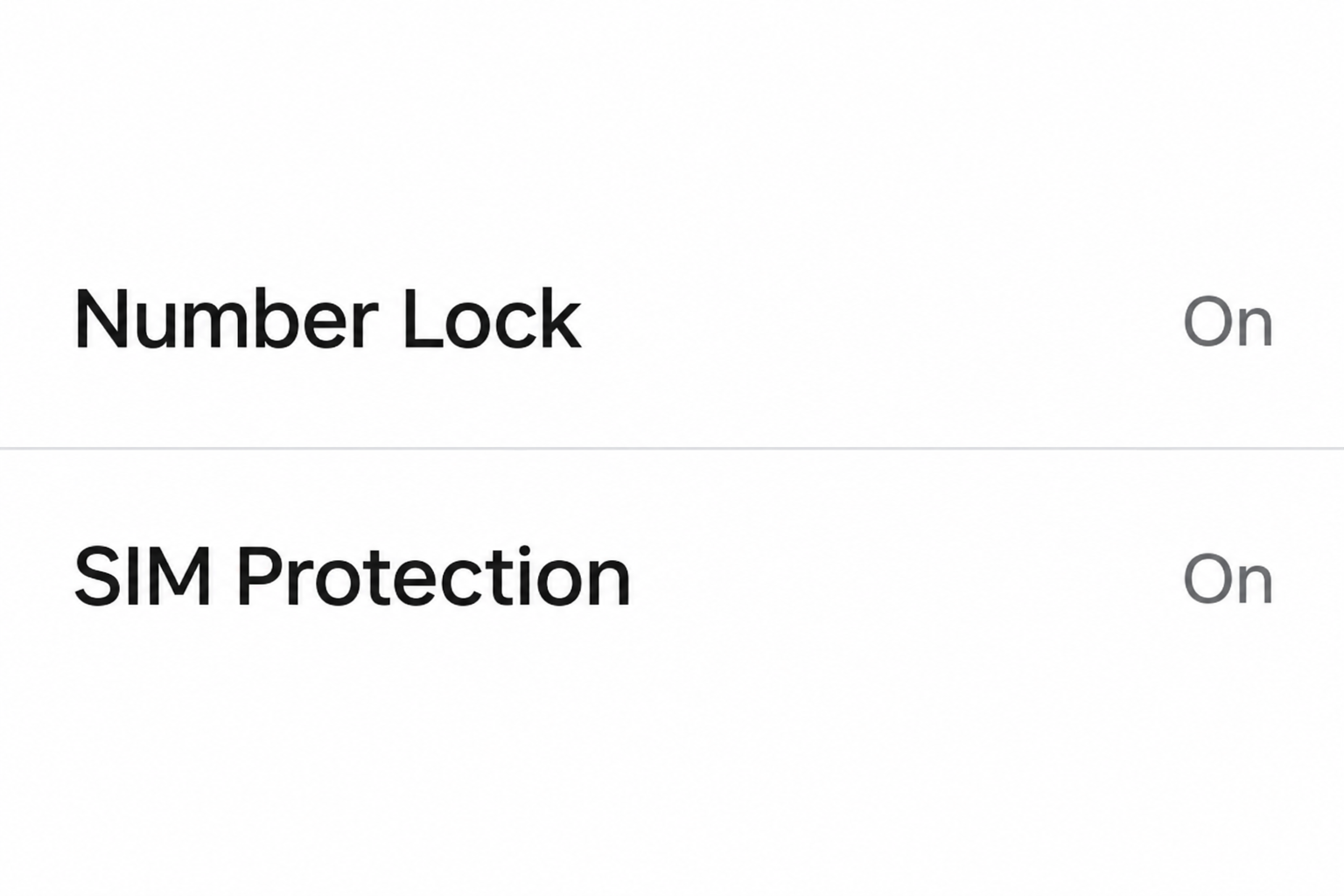
Overview
Number Lock protects against an unauthorized move
Verizon’s number transfer FAQ says Number Lock prevents a protected number from moving to another line or carrier until the lock is removed.
It does not prevent SIM or equipment changes by itself.
Use Number Lock when the concern is moving the number away from its intended line or carrier. Inspect its status for the specific mobile number, not a different family line.
SIM Protection covers changes that require a new SIM
Verizon’s SIM change guidance explains that the SIM control blocks transactions that require a new SIM, including certain upgrades, bring-your-own-device changes, and SIM swaps.
The hardware may use a physical SIM or an eSIM. The point is what the line is being assigned to, not whether you can remove a little plastic card.
A transfer PIN is for a legitimate move, not for checking a warning
For standard monthly consumer accounts, Verizon describes a temporary Number Transfer PIN that an authorized owner or manager can generate for a genuine transfer to another carrier.
Guard your transfer PIN and account number. Share them only with the new carrier you chose through a process you initiated, not a caller offering to prevent a port.
- Protect against an unwanted carrier transfer: Check Number Lock for the affected line.
- Protect against unwanted changes to the device or SIM: Check SIM Protection for that line.
- Upgrade or travel with your current phone: Ask which change you actually need to perform before disabling either protection.
- Lost calls and texts unexpectedly: Check for an outage or device problem, but contact Verizon promptly if you see an unfamiliar account or SIM event.
Check Protection on the Right Line
Find the settings through a route you opened yourself
Use the existing My Verizon app or open Verizon’s support site independently. The app instructions show how to access profile and settings before choosing SIM Protection or Number Lock.
If you prefer the browser, Verizon also publishes instructions for the website. The account controls can differ by plan type and whether you use a prepaid route.
Do not start with a link from a warning that says you must reenable protection. Open the account directly and check whether the problem exists there.
If you cannot find the menu, look at which account you signed into and what rights it has.
Ask Verizon or the account manager before trying to change someone else’s line.
Check the individual number instead of trusting a summary label
A household account might have several numbers and different protection states. Locate the actual line on which you use banking codes, receive work calls, or plan to replace a device.
Make a private note of which protection is on. An overall account label is less useful than the current settings for the line about which you received a warning.
If only one protection is on, identify which activity remains possible. A number protected against a carrier transfer can still need separate protection against an unauthorized SIM change.
In the consumer app, Verizon’s instructions point to the Me tab and Edit profile and settings. Use the specified protection control rather than a phone-screen setting with a similar name.
Verizon describes prepaid SIM Protection under a separate management path. Check the instructions for your account type if the consumer app route does not match what you see.
If a setting cannot be changed with your account role, contact an authorized account manager. Do not borrow another person’s credentials just to get past a disabled control.
Ask each authorized family member to identify the line they plan to move or upgrade. Do not weaken the other lines to make one person’s setup easier.
Know what these controls do not address
Neither setting stops someone from displaying your number as caller ID. If friends report strange calls but your service is normal, look for a separate explanation such as spoofing.
Neither control secures email, social media, or a banking account whose password was already shared. Use each affected account’s own security and recovery settings when there is other evidence.
If you lose a phone, Number Lock is not a remote screen lock. Contact the carrier as needed and use the device maker’s separate lost-device controls.
A Real Upgrade and a Real Port Need Different Checks
If you are changing devices but keeping Verizon
Ask whether the planned upgrade requires a new SIM or eSIM activation. If it does, SIM Protection may block the transaction even though the carrier is staying the same.
Verizon describes a 15-minute delay after SIM Protection is switched off. During that interval, transactions that require the change can remain blocked, so wait before assuming a fault.
Turn off only the protection that prevents the device change you initiated. Do not generate a transfer PIN simply because you are moving your service to a different device.
After setup, test an ordinary call and text on the intended device, then restore SIM Protection. Confirm the state shown for the affected line when the work is finished.
Do not delete your existing eSIM solely because a stranger says the carrier needs a fresh one. Check the official activation directions for the planned device and account.
If your upgrade is being handled at a store, ask the employee which line and which transaction the account needs to authorize. Unblock only the required change when appropriate.
If you are moving the number to a carrier you chose
Use the new carrier’s known support channel and check the set of lines you intend to move. Verizon’s transfer FAQ says to remove Number Lock before transferring the number.
For Verizon’s standard monthly flow, the authorized account owner or manager can generate a transfer PIN. Verizon currently gives the temporary PIN a seven-day validity period.
Check the plan-specific instructions before generating it. A prepaid or business account can use a different process, and access rights matter if you are not its owner.
If the transfer involves only one family line, tell the receiving carrier which number to move.
Verizon notes that a transfer PIN can apply to more than one line on the account.
Do not cancel the old carrier service prematurely if the number still needs to transfer. Follow the official order of operations that Verizon and the receiving carrier explain.
Keep a record of your expected transfer date and the receiving carrier. If you get a real notification during that window, compare it with the move you actually requested.
If the transfer does not complete before the credential expires, restart the verified procedure with the receiving carrier.
Do not give a new PIN to a caller volunteering to finish it.
If you stopped the process partway through
Check whether the change actually took effect before repeating it. A new device failing to activate is different from a number already leaving the old carrier.
If you canceled an ordinary upgrade and will not finish it now, verify the intended protection state again. Leaving SIM Protection off is not necessary for a future decision.
Tell the account owner if a legitimate transfer was abandoned. They can check the remaining line settings and ask Verizon what to do with an unused transfer credential.
There is also a difference between unlocking a device and removing Number Lock. A device’s ability to work with another carrier does not itself move the existing phone number.
If the new carrier says the device and the number have different eligibility problems, ask for both explanations. Fixing one does not necessarily clear the other.
What to Do If Your Line Suddenly Stops Working
- Use a known route to reach Verizon. If the affected phone cannot call, use another trusted device or the carrier’s official site, not contact details from a warning.
- Check whether a local outage or device issue fits. Loss of signal alone does not prove a SIM swap. Look for corroborating account changes or notices you did not expect.
- Ask support to check the specific line. Explain whether the concern is a recent SIM activation, an unexpected device change, or a possible transfer to another carrier.
- Preserve timed evidence while you can. Note when service stopped, when notifications appeared and what the account shows. Keep identifying information private.
- Secure affected accounts independently if the number was taken over. Contact any financial provider showing unauthorized activity and use established recovery options for accounts tied to the number.
Do not assume an outage proves the number was stolen
A device fault, coverage issue, or service outage can affect calls and texts without moving your number. Check the evidence before accusing a person or replacing a SIM.
If another line on the same account works normally, note that fact for Verizon. It is useful context, but not conclusive evidence of why your own line stopped.
A notice that a security feature was turned off can be important if you did not request it. Compare it with the account record or ask support to investigate.
If someone tried to talk you into disabling protection
Do not let an unsolicited caller walk you through the settings, even if they claim an attack is underway. Open Verizon independently and describe the warning you received.
The same caution applies to codes. If you did not request a transfer, do not provide a transfer credential to somebody who says it will cancel one.
If you already shared a PIN or turned a protection off, tell Verizon exactly what happened. Ask whether a move is pending and how to secure the line now.
If Verizon confirms a takeover
Follow Verizon’s instructions to regain control of the number. Record the cases and check which other accounts relied on that line to send sign-in codes or reset access.
The FTC’s SIM swap guidance advises contacting the carrier promptly and then checking financial accounts for changes or unauthorized activity. Use verified recovery methods, not an inbound caller.
Where a service supports an authenticator app or a security key instead of SMS, consider a method less dependent on the phone line.
Make sure you still control a recovery method.
Do not assume a working phone again closes every issue. Verify recent account activity and finish any reports you opened for a payment or an account change.
Check the Account Before a Problem Starts
Set aside the carrier and financial providers’ official support routes somewhere you can use without the affected phone. That can matter if a real service interruption blocks sign-in texts.
If the account owner travels or uses several mobile devices, decide who is authorized to handle changes. A second route for contacting them is useful when the primary line fails.
Check protections after a completed upgrade or any other change that involved temporarily turning one off. Use the actual status on the intended line rather than relying on memory.
Choose strong protection for the Verizon account itself and for the email used to recover it. The two line controls are most useful when the broader account is protected too.
Know what a genuine request looks like in your own workflow. If a stranger’s message asks you to start a new transfer or share a code, check with Verizon first.
Frequently Asked Questions
Does Verizon Number Lock prevent a SIM swap?
Number Lock protects against moving the number. SIM Protection targets transactions that require a new SIM or an eligible device change.
Do I need to turn both features off for an upgrade?
Check which action the upgrade actually requires. A new SIM can require temporarily removing SIM Protection, but that is not the same as moving your number to another carrier.
Why is activation still blocked after I turned SIM Protection off?
Verizon documents a 15-minute delay for SIM changes and upgrades after the setting is turned off. Check the line you selected and contact support if the issue continues.
Is my Number Transfer PIN the same as my account PIN?
The transfer PIN is a temporary credential for a carrier move. Follow the documented process for the plan instead of substituting another PIN or sharing either with an unsolicited caller.
Can either of these protections stop spoofed calls?
They protect carrier-account actions, not the caller ID shown to other people. If someone displays your number without taking over your line, these two settings do not stop that display.
What if the only evidence I have is an unexpected Verizon text?
Open My Verizon directly and look for the account action described. If there is no matching action or you cannot verify it, ask Verizon through a known official route.
The Bottom Line
Use Number Lock to protect against unauthorized number moves and SIM Protection for unauthorized SIM or device changes. Check both on the line you want to protect.
If the line stopped working or you shared a transfer credential, contact Verizon independently. Ask what actually changed before you disable protection or follow anyone’s instructions to recover the account.

Join the discussion
0 commentsShare your experience or ask a question about this article.
Community experiences
Did this happen to you?
Your experience could help someone recognize the same scam. Submit a private report for our team to review.
I experienced this tooReports are reviewed before publication. Sharing publicly is always your choice.
Discussion
Start the conversation
Have a question or something useful to share? Add the first comment.