

Warn1now.com is a malicious website which is used by cyber criminals (in this case Rapid Tech Support) to promote their remote support services. The Warn1now.com bogus pop-up ad will state that you computer is infected and that you need to call their paid support service to remove the infection. This is a bogus claim, and an attempt to make you pay $199 for their “services”.
![[Image:Warn1now.com virus]](https://malwaretips.com/blogs/wp-content/uploads/mwt-media/74/742126cd25bc92b6b7b0c323c13a68be2f676dccad98ae94e7603bdbbf351f9b/7594b8bafe5c8298c3d3cff39ab8afff58fe6c57bdc2eebff9a85ef3811944c6-1016.webp "Warn1now.com pop-up virus")
The Warn1now.com pop-up happens regardless of the web browser or search engine, and if you are seeing ads from Warn1now.com whenever you are doing a Google search or visiting a website, then your computer may be infected with adware or a potentially unwanted program.
The Warn1now.com pop-ups are caused by an ad-supported (users may see additional banner, search, pop-up, pop-under, interstitial and in-text link advertisements) cross web browser plugin for Internet Explorer, Firefox and Chrome, which is distributed through various monetization platforms during installation. This malicious browser extensions is typically added when you install another free software (video recording/streaming, download-managers or PDF creators) that had bundled into their installation this adware program.
Once installed, whenever you will open a new tab within Internet Explorer, Firefox and Google Chrome, a new tab with and ad from Warn1now.com will pop-up.
Warn1now.com will display a pop-up box stating that your computer is infected and you should call 1-(888) 202 3832 or 1-(855) 753 9334. The text of the Warn1now.com pop-up is:
Warning!
Windows may be infected!Adware Dropper.W32 may have infected your computer….
Detected: Adware Dropper Hig
Detected: W32 bundler
Detected: XSS scriptingCall 1-(855) 753 9334 for immediate support!
If you actually call to any of these numbers, a person – usually with an Indian accent- will state that multiple issues have been detected on your computer and they need to be fixed.
The purpose of these calls is to get an easy $199 (or whatever amount they choose) by scaring you into thinking there’s something really wrong with your computer and that they can fix it for you. Here is how the scam promoted by Warn1now.com works:
You should always pay attention when installing software because often, a software installer includes optional installs, such as the potentially unwanted program that is causing the Warn1now.com pop-up ads. Be very careful what you agree to install.
Always opt for the custom installation and deselect anything that is not familiar, especially optional software that you never wanted to download and install in the first place. It goes without saying that you should not install software that you don’t trust.
How to remove Warn1now.com pop-up ads (Virus Removal Guide)
This page is a comprehensive guide, which will remove Warn1now.com pop-ups from your computer, and any other adware program that may have been installed during the setup process.
Please perform all the steps in the correct order. If you have any questions or doubt at any point, STOP and ask for our assistance.
STEP 1: Remove Warn1now.com pop-up ads from Internet Explorer, Firefox and Google Chrome with AdwCleaner
STEP 2: Remove Warn1now.com pop-up virus with Malwarebytes Anti-Malware Free
STEP 3: Double-check for the Warn1now.com infection with HitmanPro
(OPTIONAL) STEP 4: Remove the browser extension responsible for the Warn1now.com pop-up ads from Internet Explorer, Firefox and Google Chrome
STEP 1: Remove Warn1now.com pop-up ads from Internet Explorer, Firefox and Google Chrome with AdwCleaner
The AdwCleaner utility will scan your computer and web browser for the Warn1now.com malicious files, browser extensions and registry keys, that may have been installed on your computer without your knowledge.
- You can download AdwCleaner utility from the below link.
Download AdwCleanerFree official download. Nothing to install. - Before starting AdwCleaner, close all open programs and internet browsers, then double-click on the AdwCleaner icon.
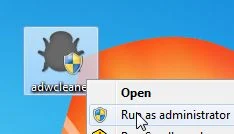
If Windows prompts you as to whether or not you wish to run AdwCleaner, please allow it to run. - When the AdwCleaner program will open, click on the Scan button as shown below.
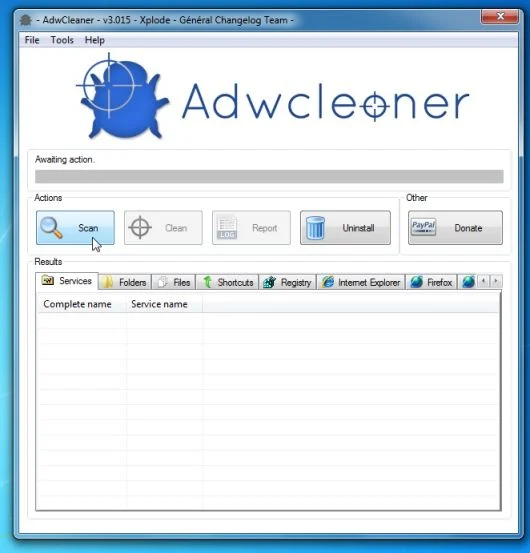
AdwCleaner will now start to search for the Warn1now.com malicious files that may be installed on your computer. - To remove the Warn1now.com malicious files that were detected in the previous step, please click on the Clean button.
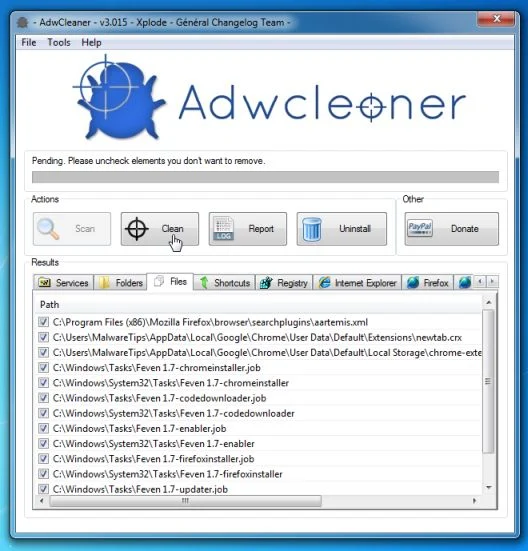
- AdwCleaner will now prompt you to save any open files or data as the program will need to reboot the computer. Please do so and then click on the OK button. AdwCleaner will now delete all detected adware from your computer. When it is done it will display an alert that explains what PUPs (Potentially Unwanted Programs) and Adware are. Please read through this information and then press the OK button. You will now be presented with an alert that states AdwCleaner needs to reboot your computer.
Please click on the OK button to allow AdwCleaner reboot your computer.
STEP 2: Remove Warn1now.com pop-up virus with Malwarebytes Anti-Malware Free
Malwarebytes Anti-Malware Free uses industry-leading technology to detect and remove all traces of malware, including worms, Trojans, rootkits, rogues, dialers, spyware, and more.
It is important to note that Malwarebytes Anti-Malware works well and should run alongside antivirus software without conflicts.
- You can download Malwarebytes Anti-Malware Free from the below link, then double click on it to install this program.
Download MalwarebytesFree official installer. Your download starts right away. - When the installation begins, keep following the prompts in order to continue with the setup process.
![[Image: Malwarebytes Anti-Malware final installation screen]](https://malwaretips.com/blogs/wp-content/uploads/mwt-media/47/471448d4dd5aa1d55ea545effccf0ac9c8ccb5a29622da4e38ac677b5d8c37b5/9f473303c15a00262451cc5a56b904de929157b59e19e3cfb2c03ec88f643390-402.webp "Malwarebytes Anti-Malware final installation screen")
- On the Scanner tab,select Perform quick scan and then click on the Scan button to start scanning your computer.
![[Image: Malwarebytes Anti-Malware Quick Scan]](https://malwaretips.com/blogs/wp-content/uploads/mwt-media/1e/1eb209597ca2f06e596fd060345ac7e3100355f1ec8fc8ea2d9dec7abbb05ea0/3afba9b0b97b56945ffc33817ac48f7433c799241a22e422966180b76473a906-521.webp "Run a Quick Scan with Malwarebytes Anti-Malware")
- Malwarebytes’ Anti-Malware will now start scanning your computer for Warn1now.com malicious files as shown below.
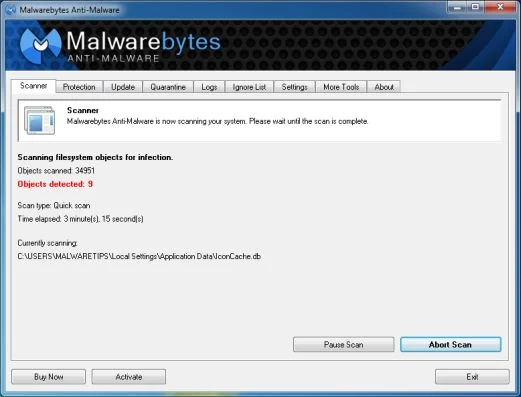
- When the Malwarebytes scan will be completed,click on Show Result.
![[Image: Malwarebytes Anti-Malware scan results]](https://malwaretips.com/blogs/wp-content/uploads/mwt-media/84/84c62dd46289424dbc686abc53672cb0810111920c8c0bbd69e973844d0a9ab0/a4c04aa700e641f47afec9965f79ff346740668e5952955ccbe5b4c3658b5897-521.webp "Malwarebytes when the system scan has completed")
- You will now be presented with a screen showing you the malware infections that Malwarebytes’ Anti-Malware has detected.Please note that the infections found may be different than what is shown in the image.Make sure that everything is Checked (ticked) and click on the Remove Selected button.
![[Image:Malwarebytes removing virus]](https://malwaretips.com/blogs/wp-content/uploads/mwt-media/d8/d86b6a8bac0e4ece9fd2d259a83db71487943f6b04b567edb0e9adcc3200f492/4eb94651b0e34cc99689c56dc71cd0a49444498ed05c5803ea55fda1cfee1b1f-521.webp "Click on Remove Selected to get rid of Warn1now.com popups")
STEP 3: Double-check for the Warn1now.com infection with HitmanPro
HitmanPro is a second opinion scanner, designed to rescue your computer from malware (viruses, trojans, rootkits, etc.) that have infected your computer despite all the security measures you have taken (such as anti virus software, firewalls, etc.). HitmanPro is designed to work alongside existing security programs without any conflicts. It scans the computer quickly (less than 5 minutes) and does not slow down the computer.
- You can download HitmanPro from the below link, then double-click on it to start this program.
Download HitmanProOfficial Sophos download. Free scan, free 30-day trial to remove threats. - HitmanPro will start and you’ll need to follow the prompts (by clicking on the Next button) to start a system scan with this program.
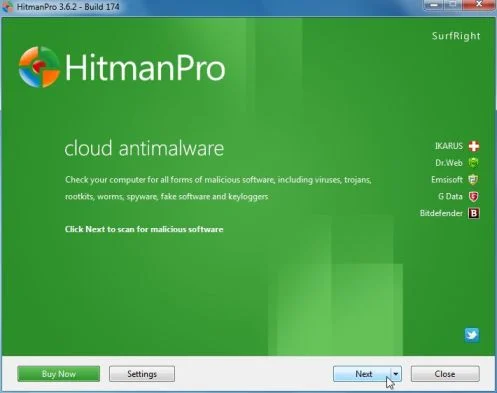
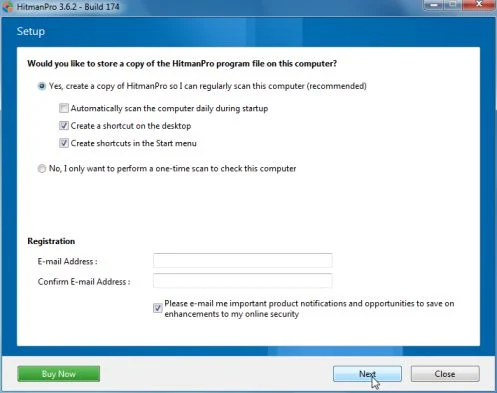
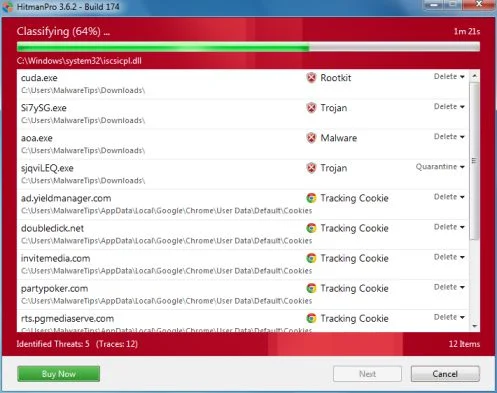
- HitmanPro will start scanning your computer for Warn1now.com malicious files as seen in the image below.
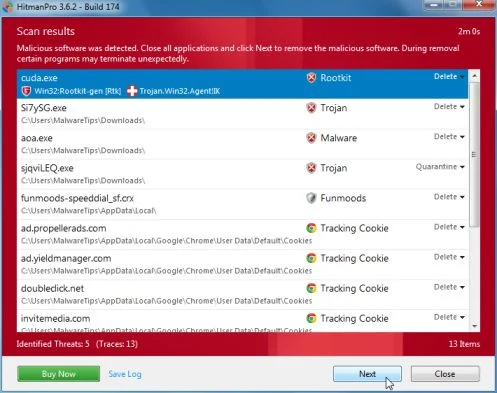
- Once the scan is complete,you’ll see a screen which will display all the infected files that this utility has detected, and you’ll need to click on Next to remove this malicious files.
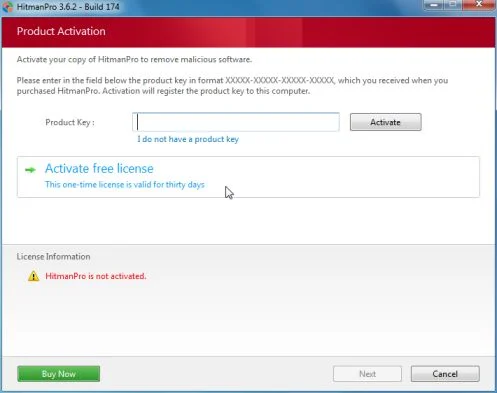
- Click Activate free license to start the free 30 days trial and remove all the malicious files from your computer.
(OPTIONAL) STEP 4 : Remove the browser extension responsible for the Warn1now.com pop-up ads from Internet Explorer, Firefox and Google Chrome
If you are still experiencing issues with the Warn1now.com pop-up ads in Internet Explorer, Firefox or Chrome, we will need to reset your browser to its default settings. This step needs to be performed only if your issues have not been solved by the previous steps.
Remove Warn1now.com pop-up ads from Internet Explorer
- Open Internet Explorer, click on the gear icon
![[Image: icongear.jpg]](//malwaretips.com/images/removalguide/icongear.jpg "Remove Warn1now.com pop-up virus (Support Scam) 1") (Tools for Windows XP users) at the top (far right), then click again on Internet Options.
(Tools for Windows XP users) at the top (far right), then click again on Internet Options.
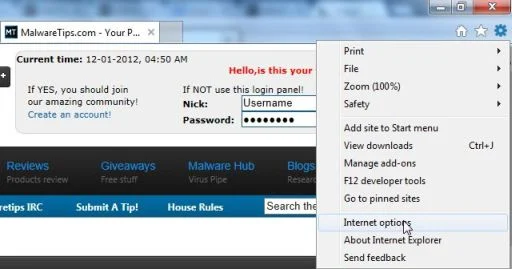
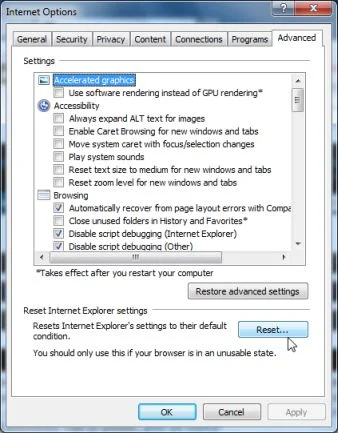
- In the Internet Options dialog box, click on the Advanced tab, then click on the Reset button.
- In the Reset Internet Explorer settings section, check the Delete personal settings box, then click on Reset.
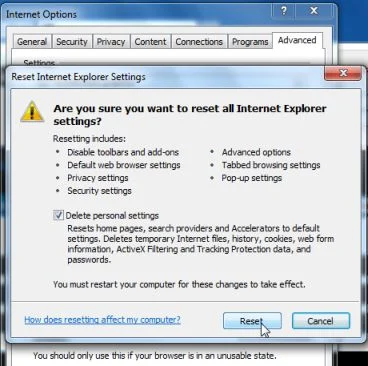
- When Internet Explorer finishes resetting, click Close in the confirmation dialogue box and then click OK.
- Close and open Internet Explorer.
![[Image: icongear.jpg]](http://malwaretips.com/images/removalguide/icongear.jpg "Remove Warn1now.com pop-up virus (Support Scam) 1") (Tools for Windows XP users) at the top (far right), then click again on Internet Options.
(Tools for Windows XP users) at the top (far right), then click again on Internet Options.Remove Warn1now.com pop-up ads from Mozilla Firefox
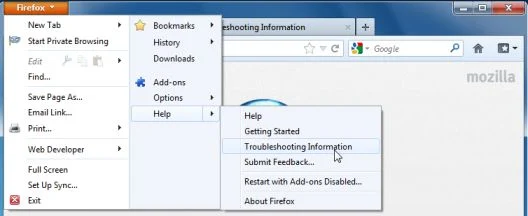
- At the top of the Firefox window, click the Firefox button, go over to the Help sub-menu (on Windows XP, click the Help menu at the top of the Firefox window), and select Troubleshooting Information.
- Click the Reset Firefox button in the upper-right corner of the Troubleshooting Information page.
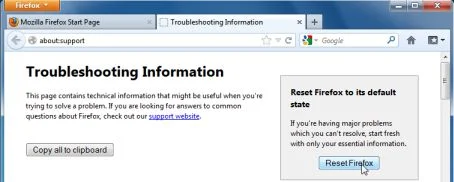
- To continue, click Reset Firefox in the confirmation window that opens.
- Firefox will close and be reset. When it’s done, a window will list the information that was imported. Click Finish
Remove Warn1now.com pop-up ads from Google Chrome
- Remove Warn1now.com extensions from Google Chrome.
Click the Chrome menu button on the browser toolbar, select Tools and then click on Extensions.
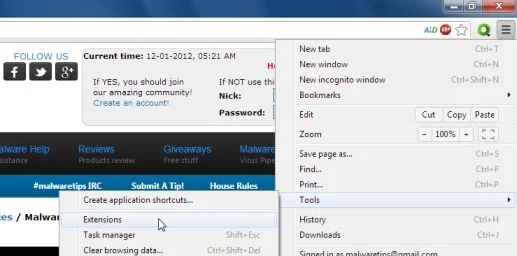
- In the Extensions tab, remove the DP1815, LyricsSay-1, LyricXeeker, Plus-HD 1.3, BetterSurf, LyricsGet, PassShow, LyricsBuddy-1, AlLyrics, ElectroLyrics-1, a2zLyrics-1, Feven 1.8, Websteroids, ScorpionSaver, HD-Plus 3.5 any other unknown extensions, by clicking the trash can
![[Image: Remove an extension from Chrome]](https://malwaretips.com/blogs/wp-content/uploads/mwt-media/15/15312192a9e993d0b47828bcc4a4243b8327edfe01567c83ac4ac59042b1ed49/ef971b5a6abccddf090910da018056c4845ae3d8fc7de8265833328ba64c0041-20.webp "Remove an extension from Chrome") icon.
icon.
Cyber criminals often change the name of malicious extension that is causing the Warn1now.com pop-up ads, so if you have not installed an extensions then you should remove it from your web browser.
![[Image: Warn1now.com Chrome extensions]](https://malwaretips.com/blogs/wp-content/uploads/mwt-media/fa/fa4fc7212d5903a62a5bc0879da782a68cb563552673f504c4ba2df17e6a566f/9dade73243f9bdd93e89cf310fc5d8342f5245b9de2e28c3636266a8bb1c6cc9-656.webp "Remove the Warn1now.com Chrome extensions")
Your computer should now be free of the Warn1now.com infection. If your current anti-virus solution let this infection through, you may want to consider purchasing the PRO version of Malwarebytes Anti-Malware to protect against these types of threats in the future, and perform regular computer scans with HitmanPro.
If you are still experiencing problems while trying to remove Warn1now.com from your machine, please start a new thread in our Malware Removal Assistance forum.

Join the discussion
1 commentShare your experience or ask a question about this article.
Your progress
Did these steps help?
Let us know how the guide worked for you.
Describe what you see and the step you reached. Keep passwords and other private information out.
Discussion
Rapid Tech Support is absolutely a scam designed to lead you to believe you have viruses on your computer, and to get you to pay for a bogus “cleaning service” and anti-viral software. One evening, I was using Internet Explorer, and a website popped up saying that I may have viruses on my computer and that I needed to call an 888 toll free number immediately. The pop-up made it impossible for me to use the website browser, or to close it. I called the number and the person on the line identified themselves as “Windows tech support.” They asked me to read the error message back to them and confirmed its legitimacy before walking me through several complex tasks on my computer. I gave them remote access to my computer, and I was pressured to pay $199 for their services. Also, during the call, under the guise of making conversation, the agent solicited and obtained where I worked, my address, where I received my student loans, and what city I was from. He asked me to keep my computer on for 2-4 hours while a technician fixed the problem and to look for a message indicating that my computer had been cleaned. After I got off the phone, I did some online research with my iPhone and realized I had been scammed. I cancelled the credit card I had used to pay them and immediately shut down my computer, discontinuing their remote access. I called Microsoft directly and discovered that Rapid Tech Support had actually put malware on my computer, designed to infect my computer with more viruses and to make it easy to collect personal information from my computer. It took them 6 hours to clean my computer due to the amount of viruses on my machine. When I called the company back several times the company was “closed” or I was put on hold for up to 1/2 hour before getting frustrated and hanging up. I have reported this company to the Federal Trade Commission as a scam, taken steps to register myself for potential identity theft, and changed all of my passwords (Windows, email, banking, etc).
The number for Rapid Tech Support is 1-888-202-3796. Their website address ishttp://www.rapidtechsupport.com/ .
Do not use them! If you receive a call from them, or a computer message from their website asking you to call them, hang up, or ignore it, and check your computer for viruses using legitimate anti-viral software.