

Windows Advanced Security Center is a computer virus, which masquerades as genuine security software, while actually reporting non-existent malware threats in order to scare the user into paying for this rogue security software.
What is Windows Advanced Security Center?
Windows Advanced Security Center is a rogue anti-virus program from the Rogue.FakeVimes family of computer infections. This program is classified as a rogue because it pretends to be an anti-virus program, but will instead displays bogus scan results, report non-existing computer infections, and does not allow you to run your normal applications.
In this case, not only is Windows Advanced Security Center going to disrupt your system, it’s going to try and trick you into making a purchase using your credit card.
Windows Advanced Security Center appears in the form of a fake Windows warning on your computer system that reads you have a specific number of viruses on your computer (usually in the hundreds) and that this software has detected those viruses. To get rid of them you must purchase the full-version of Windows Advanced Security Center. It’s important to remember that by purchasing the “claimed full version to remove the viruses” you will be submitting your personal information to unscrupulous persons and may also end up being a victim of credit card or identity fraud or theft.
To protect itself from being removed, Windows Advanced Security Center will also terminate any application you try to run on your computer. It does this to protect itself from being removed by legitimate security programs and to scare you into thinking your programs are infected. When this infection terminates a program it will display a message similar to the following:
Firewall has blocked a program from accessing the Internet
c:\windows\system32\taskmanger.exe
is suspected to have infected your PC.
This type of virus intercepts entered data and transmits them
to a remote server.
How did Windows Advanced Security Center virus got on my computer?
Windows Advanced Security Center is distributed through several means. Malicious websites, or legitimate websites that have been hacked, can infect your machine through exploit kits that use vulnerabilities on your computer to install this rogue antivirus without your permission.
Another method used to propagate Windows Advanced Security Center is spam email containing infected attachments or links to malicious websites. Cyber-criminals spam out an email, with forged header information, tricking you into believing that it is from a shipping company like DHL or FedEx. The email tells you that they tried to deliver a package to you, but failed for some reason. Sometimes the emails claim to be notifications of a shipment you have made. Either way, you can’t resist being curious as to what the email is referring to – and open the attached file (or click on a link embedded inside the email). And with that, your computer is infected with the Windows Advanced Security Center virus.
The threat may also be downloaded manually by tricking the user into thinking they are installing a useful piece of software, for instance a bogus update for Adobe Flash Player or another piece of software.
The Windows Advanced Security Center infection is also prevalent on peer-to-peer file sharing websites and is often packaged with pirated or illegally acquired software.
Am I infected with Windows Advanced Security Center virus?
Some examples of the interface, fake alerts, fake scanning results, and pop-ups displayed by Windows Advanced Security Center virus are shown below:
![[Image: Windows Advanced Security Center Virus]](http://malwaretips.com/blogs/wp-content/uploads/2012/05/Windows-Advanced-Security-Center.png "Windows Advanced Security Center")
![[Image: Windows Advanced Security Center Fake alert]](http://malwaretips.com/blogs/wp-content/uploads/2012/05/Windows-Advanced-Security-Center-alert.png "Windows Advanced Security Center fake alert")
![[Image: Windows Advanced Security Center Warning]](http://malwaretips.com/blogs/wp-content/uploads/2012/05/Windows-Advanced-Security-Center-prompt.png "Windows Advanced Security Center requesting activation key")
How to remove Windows Advanced Security Center virus (Removal Guide)
This page is a comprehensive guide, which will remove the Windows Advanced Security Center infection from your your computer. Please perform all the steps in the correct order. If you have any questions or doubt at any point, STOP and ask for our assistance. Please keep in mind that to perform this removal guide, you will need a clean (non-infected) computer and a CD or USB stick.
OPTION 1: Remove Windows Advanced Security Center virus using its activation code
OPTION 2: Remove Windows Advanced Security Center virus by fixing your Windows Registry
OPTION 3:Remove Windows Advanced Security Center virus with System Restore
OPTION 1: Remove Windows Advanced Security Center virus using its activation code
STEP 1: Use the Windows Advanced Security Center activation key to stop its malicious behavior
Windows Advanced Security Center has hijacked your Windows Registry to launch itself before any application and stop you from running any other program. To prevent this from happening, we can use the below code to register Windows Advanced Security Center.
- Open Windows Advanced Security Center interface, click on the question mark button in the right top corner, then click on Register button.
![[Image: Click on the question mark and select Register]](//malwaretips.com/blogs/wp-content/uploads/2014/02/register-button.jpg "Click on the question mark and select Register")
- When the Windows Advanced Security Center Registration box will pop-up, enter the below registration codes to activate this rogue antivirus.
Windows Advanced Security Center Product Key: 0W000-000B0-00T00-E0021
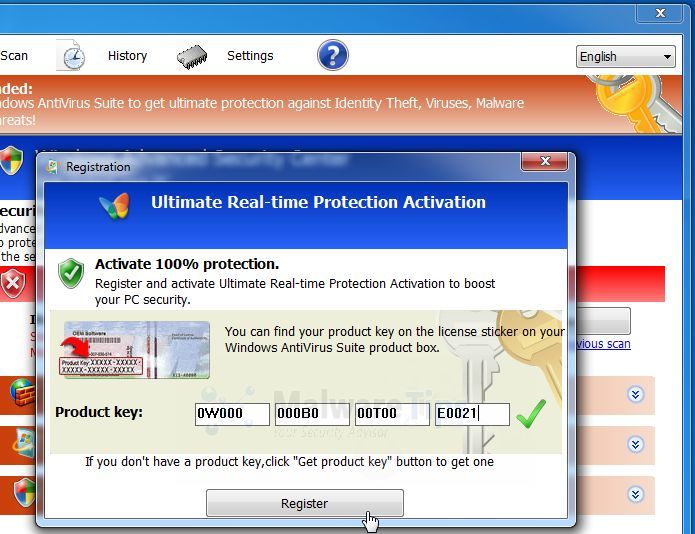
- Windows Advanced Security Center should now allow Windows to start, and you should be able to open your browser and any other programs.
Please keep in mind that entering the above registration code will NOT remove Windows Advanced Security Center from your computer, instead it will just stop the fake alerts so that you’ll be able to complete this removal guide without being interrupted by this infection.
![[Image: Click on the question mark and select Register]](http://malwaretips.com/blogs/wp-content/uploads/2014/02/register-button.jpg "Click on the question mark and select Register")
STEP 2: Remove Windows Advanced Security Center virus with Malwarebytes Anti-Malware FREE
Malwarebytes Anti-Malware Free is a powerful on-demand scanner which will remove Windows Advanced Security Center malicious files from your computer.
- You can download Malwarebytes Anti-Malware Free from the below link, then double-click on the icon named mbam-setup.exe to install this program.
MALWAREBYTES ANTI-MALWARE DOWNLOAD LINK(This link will open a download page in a new window from where you can download Malwarebytes Anti-Malware Free) - When the installation begins, keep following the prompts in order to continue with the setup process, then at the last screen click on the Finish button.
![[Image: Malwarebytes Anti-Malware final installation screen]](//malwaretips.com/blogs/wp-content/uploads/2013/01/malwarebytes-installation.jpg "Malwarebytes Anti-Malware installation screen")
- On the Scanner tab, select Perform quick scan, and then click on the Scan button to start searching for the Windows Advanced Security Center malicious files.
![[Image: Malwarebytes Anti-Malware Quick Scan]](//malwaretips.com/blogs/wp-content/uploads/2013/01/malwarebytes-quick-scan.jpg "Run a Quick Scan with Malwarebytes Anti-Malware")
- Malwarebytes’ Anti-Malware will now start scanning your computer for Windows Advanced Security Center virus as shown below.
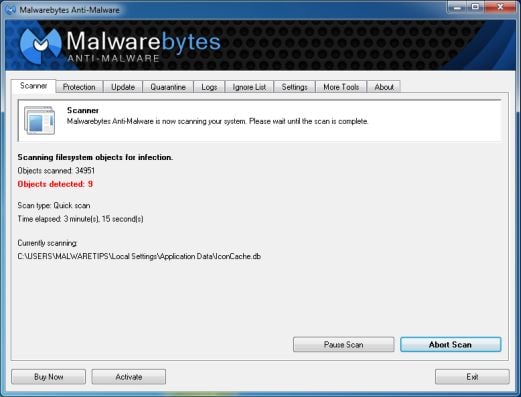
- When the Malwarebytes Anti-Malware scan has finished, click on the Show Results button.
![[Image: Malwarebytes Anti-Malware scan results]](//malwaretips.com/blogs/wp-content/uploads/2013/01/malwarebytes-scan-results.jpg "Malwarebytes when the system scan has completed")
- You will now be presented with a screen showing you the computer infections that Malwarebytes Anti-Malware has detected. Make sure that everything is Checked (ticked), then click on the Remove Selected button.
![[Image: Malwarebytes Anti-Malwar removing Windows Advanced Security Center virus]](//malwaretips.com/blogs/wp-content/uploads/2013/01/malwarebytes-virus-removal.jpg "Malwarebytes Anti-Malwar removing Windows Advanced Security Center virus")
- Once your computer will restart in Windows regular mode, open Malwarebytes Anti-Malware and perform a Full System scan to verify that there are no remaining threats.
![[Image: Malwarebytes Anti-Malware final installation screen]](http://malwaretips.com/blogs/wp-content/uploads/2013/01/malwarebytes-installation.jpg "Malwarebytes Anti-Malware installation screen")
![[Image: Malwarebytes Anti-Malware Quick Scan]](http://malwaretips.com/blogs/wp-content/uploads/2013/01/malwarebytes-quick-scan.jpg "Run a Quick Scan with Malwarebytes Anti-Malware")
![[Image: Malwarebytes Anti-Malware scan results]](http://malwaretips.com/blogs/wp-content/uploads/2013/01/malwarebytes-scan-results.jpg "Malwarebytes when the system scan has completed")
![[Image: Malwarebytes Anti-Malwar removing Windows Advanced Security Center virus]](http://malwaretips.com/blogs/wp-content/uploads/2013/01/malwarebytes-virus-removal.jpg "Malwarebytes Anti-Malwar removing Windows Advanced Security Center virus")
STEP 3: Remove Windows Advanced Security Center infection with HitmanPro
HitmanPro is a second opinion scanner, designed to rescue your computer from malware (viruses, trojans, rootkits, etc.) that have infected your computer despite all the security measures you have taken (such as anti virus software, firewalls, etc.). HitmanPro is designed to work alongside existing security programs without any conflicts. It scans the computer quickly (less than 5 minutes) and does not slow down the computer.
- You can download HitmanPro from the below link:
HITMANPRO DOWNLOAD LINK (This link will open a web page from where you can download HitmanPro) - Double-click on the file named HitmanPro.exe (for 32-bit versions of Windows) or HitmanPro_x64.exe (for 64-bit versions of Windows). When the program starts you will be presented with the start screen as shown below.
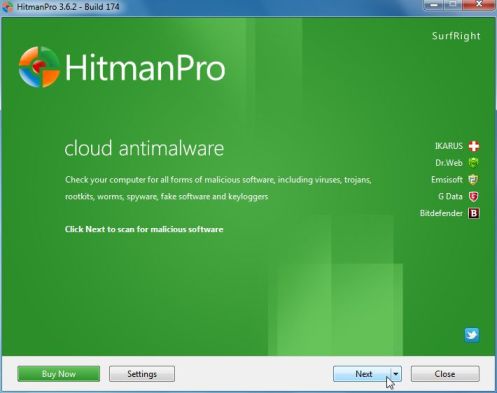
Click on the Next button, to install HitmanPro on your computer.
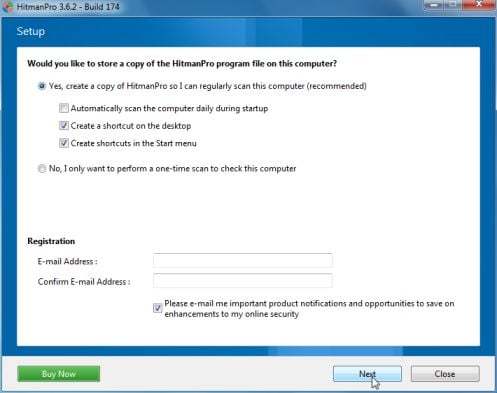
- HitmanPro will now begin to scan your computer for Windows Advanced Security Center trojan.
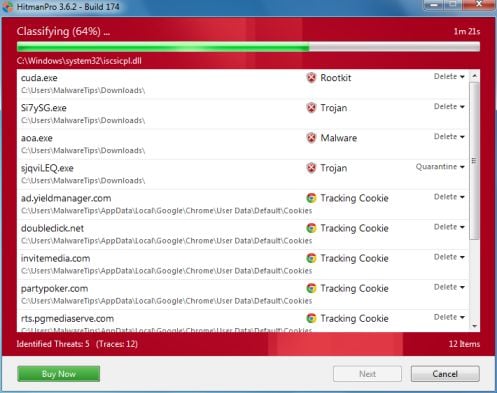
- When it has finished it will display a list of all the malware that the program found as shown in the image below. Click on the Next button, to remove Windows Advanced Security Center virus.
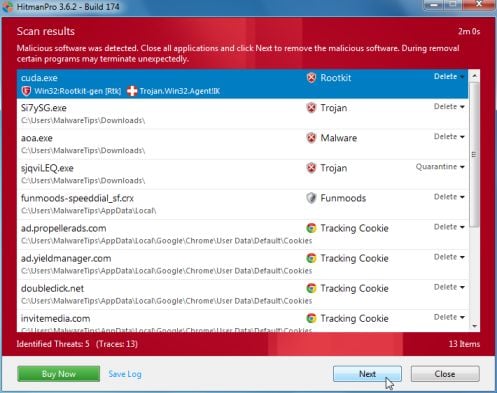
- Click on the Activate free license button to begin the free 30 days trial, and remove all the malicious files from your computer.
![[Image: HitmanPro 30 days activation button]](//malwaretips.com/blogs/wp-content/uploads/2012/11/hitmanpro-activation.jpg "HitmanPro free 30 days trial")
![[Image: HitmanPro 30 days activation button]](http://malwaretips.com/blogs/wp-content/uploads/2012/11/hitmanpro-activation.jpg "HitmanPro free 30 days trial")
OPTION 2: Remove Windows Advanced Security Center virus by fixing your Windows Registry
In some cases the above registration may not work, so we will need to fix your Windows Registry so that we can boot the computer without being blocked by the Windows Advanced Security Center infection.
STEP 1 : Start your computer in Safe Mode with Command Prompt
- Remove all floppy disks, CDs, and DVDs from your computer, and then restart your computer.
- When the computer starts you will see your computer’s hardware being listed. When you see this information start to gently tap the F8 key repeatedly until you are presented with the Windows XP, Vista or 7 Advanced Boot Options.
![[Image: F8 key]](//malwaretips.com/blogs/wp-content/uploads/2013/06/F8-key.jpg.png "Windows F8 key")
If you are using Windows 8, press the Windows key + C, and then click Settings. Click Power, hold down Shift on your keyboard and click Restart, then click on Troubleshoot and select Advanced options. In the Advanced Options screen, select Startup Settings, then click on Restart. Alternatively, you can read this guide to start Windows 8 in Safe Mode. - If you are using Windows XP, Vista or 7 in the Advanced Boot Options screen, use the arrow keys to highlight Safe Mode with Command Prompt , and then press ENTER.
![[Image: Starting computer in Safe Mode with Command Prompt]](//malwaretips.com/blogs/wp-content/uploads/2013/06/Safe-Mode-with-Command-Prompt.jpg "Advanced Boot Options screen")
If you are using Windows 8, press 6 on your keyboard to Enable Safe Mode with Command Prompt.
Windows will start in Safe Mode with Networking.
![[Image: F8 key]](http://malwaretips.com/blogs/wp-content/uploads/2013/06/F8-key.jpg.png "Windows F8 key")
![[Image: Starting computer in Safe Mode with Command Prompt]](http://malwaretips.com/blogs/wp-content/uploads/2013/06/Safe-Mode-with-Command-Prompt.jpg "Advanced Boot Options screen")
STEP 2: Fix your Windows Registry to remove Windows Advanced Security Center and scan with Malwarebytes Anti-Malware and HitmanPro
Windows Advanced Security Center has hijacked your Windows Registry to start automatically before your Windows desktop is shown, which makes your computer unusable until the infection is removed.
- While your computer is in Safe Mode with Command Prompt, the Command Prompt allows you to type commands and then press Enter on your keyboard to execute them.
In this Command Prompt window, please type explorer.exe and then press Enter on your keyboard.
![[Image: Type explorer.exe in Command Prompt]](//malwaretips.com/blogs/wp-content/uploads/2013/11/explorer-exe-safe-mode-command-prompt.jpg "Type explorer.exe in Command Prompt")
- The Windows desktop will now appear. When the desktop appears you can then close the Command Prompt window by clicking on the X.
- Using a clean (non-infected) computer download onto a CD or USB stick the below program to fix your Windows Registry:
REGFIX DOWNLOAD LINK (This link will automatically download the registry fix for the Windows Advanced Security Center infection) - Now insert your CD or USB drive into the infected machine and open up the drive letter associated with your inserted media. You can access this drive letter by opening the Computer icon on your desktop or from the Start Menu. Once the drive letter is open, double-click on the RegFix.reg and allow the data to be merged when you are prompted. Once the data has been merged, you can press the OK button and remove the removable media from your computer.
![[Image: Run RegFix.reg in Safe Mode with Networking]](//malwaretips.com/blogs/wp-content/uploads/2013/11/registry-fix.jpg "Run RegFix.reg in Safe Mode with Networking")
- Please reboot your computer into the normal Windows mode and login as the infected user. When you are back at your normal Windows desktop perform a scan with Malwarebytes Anti-Malware and HitmanPro as seen in OPTION 1.
![[Image: Type explorer.exe in Command Prompt]](http://malwaretips.com/blogs/wp-content/uploads/2013/11/explorer-exe-safe-mode-command-prompt.jpg "Type explorer.exe in Command Prompt")
![[Image: Run RegFix.reg in Safe Mode with Networking]](http://malwaretips.com/blogs/wp-content/uploads/2013/11/registry-fix.jpg "Run RegFix.reg in Safe Mode with Networking")
OPTION 3: Remove Windows Advanced Security Center virus with System Restore
System Restore helps you restore your computer’s system files to an earlier point in time. It’s a way to undo system changes to your computer without affecting your personal files, such as e‑mail, documents, or photos.
- Reboot your computer into Safe Mode with Command Prompt. To do this, turn your computer off and then back on and immediately when you see anything on the screen, start tapping the F8 key on your keyboard.
If you are using Windows 8, the trick is to hold the Shift button and gently tap the F8 key repeatedly, this will sometimes boot you into the new advanced “recovery mode”, where you can choose to see advanced repair options. On the next screen, you will need to click on the Troubleshoot option, then select Advanced Options and select Windows Start-up Settings. Click on the Restart button, and you should now be able to see the Advanced Boot Options screen. - Using the arrow keys on your keyboard, select Safe Mode with Command Prompt and press Enter on your keyboard.
- At the command prompt, type rstrui.exe, and then press ENTER.
![[Image: Start System Restore to remove Windows Advanced Security Center virus]](//malwaretips.com/blogs/wp-content/uploads/2013/06/system-restore-command.jpg "rstrui.exe command in Safe Mode with Command Prompt")
Alternatively, if you are using Windows Vista, 7 and 8, you can type: C:\windows\system32\rstrui.exe , and press Enter. And if you are a Windows XP user, type C:\windows\system32\restore\rstrui.exe, then press Enter. - System Restore should start, and you will display also a list of restore points. Try using a restore point created just before the date and time the Windows Advanced Security Center virus has infected your computer.
![[Image: Restore settings to remove ransomware]](//malwaretips.com/blogs/wp-content/uploads/2013/06/system-restore.jpg "Restore your computer's system files to an earlier point in time")
- When System Restore has completed its task, start your computer in Windows regular mode, and perform a scan with Malwarebytes Anti-Malware and HitmanPro.
![[Image: Start System Restore to remove Windows Advanced Security Center virus]](http://malwaretips.com/blogs/wp-content/uploads/2013/06/system-restore-command.jpg "rstrui.exe command in Safe Mode with Command Prompt")
![[Image: Restore settings to remove ransomware]](http://malwaretips.com/blogs/wp-content/uploads/2013/06/system-restore.jpg "Restore your computer's system files to an earlier point in time")
Your computer should now be free of the Windows Advanced Security Center infection. If your current anti-virus solution let this infection through, you may want to consider purchasing the PRO version of Malwarebytes Anti-Malware to protect against these types of threats in the future, and perform regular computer scans with HitmanPro.
If you are still experiencing problems while trying to remove Windows Advanced Security Center from your machine, please start a new thread in our Malware Removal Assistance forum.









You rock!! I’ve never dealt with more malicious situation and everything you said to do worked!!! thanks for sharing!!
Thank you so much. Option 3 worked for me. Much appreciated.
Thank you so very much. My Mom has Windows 7 and saw a new way to make chocolate milk. Then I come home and she has no idea what she did. Your guide was instramental to fixing this through Safe Mode and System Restore. Thank you.
You SAVED me!!!!!!! You have such a big heart to be helping so many people – I just can’t thank you enough. Your step-by-step instructions are so easy to follow. From a non-IT person
Thank you so much!! Worked exactly as described. I am glad that there are good people like you on the net to help combat the scum.
I’m stymied; running windows 7 and can’t even get my computer to respond to the F8 command to start in safe mode. LAN settings are already unchecked for proxy server (from what I can see). Do you know what I’m doing wrong??
Hello Annette,
Lets work in Normal Mode to go around this problem… please follow this steps:
STEP 1: Run a scan with Malwarebytes Anti-Malware in Chameleon Mode in Norman mode:
STEP 2: Run a scan with RogueKiller
[b]RogueKiller Download Link[/b] (This link will automatically download RogueKiller on your computer)
STEP 3 Please perform a scan with HitmanPro as seen on the guide.
If you are having problems starting this program please use the ForceBreach mode as described in the guide.
STEP 4: Run a scan with ESET Online Scanner:
ESET Online Scanner Download Link (This link will automatically download ESET Online Scanner on your computer.)
Waiting for your reply to tell me how everything is running!
Good luck…
Worked excellent! Thank you!
Wouaw, thank you for your help !!
I have the windows advanced security center virus. I can’t download RKill and can’t get the malwarebytes chamelon to run. It starts to run and then get a message “error writing to registry key” Any suggestions?
Hello,
Please follow this steps:
STEP 1. While in NORMAL MODE,download HitmanPro and then start this program in ForceBreach Mode
1.Here are the direct download links for HitmanPro,
– http://dl.surfright.nl/HitmanPro36.exe (For 32bit)
– http://dl.surfright.nl/HitmanPro36_x64.exe (For 64bit)
2.Hold down the left CTRL-key when you start HitmanPro and all non-essential processes are terminated, including this rogue malicious process
Here is a video that explains with graphic details how to do this : http://www.youtube.com/watch?v=m6eRWTv2STk
3. Let HitmanPro scan and remove the detected infections.
STEP 2: While in NORMAL MODE,download/Run Rkill and then run a scan with Malwarebytes
1.Download any re-named version of Rkill (direct download links bellow):
RKILL DOWNLOAD LINK #1
RKILL DOWNLOAD LINK #2
RKILL DOWNLOAD LINK #3
2.Next,please perform a scan with Malwarebytes and then do a RogueKiller and Unhide.exe scan as seen on the guide
STEP 3. Run a scan with ESET Online Scanner
ESET Online Scanner Download Link (This link will automatically download ESET Online Scanner on your computer.)
Waiting for your reply to tell me how everything is working.. :) Good luck!
Looks like everything worked! The ESET scan found no threats. Earlier, in downloading RKill I kept getting failure pop ups, but then RKill suddenly started to run. Thank you!
Hi, this thing came up last night but looking at the instructions, I can’t get the rkill or iexplore to run at all. Help please!
Hello Grace,
Please run a scan with Malwarebytes Anti-Malware in Chameleon Mode in Norman mode:
2.Please perform a scan with HitmanPro as seen on the guide.
3.Run a scan with ESET Online Scanner:
ESET Online Scanner Download Link (This link will automatically download ESET Online Scanner on your computer.)
Got thru the whole clean up process but when I got to the Hitman Pro Activate fee license that wasn’t an option??
Hello,
Is this your personal computer or from work?It’s important to know that only home users can use this product when it comes to malware removal however for corporate/business computer the malware removal isn’t free.
You can perform a scan with the following utilities:
1.Run a scan with Kaspersky Virus Removal Tool
Click here to download the Kaspersky Virus Removal Tool.
2.Run a scan with Eset Online Scanner.
ESET Online Scanner Download Link (This link will automatically download ESET Online Scanner on your computer.)