

A page says 150 XRP has been reserved for you. There’s a simple claim button, a live reward notice, and no obvious purchase.
It is an easy offer to investigate for a moment. What deserves attention is the step that comes after the promised allocation.
Overview
A fixed 150 XRP reward is presented as already yours
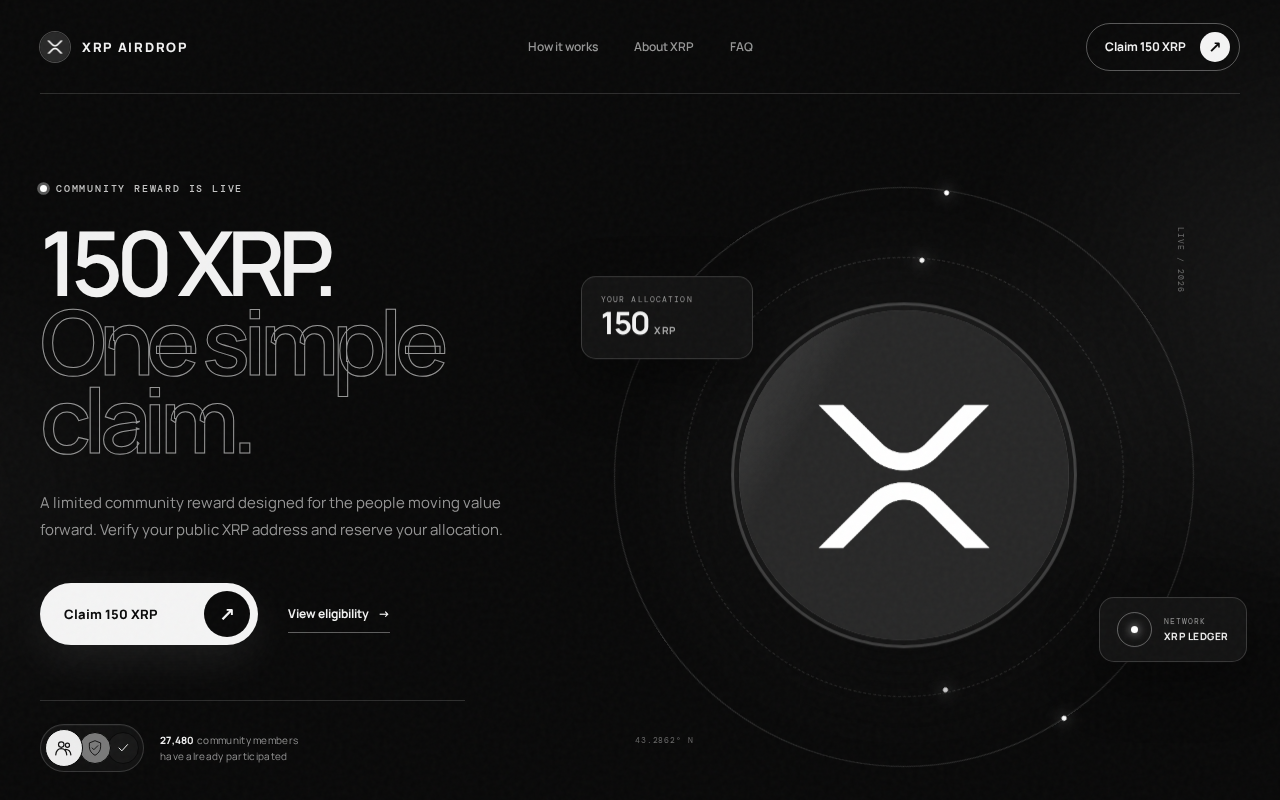
The XRP Ledger airdrop scam at stack-deckcoin[.]com advertises a community reward with an allocation of 150 XRP. The presentation makes claiming sound like the only remaining task.
The page uses XRP imagery, a dark polished layout, and a claim button. It also displays a participation count, creating the impression that many others have already proceeded.
That number is a claim made by the webpage, not an independently verified count of recipients. A counter does not prove anyone received the advertised amount.
The XRP Ledger name does not authenticate this website
The actual XRP Ledger is an open-source blockchain. A separate site invoking its name does not become an official reward administrator.
The page’s reported journey leads to a wallet selector and a cryptocurrency-draining lure. Do not authorize requests through it or treat the advertised allocation as money you own.
The capture shows the reward pitch directly. No wallet was used to test a transaction, and no specific malicious contract or completed theft was independently established.
The critical checks are more useful than the reward counter
- The claim is hosted on an unrelated domain rather than an established XRP Ledger resource.
- A specific token amount is offered before a trustworthy eligibility process is established.
- Wallet-brand icons can make a false claiming process look normal.
- Sharing a public address is different from disclosing a private key or authorizing a transaction.
- The network and action shown by your wallet matter more than the claim button’s description.
This warning is about the false airdrop, not about XRP itself or every service that supports it. A legitimate asset can be used as bait.
Why an Exact Token Allocation Feels Persuasive
A vague promise asks you to imagine a reward. A fixed allocation encourages you to think you already have one waiting.
That shift can make refusing the next step feel like losing something. You may start considering what 150 XRP is worth before asking who promised it.
The page reinforces that feeling by calling the reward live and describing the claim as simple. It emphasizes convenience rather than explaining a verifiable entitlement.
A displayed participant total supplies social reassurance. If thousands apparently joined, the reader may assume someone else has already checked the offer.
But page text is not a distribution record. A polished dashboard can display a number without demonstrating where it came from or whether it updates honestly.
There is no reason to assign a guaranteed cash value to this supposed allocation. Market prices move, and an unverified promise is not a balance under your control.
How the XRP Ledger Airdrop Scam Works
Step 1: An apparent community benefit lowers your guard
The pitch describes a reward for people participating in the ecosystem. That framing invites readers to view it as recognition rather than an unfamiliar financial transaction.
Community distributions do exist in cryptocurrency, which makes the general idea familiar. The deception lies in presenting this particular claim route as one you should trust.
You might encounter it through a message, promotion, or shared link. There is no verified single distribution channel that defines every encounter with this page.
Once the website opens, recognizable XRP imagery does much of the work. A reader may recognize the asset and overlook the unrelated domain taking the claim.
Recognition answers what the page wants you to think about. It does not answer who runs it, why you qualify, or what they will request.
Step 2: The allocation and activity claims encourage immediate participation
The landing screen presents 150 XRP as your allocation. That personal framing can feel meaningful even when no independently verified eligibility check has occurred.
The page also claims substantial community participation. Its number should be read as promotional content controlled by the operator, not proof of completed payments.
Before believing that an award is yours, look for a genuine issuer or program administrator and a documented reason you would be eligible.
A copied network name cannot fill that gap. Neither can a frequently asked questions section whose answers are written by the same untrusted page.
Do not send a test payment simply to discover whether a larger reward exists. A successful transfer out of your wallet would prove you paid, not that a reward awaits.
No specific mandatory fee has been established for this case. If a later screen requests one, assess it as a new demand rather than a confirmed detail here.
Step 3: A broad wallet menu makes the claim look accessible
The reported next stage offers many wallet choices. Familiar names can make the site resemble a standard decentralized application instead of an unsolicited reward pitch.
A broad menu is not proof that the wallet providers support the offer. Their names can be displayed without permission, partnership, or technical compatibility.
It also does not establish which blockchain a later request will use. A multichain wallet may contain accounts and assets unrelated to native XRP.
If a page advertises an XRP reward but requests an action on another network, stop and investigate that mismatch. Do not approve it simply because your wallet opens.
You should not need a new application from the claim page to make the reward work. Obtain genuine wallet software only through the provider’s trusted distribution route.
Never enter a recovery phrase into a website offering to import, validate, or synchronize the account for an airdrop. That secret is not a participation form.
Step 4: The real risk is hidden behind the word claim
The website may call an action verification, eligibility checking, or reward collection. Those descriptions do not define the authority requested inside the wallet.
An actual transaction can send assets or change account settings. A permission or signature can have other effects depending on the network and the request.
Connecting alone is not a universal instruction to empty a wallet. Equally, an unfamiliar signature should not be assumed harmless merely because no obvious payment is displayed.
The appropriate warning is precise: do not authorize an untrusted request to pursue this reward. The exact malicious action was not executed here, so its details remain unverified.
If you already interacted, inspect the wallet’s own activity rather than the claim page’s status. A failed or successful claim message may say nothing about what you authorized.
Waiting for a promised allocation after approving a harmful action can waste valuable response time. Focus first on your real balances, permissions, and account security.
Do Not Confuse XRP With Every Other Crypto Account
Native XRP is not an ERC-20 token
Recovery advice must fit the asset and network involved. Ethereum-style token allowances are not a universal description of every XRP Ledger interaction.
For example, telling everyone to revoke an ERC-20 allowance can send a native XRP user toward an irrelevant tool or another fraudulent website.
Find the network and account in your wallet’s actual activity record. If you do not understand the transaction type, ask the genuine wallet provider for guidance.
Do not copy advanced account-management instructions from a stranger. Changing signing arrangements or other security settings without understanding them can make an incident worse.
The public address is not the recovery secret
A public address can be shared to receive assets and can reveal transaction history. It does not ordinarily let another person sign transactions by itself.
A private key or recovery phrase is fundamentally different. If disclosed, it can allow someone else to exercise control, regardless of whether you close the reward page.
A new application password does not replace the underlying secret. Follow the wallet provider’s instructions for compromised keys rather than relying on a cosmetic account change.
The ledger cannot simply undo a completed payment
Blockchain losses are not ordinary card disputes. There is no general chargeback button that returns native XRP because the recipient obtained it dishonestly.
XRP Ledger’s scam-reporting guidance recommends preserving evidence, reporting to authorities, and contacting relevant exchanges when appropriate. An exchange may control accounts on its own platform.
That possibility is different from reversing the ledger itself. Speed and accurate records help an investigation, but recovery should never be presented as guaranteed.
What to Do if You Have Fallen Victim to This Scam
Stop the claiming process now. Reject any pending wallet request. Do not make another payment to validate, unlock, insure, or recover the advertised reward.
Leave the website and use the wallet’s trusted interface to review the account. A support link inside the false offer is not an independent help channel.
Write down exactly what you did. Distinguish visiting, connecting, signing, sending assets, installing software, and entering recovery information. Those events require different responses.
Record the account, network, time, and public transaction identifiers. Keep secrets out of notes you plan to share with an exchange, forum, or support agent.
Inspect account activity with the real provider’s help. Check for unauthorized outgoing transfers and changes to relevant account permissions or signing arrangements.
If you used a different chain through a multichain wallet, follow that chain’s response process. Do not assume an XRP-themed website means every request used XRPL.
Act urgently if a recovery phrase or key was exposed. Get legitimate guidance on protecting remaining assets through a clean environment and newly generated secrets.
Disconnecting the website cannot make a disclosed key private again. Avoid trial transfers or adding more funds while an attacker may control the account.
Contact the sending service and report the loss. Provide the destination address, transaction hash, amount, timing, and false claim domain through official support.
Report to the relevant local authorities as well. If assets reached an identifiable exchange, its compliance team may be able to investigate within its own systems.
Investigate any software you installed. An extension or supposed wallet update creates a device-security issue separate from the blockchain interaction.
Use trusted tools such as Malwarebytes where appropriate. AdGuard can reduce some malicious web exposure, but neither product reverses a transfer or replaces compromised wallet keys.
Keep recovery scammers out of the conversation. Ignore unsolicited private messages promising guaranteed repayment or claiming special access to reverse the ledger.
Do not pay an advance recovery charge or reveal a phrase as proof of ownership. Genuine support should work with public transaction details, not your signing secrets.
Is Your Device Infected? Run a Free Malware Scan
Slow performance, constant pop-ups, or strange behavior? These are classic signs of a malware infection. The fastest way to find out is to scan your device with Malwarebytes Free — one of the most trusted malware removal tools available.
The free version detects and removes the most common threats, including:
- Adware — the cause of those annoying pop-ups
- Browser hijackers — unwanted redirects and changed homepages
- Trojans and spyware — hidden programs stealing your data
- Potentially unwanted programs (PUPs) — software you never asked for
👉 Select your device below — Windows, Mac, or Android — then follow the simple steps to download Malwarebytes, scan your system, and remove any threats it finds. The scan usually takes 5 to 20 minutes.
Run a Malware Scan with Malwarebytes for Windows
Malwarebytes is one of the most popular and trusted anti-malware tools for Windows — and it’s completely free for removing infections. It catches threats that many antivirus programs miss, including adware, browser hijackers, and trojans. Follow the steps below to scan and clean your PC in just a few minutes.
Download Malwarebytes
Click the button below to download the latest version of Malwarebytes for Windows from the official source. The free version is all you need — it will scan your computer and remove adware, browser hijackers, and other malicious software at no cost.
Download MalwarebytesOfficial installer for Windows 11 and 10. Your download starts right away.Want real-time protection? See Malwarebytes Premium Malwarebytes Free for WindowsScans and removes malware at no cost
-
Install Malwarebytes
When the download finishes, open your Downloads folder and double-click the MBSetup file. If Windows shows a User Account Control pop-up, click “Yes” to allow the installation.

Follow the On-Screen Prompts to Install Malwarebytes
The setup wizard will walk you through a few quick screens:
-
Choose where you’re installing the program — “Personal Computer” or “Work Computer” — then click Next.

-
Malwarebytes will now install on your device. This usually takes under a minute.

-
When installation is complete, the “Welcome to Malwarebytes” screen will open automatically.

-
On the final screen, click Open Malwarebytes to launch the program.

-
Enable “Scan for Rootkits”
Before scanning, turn on rootkit detection so Malwarebytes can find even the most hidden threats. Click the Settings gear icon on the left side of the screen.

In the settings menu, find “Scan for rootkits” and click the toggle so it turns blue.

Done? Click “Dashboard” in the left pane to return to the main screen.
Start the Scan
Click the blue Scan button. Malwarebytes will automatically update its virus database and start checking your computer for malware.

-
Wait for the Scan to Finish
The scan checks your entire system for browser hijackers and other malicious programs, so it can take 5 to 20 minutes depending on your computer. Feel free to do something else — just check back occasionally to see the progress.

-
Quarantine the Detected Threats
When the scan is done, you’ll see a list of everything Malwarebytes found — malware, adware, and potentially unwanted programs. Click the “Quarantine” button to remove all of them at once.

Malwarebytes will now remove the malicious files and registry entries and move them safely into quarantine.

-
Restart Your Computer
Some threats can only be fully removed after a reboot. If Malwarebytes asks you to restart, click Yes. Once you’re logged back in, Malwarebytes has finished removing the threats it found.

That’s it — your Windows PC is now clean of trojans, adware, and other malware, and should be back to running smoothly.
If you are still having problems with your computer after completing these instructions, then please follow one of the steps:
- Run a computer scan with ESET Online Scanner
- Ask for help in our Windows Malware Removal Help & Support forum.
Run a Malware Scan with Malwarebytes for Mac
Malwarebytes for Mac is a free on-demand scanner that removes the malware other security software tends to miss — adware, browser hijackers, and unwanted programs included. Cleaning an infected Mac with Malwarebytes has always been completely free, and it’s our go-to recommendation. Follow the steps below to scan and clean your Mac in just a few minutes.
-
Download Malwarebytes for Mac
Click the button below to download the latest version of Malwarebytes for Mac.
Download MalwarebytesOfficial installer for macOS. Your download starts right away.Want real-time protection? See Malwarebytes PremiumMalwarebytes Free for MacScans and removes malware at no cost -
Open the Malwarebytes setup file
When the download finishes, open your Downloads folder and double-click the setup file to begin the installation.

-
Follow the On-Screen Prompts to Install Malwarebytes
The Malwarebytes for Mac Installer will guide you through a few quick screens. Click “Continue” and keep following the prompts until the installation completes.



When the installation is complete, Malwarebytes opens to the Welcome to Malwarebytes screen. Click “Get started“.
-
Select “Personal Computer” or “Work Computer”
Malwarebytes will ask what type of computer you’re installing it on. Click either Personal Computer or Work Computer, whichever applies.

-
Start the Scan
Click the “Scan” button. Malwarebytes will automatically update its detection database and begin checking your Mac for malware.

-
Wait for the Scan to Finish
Malwarebytes will scan your Mac for adware, browser hijackers, and other malicious programs. This can take a few minutes, so feel free to do something else — just check back occasionally to see the progress.

-
Quarantine the Detected Threats
When the scan is done, you’ll see a list of everything Malwarebytes found. Click the “Quarantine” button to remove all the threats at once.

-
Restart Your Mac
Malwarebytes will now remove all the malicious files it found. Some threats can only be fully removed after a reboot — if Malwarebytes asks you to restart, allow it. Once you’re logged back in, your Mac is clean.

That’s it — your Mac is now free of adware, rogue browser extensions, and other potentially harmful software.
If you are still experiencing problems while trying to remove a malicious program from your computer, please ask for help in our Mac Malware Removal Help & Support forum.
Run a Malware Scan with Malwarebytes for Android
Malwarebytes for Android automatically detects and removes dangerous threats like malware and ransomware so you don’t have to worry about your most-used device being compromised. Aggressive detection of adware and potentially unwanted programs keeps your Android phone or tablet running smooth.
-
Download Malwarebytes for Android.
You can download Malwarebytes for Android by clicking the link below.
Get Malwarebytes for AndroidOpens Google Play in a new tab.Want real-time protection? See Malwarebytes Premium for AndroidMalwarebytes for AndroidScans your phone and removes malware at no cost -
Install Malwarebytes for Android on your phone.
In the Google Play Store, tap “Install” to install Malwarebytes for Android on your device.

When the installation process has finished, tap “Open” to begin using Malwarebytes for Android. You can also open Malwarebytes by tapping on its icon in your phone menu or home screen.

-
Follow the on-screen prompts to complete the setup process
When Malwarebytes will open, you will see the Malwarebytes Setup Wizard which will guide you through a series of permissions and other setup options.
This is the first of two screens that explain the difference between the Premium and Free versions. Swipe this screen to continue.
Tap on “Got it” to proceed to the next step.
Malwarebytes for Android will now ask for a set of permissions that are required to scan your device and protect it from malware. Tap on “Give permission” to continue.
Tap on “Allow” to permit Malwarebytes to access the files on your phone.
-
Update database and run a scan with Malwarebytes for Android
You will now be prompted to update the Malwarebytes database and run a full system scan.

Click on “Update database” to update the Malwarebytes for Android definitions to the latest version, then click on “Run full scan” to perform a system scan.

-
Wait for the Malwarebytes scan to complete.
Malwarebytes will now start scanning your phone for adware and other malicious apps. This process can take a few minutes, so we suggest you do something else and periodically check on the status of the scan to see when it is finished.

-
Click on “Remove Selected”.
When the scan has been completed, you will be presented with a screen showing the malware infections that Malwarebytes for Android has detected. To remove the malicious apps that Malwarebytes has found, tap on the “Remove Selected” button.

-
Restart your phone.
Malwarebytes for Android will now remove all the malicious apps that it has found. To complete the malware removal process, Malwarebytes may ask you to restart your device.
That’s it — your Android phone is now clean — no more malicious apps, adware, or browser redirects.
If you are still having problems with your phone after completing these instructions, then please follow one of the steps:
- Restore your phone to factory settings by going to Settings > General management > Reset > Factory data reset.
- Ask for help in our Mobile Malware Removal Help & Support forum.
Stay Protected: Block Ads and Malicious Sites
Now that your device is clean, keep it that way. Most infections start with a malicious ad or a fake download button — so blocking them at the source is your best defense.
We recommend AdGuard, which blocks malicious ads, phishing pages, and dangerous redirects before they can reach you.
👉 Download AdGuard and browse safely
What a Useful Report Looks Like
A report should tell a responder what happened without requiring them to repeat the claim process. Start with the website address and your interaction timeline.
Add transaction hashes and the correct network. A ticker symbol alone may be ambiguous, especially when a multichain wallet or wrapped asset was involved.
If the transfer record includes a destination tag, preserve that too. It may help the receiving service identify the relevant account within its own platform.
Keep screenshots of visible prompts if you already have them, but redact balances, personal information, and unrelated account details before sharing publicly.
Do not revisit the site just to create a more complete report. Your wallet records and existing messages may supply the important evidence without further exposure.
If no transaction occurred, say that plainly. An attempted scam still deserves reporting, but inventing a loss or guessing an attacker’s address can mislead the investigation.
Similarly, do not infer a common operator from a familiar wallet menu. Many deceptive pages reuse design patterns, and appearance alone does not establish ownership.
Frequently Asked Questions
Is the 150 XRP allocation on stack-deckcoin.com real?
Do not treat it as a genuine award. The false airdrop page provides no trustworthy entitlement, and its XRP branding does not authorize the claim process.
Is this the same as the Ledger hardware-wallet company?
No. XRP Ledger names a blockchain network. Do not confuse that term with the separate hardware-wallet brand when checking notices or seeking support.
Does the displayed participation total prove people were paid?
No. A webpage counter is controlled by its operator. It does not independently demonstrate recipient numbers, successful claims, or actual transfers of the promised reward.
What if I only supplied a public XRP address?
A public address alone normally does not provide signing authority. Remain alert for targeted follow-ups, and check whether you also signed anything or shared more sensitive information.
Should I use an Ethereum approval checker for this incident?
Only if the affected account and action actually involve a compatible network. Native XRP incidents require network-appropriate review, not blanket instructions copied from Ethereum guidance.
Can someone guarantee recovery of lost XRP?
No. Reports may help authorities or exchanges investigate, but a guaranteed blockchain reversal is not a credible promise. Never supply keys or an advance fee for one.
The Bottom Line
Leave the 150 XRP offer on stack-deckcoin.com. Do not pay, disclose recovery secrets, or authorize wallet activity to pursue an allocation the page has not legitimately established.
If you already proceeded, identify the real transaction and network, secure exposed access, and report any loss. Do not let a second promise of recovery draw you in.

Reviews & discussion
0 commentsShare a firsthand experience, or ask a question.
Community reviews
stack-deckcoin.com
Moderated reader experiences, not an editorial verdict.
Reviews
Be the first to review
Approved reviews for this site or product will appear here.