

A new phishing scam offering big payouts to review Zara clothing has emerged on social media. Scammers are impersonating the popular fashion retailer with fake ads, websites, and social channels to ensnare victims. But does this scheme promising free Zara vouchers for your feedback hold up? Or is it an elaborate hoax aimed at stealing personal information and money? Keep reading to uncover the truth.
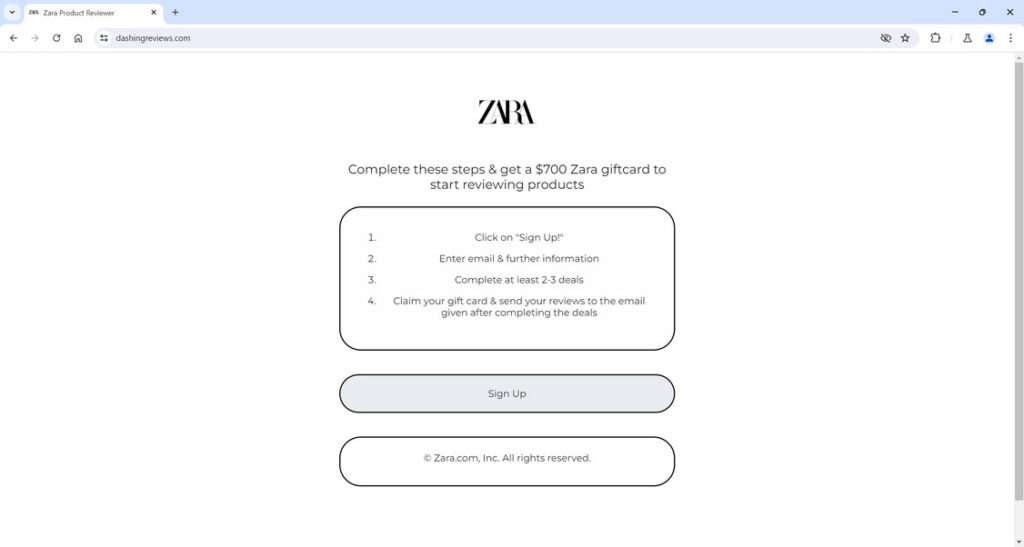
An Overview of the Zara Reviewer Scam
A new scam promising rewards like gift cards for reviewing Zara products has proliferated across social media and messaging platforms. Fraudsters are infiltrating platforms to spread bogus offers impersonating the popular fashion brand. But their aim is harvesting data, not providing shoppers an opportunity to earn free vouchers.
The offers typically promote a chance for regular people to become Zara “Product Testers.” In exchange for reviewing and providing feedback on their latest clothing collections, Zara claims they will send Product Testers gift cards worth $700 or more.
The social media ads are made to look official using Zara’s logo, fonts, and product imagery. Employing the familiar branding tricks users into believing the ads come directly from Zara.
Attention-grabbing headlines invite people to click on links leading to fake Zara websites controlled by scammers. Some examples include “Earn $700 Gift Cards Just for Testing Zara’s Latest Styles!” or “Zara Wants YOU to Review Our New Fall Line!”
To create urgency, some versions emphasize limited availability, claiming only a certain number of Product Tester spots are open. Others pretend the opportunity is only available to residents of specific countries like the USA, Canada, UK, or Australia.
In reality, the scam simply utilizes Zara’s brand recognition to deceive people into providing their personal information under the guise of accessing an exclusive opportunity.
Once users click on the links in the ads, they are directed to sophisticated fake websites dressed up to look exactly like the real Zara.com site. Everything from the logo to the fonts, colors, navigation menus, and product photos are precisely replicated to dupe visitors.
But while extremely convincing at first glance, the fraudulent sites have slight variations to the URL, often including the words “review”, “rewards”, or “producttest.”
Examples of specific sham websites reported include:
- zarareviews.top – Mirrors Zara.com and offers $700 gift cards for testing 2-3 products.
- zaraclothingchecker.xyz – Claims limited reviewer spots available in the USA, Canada, UK and Australia only.
- products-reviewnowz.shop/zara-tester – Ad promises extra bonus rewards for referring friends to the program.
On these bogus sites, users are prompted to enter their name, email address, and contact information under the false pretense it will start the process for Zara to ship free clothing items to review. In reality, it only gives scammers personally identifiable data to target victims.
Right after individuals submit their information, they receive crafted emails pretending to be from Zara. These messages provide further instructions to complete additional steps before rewards can be claimed.
The emails direct recipients to outside websites and offers deceptively dressed up as “deal portals”, downloads, surveys, or other activities. Users must complete 2-3 of these offers before their $700 Zara gift card can supposedly be unlocked.
In truth, these outside sites have nothing to do with Zara. They aim to phish even more sensitive user information, get users to download malware, or sign up for subscriptions and services benefiting the scammers through commissions and fees.
Despite social proof and personalization in the fake Zara emails, the advertised rewards never materialize for those who comply with all steps of the scam. Zara has confirmed they are not currently operating any Product Tester programs, nor would they authorize any third parties to hand out such rewards.
The company is actively working to detect and pursue legal action against scammers misappropriating their brand name and duping their customers. But consumers must also be vigilant against falling for the fake reward promises and persuasion tactics.
How the Zara Reviewer Scam Fools Users Step-by-Step
To help you recognize and avoid this viral con, let’s break down the sneaky tactics used at each step:
Step 1: Deceptive Social Media Ads
The scam starts with ads on platforms like Facebook, Instagram, WhatsApp, and Telegram. Using Zara’s logo and photos, they tout a special opportunity to earn gift cards worth $700 or more by reviewing products as a Zara “Product Tester”.
Some versions pretend satisfied reviewers are sharing the secret opportunity. Others emphasize LIMITED SPOTS! or SPECIAL PROMOTION to create false urgency. The real goal is tricking users to click through to the scam site.
Step 2: Fake Zara Review Website
Clicking the link in the ads takes users to sham Zara domains made to look like the real ecommerce site. The URL may be slightly altered, often including words like “review”, “rewards”, or “producttest”. But the site perfectly copies Zara’s design, images, and text.
This tricks users into believing they are in the official Zara product tester portal. In reality, it’s just an elaborate fake created by scammers to harvest info.
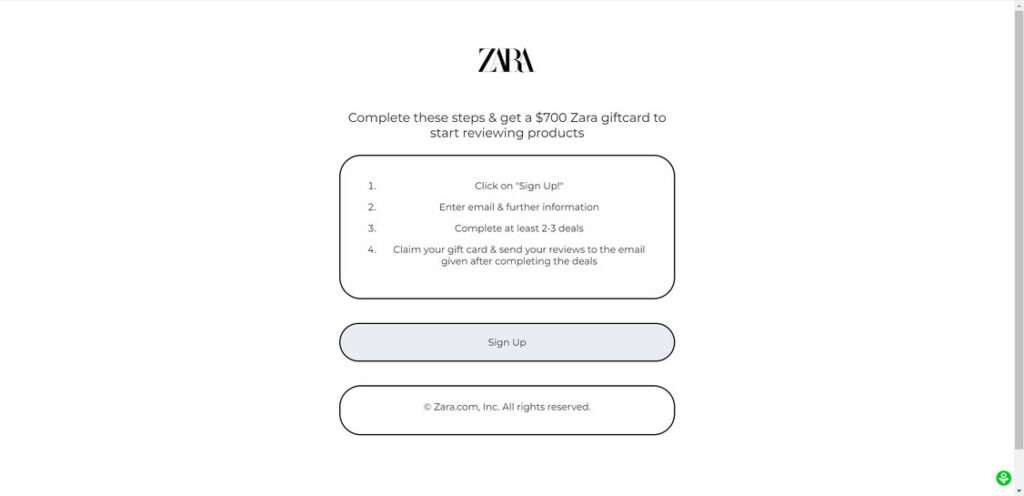
Step 3: Submit Email to Register
The fraudulent site prompts visitors to enter their email address and name to sign up as a product tester. Users think this will start the process of Zara shipping free clothes to try and review.
But in reality, giving up an email simply passes personally identifiable data to scammers. Almost instantly, “Zara” sends instructions to continue completing steps before rewards can be claimed.
Step 4: Bogus Deals, Downloads, and Surveys
The email directs recipients to outside websites disguised as deals, downloads, or surveys. Users must complete 2-3 offers as a “Reviewer Verification” step before gift cards can be redeemed.
Examples of activities users get tricked into:
- Paid survey offers
- Free trial subscriptions
- Enter credit card or financial info
- Download and install unknown apps
- Subscribe to text messaging services
None of this actually helps verify users for a real Zara program. They are just affiliate offers that earn scammers money through commissions, stolen financial data, or loaded with malware.
Step 5: No Rewards Ever Given
Despite jumping through all the scam hoops, no Zara gift cards ever materialize. The brand confirms they are not running any reviewer programs, nor would they authorize outside parties to hand out $700 rewards without oversight.
The phishers bank on only a small percentage following through to expose what they’re really after: your data, downloads, referrals, and sales commissions. Don’t get played by their social engineering.
Is This a Real Zara Opportunity? Recognizing Red Flags
Despite the convincing presentation, certain red flags reveal this Zara deal is 100% fake:
- Bogus domains – Real Zara sites use zara.com addresses. Any variation should raise alarms.
- Poor grammar/typos – Zara is a global brand that would not have glaring language errors.
- Requesting personal info upfront – Zara would vet reviewers before requesting sensitive data.
- Affiliate offers – No legitimate rewards program funnels users to outside subscription services.
- High value with no oversight – No retailer freely gives $700 without strict identity verification.
- Limited time pressure – Fake urgency is meant to short-circuit critical thinking.
When scrutinized, it becomes clear the scam aims to exploit excitement over gift cards and harvest data, not provide legitimate rewards. If an offer seems rife with red flags, trust your instincts.
Steps to Take if You Fell for the Scam
If you already supplied information or completed sketchy offers related to the fake Zara reviewer program, immediately take these steps:
- Contact Zara to report the scam and misuse of their brand. Provide details that could help them pursue legal action.
- Mark any emails as phishing/spam to train your email provider. This prevents future scam messages from coming through.
- Run anti-virus and malware scans on all devices used to visit scam sites or download files. Delete anything suspicious.
- Place fraud alerts with credit bureaus and closely monitor your statements for any unauthorized charges.
- Change passwords on any sites you accessed through the scam offers. Opt for strong, unique passwords for all important accounts.
- Act swiftly to cancel recurring fees or charges from any “free trial” subscriptions signed up for. Alert your payment provider of potential fraud.
- Never share additional personal information if scammers attempt to contact you again.
Is Your Device Infected? Run a Free Malware Scan
Slow performance, constant pop-ups, or strange behavior? These are classic signs of a malware infection. The fastest way to find out is to scan your device with Malwarebytes Free — one of the most trusted malware removal tools available.
The free version detects and removes the most common threats, including:
- Adware — the cause of those annoying pop-ups
- Browser hijackers — unwanted redirects and changed homepages
- Trojans and spyware — hidden programs stealing your data
- Potentially unwanted programs (PUPs) — software you never asked for
👉 Select your device below — Windows, Mac, or Android — then follow the simple steps to download Malwarebytes, scan your system, and remove any threats it finds. The scan usually takes 5 to 20 minutes.
Run a Malware Scan with Malwarebytes for Windows
Malwarebytes is one of the most popular and trusted anti-malware tools for Windows — and it’s completely free for removing infections. It catches threats that many antivirus programs miss, including adware, browser hijackers, and trojans. Follow the steps below to scan and clean your PC in just a few minutes.
Download Malwarebytes
Click the button below to download the latest version of Malwarebytes for Windows from the official source. The free version is all you need — it will scan your computer and remove adware, browser hijackers, and other malicious software at no cost.
Download MalwarebytesOfficial installer for Windows 11 and 10. Your download starts right away.Want real-time protection? See Malwarebytes Premium Malwarebytes Free for WindowsScans and removes malware at no cost
-
Install Malwarebytes
When the download finishes, open your Downloads folder and double-click the MBSetup file. If Windows shows a User Account Control pop-up, click “Yes” to allow the installation.

Follow the On-Screen Prompts to Install Malwarebytes
The setup wizard will walk you through a few quick screens:
-
Choose where you’re installing the program — “Personal Computer” or “Work Computer” — then click Next.

-
Malwarebytes will now install on your device. This usually takes under a minute.

-
When installation is complete, the “Welcome to Malwarebytes” screen will open automatically.

-
On the final screen, click Open Malwarebytes to launch the program.

-
Enable “Scan for Rootkits”
Before scanning, turn on rootkit detection so Malwarebytes can find even the most hidden threats. Click the Settings gear icon on the left side of the screen.

In the settings menu, find “Scan for rootkits” and click the toggle so it turns blue.

Done? Click “Dashboard” in the left pane to return to the main screen.
Start the Scan
Click the blue Scan button. Malwarebytes will automatically update its virus database and start checking your computer for malware.

-
Wait for the Scan to Finish
The scan checks your entire system for browser hijackers and other malicious programs, so it can take 5 to 20 minutes depending on your computer. Feel free to do something else — just check back occasionally to see the progress.

-
Quarantine the Detected Threats
When the scan is done, you’ll see a list of everything Malwarebytes found — malware, adware, and potentially unwanted programs. Click the “Quarantine” button to remove all of them at once.

Malwarebytes will now remove the malicious files and registry entries and move them safely into quarantine.

-
Restart Your Computer
Some threats can only be fully removed after a reboot. If Malwarebytes asks you to restart, click Yes. Once you’re logged back in, Malwarebytes has finished removing the threats it found.

That’s it — your Windows PC is now clean of trojans, adware, and other malware, and should be back to running smoothly.
If you are still having problems with your computer after completing these instructions, then please follow one of the steps:
- Run a computer scan with ESET Online Scanner
- Ask for help in our Windows Malware Removal Help & Support forum.
Run a Malware Scan with Malwarebytes for Mac
Malwarebytes for Mac is a free on-demand scanner that removes the malware other security software tends to miss — adware, browser hijackers, and unwanted programs included. Cleaning an infected Mac with Malwarebytes has always been completely free, and it’s our go-to recommendation. Follow the steps below to scan and clean your Mac in just a few minutes.
-
Download Malwarebytes for Mac
Click the button below to download the latest version of Malwarebytes for Mac.
Download MalwarebytesOfficial installer for macOS. Your download starts right away.Want real-time protection? See Malwarebytes PremiumMalwarebytes Free for MacScans and removes malware at no cost -
Open the Malwarebytes setup file
When the download finishes, open your Downloads folder and double-click the setup file to begin the installation.

-
Follow the On-Screen Prompts to Install Malwarebytes
The Malwarebytes for Mac Installer will guide you through a few quick screens. Click “Continue” and keep following the prompts until the installation completes.



When the installation is complete, Malwarebytes opens to the Welcome to Malwarebytes screen. Click “Get started“.
-
Select “Personal Computer” or “Work Computer”
Malwarebytes will ask what type of computer you’re installing it on. Click either Personal Computer or Work Computer, whichever applies.

-
Start the Scan
Click the “Scan” button. Malwarebytes will automatically update its detection database and begin checking your Mac for malware.

-
Wait for the Scan to Finish
Malwarebytes will scan your Mac for adware, browser hijackers, and other malicious programs. This can take a few minutes, so feel free to do something else — just check back occasionally to see the progress.

-
Quarantine the Detected Threats
When the scan is done, you’ll see a list of everything Malwarebytes found. Click the “Quarantine” button to remove all the threats at once.

-
Restart Your Mac
Malwarebytes will now remove all the malicious files it found. Some threats can only be fully removed after a reboot — if Malwarebytes asks you to restart, allow it. Once you’re logged back in, your Mac is clean.

That’s it — your Mac is now free of adware, rogue browser extensions, and other potentially harmful software.
If you are still experiencing problems while trying to remove a malicious program from your computer, please ask for help in our Mac Malware Removal Help & Support forum.
Run a Malware Scan with Malwarebytes for Android
Malwarebytes for Android automatically detects and removes dangerous threats like malware and ransomware so you don’t have to worry about your most-used device being compromised. Aggressive detection of adware and potentially unwanted programs keeps your Android phone or tablet running smooth.
-
Download Malwarebytes for Android.
You can download Malwarebytes for Android by clicking the link below.
Get Malwarebytes for AndroidOpens Google Play in a new tab.Want real-time protection? See Malwarebytes Premium for AndroidMalwarebytes for AndroidScans your phone and removes malware at no cost -
Install Malwarebytes for Android on your phone.
In the Google Play Store, tap “Install” to install Malwarebytes for Android on your device.

When the installation process has finished, tap “Open” to begin using Malwarebytes for Android. You can also open Malwarebytes by tapping on its icon in your phone menu or home screen.

-
Follow the on-screen prompts to complete the setup process
When Malwarebytes will open, you will see the Malwarebytes Setup Wizard which will guide you through a series of permissions and other setup options.
This is the first of two screens that explain the difference between the Premium and Free versions. Swipe this screen to continue.
Tap on “Got it” to proceed to the next step.
Malwarebytes for Android will now ask for a set of permissions that are required to scan your device and protect it from malware. Tap on “Give permission” to continue.
Tap on “Allow” to permit Malwarebytes to access the files on your phone.
-
Update database and run a scan with Malwarebytes for Android
You will now be prompted to update the Malwarebytes database and run a full system scan.

Click on “Update database” to update the Malwarebytes for Android definitions to the latest version, then click on “Run full scan” to perform a system scan.

-
Wait for the Malwarebytes scan to complete.
Malwarebytes will now start scanning your phone for adware and other malicious apps. This process can take a few minutes, so we suggest you do something else and periodically check on the status of the scan to see when it is finished.

-
Click on “Remove Selected”.
When the scan has been completed, you will be presented with a screen showing the malware infections that Malwarebytes for Android has detected. To remove the malicious apps that Malwarebytes has found, tap on the “Remove Selected” button.

-
Restart your phone.
Malwarebytes for Android will now remove all the malicious apps that it has found. To complete the malware removal process, Malwarebytes may ask you to restart your device.
That’s it — your Android phone is now clean — no more malicious apps, adware, or browser redirects.
If you are still having problems with your phone after completing these instructions, then please follow one of the steps:
- Restore your phone to factory settings by going to Settings > General management > Reset > Factory data reset.
- Ask for help in our Mobile Malware Removal Help & Support forum.
Stay Protected: Block Ads and Malicious Sites
Now that your device is clean, keep it that way. Most infections start with a malicious ad or a fake download button — so blocking them at the source is your best defense.
We recommend AdGuard, which blocks malicious ads, phishing pages, and dangerous redirects before they can reach you.
👉 Download AdGuard and browse safely
Avoiding Future Scams
Here are some tips to avoid getting hooked by copycat phishing scams:
- Verify directly with brands before engaging – Don’t rely on third-party ads or messages.
- Search online for scam reports about any offer that seems suspicious.
- Check site URLs carefully to detect imitation domains.
- Read all disclaimers/terms in full before providing info or clicking links.
- Avoid downloading software or files from unknown third-party sites.
- Monitor accounts after data breaches related to any scam.
- If the offer seems too good to be true, it always is. Full stop.
Staying vigilant against increasingly sophisticated social engineering ploys takes concerted effort. But a dose of skepticism and common sense goes a long way in recognizing and avoiding online scams.
Frequently Asked Questions About the Fake Zara Reviewer Scam
1. How does the fake Zara reviewer scam work?
The scammers post social media ads promoting a fake chance to review Zara products for rewards. The ads link to convincing counterfeit sites impersonating Zara. On these fake sites, users submit an email address expecting to register as a product tester. Soon after, they receive phishing messages guiding them through bogus offers under the guise of “verifying” their reviewer status. Zara confirms these websites and offers are completely unauthorized and fake.
2. What tricks do the scammers use?
The ads copy Zara’s branding and imagery to appear real. The scam sites closely replicate the visual design of Zara.com. Enticing messages promise easy gift cards for giving product feedback. False claims about limited spots or one-time offers create urgency to act quickly. This gets users to lower their guard and click through.
3. What happens after you submit your email?
Soon after registering at the sham site, users get emails claiming more steps are required before Zara rewards can be unlocked. These subsequent pages aim to expose visitors to paid surveys, suspicious downloads, free trials of scammer products, and other risks designed to generate illicit profits.
4. Do you actually get a Zara gift card?
No, those who comply with the scam never receive any Zara gift cards or products to review. The advertised rewards are bogus – Zara does not have any associated program sending free vouchers for customer feedback.
5. How can you recognize the fake Zara reviewer ads and sites?
Warning signs include unbelievable offers, grammar/spelling errors, incorrect URLs, requests for personal info upfront, paid third-party offers, and artificial scarcity claims. Verify directly with Zara Customer Service if an ad seems fishy.
6. What should you do if already victimized by this scam?
If you supplied any personal information, place fraud alerts, scan devices for malware, monitor financial accounts, change passwords, and contact Zara to report the scam. Remain vigilant against sharing additional data now that scammers have your email address.
7. How can you avoid Zara reviewer scams?
Avoid clicking direct links in unsolicited messages. Verify URLs match official brand sites exactly. Search for scam reports about offers online. Read all terms and disclaimers before providing info. Report suspicious ads/offers instead of engaging.
8. Who is responsible for the fake Zara ads and websites?
Unknown scammers are behind the fake ads and websites misusing Zara’s brand. They have no actual relationship with Zara. The company is actively working to detect and pursue legal action against impersonators.
9. Does Zara really offer chances to review products for rewards?
Zara has stated they currently do not offer any official paid product tester opportunities or gift card incentives. Any ads along these lines are fraudulent. Zara is not authorizing real rewards through any third parties.
10. What is Zara’s advice about the scam?
Zara recommends immediately reporting any suspicious ads, websites, or offers to their customer service team to aid their efforts combating the scam and pursuing its creators. Avoid engaging with the false offers in any way.
The Bottom Line
The promise of easy money and Zara gift cards for reviewing clothes may sound enticing. But engaging with fake ads or offers only leads to wasted time at best, and potential identity theft at worst.
Scammers will continue dreaming up new ways to profit from impersonation and deception. But educating yourself on their tactics keeps you two steps ahead.
When an unbelievable social media deal lands in your feed, resist the knee-jerk urge to click. Instead, scrutinize the opportunity objectively. Verify directly with brands before providing data. If your gut says something is amiss, close the tab and warn others.
A scam revealed is no longer a threat. By exposing these schemes for what they are, we can create an online world rooted in transparency rather than trickery. Stay smart and stay safe.

Join the discussion
0 commentsShare your experience or ask a question about this article.
Discussion
Start the conversation
Have a question or something useful to share? Add the first comment.