

Every few months, a new website appears claiming to let people earn quick money online. Zetesters.com is one of the latest. It promotes itself as a platform where you can complete a handful of deals, play simple games, and walk away with at least $100 in Zelle or PayPal cash. At first glance, it looks appealing. The bright design, testimonials, and easy steps make it seem like a shortcut to financial rewards.
But is Zetesters.com really a legitimate opportunity, or is it a cleverly designed scam? In this in-depth review, we will examine the site from every angle, explain how it operates, and show you the warning signs that point to a scam. If you’re curious about Zetesters or considering signing up, read carefully before risking your personal information.
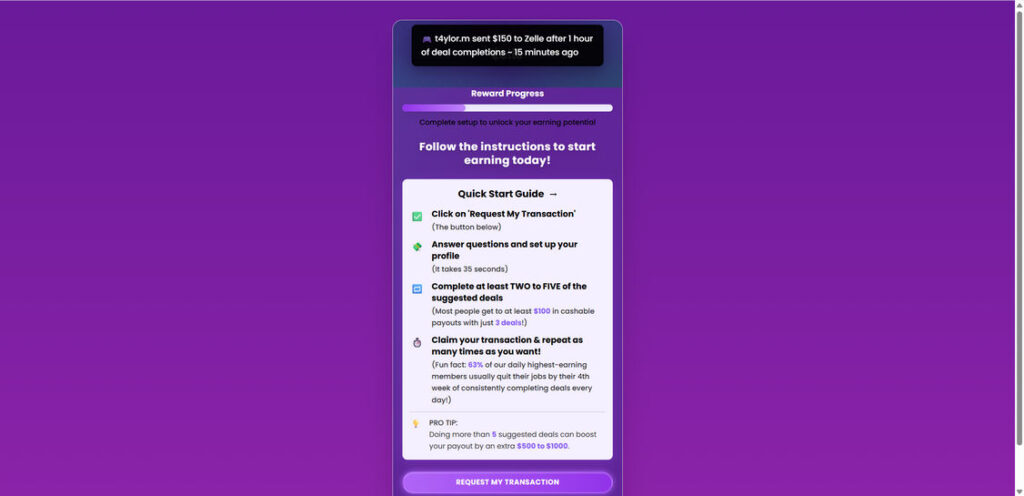
Scam Overview: Red Flags All Over
Zetesters.com tries to present itself as an “instant rewards” site, but there are multiple issues with its claims and operations. Below is a detailed breakdown of why the site raises serious concerns.
1. Suspiciously New Domain
The domain zetesters.com was registered in July 2025. That means the website is only weeks or months old. Any platform promising large cash payouts with no history should be approached with caution. Scammers often register new domains, run their scheme for a short time, and then abandon the site when negative reviews start spreading.
By contrast, legitimate platforms like Swagbucks, PrizeRebel, or InboxDollars have operated for years with verifiable track records.
2. Fake-Looking Cash-Out Pop-Ups
While browsing Zetesters.com, users see constant notifications at the top of the screen:
- “t4ylor.m sent $150 to Zelle after 1 hour of deal completions.”
- “kevin_szn claimed $105 from 3 quick tasks.”
These alerts pop up every few minutes, creating the illusion that users are successfully cashing out. But there is no way to verify these claims, and they match a common scam tactic: fake urgency pop-ups. Many fraudulent websites use scripts to generate phony activity, making visitors believe the site is active and profitable.
3. Unrealistic Earning Claims
The site claims most users can reach $100 with just 2–5 completed offers. On top of that, they suggest that doing a few extra deals can boost earnings by $500–$1000. These figures are not realistic.
Real reward platforms pay cents to a few dollars per task. Accumulating $100 typically requires consistent activity over weeks, not minutes. Any site promising high cash rewards for minimal effort should immediately raise suspicion.
4. No Transparency About Ownership
A legitimate business includes basic details:
- Company name and registration
- Contact information (email, phone, or address)
- Customer support
Zetesters.com provides none of these. There is no About Us page, no way to reach support, and no visible proof of who owns or operates the website. Lack of transparency is one of the biggest red flags in identifying scams.
5. Zero Social Media or Community Presence
Even new companies usually establish some presence on social media. Zetesters, however, has none. No Facebook page, no Twitter account, no LinkedIn profile, nothing. This lack of engagement prevents accountability and isolates users who may want to share complaints or concerns.
6. Psychological Manipulation
The site uses manipulative copywriting, such as:
- “63% of our top earners quit their jobs by week 4.”
- “Cash out instantly after just 3 deals.”
- “Boost your rewards by completing a few more offers.”
These statements are exaggerated and designed to exploit emotions, particularly financial stress or the desire for quick income.
Taken together, these red flags show that Zetesters is not a legitimate cash-earning website but rather a scam designed to extract value from users.
How the Scam Works
Scams like Zetesters.com often follow a predictable pattern. Understanding this step-by-step process can help you spot similar traps in the future.
Step 1: The Hook – “Free Cash” Marketing
The scam begins with flashy promises. Zetesters markets itself with phrases like:
- “Earn $100 in under an hour.”
- “Complete just 3 tasks to cash out.”
- “Get paid directly through Zelle or PayPal.”
These promises grab attention and lure people into signing up quickly.
Step 2: Fake Social Proof
Once on the site, users see notifications suggesting other people are successfully cashing out. These are scripted, not real. The goal is to create FOMO (fear of missing out). If it looks like others are getting paid, users are more likely to take action.
Step 3: Collecting Personal Information
Zetesters requires users to “set up a profile,” which may include:
- Full name
- Email address
- Phone number
- Payment details for payouts
This information is valuable for scammers. It can be sold to third parties for spam campaigns, telemarketing, or worse—identity theft.
Step 4: Pushing Users into Affiliate Deals
To qualify for payouts, users must complete “deals.” These deals are affiliate offers, such as:
- Signing up for free trials
- Downloading apps
- Registering for services with credit card details
Here’s what’s really happening:
- Scammers earn commissions each time a user completes an offer.
- Users earn nothing. Instead, they may accidentally sign up for recurring charges or subscriptions.
Step 5: Never Delivering the Payout
Once users finish the required deals, they attempt to request their payout. This is where excuses begin:
- “More deals required before release.”
- “Verification process pending.”
- “Account flagged for suspicious activity.”
No matter how many offers a victim completes, no real payout occurs. The goal is to keep the user working, generating affiliate revenue for scammers.
Step 6: Site Disappearance
After collecting enough data and commissions, sites like Zetesters shut down or rebrand under a new domain. Victims are left without answers or money.
What to Do if You Have Fallen Victim
If you signed up for Zetesters.com or a similar platform, here’s what you should do right away:
- Stop Engaging with the Site
Do not complete additional deals or provide further details. - Check for Unwanted Subscriptions
If you signed up for trials, check your bank or credit card statements. Cancel any services before they charge you. - Monitor Your Accounts Closely
If you entered financial details, watch for suspicious charges. Report any fraud immediately to your bank. - Protect Your Email and Phone
Scammers may sell your information. Expect spam calls or phishing attempts. Mark them as spam and avoid responding. - Change Your Passwords
If you reused login details from Zetesters on other accounts, change those passwords immediately. - Report the Scam
- File a complaint with the FTC (if in the U.S.).
- Report to your local cybercrime agency.
- Share your experience on platforms like ScamAdviser, Reddit, or Trustpilot to warn others.
- Stay Educated on Scam Tactics
Knowing the red flags—new domains, unrealistic promises, no transparency—helps you avoid future scams.
Is Your Device Infected? Run a Free Malware Scan
Slow performance, constant pop-ups, or strange behavior? These are classic signs of a malware infection. The fastest way to find out is to scan your device with Malwarebytes Free — one of the most trusted malware removal tools available.
The free version detects and removes the most common threats, including:
- Adware — the cause of those annoying pop-ups
- Browser hijackers — unwanted redirects and changed homepages
- Trojans and spyware — hidden programs stealing your data
- Potentially unwanted programs (PUPs) — software you never asked for
👉 Select your device below — Windows, Mac, or Android — then follow the simple steps to download Malwarebytes, scan your system, and remove any threats it finds. The scan usually takes 5 to 20 minutes.
Run a Malware Scan with Malwarebytes for Windows
Malwarebytes is one of the most popular and trusted anti-malware tools for Windows — and it’s completely free for removing infections. It catches threats that many antivirus programs miss, including adware, browser hijackers, and trojans. Follow the steps below to scan and clean your PC in just a few minutes.
Download Malwarebytes
Click the button below to download the latest version of Malwarebytes for Windows from the official source. The free version is all you need — it will scan your computer and remove adware, browser hijackers, and other malicious software at no cost.
Download MalwarebytesOfficial installer for Windows 11 and 10. Your download starts right away.Want real-time protection? See Malwarebytes Premium Malwarebytes Free for WindowsScans and removes malware at no cost
-
Install Malwarebytes
When the download finishes, open your Downloads folder and double-click the MBSetup file. If Windows shows a User Account Control pop-up, click “Yes” to allow the installation.

Follow the On-Screen Prompts to Install Malwarebytes
The setup wizard will walk you through a few quick screens:
-
Choose where you’re installing the program — “Personal Computer” or “Work Computer” — then click Next.

-
Malwarebytes will now install on your device. This usually takes under a minute.

-
When installation is complete, the “Welcome to Malwarebytes” screen will open automatically.

-
On the final screen, click Open Malwarebytes to launch the program.

-
Enable “Scan for Rootkits”
Before scanning, turn on rootkit detection so Malwarebytes can find even the most hidden threats. Click the Settings gear icon on the left side of the screen.

In the settings menu, find “Scan for rootkits” and click the toggle so it turns blue.

Done? Click “Dashboard” in the left pane to return to the main screen.
Start the Scan
Click the blue Scan button. Malwarebytes will automatically update its virus database and start checking your computer for malware.

-
Wait for the Scan to Finish
The scan checks your entire system for browser hijackers and other malicious programs, so it can take 5 to 20 minutes depending on your computer. Feel free to do something else — just check back occasionally to see the progress.

-
Quarantine the Detected Threats
When the scan is done, you’ll see a list of everything Malwarebytes found — malware, adware, and potentially unwanted programs. Click the “Quarantine” button to remove all of them at once.

Malwarebytes will now remove the malicious files and registry entries and move them safely into quarantine.

-
Restart Your Computer
Some threats can only be fully removed after a reboot. If Malwarebytes asks you to restart, click Yes. Once you’re logged back in, Malwarebytes has finished removing the threats it found.

That’s it — your Windows PC is now clean of trojans, adware, and other malware, and should be back to running smoothly.
If you are still having problems with your computer after completing these instructions, then please follow one of the steps:
- Run a computer scan with ESET Online Scanner
- Ask for help in our Windows Malware Removal Help & Support forum.
Run a Malware Scan with Malwarebytes for Mac
Malwarebytes for Mac is a free on-demand scanner that removes the malware other security software tends to miss — adware, browser hijackers, and unwanted programs included. Cleaning an infected Mac with Malwarebytes has always been completely free, and it’s our go-to recommendation. Follow the steps below to scan and clean your Mac in just a few minutes.
-
Download Malwarebytes for Mac
Click the button below to download the latest version of Malwarebytes for Mac.
Download MalwarebytesOfficial installer for macOS. Your download starts right away.Want real-time protection? See Malwarebytes PremiumMalwarebytes Free for MacScans and removes malware at no cost -
Open the Malwarebytes setup file
When the download finishes, open your Downloads folder and double-click the setup file to begin the installation.

-
Follow the On-Screen Prompts to Install Malwarebytes
The Malwarebytes for Mac Installer will guide you through a few quick screens. Click “Continue” and keep following the prompts until the installation completes.



When the installation is complete, Malwarebytes opens to the Welcome to Malwarebytes screen. Click “Get started“.
-
Select “Personal Computer” or “Work Computer”
Malwarebytes will ask what type of computer you’re installing it on. Click either Personal Computer or Work Computer, whichever applies.

-
Start the Scan
Click the “Scan” button. Malwarebytes will automatically update its detection database and begin checking your Mac for malware.

-
Wait for the Scan to Finish
Malwarebytes will scan your Mac for adware, browser hijackers, and other malicious programs. This can take a few minutes, so feel free to do something else — just check back occasionally to see the progress.

-
Quarantine the Detected Threats
When the scan is done, you’ll see a list of everything Malwarebytes found. Click the “Quarantine” button to remove all the threats at once.

-
Restart Your Mac
Malwarebytes will now remove all the malicious files it found. Some threats can only be fully removed after a reboot — if Malwarebytes asks you to restart, allow it. Once you’re logged back in, your Mac is clean.

That’s it — your Mac is now free of adware, rogue browser extensions, and other potentially harmful software.
If you are still experiencing problems while trying to remove a malicious program from your computer, please ask for help in our Mac Malware Removal Help & Support forum.
Run a Malware Scan with Malwarebytes for Android
Malwarebytes for Android automatically detects and removes dangerous threats like malware and ransomware so you don’t have to worry about your most-used device being compromised. Aggressive detection of adware and potentially unwanted programs keeps your Android phone or tablet running smooth.
-
Download Malwarebytes for Android.
You can download Malwarebytes for Android by clicking the link below.
Get Malwarebytes for AndroidOpens Google Play in a new tab.Want real-time protection? See Malwarebytes Premium for AndroidMalwarebytes for AndroidScans your phone and removes malware at no cost -
Install Malwarebytes for Android on your phone.
In the Google Play Store, tap “Install” to install Malwarebytes for Android on your device.

When the installation process has finished, tap “Open” to begin using Malwarebytes for Android. You can also open Malwarebytes by tapping on its icon in your phone menu or home screen.

-
Follow the on-screen prompts to complete the setup process
When Malwarebytes will open, you will see the Malwarebytes Setup Wizard which will guide you through a series of permissions and other setup options.
This is the first of two screens that explain the difference between the Premium and Free versions. Swipe this screen to continue.
Tap on “Got it” to proceed to the next step.
Malwarebytes for Android will now ask for a set of permissions that are required to scan your device and protect it from malware. Tap on “Give permission” to continue.
Tap on “Allow” to permit Malwarebytes to access the files on your phone.
-
Update database and run a scan with Malwarebytes for Android
You will now be prompted to update the Malwarebytes database and run a full system scan.

Click on “Update database” to update the Malwarebytes for Android definitions to the latest version, then click on “Run full scan” to perform a system scan.

-
Wait for the Malwarebytes scan to complete.
Malwarebytes will now start scanning your phone for adware and other malicious apps. This process can take a few minutes, so we suggest you do something else and periodically check on the status of the scan to see when it is finished.

-
Click on “Remove Selected”.
When the scan has been completed, you will be presented with a screen showing the malware infections that Malwarebytes for Android has detected. To remove the malicious apps that Malwarebytes has found, tap on the “Remove Selected” button.

-
Restart your phone.
Malwarebytes for Android will now remove all the malicious apps that it has found. To complete the malware removal process, Malwarebytes may ask you to restart your device.
That’s it — your Android phone is now clean — no more malicious apps, adware, or browser redirects.
If you are still having problems with your phone after completing these instructions, then please follow one of the steps:
- Restore your phone to factory settings by going to Settings > General management > Reset > Factory data reset.
- Ask for help in our Mobile Malware Removal Help & Support forum.
Stay Protected: Block Ads and Malicious Sites
Now that your device is clean, keep it that way. Most infections start with a malicious ad or a fake download button — so blocking them at the source is your best defense.
We recommend AdGuard, which blocks malicious ads, phishing pages, and dangerous redirects before they can reach you.
👉 Download AdGuard and browse safely
Frequently Asked Questions About Zetesters.com and the Zelle Free Cash Scam
Is Zetesters.com legit or a scam?
Zetesters.com is widely considered a scam website. It claims that users can earn $100 or more in Zelle or PayPal cash after completing just a few deals, but there is no proof that the platform ever pays out. The site has:
- A domain registered only in July 2025 (no history or track record).
- Fake-looking cash-out pop-ups designed to trick visitors.
- No About Us page, no contact information, and no customer support.
- Unrealistic earning claims that no legitimate rewards platform could deliver.
All of these are classic red flags of a scam.
How does Zetesters.com claim you can make money?
According to the website, you simply:
- Set up a profile.
- Complete 2–5 “deals” (surveys, free trials, or app downloads).
- Request a payout through Zelle or PayPal.
However, in reality, these “deals” generate affiliate commissions for the scam operators, not for you. Victims often complete multiple deals but never receive the promised cash.
Are the withdrawal pop-ups on Zetesters.com real?
No. The pop-ups showing “t4ylor.m sent $150 to Zelle” or “kevin_szn claimed $105” are almost certainly fabricated scripts. These notifications are meant to create a false sense of activity and urgency. They are not connected to real users or real payments.
Why is Zetesters.com unsafe?
Zetesters.com is unsafe because it collects personal data and misleads users. Signing up could expose you to:
- Spam emails and robocalls.
- Identity theft risks if sensitive information is shared.
- Unwanted subscription charges from third-party trial offers.
- Wasted time with no actual payout.
Can you really earn $100 after just 2–5 deals?
No. This claim is unrealistic and misleading. On legitimate survey or reward platforms, earning $100 requires consistent effort over days or weeks. No site can sustainably offer $100 for just a few quick tasks.
What happens if you complete the deals on Zetesters.com?
If you complete the deals, a few things happen:
- The scam operators receive affiliate commissions.
- You may be signed up for recurring subscriptions or charges.
- You never actually receive the promised Zelle or PayPal payout.
This cycle encourages victims to keep completing more deals, hoping for a payout that never comes.
What should I do if I signed up for Zetesters.com?
If you already registered, take immediate steps to protect yourself:
- Stop using the site.
- Cancel any free trials or subscriptions you signed up for.
- Monitor your bank and PayPal accounts for suspicious charges.
- Change passwords if you reused them on other platforms.
- Report the scam to the FTC or your local cybercrime agency.
Is Zetesters.com connected to other scams?
Yes, scams like Zetesters often follow a pattern. The same operators frequently launch cloned sites under new names once complaints increase. They recycle the same design, fake pop-ups, and “quick cash” promises. Always research new earning platforms before joining.
How can I tell if a “get paid to play games” site is real?
To spot legitimate platforms, look for:
- Transparent company information.
- Real user reviews on Trustpilot, Reddit, or YouTube.
- Reasonable earning potential (a few dollars per task, not hundreds).
- Social media presence and active customer support.
If a site has none of these, it’s likely a scam.
Are there safe alternatives to Zetesters.com?
Yes. While they won’t make you rich overnight, platforms like Swagbucks, InboxDollars, Mistplay, and PrizeRebel are legitimate. They pay small amounts for surveys, games, and offers. Over time, you can cash out through PayPal or gift cards. The difference is transparency, accountability, and actual proof of payouts.
The Bottom Line
Zetesters.com is not a legitimate money-making site. It’s a brand-new domain with fake activity pop-ups, unrealistic earning promises, and no transparency. Instead of paying users, it exploits them by collecting personal data and pushing them into affiliate offers that only benefit the scam operators.
If a website promises free Zelle cash for minimal effort, it’s almost certainly a scam. Protect your time, your information, and your finances by avoiding Zetesters.com and sticking with reputable platforms that are transparent and proven.
The lesson here is simple: If something looks too good to be true, it usually is. Stay cautious, stay informed, and help spread awareness so fewer people fall victim to online money-making scams like Zetesters.

Reviews & discussion
0 commentsShare a firsthand experience, or ask a question.
Community reviews
zetesters.com
Moderated reader experiences, not an editorial verdict.
Reviews
Be the first to review
Approved reviews for this site or product will appear here.