

If you have received a call from an unknown person – usually with an Indian accent – claiming to be from Microsoft, and stating that multiple issues have been detected on your computer, then you are the victim of a scam.
The purpose of these calls is to get an easy $199 (or whatever amount they choose) by scaring you into thinking there’s something really wrong with your computer and that they can fix it for you.
Cybercriminals often use publicly available phone directories so they might know your name and other personal information when they call you. They might even guess what operating system you’re using.
Once they’ve gained your trust, they might ask for your user name and password or ask you to go to a website to install software that will let them access your computer to fix it. Once you do this, your computer and your personal information is vulnerable.
When they have access to your computer, this scammers can do the following:
- Trick you into installing malicious software that could capture sensitive data, such as online banking user names and passwords. They might also then charge you to remove this software.
- Take control of your computer remotely and adjust settings to leave your computer vulnerable.
- Request credit card information so they can bill you for phony services.
- Direct you to fraudulent websites and ask you to enter credit card and other personal or financial information there.
- Microsoft does NOT make unsolicited phone calls (also known as cold calls) to charge you for computer security or software fixes.
In the videos below you can watch how a phone scam works, and what are the usual replies used by this cyber criminals.
If someone claiming to be from Microsoft tech support calls you:
- Do not purchase any software or services.
- Ask if there is a fee or subscription associated with the “service.” If there is, hang up.
- Never give control of your computer to a third party unless you can confirm that it is a legitimate representative of a computer support team with whom you are already a customer.
- Take the caller’s information down and immediately report it to your local authorities.
- Never provide your credit card or financial information to someone claiming to be from Microsoft tech support.
If you have not installed any kind of software or allow them to connect to your computer, then your computer should be clean. However if you have allowed them to connect through AMMYY Admin to your machine, then run the below scans to make sure your computer is clean.
If you gave someone your credit card information to pay for services, contact your credit card company and alert them to this fraudulent purchase. Also, just to be on the safe side, you should reset your computer’s password, and any other online account that might have sensitive data.
How to check if you computer is infected with malware or a pottentially unwated program
This page is a comprehensive guide, which will remove AMMYY from Internet Explorer, Firefox and Google Chrome.
Please perform all the steps in the correct order. If you have any questions or doubt at any point, STOP and ask for our assistance.
STEP 1: Uninstall any programs that might have been installed throught the AMMYY Admin program
STEP 2: Remove AMMYY adware from your computerwith AdwCleaner
STEP 3: Remove AMMYY virus with Malwarebytes Anti-Malware Free
STEP 4: Remove any other infections with HitmanPro
STEP 5: Double check for any left over infections with Emsisoft Emergency Kit
STEP 1 : Uninstall any programs that might have been installed throught the AMMYY Admin program
In this first step, we will try to identify and remove any malicious program that might be installed on your computer.
- To uninstall any program that might have been installed through AMMYY on your computer, click the Start button, then select Control Panel, and click on Uninstall a program.
If you are using Windows 8, simply drag your mouse pointer to the right edge of the screen, select Search from the list and search for “control panel“. Or you can right-click on a bottom left hot corner (formerly known as the Start button) and select Control Panel from there, then select Uninstall a program.
![[Image: Uninstall a program]](https://malwaretips.com/blogs/wp-content/uploads/mwt-media/2a/2a46a9e643eeeb764fb164177551c571817a8b4d4fe8141504dca801f8abc8cc/f2a64da5c9bbae588b1c04059e9f6a1e9a413554048666c6db3aa65196a7b99a-557.webp "Click on Uninstall a program")
- When the Add/Remove Programs or the Uninstall a Program screen is displayed, scroll through the list of currently installed programs and uninstall any recently installed or unknown programs from your computer.
![[Image: Uninstall any malicious programs from your computer]](https://malwaretips.com/blogs/wp-content/uploads/mwt-media/d3/d32995f1c8630e1ecd1f8d94f64ed00434ac8c316e432f4f2cf418ab1575cd1d/99d2ebae1820f7c7a1561b10075b03cc3fb677af2830ecca860f776871fd20ee-761.webp "Uninstall any malicious programs from your computer")
If you are having issues while trying to uninstall the AMMYY program, you can use Revo Uninstaller to completly remove this unwated program from your machine.
Depending on what program has installed through AMMYY program, the above program may have a different name or not be installed on your computer. If you cannot find any unwanted or unknown programs on your machine, then you can proceed with the next step.
STEP 2: Remove AMMYY adware from Internet Explorer, Firefox and Google Chrome with AdwCleaner
The AdwCleaner utility will scan your computer for AMMYY malicious files and registry keys, that may have been installed on your computer without your knowledge.
- You can download AdwCleaner utility from the below link.
Download AdwCleanerFree official download. Nothing to install. - Before starting AdwCleaner, close all open programs and internet browsers, then double-click on the AdwCleaner icon.
![[Image: AdwCleaner Icon]](https://malwaretips.com/blogs/wp-content/uploads/mwt-media/ae/ae54421358390681d3945c646380e19b34d03e4827a53073e49cc8cb31911a4e/99f0dd93a9d513cc4b0c7955a0c5f93786f74d9bcc472950819fe74af1d6f342-123.webp "AdwCleaner Icon")
If Windows prompts you as to whether or not you wish to run AdwCleaner, please allow it to run. - When the AdwCleaner program will open, click on the Scan button as shown below.
![[Image: Adwcleaner Scan]](https://malwaretips.com/blogs/wp-content/uploads/mwt-media/1d/1d7a61e03e9b975ca506c46364844867f265a178724d30e4ed025f8533673b08/e92584319c6274f525f060b4e0428fff8a5610ea04170027fd89556c5dc718b7-530.webp "Click on Scan button to search for AMMYY infection")
AdwCleaner will now start to search for AMMYY malicious files that may be installed on your computer. - To remove the AMMYY malicious files that were detected in the previous step, please click on the Clean button.
![[Image: AdwCleaner removing infections]](https://malwaretips.com/blogs/wp-content/uploads/mwt-media/f1/f153068da4256c4a86039c0d8bf75f9853f3e0615a05e30315dcb4e6c64f3c1f/3e94c26efa83f0b307a8ede30a8e1c2ca514d5a57523aa57e04b282a88c163e8-530.webp "Click on the Clean button to remove AMMYY virus")
AdwCleaner will now prompt you to save any open files or data as the program will need to reboot the computer. Please do so and then click on the OK button.
STEP 3: Remove AMMYY virus with Malwarebytes Anti-Malware Free
- You can download Malwarebytes Anti-Malware Free from the below link, then double-click on the icon named mbam-setup.exe to install this program.
Download MalwarebytesFree official installer. Your download starts right away. - When the installation begins, keep following the prompts in order to continue with the setup process, then at the last screen click on the Finish button.
![[Image: Malwarebytes Anti-Malware final installation screen]](https://malwaretips.com/blogs/wp-content/uploads/mwt-media/47/471448d4dd5aa1d55ea545effccf0ac9c8ccb5a29622da4e38ac677b5d8c37b5/9f473303c15a00262451cc5a56b904de929157b59e19e3cfb2c03ec88f643390-402.webp "Malwarebytes Anti-Malware installation screen")
- On the Scanner tab, select Perform quick scan, and then click on the Scan button to start searching for the AMMYY malicious files.
![[Image: Malwarebytes Anti-Malware Quick Scan]](https://malwaretips.com/blogs/wp-content/uploads/mwt-media/1e/1eb209597ca2f06e596fd060345ac7e3100355f1ec8fc8ea2d9dec7abbb05ea0/3afba9b0b97b56945ffc33817ac48f7433c799241a22e422966180b76473a906-521.webp "Run a Quick Scan with Malwarebytes Anti-Malware")
- Malwarebytes’ Anti-Malware will now start scanning your computer for AMMYY as shown below.
![[Image: Malwarebytes Anti-Malware scanning for AMMYY virus]](https://malwaretips.com/blogs/wp-content/uploads/mwt-media/f6/f6ecfba43df64204df40586070483f260cb91fa07d5cc90cb4c3a588d159ff30/5b6b2687853201a40d29fe27e142cc66b0852745bbad3900a21030a10399cb4c-521.webp "Malwarebytes Anti-Malware scanning for AMMYY")
- When the Malwarebytes Anti-Malware scan has finished, click on the Show Results button.
![[Image: Malwarebytes Anti-Malware scan results]](https://malwaretips.com/blogs/wp-content/uploads/mwt-media/84/84c62dd46289424dbc686abc53672cb0810111920c8c0bbd69e973844d0a9ab0/a4c04aa700e641f47afec9965f79ff346740668e5952955ccbe5b4c3658b5897-521.webp "Malwarebytes when the system scan has completed")
- You will now be presented with a screen showing you the computer infections that Malwarebytes Anti-Malware has detected. Make sure that everything is Checked (ticked), then click on the Remove Selected button.
![[Image: Malwarebytes Anti-Malware removing AMMYY]](https://malwaretips.com/blogs/wp-content/uploads/mwt-media/d8/d86b6a8bac0e4ece9fd2d259a83db71487943f6b04b567edb0e9adcc3200f492/4eb94651b0e34cc99689c56dc71cd0a49444498ed05c5803ea55fda1cfee1b1f-521.webp "Malwarebytes Anti-Malwar removing AMMYY")
STEP 4: Remove any other infections with HitmanPro
- You can download HitmanPro from the below link:
Download HitmanProOfficial Sophos download. Free scan, free 30-day trial to remove threats. - Double-click on the file named HitmanPro.exe (for 32-bit versions of Windows) or HitmanPro_x64.exe (for 64-bit versions of Windows). When the program starts you will be presented with the start screen as shown below.
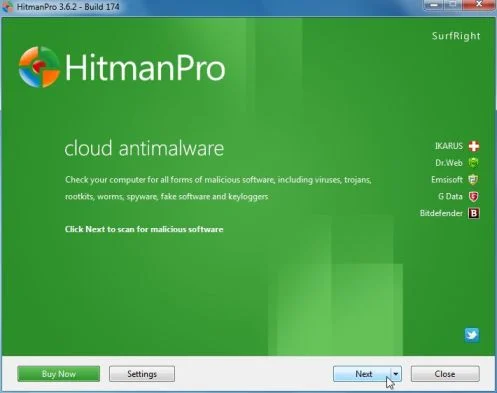
Click on the Next button, to install HitmanPro on your computer.
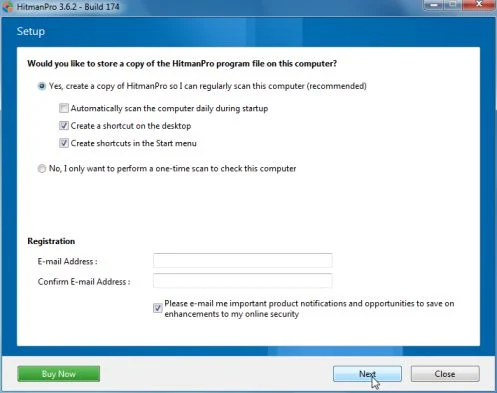
- HitmanPro will now begin to scan your computer for AMMYY malicious files.
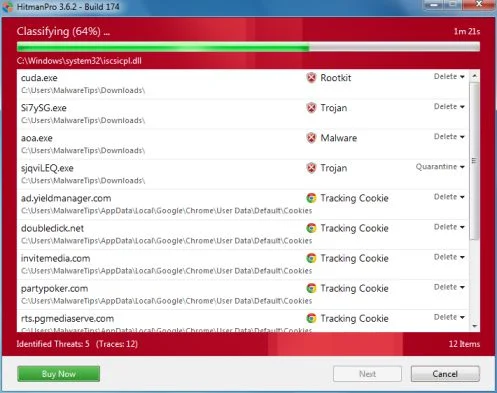
- When it has finished it will display a list of all the malware that the program found as shown in the image below. Click on the Next button, to remove AMMYY adware.
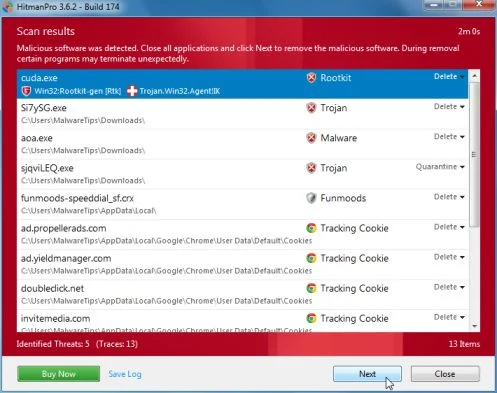
- Click on the Activate free license button to begin the free 30 days trial, and remove all the malicious files from your computer.
![[Image: HitmanPro 30 days activation button]](https://malwaretips.com/blogs/wp-content/uploads/mwt-media/7f/7f063c87fa029d8cd40df3f7faf43765ba1bb9e82c8d5a64c8a49de788018196/2a8400863f3c81fd7d6411e20166dfacdf0bc73e14522edea93a637003240dc1-497.webp "HitmanPro free 30 days trial")
STEP 5: Double-check for any left over infections with Emsisoft Emergency Kit
- You can download Emsisoft Emergency Kit from the below link,then extract it to a folder in a convenient location.
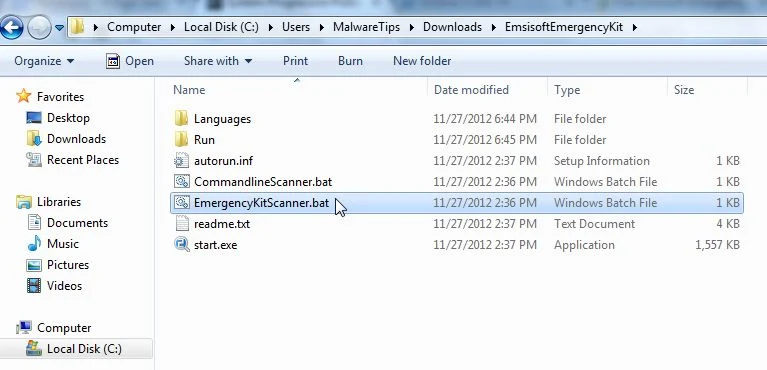
Download Emsisoft Emergency KitOpens the download page in a new tab. - Open the Emsisoft Emergency Kit folder and double click EmergencyKitScanner.bat, then allow this program to update itself.
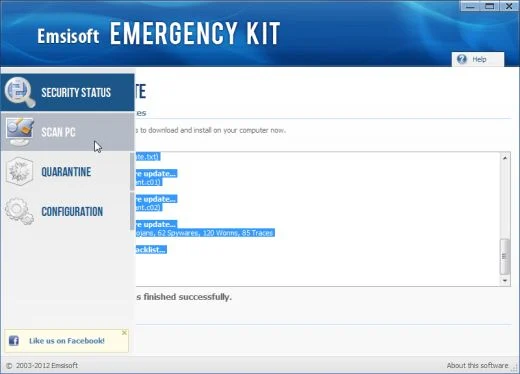
- After the Emsisoft Emergency Kit has update has completed,click on the Menu tab,then select Scan PC.
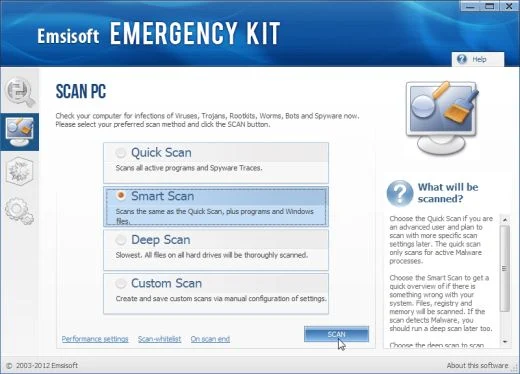
- Select Smart scan and click on the SCAN button to search for “Antivirus Security 2013” malicious files.
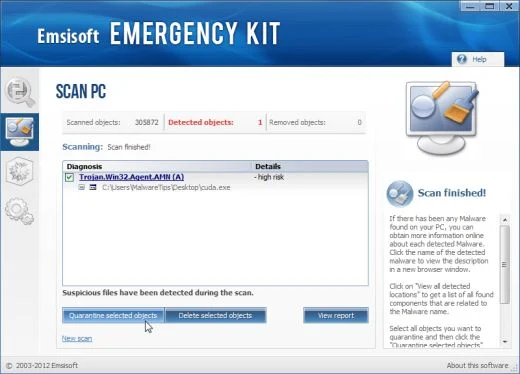
- When the scan will be completed,you will be presented with a screen reporting which malicious files has Emsisoft detected on your computer, and you’ll need to click on Quarantine selected objects to remove them.
If you are still experiencing problems while trying to remove any software installed though AMMYY from your machine, please start a new thread in our Malware Removal Assistance forum.

Join the discussion
27 commentsShare your experience or ask a question about this article.
Discussion
You calling me gullible If so You are so right Lol
I was trying to download some music today from albumjams.com & my computer started being really slow. then it had a automated voice pop up saying that I needed to call this number 1 855 497 7276. Along with another window popping up not allowing me to proceed with anything. I called the number and was put on a brief hold listening to hold music. then a heavy accented indian guy answered and nicely asked what my issue was. he only got my first name. asked the computer type not a model number or serial number or anything. Luckily I’m an intelligent young lady, he walked me through steps to actually get rid of the malware/adware but when it got to the point where he asked me to see if the internet was working and connected and to click on it. he wanted me to go to ammyy.com. When I typed it into my browser, BING searched for it instead of IE bringing up the site directly. It was there that I seen they were using ammyy.com for scams. I immediately put him on MUTE over the phone to read up quickly on this information. He hung up & called back 3 times from number 205 140 001 (yea, I know right??) & left a voicemail that told me ” this is the technician you were talking to about your computer problems. our call got disconnected unfortunately. Please give me a call back on 1 800 409 9817, and ask for me David Thomas on ext. 101, thank you.” which is a totally different number. Since I am smart enough to know my computer is now fixed ( thank you scammers!! ) I believe I played defense this time, the joke is on them!! good luck!
Wow. He called me but I don’t think he knows my country currency because he wanned 3 DKK ($0,459045) and then you just know that there is something wrong.
just got one of these today. Told me to go to ammyy(dot)com. My antivirus kept blocking it and the google kept warning me, so I just played along and they said not to use my computer for 15 hours and they would call me back tomorrow with a “fix”.
the number they called me from was 8552103300
I was scammed today by these jerks, foolish of me, I allowed them access to my computer, but I didn’t give them any credit card info, I am so thankful I found ur site, not only have I removed the ammyy from my computer, I have now been made aware of these phone and computer scams, u r a blessing, thanks
Thank God someone has sussed out this lot of scamming ba****ds.Everyone of them should be locked up and the bloody key thrown away .I have been scammed by these people more than once I think I have lost about £90.00 pound with the robbing ba**&^ds over the last couple of years or so. Can nobody stop them ?:they must be millionaires by now.Even the women are nothing but evil on this site so I hope all there children ROT in hell and they become barren and there future HUSBANDS are IMPOTENT and there present husband get N*B or PE**S rot and it drops off inside of them and there camels die of bloody thirst. Now I feel a little better.I put the curse above on all of them.
Thank you all for the comments and the article. I got a call from him this morning. Can’t believe he still doing that. Next time I should ask him to give me his IP address so that I can report him.
My record of keeping these guys hanging on the phone so far is 32 minutes, involving me rebooting my computer several times because it was ‘unresponsive’, at 3-4 mins each time. Eventually I told him it was running Ubuntu and he let fly with a 30 sec tirade for ‘wasting his time’ and hung up… Err, no. Get a proper job, you scamming sh*t…
I would like to thank you for your your very informative post.
I have tried to add my comments 2 times and for some reason the don’t seem to show up. If there is an issue with my post please advise me of the problem.
I have received a number of these calls. I know within the 1st few seconds that it is a scam.
Becoming tired of racing to the phone only to see that it is this type of call, I prepared a script I followed and have not been bothered for a long time now.
I appreciate that you we through the call, allowed them access to your system for the purpose of presenting what these fraudulent calls are all about.
Of course the difference between your call and the one I accepted is that I never allowed them access to my computer.
I began the call by letting them know how much I appreciated their help because I ran a small business I told them I was thankful they took the time to help me remove any viruses and clean up my system.
I told them that since it was a business that my phone calls were recorded automatically to improve my customer service.
That didn’t’ seem to be a problem so we continued.
I asked for persons name and phone number (suggesting that I was having phone call drops and wanted to call them back if this took place).
I was given the name of the tech (Ricky Sylvester Tech ID# 1027).
Phone number to call back was either 561-401-0188 or 855-335-7469.
I asked if I needed more information on how to fix any recurring issues what web site should I use? I was given www.ammyy.com
Knowing well that non of the information given to me would be true. Getting this information seemed encourage their willingness to wait for my system to boot (which of course it wasn’t. I just wanted time to get all the information they were willing to provide about their intentions and what the process would be.to accomplish the task.
Once I had all this information I thanked them for the call. I let the person on the phone know that I was proceeding from this recorded call and would be providing the cyber crimes decision of the FBI all the information they freely gave me and allowed me to record.
I suppose this part was disturbing because they promptly hung up.
It has been two months since that call.
However I wanted to add some additional things that were said to me when they tried to convince me to that I had a virus an my system.
They provided me with my age, birth date, husband’s name and the name of one my children.
Since I don’t have a face book account never use a social web site, any blogging is keep to the only a few sites, and the exception is this web site only to thank you and add my comments. I came to the conclusion that They had used a reverse phone number search
You never have to log onto these web sites. If someone you know has logged on and run a search. These sites provide a lot of info on that person and any relationships they are known to had, or used as a reference in any way which makes it very easy for people like this to misuse all the information freely provided.
Which of course is a violation of our privacy which we would not be aware of.
To begin I want to thank you for the work you did putting this information together.
Just as most people reading your article I am one of those who have been contacted by this group.
The difference between your call and my call are the way in our approach to validate the fraud.
During the last call I received (because I was tired of getting these type of calls) I accepted the call proceeded with some I prepared knowing the next call would come again within a week.
#1- I never logged on to my computer! I just told them I needed to go to the room the system was in. Then I told them it was possible that I did have a problem due to the time it was taking for my system to boot. This gave me time to ask my questions.
#2 I thanked the person for calling. I told them how much I appreciated their help because I ran a small business from this computer and appreciated their intervention preventing any virus or malware that would be removed with their help. I let them know I was sure my system would be clean when they were done.
I told them that since it was a business that my phone call were recorded automatically to improve my customer service.
That didn’t seem to be a problem so we continued.
I asked for persons name and phone number (suggesting that I was having phone call drops and wanted to call them back if this took place).
I was given the name of the tech (Ricky Sylvester Tech ID# 1027).
Phone number to call back was either 561-401-0188 or 855-335-7469.
I knew these were fictitious, but it just seemed to confirm my belief in them.
I asked if I needed more information on how to fix any recurring issues what web site should I use? I was given www.ammyy.com
Once I had all this information I thanked them for the call letting the person on the phone know that I was proceeding from this call with a followup. At first the person on the phone seemed to be pleased that I was going give them a good rating. Then I went on to say that I would be proving the cyber crimes decision of the FBI all the information I had written down as well as what had been recorded during their phone call to me.
I suppose this part was disturbing, because they promptly hung up.
It has been two months since that call.
However I wanted to add some additional things that were said to me when they tried to convince me to that I had a virus an my system.
They provided me with my age, birth date, husband’s name and the name of one my children.
Since I don’t have a face book account, never use a social web site. I came to the conclusion that they had used a reverse phone number search.
You never have to log onto these web sites. If someone you know has logged on and run a search these sites provide a lot of info on that person and any relationships they are known to had, or used as a reference in any way which makes it very easy for people like this to invade our privacy.
Sent from my Verizon Wireless
In reply to Frances
Just got a call today! What a SCAM! Thank god I have 2 computers and google’d ammyy.com! We spent 15 minutes arguing with each other and him giving me a fake “pcsoluations.com” website address. This is a HUGE SCAM!!! Don’t fall for it, let someone take control of your computer and then pay them! At first, he said he worked with Dell, and then said they work “like Dell”. ALERT ALERT ALERT! This is a SCAM!!!
Received call with Indian voice from 00552014001 obvious scammer pretending to be Microsoft support, and trying to get me to go to http://www.ammyy dot com – which I obviously googled first and then told the scammer what I thought of him. In words of one syllable.
64777162756 – Just had a 20 minute attempt. Super bad accent, said he was in New york… ask something as simple as just talking to a person with a normal voice lol they really need to recruit at least one american to the scam team cause when i got transferred to the senior support supervisor it went from really bad to just bad indian accent. But in the end all you need is a little bit of logic, just as someone below pointed out, they claim to know this information through the server… but you must download this program to connect to the server… and when you challenge them they told me I wasn’t a tech I didn’t know what I was talking about haha thank you for building this website, lucky I didn’t need to remove or uninstall anything because I google searched ‘ammyy’ right when i was about to download through a shortcut http://www.goo.gl/96693somthing looked like a advertisement link so thanks again for making this website, human psychology is so interesting !
hi there the same thing happened to me yesterday but unfortunately I got scammed and he had control on my computer. he asked me to pay him money but I hesitated and told him I don’t trust him. then he said if we don’t do it immediately he will put my computer in the blacklist and lock it down and so he did. I was so frustrated …!
oh and he told me he was talking from London and the organization’s name was UTH or something like that
I unfortunately fell for this scam :( your page has been very helpful!! Thank you so much! You are a lifesaver!
I nearly got scammed by firstly a woman saying she was from Windows and that my laptop has many scammers invading it. She “”Sharon'” had a forgeign accent and said she was from Jhb, I gave her the third degree, so she she put me thru to her senior, “PETER” whose accent I never understood. He told me he was Amercan haha I told him more like Indian or Pakistani and was politely told I should hear his Amercan accent. I was still not aware that he was scamming me, naive me, but I eventually got him so annoyed that he raised his viuce to me saying that if I didn’t want his help, I should hang-up. I kept him going for a while, thinking i’ll use your airtime to the max haha. Eventually I asked for his phone number so I could call him back to verify that he was from Windows he gave me the number 011 3619000. Anyway I clicked on that he was up to no good and when he asked me to enter ammyy. com I had had enough and hung up. I tried this phone number and It gets, answered as Microsoft, —–please hold until an agent answers. I held for a few minutes and then the line just bleeeppps out and the call is cut off.
Lucky escape for me.
l
Some scammers just tried to use this against me. Hilarious. Too bad I’m tech savvy and know what that is. Its sad that people don’t understand their technology or where your information goes enough to just tell these people to back off. After about 5 minutes of this hindi-accent guy telling me I have a lot of pc issues I said “ok fine” and went along with it. He then went through the process of trying to explain the “run” function that I am extremely familiar with and to go to the ammyy website, which I’ve used before with friends. I asked how they are receiving their intel and he said I’m hooked up to their main server, but then asks to type in this website to be connected to the main server….. Logic non-existent. Also, after explaining that his explanation made no sense I called him out on how there’s no way to verify who he is or what company he works with! ALWAYS ASK!!! After he knew I caught him red handed I said no, I don’t want your bogus, fake, scam service he actually said “F*#! You!” and hung up! hahah… so awesome.
In reply to Jordan
Same thing just happened to me. I think i had the same guy! I called him on his BS and he finally called me some acronym i couldn’t hear properly. Something derogatory American something…. And he dropped the F-bomb on me also at the end with three in a row “F**K You”. Too bad they trick some people. Caller ID was “Private, Out of Area”. Also after 9pm and I’m on the do-not-call list. Identified himself from “Windows”. I told him he wasn’t Microsoft, and he admitted that, but claimed to be an authorized rep for them specializing in windows security or some crap. Entertaining. But scary for people who don’t know any better, like my father-in-law…
Hi, have been duped by online techguys … apparently scammers but had not realised until they called back a year later wanting me to download ammyy and top pay a further £170. Hard to figure out why they spent almost 4 hours on phone to me last year though remotely servicing the computer following my phone call to their website due to computer issues and them showing me a Trojan in the system?
Just received the scam call , he remotelly accessed me for like 5secs when I used a different browser to look the call up and to do research , already downloaded the ammy app thinghy strugling to get it uninstalled though …..
Just spent a very entertaining half hour on the phone with one of their “senior technical consultants”.
“Type in a-m-m-y-y”
“a-n-n-y-y”
“No, m-mother”
“OK, I’ve typed a-m-mother-y-y into the box”
“No, not mother, just the letters, so a-m-m-y-y”
“Ah, I see, OK, a-n-n-y-y” etc, etc, etc
He ended up quite clearly insulting me in Hindi to someone next to him. I told him I spoke Hindi and got him to apologise. Then I told him that if he didn’t say “I’m really sorry, Sir” I’d hang up. He said it, which was nice. Then I told him he was just too rude for me to talk to and that he must hang up the call as I wasn’t going to. So he did.
Ah well, another 30 minutes of my life spent reading internet forums while winding up a scammer.
In reply to Vin Kennedy
hahaha its entertaining
do you speak english:
…a littel “bitsh”
and
doubleyoudoubleyoudotpointnosirpointwhatdoyouhave
They claim to be in Manchester on phone number 44161 4088411
but is it worthwhile for them to spend 45 mins on line for every potential client?
In reply to gtaak
Hello,
Most likely they are not from UK, and I highly recommend that you avoid these type of services. If you need malware removal assistance, we offer FREE malware removal support in our forum. :)