

If your computer has been locked and you are seeing a notification from the police, asking you to pay a fine via Ukash, MoneyPak or PaySafeCard, then you are reading this article to understand if it’s real and how to get rid of it.
The newest form of attack used by cyber criminals, is a piece of malware called Trojan Reveton, which will display a bogus notification that pretends to be from your local police department, and states that your computer has been blocked due to it being involved with the distribution of pornographic material, SPAM and copyrighted content.
This new form of malware will lock you out of your computer and applications, so whenever you’ll try to log on into your Windows operating system or Safe Mode with Networking, it will display instead a lock screen asking you to pay a non-existing fine in the form of a Ukash or PaySafeCard code.
Furthermore, to make its alert seem more authentic, this virus also has the ability to access your installed webcam so that the bogus Ukash notification shows what is happening in the room.
If your computer is infected with Ukash virus,then you’ll see a notification from your local police department, below you can see just a few examples on how this alerts might look:
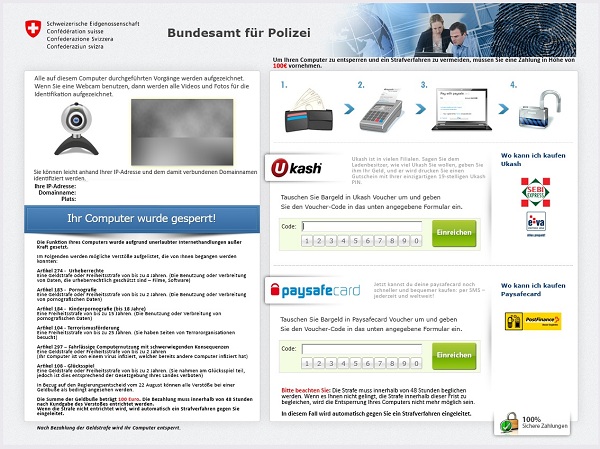

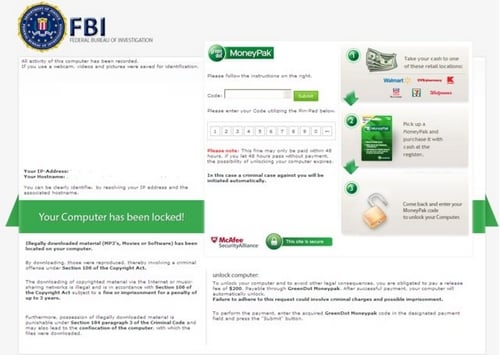
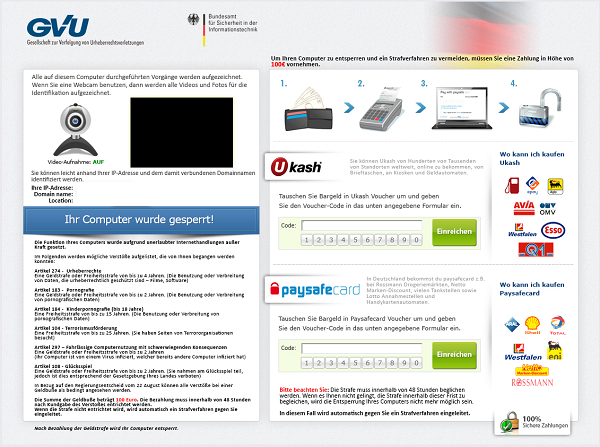
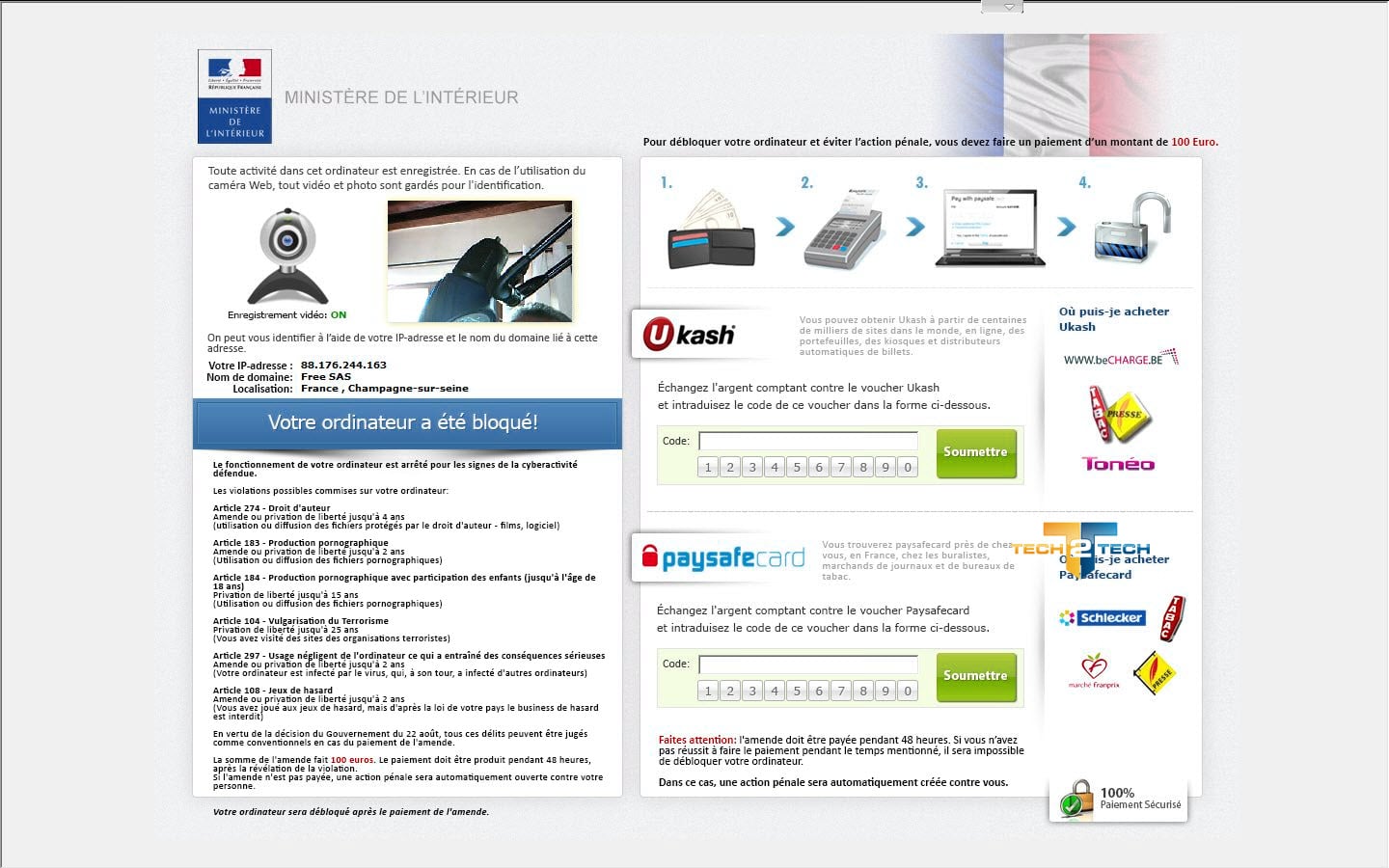

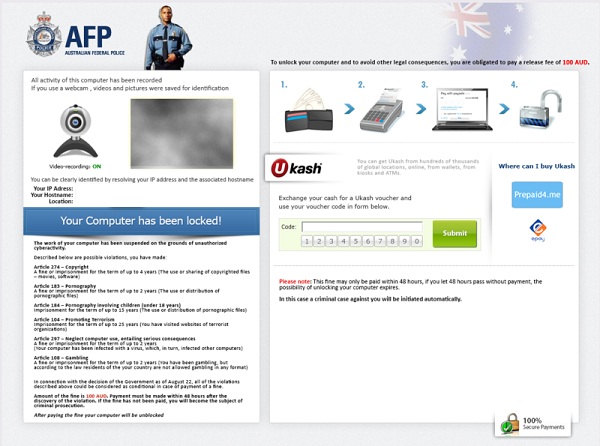

Under no circumstance should you send any money to this cyber criminals,as this could lead to identity theft,and if you have, you should request a refund from Ukash stating that you are the victim of a scam and computer virus.
Ukash Police Ransom – Virus Removal Guide
This page is a comprehensive guide, which will remove the Ukash infection from your your computer. Please perform all the steps in the correct order. If you have any questions or doubt at any point STOP and ask for our assistance.
The Ukash will start automatically when you login to your computer and display its screenlocker so that you are unable to access your computer, therefore we will need to remove this infection by using any of the below methods:
OPTION 1: Remove Ukash lock screen virus with System Restore
OPTION 2: Remove Ukash virus with with HitmanPro Kickstart
OPTION 3: Remove Ukash virus with Kaspersky Rescue Disk
OPTION 1: Remove Ukash lock screen virus with System Restore
System Restore helps you restore your computer’s system files to an earlier point in time. It’s a way to undo system changes to your computer without affecting your personal files, such as e‑mail, documents, or photos.
Because the Ukash virus will not allow you to start the computer in Windows regular mode, we will need to start System Restore from the Safe Mode with Command Prompt mode.
STEP 1: Restore Windows to a previous state using System Restore
- Reboot your computer into Safe Mode with Command Prompt. To do this, turn your computer off and then back on and immediately when you see anything on the screen, start tapping the F8 key on your keyboard.
![[Image: F8 key]](data:image/svg+xml,%3Csvg%20xmlns='http://www.w3.org/2000/svg'%20viewBox='0%200%20410%20209'%3E%3C/svg%3E "Windows F8 key")
If you are using Windows 8, the trick is to hold the Shift button and gently tap the F8 key repeatedly, this will sometimes boot you into the new advanced “recovery mode”, where you can choose to see advanced repair options. On the next screen, you will need to click on the Troubleshoot option, then select Advanced Options and select Windows Startup Settings. Click on the Restart button, and you should now be able to see the Advanced Boot Options screen. - Using the arrow keys on your keyboard, select Safe Mode with Command Prompt and press Enter on your keyboard.
![[Image: Starting computer in Safe Mode with Command Prompt]](data:image/svg+xml,%3Csvg%20xmlns='http://www.w3.org/2000/svg'%20viewBox='0%200%20600%20450'%3E%3C/svg%3E "Advanced Boot Options screen")
- At the command prompt, type rstrui.exe, and then press ENTER.
![[Image: Start System Restore to remove lock screen virus]](data:image/svg+xml,%3Csvg%20xmlns='http://www.w3.org/2000/svg'%20viewBox='0%200%20668%20331'%3E%3C/svg%3E "rstrui.exe command in Safe Mode with Command Prompt")
Alternatively, if you are using Windows Vista, 7 and 8, you can type: C:\windows\system32\rstrui.exe , and press Enter. And if you are a Windows XP user, type C:\windows\system32\restore\rstrui.exe, then press Enter. - System Restore should start, and you will display also a list of restore points. Try using a restore point created just before the date and time the Ukash lock screen virus has infected your computer.
![[Image: Restore settings to remove ransomware]](data:image/svg+xml,%3Csvg%20xmlns='http://www.w3.org/2000/svg'%20viewBox='0%200%20570%20452'%3E%3C/svg%3E "Restore your computer's system files to an earlier point in time")
- When System Restore has completed its task, start your computer in Windows regular mode, and perform a scan with Malwarebytes Anti-Malware and HitmanPro, as seen in the next step.
![[Image: F8 key]](http://malwaretips.com/blogs/wp-content/uploads/2013/06/F8-key.jpg.png "Windows F8 key")
![[Image: Starting computer in Safe Mode with Command Prompt]](http://malwaretips.com/blogs/wp-content/uploads/2013/06/Safe-Mode-with-Command-Prompt.jpg "Advanced Boot Options screen")
![[Image: Start System Restore to remove lock screen virus]](http://malwaretips.com/blogs/wp-content/uploads/2013/06/system-restore-command.jpg "rstrui.exe command in Safe Mode with Command Prompt")
![[Image: Restore settings to remove ransomware]](http://malwaretips.com/blogs/wp-content/uploads/2013/06/system-restore.jpg "Restore your computer's system files to an earlier point in time")
STEP 2: Remove Ukash malicious files with Malwarebytes Anti-Malware Free
Even after using System Restore,
- You can download Malwarebytes Anti-Malware Free from the below link, then double-click on the icon named mbam-setup.exe to install this program.
MALWAREBYTES ANTI-MALWARE DOWNLOAD LINK(This link will open a download page in a new window from where you can download Malwarebytes Anti-Malware Free) - When the installation begins, keep following the prompts in order to continue with the setup process, then at the last screen click on the Finish button.
![[Image: Malwarebytes Anti-Malware final installation screen]](data:image/svg+xml,%3Csvg%20xmlns='http://www.w3.org/2000/svg'%20viewBox='0%200%20402%20310'%3E%3C/svg%3E "Malwarebytes Anti-Malware installation screen")
- On the Scanner tab, select Perform quick scan, and then click on the Scan button to start searching for the Ukash malicious files.
![[Image: Malwarebytes Anti-Malware Quick Scan]](data:image/svg+xml,%3Csvg%20xmlns='http://www.w3.org/2000/svg'%20viewBox='0%200%20521%20397'%3E%3C/svg%3E "Run a Quick Scan with Malwarebytes Anti-Malware")
- Malwarebytes’ Anti-Malware will now start scanning your computer for Ukash virus as shown below.
- When the Malwarebytes Anti-Malware scan has finished, click on the Show Results button.
- You will now be presented with a screen showing you the computer infections that Malwarebytes Anti-Malware has detected. Make sure that everything is Checked (ticked), then click on the Remove Selected button.
![[Image: Malwarebytes Anti-Malware final installation screen]](http://malwaretips.com/blogs/wp-content/uploads/2013/01/malwarebytes-installation.jpg "Malwarebytes Anti-Malware installation screen")
![[Image: Malwarebytes Anti-Malware Quick Scan]](http://malwaretips.com/blogs/wp-content/uploads/2013/01/malwarebytes-quick-scan.jpg "Run a Quick Scan with Malwarebytes Anti-Malware")
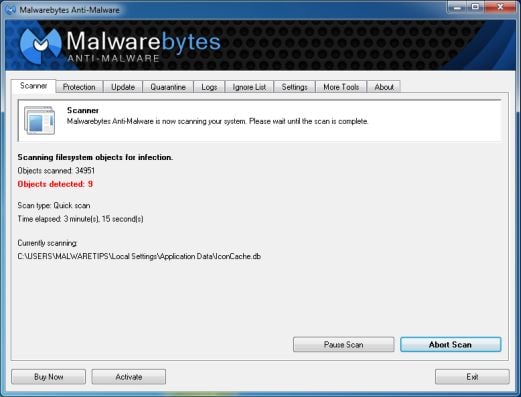
![[Image: Malwarebytes Anti-Malware scan results]](http://malwaretips.com/blogs/wp-content/uploads/2013/01/malwarebytes-scan-results.jpg "Malwarebytes when the system scan has completed")
![[Image: Malwarebytes Anti-Malwar removing Ukash virus]](http://malwaretips.com/blogs/wp-content/uploads/2013/01/malwarebytes-virus-removal.jpg "Malwarebytes Anti-Malwar removing Ukash virus")
STEP 3: Double-check for the Ukash virus with HitmanPro
- You can download HitmanPro from the below link:
HITMANPRO DOWNLOAD LINK (This link will open a web page from where you can download HitmanPro) - Double-click on the file named HitmanPro.exe (for 32-bit versions of Windows) or HitmanPro_x64.exe (for 64-bit versions of Windows). When the program starts you will be presented with the start screen as shown below.

Click on the Next button, to install HitmanPro on your computer.
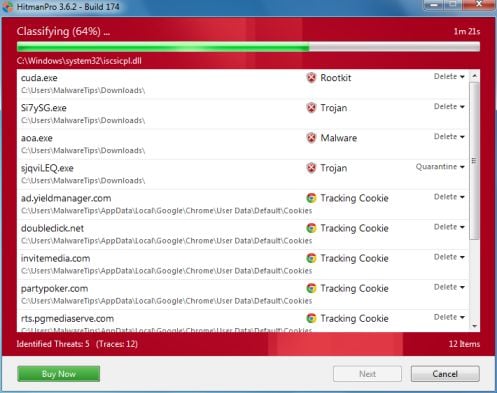
- HitmanPro will now begin to scan your computer for Ukash malicious files.
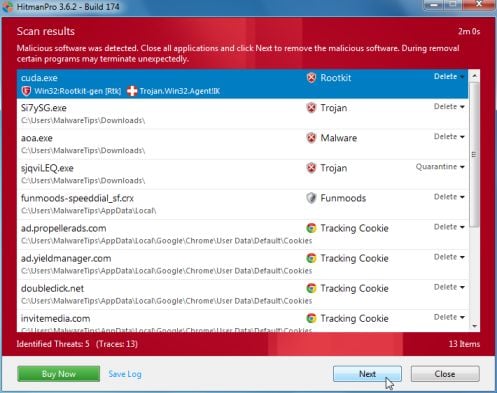
- When it has finished it will display a list of all the malware that the program found as shown in the image below. Click on the Next button, to remove Ukash virus.
- Click on the Activate free license button to begin the free 30 days trial, and remove all the malicious files from your computer.
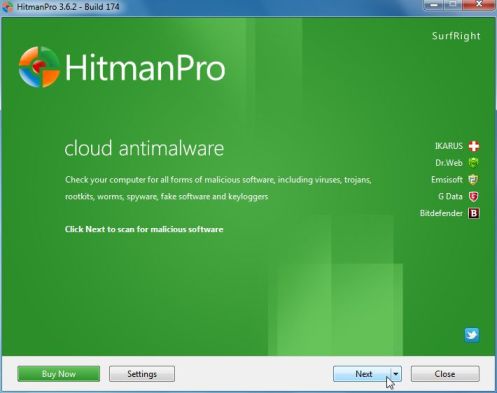
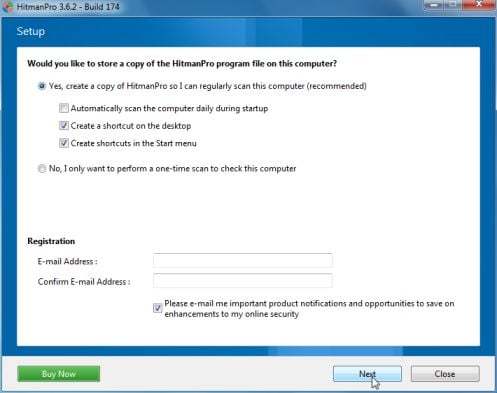
![[Image: HitmanPro 30 days activation button]](http://malwaretips.com/blogs/wp-content/uploads/2012/11/hitmanpro-activation.jpg "HitmanPro free 30 days trial")
OPTION 2: Remove Ukash virus with with HitmanPro Kickstart
If you cannot start your computer into Safe Mode with Command Prompt mode, we can use the HitmanPro Kickstart program to bypass Ukash lock screen.
As the Ukash ransomware infection locks you out of your computer, you will need to create a bootable USB drive that contains the HitmanPro Kickstart program.
We will then boot your computer using this bootable USB drive and use it to clean the infection so that you are able to access Windows normally again.
You will also need a USB drive, which will have all of its data erased and will then be formatted. Therefore, only use a USB drive that does not contain any important data.
- Using a “clean” (non-infected) computer, please download HitmanPro Kickstart from the below link.
HITMANPRO DOWNLOAD LINK (This link will open a download page in a new web page from where you can download HitmanPro Kickstart) - Once HitmanPro has been downloaded, please insert the USB flash drive that you would like to erase and use for the installation of HitmanPro Kickstart. Then double-click on the file named HitmanPro.exe (for 32-bit versions of Windows) or HitmanPro_x64.exe (for 64-bit versions of Windows).
To create a bootable HitmanPro USB drive, please follow the instructions from this video:
- Now, remove the HitmanPro Kickstart USB drive and insert it into the Ukash infected computer.
- Once you have inserted the HitmanPro Kickstart USB drive, turn off the infected computer and then turn it on. As soon as you power it on, look for text on the screen that tells you how to access the boot menu.
![[Image: Windows Boot Menu screens]](data:image/svg+xml,%3Csvg%20xmlns='http://www.w3.org/2000/svg'%20viewBox='0%200%20704%20160'%3E%3C/svg%3E "Windows Boot Menu screens")
The keys that are commonly associated with enabling the boot menu are F10, F11 or F12. - Once you determine the proper key (usually the F11 key) that you need to press to access the Boot Menu, restart your computer again and start immediately tapping that key. Next, please perform a scan with HitmanPro Kickstart as shown in the video below.
- HitmanPro will now reboot your computer and Windows should start normally. Then please Malwarebytes Anti-Malware and HitmanPro, and scan your computer for any left over infections.
![[Image: Windows Boot Menu screens]](http://malwaretips.com/blogs/wp-content/uploads/2013/06/windows-boot-manager.jpg "Windows Boot Menu screens")
OPTION 3: Remove Ukash virus with Kaspersky Rescue Disk
If any of the above methods did not clean your infected computer, we can use a Kaspersky Rescue Disk Bootable to clean the Windows registry and to perform a system scan to remove the Ukash virus.
To create a bootable Kaspersky Rescue Disk, we will need the following items:
- A clean (non-infected) computer with Internet access
- A blank DVD or CD
- A computer with a DVD or CD burner
STEP 1: Download and create a bootable Kaspersky Rescue Disk CD
- You can download Kaspersky Rescue Disk utility from link below:
KASPERSKY RESCUE DISK DOWNLOAD LINK (This link will automatically download Kaspersky Rescue Disk (kav_rescue_10.iso) on your computer.) - To create the bootable rescue disk, we will need to use the ImgBurn program. You can download ImgBurn from the below link, then install this program.
IMGBURN DOWNLOAD LINK (This link will open a new page from where you can download the ImgBurn program) - Insert your blank DVD or CD in your burner, then start ImgBurn and click on the Write image file to disc button.
- Under Source click on the Browse for file button, then navigate to the location where you previously saved the Kaspersky Rescue Disk utility (kav_rescue_10.iso), then click on the Write button.
![[Image: Bootable Kaspersky Rescue CD]](data:image/svg+xml,%3Csvg%20xmlns='http://www.w3.org/2000/svg'%20viewBox='0%200%20545%20373'%3E%3C/svg%3E "Creating Kaspersky Rescue Disk bootable CD")
That’s it, ImgBurn will now begin writing your bootable Kaspersky Rescue Disk.
![[Image: Bootable Kaspersky Rescue CD]](http://malwaretips.com/blogs/wp-content/uploads/2013/06/creating-bootable-kaspersky-rescue-disk.jpg "Creating Kaspersky Rescue Disk bootable CD")
STEP 2: Start your computer using the Kaspersky Rescue Disk
- Once you’ve got the Kasperky Rescue Disk in hand, insert it into the infected computer, and turn off and then turn it on again.
- As soon as you power it on, you will see a screen that tells you to press any key to enter the menu, so please tap any key to boot your machine from the Kaspersky Rescue Disk.
![[Image: Starting infected computer from Kaspersky Rescue Disk]](data:image/svg+xml,%3Csvg%20xmlns='http://www.w3.org/2000/svg'%20viewBox='0%200%20650%20100'%3E%3C/svg%3E "Starting infected computer from Kaspersky Rescue Disk")
- In the next screen, you will need to chose a language, then you click on Kaspersky Rescue Disk. Graphic Mode and press ENTER, to start the Kaspersky Rescue Disk.
![[Image: Kaspersky Rescue Disk Graphic Mode screen]](data:image/svg+xml,%3Csvg%20xmlns='http://www.w3.org/2000/svg'%20viewBox='0%200%20650%20202'%3E%3C/svg%3E "Kaspersky Rescue Disk Graphic Mode screen")
![[Image: Starting infected computer from Kaspersky Rescue Disk]](http://malwaretips.com/blogs/wp-content/uploads/2013/06/Kaspersky-Rescue-Disk-boot.png "Starting infected computer from Kaspersky Rescue Disk")
![[Image: Kaspersky Rescue Disk Graphic Mode screen]](http://malwaretips.com/blogs/wp-content/uploads/2013/06/Kaspersky-Rescue-Disk-graphic-mode.png "Kaspersky Rescue Disk Graphic Mode screen")
STEP 3: Scan your system with Kaspersky Rescue Disk
- Within a few short seconds you should see the full working environment, with the Kaspersky Rescue Disk screen front and center as shown below.
![[Image: Kaspersky Rescue Disk scanner]](data:image/svg+xml,%3Csvg%20xmlns='http://www.w3.org/2000/svg'%20viewBox='0%200%20896%20717'%3E%3C/svg%3E "Kaspersky Rescue Disk scanner")
- Switch tabs over to the My Update Center, and then click the Start update button to load the latest anti-virus definitions. Please be patience while this process its completed.
![[Image: Updating Kaspersky Rescue Disk antivirus definitions]](data:image/svg+xml,%3Csvg%20xmlns='http://www.w3.org/2000/svg'%20viewBox='0%200%20824%20641'%3E%3C/svg%3E "Updating Kaspersky Rescue Disk antivirus definitions")
- Switch back over to the Objects Scan tab, select the drives you want to scan, and then click the Start Objects Scan button.
![[Image: Kaspersky Rescue Disk scan]](data:image/svg+xml,%3Csvg%20xmlns='http://www.w3.org/2000/svg'%20viewBox='0%200%20748%20648'%3E%3C/svg%3E "Kaspersky Rescue Disk scan")
- When Kaspersky Antivirus will detect the Ukash virus, you’ll be prompted to select an action. When this happens, please select Quarantine or Delete to remove this infection from your computer.
![[Image: Kaspersky Rescue Disk prompt]](data:image/svg+xml,%3Csvg%20xmlns='http://www.w3.org/2000/svg'%20viewBox='0%200%20349%20451'%3E%3C/svg%3E "Kaspersky Rescue Disk when detecting malware")
- When the antivirus scan has completed, you can restart back into Windows regular mode, by clicking on the Kaspersky Start button
![[Image: Kaspersky Rescue Disk Restart button]](data:image/svg+xml,%3Csvg%20xmlns='http://www.w3.org/2000/svg'%20viewBox='0%200%2034%2036'%3E%3C/svg%3E "Kaspersky Rescue Disk Restart button") (lower left corner), and selecting Restart.
(lower left corner), and selecting Restart.
Once your computer will start in Windows regular more, download Malwarebytes Anti-Malware and HitmanPro, and scan your computer for any left over infections.
![[Image: Kaspersky Rescue Disk scanner]](http://malwaretips.com/blogs/wp-content/uploads/2013/06/Kaspersky-Rescue-Disk.jpg "Kaspersky Rescue Disk scanner")
![[Image: Updating Kaspersky Rescue Disk antivirus definitions]](http://malwaretips.com/blogs/wp-content/uploads/2013/06/Kaspersky-Rescue-Disk-update.jpg "Updating Kaspersky Rescue Disk antivirus definitions")
![[Image: Kaspersky Rescue Disk scan]](http://malwaretips.com/blogs/wp-content/uploads/2013/06/Kaspersky-Rescue-Disk-scan.jpg "Kaspersky Rescue Disk scan")
![[Image: Kaspersky Rescue Disk prompt]](http://malwaretips.com/blogs/wp-content/uploads/2013/06/Kaspersky-Rescue-Disk-alarm.png "Kaspersky Rescue Disk when detecting malware")
![[Image: Kaspersky Rescue Disk Restart button]](http://malwaretips.com/blogs/wp-content/uploads/2013/06/Kaspersky-Rescue-Disk-restart.jpg "Kaspersky Rescue Disk Restart button") (lower left corner), and selecting Restart.
(lower left corner), and selecting Restart.Your computer should now be free of the Ukash infection. If your current anti-virus solution let this infection through, you may want to consider purchasing the PRO version of Malwarebytes Anti-Malware to protect against these types of threats in the future.
If you are still experiencing problems while trying to remove Ukash virus from your machine, please start a new thread in our Malware Removal Assistance forum.









THANK YOU, THANK YOU, THANK YOU!! Your help was clear, precise and so helpful! I’m not very computer savvy, but your instruction’s get me straightened out when I thought things were pretty scary.
Thank you. You made my day.
Hello Bob,
Have you tried to create the bootable HitmanPro USB stick or Kaspersky Rescue Disk?
Thanks for your help. I appreciate it.
Stelian. You are a lifesaver.
I managed to remove the virus using System Restore on a compaq presario running XP sp3. To get to safe mode, I had to hit F8 almost as soon as I switched the computer on. I was then given the option of logging on as Administrator (which doesn’t usually appear) – and I did and followed your instructions for restoring the system and removing the virus. Phew!
Very relieved and very very grateful. Many thanks
Hey, This virus hit me on my work laptop and in my line of work, the things that were on there were so horrible that I was packing death! Because it is a work computer it was a bit tricky but eventually I was able to use the 3rd Option to create and use a rescue CD. I was so relieved to see my desktop load up!! Thanks so much!
Hello Milo,
If these cyber criminals have not used the Ukash code yet, you can request a refund from here: https://www.ukash.com/en-GB/support/faqs/?cat=644
Also, if you are from the US, you can submit a complaint to the FTC, and you should get you money back eventually : http://www.ftc.gov/ftc/contact.shtm
If you are from outside the US, you can submit a complaint at your local police department.
Stay safe!!
Hey so I just performed the system restore and it’s still locked ?
Hello Stridder,
It looks like this infection was installed before creating the restore point. In this case I recommend that you try to create a bootable HitmanPro USB or a Kaspersky Rescue Disk as seen in this article.
If you are still experiencing problems while trying to remove this infection, you can start a thread in our Malware Removal Assistance forum: http://malwaretips.com/Forum-Malware-Removal-Assistance
Stay safe!
Hello Murat,
Please create a HitmanPro Kickstart USB as seen here: http://malwaretips.com/blogs/remove-police-trojan/#hitmanpro
OR
Please create a bootable Kaspersky Rescue Disk as seen here: http://malwaretips.com/blogs/remove-police-trojan/#kaspersky
Stay safe!
Hello Tom,
The computer from where I took those screenshot was severely infected, so it’s normal that you had less infections! If you have scanned your machine with HitmanPro and Malwarebytes, then you should have a clean computer.
Nevertheless, for your peace of mind, you can run a scan with ESET Online Scanner:
1.Download ESET Online Scanner utility.
ESET Online Scanner Download Link : http://download.eset.com/special/eos/esetsmartinstaller_enu.exe
2. Double click on the Eset installer program (esetsmartinstaller_enu.exe).
3.Check Yes, I accept the Terms of Use, then click the Start button.
4.Check Scan archives and push the Start button.
5. ESET will then download updates for itself, install itself, and begin scanning your computer. Please be patient as this can take some time.
6. When the scan completes, click on the Finish button.
Brilliant advice , worked a treat. Thanks
Hello Mikey,
Yes, you should be able to do that. But lets try to see if we can boot from with HitmanPro Kickstart. Try the following:
1. Make sure that in your BIOS the boot order is configured so that the HDD has priority over the USB flash drive.
2. During power-up of your computer tap F12/F11/F8/ESC (or another key, depending on your BIOS) to get into the boot-override menu.
Note that this boot-override menu is NOT the same menu as the boot-configuration menu in your BIOS.
See also the three screenshots below for examples of how to get into the boot-override menu.
3. In the boot-override menu, select the USB flash drive to boot from.
Note: Make sure that the HitmanPro.Kickstart boot loader shows version 1.1 or higher as seen below.
Hello Mikey,
Please create a Kaspersky Rescue Disk and scan your computer for malware, as seen here: http://malwaretips.com/blogs/remove-police-trojan/#kaspersky
Hello Martin,
You will need to create a Kaspersky Rescue Disk, and perform a system scan.
You have here the instructions: http://malwaretips.com/blogs/how-to-use-kaspersky-rescue-disk/
I posted my method how to get rid of Ukash Virus in December 2012 because my computer was attacked by that virus and fixed it with my explained method . On 28th May, 2013 , my another PC was attacked by the same virus but this time my old method did not work at all.
Let me to tell you a little bit about my old method:
When system boots up, try to open other programmes to slow down the PC processer and then click on Start – Run and type msconfig and press enter. Go to services tab and disable all services. you will get a message to Restart the Computer press OK or Enter. You have only 5-7 seconds to do all this process before Ukash Virus screen pops up.
But let me to tell you this method did not work when I tried it on 28th May. The reason is the new Ukash Virus do not let you to do any thing on your PC because it will open automatically other programmes like Windows Media Player etc to slow down the processor. I think the people who develop these nasty things also watch these blogs and website to improve them.
Any ways, here is the new method.
Step 1 – Boot the system and continously press F8
Step 2 – Select Safe Mode with Command Prompt
Step 3: When DOS Prompt window will come up type cd \ And press enter
Step 4: The Dos Prompt will look like this
C: \ >
type cd windows\pchealth\helpctr\binaries
Step 5: Type msconfig
Step 6: Under General Tab: Select Diagnostic Startup – load basic devices and services only
Step 7: Press Apply and Then Ok
You will get a message to restart the Computer, press OK
Now your computer will boot up without Ukash Virus Screen, get MALWAREBYTES ANTI MALWARE AND perform FULL SCAN including any partition on your harddisk, it will kill the virus,
STEP 8: After deleting the virus , go to Quarantine tab of the MALWAREBYTES and delete the virus from there as well.
STEP 9: Restart the computer.
LAST STEP: GO TO START , PRESS RUN AND TYPE MSCONFIG : select NORMAL START UP and apply , and ok
Thats it.