System Informer Stable Released

TairikuOkami

Level 40
Thread author
Verified
Top Poster
Content Creator
Well-known
Forum Veteran
May 13, 2017
2,947
14,843
3,880
FEMatrixAge43
github.com

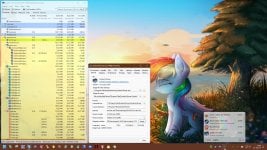
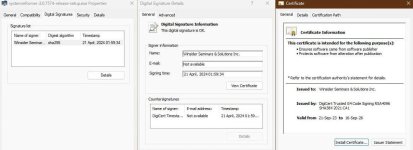
After 7 years, we have finally got the stable version and on top of it, it is digitally signed, so no longer marked as malware, just PUA.
When Winsider took over they promised to take care of Process Hacker and they did. Sadly VirusTotal does not work yet, but soon.

04212024_100726.jpg


capture_04212024_103311.jpg 04212024_090503.jpg
 
Great news! It's been a long journey, but it's good to see the stable version finally released. It's reassuring to know that it's digitally signed, reducing malware concerns. Let's hope VirusTotal functionality will be restored soon.
 
  • Thanks
Reactions: TairikuOkami
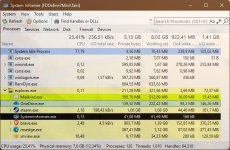
Hmm, just installed it to see the difference between Process Explorer and System Informer. This software has a lot more than Process Explorer, and thankfully you can set it to Dark mode. Albeit that it is experimental, and I needed to change a setting under advanced to get the text from the menus to show up readable. :)

I understand that probably most of this program is a personal preference, but are there things / settings that everyone should consider to set as standard no matter what else we end up using?
 
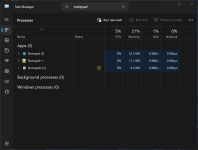
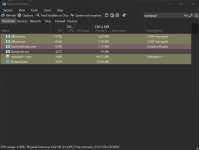
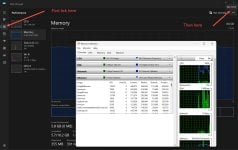
Exactly in the memory, the difference reach to 100 MB with some apps.
System Informer by default shows only private bytes which usually also contains memory of the process as well as shared objects while task manager shows only the amount of memory that is exclusively used by the process which won't be shared with any other process.
Do this, open Task Manager. On the left panel go the Details tab. Here you should different kind of memory details. Working Set (memory), Memory (private working set), Memory (shared working set), Commit size, etc. Keep your mouse on each column and it will pop up a detail explaining what each column means.
Many columns are not enabled by default. Right click on any column > select column and enable anything you want.
The details explanation popup is something you will also find in the built-in Resource Monitor app of Windows.
1745350004423.png

1745350171364.png
 
They're different concepts. If a process writes to a named pipe, that's I/O, but it has nothing to do with the disk(s) on your computer. Similarly if a process does I/O on a file, the contents don't have to be written out to disk immediately.

I/O Write Bytes - Bytes supposed to be written
Disk Write Bytes - Bytes actually written to disk

I guess the difference depends how an app handles and optimizes data, since it goes through RAM.
For example my OneDrive, Steam and browsers have bigger "I/O Write Bytes" than "Disk Write Bytes".
 

Attachments

  • capture_05252025_095153.jpg
    capture_05252025_095153.jpg
    83 KB · Views: 113