

That shiny new tape measure calling your name in the hardware store will finally be yours! Tempting ads on Instagram promise a $100 cash rebate when you buy Stanley’s top-rated tools. Just click a link to take a quick survey and the money is practically already back in your wallet. But before jumping for joy, pause. Are these social media offers promising easy Stanley rebates just a little too good to be true?
Read on as we unravel the truth behind online opportunities to score $100 cash back from the iconic tool brand. We’ll reveal an elaborate scam tactic targeting shoppers itching to save on big purchases. Don’t let clever impersonators lure you in with links that look legit, but only lead to financial fraud.
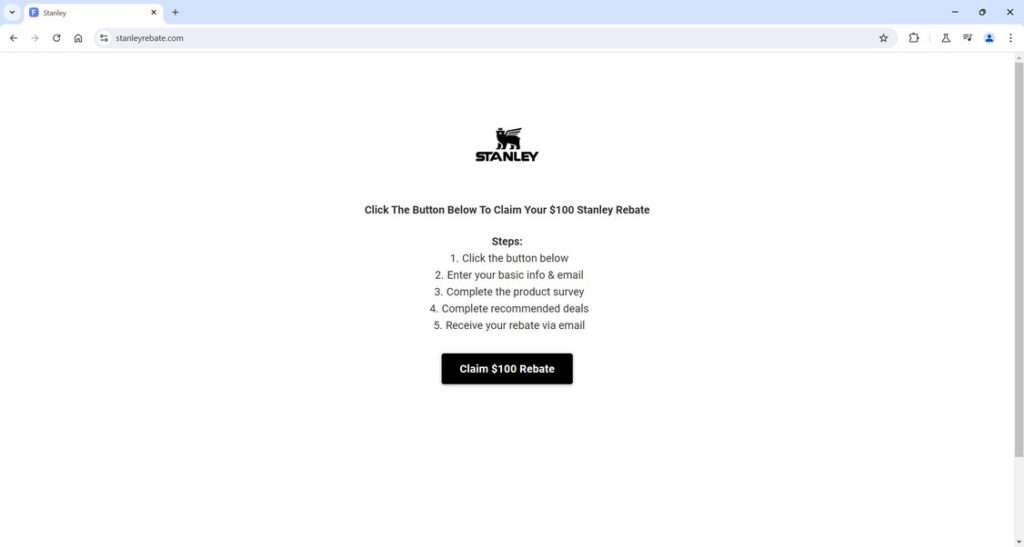
An In-Depth Look at the Bogus $100 Stanley Rebate Scam
A clever social media scam is capitalizing on Stanley’s reputation for durable, reliable tools and hardware to dupe unsuspecting consumers. Posts promise a $100 cash rebate just for completing a short survey about Stanley products. But the rewards being touted in the ads are completely fictional.
The scam ads are made to look official using Stanley’s iconic red, yellow and black logo font, images of popular products like tape measures and screwdrivers, and mention of a “$100 Visa e-gift card” as the rebate method. Attention-grabbing headlines invite people to click on links leading to sophisticated fake rebate portals designed to precisely mimic Stanley’s real rebate site.
While the URL of the fraudulent sites may be slightly different with odd words like “rewards” or “cashback” added, everything else from the visual design to the layout is meticulously copied to trick visitors.
On these convincing phishing sites, visitors are prompted to complete a rebate registration form by entering personal details like their name, physical address, email, phone number, and sometimes even credit card numbers or scans of IDs.
The scam site claims this info is needed to “confirm eligibility” for the $100 rebate. But in reality, scammers harvest this data to create in-depth profiles on victims for use in additional identity theft and phishing scams moving forward.
Often, right after users submit their sensitive information through the fake portal, they will receive very official-looking (but fake) emails from Stanley directing them to complete additional “required” steps before the promised $100 can supposedly be earned.
These emails instruct victims to fill out a product survey, provide a product serial number, and complete sketchy third-party offers from the scam site’s “sponsors.” The offers turn out to be subscriptions, malware downloads, and other profit-driving hooks the scammers likely get paid kickbacks to direct traffic to.
Despite users complying will all the steps laid out by the scammers, no $100 Stanley rebates or Visa gift cards ever materialize. But now the crooks have all the personal data needed to exploit victims through additional retail fraud schemes.
For example, scammers may use the names, emails, and addresses obtained to register accounts on other websites or make fraudulent purchases. Or they could phish for even more sensitive details to facilitate full-blown identity theft down the line.
Some savvy scammers even leverage the access to inboxes gained by victims providing their real email address to send additional fake Stanley rebate renewal notices long after falling for the initial scam. These trust-gaining techniques allow them to further manipulate victims months later.
Essentially, the only true intention of the scam ads and fake rebate websites is stealing users’ personal information under false pretenses. The promised $100 Stanley rebates do not actually exist. It’s all an elaborate ruse to obtain data and traffic for shady profit schemes.
Stanley has vehemently denied any association with these fake rebate ads and phishing portals. They warn customers to steer clear of such viral offers and instead apply for any real rebates only through trusted pages on Stanley’s official website. Stay vigilant!
How the Fake $100 Stanley Rebate Scam Fools Users
Here’s an inside look at the tactics scammers use at each stage of this prevalent con:
Step 1: Deceptive Social Media Posts
The scam starts with sponsored ads or posts on platforms like Facebook, Instagram and TikTok. Using Stanley’s signature red branding and mention of a $100 rebate, they promote a supposedly “limited time” chance to score easy cash back.
Some versions include fake positive comments and reviews from people claiming they already got their $100 rebate. This adds bogus social proof that the offer is legitimate.
Step 2: Clicking Links to Fake Stanley Rebate Sites
When users click on the links in the scam posts, they are taken to sophisticated fake websites made to closely impersonate Stanley’s real rebate portal.
While the URL may be slightly different, everything else from the logo to the visual design is meticulously copied to dupe visitors.
Step 3: Phishing for Personal Information
On the fraudulent sites, users are prompted to complete a rebate form by entering personal details like their name, email address, phone number, and physical mailing address.
Scammers harvest this info to create profiles of victims for use in additional identity theft and phishing scams moving forward.
Step 4: Bogus Survey and Offer Completion
After submitting information, users are instructed to complete a short product survey, along with various third-party sponsor offers to finalize rebate eligibility. These leads to paid subscriptions, suspicious downloads, and other profit-driving hooks.
Step 5: No Rebate Received, Identity Exposed
Despite complying with all steps, no $100 Stanley rebate is ever received by users. But their personal information is now compromised. Don’t let a slick corporate impersonation trick you into compromising data.
Recognizing Red Flags of the Fake $100 Stanley Rebate Scam
Despite the convincing cloning of Stanley’s brand trappings, a trained eye can spot red flags proving these offers are 100% fake:
- Odd URLs – The links lead to domains with variations of “Stanley” not used officially.
- Spelling/grammar errors – Sloppy mistakes reveal lack of professionalism.
- Vague details – Concrete rebate specifics are never provided.
- Requests for data – Stanley would not need so much personal info for a rebate.
When objectively analyzed, the scam’s real goals become obvious: harvest users’ information for criminal purposes under the guise of paid rewards. Protect yourself through vigilance.
Steps to Take if You Shared Information Through the Scam
If you provided any personal details through one of these deceptive offers, take the following steps right away to protect yourself:
- Place fraud alerts on your credit reports and review closely for any suspicious new accounts or charges. Continue monitoring reports for the next 12 months for further activity.
- Call your bank and credit card companies to monitor closely for any unauthorized charges. Report unauthorized charges immediately. Consider requesting new account numbers if any of your current cards were compromised.
- Change all account passwords, security questions, and PINs. Make them random and unique. Do not reuse the same credentials across multiple sites. Enable two-factor authentication everywhere possible.
- For accounts using personal information as account recovery verification, like phone carriers, proactively contact customer service teams to update this sensitive info so it cannot be leveraged by scammers.
- Run comprehensive malware and antivirus scans on all devices that accessed the scam sites or emails. Delete anything suspicious or unverified. Reset devices to factory settings if infections are found.
- Sign up for dark web monitoring services that can alert you if your information begins circulating on hacker forums or ends up compromised in a data breach.
- Contact the major credit bureaus to completely freeze your credit reports, which blocks new accounts from being opened in your name without approval.
- Contact Stanley to notify them of the data you shared through the scam site impersonating their brand. Provide details that may aid their abuse team’s investigation.
- Avoid further engagement with any emails from scammers now that they likely have some personal data. Do not open attachments, click links, provide additional info, or comply with any requests.
- File an identity theft report with the FTC and your local police department. Having a report on file can help resolve any fraudulent accounts or charges.
Do not panic, but act swiftly and comprehensively. By taking the right security steps, you can detect and mitigate potential misuse of your information obtained through scam sites. Remain vigilant moving forward and use this experience to bolster your online defenses.
Is Your Device Infected? Run a Free Malware Scan
Slow performance, constant pop-ups, or strange behavior? These are classic signs of a malware infection. The fastest way to find out is to scan your device with Malwarebytes Free — one of the most trusted malware removal tools available.
The free version detects and removes the most common threats, including:
- Adware — the cause of those annoying pop-ups
- Browser hijackers — unwanted redirects and changed homepages
- Trojans and spyware — hidden programs stealing your data
- Potentially unwanted programs (PUPs) — software you never asked for
👉 Select your device below — Windows, Mac, or Android — then follow the simple steps to download Malwarebytes, scan your system, and remove any threats it finds. The scan usually takes 5 to 20 minutes.
Run a Malware Scan with Malwarebytes for Windows
Malwarebytes is one of the most popular and trusted anti-malware tools for Windows — and it’s completely free for removing infections. It catches threats that many antivirus programs miss, including adware, browser hijackers, and trojans. Follow the steps below to scan and clean your PC in just a few minutes.
Download Malwarebytes
Click the button below to download the latest version of Malwarebytes for Windows from the official source. The free version is all you need — it will scan your computer and remove adware, browser hijackers, and other malicious software at no cost.
Download MalwarebytesOfficial installer for Windows 11 and 10. Your download starts right away.Want real-time protection? See Malwarebytes Premium Malwarebytes Free for WindowsScans and removes malware at no cost
-
Install Malwarebytes
When the download finishes, open your Downloads folder and double-click the MBSetup file. If Windows shows a User Account Control pop-up, click “Yes” to allow the installation.

Follow the On-Screen Prompts to Install Malwarebytes
The setup wizard will walk you through a few quick screens:
-
Choose where you’re installing the program — “Personal Computer” or “Work Computer” — then click Next.

-
Malwarebytes will now install on your device. This usually takes under a minute.

-
When installation is complete, the “Welcome to Malwarebytes” screen will open automatically.

-
On the final screen, click Open Malwarebytes to launch the program.

-
Enable “Scan for Rootkits”
Before scanning, turn on rootkit detection so Malwarebytes can find even the most hidden threats. Click the Settings gear icon on the left side of the screen.

In the settings menu, find “Scan for rootkits” and click the toggle so it turns blue.

Done? Click “Dashboard” in the left pane to return to the main screen.
Start the Scan
Click the blue Scan button. Malwarebytes will automatically update its virus database and start checking your computer for malware.

-
Wait for the Scan to Finish
The scan checks your entire system for browser hijackers and other malicious programs, so it can take 5 to 20 minutes depending on your computer. Feel free to do something else — just check back occasionally to see the progress.

-
Quarantine the Detected Threats
When the scan is done, you’ll see a list of everything Malwarebytes found — malware, adware, and potentially unwanted programs. Click the “Quarantine” button to remove all of them at once.

Malwarebytes will now remove the malicious files and registry entries and move them safely into quarantine.

-
Restart Your Computer
Some threats can only be fully removed after a reboot. If Malwarebytes asks you to restart, click Yes. Once you’re logged back in, Malwarebytes has finished removing the threats it found.

That’s it — your Windows PC is now clean of trojans, adware, and other malware, and should be back to running smoothly.
If you are still having problems with your computer after completing these instructions, then please follow one of the steps:
- Run a computer scan with ESET Online Scanner
- Ask for help in our Windows Malware Removal Help & Support forum.
Run a Malware Scan with Malwarebytes for Mac
Malwarebytes for Mac is a free on-demand scanner that removes the malware other security software tends to miss — adware, browser hijackers, and unwanted programs included. Cleaning an infected Mac with Malwarebytes has always been completely free, and it’s our go-to recommendation. Follow the steps below to scan and clean your Mac in just a few minutes.
-
Download Malwarebytes for Mac
Click the button below to download the latest version of Malwarebytes for Mac.
Download MalwarebytesOfficial installer for macOS. Your download starts right away.Want real-time protection? See Malwarebytes PremiumMalwarebytes Free for MacScans and removes malware at no cost -
Open the Malwarebytes setup file
When the download finishes, open your Downloads folder and double-click the setup file to begin the installation.

-
Follow the On-Screen Prompts to Install Malwarebytes
The Malwarebytes for Mac Installer will guide you through a few quick screens. Click “Continue” and keep following the prompts until the installation completes.



When the installation is complete, Malwarebytes opens to the Welcome to Malwarebytes screen. Click “Get started“.
-
Select “Personal Computer” or “Work Computer”
Malwarebytes will ask what type of computer you’re installing it on. Click either Personal Computer or Work Computer, whichever applies.

-
Start the Scan
Click the “Scan” button. Malwarebytes will automatically update its detection database and begin checking your Mac for malware.

-
Wait for the Scan to Finish
Malwarebytes will scan your Mac for adware, browser hijackers, and other malicious programs. This can take a few minutes, so feel free to do something else — just check back occasionally to see the progress.

-
Quarantine the Detected Threats
When the scan is done, you’ll see a list of everything Malwarebytes found. Click the “Quarantine” button to remove all the threats at once.

-
Restart Your Mac
Malwarebytes will now remove all the malicious files it found. Some threats can only be fully removed after a reboot — if Malwarebytes asks you to restart, allow it. Once you’re logged back in, your Mac is clean.

That’s it — your Mac is now free of adware, rogue browser extensions, and other potentially harmful software.
If you are still experiencing problems while trying to remove a malicious program from your computer, please ask for help in our Mac Malware Removal Help & Support forum.
Run a Malware Scan with Malwarebytes for Android
Malwarebytes for Android automatically detects and removes dangerous threats like malware and ransomware so you don’t have to worry about your most-used device being compromised. Aggressive detection of adware and potentially unwanted programs keeps your Android phone or tablet running smooth.
-
Download Malwarebytes for Android.
You can download Malwarebytes for Android by clicking the link below.
Get Malwarebytes for AndroidOpens Google Play in a new tab.Want real-time protection? See Malwarebytes Premium for AndroidMalwarebytes for AndroidScans your phone and removes malware at no cost -
Install Malwarebytes for Android on your phone.
In the Google Play Store, tap “Install” to install Malwarebytes for Android on your device.

When the installation process has finished, tap “Open” to begin using Malwarebytes for Android. You can also open Malwarebytes by tapping on its icon in your phone menu or home screen.

-
Follow the on-screen prompts to complete the setup process
When Malwarebytes will open, you will see the Malwarebytes Setup Wizard which will guide you through a series of permissions and other setup options.
This is the first of two screens that explain the difference between the Premium and Free versions. Swipe this screen to continue.
Tap on “Got it” to proceed to the next step.
Malwarebytes for Android will now ask for a set of permissions that are required to scan your device and protect it from malware. Tap on “Give permission” to continue.
Tap on “Allow” to permit Malwarebytes to access the files on your phone.
-
Update database and run a scan with Malwarebytes for Android
You will now be prompted to update the Malwarebytes database and run a full system scan.

Click on “Update database” to update the Malwarebytes for Android definitions to the latest version, then click on “Run full scan” to perform a system scan.

-
Wait for the Malwarebytes scan to complete.
Malwarebytes will now start scanning your phone for adware and other malicious apps. This process can take a few minutes, so we suggest you do something else and periodically check on the status of the scan to see when it is finished.

-
Click on “Remove Selected”.
When the scan has been completed, you will be presented with a screen showing the malware infections that Malwarebytes for Android has detected. To remove the malicious apps that Malwarebytes has found, tap on the “Remove Selected” button.

-
Restart your phone.
Malwarebytes for Android will now remove all the malicious apps that it has found. To complete the malware removal process, Malwarebytes may ask you to restart your device.
That’s it — your Android phone is now clean — no more malicious apps, adware, or browser redirects.
If you are still having problems with your phone after completing these instructions, then please follow one of the steps:
- Restore your phone to factory settings by going to Settings > General management > Reset > Factory data reset.
- Ask for help in our Mobile Malware Removal Help & Support forum.
Stay Protected: Block Ads and Malicious Sites
Now that your device is clean, keep it that way. Most infections start with a malicious ad or a fake download button — so blocking them at the source is your best defense.
We recommend AdGuard, which blocks malicious ads, phishing pages, and dangerous redirects before they can reach you.
👉 Download AdGuard and browse safely
Smart Ways to Avoid Rewards Scams Moving Forward
Here are some tips to protect yourself from fake rebate and account phishing scams:
- Verify opportunities directly through Stanley’s official website and social media rather than trusting third-party links or messages.
- Search online to confirm an offer’s legitimacy before providing personal information anywhere. Look for scam reports.
- Analyze URL links closely to spot typos or odd domains signaling imitation sites.
- Read all terms, privacy policies and disclosures fully before entering any personal data.
- If an online offer seems too good to be true, it almost always is. Err on the side of caution.
Staying vigilant requires work. But outsmarting scammers gets easier the more you learn their tricks. Protect your identity and accounts.
Frequently Asked Questions About the Fake $100 Stanley Rebate Scam
1. How do I recognize a fake $100 Stanley rebate offer?
Red flags include links to odd URLs rather than Stanley’s official site, grammatical errors, requests for sensitive personal information upfront, vague details about the rebate program, or pressure to complete additional offers. Legitimate rebates will be promoted directly by Stanley with transparent terms.
2. What information do the scammers ask for in the phishing forms?
They typically request full name, physical address, email address, phone number and sometimes even credit card numbers, scans of IDs or other highly sensitive identification details.
3. What do scammers do with my personal information obtained through the phishing sites?
Scammers use the names, emails, addresses and other details to create profiles on victims for perpetrating additional identity fraud like registering accounts to make fraudulent purchases. They may also sell the info on dark web marketplaces.
4. Why would Stanley need my credit card or scan of my ID for a rebate?
They absolutely would not. Requests for highly sensitive information like this are a clear sign it is a scam phishing attempt, not a legitimate rebate program. Stanley only needs basic contact info like an email address to send a real rebate.
5. Are the additional “sponsor offers” I need to complete also part of the scam?
Yes. The supposedly required surveys, downloads, trials and other sponsor offers are just extra profit-driving hooks for the scammers. Completing them will not get you any closer to a real rebate, just further exploitation.
6. What steps should I take if I already provided information through one of the phishing sites?
Immediately place fraud alerts on your credit reports, change account passwords, monitor bank statements for any suspicious charges, run malware scans on your devices and refrain from further engagement with the scammers.
7. How can I safely check if a Stanley rebate offer is legitimate?
Go directly to Stanley’s official website or social media pages and search for the rebate terms there. Calling Stanley customer support can also help you verify an offer is real before providing any personal information.
8. Where can I report fake rebate scams imitating Stanley?
Notify Stanley directly through their official customer support channels. You can also report fraudulent sites, emails or social media posts to platforms like Facebook, Instagram and Google for faster removal.
9. How do I sign up for real Stanley rebates in the future?
Genuine Stanley rebates will only be offered through their official website rebate portal or mail-in forms included on product packaging. Always verify directly with the company before submitting sensitive info through a third party.
The Bottom Line
The promise of easy free money through rebates may be tempting. But engaging with these viral social media offers will only lead to identity theft and phishing at best, or full-scale financial frauds at worst.
As scammers exploit trusted brands like Stanley to lend legitimacy to cons, we must keep our guard up. When unbelievable deals pop up, restrain that click finger. Verify directly, analyze closely, and trust your instincts. Don’t become the next victim. A scam revealed is no longer a threat.

Join the discussion
0 commentsShare your experience or ask a question about this article.
Discussion
Start the conversation
Have a question or something useful to share? Add the first comment.