

You are scrolling, half-distracted, and then you see it.
A clean page. A big promise. A bright button that feels like it could change your week.
“Check if you qualify for $2,000.”
No paperwork. No waiting. Just a quick eligibility check.
If you have ever hovered over one of these “tariff stimulus” sites and thought, “Maybe this is real,” you are not alone.
The problem is that the most convincing scam does not look like a scam. It looks like help.
And the moment you click, the story can change fast.
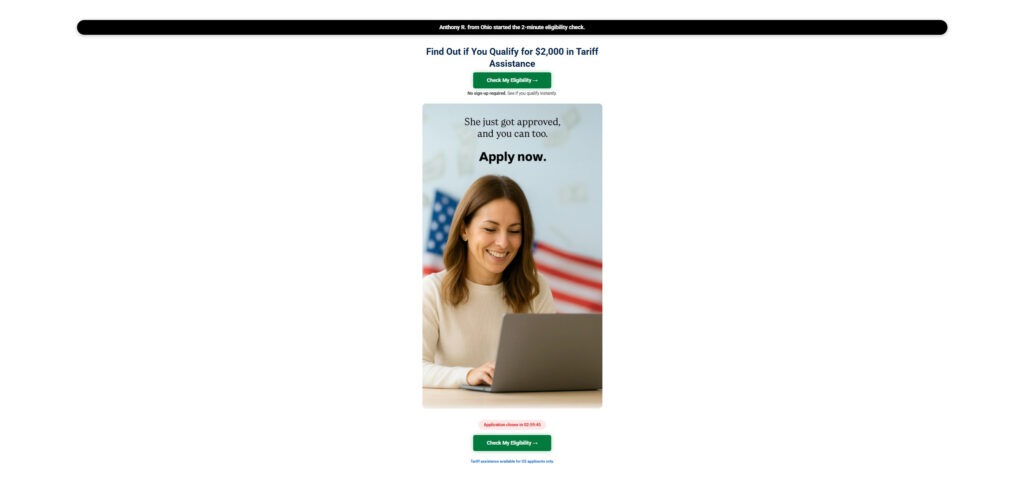
Scam Overview
The “$2,000 tariff stimulus” scam wave is not one single website. It is an entire category of copycat pages that appear whenever people are searching for financial relief.
Scammers build these sites to match what people are curious about right now. When a new policy idea starts circulating, or when a headline hints at future payments, search traffic spikes. That is when the fake portals show up.

They usually have names that sound official, like:
- TariffReliefPortal
- TariffStimulus
- ClaimTariffDividend
- StimulusEligibilityCheck
- ReliefFundsPortal
- TariffAssistanceNow
The domains vary, but the playbook is remarkably consistent.
Why these scams spread so quickly
A promise like $2,000 hits a sweet spot.
It is large enough to feel exciting. It is simple enough to feel believable. And it is specific enough to feel “real,” like it must be tied to something official.
Scam operators know that many people are:
- Trying to catch up on bills
- Looking for relief programs
- Searching for financial updates
- Overwhelmed by confusing policy news
- Tired of long applications and bureaucracy
So the scam sites do the opposite of what real programs do.
They remove complexity. They shorten the process. They make it feel like you are one click away from money.
That is the hook.
What these websites claim
Most fake $2,000 tariff stimulus sites will claim some version of the following:
- You may qualify for a $2,000 “tariff dividend” or “tariff relief” payment
- The eligibility check takes 2 minutes or less
- You can apply online instantly
- Funding is limited or the deadline is approaching
- Your information is “secure” and “protected”
- People in your state are already getting approved
Some go further and imply they are tied to a government agency. Others avoid direct claims, but still design the page to feel official.
Either way, the intent is the same. They want you to believe this is a real application portal.
The truth: no legit program uses random “application portals”
Here is the simplest rule that protects people.
If a payment program is real, the official information is posted through official government channels. If there is an application process, it is clearly documented, publicly announced, and tied to a government agency.
Scam sites rely on the fact that many people do not know how benefits programs are actually launched.
They exploit that gap by creating a “portal” that looks legitimate enough to earn trust.
If you are seeing websites claiming you can apply now for a $2,000 tariff check, treat that as a major warning sign.
What these scam sites actually are
Most fake tariff stimulus sites fall into three overlapping categories.
1) Lead generation traps
These sites are designed to collect your personal information, then sell it.
Common data points they want include:
- Email address
- Phone number
- ZIP code
- Age range
- Income bracket
- Employment status
- Home address
Even if the form looks harmless, your contact details can be valuable. Once collected, they can be shared with marketing networks, call centers, or other scam operators.
That is why people often report a sudden spike in robocalls and spam texts after using these sites.
2) Affiliate marketing funnels
Some sites make money by sending you to third-party offers.
After you click “Check My Eligibility,” you might be redirected to:
- Surveys that collect more personal data
- Free trial offers that require a credit card
- Insurance quote forms
- Credit score signups
- Subscription pages that are hard to cancel
- Sweepstakes and reward claims
The scam site earns money when you click, submit, or sign up. You do not have to buy anything for them to profit. The conversion itself can be valuable.
3) Phishing-style escalation
Many scams start small, then escalate.
At first, it is just ZIP code and email.
Later, it becomes “verify your identity” or “confirm your payment details.”
That is where the risk grows quickly.
Some victims end up being asked for:
- Date of birth
- Full address
- Government ID uploads
- Bank information
- Social Security number
A legitimate program would never ask for sensitive information through an unknown dot com portal with no verified agency connection.
Why the design looks so convincing
Scam sites are not built like old-school spam pages anymore. They are built like modern marketing landing pages.
They use:
- Clean layouts and simple fonts
- Patriotic color palettes
- “Secure” icons and badges
- Familiar government-style language
- Professional photos of smiling people at computers
- Fake notifications showing people “getting approved”
- Countdown timers that trigger urgency
These elements are not there to inform you. They are there to move you.
A legitimate program does not need to manipulate you into applying. If it is real, it will be easy to verify through official sources, and you will not be rushed by a timer.
The psychology behind the scam
These scam sites follow a predictable emotional arc.
First they offer hope.
Then they offer speed.
Then they add urgency.
Then they offer social proof.
Then they ask for your information.
And by the time you pause to think, you have already handed them what they wanted.
This is why people who fall for these scams are not “stupid.” They are human.
The scam is designed to feel like relief.
Common red flags you can spot in seconds
If you want a fast safety check, look for these warning signs:
- The site is not on a .gov domain
- There is no clearly listed government agency running the program
- There is no verifiable physical address or support line
- The page focuses more on “Apply now” than on real eligibility rules
- It promises instant approval or instant results
- It uses a countdown timer to pressure you
- It shows popups like “Someone in your state just got approved”
- It redirects you to unrelated offers after you click
- It has vague or copy-pasted privacy policies
- It uses terms like “tariff assistance” without explaining the official program name
One or two red flags might be a sign of sloppy design. Several together usually indicate a scam or a lead funnel.
The bigger risk: what happens after your data is collected
The most frustrating part for many victims is what comes next.
After submitting info, people often experience:
- More spam emails
- Robocalls from unknown numbers
- Text messages with suspicious links
- “Relief agent” calls asking for more details
- Follow-up scams claiming to help you “finish your application”
This is why even “just checking” can be costly.
Your information becomes fuel for more targeting.
How The Scam Works
Below is a step-by-step breakdown of how fake $2,000 tariff stimulus scam sites typically operate. This section is detailed because the more clearly you can see the pattern, the easier it becomes to avoid it.
Step 1: They meet you where you already are
Scammers do not usually start by emailing you out of nowhere.
They wait until you are searching.
They show up in:
- Search results for tariff stimulus checks
- Sponsored ads on social media
- Viral posts and short videos
- Comment sections that drop “application links”
- Cheap display ads on random websites
They know you are already interested. That is what makes you clickable.
Step 2: The landing page sets the hook
You land on a page that looks simple, official, and calm.

It usually includes:
- A headline about $2,000
- A promise of quick eligibility
- A large button like “Check My Eligibility”
- A claim that no sign-up is required
- A security-themed icon row
This is done for one reason.
They want you to click before you investigate.
Step 3: Urgency pressure kicks in
Next comes the countdown timer or “limited-time” messaging.
Common urgency lines include:
- “Application window closing soon”
- “Limited funding available”
- “Check eligibility before time runs out”
- “Final deadline approaching”
This is psychological pressure.
Real relief programs do not use random timers embedded in a marketing page.
Scam sites do, because urgency converts.
Step 4: Fake social proof appears
Then you see a banner like:
“Anthony R. from Ohio started the 2-minute eligibility check.”
Or a popup:
“Sarah from Florida was approved.”
This feature is designed to make you feel safe.
It is also designed to make you feel behind.
If others are “getting approved,” you feel like you should act now.
In most cases, these are automated scripts cycling through names and locations.
Step 5: The eligibility questionnaire begins
The first form usually asks easy questions.
Examples include:
- ZIP code
- Age range
- Household size
- Employment status
- Income bracket
These questions do not verify eligibility for a real program. They do something else.
They segment you.
They categorize you for marketing and offer targeting.
Step 6: The result is almost always “good news”
The scam needs you to continue, so the result tends to be positive.
You will see language like:
- “You may qualify”
- “You are eligible”
- “Great news, you match the requirements”
Even if the message includes soft wording like “may qualify,” the intent is clear.
It pushes you forward.
Step 7: Now they ask for what they really want
This is the turning point.
Now the site asks for:
- Your email address
- Your phone number
Sometimes it asks for both at once.
The site often says it needs your contact info to:
- Send your results
- Confirm eligibility
- Provide next steps
- “Reserve” your payment
This is not for your benefit.
This is the conversion.
Once they have your contact info, your risk goes up.
Step 8: Redirects begin
After you submit contact details, many users are redirected.
You might land on:
- A survey page
- A rewards page
- A “final step” offer
- A subscription trial
- An insurance form
Sometimes you are redirected more than once.
This is not a glitch. It is the business model.
The scam site earns money through:
- Affiliate commissions
- Lead submissions
- Offer completions
- Marketing data capture
Step 9: Your data enters a wider network
Once your info is collected, it can be used in several ways.
Common outcomes include:
- Spam email campaigns
- Robocall lists
- SMS phishing attempts
- Targeted ads following you online
- Follow-up scams that reference your location
Some victims later receive messages claiming:
- They need to “verify identity”
- They need to “confirm bank details”
- They need to “pay a small processing fee”
That is often the next stage.
A scam that starts as data harvesting can evolve into direct theft attempts.
Step 10: The scam site disappears and reappears elsewhere
Many of these domains do not last long.
Once people report them, scam operators often:
- Abandon the domain
- Launch a new one
- Reuse the same template with a new name
That is why you see waves of similar sites with nearly identical layouts.
The theme changes, but the funnel stays the same.
Why these scams are so effective
They are effective because they feel like help.
They do not start by threatening you. They start by offering relief.
They blend into normal internet behavior:
- Searching
- Clicking
- Answering a few questions
- Checking eligibility
That is what makes them dangerous.
They do not feel like a trap until you are already in it.
Red Flags Checklist: How to Spot Fake $2,000 Tariff Stimulus Sites Fast
Use this quick checklist before you click “Check My Eligibility.” If you notice even a few of these signs, treat the site as suspicious and leave immediately.
Website and branding red flags
- The site is not a .gov domain
- The website name sounds official but is unfamiliar, like “Tariff Relief Portal” or “Tariff Stimulus Center”
- There is no clear government agency listed (IRS, Treasury, or another verified department)
- There is no verifiable contact information (real address, real phone number, real support email)
- The site’s “About” page is missing, broken, or vague
Content and messaging red flags
- The page promises $2,000 with little explanation
- It claims you can “apply now” or “register today” for checks that are not officially active
- It guarantees approval or suggests most people qualify
- It uses vague wording like “funds are waiting” or “reserve your payment”
- It does not explain eligibility rules clearly or cite official sources
Pressure and manipulation red flags
- A countdown timer says you must act quickly
- Popups claim people are getting approved in real time
- The site uses “limited funding” messages to push fast decisions
- It tries to rush you through steps without letting you verify details
Technical and behavior red flags
- Clicking “Check Eligibility” sends you to unrelated pages
- You are redirected to surveys, giveaways, insurance quotes, or free trials
- The site asks for email and phone number early in the process
- It requests sensitive information like SSN, bank details, or ID uploads
- Your browser prompts you to allow notifications
Quick rule that protects you
If it is not a verified .gov website and it is asking for personal info tied to a $2,000 benefit, assume it is a scam until proven otherwise.
No, There Is No Active $2,000 Tariff Stimulus You Can Apply for Right Now
Let’s make this painfully clear, because scammers rely on confusion.
There is no official, active $2,000 tariff stimulus check that you can “apply for” through random websites. There is no public application portal. There is no instant eligibility checker. There is no approved program handing out $2,000 checks today through third-party sites.
So if you see a page promising:
- “Apply now for $2,000”
- “Check eligibility in 2 minutes”
- “Reserve your payment”
- “Final step to claim your check”
- “Limited funding, act fast”
Those offers are fake. The website is not helping you, it is trying to profit from you.
Why these offers are always a scam
Scam sites and Facebook ads are built to look believable. They use patriotic colors, official-sounding names, and urgent countdown timers because they know people are stressed and searching for relief.
But real government payments do not work like this.
Legitimate programs do not:
- Launch through Facebook ads or random “relief portals”
- Require you to enter personal information on a .com site
- Use countdown timers and fake approval popups
- Redirect you to surveys, giveaways, or “free trial” offers
Always verify through official sources
If a real payment program exists, it will be announced and managed through official government websites, usually ending in .gov.
Before you trust any claim about stimulus checks or relief payments:
- Go directly to official sites by typing the URL yourself
- Avoid clicking ads, especially on Facebook, Instagram, TikTok, and YouTube
- Be skeptical of any “application link” shared in comments or private messages
The safest rule that protects you
If the offer is coming from a Facebook ad, a sponsored post, or a random website claiming you can get $2,000 right now, treat it as a scam until proven otherwise.
When money is involved, slow down, verify the source, and stick to official channels only.
What To Do If You Have Fallen Victim to This Scam
Take a breath first. Falling for a fake $2,000 tariff stimulus site does not mean you did anything “wrong.” These pages are engineered to feel official and to rush you before you can verify anything. What matters now is taking a few calm, practical steps to reduce your risk and lock things down.
1. Stop the leak immediately
- Close the website and do not click back through it.
- Do not complete any “final steps,” surveys, or free trial offers you were redirected to.
- If you saved the link, delete it.
Why this matters: every extra click can trigger more tracking, more redirects, and more data collection.
2. Write down exactly what you shared
Grab a note and list what you entered, even if it feels minor:
- Email address
- Phone number
- ZIP code
- Full name
- Home address
- Date of birth
- Any bank or card details
- Any username or password you typed anywhere
Why this matters: your next steps depend on how sensitive the information was.
3. Secure your email first
If scammers get into your email, they can reset passwords everywhere else.
- Change your email password right away.
- Turn on 2-factor authentication.
- Check your email “security” or “recent activity” page for unfamiliar logins.
Tip: use a strong passphrase you have never used before.
4. Change passwords on key accounts
Focus on accounts tied to money and identity:
- Banking and credit card logins
- PayPal, Cash App, Venmo, Apple Pay, Google Pay
- Your phone carrier account
- Amazon, Walmart, and other shopping accounts
- Social media accounts if they share the same email or password
If you reused passwords anywhere, change those too.
5. Watch for the follow-up scam wave
After you submit a phone number or email, many people get hit with a second wave.
Be cautious of:
- Texts claiming you were “approved” for $2,000
- Emails asking you to “verify your identity”
- Calls from “agents” offering to finish the application
- Links that look like government pages but use strange domains
Rule: do not click links from unexpected messages. If something sounds urgent, go directly to an official website by typing it yourself.
6. Turn off browser notifications and remove site permissions
Some scam sites try to get permission to send notifications that look like alerts.
- If you clicked “Allow notifications,” turn it off in your browser settings.
- Remove the site from “allowed” permissions.
- Clear cookies and site data for extra cleanup.
7. Monitor your finances and set alerts
Even if you did not enter bank details, stay cautious.
- Check bank and card transactions daily for the next few weeks.
- Turn on transaction alerts for purchases, withdrawals, and new logins.
- If you see anything suspicious, contact your bank immediately.
8. Consider a credit freeze if you shared sensitive details
If you gave your full name and address, and especially if you shared date of birth or anything identity-related, a credit freeze is a strong protective move.
A freeze can help prevent scammers from opening new accounts in your name.
Also consider placing a fraud alert if you feel unsure.
9. Report the scam so it gets flagged faster
Reporting helps shut down scam sites and reduces future victims.
- Report to the FTC at ReportFraud.ftc.gov
- File a complaint at IC3.gov
- Report the website and ad to the platform where you found it, such as Facebook or Google
If you still have the link, include it in your report.
10. Clean up your inbox and block aggressively
- Mark scam emails as spam.
- Block repeat senders.
- Use a spam call filter on your phone if available.
This reduces the chance you accidentally engage with a follow-up scam.
11. Tell someone else, especially if they might click too
These scam ads often spread through shares and comments.
A quick warning to friends or family can save them from the same headache.
Short message you can copy:
“Do not trust any $2,000 tariff stimulus application sites. They are not government portals and they are scams.”
12. If you gave payment info, act immediately
If you entered a card number anywhere during the redirect offers:
- Call your bank or card issuer right away.
- Ask about stopping charges, replacing the card, or disputing transactions.
- Cancel any unwanted subscriptions that may have started.
This step matters most if you were pushed into “free trials” with small fees.
Is Your Device Infected? Run a Free Malware Scan
Slow performance, constant pop-ups, or strange behavior? These are classic signs of a malware infection. The fastest way to find out is to scan your device with Malwarebytes Free — one of the most trusted malware removal tools available.
The free version detects and removes the most common threats, including:
- Adware — the cause of those annoying pop-ups
- Browser hijackers — unwanted redirects and changed homepages
- Trojans and spyware — hidden programs stealing your data
- Potentially unwanted programs (PUPs) — software you never asked for
👉 Select your device below — Windows, Mac, or Android — then follow the simple steps to download Malwarebytes, scan your system, and remove any threats it finds. The scan usually takes 5 to 20 minutes.
Run a Malware Scan with Malwarebytes for Windows
Malwarebytes is one of the most popular and trusted anti-malware tools for Windows — and it’s completely free for removing infections. It catches threats that many antivirus programs miss, including adware, browser hijackers, and trojans. Follow the steps below to scan and clean your PC in just a few minutes.
Download Malwarebytes
Click the button below to download the latest version of Malwarebytes for Windows from the official source. The free version is all you need — it will scan your computer and remove adware, browser hijackers, and other malicious software at no cost.
Download MalwarebytesOfficial installer for Windows 11 and 10. Your download starts right away.Want real-time protection? See Malwarebytes Premium Malwarebytes Free for WindowsScans and removes malware at no cost
-
Install Malwarebytes
When the download finishes, open your Downloads folder and double-click the MBSetup file. If Windows shows a User Account Control pop-up, click “Yes” to allow the installation.

Follow the On-Screen Prompts to Install Malwarebytes
The setup wizard will walk you through a few quick screens:
-
Choose where you’re installing the program — “Personal Computer” or “Work Computer” — then click Next.

-
Malwarebytes will now install on your device. This usually takes under a minute.

-
When installation is complete, the “Welcome to Malwarebytes” screen will open automatically.

-
On the final screen, click Open Malwarebytes to launch the program.

-
Enable “Scan for Rootkits”
Before scanning, turn on rootkit detection so Malwarebytes can find even the most hidden threats. Click the Settings gear icon on the left side of the screen.

In the settings menu, find “Scan for rootkits” and click the toggle so it turns blue.

Done? Click “Dashboard” in the left pane to return to the main screen.
Start the Scan
Click the blue Scan button. Malwarebytes will automatically update its virus database and start checking your computer for malware.

-
Wait for the Scan to Finish
The scan checks your entire system for browser hijackers and other malicious programs, so it can take 5 to 20 minutes depending on your computer. Feel free to do something else — just check back occasionally to see the progress.

-
Quarantine the Detected Threats
When the scan is done, you’ll see a list of everything Malwarebytes found — malware, adware, and potentially unwanted programs. Click the “Quarantine” button to remove all of them at once.

Malwarebytes will now remove the malicious files and registry entries and move them safely into quarantine.

-
Restart Your Computer
Some threats can only be fully removed after a reboot. If Malwarebytes asks you to restart, click Yes. Once you’re logged back in, Malwarebytes has finished removing the threats it found.

That’s it — your Windows PC is now clean of trojans, adware, and other malware, and should be back to running smoothly.
If you are still having problems with your computer after completing these instructions, then please follow one of the steps:
- Run a computer scan with ESET Online Scanner
- Ask for help in our Windows Malware Removal Help & Support forum.
Run a Malware Scan with Malwarebytes for Mac
Malwarebytes for Mac is a free on-demand scanner that removes the malware other security software tends to miss — adware, browser hijackers, and unwanted programs included. Cleaning an infected Mac with Malwarebytes has always been completely free, and it’s our go-to recommendation. Follow the steps below to scan and clean your Mac in just a few minutes.
-
Download Malwarebytes for Mac
Click the button below to download the latest version of Malwarebytes for Mac.
Download MalwarebytesOfficial installer for macOS. Your download starts right away.Want real-time protection? See Malwarebytes PremiumMalwarebytes Free for MacScans and removes malware at no cost -
Open the Malwarebytes setup file
When the download finishes, open your Downloads folder and double-click the setup file to begin the installation.

-
Follow the On-Screen Prompts to Install Malwarebytes
The Malwarebytes for Mac Installer will guide you through a few quick screens. Click “Continue” and keep following the prompts until the installation completes.



When the installation is complete, Malwarebytes opens to the Welcome to Malwarebytes screen. Click “Get started“.
-
Select “Personal Computer” or “Work Computer”
Malwarebytes will ask what type of computer you’re installing it on. Click either Personal Computer or Work Computer, whichever applies.

-
Start the Scan
Click the “Scan” button. Malwarebytes will automatically update its detection database and begin checking your Mac for malware.

-
Wait for the Scan to Finish
Malwarebytes will scan your Mac for adware, browser hijackers, and other malicious programs. This can take a few minutes, so feel free to do something else — just check back occasionally to see the progress.

-
Quarantine the Detected Threats
When the scan is done, you’ll see a list of everything Malwarebytes found. Click the “Quarantine” button to remove all the threats at once.

-
Restart Your Mac
Malwarebytes will now remove all the malicious files it found. Some threats can only be fully removed after a reboot — if Malwarebytes asks you to restart, allow it. Once you’re logged back in, your Mac is clean.

That’s it — your Mac is now free of adware, rogue browser extensions, and other potentially harmful software.
If you are still experiencing problems while trying to remove a malicious program from your computer, please ask for help in our Mac Malware Removal Help & Support forum.
Run a Malware Scan with Malwarebytes for Android
Malwarebytes for Android automatically detects and removes dangerous threats like malware and ransomware so you don’t have to worry about your most-used device being compromised. Aggressive detection of adware and potentially unwanted programs keeps your Android phone or tablet running smooth.
-
Download Malwarebytes for Android.
You can download Malwarebytes for Android by clicking the link below.
Get Malwarebytes for AndroidOpens Google Play in a new tab.Want real-time protection? See Malwarebytes Premium for AndroidMalwarebytes for AndroidScans your phone and removes malware at no cost -
Install Malwarebytes for Android on your phone.
In the Google Play Store, tap “Install” to install Malwarebytes for Android on your device.

When the installation process has finished, tap “Open” to begin using Malwarebytes for Android. You can also open Malwarebytes by tapping on its icon in your phone menu or home screen.

-
Follow the on-screen prompts to complete the setup process
When Malwarebytes will open, you will see the Malwarebytes Setup Wizard which will guide you through a series of permissions and other setup options.
This is the first of two screens that explain the difference between the Premium and Free versions. Swipe this screen to continue.
Tap on “Got it” to proceed to the next step.
Malwarebytes for Android will now ask for a set of permissions that are required to scan your device and protect it from malware. Tap on “Give permission” to continue.
Tap on “Allow” to permit Malwarebytes to access the files on your phone.
-
Update database and run a scan with Malwarebytes for Android
You will now be prompted to update the Malwarebytes database and run a full system scan.

Click on “Update database” to update the Malwarebytes for Android definitions to the latest version, then click on “Run full scan” to perform a system scan.

-
Wait for the Malwarebytes scan to complete.
Malwarebytes will now start scanning your phone for adware and other malicious apps. This process can take a few minutes, so we suggest you do something else and periodically check on the status of the scan to see when it is finished.

-
Click on “Remove Selected”.
When the scan has been completed, you will be presented with a screen showing the malware infections that Malwarebytes for Android has detected. To remove the malicious apps that Malwarebytes has found, tap on the “Remove Selected” button.

-
Restart your phone.
Malwarebytes for Android will now remove all the malicious apps that it has found. To complete the malware removal process, Malwarebytes may ask you to restart your device.
That’s it — your Android phone is now clean — no more malicious apps, adware, or browser redirects.
If you are still having problems with your phone after completing these instructions, then please follow one of the steps:
- Restore your phone to factory settings by going to Settings > General management > Reset > Factory data reset.
- Ask for help in our Mobile Malware Removal Help & Support forum.
Stay Protected: Block Ads and Malicious Sites
Now that your device is clean, keep it that way. Most infections start with a malicious ad or a fake download button — so blocking them at the source is your best defense.
We recommend AdGuard, which blocks malicious ads, phishing pages, and dangerous redirects before they can reach you.
👉 Download AdGuard and browse safely
FAQ: Fake $2,000 Tariff Stimulus Scam Sites
What are the fake $2,000 tariff stimulus scam sites?
They are websites and ads that claim you can apply for, register for, or check eligibility for a $2,000 “tariff stimulus” or “tariff dividend” payment. These sites are not official government portals. They are designed to collect your personal information, push you into paid offers, or profit from your clicks.
Is the $2,000 tariff stimulus check real?
The scam sites are not real, and there is no official, active government application portal for a $2,000 tariff stimulus payment. If you see a site claiming you can apply right now, that is a major red flag.
Are any of these sites connected to the government?
No. Legitimate government programs use verified .gov domains and clearly identify the agency running the program. Scam sites often use .com, .us, .org, or similar domains and avoid transparency about who operates them.
Why do these sites look so official?
Because scammers know trust is everything. They copy government-style design patterns, use patriotic colors, add “secure” icons, include fake approval messages, and use official-sounding language so visitors feel safe entering their information.
What happens after I click “Check My Eligibility”?
Typically, you are pushed through a short questionnaire, then told you are eligible or pre-approved. After that, the site often asks for your email or phone number and redirects you to unrelated surveys, free trials, insurance quotes, or other third-party offers.
What kind of information do these scam sites collect?
Most of them collect some combination of:
- Email address
- Phone number
- ZIP code
- Age range
- Income bracket
- Employment status
- Home address
Some more aggressive versions may try to collect date of birth, Social Security number, or banking details later in the process.
Why am I getting more spam calls or texts after using one of these sites?
Because your contact information may have been added to marketing lists or sold to third parties. These lists are often used for robocalls, SMS spam, phishing messages, and follow-up scams.
Can these scam sites lead to identity theft?
Yes, especially if you provided sensitive information. Even basic details like name, phone number, and address can be combined with other data sources to attempt fraud. If you shared anything more sensitive, the risk increases.
How can I quickly tell a $2,000 tariff stimulus site is fake?
Use this fast checklist:
- It is not a .gov website
- It uses countdown timers or “limited time” language
- It shows fake popups like “someone in your state just got approved”
- It promises instant approval or instant results
- It has no real contact info or agency name
- It redirects you to unrelated offers
If you see multiple signs, do not proceed.
What should I do if I entered my email or phone number?
Take these steps:
- Change passwords on your email and key accounts
- Turn on 2-factor authentication
- Block and report suspicious calls and texts
- Watch for phishing emails pretending to be government agencies
- Consider a credit freeze if you shared sensitive details
Where should I go for real information about government payments?
Only trust official government websites that end in .gov. If a real program exists, it will be announced through official channels and managed by a clearly identified agency, not by random “relief portals.”
The Bottom Line
Fake $2,000 tariff stimulus scam sites are designed to look helpful, but their real purpose is to collect your personal data, monetize your clicks, and pull you into a wider network of offers and scams.
If a website claims you can apply now for a $2,000 tariff check and it is not a verified government domain with clear agency oversight, treat it as a scam.
Slow down before you click. Verify before you share. That small pause can save you weeks of cleanup later.








