


Your backup dashboard says everything went well. That seems reassuring until a missing folder sends you looking for the one version that still opens.
A useful backup plan starts with that moment. The best way to prepare is to practice while your original files are still intact.
Overview
Count copies that can fail independently
The 3-2-1 backup rule starts with three copies of important data: the original and two backups. Use two kinds of storage, and keep one copy off-site.
For a home office, that could mean the working copy on your computer, an encrypted external drive nearby, and a backup service that keeps older versions away from home.
Three folders on one computer do not count. A single drive failure can take all three, even if one folder is called Backup and the others have different names.
The point is to avoid a single failure that takes everything. A copy that survives a failed drive may still disappear in a fire, theft, or ransomware incident.
Check what happens when a file changes
A synced folder is convenient because other devices see your changes. That same feature can spread an accidental deletion or a damaged version to those devices.
A service may let you recover a previous version or undo changes. Find out which files qualify, how long versions last, and what happens if the account is locked.
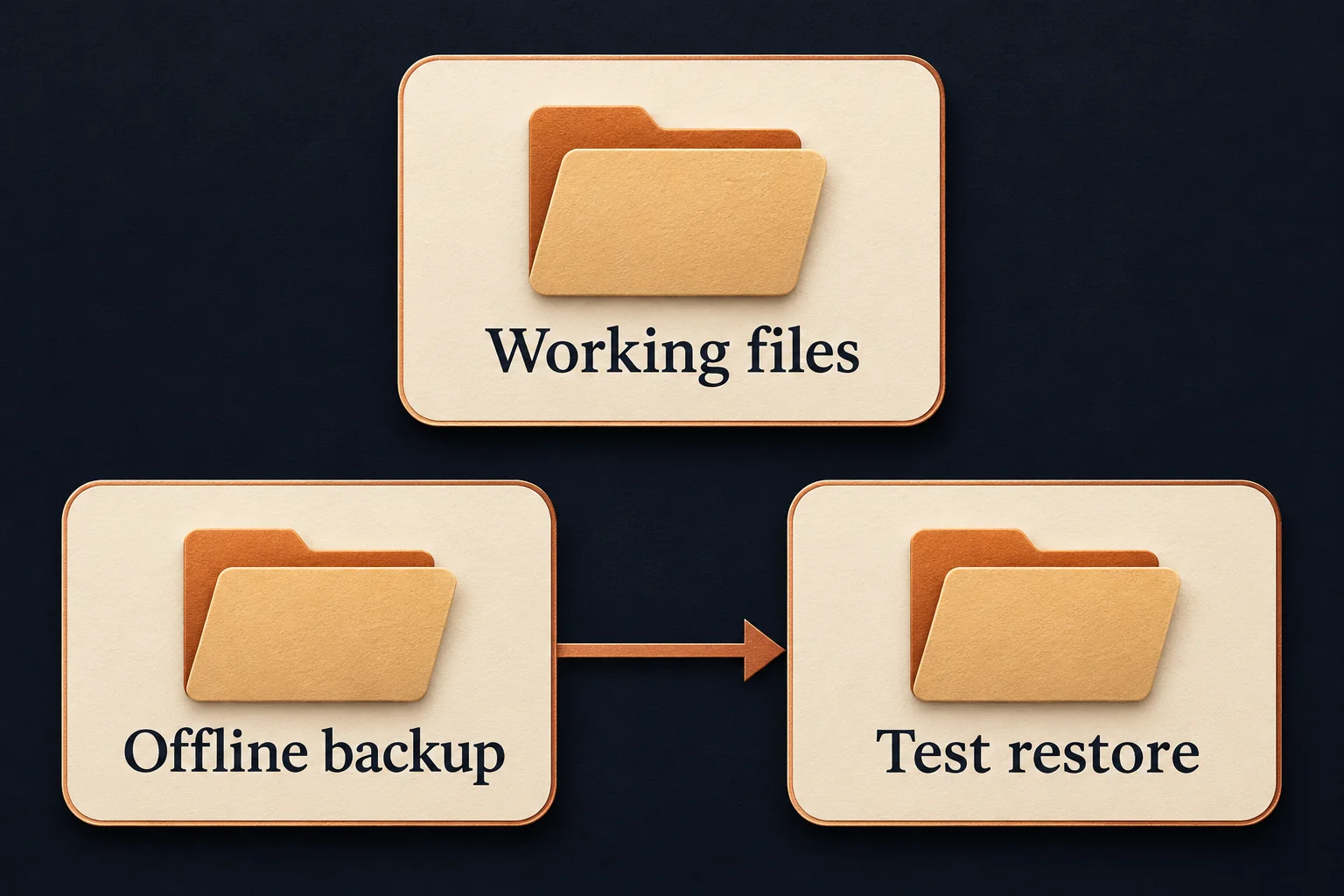
Keep one copy outside your ordinary edit and delete path. For many households, a drive you eject when the backup finishes is the simplest way to do that.
CISA’s ransomware guidance recommends offline, encrypted backups and regular tests. Encryption helps if the drive is lost; disconnection protects it from changes made on the computer.
Define success before you need it
A backup job finishing is one result. Getting a readable file from the right date, without depending on the broken computer, is the result you actually need.
A restore rehearsal can be small enough to do on an ordinary afternoon. Pick a few representative files, recover them separately, and verify that the right versions arrived.
- Pick a cutoff: Decide how much recent work you could recreate if your computer stopped working tomorrow morning.
- Choose a test folder: Include a document, a photograph, and one file that requires a program you actually use.
- Record the outcome: Note the backup date, where you restored the copies, and any step you could not complete.
Build a Backup Plan Around What You Would Miss
Start with files you can’t buy or download again
A good first inventory is what you’d look for if the computer disappeared. Family photos, tax records, client documents and projects that aren’t finished belong near the top.
Check where those files really live. The folder you use to start an application might contain shortcuts, while the working data sits in a separate account or library.
Export data in a format you can reopen, when the app supports an export. A link to a shared workspace won’t preserve the files if the workspace closes.
If the directory contains cloud placeholders, confirm those files exist in a backup you control. A filename shown in Finder or File Explorer isn’t proof the bytes were copied.
Play through the case you care about. If an older family computer holds the only original pictures, protecting a newer laptop doesn’t solve the problem.
Separate the copy you change from the copies you recover
Keep the original in its normal working folder. Configure your local backup to keep past versions rather than overwriting yesterday’s only copy with today’s changes.
On a Mac, Apple’s Time Machine guide explains setting up a backup disk, choosing encryption, checking the last run, and ejecting the disk before disconnecting it.
On Windows, File History keeps earlier copies of eligible folders on an external drive or network location. Check that the folder you are counting on is included.
Neither tool covers an item simply because it appears in a recent-files list. Test a file from any location you added especially for this backup.
A second directory on the same disk gives you a second path, not independent protection. Use a different physical device or a separate service for the additional copy.
Make the off-site copy recoverable
A cloud backup is off-site, but it still needs an account you can reach after a disaster. Verify how to sign in without the lost computer.
Store recovery codes and encryption recovery information separately and securely. A backup password saved only in a file on the missing computer is no help.
If you rotate a second drive to another address instead, know which version is there. Write down the date without leaving a key or password with the drive.
A connected network drive can be a useful local backup. Don’t count it as offline when the same computer can still access or change its contents.
Cloud sync and backup can coexist. The practical test is whether you can retrieve an intact earlier version after the original changes, not which label appears on the invoice.
Run a Restore Rehearsal Without Overwriting Anything
Save two versions of a harmless test file
Create a small practice folder that holds no sensitive records. Save a simple document with the words First version in it, then complete a normal backup.
Change the document so you can tell the versions apart immediately. Let the backup run again, and confirm the backup shows an updated completion time.
This harmless exercise answers two questions at once. It shows whether the folder was included and whether the older copy survived a change to the current file.
Add an older picture or other everyday file to the practice set. An image that opens normally is a better result than a filename displayed in a recovery window.
Restore next to the original, not on top of it
Create a destination such as Restore Test outside the folder your backup is protecting. Use an alternate-location restore when the tool offers it.
If the interface only offers to replace a file, stop and read the official restore instructions. Use a disposable test file or another safe destination rather than a real document.
Check the date or version you selected before confirming. The newest available copy and the last good copy aren’t always the same, particularly after an unnoticed deletion.
Open the files with the apps you normally use. A spreadsheet should show expected values, a photo should render, and an exported archive should be readable.
Write down the first point where you hesitated. Finding the right backup, remembering a password and knowing which export to open are all part of recovery.
Repeat from the off-site copy without the local drive
Once the local test works, prove that the off-site copy does something useful independently. Disconnect the local backup safely and restore a different sample from the off-site location.
If you can, use another trusted device to verify you can reach your account without the original machine. Don’t sign in from a library or borrowed public computer.
Test a folder, not just a single tiny file, if it stands in for an essential project. Note whether folder structure and linked files survived the transfer.
The result may reveal a limit rather than a broken product. An archive can contain your exported records while still omitting the attachments or history stored elsewhere.
Keep the rehearsal record somewhere you can reach later. Include the chosen date, what opened successfully, and the first file you would restore in a real emergency.
Choose a Schedule You Can Actually Keep
Match the interval to the work
A weekly backup may be acceptable for a collection that changes slowly. A folder that holds every day’s invoices should be backed up more often.
Ask what you’d have to recreate if the last backup happened yesterday. That answer is more useful than buying extra storage without improving when copies are made.
Keep more history if errors tend to surface late. An overwritten report discovered at month-end won’t be saved by seven days of version history.
Review any automatic exclusions after adding a drive or moving folders. A quiet backup can still be doing exactly what you configured before the project moved.
Make the unplugged copy part of the routine
Schedule local backups for a time when you can reconnect the drive, let the job finish, and eject it safely. Put the completed copy somewhere separate from the computer.
An unplugged drive is safer from computer-side changes, but it records nothing while disconnected. Keep the off-site copy current enough to cover the time between local runs.
If you use two rotating drives, label them so you do not overwrite both backups on the same day. A dated note beats guessing which disk was last updated.
Try a second restore after any major change, including a new computer, new provider or new encryption password. You want to discover problems when the originals are still available.
Test the Small Details That Can Stop a Recovery
Check how you would reach a backup without your usual phone
The machine and the authenticator might disappear together in a theft. Verify whether your recovery method still works if you cannot approve a prompt on your usual device.
Don’t turn off two-step verification so a drill goes faster. Store the service’s recovery material safely and verify that you know where to find it when traveling.
If the backup is encrypted, check whether you can unlock it without the original user’s automatic sign-in. Encrypted files are recoverable only when the necessary key remains available.
Write down what the backup deliberately leaves out
Some backup tools cover files but not installed applications, software licenses or saved settings. Make a short note distinguishing the files you can restore from the software you must reinstall.
A test image proves only that a test image restored. Include a project with its linked files or a mailbox export if those are what you need to protect.
Save any reinstall information privately, and download applications from their legitimate publishers after a rebuild. Don’t rely on restoring an old installer of uncertain origin.
After each rehearsal, fix one problem the test uncovered. Updating an excluded folder or recording a recovery contact is more useful than repeatedly checking the same easy file.
What to Do If You Need to Recover Files Today
- Stop the activity that could spread the damage. If ransomware is suspected, isolate the affected system from the network and do not connect your offline backup to it.
- Keep a record of what happened. Note when you first saw damaged files or a ransom message, and keep copies of relevant notices where they won’t be altered.
- Choose a recovery environment you can trust. Use an unaffected system, or ask your IT team to confirm it’s ready before reconnecting backups.
- Start before the suspected damage began. Pick a restore point that predates the problem and open samples before recovering everything into your normal folders.
- Start by restoring what you need most. Recover critical documents and active work first, then open and verify the files.
- Treat suspected data theft separately from file recovery. A working backup restores availability; it cannot recall copies someone took or satisfy an organization’s incident reporting obligations.
If you deleted a file by mistake and see no sign of an attack, start with the service’s trash or version controls before reaching for a disk restore.
If you suspect wider compromise, keep the drive disconnected until you have a recovery plan. For a business, coordinate with incident response rather than experimenting on affected equipment.
Don’t assume that every copy made after the first encrypted file is unusable. Identify your last known good version from evidence, and preserve recent data until you’ve assessed it.
Rehearse a partial restore before committing to a full rebuild. A short test can catch a password problem or damaged set before you rely on it for the whole recovery.
Frequently Asked Questions
Do three folders on the same disk count as three copies?
They may be copies, but they share the same failure point. Use a separate device or service so a lost disk doesn’t take every version with it.
Does keeping files in a synced cloud folder count?
Treat sync as one layer and review what earlier versions it retains. Keep another copy you can recover if the account or synced folder is unavailable.
Can I use one external drive and one cloud backup?
Yes, that is a practical setup when the files are actually included and each backup can be restored independently. Test both so their differences do not surprise you later.
How can I check a backup without risking the original?
Restore a practice folder to a new location rather than replacing the existing one. Verify the expected version and open the recovered files before deleting any test copies.
Should I plug in my backup after a ransomware warning?
Wait until recovery can happen from a clean, trusted environment. Connecting a drive before containing the problem can expose the copy you are trying to protect.
When do I need to repeat the rehearsal?
Repeat it when you change computers, storage providers, encryption settings or the folders holding critical files. A regular calendar reminder also catches quiet failures over time.
The Bottom Line
Build the 3-2-1 plan around a file you could not replace, then prove you can recover it without the computer that created it.
If you’re already missing files, stop changes that could make recovery harder. Test an earlier copy in a separate location and keep the offline backup away from affected equipment.

Join the discussion
0 commentsShare your experience or ask a question about this article.
Community experiences
Did this happen to you?
Your experience could help someone recognize the same scam. Submit a private report for our team to review.
I experienced this tooReports are reviewed before publication. Sharing publicly is always your choice.
Discussion
Start the conversation
Have a question or something useful to share? Add the first comment.