Have you come across an online offer promising a $750 NoFrills gift card just for completing a few simple steps? It sounds tempting and hard to ignore, especially when it claims to be from a trusted brand like NoFrills. Unfortunately, this is not a real promotion—it’s part of a well-crafted scam designed to exploit consumers.
This article provides a comprehensive breakdown of this scam, how it works, what dangers it poses, and the exact steps you need to take if you’ve already interacted with it.
Scam Overview: The NoFrills $750 Gift Card Scam in Detail
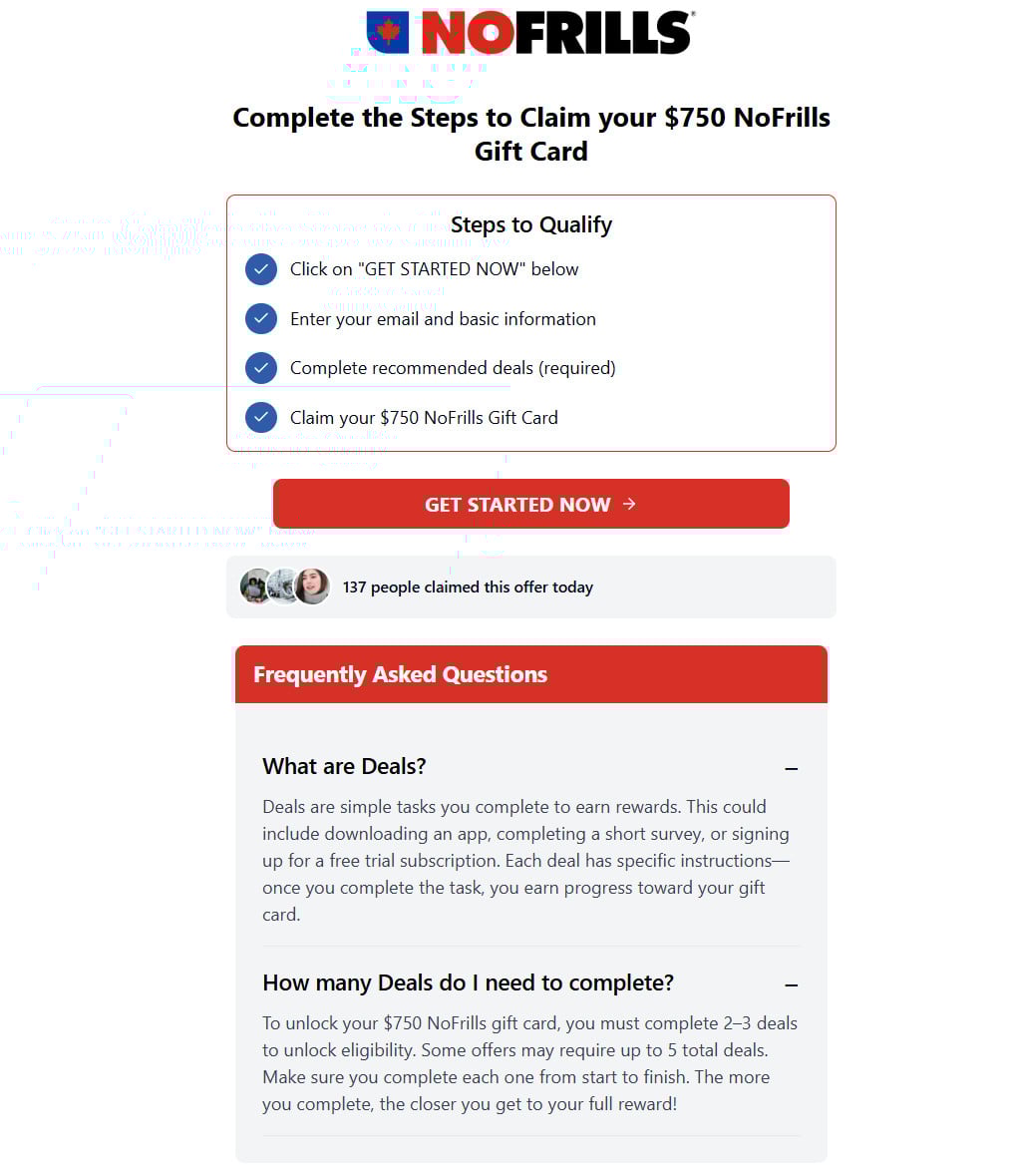
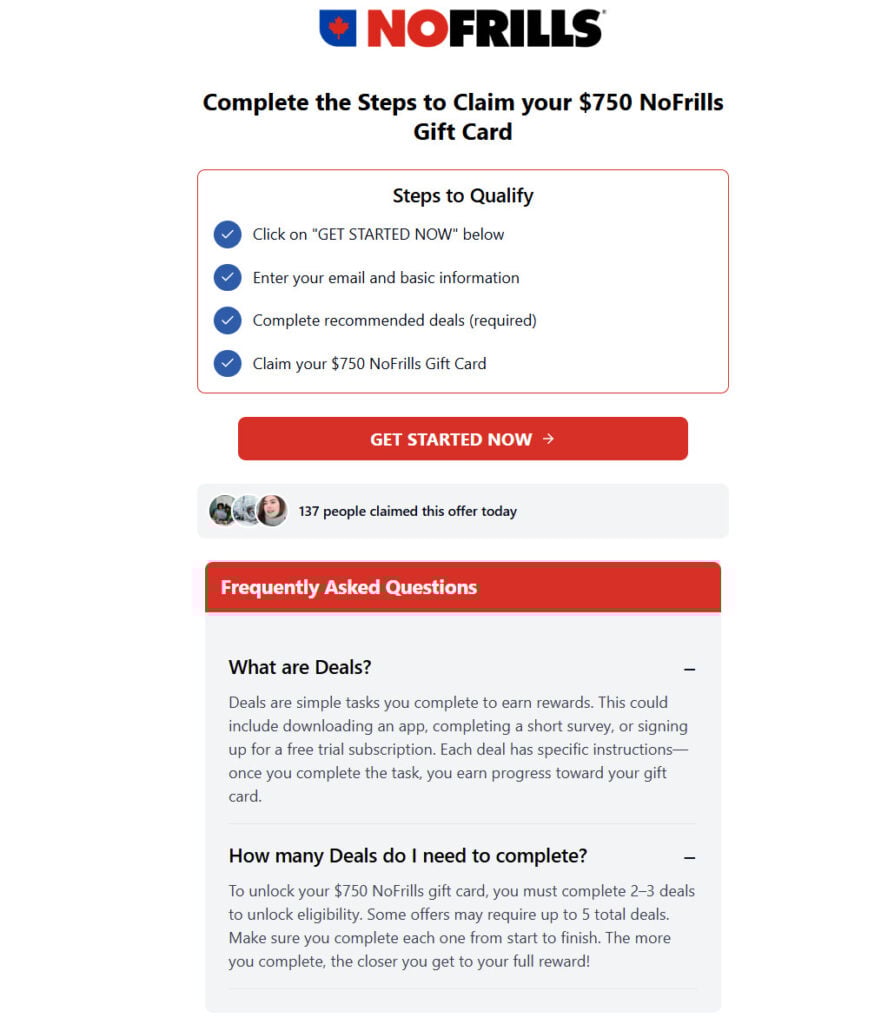
The NoFrills $750 Gift Card scam is a sophisticated scheme that uses fake promotional pages and misleading offers to trick users into sharing personal information and completing multiple affiliate deals. At first glance, the site looks professional, featuring:
The official NoFrills logo
Clean design and easy navigation
A simple “Steps to Qualify” list, which typically includes:
Click on “Get Started Now”
Enter your email and basic information
Complete recommended deals (required)
Claim your $750 NoFrills Gift Card
This design instills a false sense of legitimacy. The entire setup is carefully engineered to appear authentic and trustworthy. The scammers rely on the credibility of a recognized brand and the allure of a high-value reward to hook unsuspecting victims.
Why People Believe It’s Real
There are several reasons why this scam convinces people:
Brand Association: The site uses NoFrills branding, logos, and similar fonts to mimic official channels.
Minimal Initial Commitment: The first steps require only an email and basic details, which feel harmless.
Urgency and Social Proof: Phrases like “137 people claimed this offer today” or countdown timers create urgency.
Psychological Triggers: The high-value reward ($750) makes users feel the effort is worth the risk.
The Real Objective of the Scam
Unlike legitimate promotional offers, this scam has zero intention of delivering a gift card. The primary goals are:
Data Harvesting: Collecting personal information for resale or future phishing attempts.
Affiliate Revenue: Forcing users to complete deals such as app downloads, surveys, and trial subscriptions, which generate income for the scammers.
Financial Exploitation: Some “deals” require credit card details for “free trials,” leading to recurring charges that are difficult to cancel.
This isn’t just an inconvenience—it can lead to identity theft, financial loss, and privacy risks.
How the Scam Works
Understanding the process is key to identifying and avoiding these scams. Here’s exactly how the NoFrills $750 Gift Card scam operates:
Step 1: The Bait – Social Media Ads and Search Promotions
Most victims first encounter the scam via:
Social media ads on Facebook, Instagram, or TikTok
Pop-up ads on low-quality websites
Promoted search results
The ad usually includes attention-grabbing text such as: “Complete the steps and claim your $750 NoFrills Gift Card today!”
Step 2: Landing on a Professional-Looking Fake Page
Clicking the ad takes users to a website like noreviewdeals.com or similar scam domains. These sites:
Display NoFrills branding prominently
Offer a clear “Steps to Qualify” section
Feature fake testimonials and counters showing “recent activity” to simulate popularity
The site feels genuine, lowering the user’s guard.
Step 3: Collecting Personal Information
The first interaction seems innocent: “Enter your email and basic information.”
This step allows scammers to:
Capture your email for spam and phishing campaigns
Add your details to data broker lists for resale
Use information for identity profiling
Additional fields like full name, phone number, and address are often requested later.
Step 4: Redirecting to Endless Affiliate Deals
Once your details are submitted, the site redirects you through a series of “deals” disguised as verification steps. These include:
Downloading apps that track your activity
Completing surveys that collect personal data
Signing up for “free trials” that require credit cards
Participating in fake sweepstakes
Each completed deal earns the scammer a commission through affiliate networks. Victims, however, receive nothing.
Step 5: The Infinite Loop and Hidden Charges
Victims who persevere through multiple offers are told:
They haven’t completed enough deals yet
They need to finish “just one more” step
They will lose their reward if they exit now
Meanwhile, credit cards entered for free trials start accumulating charges. Some victims only realize weeks later when fraudulent transactions appear on their bank statements.
What to Do If You’ve Fallen Victim to This Scam
If you interacted with the scam or provided any information, act immediately:
1. Stop All Interaction
Close the scam website and avoid completing any more offers.
2. Change Your Passwords
If you used the same password for multiple accounts, update them right away to prevent account takeovers.
3. Monitor Bank Statements
If you entered payment details:
Cancel any unfamiliar subscriptions
Contact your bank or card issuer
Request a new card if needed
4. Run a Full Malware Scan
Some downloads may contain spyware. Use trusted tools like:
NoFrills Customer Support to alert them of the brand misuse
7. Warn Others
Share your experience on:
Social media
Reddit forums like r/scams
Community boards
The more awareness, the fewer victims.
Is Your Device Infected? Scan for Malware
If your computer or phone is slow, showing unwanted pop-ups, or acting strangely, malware could be the cause. Running a scan with Malwarebytes Anti-Malware Free is one of the most reliable ways to detect and remove harmful software. The free version can identify and clean common infections such as adware, browser hijackers, trojans, and other unwanted programs.
Malwarebytes works on Windows, Mac, and Android devices. Choose your operating system below and follow the steps to scan your device and remove any malware that might be slowing it down.
Malwarebytes for WindowsMalwarebytes for MacMalwarebytes for Android
Run a Malware Scan with Malwarebytes for Windows
Malwarebytes stands out as one of the leading and widely-used anti-malware solutions for Windows, and for good reason. It effectively eradicates various types of malware that other programs often overlook, all at no cost to you. When it comes to disinfecting an infected device, Malwarebytes has consistently been a free and indispensable tool in the battle against malware. We highly recommend it for maintaining a clean and secure system.
Download Malwarebytes
Download the latest version of Malwarebytes for Windows using the official link below. Malwarebytes will scan your computer and remove adware, browser hijackers, and other malicious software for free.
(The above link will open a new page from where you can download Malwarebytes)
Install Malwarebytes
After the download is complete, locate the MBSetup file, typically found in your Downloads folder. Double-click on the MBSetup file to begin the installation of Malwarebytes on your computer. If a User Account Control pop-up appears, click “Yes” to continue the Malwarebytes installation.
Follow the On-Screen Prompts to Install Malwarebytes
When the Malwarebytes installation begins, the setup wizard will guide you through the process.
You’ll first be prompted to choose the type of computer you’re installing the program on—select either “Personal Computer” or “Work Computer” as appropriate, then click on Next.
Malwarebytes will now begin the installation process on your device.
When the Malwarebytes installation is complete, the program will automatically open to the “Welcome to Malwarebytes” screen.
On the final screen, simply click on the Open Malwarebytes option to start the program.
Enable “Rootkit scanning”.
Malwarebytes Anti-Malware will now start, and you will see the main screen as shown below. To maximize Malwarebytes’ ability to detect malware and unwanted programs, we need to enable rootkit scanning. Click on the “Settings” gear icon located on the left of the screen to access the general settings section.
In the settings menu, enable the “Scan for rootkits” option by clicking the toggle switch until it turns blue.
Now that you have enabled rootkit scanning, click on the “Dashboard” button in the left pane to get back to the main screen.
Perform a Scan with Malwarebytes.
To start a scan, click the Scan button. Malwarebytes will automatically update its antivirus database and begin scanning your computer for malicious programs.
Wait for the Malwarebytes scan to complete.
Malwarebytes will now scan your computer for browser hijackers and other malicious programs. This process can take a few minutes, so we suggest you do something else and periodically check the status of the scan to see when it is finished.
Quarantine detected malware
Once the Malwarebytes scan is complete, it will display a list of detected malware, adware, and potentially unwanted programs. To effectively remove these threats, click the “Quarantine” button.
Malwarebytes will now delete all of the files and registry keys and add them to the program’s quarantine.
Restart your computer.
When removing files, Malwarebytes may require a reboot to fully eliminate some threats. If you see a message indicating that a reboot is needed, please allow it. Once your computer has restarted and you are logged back in, you can continue with the remaining steps.
Once the scan completes, remove all detected threats. Your Windows computer should now be clean and running smoothly again, free of trojans, adware, and other malware.
If your current antivirus allowed this malicious program on your computer, you may want to consider purchasing Malwarebytes Premium to protect against these types of threats in the future. If you are still having problems with your computer after completing these instructions, then please follow one of the steps:
Malwarebytes for Mac is an on-demand scanner that can destroy many types of malware that other software tends to miss without costing you absolutely anything. When it comes to cleaning up an infected device, Malwarebytes has always been free, and we recommend it as an essential tool in the fight against malware.
Download Malwarebytes for Mac.
You can download Malwarebytes for Mac by clicking the link below.
When Malwarebytes has finished downloading, double-click on the setup file to install Malwarebytes on your computer. In most cases, downloaded files are saved to the Downloads folder.
Follow the on-screen prompts to install Malwarebytes.
When the Malwarebytes installation begins, you will see the Malwarebytes for Mac Installer which will guide you through the installation process. Click “Continue“, then keep following the prompts to continue with the installation process.
When your Malwarebytes installation completes, the program opens to the Welcome to Malwarebytes screen. Click the “Get started” button.
Select “Personal Computer” or “Work Computer”.
The Malwarebytes Welcome screen will first ask you what type of computer are you installing this program, click either Personal Computer or Work Computer.
Click on “Scan”.
To scan your computer with Malwarebytes, click on the “Scan” button. Malwarebytes for Mac will automatically update the antivirus database and start scanning your computer for malware.
Wait for the Malwarebytes scan to complete.
Malwarebytes will scan your computer for adware, browser hijackers, and other malicious programs. This process can take a few minutes, so we suggest you do something else and periodically check on the status of the scan to see when it is finished.
Click on “Quarantine”.
When the scan has been completed, you will be presented with a screen showing the malware infections that Malwarebytes has detected. To remove the malware that Malwarebytes has found, click on the “Quarantine” button.
Restart computer.
Malwarebytes will now remove all the malicious files that it has found. To complete the malware removal process, Malwarebytes may ask you to restart your computer.
After scanning, delete any detected threats. Your Mac should now be free from adware, unwanted extensions, and other potentially harmful software.
If your current antivirus allowed a malicious program on your computer, you might want to consider purchasing the full-featured version of Malwarebytes Anti-Malware to protect against these types of threats in the future. If you are still experiencing problems while trying to remove a malicious program from your computer, please ask for help in our Mac Malware Removal Help & Support forum.
Run a Malware Scan with Malwarebytes for Android
Malwarebytes for Android automatically detects and removes dangerous threats like malware and ransomware so you don’t have to worry about your most-used device being compromised. Aggressive detection of adware and potentially unwanted programs keeps your Android phone or tablet running smooth.
Download Malwarebytes for Android.
You can download Malwarebytes for Android by clicking the link below.
In the Google Play Store, tap “Install” to install Malwarebytes for Android on your device.
When the installation process has finished, tap “Open” to begin using Malwarebytes for Android. You can also open Malwarebytes by tapping on its icon in your phone menu or home screen.
Follow the on-screen prompts to complete the setup process
When Malwarebytes will open, you will see the Malwarebytes Setup Wizard which will guide you through a series of permissions and other setup options. This is the first of two screens that explain the difference between the Premium and Free versions. Swipe this screen to continue. Tap on “Got it” to proceed to the next step. Malwarebytes for Android will now ask for a set of permissions that are required to scan your device and protect it from malware. Tap on “Give permission” to continue. Tap on “Allow” to permit Malwarebytes to access the files on your phone.
Update database and run a scan with Malwarebytes for Android
You will now be prompted to update the Malwarebytes database and run a full system scan.
Click on “Update database” to update the Malwarebytes for Android definitions to the latest version, then click on “Run full scan” to perform a system scan.
Wait for the Malwarebytes scan to complete.
Malwarebytes will now start scanning your phone for adware and other malicious apps. This process can take a few minutes, so we suggest you do something else and periodically check on the status of the scan to see when it is finished.
Click on “Remove Selected”.
When the scan has been completed, you will be presented with a screen showing the malware infections that Malwarebytes for Android has detected. To remove the malicious apps that Malwarebytes has found, tap on the “Remove Selected” button.
Restart your phone.
Malwarebytes for Android will now remove all the malicious apps that it has found. To complete the malware removal process, Malwarebytes may ask you to restart your device.
When the scan is finished, remove all detected threats. Your Android phone should now be free of malicious apps, adware, and unwanted browser redirects.
If your current antivirus allowed a malicious app on your phone, you may want to consider purchasing the full-featured version of Malwarebytes to protect against these types of threats in the future. If you are still having problems with your phone after completing these instructions, then please follow one of the steps:
Restore your phone to factory settings by going to Settings > General management > Reset > Factory data reset.
After cleaning your device, it’s important to protect it from future infections and annoying pop-ups. We recommend installing an ad blocker such as AdGuard. AdGuard blocks malicious ads, prevents phishing attempts, and stops dangerous redirects, helping you stay safe while browsing online.
The Bottom Line
The $750 NoFrills Gift Card offer is 100% a scam. It preys on trust and temptation, using professional-looking sites to harvest personal data and profit from affiliate deals. Victims never receive a gift card—only frustration, potential identity theft, and financial loss.
Remember these golden rules:
If it sounds too good to be true, it probably is.
Always verify promotions through the official brand’s website.
Never share sensitive data or credit card info on unverified sites.
Stay informed. Stay cautious. And help others avoid falling for these scams.
Frequently Asked Questions About the $750 NoFrills Gift Card Scam
1. Is the $750 NoFrills Gift Card Offer Legit?
No, the $750 NoFrills gift card promotion is not legitimate. It is a scam designed to collect personal information, drive traffic to affiliate offers, and potentially steal your financial details. NoFrills has not launched any official campaign offering such rewards.
2. How Does the NoFrills Gift Card Scam Work?
The scam works by luring users with the promise of a free $750 gift card. Once you click on the ad or link, you are taken to a fake site that mimics NoFrills branding. You are asked to provide personal details and then complete a series of “deals” or “offers,” such as app downloads or paid trial subscriptions. These offers generate money for the scammers, but you never receive a gift card.
3. What Are the Risks of Participating in This Scam?
Risks include:
Identity Theft: Your email, phone number, and personal details can be sold to data brokers or used for phishing attacks.
Financial Loss: Many “deals” require credit card details for free trials, leading to hidden charges and recurring billing.
Privacy Breach: Downloaded apps or browser extensions may contain malware or spyware that tracks your online activities.
4. What Do They Mean by ‘Recommended Deals’?
Recommended deals refer to tasks you must complete to “qualify” for the reward. Common examples include:
Signing up for free trials that require payment info
Downloading apps that collect your data
Completing lengthy surveys that never end These deals benefit scammers through affiliate commissions. You will not receive a gift card after completing them.
5. How Can I Tell if an Offer Like This Is a Scam?
Look for these warning signs:
The offer seems too good to be true
The website URL does not match the official NoFrills domain
You are asked to complete unrelated tasks for a reward
There is no official announcement on NoFrills’ verified channels Always verify promotions through the official company website or customer service.
6. What Should I Do If I Entered My Personal Information?
Take these steps immediately:
Change your email and account passwords
Enable two-factor authentication for your accounts
Monitor your inbox for phishing emails and block spam senders
Report the scam to relevant authorities such as the FTC or Canadian Anti-Fraud Centre
7. What If I Provided My Credit Card Details?
If you shared payment information, act quickly:
Contact your bank or credit card company to block future charges
Cancel any active trial subscriptions linked to the scam
Monitor your statements for unauthorized transactions
Consider requesting a new credit card for security
8. Is It Safe to Click on NoFrills Gift Card Ads?
No, avoid clicking on any ads or pop-ups claiming to offer free NoFrills gift cards. These ads often lead to phishing websites or affiliate scams. Always verify promotions by visiting the official NoFrills website directly.
9. Can These Scams Infect My Device with Malware?
Yes, if you download any apps or browser extensions as part of the scam, you risk installing spyware or adware. These can track your activities, steal data, and compromise your privacy. Run a full system scan with reputable antivirus software immediately.
10. How Do I Report the $750 NoFrills Gift Card Scam?
Thomas is an expert at uncovering scams and providing in-depth reporting on cyber threats and online fraud. As an editor, he is dedicated to keeping readers informed on the latest developments in cybersecurity and tech.