

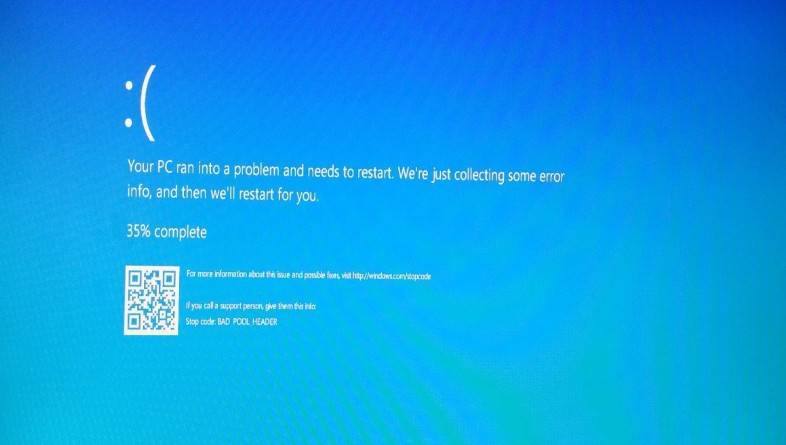
Have you ever encountered the dreaded Blue Screen of Death (BSoD) on your Windows computer? If so, you may have come across an error related to the Ndis.sys file. This article will delve into what Ndis.sys is, why it can cause BSoD errors, and how you can fix them.
Understanding Ndis.sys
The Ndis.sys file is a system driver file that is an integral part of the Windows operating system. It stands for Network Driver Interface Specification, and it plays a crucial role in facilitating communication between the network adapter and the operating system.
Whenever you connect to the internet or a local network, the Ndis.sys file comes into action, allowing your computer to send and receive data packets. It acts as a bridge between the hardware and software components of your network adapter, ensuring smooth network operations.
Why Does Ndis.sys Cause BSoD Errors?
While the Ndis.sys file is essential for network functionality, it can sometimes become problematic and lead to BSoD errors. These errors occur when the Windows operating system encounters a critical error that it cannot recover from, resulting in a system crash.
There are several reasons why Ndis.sys can cause BSoD errors:
- Outdated or incompatible network drivers: If your network drivers are outdated or incompatible with your operating system, it can lead to conflicts with the Ndis.sys file and trigger BSoD errors.
- Malware or virus infections: Malicious software can corrupt system files, including Ndis.sys, leading to BSoD errors. It is crucial to regularly scan your computer for viruses and malware using reliable security software like Malwarebytes Free.
- Hardware issues: Faulty network adapters or other hardware components can also cause BSoD errors related to Ndis.sys. In such cases, troubleshooting the hardware or replacing the faulty components may be necessary.
How To Fix Ndis.sys BSoD Errors
Now that we understand the potential causes of Ndis.sys BSoD errors, let’s explore some effective solutions to fix them:
1. Run the DISM and SFC scans
DISM (Deployment Image Servicing and Management) and SFC (System File Checker) are built-in Windows tools that find and repair corrupted or missing system files — one of the most common causes of Windows errors. Both run from an elevated Command Prompt (with administrator privileges). Here’s how:
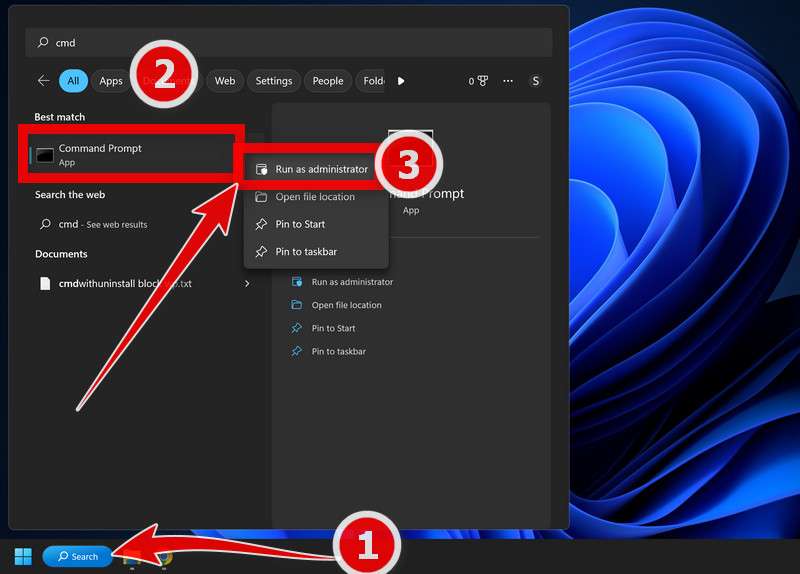
- To open the Command Prompt as an administrator in Windows, type “cmd” in the search bar and then right-click on the Command Prompt result and select “Run as administrator” as shown in the image below.

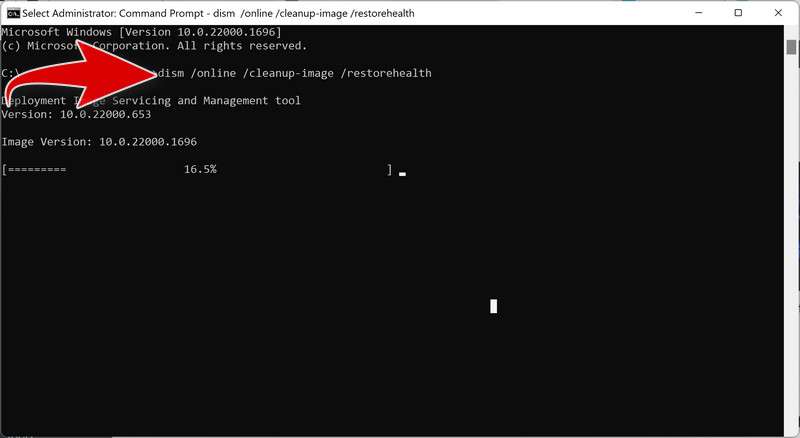
- To run a DISM scan, type the following command and press Enter:
dism /online /cleanup-image /restorehealth
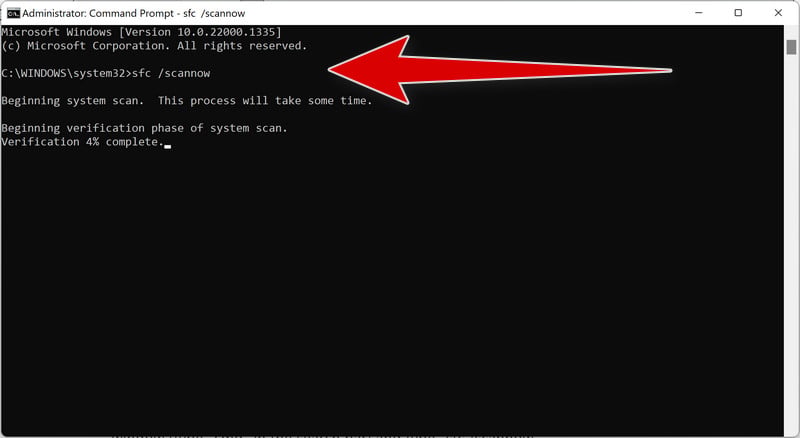
This will check your Windows component store for corruption and automatically fix any problems it finds. This process may take several minutes or longer depending on your system - To run an SFC scan, type in the Command Prompt the following command and press Enter:
sfc /scannow
This will scan all protected system files and replace any corrupted or missing ones with a cached copy. Wait for the scan to complete. It may take some time depending on your system configuration.
- After both scans are completed, you should restart your computer to apply any changes. Check to see if the issue is solved.
2. Check for faulty software
If the error appears only when you use a specific program, try uninstalling and reinstalling it. The same goes for the runtime components that many programs depend on — Microsoft DirectX, Microsoft Visual C++ Redistributable, and .NET Framework — since a corrupted runtime can cause errors across multiple apps at once.
-
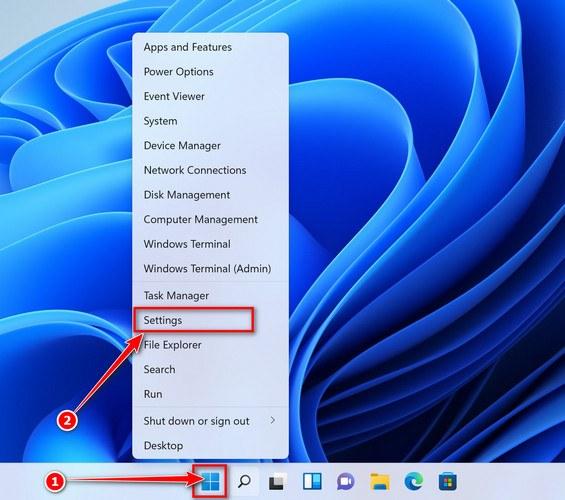
First, open Windows Settings by pressing Windows+I on your keyboard. You can also right-click your Start button and select “Settings” from the list.
-
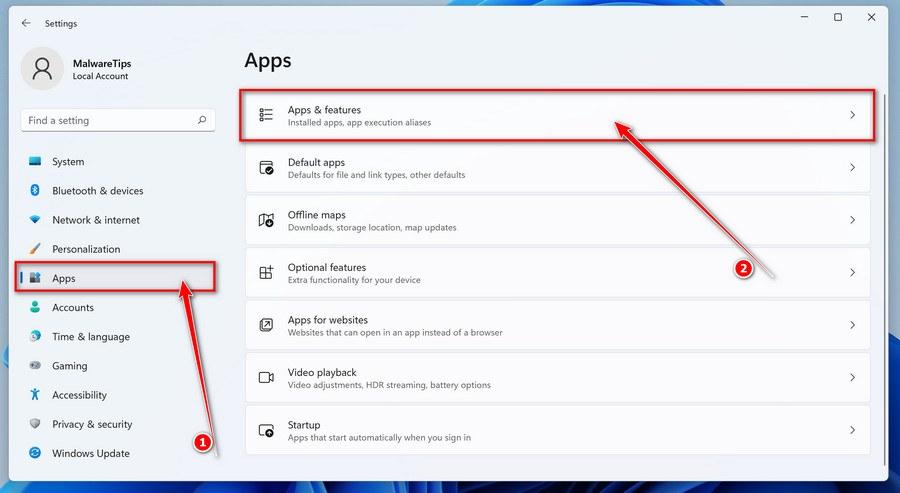
When Settings opens, click “Apps” in the sidebar, then select “Apps & Features”.
-
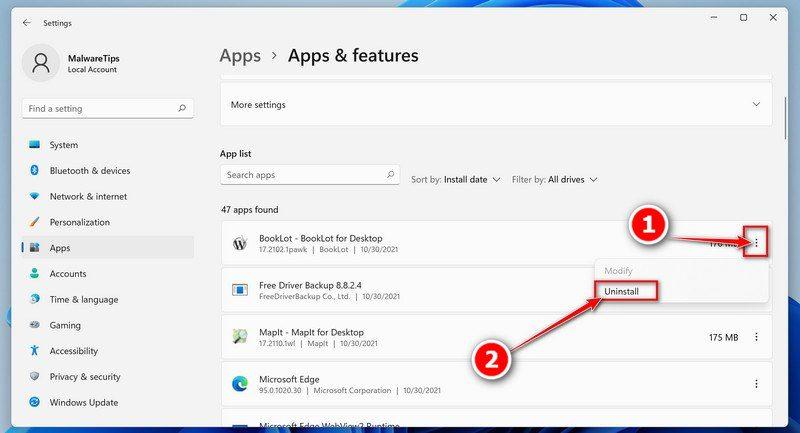
In Apps & Features settings, scroll down to the app list and search for the program you want to uninstall. When you find the program, click the three dots button beside it and select “Uninstall” in the menu that appears.
-
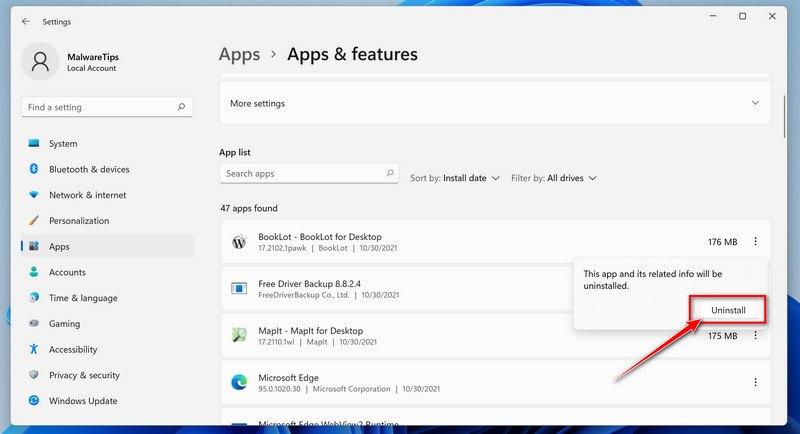
In the next message box, confirm the uninstall process by clicking on Uninstall, then follow the prompts to uninstall the program.
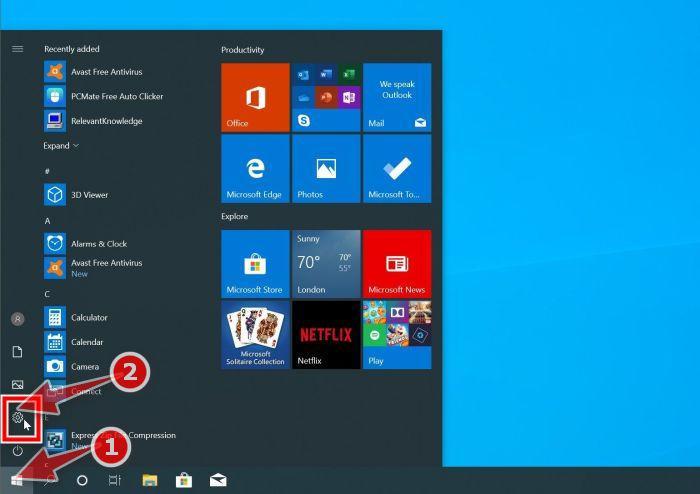
- Press the Windows key + I on your keyboard to open the Settings app. You can also ope the Settings app by clicking the Start button on the taskbar, then select “Settings” (gear icon).
-
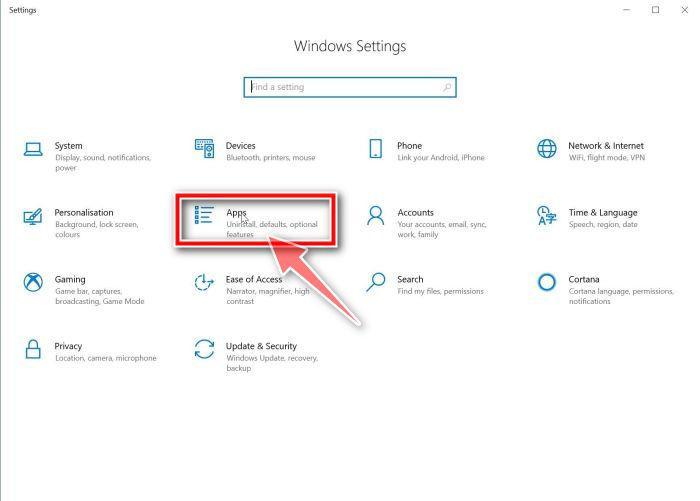
When the “Windows Settings” window opens, click on “Apps“. By default, it should open “Apps and Features” but if it doesn’t, select it from the list on the left.
-
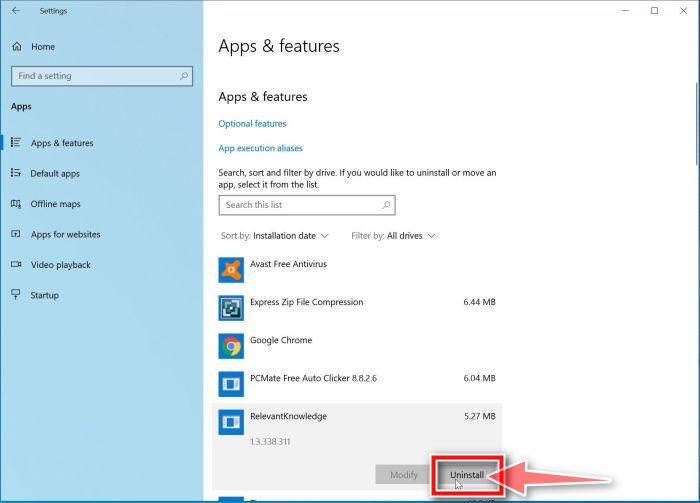
In Apps & Features settings, scroll down to the app list and search for the program you want to uninstall. When you find the program, click on it and select “Uninstall” in the menu that appears.
-
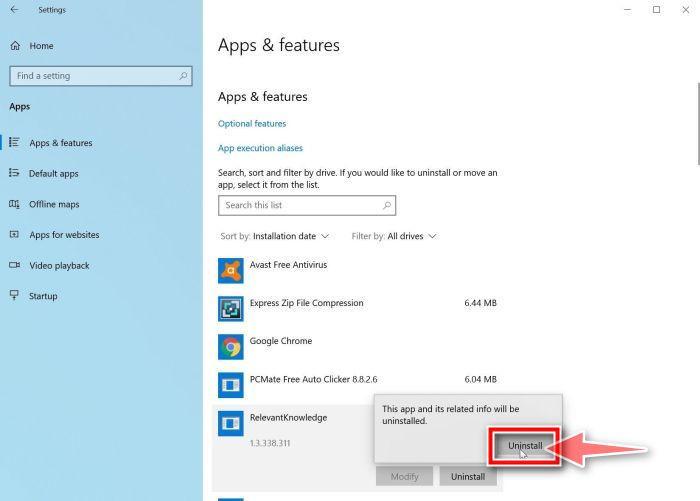
In the next message box, confirm the uninstall process by clicking on Uninstall, then follow the prompts to uninstall the program.
-
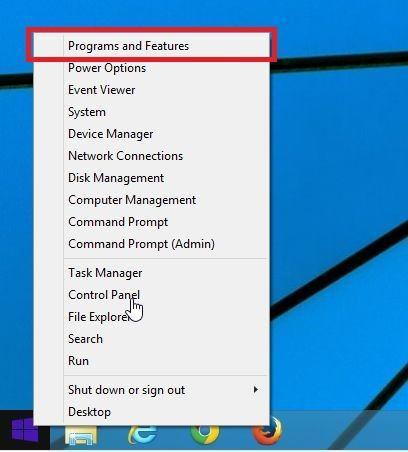
Right-click on the Start button in the taskbar, then select “Programs and Features”. This will take you directly to your list of installed programs.
-
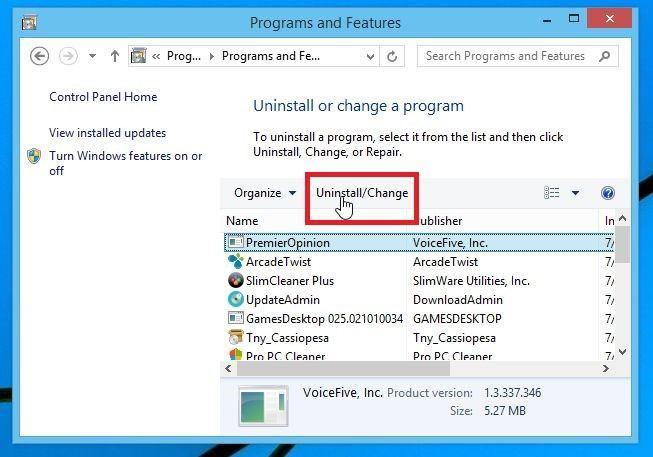
The “Programs and Features” screen will be displayed with a list of all the programs installed on your computer. Scroll through the list until you find the program, then click to highlight it, then click the “Uninstall” button.
- In the next message box, confirm the uninstall process by clicking on Yes, then follow the prompts to uninstall program.
-
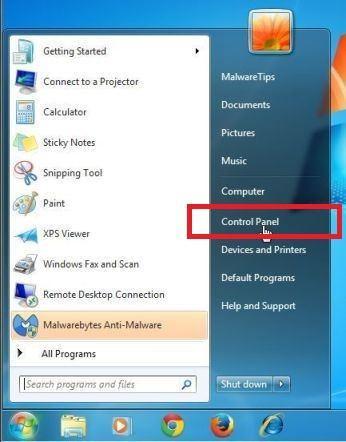
Click on the “Start” button, then click on “Control Panel“.
-
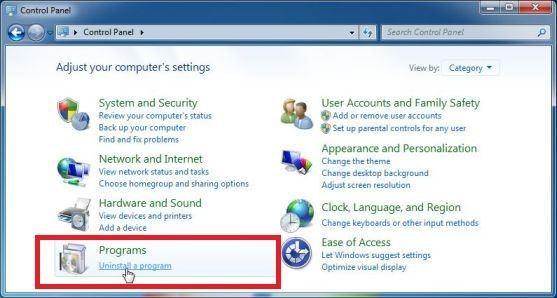
When the “Control Panel” appears, click on “Uninstall a Program” from the Programs category.
-
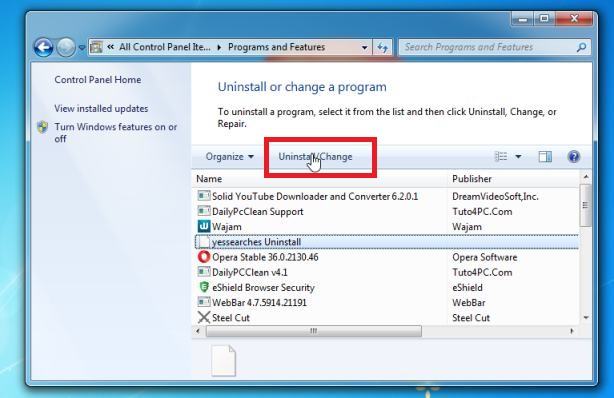
The “Programs and Features” screen will be displayed with a list of all the programs installed on your computer. Scroll through the list until you find any suspicious or unknown program, then click to highlight it, then click the “Uninstall” button.
Look out for any suspicious program that could be behind all the drama – anything you don’t remember downloading or that doesn’t sound like a genuine program.
- In the next message box, confirm the uninstall process by clicking on Yes, then follow the prompts to uninstall program.
3. Scan your computer for malware
Malware can corrupt system files and registry entries, causing errors that look like hardware or Windows problems. Run a free scan with Malwarebytes to rule out an infection before troubleshooting further:
Malwarebytes is one of the most popular and most used anti-malware software for Windows, and for good reasons. It is able to destroy many types of malware that other software tends to miss, without costing you absolutely nothing. When it comes to cleaning up an infected device, Malwarebytes has always been free and we recommend it as an essential tool in the fight against malware.
-
You can download Malwarebytes by clicking the link below.
MALWAREBYTES FOR WINDOWS DOWNLOAD LINK
(The above link will open a new page from where you can download Malwarebytes) -
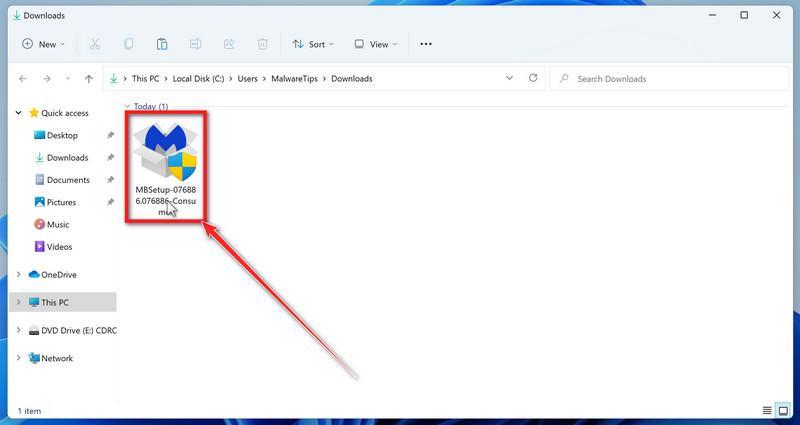
When Malwarebytes has finished downloading, double-click on the MBSetup file to install Malwarebytes on your computer. In most cases, downloaded files are saved to the Downloads folder.
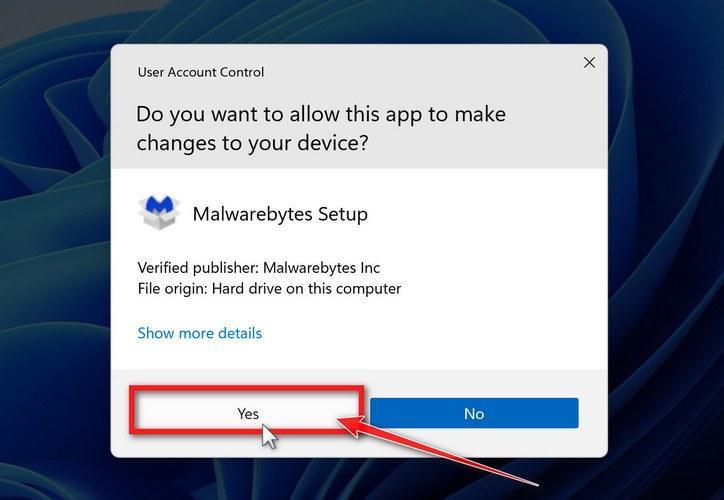
You may be presented with a User Account Control pop-up asking if you want to allow Malwarebytes to make changes to your device. If this happens, you should click “Yes” to continue with the Malwarebytes installation.
-
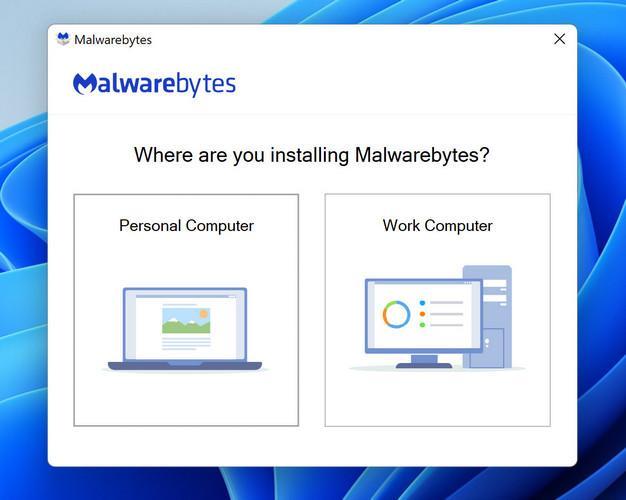
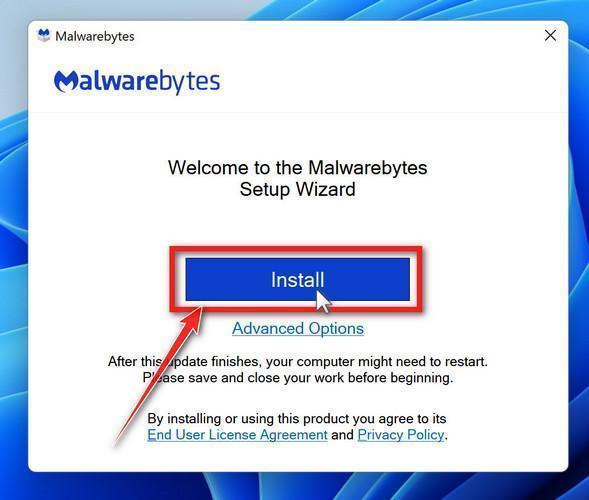
When the Malwarebytes installation begins, you will see the Malwarebytes setup wizard which will guide you through the installation process. The Malwarebytes installer will first ask you what type of computer are you installing this program on, click either Personal Computer or Work Computer.
On the next screen, click “Install” to install Malwarebytes on your computer.
When your Malwarebytes installation completes, the program opens the Welcome to Malwarebytes screen.
-
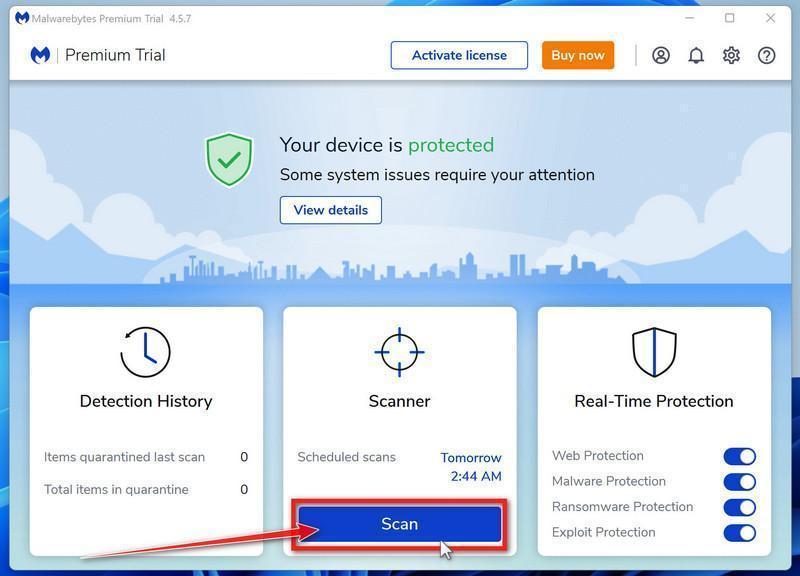
Malwarebytes is now installed on your computer, to start a scan click on the “Scan” button. Malwarebytes will automatically update the antivirus database and start scanning your computer for malicious programs.
-
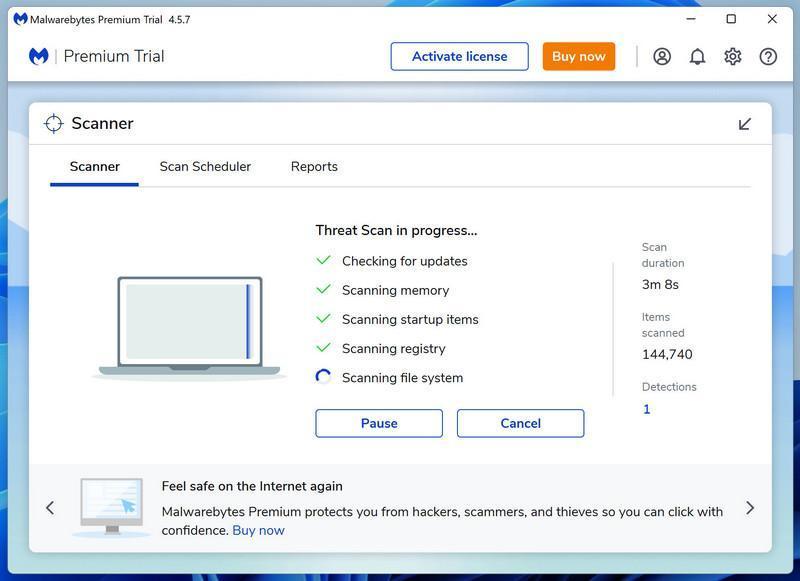
Malwarebytes will now scan your computer for browser hijackers and other malicious programs. This process can take a few minutes, so we suggest you do something else and periodically check on the status of the scan to see when it is finished.
-
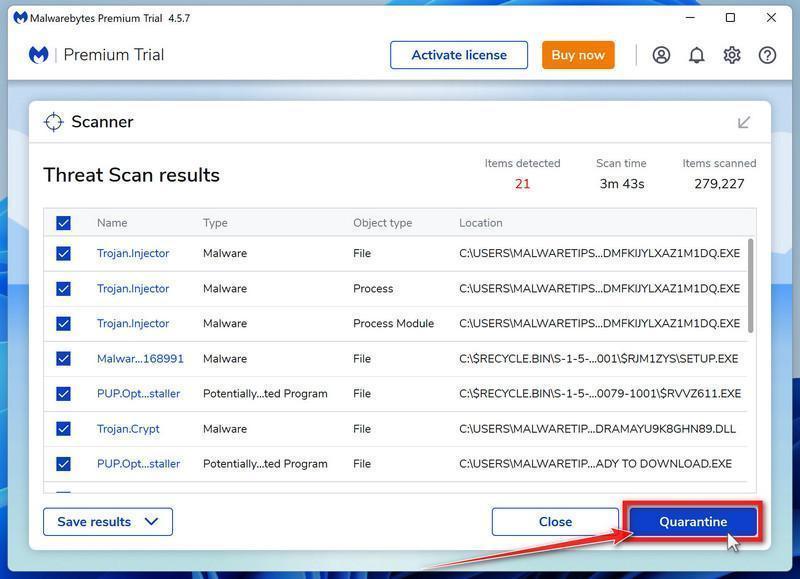
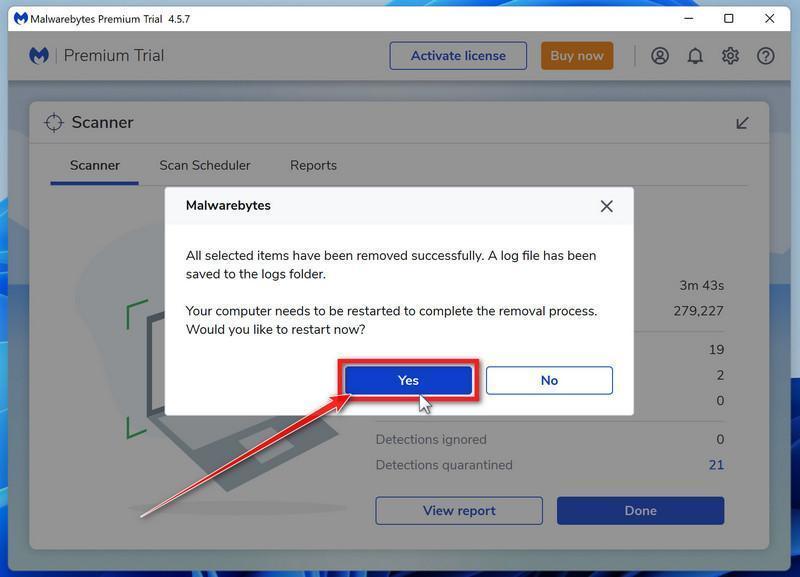
When the Malwarebytes scan is finished scanning it will show a screen that displays any malware, adware, or potentially unwanted programs that it has detected. To remove the malicious programs that Malwarebytes has found, click on the “Quarantine” button.
Malwarebytes will now remove all the malicious files and registry keys that it has found. To complete the malware removal process, Malwarebytes may ask you to restart your computer.

4. Check for updates
Make sure Windows, your drivers, and your software are all up to date — many errors are fixed by patches. The reverse also applies: if the errors started right after an update, uninstalling that specific update may resolve the problem.
To check for Windows updates, follow the below steps:
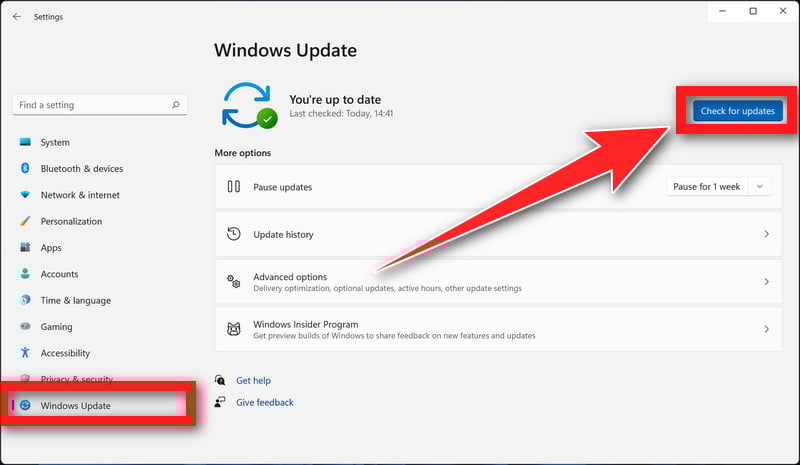
- Press the Windows key + I to open the Settings menu. Click the “Windows Update” tab on the left side of the screen.
For Windows 10 users, the Windows Update menu can be found in Settings > Update & Security > Windows Update. - Click the “Check for updates” button. This will initiate a scan for updates. If any updates are available, they will be downloaded and installed automatically.
- If you want to check for updates for other software, you can do so by opening the software and looking for a “Check for updates” option in the menu. You can also check the software’s website for updates.
5. Disable unnecessary startup programs
Startup programs launch automatically every time you boot your PC. Some are essential, but others just consume resources and can conflict with each other — disabling the ones you don’t need can eliminate errors and speed up startup at the same time.
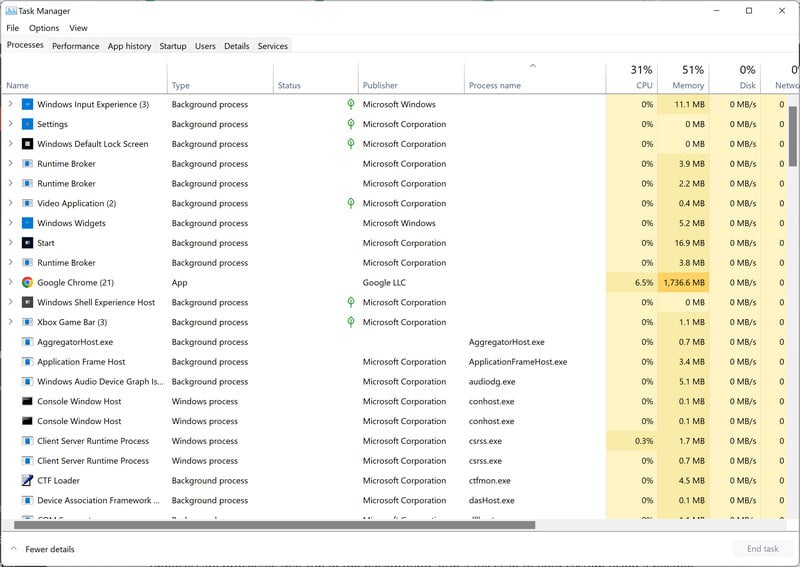
- Press Ctrl + Shift + Esc on your keyboard to open the Task Manager.
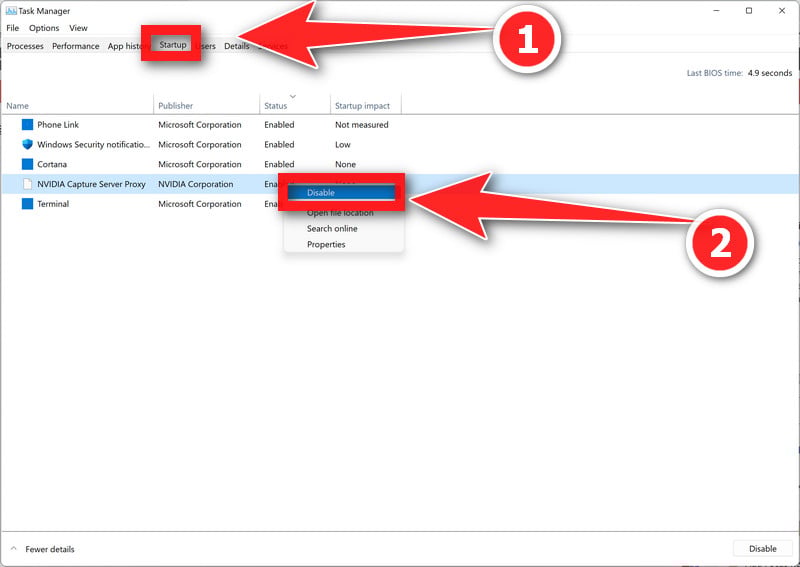
- Go to the “Startup” tab (called “Startup apps” on Windows 11). Right-click any program you don’t need launching automatically and select Disable. The “Startup impact” column shows which programs slow down your boot the most — start with the “High” ones.
Not sure what something is? Leave entries from Microsoft, your hardware makers (Intel, NVIDIA, Realtek), and your antivirus enabled — and look up any name you don’t recognize before disabling it. Disabling a startup program doesn’t uninstall it; the program will still work normally when you open it yourself, and you can re-enable it here anytime.
6. Run a memory test
A faulty RAM module causes random crashes, freezes, and blue screens that are easy to mistake for software problems. Windows includes a built-in memory test — here’s how to run it:
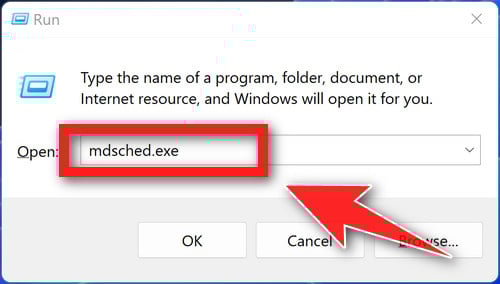
- Press the Windows key + R to open the Run dialog.
- Type “mdsched.exe” into the Run dialog and press Enter. This will launch the Windows Memory Diagnostic tool.
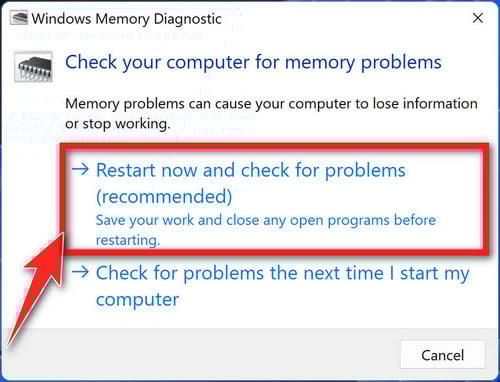
- You will be asked whether you want to restart your PC and run the test immediately or schedule the test to run the next time you start your PC. Choose the option you prefer and click “OK”.
If you choose to run the test immediately, your PC will restart and the test will begin. The test will run automatically and may take several minutes to complete.- If the test finds any errors, it will display a message indicating the type and location of the error. You may need to replace your RAM if the test finds any errors.
- If the test completes without finding any errors, it will display a message indicating that the test has completed successfully.
7. Check your hardware
Inspect your computer’s hardware for signs of damage and make sure all cables and connections are secure. Then open Windows Device Manager and look for warning icons next to your RAM, hard drive, graphics card, or other components — a yellow exclamation mark indicates a device problem. If you suspect a component is failing, consult a professional or replace it.
-
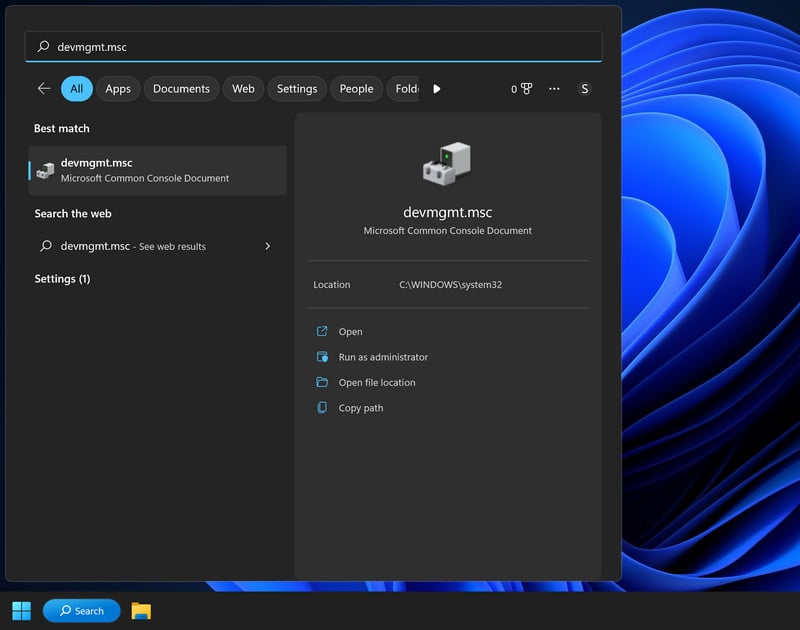
To access the Device Manager, type “devmgmt.msc” into the search bar on the Start menu and select “Device Manager” from the list of results.
-
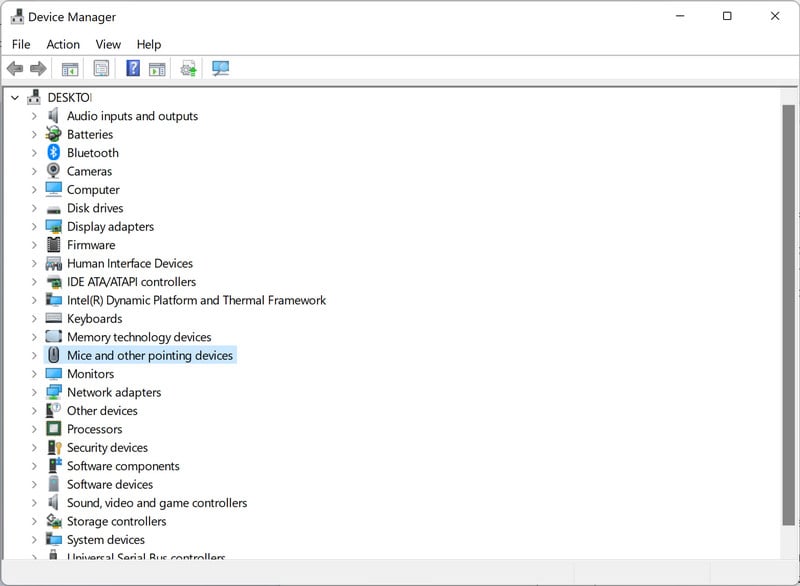
In the Device Manager, you can view a list of all the hardware devices connected to your computer and check for any errors or issues. If you see a yellow exclamation point next to a device, it may indicate a problem with that device. You can right-click on the device and select “Update driver” or “Troubleshoot” to try and fix any issues.
8. Try a System Restore
If you have a restore point saved, you can revert your system to an earlier state — effective when the errors were caused by a recent change like a new program, driver, or settings tweak. Your personal files are not affected by a System Restore. Here’s how:
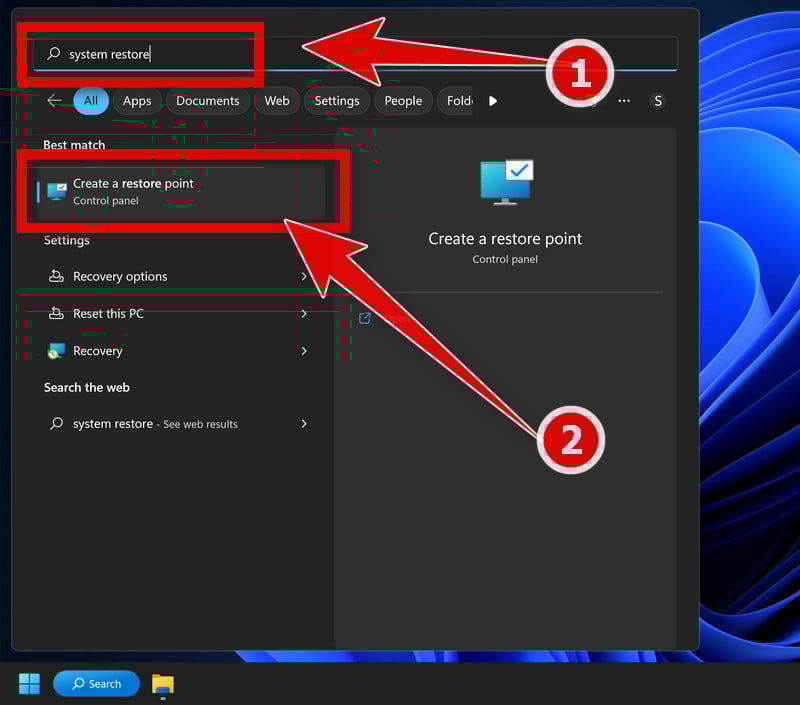
- Press the Windows key + S to open the Search menu.
- Type “system restore” into the search bar and click the “Create a restore point” result.
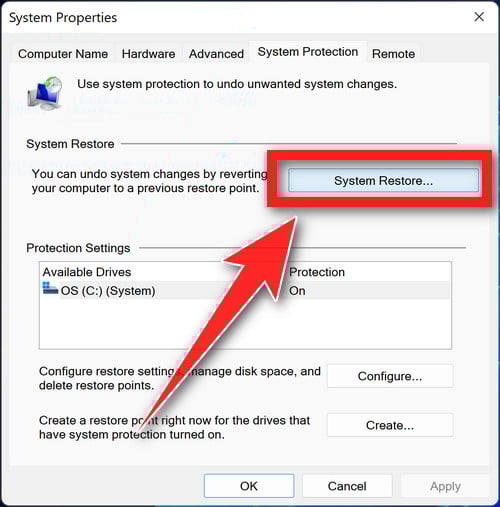
- Click the “System Restore” button.
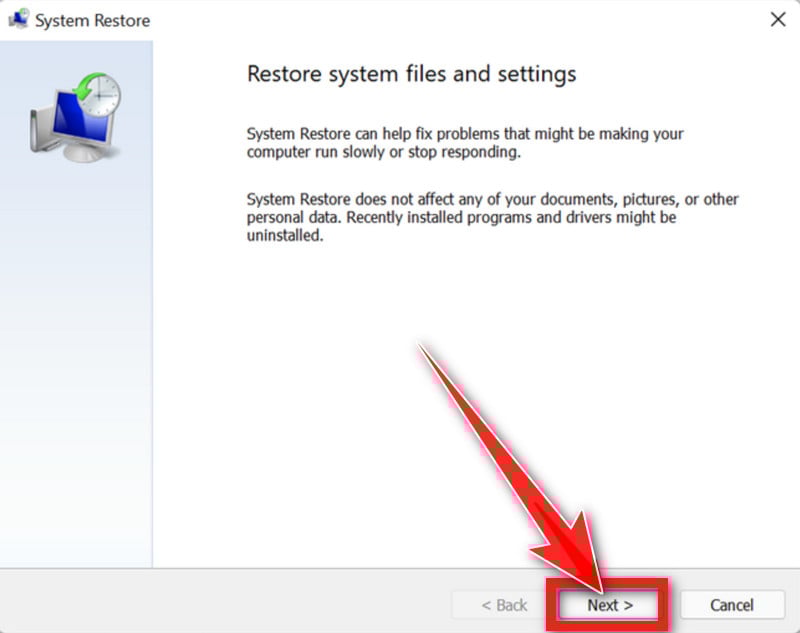
- In the System Restore window, click “Next.”
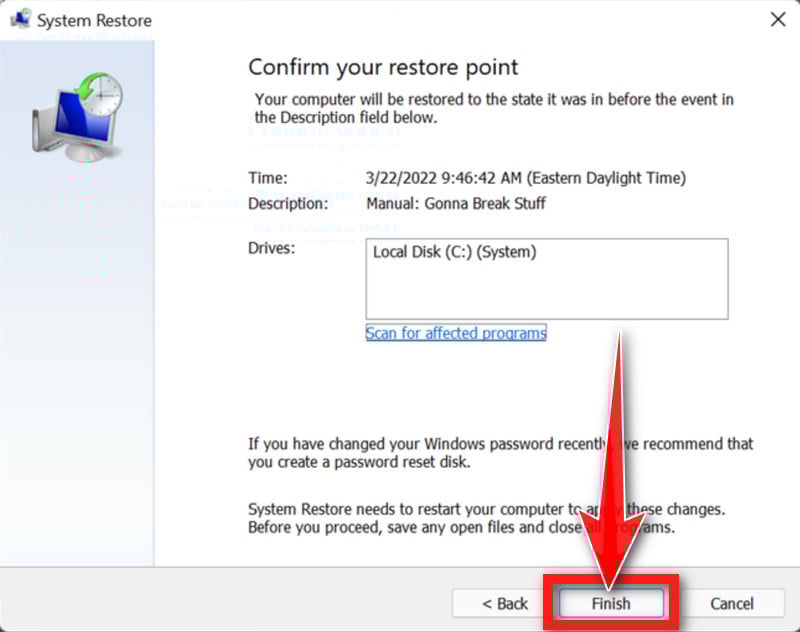
- Select a restore point from the list and click “Next.” A restore point is a saved state of your system that you can use to revert your system to a previous state. Make sure to select a restore point that was created before you started experiencing problems.
- Click “Finish” to begin the restore process. Your PC will restart and the restore process will begin. This may take several minutes to complete.
- When the restore is complete, your PC will restart again. You may need to adjust your settings and reinstall any software that was installed after the restore point was created.
9. Reset your PC
The last resort: resetting Windows to its default configuration. This removes all third-party software you’ve installed (you can choose to keep your personal files), so treat it as the nuclear option — but if nothing else has worked, a reset almost always clears persistent errors.
- Press Windows + I to open Settings.
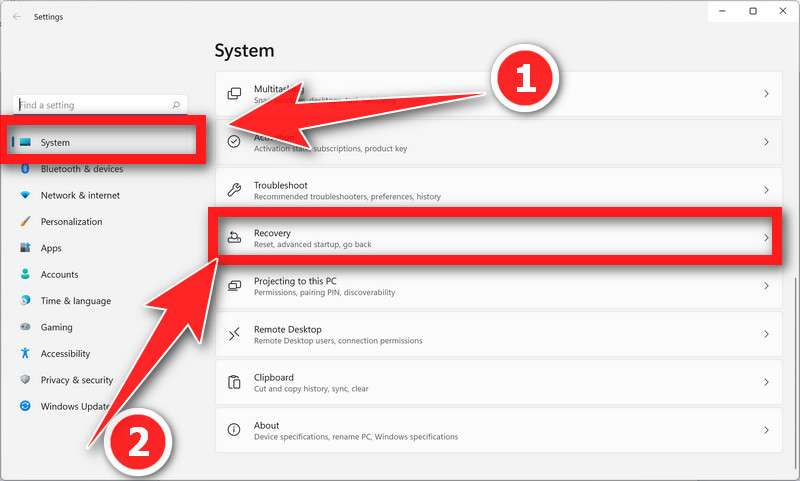
- Click System, then Recovery. (On Windows 10, the path is Update & Security > Recovery.)
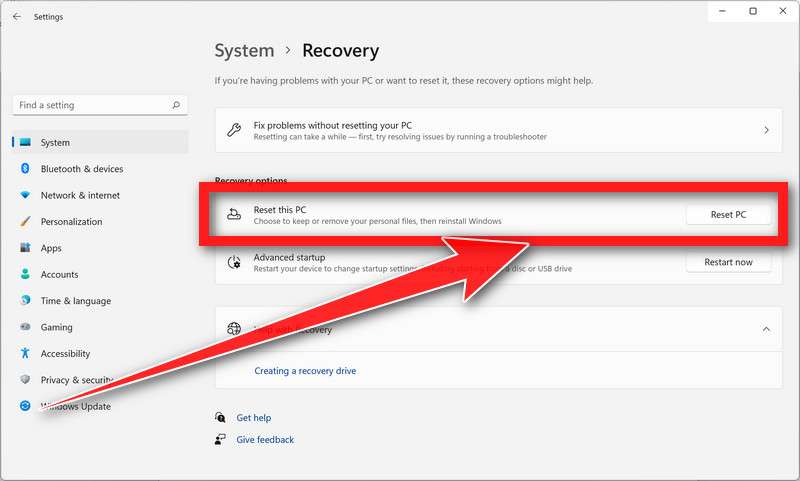
- In the Reset this PC section, click the Reset PC button.
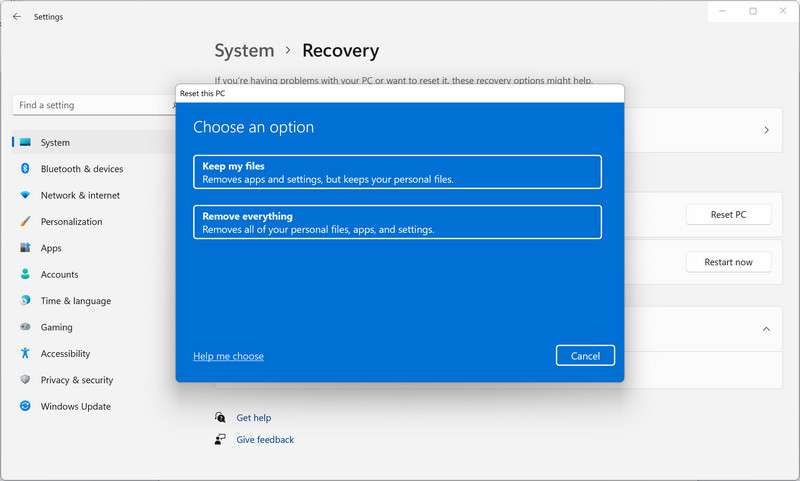
- Choose Keep my files (removes apps and settings but keeps your personal files) or Remove everything (a full wipe — choose this only if you’ve backed everything up, or if you’re dealing with a stubborn infection).
- Follow the on-screen instructions to complete the process. The reset can take anywhere from 30 minutes to a few hours — keep your laptop plugged in and don’t turn off the PC while it’s working.
Summary
Ndis.sys BSoD errors can be frustrating and disruptive to your computer usage. Understanding the role of the Ndis.sys file and the potential causes of BSoD errors related to it is crucial in resolving these issues.
To fix Ndis.sys BSoD errors, make sure to update your network drivers, scan for viruses and malware using reliable security software like Malwarebytes Free, and check your hardware components for any faults.
By following these steps, you can effectively troubleshoot and resolve Ndis.sys BSoD errors, ensuring a stable and reliable network connection on your Windows computer.








