

Your phone buzzes with a new text message. It looks like an urgent alert from Apple, claiming someone used your Apple Pay account to make an unauthorized purchase. Your heart races as you read on, learning that your Apple ID has been compromised. The message insists you call a number immediately to secure your account and avoid further fraudulent charges.
But hold on – before you dial, take a closer look. Is this really a legitimate alert from Apple, or could it be a scam designed to steal your sensitive information and hard-earned cash? In this article, we’ll dive deep into the world of the Apple Pay text scam, exposing the tactics scammers use to trick unsuspecting victims and providing crucial tips to protect yourself from falling prey to this cunning con.
Scam Overview
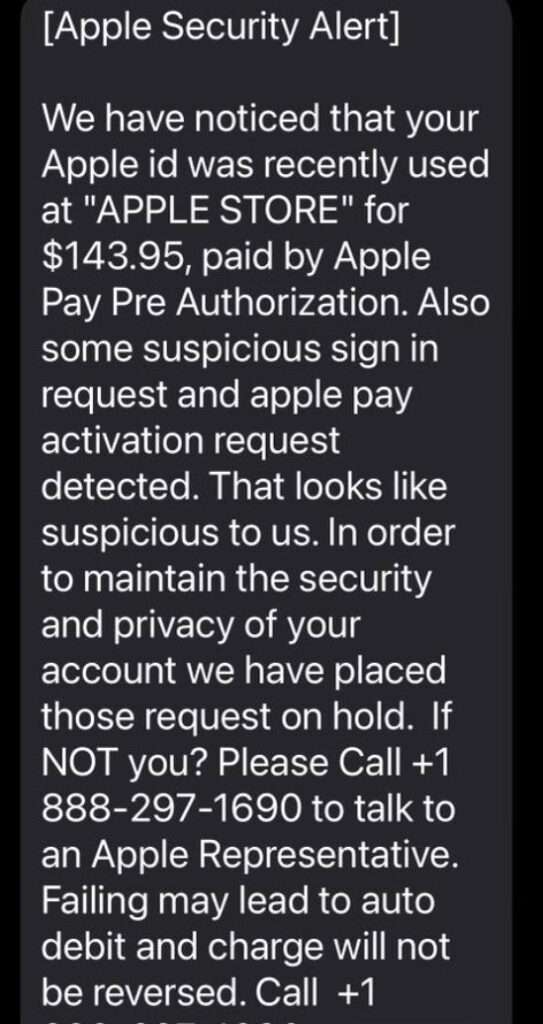
The Apple Pay text scam is a phishing atack that targets iPhone users. Scammers send out mass text messages disguised as security alerts from Apple, claiming that the recipient’s Apple ID was used to make an unauthorized purchase via Apple Pay at an Apple Store.
A typical scam text reads:
“Apple Security Alert: We noticed your Apple ID was recently used at an Apple Store for $143.95 via Apple Pay. Suspicious login and Apple Pay activation requests detected. We’ve placed these requests on hold to protect your account. Please call [fake number] to resolve the issue.”
The message is carefully crafted to appear legitimate, often using official-sounding language and creating a false sense of urgency. It includes a phone number for the victim to call immediately to supposedly resolve the issue and secure their account.
However, the phone number doesn’t connect to Apple support – instead, it directs callers to a fake call center operated by the scammers. Their goal is to trick victims into revealing sensitive information like Apple ID passwords, bank account details, and credit card numbers.
This insidious scam preys on people’s fears about unauthorized charges and account security breaches. By making the victim believe their account has been compromised, scammers hope to panic them into acting quickly without stopping to scrutinize the message’s legitimacy.
It’s crucial to understand that Apple will never send unsolicited text messages about account issues or request sensitive information via text or phone call. Always be cautious of unexpected alerts pressuring you to take urgent action, especially through unofficial channels. If you have concerns about your Apple account’s security, contact Apple directly using the contact information provided on their official website.
How the Scam Works
The Apple Pay text scam is a calculated, multi-step scheme designed to manipulate victims into surrendering their sensitive data and money. Here’s a detailed breakdown of how it typically unfolds:
Step 1: The Deceptive Text
The scam begins with an unsolicited text message claiming to be a security alert from Apple. The text states that your Apple ID was used to make an unauthorized purchase, usually in the range of $100-$500, at an Apple Store via Apple Pay. It includes a phone number you’re urged to call immediately to resolve the issue and protect your account.
Step 2: The Fake Support Call
If you call the provided number, you’ll be connected to a scammer posing as an Apple support representative. They’ll claim to be investigating the suspicious Apple Pay charge and ask you to verify your identity.
Step 3: The Information Heist
The scammer will request personal information like your full name, Apple ID email and password, and possibly your bank account or credit card details. They may also ask for the verification code sent to your iPhone, claiming it’s necessary to secure your account. In reality, they’re simply harvesting your sensitive data for fraudulent purposes.
Step 4: The Technical Trap
In some cases, the scammer may allege that your iPhone has been hacked and insist on establishing a remote connection to run diagnostics and remove supposed security threats. If you grant remote access, the scammer can potentially install malware, spy on your activity, and even lock you out of your own device.
Step 5: The Financial Sting
After gaining access to your device, the scammer will likely claim to have found serious security issues or malware infections. They’ll pressure you into paying for phony tech support services or purchasing gift cards, prepaid debit cards, or cryptocurrency as payment. Once you provide the gift card codes or crypto wallet address, the scammer disappears with your money.
Step 6: The Aftermath
Victims of the Apple Pay text scam often face a range of consequences, from compromised accounts and identity theft to financial loss and psychological distress. Undoing the damage can be a time-consuming and emotionally draining process.
What to Do If You’ve Fallen Victim to the Apple Pay Text Scam
If you believe you’ve been tricked by the Apple Pay text scam, take the following steps to minimize the damage and protect your accounts:
- Immediately change your Apple ID password and enable two-factor authentication if you haven’t already. Check your Apple account for any unauthorized changes or transactions.
- Contact your bank and credit card companies to alert them of potential fraud. Request a freeze on your accounts and dispute any unauthorized charges that may have occurred.
- If you gave the scammer remote access to your iPhone, update all passwords stored on your device, especially those for sensitive accounts like email, social media, and online banking. Run a full virus and malware scan using reputable security software. Consider having your device professionally inspected to ensure its integrity.
- Report the scam text to your mobile carrier by forwarding it to 7726 (SPAM). This helps carriers identify and block scam numbers.
- File reports with the Federal Trade Commission (FTC) at ReportFraud.ftc.gov and the FBI’s Internet Crime Complaint Center (IC3) at IC3.gov. Include as much detail as possible to aid in tracking and combating these scams.
- Stay vigilant for follow-up scams. Once scammers have your information, they may sell it to other fraudsters or use it for future schemes. Be wary of unsolicited calls, emails, or texts claiming to be from Apple or other companies seeking your personal data.
Is Your Device Infected? Run a Free Malware Scan
Slow performance, constant pop-ups, or strange behavior? These are classic signs of a malware infection. The fastest way to find out is to scan your device with Malwarebytes Free — one of the most trusted malware removal tools available.
The free version detects and removes the most common threats, including:
- Adware — the cause of those annoying pop-ups
- Browser hijackers — unwanted redirects and changed homepages
- Trojans and spyware — hidden programs stealing your data
- Potentially unwanted programs (PUPs) — software you never asked for
👉 Select your device below — Windows, Mac, or Android — then follow the simple steps to download Malwarebytes, scan your system, and remove any threats it finds. The scan usually takes 5 to 20 minutes.
Run a Malware Scan with Malwarebytes for Windows
Malwarebytes is one of the most popular and trusted anti-malware tools for Windows — and it’s completely free for removing infections. It catches threats that many antivirus programs miss, including adware, browser hijackers, and trojans. Follow the steps below to scan and clean your PC in just a few minutes.
Download Malwarebytes
Click the button below to download the latest version of Malwarebytes for Windows from the official source. The free version is all you need — it will scan your computer and remove adware, browser hijackers, and other malicious software at no cost.
Download MalwarebytesOfficial installer for Windows 11 and 10. Your download starts right away.Want real-time protection? See Malwarebytes Premium Malwarebytes Free for WindowsScans and removes malware at no cost
-
Install Malwarebytes
When the download finishes, open your Downloads folder and double-click the MBSetup file. If Windows shows a User Account Control pop-up, click “Yes” to allow the installation.

Follow the On-Screen Prompts to Install Malwarebytes
The setup wizard will walk you through a few quick screens:
-
Choose where you’re installing the program — “Personal Computer” or “Work Computer” — then click Next.

-
Malwarebytes will now install on your device. This usually takes under a minute.

-
When installation is complete, the “Welcome to Malwarebytes” screen will open automatically.

-
On the final screen, click Open Malwarebytes to launch the program.

-
Enable “Scan for Rootkits”
Before scanning, turn on rootkit detection so Malwarebytes can find even the most hidden threats. Click the Settings gear icon on the left side of the screen.

In the settings menu, find “Scan for rootkits” and click the toggle so it turns blue.

Done? Click “Dashboard” in the left pane to return to the main screen.
Start the Scan
Click the blue Scan button. Malwarebytes will automatically update its virus database and start checking your computer for malware.

-
Wait for the Scan to Finish
The scan checks your entire system for browser hijackers and other malicious programs, so it can take 5 to 20 minutes depending on your computer. Feel free to do something else — just check back occasionally to see the progress.

-
Quarantine the Detected Threats
When the scan is done, you’ll see a list of everything Malwarebytes found — malware, adware, and potentially unwanted programs. Click the “Quarantine” button to remove all of them at once.

Malwarebytes will now remove the malicious files and registry entries and move them safely into quarantine.

-
Restart Your Computer
Some threats can only be fully removed after a reboot. If Malwarebytes asks you to restart, click Yes. Once you’re logged back in, Malwarebytes has finished removing the threats it found.

That’s it — your Windows PC is now clean of trojans, adware, and other malware, and should be back to running smoothly.
If you are still having problems with your computer after completing these instructions, then please follow one of the steps:
- Run a computer scan with ESET Online Scanner
- Ask for help in our Windows Malware Removal Help & Support forum.
Run a Malware Scan with Malwarebytes for Mac
Malwarebytes for Mac is a free on-demand scanner that removes the malware other security software tends to miss — adware, browser hijackers, and unwanted programs included. Cleaning an infected Mac with Malwarebytes has always been completely free, and it’s our go-to recommendation. Follow the steps below to scan and clean your Mac in just a few minutes.
-
Download Malwarebytes for Mac
Click the button below to download the latest version of Malwarebytes for Mac.
Download MalwarebytesOfficial installer for macOS. Your download starts right away.Want real-time protection? See Malwarebytes PremiumMalwarebytes Free for MacScans and removes malware at no cost -
Open the Malwarebytes setup file
When the download finishes, open your Downloads folder and double-click the setup file to begin the installation.

-
Follow the On-Screen Prompts to Install Malwarebytes
The Malwarebytes for Mac Installer will guide you through a few quick screens. Click “Continue” and keep following the prompts until the installation completes.



When the installation is complete, Malwarebytes opens to the Welcome to Malwarebytes screen. Click “Get started“.
-
Select “Personal Computer” or “Work Computer”
Malwarebytes will ask what type of computer you’re installing it on. Click either Personal Computer or Work Computer, whichever applies.

-
Start the Scan
Click the “Scan” button. Malwarebytes will automatically update its detection database and begin checking your Mac for malware.

-
Wait for the Scan to Finish
Malwarebytes will scan your Mac for adware, browser hijackers, and other malicious programs. This can take a few minutes, so feel free to do something else — just check back occasionally to see the progress.

-
Quarantine the Detected Threats
When the scan is done, you’ll see a list of everything Malwarebytes found. Click the “Quarantine” button to remove all the threats at once.

-
Restart Your Mac
Malwarebytes will now remove all the malicious files it found. Some threats can only be fully removed after a reboot — if Malwarebytes asks you to restart, allow it. Once you’re logged back in, your Mac is clean.

That’s it — your Mac is now free of adware, rogue browser extensions, and other potentially harmful software.
If you are still experiencing problems while trying to remove a malicious program from your computer, please ask for help in our Mac Malware Removal Help & Support forum.
Run a Malware Scan with Malwarebytes for Android
Malwarebytes for Android automatically detects and removes dangerous threats like malware and ransomware so you don’t have to worry about your most-used device being compromised. Aggressive detection of adware and potentially unwanted programs keeps your Android phone or tablet running smooth.
-
Download Malwarebytes for Android.
You can download Malwarebytes for Android by clicking the link below.
Get Malwarebytes for AndroidOpens Google Play in a new tab.Want real-time protection? See Malwarebytes Premium for AndroidMalwarebytes for AndroidScans your phone and removes malware at no cost -
Install Malwarebytes for Android on your phone.
In the Google Play Store, tap “Install” to install Malwarebytes for Android on your device.

When the installation process has finished, tap “Open” to begin using Malwarebytes for Android. You can also open Malwarebytes by tapping on its icon in your phone menu or home screen.

-
Follow the on-screen prompts to complete the setup process
When Malwarebytes will open, you will see the Malwarebytes Setup Wizard which will guide you through a series of permissions and other setup options.
This is the first of two screens that explain the difference between the Premium and Free versions. Swipe this screen to continue.
Tap on “Got it” to proceed to the next step.
Malwarebytes for Android will now ask for a set of permissions that are required to scan your device and protect it from malware. Tap on “Give permission” to continue.
Tap on “Allow” to permit Malwarebytes to access the files on your phone.
-
Update database and run a scan with Malwarebytes for Android
You will now be prompted to update the Malwarebytes database and run a full system scan.

Click on “Update database” to update the Malwarebytes for Android definitions to the latest version, then click on “Run full scan” to perform a system scan.

-
Wait for the Malwarebytes scan to complete.
Malwarebytes will now start scanning your phone for adware and other malicious apps. This process can take a few minutes, so we suggest you do something else and periodically check on the status of the scan to see when it is finished.

-
Click on “Remove Selected”.
When the scan has been completed, you will be presented with a screen showing the malware infections that Malwarebytes for Android has detected. To remove the malicious apps that Malwarebytes has found, tap on the “Remove Selected” button.

-
Restart your phone.
Malwarebytes for Android will now remove all the malicious apps that it has found. To complete the malware removal process, Malwarebytes may ask you to restart your device.
That’s it — your Android phone is now clean — no more malicious apps, adware, or browser redirects.
If you are still having problems with your phone after completing these instructions, then please follow one of the steps:
- Restore your phone to factory settings by going to Settings > General management > Reset > Factory data reset.
- Ask for help in our Mobile Malware Removal Help & Support forum.
Stay Protected: Block Ads and Malicious Sites
Now that your device is clean, keep it that way. Most infections start with a malicious ad or a fake download button — so blocking them at the source is your best defense.
We recommend AdGuard, which blocks malicious ads, phishing pages, and dangerous redirects before they can reach you.
👉 Download AdGuard and browse safely
Frequently Asked Questions About the Apple Pay Text Scam
Q1: What is the Apple Pay text scam?
A: The Apple Pay text scam is a phishing scheme in which scammers send fraudulent text messages claiming that the recipient’s Apple ID was used to make an unauthorized purchase via Apple Pay at an Apple Store. The texts include a phone number for the victim to call immediately to resolve the issue, but the number connects to a fake Apple support center run by the scammers, who aim to steal sensitive information and money.
Q2: How can I spot a fake Apple Pay scam text?
A: Scam texts often convey a sense of urgency, pressuring you to act quickly. They may contain grammatical errors, misspellings, or odd phrasing. Crucially, they ask you to provide personal information or click on a suspicious link. Bear in mind that Apple will never request sensitive details like your password or financial information via text, phone, or email.
Q3: What should I do if I receive a suspicious Apple Pay scam text?
A: Do not reply to the message or call the provided phone number. Instead, report the text as spam by forwarding it to 7726 (SPAM), then delete it. If you’re worried about your Apple account’s security, contact Apple support directly through their official website or app.
Q4: I called the number in the Apple Pay scam text. What should I do now?
A: If you shared any personal information with the scammer, immediately change your Apple ID password and enable two-factor authentication if you haven’t already. Contact your bank and credit card companies to notify them of potential fraud and request a freeze on your accounts. Check your statements for unauthorized charges and dispute any that appear.
Q5: I allowed the scammer to remotely access my iPhone/PC. What steps should I take?
A: If you granted remote access, your device may be compromised. Change all passwords stored on your iPhone, particularly those for sensitive accounts like email and online banking. Run a comprehensive virus and malware scan using trusted security software.
Q6: I paid the scammer with gift cards or cryptocurrency. Is there a way to recover my money?
A: Unfortunately, once you’ve sent gift card codes or cryptocurrency to a scammer, it’s virtually impossible to recover those funds. Scammers prefer these payment methods because they are essentially untraceable and irreversible.
Q7: How can I report the Apple Pay text scam?
A: In addition to reporting the scam text to your carrier by forwarding it to 7726 (SPAM), you can file complaints with the Federal Trade Commission (FTC) at ReportFraud.ftc.gov and the FBI’s Internet Crime Complaint Center (IC3) at IC3.gov. Providing as much detail as possible helps authorities track and combat these scams more effectively.
Q8: What measures can I take to avoid falling victim to the Apple Pay text scam?
A: Always be wary of unsolicited messages claiming account issues or unauthorized charges, especially those urging immediate action through unofficial channels. Avoid clicking on links or calling numbers provided in suspicious texts. If you’re uncertain about a message’s authenticity, contact the company directly using verified contact information from their official website. Enable two-factor authentication on your accounts whenever possible and regularly review your financial statements for unusual activity.
By familiarizing yourself with the tactics employed in the Apple Pay text scam and implementing proactive measures to safeguard your information, you can protect yourself against this and similar phishing schemes. Remember, a cautious and vigilant approach is essential in maintaining the security of your digital life.
The Bottom Line
The Apple Pay text scam is a ruthless con designed to exploit people’s trust in Apple’s brand and their fears about account security. By impersonating Apple and creating a false sense of urgency, scammers manipulate victims into revealing sensitive information and paying for nonexistent security issues.
Always be skeptical of unexpected messages claiming account problems or unauthorized transactions, especially those pressuring you to act immediately via unofficial channels. Remember, Apple will never ask for your personal details or account credentials over text, phone, or email.
If you receive a suspicious text about an Apple Pay charge, do not engage with the sender. Forward the message to 7726 (SPAM) to report it, then delete it. If you have concerns about your Apple account, contact Apple support directly through their official app or website.
Staying informed about popular scams and maintaining a cautious approach to unsolicited messages are key to protecting your sensitive information and financial well-being. By understanding the tactics used in the Apple Pay text scam and taking proactive steps to secure your accounts, you can safeguard yourself against this and similar phishing schemes.”

Join the discussion
0 commentsShare your experience or ask a question about this article.
Discussion
Start the conversation
Have a question or something useful to share? Add the first comment.