The “I Am A Specialized Hacker” Email Scam: What You Need to Know
Written by: Thomas Orsolya
Published on:
Have you received an alarming email claiming that a hacker has gained access to your computer, stolen your private information, and recorded embarrassing videos of you? If so, you’re not alone. The “I Am A Specialized Hacker” email scam has been making the rounds, preying on people’s fears and attempting to extort money. In this article, we’ll dive deep into this insidious scam, explore how it works, and provide actionable advice on what to do if you’ve fallen victim.
Scam Overview
The “I Am A Specialized Hacker” scam is a type of extortion email that aims to trick recipients into believing their computer has been hacked and their private information, including compromising videos, have been stolen. The scammer behind the email claims to have gained unrestricted access to the victim’s device through a malicious software infection, often alleged to have occurred while the victim was visiting an adult website.
The email’s tone is threatening and urgent, designed to instill fear and panic in the recipient. The scammer asserts that they have been secretly observing the victim’s activities for months, including recording intimate moments through the device’s camera and microphone. They claim to have access to all of the victim’s confidential data, such as emails and chat history.
To make the threat seem more credible, the scammer often includes a password or partial password that the victim has used in the past, likely obtained from a data breach on another website. They may also claim that the victim’s antivirus software failed to detect the malware because it updates its signatures every few hours.
The scammer then presents an ultimatum: pay a ransom, usually in Bitcoin, within a short time frame (often 48-72 hours), or risk having the embarrassing videos and private information shared with the victim’s contacts and posted publicly online. The demanded ransom amount varies but is typically in the hundreds of dollars range.
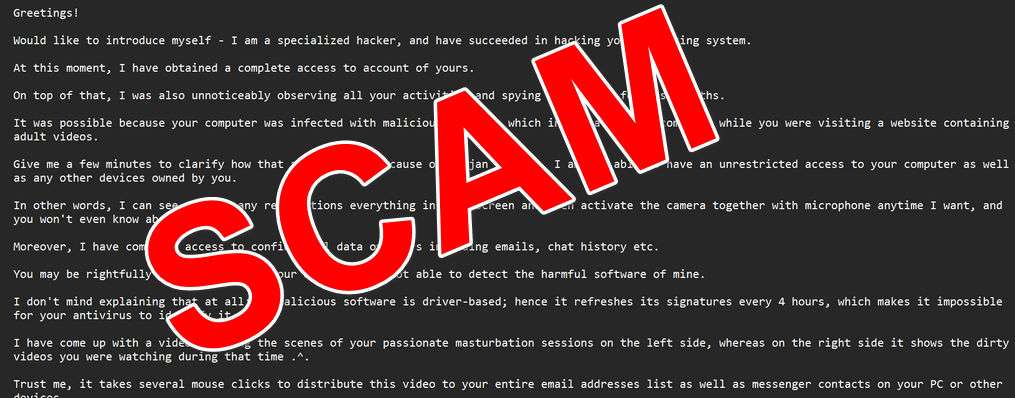
Here is how the scam email looks:
Subject: Your private information has been stolen because of suspicious events
Greetings!
Would like to introduce myself – I am a specialized hacker, and have succeeded in hacking your operating system.
At this moment, I have obtained a complete access to account of yours.
On top of that, I was also unnoticeably observing all your activities and spying on you for few past months.
It was possible because your computer was infected with malicious spyware, which infiltrated your computer while you were visiting a website containing adult videos.
Give me a few minutes to clarify how that affects you. Because of Trojan viruses, I am now able to have an unrestricted access to your computer as well as any other devices owned by you.
In other words, I can see without any restrictions everything in your screen and even activate the camera together with microphone anytime I want, and you won’t even know about that.
Moreover, I have complete access to confidential data of yours including emails, chat history etc.
You may be rightfully puzzled how come your antivirus is not able to detect the harmful software of mine.
I don’t mind explaining that at all: my malicious software is driver-based; hence it refreshes its signatures every 4 hours, which makes it impossible for your antivirus to identify it.
I have come up with a video exposing the scenes of your passionate masturbation sessions on the left side, whereas on the right side it shows the dirty videos you were watching during that time .^.
Trust me, it takes several mouse clicks to distribute this video to your entire email addresses list as well as messenger contacts on your PC or other devices.
Additionally, I can easily share all your emails as well as chat history to public too.
I honestly think you would certainly like to abstain from letting that happen.
There is a solution for you in this case – perform 950 USD transfer in Bitcoin equivalent to Bitcoin account of mine
(it is really not difficult to do, and you can find online the step-by-step guide, if you have no idea about it).
My bitcoin account details are below as follows (Bitcoin wallet):
Once the aforementioned amount gets transferred to my account, I will straight away erase all those kinky videos and vanish from your life completely.
Please, settle this payment within 50 hours (2 days).
A notification will be sent to me right after this email gets opened, which will trigger the countdown.
Believe me, I am very cautious, professional and never fail.
If I get to know about you sharing this message with anyone else, I will right away distribute your private videos to public.
Best of luck!
How The Scam Works
Here’s a step-by-step breakdown of how the “I Am A Specialized Hacker” scam operates:
Step 1: Obtaining Email Addresses and Passwords
The scammer starts by acquiring a list of email addresses and associated passwords, often from data breaches of websites with weak security. They may purchase these lists on the dark web or hacker forums. The passwords are usually old and no longer valid, but their inclusion adds a false sense of legitimacy to the scam email.
Step 2: Crafting the Scam Email
Using the obtained email addresses, the scammer composes a threatening email designed to scare the recipient into believing they’ve been hacked. The email follows a general template but may include minor variations to avoid spam filters.
Key elements of the email include: – Introducing the sender as a “specialized hacker” who has compromised the recipient’s device – Claiming to have had unrestricted access to the device for months, monitoring activities and recording intimate moments – Asserting that the recipient’s antivirus failed to detect the malware due to frequent signature updates – Threatening to share compromising videos and private information with the victim’s contacts and online – Demanding a ransom payment in Bitcoin within a short time frame to prevent the release of information
Step 3: Including “Proof” of Compromise
To make the scam more convincing, the email often includes a password or partial password associated with the victim’s email address. This information is usually obtained from old data breaches and is no longer current. However, seeing a recognizable password can cause alarm and make the victim more likely to believe the hacker’s claims.
Step 4: Sending Mass Emails
Using automated tools, the scammer sends out the crafted email to thousands of recipients simultaneously. By targeting a large number of people, they increase the odds that at least some will fall for the scam and pay the ransom out of fear, even if the claims are false.
Step 5: Collecting Ransom Payments
For victims who fall for the scam and decide to pay, the email provides a Bitcoin wallet address where the ransom should be sent. Bitcoin is often the preferred payment method for scammers because it provides a high level of anonymity and is difficult to trace.
Step 6: Disappearing Without Fulfilling Promises
After receiving the ransom payment, the scammer simply moves on to the next batch of victims. They have no intention of actually erasing any data or videos, as they never had access to the victim’s device or private information in the first place. The scammer continues this cycle, raking in money from frightened victims.
What to Do If You’ve Fallen Victim to This Scam
If you’ve received the “I Am A Specialized Hacker” scam email and are worried about your privacy and security, here are some steps you can take:
1. Don’t panic. Remember that these emails are sent en masse, and the scammer likely has no actual access to your device or private information.
2. Do not reply to the email or attempt to contact the scammer. Engaging with them may only result in more threats and demands.
3. Do not pay the ransom. Paying will only encourage the scammer to continue their malicious activities and target more victims. There’s no guarantee they will follow through on their promises, and you’ll likely never hear from them again once they receive the payment.
4. Change your passwords, especially if the email includes an old password you’ve used in the past. Make sure to use strong, unique passwords for each of your accounts and enable two-factor authentication whenever possible.
5. Run a thorough scan of your device with updated antivirus software to check for any actual malware infections. Keep your software and operating system up to date with the latest security patches.
6. If you’re still concerned about your privacy, you can cover your device’s camera when not in use and be cautious about the websites you visit and the links you click on.
7. Report the scam email to your email provider and mark it as spam to help protect others from falling victim. You can also file a report with the Federal Trade Commission (FTC) or your local law enforcement agency.
8. Educate yourself and others about online scams and the importance of maintaining good cybersecurity practices. Stay informed about the latest threats and share your knowledge to help create a safer online environment for everyone.
Is Your Device Infected? Run a Free Malware Scan
Slow performance, constant pop-ups, or strange behavior? These are classic signs of a malware infection. The fastest way to find out is to scan your device with Malwarebytes Anti-Malware Free — one of the most trusted malware removal tools available.
The free version detects and removes the most common threats, including:
Adware — the cause of those annoying pop-ups
Browser hijackers — unwanted redirects and changed homepages
Trojans and spyware — hidden programs stealing your data
Potentially unwanted programs (PUPs) — software you never asked for
👉 Select your device below — Windows, Mac, or Android — then follow the simple steps to download Malwarebytes, scan your system, and remove any threats it finds. The whole process takes about 5 minutes.
Malwarebytes for WindowsMalwarebytes for MacMalwarebytes for Android
Run a Malware Scan with Malwarebytes for Windows
Malwarebytes is one of the most popular and trusted anti-malware tools for Windows — and it’s completely free for removing infections. It catches threats that many antivirus programs miss, including adware, browser hijackers, and trojans. Follow the steps below to scan and clean your PC in just a few minutes.
Download Malwarebytes
Click the button below to download the latest version of Malwarebytes for Windows from the official source. The free version is all you need — it will scan your computer and remove adware, browser hijackers, and other malicious software at no cost.
(The link opens in a new page where your download will start)
Install Malwarebytes
When the download finishes, open your Downloads folder and double-click the MBSetup file. If Windows shows a User Account Control pop-up, click “Yes” to allow the installation.
Follow the On-Screen Prompts to Install Malwarebytes
The setup wizard will walk you through a few quick screens:
Choose where you’re installing the program — “Personal Computer” or “Work Computer” — then click Next.
Malwarebytes will now install on your device. This usually takes under a minute.
When installation is complete, the “Welcome to Malwarebytes” screen will open automatically.
On the final screen, click Open Malwarebytes to launch the program.
Enable “Scan for Rootkits”
Before scanning, turn on rootkit detection so Malwarebytes can find even the most hidden threats. Click the Settings gear icon on the left side of the screen.
In the settings menu, find “Scan for rootkits” and click the toggle so it turns blue.
Done? Click “Dashboard” in the left pane to return to the main screen.
Start the Scan
Click the blue Scan button. Malwarebytes will automatically update its virus database and start checking your computer for malware.
Wait for the Scan to Finish
The scan checks your entire system for browser hijackers and other malicious programs, so it can take several minutes. Feel free to do something else — just check back occasionally to see the progress.
Quarantine the Detected Threats
When the scan is done, you’ll see a list of everything Malwarebytes found — malware, adware, and potentially unwanted programs. Click the “Quarantine” button to remove all of them at once.
Malwarebytes will now remove the malicious files and registry entries and move them safely into quarantine.
Restart Your Computer
Some threats can only be fully removed after a reboot. If Malwarebytes asks you to restart, click Yes. Once you’re logged back in, your PC is clean and you can continue with the next steps in this guide.
When the scan finishes, click Quarantine to remove everything Malwarebytes found. That’s it — your Windows PC is now clean of trojans, adware, and other malware, and should be back to running smoothly.
If your current antivirus allowed this malicious program on your computer, you may want to consider purchasing Malwarebytes Premium to protect against these types of threats in the future. If you are still having problems with your computer after completing these instructions, then please follow one of the steps:
Malwarebytes for Mac is a free on-demand scanner that removes the malware other security software tends to miss — adware, browser hijackers, and unwanted programs included. Cleaning an infected Mac with Malwarebytes has always been completely free, and it’s our go-to recommendation. Follow the steps below to scan and clean your Mac in just a few minutes.
Download Malwarebytes for Mac
Click the button below to download the latest version of Malwarebytes for Mac.
When the download finishes, open your Downloads folder and double-click the setup file to begin the installation.
Follow the On-Screen Prompts to Install Malwarebytes
The Malwarebytes for Mac Installer will guide you through a few quick screens. Click “Continue” and keep following the prompts until the installation completes.
When the installation is complete, Malwarebytes opens to the Welcome to Malwarebytes screen. Click “Get started“.
Select “Personal Computer” or “Work Computer”
Malwarebytes will ask what type of computer you’re installing it on. Click either Personal Computer or Work Computer, whichever applies.
Start the Scan
Click the “Scan” button. Malwarebytes will automatically update its detection database and begin checking your Mac for malware.
Wait for the Scan to Finish
Malwarebytes will scan your Mac for adware, browser hijackers, and other malicious programs. This can take a few minutes, so feel free to do something else — just check back occasionally to see the progress.
Quarantine the Detected Threats
When the scan is done, you’ll see a list of everything Malwarebytes found. Click the “Quarantine” button to remove all the threats at once.
Restart Your Mac
Malwarebytes will now remove all the malicious files it found. Some threats can only be fully removed after a reboot — if Malwarebytes asks you to restart, allow it. Once you’re logged back in, your Mac is clean.
Once the scan is done, remove every threat it detected. Your Mac is now free of adware, rogue browser extensions, and other potentially harmful software.
If your current antivirus allowed a malicious program on your computer, you might want to consider purchasing the full-featured version of Malwarebytes Anti-Malware to protect against these types of threats in the future. If you are still experiencing problems while trying to remove a malicious program from your computer, please ask for help in our Mac Malware Removal Help & Support forum.
Run a Malware Scan with Malwarebytes for Android
Malwarebytes for Android automatically detects and removes dangerous threats like malware and ransomware so you don’t have to worry about your most-used device being compromised. Aggressive detection of adware and potentially unwanted programs keeps your Android phone or tablet running smooth.
Download Malwarebytes for Android.
You can download Malwarebytes for Android by clicking the link below.
In the Google Play Store, tap “Install” to install Malwarebytes for Android on your device.
When the installation process has finished, tap “Open” to begin using Malwarebytes for Android. You can also open Malwarebytes by tapping on its icon in your phone menu or home screen.
Follow the on-screen prompts to complete the setup process
When Malwarebytes will open, you will see the Malwarebytes Setup Wizard which will guide you through a series of permissions and other setup options. This is the first of two screens that explain the difference between the Premium and Free versions. Swipe this screen to continue. Tap on “Got it” to proceed to the next step. Malwarebytes for Android will now ask for a set of permissions that are required to scan your device and protect it from malware. Tap on “Give permission” to continue. Tap on “Allow” to permit Malwarebytes to access the files on your phone.
Update database and run a scan with Malwarebytes for Android
You will now be prompted to update the Malwarebytes database and run a full system scan.
Click on “Update database” to update the Malwarebytes for Android definitions to the latest version, then click on “Run full scan” to perform a system scan.
Wait for the Malwarebytes scan to complete.
Malwarebytes will now start scanning your phone for adware and other malicious apps. This process can take a few minutes, so we suggest you do something else and periodically check on the status of the scan to see when it is finished.
Click on “Remove Selected”.
When the scan has been completed, you will be presented with a screen showing the malware infections that Malwarebytes for Android has detected. To remove the malicious apps that Malwarebytes has found, tap on the “Remove Selected” button.
Restart your phone.
Malwarebytes for Android will now remove all the malicious apps that it has found. To complete the malware removal process, Malwarebytes may ask you to restart your device.
After the scan, tap Remove Selected to delete all detected threats. Your Android phone is now clean — no more malicious apps, adware, or browser redirects.
If your current antivirus allowed a malicious app on your phone, you may want to consider purchasing the full-featured version of Malwarebytes to protect against these types of threats in the future. If you are still having problems with your phone after completing these instructions, then please follow one of the steps:
Restore your phone to factory settings by going to Settings > General management > Reset > Factory data reset.
Now that your device is clean, keep it that way. Most infections start with a malicious ad or a fake download button — so blocking them at the source is your best defense.
We recommend AdGuard, which blocks malicious ads, phishing pages, and dangerous redirects before they can reach you.
Frequently Asked Questions (FAQ) About the “I Am A Specialized Hacker” Email Scam
1. Is this scam email legitimate? Has my computer really been hacked?
No, the “I Am A Specialized Hacker” email is a scam and not a legitimate threat. The scammer has not actually hacked your computer or accessed your private information. They are using scare tactics and false claims to trick you into paying a ransom.
2. How did the scammer get my password?
The scammer likely obtained your email address and an old password from a data breach on another website. They include this information to make their claims seem more credible, but it does not mean they have actually hacked your current accounts.
3. Should I pay the ransom to protect my privacy?
No, do not pay the ransom under any circumstances. Paying will only encourage the scammer to continue their malicious activities and target more victims. There is no guarantee that they will follow through on their promises to delete your data, as they likely never had access to it in the first place.
4. What should I do if I receive this scam email?
If you receive the “I Am A Specialized Hacker” scam email, do not panic or respond to the scammer. Change your passwords, especially if the email includes an old one you’ve used before. Run a thorough scan of your device with updated antivirus software, and report the email to your email provider and relevant authorities.
5. Can the scammer really access my camera and microphone?
It is highly unlikely that the scammer has gained access to your camera and microphone through this email scam. However, if you are concerned about your privacy, you can cover your device’s camera when not in use and be cautious about the websites you visit and the software you install.
6. I’m still worried about my online security. What else can I do?
To further protect your online security, make sure to use strong, unique passwords for each of your accounts and enable two-factor authentication whenever possible. Keep your software and operating system updated with the latest security patches, and be cautious when clicking on links or downloading attachments from unknown sources.
7. How can I help protect others from falling victim to this scam?
You can help protect others by reporting the scam email to your email provider and marking it as spam. Share your knowledge about online scams with your friends, family, and colleagues, and encourage them to maintain good cybersecurity practices. If you have fallen victim to this scam, consider sharing your experience to raise awareness and prevent others from making the same mistake.
The Bottom Line
The “I Am A Specialized Hacker” email scam is a distressing but ultimately hollow threat designed to prey on people’s fears and extort money. By understanding how this scam works and taking appropriate precautions, you can protect yourself and your loved ones from falling victim to these malicious tactics.
Remember, scammers rely on fear and panic to cloud people’s judgment and make rash decisions. By staying calm, informed, and proactive, you can maintain control of your online security and privacy. Trust your instincts, and don’t let scammers manipulate you into giving away your hard-earned money or personal information.
If you receive this or any other suspicious email, take a moment to assess the situation rationally and follow the steps outlined above. Together, we can fight back against these scams and create a safer, more trustworthy online environment for everyone.
10 Rules to Avoid Online Scams
Here are 10 practical safety rules to help you avoid malware, online shopping scams, crypto scams, and other online fraud. Each tip includes a quick “if you already got hit” action.
Stop and verify before you click, log in, download, or pay.
Most scams win by creating urgency. Verify using a trusted method: type the website address yourself, use the official app, or call a known number (not the one in the message).
If you already clicked: close the page, do not enter passwords, and run a malware scan.
Keep your operating system, browser, and apps updated.
Updates patch security holes used by malware and malicious ads. Turn on automatic updates where possible.
If you saw a scary “update now” pop-up: close it and update only through your device settings or the official app store.
Use layered protection: antivirus plus an ad blocker.
Antivirus helps block malware. An ad blocker reduces scam redirects, phishing pages, and malvertising.
If your browser is acting weird: remove unknown extensions, reset the browser, then run a full scan.
Install apps, software, and extensions only from official sources.
Avoid cracked software, “keygens,” and random downloads. During installs, choose Custom/Advanced and decline bundled offers you do not recognize.
If you already installed something suspicious: uninstall it, restart, and scan again.
Treat links and attachments as untrusted by default.
Phishing often impersonates delivery services, banks, and popular brands. If it is unexpected, do not open attachments or log in through the message.
If you entered credentials: change the password immediately and enable 2FA.
Shop safely: research the store, then pay with protection.
Be cautious with brand-new stores, “closing sale” stories, and prices that make no sense. Prefer credit cards or PayPal for dispute options. Avoid wire transfers, gift cards, and crypto payments.
If you already paid: contact your card issuer or PayPal quickly to dispute the transaction.
Crypto rule: never pay a “fee” to withdraw or recover money.
Common patterns include fake profits, then “tax,” “gas,” or “verification” fees. Another is a “recovery agent” who demands upfront crypto.
If you already sent crypto: stop paying, save evidence (wallet addresses, TXIDs, chats), and report the scam to the platform used.
Secure your accounts with unique passwords and 2FA (start with email).
Use a password manager and unique passwords for every account. Enable 2FA using an authenticator app when possible.
If you suspect an account takeover: change passwords, sign out of all devices, and review recent logins and recovery settings.
Back up important files and keep one backup offline.
Backups protect you from ransomware and device failure. Keep at least one backup on an external drive that is not always connected.
If you suspect infection: do not connect backup drives until the system is clean.
If you think you are a victim: stop losses, document evidence, and escalate fast.
Move quickly. Speed matters for disputes, account recovery, and limiting damage.
Stop payments and contact: do not send more money or respond to the scammer.
Call your bank or card issuer: block transactions, replace the card if needed, and start a dispute or chargeback.
Secure your email first: change the email password, enable 2FA, and remove unfamiliar recovery options.
Secure other accounts: change passwords, enable 2FA, and log out of all sessions.
Scan your device: remove suspicious apps or extensions, then run a full malware scan.
Save evidence: screenshots, emails, order pages, tracking pages, wallet addresses, TXIDs, and chat logs.
Report it: to the payment provider, marketplace, social platform, exchange, or wallet service involved.
These rules are intentionally simple. Most online losses happen when decisions are rushed. Slow down, verify independently, and use payment methods and account controls that give you recourse.
Thomas is an expert at uncovering scams and providing in-depth reporting on cyber threats and online fraud. As an editor, he is dedicated to keeping readers informed on the latest developments in cybersecurity and tech.