

Have you received a suspicious text message that appears to be from Apple, warning of unauthorized charges or account activity? If so, you may be the target of a new and alarming scam that is duping Apple device owners out of hundreds or even thousands of dollars.
This article will provide an in-depth look at how the Apple Billing Approval Notice text scam works, who is behind it, and most importantly, how you can protect yourself
An Overview of the Scam That Is Targeting Apple Users
The scam starts with an official-looking text message that identifies itself as coming from Apple. The message will say that unusual activity or charges have been detected on your Apple ID, and urges you to call a provided phone number to speak with an “Apple representative” immediately.
Of course, the phone number does not actually belong to Apple. It routes victims to a call center run by scammers posing as Apple support. Their goal is to gain remote access to your device under the pretense of providing refunds, removing malware, or securing your account. Once connected, they can steal personal data, install malware, or trick you into buying gift cards and sharing the codes.
This scam is sometimes referred to as the Apple tech support scam, and it has rapidly spread in the last couple of years. Security experts have noted a sharp rise in the number of reports from victims. It is estimated that just in the United States alone, over $35 million has been stolen through these text-based scams.
Sadly, the people behind these scams are preying on concerned Apple users who simply want to protect their accounts and devices. However, as you’ll learn, these text messages are completely fake and any calls should be avoided.
Step-By-Step: How the Apple Billing Approval Scam Unfolds
The scammers execute this scam with a process designed to slowly gain a victim’s trust through misrepresentation and social engineering. Here is how the scam typically unfolds:
Step 1: Receiving the Fake Security Alert Text
The first step is the initial text message. It will appear to come from an Apple-related number or email address. The message sounds very urgent, warning of unusual charges or sign-in attempts.
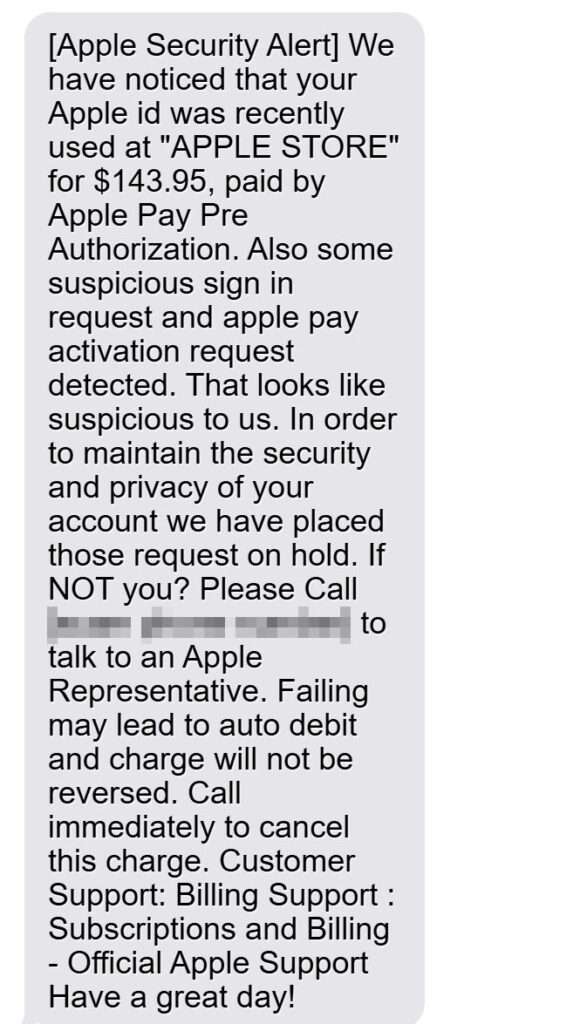
Here is an example:
[Apple Security Alert]
We have noticed that your Apple id was recently used at “APPLE STORE” for $143.95, paid by Apple Pay Pre Authorization. Also some suspicious sign in request and apple pay activation request detected. That looks like suspicious to us. In order to maintain the security and privacy of your account we have placed those request on hold. If NOT you? Please Call [scam phone number] to talk to an Apple Representative. Failing may lead to auto debit and charge will not be reversed. Call immediately to cancel this charge.
Customer Support:
Billing Support : Subscriptions and Billing – Official Apple Support
Have a great day!
The message goes on to say that you must call the provided number immediately to speak with Apple and potentially cancel fraudulent charges. Of course, the number does not go to Apple at all.
Step 2: Calling the Fake Support Number
Concerned victims will call the number, believing they will speak to Apple support. However, the number actually routes to a scam call center, often located overseas.
When victims call, the scammers pose as Apple employees or support agents. They falsely claim that they need remote access to your device to fix the security issue and process refunds. This is where the real scam begins.
Step 3: Allowing Remote Access to Your Device
The “support agent” will ask you to download remote access software, such as AnyDesk or TeamViewer. They claim this will allow them to remotely connect to your device, assess the security issue, and process refunds.
This gives the scammers full access to your device, allowing them to steal data, install malware, or make changes to your accounts. No legitimate company will ever ask for this type of remote access.
Step 4: Entering Your Apple ID Password
In some cases, the scammers will convince victims to voluntarily share their Apple ID password. They may claim they need to “validate your account” as part of the security process.
Sharing passwords gives the scammers full control to steal money from Apple accounts linked to credit cards or debit cards. Never share your passwords with unsolicited callers.
Step 5: Purchasing Gift Cards for the “Refund”
One of the most common goals of the scammers is to trick victims into buying Apple gift cards to pay for a refund or fix security issues. The scammers will ask for the gift card numbers and PINs, which allows them to steal the funds.
Legitimate companies will never ask you to pay with gift cards. This is a huge red flag.
What to Do If You Get a Suspicious Text Claiming to Be From Apple
If you receive a text message that claims to be from Apple and asks you to call a number regarding unauthorized charges, here are important steps to take:
- Do not call the number – Any number provided in one of these text scams does not actually go to Apple. Calling it will connect you to scammers.
- Contact Apple directly – Use Apple’s official customer support numbers, which can be found on their website. Ask them to confirm whether the text was legitimate.
- Beware requests for remote access – Apple will never proactively reach out to ask for remote access to your device. This is a scam tactic.
- Never share passwords or gift cards – Apple will not ask for your password or for payment via gift cards to solve security issues.
- Watch for urgent wording – Text scams often use urgent wording, threatening account suspension or charges. Be suspicious.
- Report scam texts – Forward scam text messages to 7726 (SPAM) to report them to your cell provider.
Who Is Behind the Apple Billing Approval Scams?
These Apple tech support scams are being orchestrated by organized criminal networks, often based overseas in countries like India.
Scammers will set up complex call center operations designed to mimic legitimate customer support. The criminals involved in the scams typically:
- Spoof domestic numbers – Scammers use VoIP and spoofing technology to display numbers with local area codes, building trust.
- Purchase user data on the black market – Your name, email address, and other personal info may have been purchased on the dark web.
- Create multiple fake identities – Scammers involved in these calls will regularly change their names and backstories when speaking to victims.
- Use social engineering tactics – Scammers are trained in psychological tactics to build trust and talk victims into giving remote access or passwords.
- Route calls overseas – Even when scammers use domestic numbers, they route calls to international fraud centers before connecting victims.
- Operate with scripts – Call center scammers work off pre-written scripts and dialogue trees to imitate Apple support calls.
- Evade authorities – Scam centers hide behind shell companies and regularly relocate to new sites to avoid legal crackdowns.
In short, these criminal networks are sophisticated, well-funded, and very difficult for authorities to permanently shut down. Staying vigilant is key.
Expert Tips: How to Avoid Falling Victim to the Apple Billing Scam
While these scams can seem convincing, there are ways to protect yourself and avoid being manipulated:
- Know the warning signs – Urgent wording, threats of account suspension, requests for immediate payment, and unsolicited calls/texts are red flags.
- Never call unsolicited numbers – Only call numbers listed directly on Apple’s website, never numbers provided in suspicious texts.
- Don’t trust caller ID – Scammers spoof official-looking numbers. Verify the number independently with Apple.
- Refuse remote access – Don’t allow callers claiming to be Apple support to remotely connect to your device. Real Apple support will never do this.
- Guard account details – Do not share your Apple ID password with any unsolicited callers or as part of an unexpected “verification” process.
- Avoid gift card payments – iTunes gift cards are for your personal use only. Scammers pressure victims into buying cards and giving them the codes.
- Hang up – If a caller seems suspicious, don’t engage. Simply hang up and call Apple directly to verify.
Is Your Device Infected? Run a Free Malware Scan
Slow performance, constant pop-ups, or strange behavior? These are classic signs of a malware infection. The fastest way to find out is to scan your device with Malwarebytes Free — one of the most trusted malware removal tools available.
The free version detects and removes the most common threats, including:
- Adware — the cause of those annoying pop-ups
- Browser hijackers — unwanted redirects and changed homepages
- Trojans and spyware — hidden programs stealing your data
- Potentially unwanted programs (PUPs) — software you never asked for
👉 Select your device below — Windows, Mac, or Android — then follow the simple steps to download Malwarebytes, scan your system, and remove any threats it finds. The scan usually takes 5 to 20 minutes.
Run a Malware Scan with Malwarebytes for Windows
Malwarebytes is one of the most popular and trusted anti-malware tools for Windows — and it’s completely free for removing infections. It catches threats that many antivirus programs miss, including adware, browser hijackers, and trojans. Follow the steps below to scan and clean your PC in just a few minutes.
Download Malwarebytes
Click the button below to download the latest version of Malwarebytes for Windows from the official source. The free version is all you need — it will scan your computer and remove adware, browser hijackers, and other malicious software at no cost.
Download MalwarebytesOfficial installer for Windows 11 and 10. Your download starts right away.Want real-time protection? See Malwarebytes Premium Malwarebytes Free for WindowsScans and removes malware at no cost
-
Install Malwarebytes
When the download finishes, open your Downloads folder and double-click the MBSetup file. If Windows shows a User Account Control pop-up, click “Yes” to allow the installation.

Follow the On-Screen Prompts to Install Malwarebytes
The setup wizard will walk you through a few quick screens:
-
Choose where you’re installing the program — “Personal Computer” or “Work Computer” — then click Next.

-
Malwarebytes will now install on your device. This usually takes under a minute.

-
When installation is complete, the “Welcome to Malwarebytes” screen will open automatically.

-
On the final screen, click Open Malwarebytes to launch the program.

-
Enable “Scan for Rootkits”
Before scanning, turn on rootkit detection so Malwarebytes can find even the most hidden threats. Click the Settings gear icon on the left side of the screen.

In the settings menu, find “Scan for rootkits” and click the toggle so it turns blue.

Done? Click “Dashboard” in the left pane to return to the main screen.
Start the Scan
Click the blue Scan button. Malwarebytes will automatically update its virus database and start checking your computer for malware.

-
Wait for the Scan to Finish
The scan checks your entire system for browser hijackers and other malicious programs, so it can take 5 to 20 minutes depending on your computer. Feel free to do something else — just check back occasionally to see the progress.

-
Quarantine the Detected Threats
When the scan is done, you’ll see a list of everything Malwarebytes found — malware, adware, and potentially unwanted programs. Click the “Quarantine” button to remove all of them at once.

Malwarebytes will now remove the malicious files and registry entries and move them safely into quarantine.

-
Restart Your Computer
Some threats can only be fully removed after a reboot. If Malwarebytes asks you to restart, click Yes. Once you’re logged back in, Malwarebytes has finished removing the threats it found.

That’s it — your Windows PC is now clean of trojans, adware, and other malware, and should be back to running smoothly.
If you are still having problems with your computer after completing these instructions, then please follow one of the steps:
- Run a computer scan with ESET Online Scanner
- Ask for help in our Windows Malware Removal Help & Support forum.
Run a Malware Scan with Malwarebytes for Mac
Malwarebytes for Mac is a free on-demand scanner that removes the malware other security software tends to miss — adware, browser hijackers, and unwanted programs included. Cleaning an infected Mac with Malwarebytes has always been completely free, and it’s our go-to recommendation. Follow the steps below to scan and clean your Mac in just a few minutes.
-
Download Malwarebytes for Mac
Click the button below to download the latest version of Malwarebytes for Mac.
Download MalwarebytesOfficial installer for macOS. Your download starts right away.Want real-time protection? See Malwarebytes PremiumMalwarebytes Free for MacScans and removes malware at no cost -
Open the Malwarebytes setup file
When the download finishes, open your Downloads folder and double-click the setup file to begin the installation.

-
Follow the On-Screen Prompts to Install Malwarebytes
The Malwarebytes for Mac Installer will guide you through a few quick screens. Click “Continue” and keep following the prompts until the installation completes.



When the installation is complete, Malwarebytes opens to the Welcome to Malwarebytes screen. Click “Get started“.
-
Select “Personal Computer” or “Work Computer”
Malwarebytes will ask what type of computer you’re installing it on. Click either Personal Computer or Work Computer, whichever applies.

-
Start the Scan
Click the “Scan” button. Malwarebytes will automatically update its detection database and begin checking your Mac for malware.

-
Wait for the Scan to Finish
Malwarebytes will scan your Mac for adware, browser hijackers, and other malicious programs. This can take a few minutes, so feel free to do something else — just check back occasionally to see the progress.

-
Quarantine the Detected Threats
When the scan is done, you’ll see a list of everything Malwarebytes found. Click the “Quarantine” button to remove all the threats at once.

-
Restart Your Mac
Malwarebytes will now remove all the malicious files it found. Some threats can only be fully removed after a reboot — if Malwarebytes asks you to restart, allow it. Once you’re logged back in, your Mac is clean.

That’s it — your Mac is now free of adware, rogue browser extensions, and other potentially harmful software.
If you are still experiencing problems while trying to remove a malicious program from your computer, please ask for help in our Mac Malware Removal Help & Support forum.
Run a Malware Scan with Malwarebytes for Android
Malwarebytes for Android automatically detects and removes dangerous threats like malware and ransomware so you don’t have to worry about your most-used device being compromised. Aggressive detection of adware and potentially unwanted programs keeps your Android phone or tablet running smooth.
-
Download Malwarebytes for Android.
You can download Malwarebytes for Android by clicking the link below.
Get Malwarebytes for AndroidOpens Google Play in a new tab.Want real-time protection? See Malwarebytes Premium for AndroidMalwarebytes for AndroidScans your phone and removes malware at no cost -
Install Malwarebytes for Android on your phone.
In the Google Play Store, tap “Install” to install Malwarebytes for Android on your device.

When the installation process has finished, tap “Open” to begin using Malwarebytes for Android. You can also open Malwarebytes by tapping on its icon in your phone menu or home screen.

-
Follow the on-screen prompts to complete the setup process
When Malwarebytes will open, you will see the Malwarebytes Setup Wizard which will guide you through a series of permissions and other setup options.
This is the first of two screens that explain the difference between the Premium and Free versions. Swipe this screen to continue.
Tap on “Got it” to proceed to the next step.
Malwarebytes for Android will now ask for a set of permissions that are required to scan your device and protect it from malware. Tap on “Give permission” to continue.
Tap on “Allow” to permit Malwarebytes to access the files on your phone.
-
Update database and run a scan with Malwarebytes for Android
You will now be prompted to update the Malwarebytes database and run a full system scan.

Click on “Update database” to update the Malwarebytes for Android definitions to the latest version, then click on “Run full scan” to perform a system scan.

-
Wait for the Malwarebytes scan to complete.
Malwarebytes will now start scanning your phone for adware and other malicious apps. This process can take a few minutes, so we suggest you do something else and periodically check on the status of the scan to see when it is finished.

-
Click on “Remove Selected”.
When the scan has been completed, you will be presented with a screen showing the malware infections that Malwarebytes for Android has detected. To remove the malicious apps that Malwarebytes has found, tap on the “Remove Selected” button.

-
Restart your phone.
Malwarebytes for Android will now remove all the malicious apps that it has found. To complete the malware removal process, Malwarebytes may ask you to restart your device.
That’s it — your Android phone is now clean — no more malicious apps, adware, or browser redirects.
If you are still having problems with your phone after completing these instructions, then please follow one of the steps:
- Restore your phone to factory settings by going to Settings > General management > Reset > Factory data reset.
- Ask for help in our Mobile Malware Removal Help & Support forum.
Stay Protected: Block Ads and Malicious Sites
Now that your device is clean, keep it that way. Most infections start with a malicious ad or a fake download button — so blocking them at the source is your best defense.
We recommend AdGuard, which blocks malicious ads, phishing pages, and dangerous redirects before they can reach you.
👉 Download AdGuard and browse safely
Frequently Asked Questions About the Apple Billing Approval Text Scam
1. How does the Apple billing approval text scam work?
The scam starts with a text message that appears to come from Apple. It warns of unauthorized charges or account activity, and provides a number to call. However, the number routes to scammers posing as Apple support. They gain remote access to devices or trick victims into buying gift cards under the pretense of providing refunds or account security.
2. What are some examples of the text messages victims receive?
The texts often mention suspicious charges made with Apple Pay or sign-in attempts. They may say something like:
“
[Apple Security Alert]
We have noticed that your Apple id was recently used at “APPLE STORE” for $143.95, paid by Apple Pay Pre Authorization. Also some suspicious sign in request and apple pay activation request detected. That looks like suspicious to us. In order to maintain the security and privacy of your account we have placed those request on hold. If NOT you? Please Call [scam phone number] to talk to an Apple Representative. Failing may lead to auto debit and charge will not be reversed. Call immediately to cancel this charge.
Customer Support:
Billing Support : Subscriptions and Billing – Official Apple Support
Have a great day!
“
The texts urge victims to call before their account is compromised or suspended. Of course, the number goes to scammers, not real Apple support.
3. What happens when victims call the number in the text?
The number leads to a scam call center where criminals pose as Apple support agents. They claim remote access to your device is needed to provide refunds or stop hackers. This allows them to install spyware, steal data, or gain account access.
4. Will Apple tech support ever ask for remote access?
No. Apple will never proactively contact you asking for remote access to your device or account. Any call or text requesting this type of access is always a scam attempt.
5. How can I tell if a call from Apple support is fake?
Warning signs of a scam call include urgent demands to call a provided number, threats that your account will be deactivated, requests for payment via gift cards, or any request for your Apple ID password or device passwords.
6. What’s the goal behind the Apple billing approval text scam?
The main goals are to gain remote access to devices in order to steal personal data and install spyware, take over Apple accounts to make fraudulent charges, or trick victims into buying gift cards and sharing the codes.
7. Should I call or text the number provided in one of these scam messages?
No, you should never call, text, or otherwise engage with the phone number provided in these text scams. The numbers are controlled by scammers. Contact Apple directly through official support channels to verify if a message was real.
8. How can I report a scam text message that claims to be from Apple?
You can report scam text messages by forwarding them to 7726 (SPAM). This allows your phone carrier to investigate and potentially block the senders. You can also report the scam to Apple and the FTC to help warn others.
9. How can I protect myself from the Apple billing approval text scam?
Avoid calling numbers in suspicious texts, don’t provide any account details or passwords, refuse requests for remote access, never buy gift cards for an alleged refund, and report scam messages. Contact Apple directly if you are unsure about a message.
The Bottom Line
The Apple Billing Approval Notice text scam is growing rapidly and can result in thousands of dollars in losses if users fall for it. The best way to avoid being a victim is to know the warning signs, never call numbers provided in suspicious texts, and refuse any form of remote access or gift card demands.
Being skeptical of all unsolicited calls and texts, guarding your personal information, and contacting Apple independently can help you steer clear of these criminal scammers. Share this information to help warn family and friends before they can be targeted.

Join the discussion
0 commentsShare your experience or ask a question about this article.
Discussion
Start the conversation
Have a question or something useful to share? Add the first comment.