

Apple Billing Support scam messages are fake fraud alerts sent by text and email to make you panic and call a phone number controlled by scammers.
They usually claim there was a suspicious Apple Pay charge, a billing problem, or unauthorized Apple ID activity. If you call, the scam can quickly turn into a fake tech support operation where criminals try to gain remote access to your device, steal account and banking information, and pressure you into sending money.
This is the same scam, whether it arrives as a text message or an email.
Scam Overview
What this scam is and why it keeps working
The Apple Billing Support scam is an impersonation scam built around urgency.
The message pretends to come from an Apple billing, fraud, or customer support department. It often includes a realistic charge amount, a fake case number, and language that sounds like a security review or payment verification notice.
The goal is not to help you fix anything.
The goal is to make you call the phone number in the message.
Once you call, the scammers take over the situation. They sound professional, they use support-style language, and they move the conversation from “billing issue” to “device security” or “fraud prevention” very quickly.
That shift is what makes this scam so dangerous.
A lot of people think they are only checking a charge. In reality, they are stepping into a fake support script designed to steal access, money, or both.
Why scammers use Apple as the brand
Apple is one of the most trusted consumer brands in the world.
Scammers know that people are more likely to respond to a message that mentions Apple Pay, Apple ID, App Store charges, or Apple billing support than a random unknown company.
They also know that many people already use:
- iPhones
- iPads
- MacBooks
- Apple Pay
- App Store subscriptions
- iCloud services
That makes the alert feel plausible, even if the details are fake.
The scam does not need perfect writing.
It only needs to sound believable enough for a stressed person to think, “I should call and fix this right now.”
The same scam appears in both texts and emails
This is not two separate scams.
It is one scam model delivered through different channels.
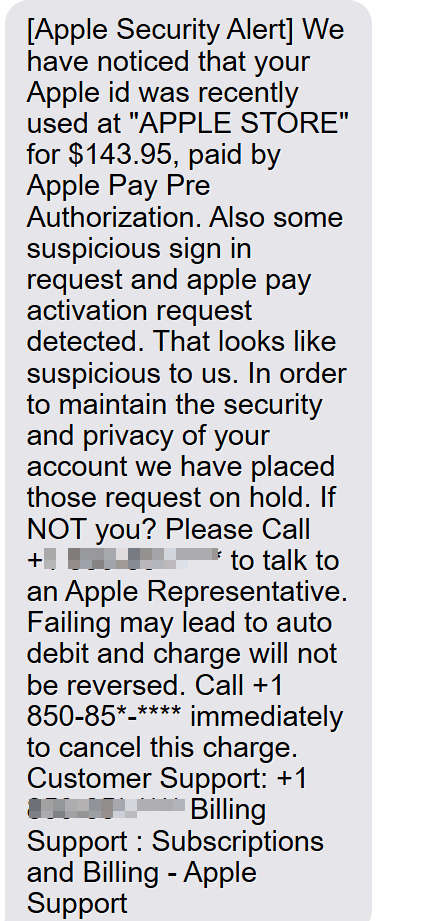
The text version usually looks shorter and more urgent. It may mention a suspicious charge and tell you to call immediately to stop an auto debit or cancel a transaction.
The email version often looks more formal. It may include a fake billing department label, a fake case ID, a timestamp, and a support number listed more than once.
In both versions, the script is the same:
- Claim there is a billing or fraud problem
- Create urgency
- Push you to call a number
- Move you into a fake support call
- Steal information or money
That is why it is important to treat Apple Billing Support texts and Apple Billing Support emails as part of the same fraud campaign.
Why these messages feel convincing at first glance
Scammers are not trying to write perfect corporate messages.
They are trying to trigger a quick emotional reaction.
They do that by combining four powerful tactics.
1) They use a specific dollar amount
A message that says “You were charged $623.00” or “$143.95” feels more real than a vague warning.
Specific amounts make people think there must be a real transaction record behind the alert.
This is a psychological tactic.
It pushes you to react before you verify.
2) They mention Apple Pay or Apple ID activity
Apple Pay and Apple ID both sound serious because they involve payment and account access.
If the message says there was an Apple Pay charge or suspicious Apple ID activity, many people assume their account may already be compromised.
That fear is exactly what the scammer wants.
3) They create a short deadline
Most scam messages include a time pressure element.
Examples include:
- “Call immediately to cancel”
- “Failing to respond may lead to auto debit”
- “Charge will be processed within 24 hours”
- “Account access may remain active until verified”
Urgency is not there to protect you.
It is there to stop you from slowing down and checking your real Apple account.
4) They give you a direct phone number
This is the most important part of the scam.
The scammer wants you to use their phone number, not an official support channel.
If you call the number in the message, they control everything that happens next.
That is why the phone number is the real trap.
Common red flags in Apple Billing Support scam texts and emails
These scam messages vary in layout and wording, but they often share the same warning signs.
If you know what to look for, they become much easier to spot.
They use odd wording or awkward phrasing
Many scam messages sound almost professional, but not quite.
They may include phrases like:
- “That looks suspicious to us”
- “Failing may lead to auto debit”
- “Your appointment has been booked” in a billing alert
- “Review or cancel during the appointment”
The layout may look polished, but the wording often feels off.
That mismatch is a strong red flag.
They mix billing, fraud, and tech support language in one message
Legitimate billing notifications are usually clear and focused.
Scam messages often blend multiple topics together:
- Payment processed
- Suspicious sign in
- Apple Pay activation
- Fraud lock
- Support escalation
- Billing cancellation
This is not normal customer communication.
It is a pressure script designed to hook more people.
If the billing angle does not scare you, the “security” angle might. If the security angle does not work, the “charge will not be reversed” line might.
They include fake details that sound technical
Scammers often add extra details to appear credible, such as:
- A timestamp
- A case ID
- A location
- A support department name
- A device or network detail
These details are there to create the illusion of a real system-generated notice.
In many cases, the details are inconsistent, generic, or obviously made up if you read carefully.
The scammer is counting on you not reading carefully.
They repeat the support number multiple times
This is very common in scam emails.
The number may appear in:
- The body text
- The support line
- The billing section
- The closing signature
That repetition is not about being helpful.
It is about increasing the chance that you call.
They tell you not to reply, but to call
A lot of scam emails end with something like “This is an automated message, please do not reply” and then push you to call a number.
That wording can make the message feel official.
It is another manipulation tactic.
The scammer wants to force the interaction into a live phone call because that is where they can apply pressure, improvise, and keep you engaged.
Why this is more than a fake billing alert
Many people assume the worst-case scenario is a fake charge.
The real danger is what happens after you call.
Apple Billing Support scams are often the front end of a larger fake tech support fraud. Once the caller has your attention, they may claim:
- Your iPhone is compromised
- Your Apple ID was accessed by a hacker
- Your computer has malware
- Your banking apps are at risk
- They need to secure your device before they can cancel the charge
This is where the scam escalates.
The billing alert is just the entry point.
The real objective is to get access to your device, your accounts, or your money.
How the scam harms victims
Victims can lose money in several different ways.
Not every case follows the exact same script, but the damage usually falls into one or more of these categories.
Account theft
The scammer may collect:
- Apple ID credentials
- Email passwords
- Verification codes
- Security answers
Once they have those, they may try to access other accounts, reset passwords, or lock the victim out.
Banking theft
If the scammer sees the victim log into online banking, or convinces the victim to “verify” payment details, they may steal:
- Bank login credentials
- Card details
- Account numbers
- One-time passcodes
Some scammers also trick victims into making transfers under the false claim that the money is being “secured.”
Remote device access
If the scammer gets the victim to install a remote access app, they may be able to:
- View the screen in real time
- Control the device
- Open websites
- Monitor typed information
- Change settings
- Install additional software
This can turn a simple phone scam into a much broader compromise.
Gift card fraud
Many Apple Billing Support scams end with a demand for gift cards.
The scammer may claim:
- A refund was issued incorrectly
- A payment needs to be “verified”
- The account must be “secured” temporarily
- A charge reversal requires an alternate method
Gift card requests are a clear sign of fraud.
Once the codes are shared, the money is usually gone.
Why smart people still fall for it
This scam does not work because people are careless.
It works because the message is designed to trigger normal human reactions.
People act quickly because they are trying to do the right thing:
- Protect their account
- Stop a charge
- Prevent identity theft
- Fix a billing problem
Scammers exploit that instinct.
They create a false emergency and then present themselves as the solution.
That is why the most effective defense is not technical. It is behavioral.
Never use the phone number or links in the alert.
If you want to verify a charge, go directly to your Apple account, Apple Pay history, or official support channels on your own.
The core pattern to remember
No matter how the message is styled, the pattern is usually the same:
- The message creates panic
- The phone number creates a trap
- The call creates false trust
- The scammer creates a bigger problem
- The victim is pushed into giving access or money
Once you understand that pattern, these scams become much easier to recognize.
It stops being “Maybe this is real.”
It becomes “This is another fake billing support setup trying to get me on the phone.”
How The Scam Works
Stage 1: You receive a fake Apple Billing Support text or email
The first contact usually looks like a fraud or billing alert.
The message may claim:
- A recent Apple Store charge was processed
- Apple Pay was used without authorization
- A payment is pending
- Your Apple ID was used from a new device
- A suspicious sign-in was detected
- Your transaction was placed on hold pending verification
At this stage, the scammer is not asking for passwords yet.
They are trying to trigger urgency and fear.
Most victims act because they do not want to risk an unauthorized charge, not because they fully trust the message.
That is exactly what the scammer is counting on.
Stage 2: The message pushes you to call immediately
This is the central action the scammer wants.
The message often includes a warning such as:
- “Call immediately to cancel”
- “Failure to respond may lead to auto debit”
- “Charge will not be reversed”
- “Transaction will be completed if no action is taken”
This language is designed to make waiting feel dangerous.
A lot of people think, “I will just call and confirm.” That feels reasonable in the moment.
But once you call the number in the message, you are no longer dealing with a billing alert. You are dealing with a live fraud operator.
Stage 3: A fake support agent answers and sounds professional
The person who answers usually sounds calm and trained.
They may introduce themselves as:
- Apple Billing Support
- Apple Fraud Prevention Team
- Apple Customer Billing Department
- Apple Account Security
- Senior Apple Technician
They often use a fake case number or ticket number to make the call sound official.
They may also thank you for “calling quickly” or say they are glad you reported the issue in time.
This is an important psychological move.
The scammer is trying to position themselves as your helper before they make any suspicious requests.
Stage 4: They ask a few basic questions to build trust
Before the scam becomes obvious, the caller often asks harmless-looking questions.
Examples include:
- Your name
- Phone number
- ZIP code
- Device type
- Whether you use Apple Pay
- Whether you use an iPhone, iPad, or Mac
- Whether you noticed any other suspicious activity
These questions serve two purposes.
First, they make the interaction feel like a normal support process.
Second, they help the scammer tailor the script to your situation.
If you mention a Mac, they may shift toward a computer security story. If you say you use Apple Pay often, they may push the billing fraud angle harder.
Stage 5: The scammer introduces a bigger “security problem”
This is where the scam usually changes from billing support to fake tech support.
The caller may say something like:
- “This charge is linked to a compromised Apple ID session”
- “Your device appears to be connected to suspicious activity”
- “Someone may have remote access to your phone or computer”
- “We need to secure your device before we can cancel the charge”
- “Your banking apps may be at risk”
This is not a real diagnosis.
It is a scripted escalation.
The scammer wants you scared enough to follow technical instructions without questioning them.
At this point, many victims are no longer focused on the original charge amount. They are focused on “Is my device hacked?”
That shift is intentional.
Stage 6: They ask you to install remote access software
This is one of the most dangerous moments in the scam.
The fake support agent may instruct you to install a remote access or screen-sharing tool such as:
- AnyDesk
- TeamViewer
- Another remote support app
They may explain it as a standard support procedure so they can:
- “Inspect your device”
- “Secure your Apple account”
- “Remove malicious access”
- “Process the cancellation”
- “Issue a refund”
Once the app is installed, they ask for the connection code or approval.
If you provide it, they may gain the ability to see your screen and control your device.
From the scammer’s point of view, this is the breakthrough.
They no longer need to guess. They can watch what you do in real time.
Stage 7: They use remote access to guide and manipulate you
After connecting, the scammer often moves fast and keeps talking.
They may open pages, direct you where to click, and instruct you to log into accounts “for verification.” The conversation is designed to keep you busy and prevent you from thinking clearly.
They may ask you to log into:
- Your Apple account
- Your email
- Your bank
- Your credit card account
- A payment app
Even if they do not directly type your passwords, they may watch you enter them.
Some scammers also use fake websites that look like billing portals or support pages. Others rely on real websites and simply observe everything during the remote session.
Either way, the goal is the same:
- Capture credentials
- Capture verification codes
- Capture financial details
Stage 8: They create a fake refund or cancellation process
A common script at this point is the fake refund setup.
The scammer tells you they canceled the suspicious charge and issued a refund. Then they claim something went wrong.
They might say:
- “The refund was processed for the wrong amount”
- “A decimal error happened”
- “The system credited too much”
- “You received a duplicate refund”
This is a lie, but it is a very effective one.
Now the scammer frames the situation as a problem you need to fix.
The victim goes from “I am trying to stop a charge” to “I need to send money back.”
That emotional switch is the reason the fake refund trick is used so often.
Stage 9: The payment demand begins
After the fake refund story, the scammer asks for repayment using methods that are hard to reverse.
Common demands include:
- Gift cards
- Bank transfers
- Wire transfers
- Cryptocurrency
- Payment apps
They may claim this is needed to:
- Reverse the refund error
- Verify your identity
- Secure the account
- Clear the billing hold
- Complete the fraud cancellation
None of this is legitimate.
It is simply the final stage of the theft.
Gift cards are especially common because they are easy to drain and difficult to recover. The scammer may stay on the phone while you go to a store, buy the cards, and read the codes aloud.
They often keep victims on the line to prevent them from talking to family, store employees, or bank staff who might interrupt the scam.
Stage 10: They may steal more than money
Even if the victim does not send money, the scammers may still walk away with valuable information.
During the call or remote session, they may collect:
- Apple ID credentials
- Email credentials
- Phone number
- Address
- Banking logins
- Card numbers
- One-time passcodes
- Photos of IDs or documents
- Device details
That information can be used later for:
- Account takeovers
- Password reset attempts
- Identity theft
- Follow-up scams
- Selling the victim’s data to other scam groups
This is why “I did not pay them” does not always mean no damage was done.
If you shared credentials or gave remote access, you still need to secure your accounts.
Stage 11: Follow-up calls and repeat attempts
Many victims get contacted again after the first scam attempt.
The follow-up caller may pretend to be:
- Apple escalation support
- A refund department
- Your bank’s fraud team
- A compliance officer
- A government agency
- A recovery service
The story changes, but the goal remains the same.
Sometimes the follow-up scam is even more dangerous because the scammer already knows details from the first call. They may reference your earlier “case” to sound legitimate.
Victims often think, “They know the case number, so they must be real.”
The case number is fake. It was created by the first scammer and shared with the second one.
Stage 12: Why the billing angle is so effective
The billing angle works because it gives the scammer a believable reason to start the call.
If the first message said “Your device is hacked,” many people would ignore it.
But if it says “Apple Store charge for $623.00” or “Apple Pay payment pending,” people respond faster because money feels immediate and measurable.
The billing message gets you on the phone.
The tech support story keeps you on the phone.
The refund or gift card demand takes your money.
That is the full funnel.
Stage 13: The exact wording changes, but the scam logic stays the same
Scammers constantly test different wording.
You may see variations like:
- Apple Billing Support
- Apple Fraud Prevention Team
- Apple Security Alert
- Apple Customer Billing Department
- Apple Account Services
They may change:
- The dollar amount
- The city
- The support number
- The case ID
- The warning language
None of that changes the underlying scam.
The logic is always the same:
- Create fear
- Push a phone call
- Build trust
- Claim a device or account problem
- Ask for remote access or credentials
- Demand money
When you recognize that sequence, you can spot the scam even if the wording looks new.
What To Do If You Have Fallen Victim to This Scam
If you interacted with the scam, do not panic.
You can still reduce the damage if you act quickly and in the right order.
Use the steps below based on what happened.
1) If you only received the message and did not call or click anything
This is the best-case scenario.
Take these steps:
- Do not reply to the text or email.
- Take a screenshot for your records.
- Block the number if it was a text.
- Mark the email as spam or phishing if it was an email.
- Delete the message after reporting it.
- Check your Apple account and payment history directly, only if you want peace of mind.
At this stage, the scammer has not gained access to anything unless you engage.
2) If you called the number but hung up early
You may have avoided the worst part, but stay alert.
Do this next:
- Block the number.
- Do not answer follow-up calls from unknown numbers.
- Ignore voicemails that reference the same “billing case.”
- Do not trust caller ID labels that mention Apple or billing support.
- Verify any real concerns by checking your Apple account yourself.
If you did not share information, your risk is much lower, but scammers may try to recontact you.
3) If you clicked a link in the email or text
Treat this as a possible phishing exposure.
Even if the page looked harmless, take these steps:
- Close the page immediately.
- Do not download anything.
- Do not enter any password or code.
- Check your device for unexpected downloads or apps.
- Run a security scan on your computer if you clicked from a laptop or desktop.
- Change your password right away if you entered it on the site.
If you entered a verification code on the site, treat your account as compromised and move to the next steps immediately.
4) If you gave your Apple ID password or verification code
This is urgent, but fixable if you move fast.
Do this immediately from a trusted device:
- Change your Apple ID password.
- Review devices signed into your Apple account.
- Remove any device you do not recognize.
- Review your recovery email and recovery phone number.
- Check your payment methods on the account.
- Review recent purchases and subscriptions.
- Change your email password too, especially if it is tied to your Apple account.
Why your email matters:
If scammers gain access to your email, they may use it to reset passwords for banking, shopping, and social media accounts.
5) If you reuse the same password on other accounts
This is a major risk after phishing and fake support scams.
If the password you shared is used anywhere else, change it everywhere.
Prioritize these accounts first:
- Main email account
- Banking and credit cards
- Payment apps
- Shopping accounts
- Social media
- Cell phone carrier account
Use a different password for each account going forward.
If one password gets exposed again, it will not unlock everything else.
6) If you installed AnyDesk or another remote access app
Treat your device as potentially compromised.
Take these steps right away:
- Disconnect the device from the internet.
- End any active remote session.
- Uninstall the remote access app.
- Restart the device.
- Check for new apps, extensions, or settings you did not approve.
- Run a full security scan.
- Change critical passwords from a different trusted device if possible.
If you are not comfortable doing this yourself, get help from a trusted local technician or someone you know, not a phone number from a pop-up, text, or email.
7) If you logged into your bank or card account during the call
Assume the scammer may have seen what you typed.
Do not wait for charges to appear.
Call your bank or card issuer using the number on the back of your card or from the official app. Tell them you may have been targeted by a fake billing support or remote access scam.
Ask them to:
- Monitor for fraud
- Replace cards if needed
- Add extra verification
- Review recent activity
- Flag the account for possible compromise
Be clear and direct.
You are not reporting a “maybe.” You are reporting a likely exposure.
8) If you sent money, gift cards, or payment app transfers
Act immediately. Time matters.
If you paid with gift cards
- Gather the receipts and card numbers.
- Contact the gift card issuer right away.
- Report that the cards were used in a scam.
- Ask if any balance can be frozen or recovered.
- Save all screenshots and call logs.
If you sent a bank transfer or wire
- Contact your bank immediately.
- Ask for fraud support.
- Request a transfer recall if possible.
- Ask them to flag the receiving account.
If you sent money through a payment app
- Report the payment as fraud inside the app.
- Contact app support directly.
- Save the transaction ID and screenshots.
Recovery is not guaranteed, but acting fast gives you the best chance.
9) If the scammers asked for documents or ID photos
Some Apple Billing Support scams eventually ask for identity verification documents.
If you sent anything like:
- Driver’s license
- Passport
- Utility bill
- Bank statement
- Social Security-related documents
Take identity theft risk seriously.
Next steps should include:
- Monitoring your financial accounts closely
- Watching for new account openings or suspicious mail
- Considering a fraud alert or credit freeze
- Keeping a timeline of what you sent and when
This type of information can be reused for future fraud even if no money was stolen on the first call.
10) Report the scam properly
Reporting matters because it helps flag numbers, message templates, and scam patterns.
At a minimum, report it to:
- Your email provider (mark as phishing)
- Your mobile carrier (report spam text)
- The FTC (ReportFraud)
- Apple phishing reporting channels
- The FBI IC3 if money was lost or sensitive data was exposed
When reporting, include:
- The phone number used by the scammer
- The text or email wording
- The date and time
- The amount they claimed
- Any names or departments they used
- Whether remote access software was involved
- Whether gift cards or transfers were requested
The more specific your report is, the more useful it becomes.
11) Save evidence before you delete everything
It is normal to want the message gone immediately.
Before deleting it, save the evidence.
Keep:
- Screenshots of the email or text
- Call logs
- Voicemails
- Remote access app names
- Payment receipts
- Gift card numbers and receipts
- Emails sent by the scammers
- Notes about what they said
This helps with reports, bank disputes, and future follow-up if needed.
12) Watch for follow-up scams
Victims of one scam are often targeted again.
The next caller may claim to be:
- A refund specialist
- A bank fraud investigator
- A cybersecurity consultant
- A recovery team
- A government representative
They may say they can help recover your money for a fee.
This is often another scam.
Be especially cautious if a caller already knows details about the first incident. That usually means your information has been shared among scammers.
13) Use a simple protection rule for the future
The best rule is simple and effective:
Never use the phone number or links in a billing or security alert message.
If you want to verify something, do it yourself:
- Open your Apple account directly
- Check your Apple Pay history in your wallet
- Check your bank statement
- Contact official support through the company website or app you open on your own
This one habit prevents most Apple Billing Support scams, even when the message looks convincing.
Is Your Device Infected? Run a Free Malware Scan
Slow performance, constant pop-ups, or strange behavior? These are classic signs of a malware infection. The fastest way to find out is to scan your device with Malwarebytes Free — one of the most trusted malware removal tools available.
The free version detects and removes the most common threats, including:
- Adware — the cause of those annoying pop-ups
- Browser hijackers — unwanted redirects and changed homepages
- Trojans and spyware — hidden programs stealing your data
- Potentially unwanted programs (PUPs) — software you never asked for
👉 Select your device below — Windows, Mac, or Android — then follow the simple steps to download Malwarebytes, scan your system, and remove any threats it finds. The scan usually takes 5 to 20 minutes.
Run a Malware Scan with Malwarebytes for Windows
Malwarebytes is one of the most popular and trusted anti-malware tools for Windows — and it’s completely free for removing infections. It catches threats that many antivirus programs miss, including adware, browser hijackers, and trojans. Follow the steps below to scan and clean your PC in just a few minutes.
Download Malwarebytes
Click the button below to download the latest version of Malwarebytes for Windows from the official source. The free version is all you need — it will scan your computer and remove adware, browser hijackers, and other malicious software at no cost.
Download MalwarebytesOfficial installer for Windows 11 and 10. Your download starts right away.Want real-time protection? See Malwarebytes Premium Malwarebytes Free for WindowsScans and removes malware at no cost
-
Install Malwarebytes
When the download finishes, open your Downloads folder and double-click the MBSetup file. If Windows shows a User Account Control pop-up, click “Yes” to allow the installation.

Follow the On-Screen Prompts to Install Malwarebytes
The setup wizard will walk you through a few quick screens:
-
Choose where you’re installing the program — “Personal Computer” or “Work Computer” — then click Next.

-
Malwarebytes will now install on your device. This usually takes under a minute.

-
When installation is complete, the “Welcome to Malwarebytes” screen will open automatically.

-
On the final screen, click Open Malwarebytes to launch the program.

-
Enable “Scan for Rootkits”
Before scanning, turn on rootkit detection so Malwarebytes can find even the most hidden threats. Click the Settings gear icon on the left side of the screen.

In the settings menu, find “Scan for rootkits” and click the toggle so it turns blue.

Done? Click “Dashboard” in the left pane to return to the main screen.
Start the Scan
Click the blue Scan button. Malwarebytes will automatically update its virus database and start checking your computer for malware.

-
Wait for the Scan to Finish
The scan checks your entire system for browser hijackers and other malicious programs, so it can take 5 to 20 minutes depending on your computer. Feel free to do something else — just check back occasionally to see the progress.

-
Quarantine the Detected Threats
When the scan is done, you’ll see a list of everything Malwarebytes found — malware, adware, and potentially unwanted programs. Click the “Quarantine” button to remove all of them at once.

Malwarebytes will now remove the malicious files and registry entries and move them safely into quarantine.

-
Restart Your Computer
Some threats can only be fully removed after a reboot. If Malwarebytes asks you to restart, click Yes. Once you’re logged back in, Malwarebytes has finished removing the threats it found.

That’s it — your Windows PC is now clean of trojans, adware, and other malware, and should be back to running smoothly.
If you are still having problems with your computer after completing these instructions, then please follow one of the steps:
- Run a computer scan with ESET Online Scanner
- Ask for help in our Windows Malware Removal Help & Support forum.
Run a Malware Scan with Malwarebytes for Mac
Malwarebytes for Mac is a free on-demand scanner that removes the malware other security software tends to miss — adware, browser hijackers, and unwanted programs included. Cleaning an infected Mac with Malwarebytes has always been completely free, and it’s our go-to recommendation. Follow the steps below to scan and clean your Mac in just a few minutes.
-
Download Malwarebytes for Mac
Click the button below to download the latest version of Malwarebytes for Mac.
Download MalwarebytesOfficial installer for macOS. Your download starts right away.Want real-time protection? See Malwarebytes PremiumMalwarebytes Free for MacScans and removes malware at no cost -
Open the Malwarebytes setup file
When the download finishes, open your Downloads folder and double-click the setup file to begin the installation.

-
Follow the On-Screen Prompts to Install Malwarebytes
The Malwarebytes for Mac Installer will guide you through a few quick screens. Click “Continue” and keep following the prompts until the installation completes.



When the installation is complete, Malwarebytes opens to the Welcome to Malwarebytes screen. Click “Get started“.
-
Select “Personal Computer” or “Work Computer”
Malwarebytes will ask what type of computer you’re installing it on. Click either Personal Computer or Work Computer, whichever applies.

-
Start the Scan
Click the “Scan” button. Malwarebytes will automatically update its detection database and begin checking your Mac for malware.

-
Wait for the Scan to Finish
Malwarebytes will scan your Mac for adware, browser hijackers, and other malicious programs. This can take a few minutes, so feel free to do something else — just check back occasionally to see the progress.

-
Quarantine the Detected Threats
When the scan is done, you’ll see a list of everything Malwarebytes found. Click the “Quarantine” button to remove all the threats at once.

-
Restart Your Mac
Malwarebytes will now remove all the malicious files it found. Some threats can only be fully removed after a reboot — if Malwarebytes asks you to restart, allow it. Once you’re logged back in, your Mac is clean.

That’s it — your Mac is now free of adware, rogue browser extensions, and other potentially harmful software.
If you are still experiencing problems while trying to remove a malicious program from your computer, please ask for help in our Mac Malware Removal Help & Support forum.
Run a Malware Scan with Malwarebytes for Android
Malwarebytes for Android automatically detects and removes dangerous threats like malware and ransomware so you don’t have to worry about your most-used device being compromised. Aggressive detection of adware and potentially unwanted programs keeps your Android phone or tablet running smooth.
-
Download Malwarebytes for Android.
You can download Malwarebytes for Android by clicking the link below.
Get Malwarebytes for AndroidOpens Google Play in a new tab.Want real-time protection? See Malwarebytes Premium for AndroidMalwarebytes for AndroidScans your phone and removes malware at no cost -
Install Malwarebytes for Android on your phone.
In the Google Play Store, tap “Install” to install Malwarebytes for Android on your device.

When the installation process has finished, tap “Open” to begin using Malwarebytes for Android. You can also open Malwarebytes by tapping on its icon in your phone menu or home screen.

-
Follow the on-screen prompts to complete the setup process
When Malwarebytes will open, you will see the Malwarebytes Setup Wizard which will guide you through a series of permissions and other setup options.
This is the first of two screens that explain the difference between the Premium and Free versions. Swipe this screen to continue.
Tap on “Got it” to proceed to the next step.
Malwarebytes for Android will now ask for a set of permissions that are required to scan your device and protect it from malware. Tap on “Give permission” to continue.
Tap on “Allow” to permit Malwarebytes to access the files on your phone.
-
Update database and run a scan with Malwarebytes for Android
You will now be prompted to update the Malwarebytes database and run a full system scan.

Click on “Update database” to update the Malwarebytes for Android definitions to the latest version, then click on “Run full scan” to perform a system scan.

-
Wait for the Malwarebytes scan to complete.
Malwarebytes will now start scanning your phone for adware and other malicious apps. This process can take a few minutes, so we suggest you do something else and periodically check on the status of the scan to see when it is finished.

-
Click on “Remove Selected”.
When the scan has been completed, you will be presented with a screen showing the malware infections that Malwarebytes for Android has detected. To remove the malicious apps that Malwarebytes has found, tap on the “Remove Selected” button.

-
Restart your phone.
Malwarebytes for Android will now remove all the malicious apps that it has found. To complete the malware removal process, Malwarebytes may ask you to restart your device.
That’s it — your Android phone is now clean — no more malicious apps, adware, or browser redirects.
If you are still having problems with your phone after completing these instructions, then please follow one of the steps:
- Restore your phone to factory settings by going to Settings > General management > Reset > Factory data reset.
- Ask for help in our Mobile Malware Removal Help & Support forum.
Stay Protected: Block Ads and Malicious Sites
Now that your device is clean, keep it that way. Most infections start with a malicious ad or a fake download button — so blocking them at the source is your best defense.
We recommend AdGuard, which blocks malicious ads, phishing pages, and dangerous redirects before they can reach you.
👉 Download AdGuard and browse safely
The Bottom Line
Apple Billing Support text and email scams are the same impersonation scam delivered in different formats.
They use fake billing alerts and fake Apple Pay warnings to create panic, then push you into calling a phone number that leads to scammers. From there, the scam can escalate into remote access requests, stolen credentials, fake refund tricks, and payment demands through gift cards or other hard-to-reverse methods.
If you receive one of these messages, do not call the number and do not click the links. Verify your account only through official channels you open yourself.
If you already interacted with the scam, move quickly, secure your accounts and devices, contact your bank if needed, and report the incident. Fast action can stop a bad situation from becoming much worse.
FAQ
Are Apple Billing Support texts and emails real?
In scam cases, no. These messages are fake Apple billing or fraud alerts designed to scare you into calling a scammer-controlled phone number.
The goal is to move you into a live phone call where the scammer can pressure you, collect information, or steal money.
Is this the same scam as the Apple Fraud Prevention Team alert?
Yes.
Scammers use different labels like Apple Billing Support, Apple Fraud Prevention Team, Apple Security Alert, or Apple Customer Billing Department, but the script is usually the same.
Why do these scam messages mention a specific charge amount?
Scammers use exact amounts like $143.95 or $623.00 to make the alert feel more believable.
A specific amount does not prove the message is real. It is often just part of the scam script.
Why do they send both texts and emails?
Because they want more chances to reach you.
Some people respond to text alerts faster. Others trust email more. The scam works the same way in both formats.
What is the main red flag in these messages?
The biggest red flag is the phone number in the message.
The scam depends on getting you to call their number. Once you call, they control the conversation.
What happens if I call the number?
You usually reach a fake support center.
The caller may pretend to be Apple billing, fraud prevention, or technical support. They may claim your Apple ID or device is compromised and push you into risky steps.
Why do scammers ask me to install AnyDesk or another remote access app?
They want access to your device.
If you install a remote access app and approve the connection, scammers may be able to watch your screen, control your device, and steal passwords, banking details, or verification codes.
Can they steal money even if the original charge was fake?
Yes.
The fake charge is just the hook. The real theft usually happens later through fake refund scams, account theft, bank fraud, or gift card payments.
Why do they ask for gift cards?
Because gift cards are hard to trace and hard to recover.
Any caller claiming to be Apple support who asks for gift cards is running a scam.
How can I check if there was a real Apple charge?
Check directly through official sources only.
Review your Apple purchase history, Apple Pay transactions, and bank or card statements using apps or websites you open yourself. Do not use links or phone numbers from the message.
What should I do if I only received the message and did not call or click anything?
That is the best case.
Take a screenshot, report it as spam or phishing, block the number if it was a text, and delete it.
What should I do if I called but did not give any information?
Hang up and do not call back.
Block the number, ignore follow-up calls, and verify your Apple account directly through official channels if you want to confirm everything is normal.
What should I do if I gave them my Apple ID password or a verification code?
Act immediately.
Change your Apple ID password, review your signed-in devices, remove anything you do not recognize, and change your email password too, especially if it is linked to your Apple account.
What should I do if I installed remote access software?
Treat it as urgent.
Disconnect from the internet, end the remote session, uninstall the app, restart your device, and change important passwords from a trusted device. If you logged into banking or card accounts during the call, contact your bank right away.
Can scammers spoof caller ID and make it look legitimate?
Yes.
Caller ID can be spoofed, so a call that looks like Apple or a familiar number is not proof that it is real.
How do I report Apple Billing Support scam texts and emails?
Use the reporting tools available to you:
- Mark the email as phishing or spam
- Report the text as junk in your messaging app
- Forward scam texts to 7726 (SPAM)
- Report the scam to Apple phishing reporting channels
- File a report with the FTC
- File a report with the FBI IC3 if money was lost or sensitive information was exposed
What is the best way to avoid this scam in the future?
Use one rule every time:
Never call the number or click the links in a billing or security alert message.
Always verify the issue by opening your Apple account, Apple Pay, or Apple Support through official channels on your own.

Join the discussion
0 commentsShare your experience or ask a question about this article.
Discussion
Start the conversation
Have a question or something useful to share? Add the first comment.