


Apple device users beware – a new wave of phishing text scams has emerged that impersonate Apple to trick you into handing over personal information and money. Known as the “Apple Approval Notice” or “Apple Pay Verification” scam, these fraudulent messages leverage the Apple brand and claims of suspicious account activity to manipulate victims.
In this comprehensive article, we will peel back how this con works, analyzing the scam texts, social engineering tactics and end goals of these criminal operations. With thorough insight into their methods, we can better identify risks and protect ourselves moving forward. Don’t let scammers leverage our reliance on mobile devices against us.
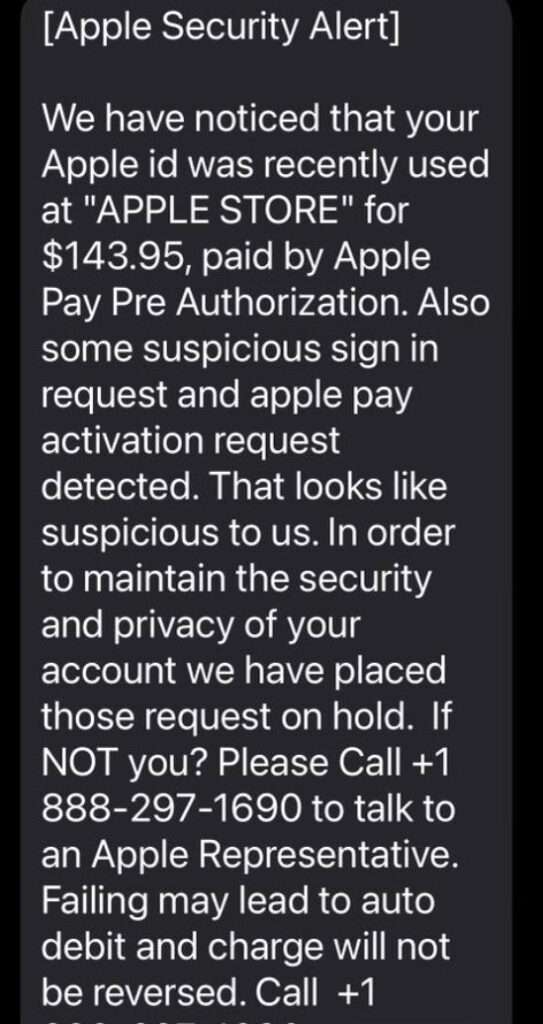
Overview of the Scam
The Apple Approval Notice scam capitalizes on peoples’ reliance on mobile devices and the intimacy they provide to our digital lives. This gives fraudsters an open door to manipulate victims and exploit their accounts, contacts, and personal data.
It starts when a phishing text message is sent en masse to Apple device owners. The message is spoofed to look like it comes directly from Apple, often using Apple branding elements and naming conventions. The texts reference the recipient’s Apple ID and claim that a suspicious purchase or sign-in attempt was detected from their account.
Examples of these scam texts include:
“Apple Alert: We have detected a suspicious purchase of $412.38 made with your Apple ID at the App Store. If this was not authorized by you, please call Apple Support immediately at 833-246-5689.”
“Apple Approval Notice
We have noticed that your Apple iCloud id was recently used at “APPLE STORE – CA” for $143.95, paid by Apple Pay Pre Authorization. Also some suspicious sign in request and apple pay activation request detected. That looks like suspicious to us. In order to maintain the security and privacy of your account we have placed those request on hold. If NOT you? talk to an Apple Representative. Failing may lead to auto debit and charge will not be reversed. Call immediately to cancel this charge.”
“Apple Approval Notice: Your Apple ID was just used to purchase $629.99 in Apple Gift Cards on Apple.com. If this was not you, call 833-246-5689 immediately.”
The messages build a sense of urgency by posing as alerts directly from Apple security about potential account misuse. Terms like “suspicious activity,” “unauthorized purchase,” and “Apple Approval Notice” imply the recipient’s data or money is at risk if they don’t take action quickly.
By spoofing the origin of the texts and referencing real Apple products and services, it gives recipients a false sense of legitimacy. But the phone numbers provided connect to elaborate criminal call centers completely unrelated to Apple.
These scam call centers invest heavily in replicating the customer service experience of a legitimate support team. Operators pose as Apple support technicians using common naming conventions, verbal tics, and even spoofed caller ID. Their sole purpose is tricking recipients into providing remote access and control over their device.
Once granted this access, scammers have an open door to install spyware, steal passwords, access financial accounts, and harvest personal data. And victims are none the wiser as scammers pretend to be helping “resolve the security threat.”
It is critical to understand Apple’s policy is to never initiate unsolicited communication via text message, email, or phone call to warn users about account issues. Any such message is an obvious sign of a phishing attempt seeking access or information. Legitimate Apple support numbers are published on their website.
By impersonating Apple and claiming an account emergency, scammers manipulate worried victims into letting their guard down. But having insight into these deceptive tactics helps us identify risks and avoid being taken advantage of. Do not call random numbers texted from unknown sources. Instead verify account issues directly with Apple through official channels.
How the Apple Approval Notice Scam Works
Let’s break down the step-by-step process used by scammers to successfully manipulate victims with the Apple Approval Notice scam:
1. Victims Receive a Phishing Text
The scam starts with an SMS text sent to the victim’s mobile device. The message is spoofed to appear as if it comes directly from Apple. The text references the recipient’s “Apple ID” and claims an unauthorized purchase was made or attempted using Apple Pay or their account credentials.
Example phishing texts include:
- “Apple Alert: A purchase of $512.23 has been made on the iTunes Store with your Apple ID. If this was not you, call Apple Support immediately at 844-246-5547.”
- “Apple Approval Notice: Your Apple ID was just used to purchase an iPhone 13 Pro Max at Apple.com for $1599. If this was not you, call 844-246-5547 right away.”
The texts build urgency by posing as if sent directly from Apple, warning of account misuse. But it’s all an act by scammers hoping the victim calls back.
2. Recipients Call the Fake Apple Support Number
Spoofing the text to appear from Apple, referencing real products and services, and creating urgency with supposed unauthorized access gets recipients to lower their guard and call back.
But the phone numbers in the texts actually route to sophisticated criminal call centers completely unaffiliated with Apple. Scammers go to great lengths to appear as legitimate Apple support technicians.
3. Scammers Gain Remote Access to the Victim’s Device
Once scammers have the victim on the phone, their goal is ultimately to gain remote access to the device. Posing as Apple support agents, they claim remote access is needed to diagnose and resolve the security threat mentioned in the scam text.
Common methods for gaining access include:
- Walking victims through installing remote desktop apps like AnyDesk
- Directing victims to an iCloud phishing page to enter their Apple ID login credentials
- Leveraging built-in Apple screen sharing tools
Victims who allow remote access inadvertently give scammers an open door to steal their personal data and spy on activity.
4. Criminals Exploit Their Control Over the Device
With open access to a victim’s device, the possibilities for exploitation are endless. Common criminal activities include:
- Installing spyware apps to harvest data in the background
- Stealing iCloud credentials for persistent account access
- Monitoring emails and texts for sensitive info like online banking passwords
- Making fraudulent purchases with saved payment methods
- Demanding gift cards or cryptocurrency, claiming it will “protect assets”
Scammers will use their control to exploit anything of value, from personal data to financial accounts, with victims none the wiser.
What to Do If You Get an Apple Approval Notice Scam Text
If you receive a suspicious text claiming to be from Apple warning about unauthorized access or purchases, avoid calling the number given. Instead:
1. Avoid Calling Any Number Provided
It can be alarming to get an urgent scam message allegedly from a reputable company like Apple. The natural reaction is to want to call to resolve the supposed issue. However, any number provided in an unsolicited text like this is extremely likely to be fraudulent. Calling puts you directly in touch with criminal scammers.
Instead, take time to pause and verify the situation through official Apple channels before calling random numbers.
2. Report the Scam Text
An important step is reporting scam texts to your mobile carrier:
- AT&T: Forward the text to 7726 (SPAM)
- T-Mobile: Forward to 7726
- Verizon: Forward to SPAM (7726)
- Sprint: Forward to short code #7726
You can also report scam texts by copying the original message and forwarding it to the FCC at 7726 (SPAM). This helps phone carriers in their efforts to trace and shut down scam operations.
3. Check Your Apple Account Security
Without calling any provided phone numbers, you can directly check for any unauthorized access to your Apple ID account:
- Open appleid.apple.com and log in to manage your account.
- Review account activity under “Security” for any recent purchases or unfamiliar device access.
- Check security and password settings. Enable two-factor authentication if not already on.
- Consider changing your Apple ID password if concerned about a breach. Avoid reusing this password anywhere else.
If everything looks normal, the text was likely a scam attempt with no actual account compromise. But verifying directly through Apple’s site is important.
4. Contact Apple Support If Account Issue Exists
If you do notice any unauthorized access, purchases or abnormal security issues on your Apple ID account after reviewing the details, contact Apple support immediately through their official channels, such as:
- The Apple Support app
- Getsupport.apple.com
- 1-800-275-2273
You can find authorized Apple support contact options at https://support.apple.com.
5. Wipe and Restore Your Apple Device
If you did unfortunately call a scam number and grant remote access to your device, consider the security compromised. Performing a factory reset/wipe is recommended:
- iPhone: Erase all content and settings in Settings > General > Reset
- iPad: Erase all content and settings in Settings > General > Reset
- Mac: Use Recovery Mode to erase and reinstall macOS
This will remove any spyware, malware or backdoor access that may have been installed by scammers. Also change all passwords for any accounts accessed on the device.
6. Contact Your Bank
If you provided any financial account details or noticed any unauthorized transactions during the scam, call your bank immediately. Inform them you may be the victim of fraud and discuss options like freezing accounts, disputing charges and getting issued new account numbers.
7. Monitor Accounts and Credit Reports
Carefully monitor all your financial accounts and credit reports over the next few weeks. Look for any unusual charges or activity. Many scams play the long game, retaining account access to steal additional funds over time. Regularly reviewing statements and credit reports helps identify issues faster.
8. Educate Yourself on Tech Support Scams
Make time to educate yourself and others in your life on the red flags and deceptive tactics used in tech support scams. Knowledge truly is one of the best defenses.
Is Your Device Infected? Run a Free Malware Scan
Slow performance, constant pop-ups, or strange behavior? These are classic signs of a malware infection. A quick way to check is to scan your device with Malwarebytes Free, one of the most trusted malware removal tools available. If you only visited a scam page and didn’t download or install anything, this scan is optional.
The free version detects and removes the most common threats, including:
- Adware — the cause of those annoying pop-ups
- Browser hijackers — unwanted redirects and changed homepages
- Trojans and spyware — hidden programs stealing your data
- Potentially unwanted programs (PUPs) — software you never asked for
👉 Select your device below — Windows, Mac, or Android — then follow the simple steps to download Malwarebytes, scan your system, and remove any threats it finds. The scan usually takes 5 to 20 minutes.
Run a Malware Scan with Malwarebytes for Windows
Malwarebytes is one of the most popular and trusted anti-malware tools for Windows — and it’s completely free for removing infections. It catches threats that many antivirus programs miss, including adware, browser hijackers, and trojans. Follow the steps below to scan your PC and remove what Malwarebytes finds.
Download Malwarebytes
Click the button below to download the latest version of Malwarebytes for Windows from the official source. The free version is all you need — it will scan your computer and remove adware, browser hijackers, and other malicious software at no cost.
Download MalwarebytesOfficial installer for Windows 11 and 10. Your download starts right away.Want real-time protection? See Malwarebytes Premium Malwarebytes Free for WindowsScans and removes malware at no cost
-
Install Malwarebytes
When the download finishes, open your Downloads folder and double-click the MBSetup file. If Windows shows a User Account Control pop-up, click “Yes” to allow the installation.

Follow the On-Screen Prompts to Install Malwarebytes
The setup wizard will walk you through a few quick screens:
-
Choose where you’re installing the program — “Personal Computer” or “Work Computer” — then click Next.

-
Malwarebytes will now install on your device. This usually takes under a minute.

-
When installation is complete, the “Welcome to Malwarebytes” screen will open automatically.

-
On the final screen, click Open Malwarebytes to launch the program.

-
Optional: Check for rootkits with a Custom Scan
You don’t need to change any settings for a normal scan. The standard Threat Scan in the next step is enough for most problems, so you can go straight to it.
If you also want to check for rootkits, use a Custom Scan. In current versions of Malwarebytes, rootkit scanning is only available there:
- On the Scanner tile, click the three-dot menu and select Advanced Scan.
- Choose Custom Scan. In its options, check Scan for rootkits.
- Select your system drive (usually C:\) as the location to scan, then start the scan. It takes longer than a Threat Scan.
- When it finishes, review and quarantine the results as described in the steps below.
Rootkit scanning isn’t available on Windows devices with ARM processors.
Start the Scan
Click the blue Scan button. Malwarebytes will automatically update its virus database and start checking your computer for malware.

-
Wait for the Scan to Finish
The scan checks your entire system for browser hijackers and other malicious programs, so it can take 5 to 20 minutes depending on your computer. Feel free to do something else — just check back occasionally to see the progress.

-
Quarantine the Detected Threats
When the scan is done, you’ll see a list of everything Malwarebytes found — malware, adware, and potentially unwanted programs. Click the “Quarantine” button to remove all of them at once.

Malwarebytes will now remove the malicious files and registry entries and move them safely into quarantine.

-
Restart Your Computer
Some threats can only be fully removed after a reboot. If Malwarebytes asks you to restart, click Yes. Once you’re logged back in, Malwarebytes has finished removing the threats it found.

When the scan is done, check whether the problems you noticed have stopped. If they continue, see the options below.
If you are still having problems with your computer after completing these instructions, then please follow one of the steps:
- Run a computer scan with ESET Online Scanner
- Ask for help in our Windows Malware Removal Help & Support forum.
Run a Malware Scan with Malwarebytes for Mac
Malwarebytes for Mac is a free on-demand scanner that removes the malware other security software tends to miss — adware, browser hijackers, and unwanted programs included. Cleaning an infected Mac with Malwarebytes has always been completely free, and it’s our go-to recommendation. Follow the steps below to scan your Mac and remove what Malwarebytes finds.
-
Download Malwarebytes for Mac
Click the button below to download the latest version of Malwarebytes for Mac.
Download MalwarebytesOfficial installer for macOS. Your download starts right away.Want real-time protection? See Malwarebytes PremiumMalwarebytes Free for MacScans and removes malware at no cost -
Open the Malwarebytes setup file
When the download finishes, open your Downloads folder and double-click the setup file to begin the installation.

-
Follow the On-Screen Prompts to Install Malwarebytes
The Malwarebytes for Mac Installer will guide you through a few quick screens. Click “Continue” and keep following the prompts until the installation completes.



When the installation is complete, Malwarebytes opens to the Welcome to Malwarebytes screen. Click “Get started“.
Malwarebytes needs Full Disk Access to check your whole Mac. When it asks, open System Settings > Privacy & Security > Full Disk Access, turn on Malwarebytes (it may be listed as Malwarebytes Protection), and confirm with your password or Touch ID. Then return to Malwarebytes. On macOS Monterey and earlier, this setting is in System Preferences > Security & Privacy > Privacy.
-
Select “Personal Computer” or “Work Computer”
Malwarebytes will ask what type of computer you’re installing it on. Click either Personal Computer or Work Computer, whichever applies.

-
Start the Scan
Click the “Scan” button. Malwarebytes will automatically update its detection database and begin checking your Mac for malware.

-
Wait for the Scan to Finish
Malwarebytes will scan your Mac for adware, browser hijackers, and other malicious programs. This can take a few minutes, so feel free to do something else — just check back occasionally to see the progress.

-
Quarantine the Detected Threats
When the scan is done, you’ll see a list of everything Malwarebytes found. Click the “Quarantine” button to remove all the threats at once.

-
Restart Your Mac
Malwarebytes will now remove all the malicious files it found. Some threats can only be fully removed after a reboot — if Malwarebytes asks you to restart, allow it. Once you’re logged back in, check whether the problems you noticed have stopped. If they come back, save the scan report and ask for help in our forum.

If the problems you noticed continue after the scan, see the options below.
If you are still experiencing problems while trying to remove a malicious program from your computer, please ask for help in our Mac Malware Removal Help & Support forum.
Run a Malware Scan with Malwarebytes for Android
Malwarebytes for Android scans your phone or tablet for malware, adware, and potentially unwanted apps. The free version scans only when you start a scan. Real-time protection, which checks apps automatically, is part of the paid Premium version.
-
Download Malwarebytes for Android.
You can download Malwarebytes for Android by clicking the link below.
Get Malwarebytes for AndroidOpens Google Play in a new tab.Want real-time protection? See Malwarebytes Premium for AndroidMalwarebytes for AndroidScans your phone and removes malware at no cost -
Install Malwarebytes for Android on your phone.
In the Google Play Store, tap “Install” to install Malwarebytes for Android on your device.

When the installation process has finished, tap “Open” to begin using Malwarebytes for Android. You can also open Malwarebytes by tapping on its icon in your phone menu or home screen.

-
Follow the on-screen prompts to complete the setup process
When Malwarebytes opens, it walks you through a short setup. Tap Get started and follow the prompts. If you see an offer for a trial or a paid plan, read it before you accept. You can skip it and keep using the free scanner.
Malwarebytes will ask for permission to access the files on your phone so it can scan them. Tap Allow, or turn on the permission in the Android screen that opens, then return to Malwarebytes.
-
Run a scan with Malwarebytes for Android
On the main screen, tap Scan now. In some versions, you open the menu, tap Scanner, and then tap Run a scan.
-
Wait for the Malwarebytes scan to complete.
Malwarebytes will now start scanning your phone for adware and other malicious apps. This process can take a few minutes, so we suggest you do something else and periodically check on the status of the scan to see when it is finished.

-
Remove the detected apps.
When the scan has been completed, you will see a list of the threats that Malwarebytes for Android has detected. Next to each detected item, tap the menu icon (three dots), then choose to uninstall the app or delete the file. Android then asks you to confirm. Tap OK or Uninstall to remove the app.
-
Restart your phone.
When the detected apps are removed, restart your phone if Malwarebytes asks you to. Then check whether the problems you noticed have stopped.
If the problems you noticed continue after the scan, see the options below.
If you are still having problems with your phone after completing these instructions, then please follow one of the steps:
- Ask for help in our Mobile Malware Removal Help & Support forum.
- Only as a last resort, reset your phone to factory settings. Read the warning below first.
- Back up your photos, videos, files, and messages, for example to your Google account or a computer.
- Make sure you know your Google account email and password. The phone asks for them after the reset. If you changed the password recently, Google recommends waiting 24 hours before you reset.
- On a Samsung phone, also make sure you know your Samsung account password.
- If you use an authenticator app for two-step verification, move your accounts to another device or save your backup codes first.
Stay Protected: Block Ads and Malicious Sites
No scan can prove a device is completely clean, so it helps to block threats before they reach you. Most infections start with a malicious ad or a fake download button — so blocking them at the source is your best defense.
We recommend AdGuard, which blocks malicious ads, phishing pages, and dangerous redirects before they can reach you.
👉 Download AdGuard and browse safely
Frequently Asked Questions about the Apple Approval Notice Scam
1. What is the Apple Approval Notice scam?
The Apple Approval Notice scam is a phishing text message technique where scammers send fake account security alerts pretending to be from Apple. The texts warn about unauthorized purchases and provide a fraudulent customer support number. Victims who call are connected to criminal call centers that gain remote access to devices in order to steal personal and financial data.
2. How does the Apple Approval Notice scam work?
The scam works in several steps:
- Victims receive a phishing text message pretending to be an Apple security alert about suspicious account activity.
- The text urges victims to call a provided number for help securing their account.
- When victims call the number, they reach a criminal call center posing as Apple support.
- Scammers gain remote access to the victim’s device through screensharing apps, iCloud phishing links or Apple remote desktop tools.
- Once inside the device, scammers can steal personal data, install spyware, make fraudulent purchases and drain financial accounts.
3. What are examples of the scam text messages?
Scam texts impersonating Apple security often say:
- Your Apple ID has been used to purchase $412.38 on the App Store. If this transaction is unauthorized, call immediately.
- A new iPhone was ordered on Apple.com using your Apple ID. If this order is fraudulent call the number below.
- An unauthorized purchase of Apple Gift Cards was made using your Apple ID. Call to cancel this order before it is processed.
4. What should I do if I get one of these scam texts?
If you receive one of these scam texts:
- Do not call the number provided in the text message. It leads to criminal call centers.
- Report the scam text to your carrier and the FCC by forwarding it to 7726 (SPAM).
- Check your Apple account activity directly through appleid.apple.com for any unauthorized access.
- Contact Apple support through official channels like the Apple Support app if account issues exist.
5. What happens if I call the number provided in the text?
The numbers in scam Apple texts connect to sophisticated criminal call centers posing as Apple support. They will pretend to help fix the account issue, eventually asking for remote access to your device in order to steal personal data and commit fraud under the guise of tech support.
6. How can I tell if a call is really from Apple support?
Apple does not initiate unsolicited calls or texts to request personal data or offer tech support. Any communication warning about account issues and offering a callback number is an indicator of a scam. Legitimate Apple support numbers are listed publicly on apple.com.
7. What should I do if I gave the scammers remote access to my device?
- Factory reset your device to wipe any malware or backdoors.
- Change all account passwords accessed on that device.
- Contact your bank about any unauthorized transactions.
- Place fraud alerts and monitor your credit reports.
8. How can I protect myself from the Apple Approval Notice scam?
- Never call numbers provided in unsolicited texts, even if claiming to be Apple.
- Be wary of any unexpected calls or texts requesting personal data or offering tech support.
- Avoid allowing remote access to your device by unknown numbers.
- Educate yourself on common phishing and account security scam tactics.
9. Is Apple trying to stop this scam campaign?
Yes, Apple is actively working to shut down the scam call centers and have the fraudulent text messages blocked. They advise customers to report any suspicious texts to help identify the scammers. However, phone scams are constantly changing, so continued caution by consumers provides the best protection.
10. Who should I contact if I was a victim of the scam?
If you were tricked by the Apple Approval Notice scam, contact your bank, credit bureaus, Apple support and local law enforcement. Reporting scams helps authorities locate and prosecute criminal call center operations.
The Bottom Line
The Apple Approval Notice scam offers a sobering look at how mobile and data access are being weaponized to target consumers. But insight into common tactics like phishing texts and urgent security threats helps protect us. This scam also highlights why Apple and all legitimate companies avoid unsolicited messages offering support. Maintaining caution against random communications claiming account issues or requesting access is key to safeguarding our digital lives. Don’t let scammers leverage your own devices against you.

Join the discussion
0 commentsShare your experience or ask a question about this article.
Discussion
Start the conversation
Have a question or something useful to share? Add the first comment.