

It starts with a text that looks like it’s from Bank of America:
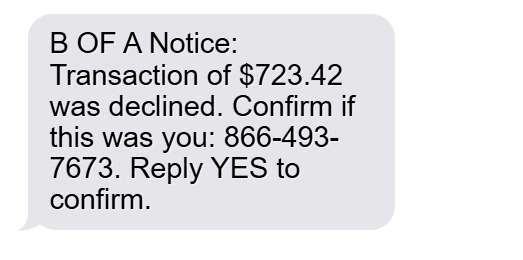
“B OF A Notice: Transaction of $723.42 was declined. Confirm if this was you: 866-493-7673. Reply YES to confirm.”
The message feels urgent, familiar, and convincing. It uses the same short code (81336) that Bank of America actually uses for real alerts. Many recipients panic and reply “No” or call the number, trying to stop potential fraud.
But this message isn’t from Bank of America at all. It’s part of a sophisticated phishing and phone-based scam designed to steal your personal and financial information.
In this article, we’ll expose exactly how the BofA “Transaction Was Declined” scam works — from the first fake text to the follow-up phone call — and explain what to do if you’ve already interacted with it.
Scam Overview
The “BofA Notice: Transaction Was Declined” scam is a hybrid phishing operation that combines SMS (smishing) and phone-based fraud (vishing) to deceive victims.
The scam begins with a text message that looks exactly like an official Bank of America fraud alert. It uses a short code number and formal tone, referencing a specific transaction amount (like $723.42) and a callback number that appears toll-free.
The text typically reads:
“B OF A Notice: Transaction of $723.42 was declined. Confirm if this was you: 866-493-7673. Reply YES to confirm.”
This looks nearly identical to legitimate alerts the bank sends when it detects suspicious activity. Real Bank of America messages come from short code 39833 or similar verified codes, and they may include a request to reply “Yes” or “No.”
Scammers mimic this exact style, substituting fake phone numbers and slightly altered short codes (like 81336).
Why This Scam Is So Convincing
This scam succeeds because it copies legitimate banking communication patterns almost perfectly. Several factors make it highly believable:
- It uses real formatting.
The message follows the structure of genuine fraud alerts — amount, merchant, and confirmation instructions. - It uses a believable short code.
Bank of America often uses numeric senders for text alerts. Scammers clone or spoof those numbers to appear authentic. - It references a real-sounding amount.
The number ($723.42, $487.15, etc.) is chosen deliberately — large enough to trigger worry but not so high that it seems unrealistic. - It provides a “fraud department” phone number.
The presence of an 866 or 888 number makes the text seem official. - It pressures for quick action.
The request to “Confirm if this was you” is designed to make you respond instantly, skipping normal verification steps. - It often includes a follow-up phone call.
Within minutes, many victims receive a call from someone claiming to be from Bank of America’s Fraud Department, referencing the same “declined transaction.”
The Psychological Trap
The scam’s entire success relies on panic and urgency. When you believe your debit or credit card is being used fraudulently, your instinct is to act immediately to protect your account.
That emotional trigger — fear of loss — is what scammers exploit.
They know that most people will reply to a text from a recognizable number without hesitation, especially if they think their bank is trying to help.
Who’s Being Targeted
Anyone with a smartphone can receive this text, but certain groups are more at risk:
- Bank of America customers — since the message references “B OF A,” it feels personalized.
- Elderly individuals — who may be less familiar with smishing or spoofing tactics.
- Busy professionals — who act quickly without scrutinizing details.
- People who recently used their cards online — because the timing feels coincidental.
Even non-Bank of America customers sometimes receive these texts; scammers use automated systems to blast millions of random numbers, hoping that some recipients are actual BofA users.
The Goal of the Scam
The scam has two primary objectives:
- Steal login credentials for online banking accounts.
- Gain access to financial data through social engineering.
By tricking you into calling the number or engaging in conversation, scammers can gather:
- Card numbers and expiration dates
- Full names and addresses
- Online banking usernames and passwords
- One-time verification codes
- Even remote access to your device
This is often the first step in a larger fraud chain that leads to unauthorized withdrawals, Zelle transfers, or identity theft.
How the Scam Works
The BofA Notice scam unfolds through multiple coordinated stages — blending automation, social engineering, and technical manipulation. Here’s exactly how it operates.
Step 1: The Fake Text Message
The process begins with an SMS sent from a spoofed or cloned number that resembles a real BofA short code.
The text claims that a transaction (often between $300 and $900) was declined. It instructs you to either:
- Reply “Yes” or “No” to confirm, or
- Call a listed 866 or 888 number to verify the purchase.
The message is designed to be identical to legitimate BofA notifications — same style, same punctuation, same tone.
Even security-savvy individuals sometimes respond out of habit.
Step 2: Immediate Follow-Up Call
If you reply to the text (even with “Yes”), scammers now know your number is active.
Soon after, you’ll receive a phone call from someone claiming to be a Bank of America Fraud Specialist.
The call appears to come from the official BofA fraud number — thanks to caller ID spoofing technology.
The caller introduces themselves politely:
“Hello, this is Michael from Bank of America’s Fraud Prevention Department. We’re following up on a declined transaction for $723.42 at Target.com. Can I verify a few details to secure your account?”
At this point, the scammer already sounds credible because they reference the exact amount and merchant from the text message.
Step 3: The Verification Trap
Once you confirm your identity, the caller walks you through “verification” steps.
They might ask for:
- The last four digits of your debit card,
- Your billing ZIP code, and
- The phone number linked to your account.
All these sound harmless — but they’re being collected for identity theft.
Next, the scammer says they’ll send you a security code to verify your identity.
In reality, they’re attempting to log in to your real Bank of America online account at that exact moment.
You’ll receive a legitimate text from Bank of America with a one-time passcode.
If you read that code aloud to the scammer, they immediately gain full access to your account.
Step 4: Taking Over Your Account
Once inside your account, scammers move fast.
They may:
- Add new Zelle recipients,
- Initiate money transfers,
- Change your contact details, or
- Lock you out by changing the password.
Because Zelle transactions are instant and irreversible, the stolen funds often vanish within minutes.
Step 5: The “Refund” or “Secure Account” Deception
Some variants go further.
The fake agent might tell you your funds are at risk and instruct you to move your balance to a “secure account.”
They’ll say:
“We’re setting up a temporary security account to protect your funds from fraudulent access. Please transfer your available balance there, and we’ll restore your normal account once we confirm the issue.”
This so-called “secure account” is controlled entirely by the scammers.
Step 6: Remote Access Requests
More aggressive scammers may claim they need to check your mobile security or verify your Zelle settings.
They’ll ask you to download an app like AnyDesk, TeamViewer QuickSupport, or Zoho Assist.
Once installed, these apps give full remote control of your device. The fraudster can then see your screen, capture keystrokes, or even initiate payments while pretending to “fix” the issue.
Step 7: Cleanup and Disappearance
When the scammers have extracted everything they need — your money, your data, or both — they cut off contact.
The callback number you used may suddenly stop working or reroute to a new voicemail.
Victims who try to call back often hear a disconnected line or generic recording.
By then, the scammers have already transferred the stolen funds through multiple accounts, often internationally, making recovery nearly impossible.
What to Do If You Have Fallen Victim to This Scam
If you interacted with the fake text or phone call, take immediate action. Acting within hours can make a major difference in minimizing damage.
1. Stop All Communication
Do not reply to any more messages or calls from the number. Block it immediately.
2. Contact Bank of America Directly
Use only official contact methods:
- Call 1-800-432-1000 (listed on the back of your card).
- Log in securely at www.bankofamerica.com or through the official app.
Tell them you received a fraudulent text and may have shared information.
Bank of America can freeze your card, disable Zelle temporarily, and issue new credentials.
3. Change Your Online Banking Password
Immediately reset your Bank of America password and any other accounts that use the same or similar credentials.
Enable two-factor authentication (2FA) if not already active.
4. Check for Unauthorized Transactions
Look for recent:
- Zelle or wire transfers,
- ACH withdrawals,
- Unfamiliar debit card purchases.
If you find anything suspicious, report it as fraud to Bank of America immediately — the bank can start a formal investigation.
5. Report the Scam
Submit official reports to:
- Federal Trade Commission (FTC): reportfraud.ftc.gov
- FBI Internet Crime Complaint Center (IC3): ic3.gov
- Federal Communications Commission (FCC): consumercomplaints.fcc.gov
Include screenshots of the text, the number used, and any call logs.
6. Monitor Your Credit and Identity
Scammers may sell your information to other criminals.
Use free annual credit reports from Equifax, Experian, and TransUnion.
Consider placing a fraud alert or credit freeze to prevent new accounts being opened in your name.
7. Scan for Malware (If Remote Access Was Granted)
If you installed any app the scammer recommended, remove it immediately.
Then use trusted security software to perform a full scan for malware or remote tools.
8. Educate Others
Scammers rely on silence and shame. Sharing your story — on social media or scam-reporting forums — helps others recognize and avoid the same trap.
9. Watch for Follow-Up Scams
Victims are often re-targeted by fake “recovery specialists” who claim they can help retrieve lost funds.
No legitimate organization will ask for payment to recover stolen money.
Is Your Device Infected? Run a Free Malware Scan
Slow performance, constant pop-ups, or strange behavior? These are classic signs of a malware infection. The fastest way to find out is to scan your device with Malwarebytes Free — one of the most trusted malware removal tools available.
The free version detects and removes the most common threats, including:
- Adware — the cause of those annoying pop-ups
- Browser hijackers — unwanted redirects and changed homepages
- Trojans and spyware — hidden programs stealing your data
- Potentially unwanted programs (PUPs) — software you never asked for
👉 Select your device below — Windows, Mac, or Android — then follow the simple steps to download Malwarebytes, scan your system, and remove any threats it finds. The scan usually takes 5 to 20 minutes.
Run a Malware Scan with Malwarebytes for Windows
Malwarebytes is one of the most popular and trusted anti-malware tools for Windows — and it’s completely free for removing infections. It catches threats that many antivirus programs miss, including adware, browser hijackers, and trojans. Follow the steps below to scan and clean your PC in just a few minutes.
Download Malwarebytes
Click the button below to download the latest version of Malwarebytes for Windows from the official source. The free version is all you need — it will scan your computer and remove adware, browser hijackers, and other malicious software at no cost.
Download MalwarebytesOfficial installer for Windows 11 and 10. Your download starts right away.Want real-time protection? See Malwarebytes Premium Malwarebytes Free for WindowsScans and removes malware at no cost
-
Install Malwarebytes
When the download finishes, open your Downloads folder and double-click the MBSetup file. If Windows shows a User Account Control pop-up, click “Yes” to allow the installation.

Follow the On-Screen Prompts to Install Malwarebytes
The setup wizard will walk you through a few quick screens:
-
Choose where you’re installing the program — “Personal Computer” or “Work Computer” — then click Next.

-
Malwarebytes will now install on your device. This usually takes under a minute.

-
When installation is complete, the “Welcome to Malwarebytes” screen will open automatically.

-
On the final screen, click Open Malwarebytes to launch the program.

-
Enable “Scan for Rootkits”
Before scanning, turn on rootkit detection so Malwarebytes can find even the most hidden threats. Click the Settings gear icon on the left side of the screen.

In the settings menu, find “Scan for rootkits” and click the toggle so it turns blue.

Done? Click “Dashboard” in the left pane to return to the main screen.
Start the Scan
Click the blue Scan button. Malwarebytes will automatically update its virus database and start checking your computer for malware.

-
Wait for the Scan to Finish
The scan checks your entire system for browser hijackers and other malicious programs, so it can take 5 to 20 minutes depending on your computer. Feel free to do something else — just check back occasionally to see the progress.

-
Quarantine the Detected Threats
When the scan is done, you’ll see a list of everything Malwarebytes found — malware, adware, and potentially unwanted programs. Click the “Quarantine” button to remove all of them at once.

Malwarebytes will now remove the malicious files and registry entries and move them safely into quarantine.

-
Restart Your Computer
Some threats can only be fully removed after a reboot. If Malwarebytes asks you to restart, click Yes. Once you’re logged back in, Malwarebytes has finished removing the threats it found.

That’s it — your Windows PC is now clean of trojans, adware, and other malware, and should be back to running smoothly.
If you are still having problems with your computer after completing these instructions, then please follow one of the steps:
- Run a computer scan with ESET Online Scanner
- Ask for help in our Windows Malware Removal Help & Support forum.
Run a Malware Scan with Malwarebytes for Mac
Malwarebytes for Mac is a free on-demand scanner that removes the malware other security software tends to miss — adware, browser hijackers, and unwanted programs included. Cleaning an infected Mac with Malwarebytes has always been completely free, and it’s our go-to recommendation. Follow the steps below to scan and clean your Mac in just a few minutes.
-
Download Malwarebytes for Mac
Click the button below to download the latest version of Malwarebytes for Mac.
Download MalwarebytesOfficial installer for macOS. Your download starts right away.Want real-time protection? See Malwarebytes PremiumMalwarebytes Free for MacScans and removes malware at no cost -
Open the Malwarebytes setup file
When the download finishes, open your Downloads folder and double-click the setup file to begin the installation.

-
Follow the On-Screen Prompts to Install Malwarebytes
The Malwarebytes for Mac Installer will guide you through a few quick screens. Click “Continue” and keep following the prompts until the installation completes.



When the installation is complete, Malwarebytes opens to the Welcome to Malwarebytes screen. Click “Get started“.
-
Select “Personal Computer” or “Work Computer”
Malwarebytes will ask what type of computer you’re installing it on. Click either Personal Computer or Work Computer, whichever applies.

-
Start the Scan
Click the “Scan” button. Malwarebytes will automatically update its detection database and begin checking your Mac for malware.

-
Wait for the Scan to Finish
Malwarebytes will scan your Mac for adware, browser hijackers, and other malicious programs. This can take a few minutes, so feel free to do something else — just check back occasionally to see the progress.

-
Quarantine the Detected Threats
When the scan is done, you’ll see a list of everything Malwarebytes found. Click the “Quarantine” button to remove all the threats at once.

-
Restart Your Mac
Malwarebytes will now remove all the malicious files it found. Some threats can only be fully removed after a reboot — if Malwarebytes asks you to restart, allow it. Once you’re logged back in, your Mac is clean.

That’s it — your Mac is now free of adware, rogue browser extensions, and other potentially harmful software.
If you are still experiencing problems while trying to remove a malicious program from your computer, please ask for help in our Mac Malware Removal Help & Support forum.
Run a Malware Scan with Malwarebytes for Android
Malwarebytes for Android automatically detects and removes dangerous threats like malware and ransomware so you don’t have to worry about your most-used device being compromised. Aggressive detection of adware and potentially unwanted programs keeps your Android phone or tablet running smooth.
-
Download Malwarebytes for Android.
You can download Malwarebytes for Android by clicking the link below.
Get Malwarebytes for AndroidOpens Google Play in a new tab.Want real-time protection? See Malwarebytes Premium for AndroidMalwarebytes for AndroidScans your phone and removes malware at no cost -
Install Malwarebytes for Android on your phone.
In the Google Play Store, tap “Install” to install Malwarebytes for Android on your device.

When the installation process has finished, tap “Open” to begin using Malwarebytes for Android. You can also open Malwarebytes by tapping on its icon in your phone menu or home screen.

-
Follow the on-screen prompts to complete the setup process
When Malwarebytes will open, you will see the Malwarebytes Setup Wizard which will guide you through a series of permissions and other setup options.
This is the first of two screens that explain the difference between the Premium and Free versions. Swipe this screen to continue.
Tap on “Got it” to proceed to the next step.
Malwarebytes for Android will now ask for a set of permissions that are required to scan your device and protect it from malware. Tap on “Give permission” to continue.
Tap on “Allow” to permit Malwarebytes to access the files on your phone.
-
Update database and run a scan with Malwarebytes for Android
You will now be prompted to update the Malwarebytes database and run a full system scan.

Click on “Update database” to update the Malwarebytes for Android definitions to the latest version, then click on “Run full scan” to perform a system scan.

-
Wait for the Malwarebytes scan to complete.
Malwarebytes will now start scanning your phone for adware and other malicious apps. This process can take a few minutes, so we suggest you do something else and periodically check on the status of the scan to see when it is finished.

-
Click on “Remove Selected”.
When the scan has been completed, you will be presented with a screen showing the malware infections that Malwarebytes for Android has detected. To remove the malicious apps that Malwarebytes has found, tap on the “Remove Selected” button.

-
Restart your phone.
Malwarebytes for Android will now remove all the malicious apps that it has found. To complete the malware removal process, Malwarebytes may ask you to restart your device.
That’s it — your Android phone is now clean — no more malicious apps, adware, or browser redirects.
If you are still having problems with your phone after completing these instructions, then please follow one of the steps:
- Restore your phone to factory settings by going to Settings > General management > Reset > Factory data reset.
- Ask for help in our Mobile Malware Removal Help & Support forum.
Stay Protected: Block Ads and Malicious Sites
Now that your device is clean, keep it that way. Most infections start with a malicious ad or a fake download button — so blocking them at the source is your best defense.
We recommend AdGuard, which blocks malicious ads, phishing pages, and dangerous redirects before they can reach you.
👉 Download AdGuard and browse safely
How to Spot the BofA “Transaction Was Declined” Scam Texts
Recognizing the warning signs of a fake Bank of America fraud alert can protect you from losing money or giving away personal information. Scammers design these texts to look identical to legitimate messages, so it’s crucial to know what separates a real Bank of America alert from a fraudulent one.
1. Suspicious Short Codes or Phone Numbers
Authentic Bank of America alerts come from verified short codes, such as 39833 or 73981, and never from standard ten-digit phone numbers.
If the message comes from 81336 or any unfamiliar number that looks slightly different from the ones you’ve seen before, treat it as suspicious.
Some scammers even spoof official numbers, so always confirm by checking your messages inside the Bank of America mobile app — that’s where genuine alerts appear.
2. The Presence of a Callback Number
A major red flag is when the text includes a phone number to call, often something like 866-493-7673 or a similar toll-free line.
Real Bank of America fraud alerts never ask you to call a number in the message. They simply instruct you to reply “Yes” or “No” and never provide contact numbers.
Any text that says “Call our fraud department immediately” is a scam.
3. Generic and Repetitive Language
Fraudulent messages usually contain generic phrases such as:
- “Transaction was declined.”
- “Confirm if this was you.”
- “Call immediately to secure your account.”
They avoid mentioning your name, your card’s last four digits, or other account identifiers. Real alerts will always include limited, verified details (like “Card ending in 1234”) without asking for sensitive information.
4. Unusual Transaction Amounts
Scammers pick specific transaction amounts like $723.42 or $319.55 to appear believable.
They’re large enough to cause concern but not suspiciously round or exaggerated.
Legitimate Bank of America fraud alerts can mention real merchant names and exact times, while scam texts often use vague references such as “transaction at merchant.com” or “purchase declined.”
5. Urgent or Threatening Tone
Urgency is a classic hallmark of phishing and smishing scams.
Phrases like “Confirm immediately,” “Your account will be suspended,” or “Funds will be held” are meant to trigger panic.
Bank of America will never threaten to close or freeze your account via text. Legitimate alerts are concise, calm, and allow you to verify through your app or website at your convenience.
6. Spelling and Grammar Mistakes
While most scam messages are well-written, small grammar issues often give them away.
Look for errors like missing articles (“Transaction of $723 was declined”), inconsistent capitalization (“B OF A Notice”), or awkward punctuation.
Bank of America’s real alerts follow strict formatting standards and never include typos.
7. Embedded Links or Shortened URLs
If a text message includes a clickable link — especially shortened ones like bit.ly, tinyurl, or unfamiliar domains — it’s a scam.
Real BofA alerts don’t contain external links.
Scammers use these URLs to lead you to phishing websites that look like the Bank of America login page, where they capture your credentials.
8. Requests for Personal or Login Information
Bank of America will never ask you to provide:
- Your full debit or credit card number
- Your online banking username or password
- One-time passcodes sent to your phone
- Remote access to your device
Any message that asks for this information is a direct fraud attempt.
9. Timing That Doesn’t Match Your Activity
Scammers send these messages randomly, hoping you’ve recently used your card so the timing feels plausible.
If you haven’t made a recent purchase, the text is likely fake. Always check your Bank of America app or website for real alerts before responding to any text.
10. Follow-Up Calls After the Text
Another key indicator is receiving a phone call shortly after the text from someone claiming to be from Bank of America’s fraud team.
This is part of the scam. The same criminals who sent the text will call pretending to help you “secure your account.”
Bank of America does not call customers immediately after fraud texts unless you specifically request a callback through verified channels.
How to Verify a Real Bank of America Alert
If you’re ever unsure whether a message is legitimate, take these steps:
- Log into your official Bank of America mobile app — real alerts appear under Notifications.
- Call the number on the back of your card, not the one in the text.
- Check for identical messages in your email or app. If it’s not there, it’s fake.
- Forward the suspicious text to abuse@bankofamerica.com or to 7726 (SPAM) for carrier review.
The Golden Rule
Never act on instructions from an unsolicited text, even if it looks professional.
Always go directly to the official Bank of America website or mobile app to verify transactions.
Legitimate institutions will never require you to call a random number, click a link, or share your security code.
The Bottom Line
The BofA Notice “Transaction Was Declined” scam is one of the most convincing banking frauds of 2025.
It mimics legitimate alerts so precisely that even cautious users can be fooled.
Here’s what to remember:
- Never trust unsolicited texts claiming to be from your bank.
- Do not call numbers or click links in suspicious messages.
- Always verify activity by logging directly into your Bank of America app or website.
- Banks never ask for verification codes, passwords, or transfers to “secure accounts.”
If you receive a message like “Transaction of $723.42 was declined. Confirm if this was you…” — treat it as a scam, delete it, and report it immediately.
Frequently Asked Questions
What is the “BofA Notice: Transaction Was Declined” scam?
The “BofA Notice: Transaction Was Declined” scam is a fraudulent text message and phone call operation impersonating Bank of America’s fraud department. Victims receive a text that appears to come from Bank of America, usually from a number like 81336, stating that a transaction for a specific amount (for example, $723.42) was declined. The message urges you to confirm the purchase by replying “YES” or by calling a number such as 866-493-7673. When you respond, scammers pose as BofA agents and attempt to steal personal details, online banking credentials, or even money through fake “security” transfers. It’s a sophisticated form of smishing (SMS phishing) often followed by vishing (voice phishing) phone calls.
How can I tell if a BofA text message is real or fake?
Legitimate Bank of America text messages will:
- Come only from verified short codes such as 39833 or 73981.
- Never include phone numbers or links asking you to call back.
- Simply ask you to reply “Yes” or “No” to confirm a transaction.
- Address your card ending digits and will never ask for personal or login details.
Scam texts, on the other hand, often:
- Come from unfamiliar short codes like 81336.
- Include a full phone number to call (usually starting with 866, 888, or 833).
- Use a sense of urgency, saying “Call immediately” or “Confirm now.”
- Contain grammar or punctuation errors.
If you’re unsure, never respond to the text. Instead, log into your official Bank of America mobile app or call the number printed on the back of your card.
What happens if I call the number in the fake BofA text?
If you call the number listed in the fake text, you’ll reach scammers impersonating Bank of America’s fraud department. They’ll use professional language and reference the same dollar amount and merchant listed in the text. The scammer will then try to “verify your identity” by asking for your card number, billing ZIP code, or online banking username. Next, they might request a security code sent to your phone — which actually allows them to log into your real account. Once they gain access, they can transfer funds, set up Zelle payments, or change your account information. Some victims are also asked to install remote access apps like AnyDesk or TeamViewer, giving scammers full control of their phone or computer.
Does Bank of America use 81336 for text alerts?
No. Bank of America’s legitimate text alerts typically come from short codes such as 39833, 73981, or 22829, depending on your location and account type. Messages from 81336 or other unverified numbers are not associated with Bank of America. Scammers frequently use similar-looking short codes to make fake texts appear real. Always double-check messages in your official Bank of America mobile app or on bankofamerica.com before responding.
What should I do if I responded to the scam text or gave information?
If you replied to the scam text, called the number, or gave out information, act immediately:
- Contact Bank of America right away at 1-800-432-1000 to report the incident and freeze your card.
- Change your online banking password and any other passwords that use similar credentials.
- Enable two-factor authentication on your BofA account if it’s not already turned on.
- Check your recent transactions for unauthorized payments or Zelle transfers.
- Report the scam to the FTC at reportfraud.ftc.gov and the FBI Internet Crime Complaint Center at ic3.gov.
- If you installed a remote access app, uninstall it immediately and perform a full malware scan on your device.
The faster you respond, the higher the chance of recovering lost funds or preventing further fraud.
Why does the scam text look identical to real BofA alerts?
Scammers design their messages to mimic real fraud notifications down to the smallest detail — using the same tone, phrasing, and short-code structure as Bank of America’s legitimate alerts. They even copy the use of specific transaction amounts, like $723.42, to seem authentic. These details trigger urgency and fear, pushing victims to act quickly without thinking. The similarity between real and fake alerts is what makes this scam so effective, even against security-conscious individuals.
Why do scammers follow up the text with a phone call?
The follow-up phone call increases the scam’s credibility. After sending the text, scammers often call victims pretending to be Bank of America’s fraud department. They claim to be “verifying suspicious activity” and reference the same transaction mentioned in the text. This hybrid method — known as smishing plus vishing — builds trust faster because hearing a calm, professional voice lowers suspicion. The call also allows scammers to manipulate victims in real time, guiding them through fake “security” steps to extract banking details or money.
What should I do if I received the text but didn’t respond?
If you received the “BofA Notice: Transaction Was Declined” text but didn’t respond, you’re safe — just delete it. Do not reply, click any links, or call any numbers mentioned in the message. You can forward the text to 7726 (SPAM), which reports it to your mobile carrier for analysis. It’s also helpful to take a screenshot and send it to abuse@bankofamerica.com or report it through the Bank of America Security Center at bankofamerica.com/security-center. Doing so helps the bank identify and block new scam numbers.
Can Bank of America reverse fraudulent Zelle transfers caused by this scam?
Bank of America investigates every Zelle-related fraud claim individually, but Zelle payments are instant and typically irreversible once completed. If you’ve been tricked into sending money via Zelle as part of this scam, contact the bank immediately and explain that you were a victim of social engineering fraud. Provide any text or call logs as evidence. While the bank may not always recover funds sent voluntarily, early reporting increases your chances of resolution or reimbursement through fraud protection policies.
What are the signs that my Bank of America account has been compromised?
Warning signs that scammers may have accessed your account include:
- You’re locked out of online banking or the mobile app.
- You notice unfamiliar Zelle or wire transfers.
- Contact information (email, phone number) in your account has changed.
- You receive verification codes or password reset requests you didn’t initiate.
- You get calls from “Bank representatives” about recent transactions you didn’t make.
If any of these occur, contact Bank of America Security immediately and reset your credentials.
Why do scammers choose amounts like $723.42 or $319.55?
These transaction amounts are deliberately chosen for psychological realism. Scammers pick figures that are high enough to cause concern but not so extreme that they seem fake. A charge like $723.42 feels specific and legitimate, suggesting it’s a real transaction. This detail encourages you to take the message seriously and respond without verifying its authenticity.
How can I protect myself from future Bank of America scam texts?
Here are practical ways to stay safe from future scams:
- Never call or text back numbers listed in suspicious messages.
- Enable official Bank of America fraud alerts inside your mobile app or online account.
- Verify alerts only through official channels, such as the BofA app or by calling the number printed on your card.
- Use multi-factor authentication (MFA) for extra security.
- Install a trusted spam call blocker to reduce fraudulent texts and calls.
- Stay updated on new scam types via the Bank of America Security Center and FTC alerts.
A good rule of thumb: if a message makes you panic, pause and verify it independently.
What should I do if I lost money because of the scam?
If you’ve already lost money, take these steps:
- Contact Bank of America immediately to dispute fraudulent charges or transfers.
- Ask to open a fraud claim and freeze your account temporarily.
- File a report with your local police and attach evidence (texts, call logs, screenshots).
- Report the incident to federal agencies such as the FTC and FBI IC3.
- Monitor your credit report and consider a credit freeze if identity information was shared.
- Keep all documentation, as you may need it for investigations or insurance claims.
Acting within the first 24 hours provides the best chance for recovery.
Is Bank of America aware of these scams?
Yes. Bank of America is fully aware of these fraudulent text and phone scams and regularly warns customers through its Security Center. The bank emphasizes that it will never ask for one-time passcodes, passwords, or full card details in a text, email, or call. Real fraud alerts will only request a simple “Yes” or “No” response without requiring personal data or callbacks. You can view official scam warnings and tips at bankofamerica.com/security-center.
Where can I report these fake BofA texts and phone calls?
You can report scam messages and calls to:
- Bank of America: Forward texts or screenshots to abuse@bankofamerica.com.
- FTC (Federal Trade Commission): File a complaint at reportfraud.ftc.gov.
- FCC (Federal Communications Commission): Submit a report at consumercomplaints.fcc.gov.
- FBI Internet Crime Complaint Center (IC3): ic3.gov.
- Your mobile carrier: Forward the text to 7726 (SPAM) to block similar messages.
Reporting helps authorities and the bank trace new scam numbers and warn other customers.








