


A download promising an advantage in Minecraft can look ordinary inside a busy gaming chat. The icon is familiar, and somebody says it works.
If the name LofyStealer appeared after trying one of those tools, take a breath. What you did next matters more than the promises.
Overview
A Fake Slinky Tool, Not a Minecraft Feature
LofyStealer is information-stealing malware associated with a fake Minecraft cheat called Slinky. It should not be confused with an official Minecraft download or supported feature.
The lure puts the decision in the player’s hands: download a tool, run it, and expect a gaming benefit. The software can do something else entirely.
ZenoX’s original technical report analyzes a loader and a separate payload identified with GrabBot/Slinky. The report is not a test of every Minecraft modification.
The Risk Reaches Beyond the Game Account
The documented payload targets browser information, including passwords, cookies, tokens, and payment-related data. A gaming-themed launch does not restrict theft to gaming.
On a shared family PC, the browser may also contain a parent’s shopping sessions, saved email access, or work accounts. Consider everybody who uses it.
An unfamiliar charge or login deserves attention, but it does not identify the malware by itself. Keep actual alerts and connect them to the execution timeline.
A Useful Response Has More Than One Part
- Stop opening the cheat package or following its troubleshooting instructions.
- Assess the Windows device with reputable security tools.
- Recover exposed Microsoft, gaming, email, and payment accounts.
- Warn affected contacts if the account sent the download onward.
This is a Windows cleanup guide. If a school or employer manages the computer, involve its support team before installing tools or changing security settings.
How the LofyStealer Download Trap Works
Step 1: The Offer Promises a Gaming Advantage
The reported lure presents the package as a Minecraft hack. That framing encourages players to focus on whether the promised advantage works.
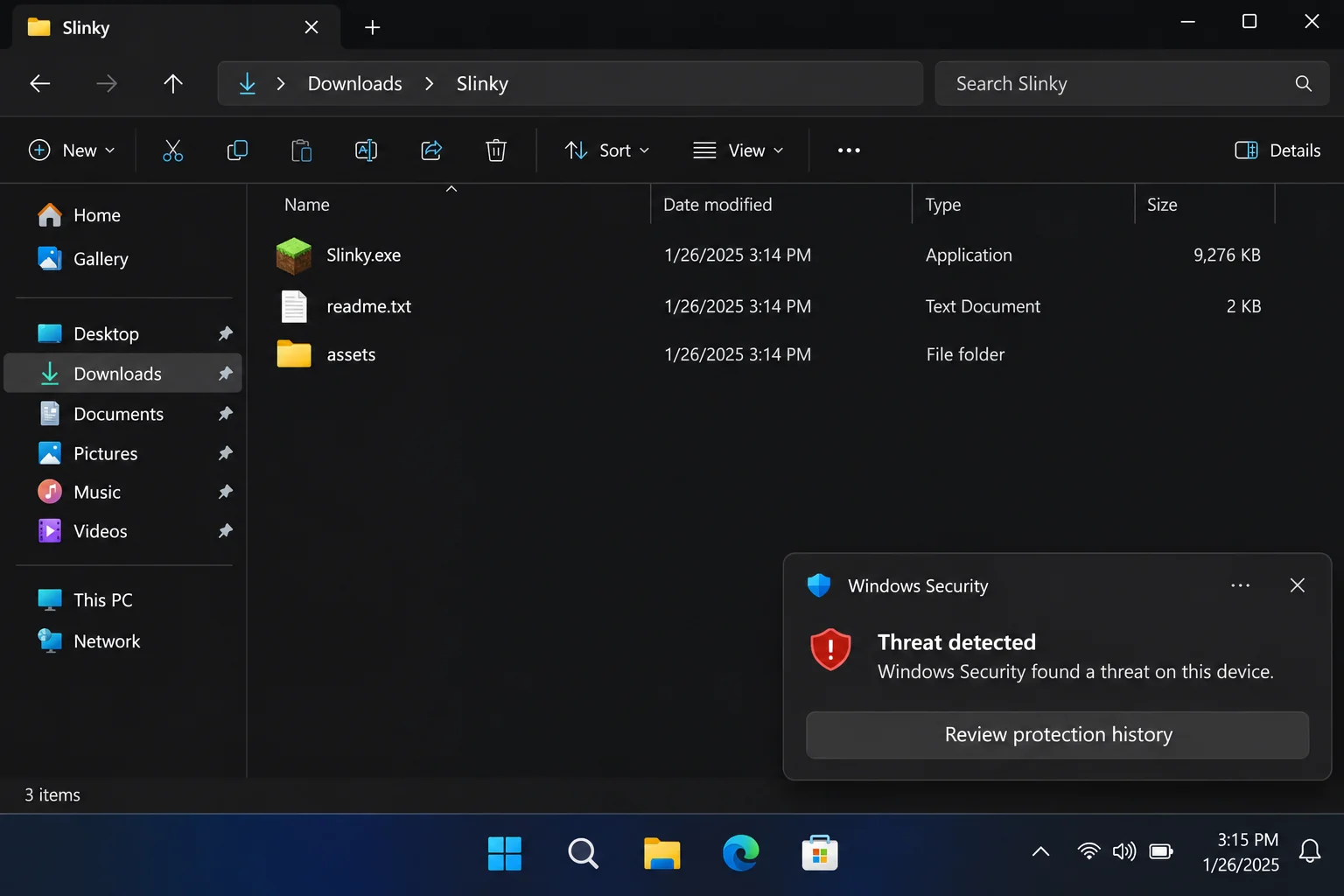
A familiar block-style icon cannot verify the publisher. Neither can a screenshot of gameplay supplied by the person distributing the file.
Beware instructions that turn every warning into proof of usefulness, such as claiming all cheat tools must trigger security alerts. That excuses risk instead of explaining it.
Step 2: A Download Becomes a Program You Execute
A chat message and a downloaded file are different exposure stages. The decisive question is whether a launcher or other executable actually ran.
Write down the package name and where it came from without reopening it. A helper can assess preserved evidence more safely than you can by experimentation.
If the download is quarantined, do not restore it because a seller or chat participant tells you to. Keep the detection details instead.
Step 3: A Loader Starts the Hidden Payload
ZenoX describes a Node.js-based loader and a native payload named chromelevator.exe. The division lets the visible download carry a separate data-stealing component.
Node.js is legitimate software, and a technical-sounding filename does not establish safety. Evaluate the whole downloaded package and its origin.
The reported payload uses browser-process memory. Closing the download window does not establish that nothing ran or that no information was collected.
Step 4: Browser Data Becomes More Valuable Than the Cheat
The investigated sample collects several browser data categories. Its operator can gain access to services that have nothing to do with Minecraft.
A stolen session can remain useful even when a password is not known. That is why the response should include session review, not just a password change.
Do not wait for an obvious in-game symptom. A tool can fail to deliver the promised feature while still creating a security incident.
Step 5: Compromised Accounts Can Spread the Bait
If an attacker gains a messaging or gaming account, familiar contacts may receive suspicious messages from a name they recognize.
Check your own sent messages and account activity from a clean device. If a link was distributed without permission, warn the people who received it.
Describe what happened plainly. There is no need to accuse a friend of creating malware when their account may also have been taken over.
What to Check Before Assuming Only Minecraft Is Affected
List the browser profiles and accounts available on the Windows machine. Include other household members’ accounts if the device is shared.
Look for security emails, unfamiliar devices, changed recovery addresses, and payment alerts. Review them through the provider’s real app or independently opened website.
Do not follow a fresh support link sent by the same chat that supplied the cheat. It may simply continue the original deception.
If payment details were saved in a browser, ask the card issuer about the appropriate precautions. Do not assume every stored card was successfully copied.
For children or teenagers, involve a trusted adult without turning the incident into a blame session. Accurate details are essential to securing a shared computer.
What to Do If You Ran the Fake Slinky Download
-
Stop the download experiment. Do not retry the launcher, run a second installer, or disable antivirus to make the cheat work.
Disconnect the affected computer while you arrange help. Keep backups and other household computers separate from the suspicious package.
-
Preserve the route and detection. Record the chat, repository, file name, and approximate time you opened it. Save the security report when available.
Share evidence privately with the person helping. Public screenshots should not expose account names, personal conversations, or payment information.
-
Secure the linked Microsoft account. Use trusted equipment to review sign-in activity, reset an exposed password, and verify recovery methods.
Revoke unfamiliar sessions or access where supported. Enable suitable multifactor protection after confirming that recovery details still belong to you.
-
Recover email and messaging access. Review your main email account and gaming-related chats for unauthorized activity. Replace reused passwords on other services.
If the account sent malware links, tell recipients not to open them. Report the compromised account and distribution message through the platform’s real reporting tools.
-
Review household financial exposure. Tell other users what ran and which browser profiles were present. Contact payment providers about suspicious charges or exposed payment details.
Do not promise that no charge means no theft. Keep monitoring while the scope is established, using alerts available from the providers themselves.
-
Finish Windows remediation. Follow the illustrated scan sequence and retain its results. Ask for specialist assistance if detections recur or account abuse continues.
Do not reinstall the same cheat after cleanup. Recovering access to an account does not make the original installer trustworthy.
Remove LofyStealer and Related Malware From Windows
Step 1: Prepare the Computer Without Weakening Protection
Keep installed security software enabled. A request to add the cheat folder to antivirus exclusions is a reason to stop, not a normal troubleshooting requirement.
Ask a responsible administrator before changing exclusions already present. Work or school software may have settings that need to be preserved.
Have a helper obtain the verified scanner if the affected computer cannot connect safely. Do not transfer the suspicious game archive along with it.
Step 2: Use the Illustrated Malwarebytes Procedure
Download the Correct Windows Installer
Use the download below for Malwarebytes for Windows. Obtain the installer on a trusted computer if the affected machine cannot browse safely.
Download MalwarebytesOpens the official free-scanner page. Choose the Windows download.Optional real-time protection: Malwarebytes Premium
On the official page, choose the free scanner download for Windows. Save the installer; manual scanning and quarantine do not require a Premium purchase.
MalwareTips may earn a commission through its product links. Buying ongoing protection is optional and is not a condition for following this cleanup procedure.
Do not run an installer supplied by the suspicious message, a remote caller, or a search advertisement pretending to offer urgent technical help.
Install and Open Malwarebytes
Open Downloads and double-click the MBSetup installer. Approve the Windows permission prompt only after confirming that it belongs to the installer you obtained.

Follow the setup screens and choose the appropriate personal or work option. On a managed computer, obtain your security team’s approval before installing another tool.
Read optional offers carefully. You can skip an unwanted trial, browser add-on, or paid plan without abandoning a normal manual Windows scan.
Open the application when installation finishes. Let its detection information update if safe connectivity is available; do not reconnect an isolated business endpoint without authorization.
Run a Threat Scan, Then Check Other Affected Locations
From the dashboard, select Scan to start a Threat Scan. This checks common infection locations, memory, startup items, and the registry.
A Threat Scan is not a complete inspection of every drive. Use the Scanner tile’s three-dot menu and Advanced Scan for additional scanning choices.
Choose Custom Scan to inspect specific drives or folders. Select the Windows system drive and any other affected location your responder has approved.
Rootkit scanning is an optional Custom Scan setting on supported systems. Its absence on Windows ARM is not a reason to disable Windows protection.

Allow the selected scan to finish. The duration depends on its scope, available storage, and the computer’s condition, so avoid a promised completion time.
If the application cannot update, start, or finish, save its error message. Repeatedly forcing a broken scanner is not a substitute for incident-response help.
When a report becomes available, review the detected names, locations, and actions. Keep a copy for whoever is helping investigate the compromise.
Review Detections and Quarantine Threats
Leave confirmed malicious items selected and choose Quarantine. Do not create an exclusion simply because a familiar program or system-looking filename appears in the report.
If a finding is unclear, record the detection and ask for advice. Do not manually delete random Windows files based only on their names.

Quarantine isolates the items the tool identifies. Keep them there while the incident is assessed rather than restoring a suspicious file to test it.
Save the scan report after applying the actions. It can show a responder whether the original threat, related components, or potentially unwanted software was found.
A clean result does not undo earlier data theft. Continue the account and recovery actions relevant to this incident even when no active threat remains.
Restart if Requested and Review the Result
Save open work and allow a restart if Malwarebytes requests one. A managed-system responder may need to preserve evidence before approving that restart.
Keep backup storage disconnected during cleanup. Do not interpret a restart as permission to restore files or resume sensitive sign-ins immediately.

After Windows returns, reopen Malwarebytes and check the report. Run the follow-up scan appropriate to the affected locations and note any recurring detections.
Keep Windows Security and other established protection enabled. If threats return, stop ordinary use and obtain help rather than repeatedly excluding or deleting files.
For unresolved personal-device infections, ask in the MalwareTips malware-removal help forum. Do not post passwords, private logs, or confidential work documents publicly.
Step 3: Check What Was Left Behind
Review the scan report for the launcher and additional detections. Do not assume the visible Slinky filename is the only component worth investigating.
Removing the game launcher through Settings does not replace a malware scan. Equally, a successful scan does not reverse a copied login or unauthorized purchase.
Check browser add-ons and installed programs for changes related to the incident. Ask before removing an unfamiliar item you cannot identify confidently.
Step 4: Restore Trusted Gaming Software Only
Reinstall genuine game software through established accounts and official routes if needed. Preserve worlds and other personal data under a clean backup plan.
Avoid copying the old executable collection back as part of a general backup restore. Bring back only data you actually need and have assessed.
If the device remains unreliable, discuss a Windows rebuild. Understand the effect on saved data and installed applications before authorizing that step.
Safer Downloads Without Losing the Enjoyment of the Game
Keep game updates and account management within the official launcher or service. An unrelated download should not be necessary to recover a compromised account.
For community-created content, establish who maintains it and where the legitimate release is published. Popularity in a chat is not a publisher check.
Do not trade account passwords or verification codes for promised help. A real account-recovery flow should be reached through the provider’s established website.
AdGuard can help reduce deceptive advertising and redirects while browsing. It cannot inspect your judgment or guarantee the safety of a game modification.
Keep Windows, the browser, and protective software current. Avoid a routine where every blocked download becomes a reason to switch protection off.
Frequently Asked Questions
Is the Fake Slinky Tool an Official Minecraft Product?
No. The documented lure uses Minecraft-themed presentation to encourage execution. It is not evidence of an official game feature or supported download.
Are LofyStealer and GrabBot Related Names?
ZenoX links the analyzed LofyStealer campaign with GrabBot/Slinky identifiers. A similar name elsewhere still needs its own evidence rather than an automatic match.
Can It Affect Accounts I Never Used for Gaming?
Yes. Browser information can involve email, shopping, work, and other services. Review what was accessible on the affected machine, including shared profiles.
Does a Game Crash Prove LofyStealer Ran?
No. A crash has many possible causes. Preserve security detections and the execution timeline rather than diagnosing the machine from a failed game session.
Is Changing My Microsoft Password Enough?
No. Secure the device, review sessions and recovery methods, and address other exposed accounts. A password change is one action, not the entire response.
What If I Downloaded It but Never Ran It?
Do not execute it now. Keep any alert, remove the unneeded download safely, and seek advice if you are unsure whether another file launched.
The Bottom Line
Do not run the fake Slinky package or disable protection to make it work. LofyStealer’s documented target is your browser data, not merely a game feature.
If it ran, clean the Windows device and recover exposed accounts using trusted equipment. Include other household users when a shared computer was involved.

Join the discussion
0 commentsShare your experience or ask a question about this article.
Discussion
Start the conversation
Have a question or something useful to share? Add the first comment.