

Have you received an email saying “Your Netflix payment failed” or “Update your billing information”? You’re not alone. This scam is making the rounds and tricking users by mimicking official Netflix emails with realistic branding, fake login pages, and dangerous links. Some users realize it’s a scam too late, after clicking links and providing sensitive information. This detailed guide exposes everything you need to know about the Netflix Payment Failed Email Scam—from how it works to what to do if you fall victim.
Scam Overview
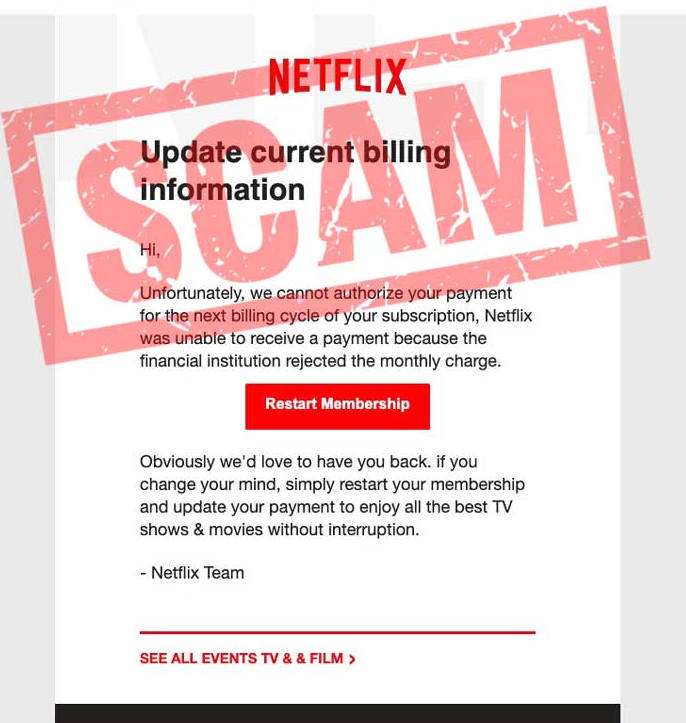
The Netflix payment scam is a form of phishing attack designed to steal login credentials and financial details. Victims receive an email that looks remarkably similar to official Netflix communications. The email typically warns of a problem with payment processing, urging recipients to update their billing information to avoid service interruption.
The scammers behind this attack employ sophisticated techniques. The email includes the Netflix logo, consistent color schemes, proper formatting, and even convincing sender addresses like support@netflix-billing.com. However, a closer inspection usually reveals something suspicious: the actual sender’s email address is subtly off, or the URL linked to the “Update Payment” button directs to a domain unrelated to Netflix.
Realistic Design
The scam emails often use HTML templates that mimic genuine Netflix emails. This includes company branding, legal disclaimers, and realistic footers. The message often reads:
“Your Netflix account is on hold due to a payment issue. Please update your billing information to continue enjoying our service.”
A large red button labeled “Update Payment Info” leads to a fake login page.
The Fake Login Page
When users click on the link, they are taken to a page that mirrors Netflix’s real sign-in portal. Here, users are prompted to enter their credentials. After this, a second page may ask for credit card details, including the CVV code. Once entered, this information is sent directly to the scammers.
Timing and Personalization
Scammers sometimes time these emails around the date of actual Netflix subscription renewals. This increases the likelihood that recipients will perceive the message as legitimate. AI tools are reportedly being used to personalize these emails, making them even more convincing.
Public Reactions and Reports
Reddit threads and online forums are full of user experiences. One user reported receiving the scam email on the exact day their subscription renewed, which made it seem legitimate. Another narrowly avoided being scammed by noticing the odd sender address.
Mainstream media outlets like the Economic Times have issued warnings about this scam. Cybersecurity experts have emphasized the advanced nature of these attacks, warning even tech-savvy users to be cautious.
Why It Works
- Fear Tactics: Users fear losing access to a service they use regularly.
- Urgency: The email creates a false sense of urgency, prompting immediate action.
- Professional Appearance: The scam is highly polished and uses realistic visuals.
- Contextual Timing: Emails are often timed to coincide with real billing cycles.
The scam is not just targeting Netflix users. Variations of this attack have also been spotted impersonating services like Hulu, Amazon Prime, and Disney+.
How the Scam Works
The Netflix Payment Failed scam is not just a random phishing email. It’s a carefully orchestrated attack that relies on psychology, design, and technology to steal sensitive personal and financial information. Here’s a detailed look at how this scam typically unfolds:
Step 1: The Fake Netflix Email Arrives
It begins with a highly realistic-looking email. This message often carries subject lines like “Payment Failed – Action Required,” “Your Membership is on Hold,” or “Update Billing Information.” It features Netflix branding, including the company logo, fonts, layout, and color scheme.
What makes it so convincing is the level of detail. The email often includes your name (pulled from leaked databases), familiar Netflix imagery, and urgent wording suggesting your account will be suspended unless you take action immediately.
Step 2: Creating a False Sense of Urgency
Scammers rely heavily on urgency to compel victims to act without thinking. The email might say something like, “We were unable to process your latest payment,” or “You must update your billing information within 24 hours to avoid service interruption.”
These tactics are designed to instill panic. After all, no one wants to lose access to their favorite shows or risk an account shutdown.
Step 3: Clicking the “Update Payment” Button
The email typically includes a large, attention-grabbing button that reads “Update Payment Info” or “Reactivate Account.” When users hover over the link, they may not immediately notice that the URL doesn’t lead to Netflix’s official site.
Instead, it directs them to a counterfeit website designed to look like the Netflix login page. This is where the deception deepens.
Step 4: Logging In to a Fake Netflix Page
The replica login page looks identical to the real one. Everything from the logo to the login box and footer links mimic Netflix’s design. When users enter their credentials here, those details go straight to the scammers.
Some users may even be prompted to re-enter payment information, including full credit card numbers, CVV codes, and billing addresses.
Step 5: Data Theft and Potential Financial Loss
Once submitted, the attackers now possess your Netflix login and your financial information. From there, they can:
- Access your Netflix account and potentially change your password
- Sell your credentials on the dark web
- Use your credit card for unauthorized transactions
- Attempt to use the same login credentials on other platforms (a method known as credential stuffing)
Step 6: Covering Their Tracks
Scammers often redirect users to the real Netflix site after they enter their information. This sleight of hand makes the user believe the login worked, masking the fact that their data has already been stolen.
By the time the victim notices suspicious charges or account issues, the fraud is already in motion.
What to Do If You Have Fallen Victim to This Scam
If you’ve clicked on a link in a fake Netflix payment email or entered any information, take the following steps immediately:
1. Change Your Netflix Password
Go directly to the official Netflix website by typing “netflix.com” into your browser. Log in and change your password. This helps prevent the scammer from continuing to access your account.
2. Check for Unauthorized Access
Look through your Netflix viewing activity and access logs. Netflix allows you to see which devices have used your account. If there are unknown devices, sign out of all devices and change your password again.
3. Notify Your Bank or Credit Card Company
If you entered your payment details into the scam site, contact your bank or credit card issuer right away. Inform them of the potential fraud, and monitor your transactions closely. They may recommend canceling your card and issuing a new one.
4. Scan Your Devices for Malware
Use a reputable antivirus or anti-malware tool to scan your computer or phone. Scammers may embed malware in phishing links, especially if you downloaded an attachment.
5. Report the Scam
Help prevent others from falling victim by reporting the phishing attempt:
- Forward the suspicious email to Netflix at phishing@netflix.com
- Report it to your local cybercrime agency or national anti-fraud center
- Mark the message as phishing in your email provider
6. Monitor Your Other Accounts
If you used the same password for Netflix elsewhere, change those passwords too. Scammers often test stolen credentials across multiple services in hopes of gaining access to email, banking, or social media accounts.
7. Consider a Credit Freeze or Monitoring
If you believe your personal and financial information is compromised, consider placing a credit freeze or enrolling in a credit monitoring service to stay alert for identity theft.
Is Your Device Infected? Run a Free Malware Scan
Slow performance, constant pop-ups, or strange behavior? These are classic signs of a malware infection. The fastest way to find out is to scan your device with Malwarebytes Free — one of the most trusted malware removal tools available.
The free version detects and removes the most common threats, including:
- Adware — the cause of those annoying pop-ups
- Browser hijackers — unwanted redirects and changed homepages
- Trojans and spyware — hidden programs stealing your data
- Potentially unwanted programs (PUPs) — software you never asked for
👉 Select your device below — Windows, Mac, or Android — then follow the simple steps to download Malwarebytes, scan your system, and remove any threats it finds. The scan usually takes 5 to 20 minutes.
Run a Malware Scan with Malwarebytes for Windows
Malwarebytes is one of the most popular and trusted anti-malware tools for Windows — and it’s completely free for removing infections. It catches threats that many antivirus programs miss, including adware, browser hijackers, and trojans. Follow the steps below to scan and clean your PC in just a few minutes.
Download Malwarebytes
Click the button below to download the latest version of Malwarebytes for Windows from the official source. The free version is all you need — it will scan your computer and remove adware, browser hijackers, and other malicious software at no cost.
Download MalwarebytesOfficial installer for Windows 11 and 10. Your download starts right away.Want real-time protection? See Malwarebytes Premium Malwarebytes Free for WindowsScans and removes malware at no cost
-
Install Malwarebytes
When the download finishes, open your Downloads folder and double-click the MBSetup file. If Windows shows a User Account Control pop-up, click “Yes” to allow the installation.

Follow the On-Screen Prompts to Install Malwarebytes
The setup wizard will walk you through a few quick screens:
-
Choose where you’re installing the program — “Personal Computer” or “Work Computer” — then click Next.

-
Malwarebytes will now install on your device. This usually takes under a minute.

-
When installation is complete, the “Welcome to Malwarebytes” screen will open automatically.

-
On the final screen, click Open Malwarebytes to launch the program.

-
Enable “Scan for Rootkits”
Before scanning, turn on rootkit detection so Malwarebytes can find even the most hidden threats. Click the Settings gear icon on the left side of the screen.

In the settings menu, find “Scan for rootkits” and click the toggle so it turns blue.

Done? Click “Dashboard” in the left pane to return to the main screen.
Start the Scan
Click the blue Scan button. Malwarebytes will automatically update its virus database and start checking your computer for malware.

-
Wait for the Scan to Finish
The scan checks your entire system for browser hijackers and other malicious programs, so it can take 5 to 20 minutes depending on your computer. Feel free to do something else — just check back occasionally to see the progress.

-
Quarantine the Detected Threats
When the scan is done, you’ll see a list of everything Malwarebytes found — malware, adware, and potentially unwanted programs. Click the “Quarantine” button to remove all of them at once.

Malwarebytes will now remove the malicious files and registry entries and move them safely into quarantine.

-
Restart Your Computer
Some threats can only be fully removed after a reboot. If Malwarebytes asks you to restart, click Yes. Once you’re logged back in, Malwarebytes has finished removing the threats it found.

That’s it — your Windows PC is now clean of trojans, adware, and other malware, and should be back to running smoothly.
If you are still having problems with your computer after completing these instructions, then please follow one of the steps:
- Run a computer scan with ESET Online Scanner
- Ask for help in our Windows Malware Removal Help & Support forum.
Run a Malware Scan with Malwarebytes for Mac
Malwarebytes for Mac is a free on-demand scanner that removes the malware other security software tends to miss — adware, browser hijackers, and unwanted programs included. Cleaning an infected Mac with Malwarebytes has always been completely free, and it’s our go-to recommendation. Follow the steps below to scan and clean your Mac in just a few minutes.
-
Download Malwarebytes for Mac
Click the button below to download the latest version of Malwarebytes for Mac.
Download MalwarebytesOfficial installer for macOS. Your download starts right away.Want real-time protection? See Malwarebytes PremiumMalwarebytes Free for MacScans and removes malware at no cost -
Open the Malwarebytes setup file
When the download finishes, open your Downloads folder and double-click the setup file to begin the installation.

-
Follow the On-Screen Prompts to Install Malwarebytes
The Malwarebytes for Mac Installer will guide you through a few quick screens. Click “Continue” and keep following the prompts until the installation completes.



When the installation is complete, Malwarebytes opens to the Welcome to Malwarebytes screen. Click “Get started“.
-
Select “Personal Computer” or “Work Computer”
Malwarebytes will ask what type of computer you’re installing it on. Click either Personal Computer or Work Computer, whichever applies.

-
Start the Scan
Click the “Scan” button. Malwarebytes will automatically update its detection database and begin checking your Mac for malware.

-
Wait for the Scan to Finish
Malwarebytes will scan your Mac for adware, browser hijackers, and other malicious programs. This can take a few minutes, so feel free to do something else — just check back occasionally to see the progress.

-
Quarantine the Detected Threats
When the scan is done, you’ll see a list of everything Malwarebytes found. Click the “Quarantine” button to remove all the threats at once.

-
Restart Your Mac
Malwarebytes will now remove all the malicious files it found. Some threats can only be fully removed after a reboot — if Malwarebytes asks you to restart, allow it. Once you’re logged back in, your Mac is clean.

That’s it — your Mac is now free of adware, rogue browser extensions, and other potentially harmful software.
If you are still experiencing problems while trying to remove a malicious program from your computer, please ask for help in our Mac Malware Removal Help & Support forum.
Run a Malware Scan with Malwarebytes for Android
Malwarebytes for Android automatically detects and removes dangerous threats like malware and ransomware so you don’t have to worry about your most-used device being compromised. Aggressive detection of adware and potentially unwanted programs keeps your Android phone or tablet running smooth.
-
Download Malwarebytes for Android.
You can download Malwarebytes for Android by clicking the link below.
Get Malwarebytes for AndroidOpens Google Play in a new tab.Want real-time protection? See Malwarebytes Premium for AndroidMalwarebytes for AndroidScans your phone and removes malware at no cost -
Install Malwarebytes for Android on your phone.
In the Google Play Store, tap “Install” to install Malwarebytes for Android on your device.

When the installation process has finished, tap “Open” to begin using Malwarebytes for Android. You can also open Malwarebytes by tapping on its icon in your phone menu or home screen.

-
Follow the on-screen prompts to complete the setup process
When Malwarebytes will open, you will see the Malwarebytes Setup Wizard which will guide you through a series of permissions and other setup options.
This is the first of two screens that explain the difference between the Premium and Free versions. Swipe this screen to continue.
Tap on “Got it” to proceed to the next step.
Malwarebytes for Android will now ask for a set of permissions that are required to scan your device and protect it from malware. Tap on “Give permission” to continue.
Tap on “Allow” to permit Malwarebytes to access the files on your phone.
-
Update database and run a scan with Malwarebytes for Android
You will now be prompted to update the Malwarebytes database and run a full system scan.

Click on “Update database” to update the Malwarebytes for Android definitions to the latest version, then click on “Run full scan” to perform a system scan.

-
Wait for the Malwarebytes scan to complete.
Malwarebytes will now start scanning your phone for adware and other malicious apps. This process can take a few minutes, so we suggest you do something else and periodically check on the status of the scan to see when it is finished.

-
Click on “Remove Selected”.
When the scan has been completed, you will be presented with a screen showing the malware infections that Malwarebytes for Android has detected. To remove the malicious apps that Malwarebytes has found, tap on the “Remove Selected” button.

-
Restart your phone.
Malwarebytes for Android will now remove all the malicious apps that it has found. To complete the malware removal process, Malwarebytes may ask you to restart your device.
That’s it — your Android phone is now clean — no more malicious apps, adware, or browser redirects.
If you are still having problems with your phone after completing these instructions, then please follow one of the steps:
- Restore your phone to factory settings by going to Settings > General management > Reset > Factory data reset.
- Ask for help in our Mobile Malware Removal Help & Support forum.
Stay Protected: Block Ads and Malicious Sites
Now that your device is clean, keep it that way. Most infections start with a malicious ad or a fake download button — so blocking them at the source is your best defense.
We recommend AdGuard, which blocks malicious ads, phishing pages, and dangerous redirects before they can reach you.
👉 Download AdGuard and browse safely
Frequently Asked Questions About the Netflix Payment Failed Email Scam
What is the Netflix Payment Failed Email Scam?
The Netflix Payment Failed Email Scam is a phishing attempt that tricks users into thinking there’s an issue with their Netflix billing. It mimics official Netflix emails to steal your login credentials and payment information through fake login pages.
How can I tell if a Netflix email is a scam?
Check the sender’s email address. Official Netflix messages come from addresses like @mailer.netflix.com. If you see extra characters or a strange domain, it’s likely a scam. Also, hover over links to check their destination. Netflix links always direct to netflix.com.
What should I do if I clicked on the scam link?
If you clicked but didn’t enter any information, you’re likely safe. Still, run a virus scan and delete the email. If you entered your login or payment details, change your Netflix password, contact your bank, and monitor for suspicious activity.
Why are these scams so convincing?
Scammers use advanced tools, including AI, to replicate the look of legitimate emails. They use psychological triggers like urgency and fear of losing access to make users act quickly. Some even time emails to match actual Netflix billing cycles.
Can I report the scam to Netflix?
Yes. Forward the phishing email to Netflix at phishing@netflix.com. This helps them investigate and take down malicious domains.
Will Netflix ever ask for payment info via email?
Netflix does not ask for sensitive billing information directly through email. If there’s a real issue, they will prompt you to log into your account manually at netflix.com.
What should I do to protect myself in the future?
Use strong, unique passwords for each account. Enable two-factor authentication wherever possible. Always verify URLs and be cautious with emails that create urgency or ask for sensitive information.
Are other streaming services targeted by similar scams?
Yes. Scams impersonating Hulu, Amazon Prime, Disney+, and other platforms have been reported. The tactics are nearly identical—fake login pages and fake billing alerts designed to steal your information.
Is it safe to use links in Netflix emails?
It’s safer to avoid clicking any links in emails. Instead, open your browser and type netflix.com manually. Log in from there to check your account status directly.
What should I do if I notice unauthorized charges?
Immediately contact your bank or card issuer. Report the fraud, cancel the affected card, and request a new one. Monitor your statements for any further suspicious charges.
How do I check if my Netflix account has been compromised?
Log in to Netflix and go to your account settings. Review your recent streaming activity and check the list of devices. If you see unfamiliar locations or devices, sign out of all devices and change your password.
Is this Netflix scam spreading worldwide?
Yes. Users around the globe have reported receiving these fake Netflix billing emails. Cybersecurity firms and news outlets in multiple countries have issued alerts about the scam’s rapid spread.
Are these scam emails illegal?
Yes, phishing emails are a form of cybercrime. They violate laws regarding fraud and digital security in most countries. Authorities can investigate and prosecute when perpetrators are identified.
Can I get my money back after falling for the scam?
If you act quickly and report the fraud to your bank or card provider, you may be able to recover lost funds. Financial institutions have protocols for dealing with fraud and may reimburse unauthorized charges.
The Bottom Line
The “Netflix payment failed” email scam is one of the most convincing phishing attacks circulating today. It’s well-designed, perfectly timed, and widespread. While it mimics Netflix down to the smallest detail, it’s a complete fraud.
Staying safe requires vigilance. Never click on suspicious links. Always verify emails before taking action. And if something feels off, trust your instincts. Cybercriminals are getting smarter, but with the right awareness, you can outsmart them.

Join the discussion
0 commentsShare your experience or ask a question about this article.
Discussion
Start the conversation
Have a question or something useful to share? Add the first comment.