

An email about Visa Click to Pay may claim that your account needs verification, a purchase is pending or a security setting will expire. The branding can look polished, but the message is a phishing attempt when its button sends you to an unrelated page that asks for card or login details.
Visa Click to Pay is a real checkout service; that is what makes the impersonation convincing. The safest response is to ignore the email link and check your card account through the official bank app or a saved address. This guide shows how the fake message works and how to respond if you entered information.
Visa Click to Pay Email Scam Overview
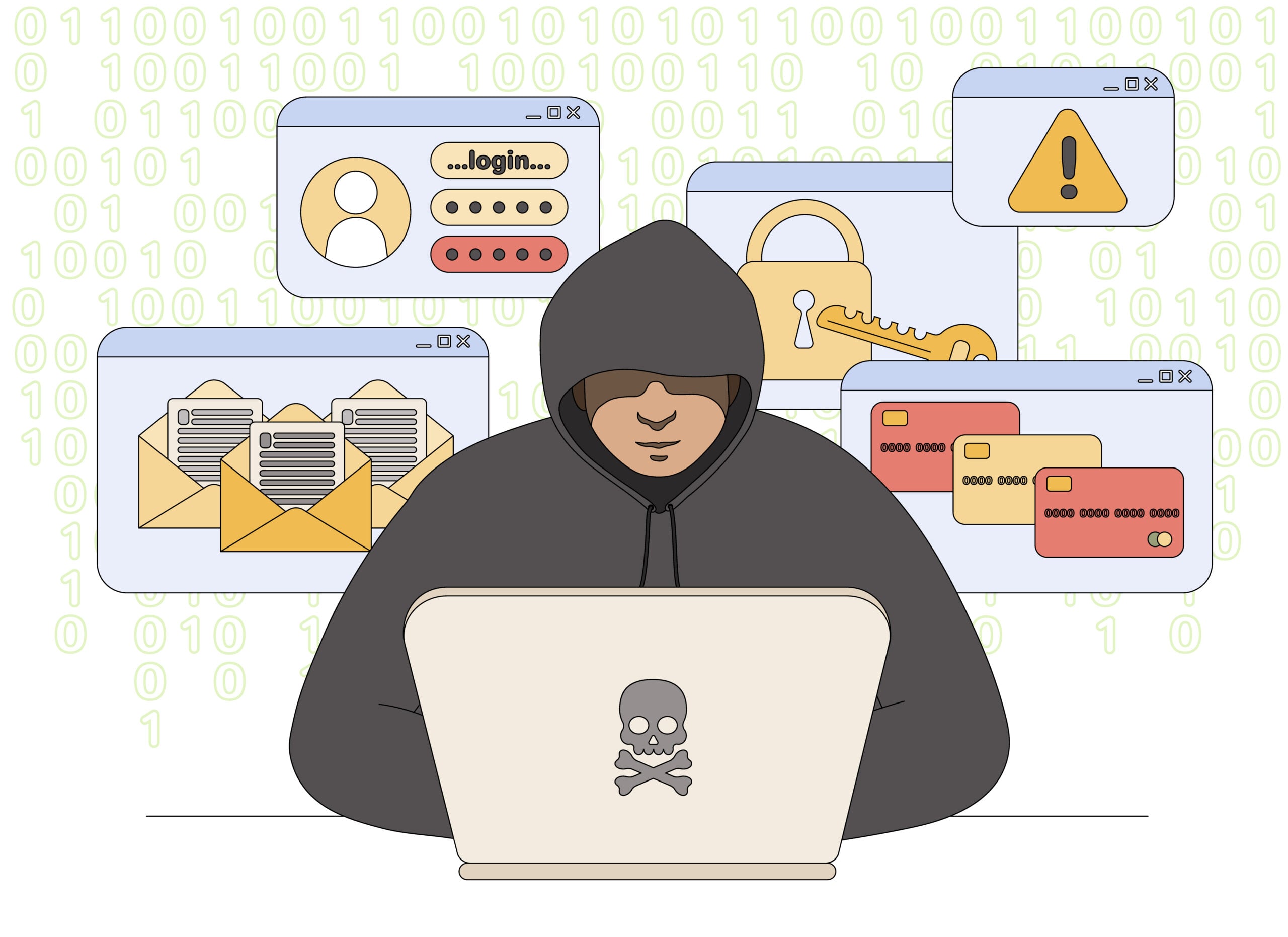
The Visa Click to Pay email scam is a confirmed phishing campaign that impersonates Visa’s legitimate digital checkout service. Fake security alerts, refund notices, failed-payment messages, and one-time passcode requests are used to steal card data, account credentials, and verification codes.
Visa Click to Pay is real. It can send a one-time passcode to an email address or mobile number when a user starts a genuine sign-in or checkout. Scammers exploit that normal behavior to make an unexpected code or security message appear trustworthy.
One version sends a completely fake email that links to a cloned Visa page. Another version starts with a real code: the criminal enters the victim’s email address into a legitimate payment or login flow, causing the authentic system to send an OTP. The scammer then calls or emails the victim and asks them to reveal it.
A real passcode message does not make the person requesting the code legitimate. The code is intended only for the person completing the action on the official Visa page. Sharing it can allow a criminal to finish a transaction or account change.
A convincing email may use your name, a Visa logo and language about tokenized payments or account protection, but those details can be copied. The most important clue is where the button actually goes. A Click to Pay notice that sends you to a misspelled, shortened or unrelated domain is not a safe way to manage a card.
The phishing page can capture the card number, expiration date, security code, address and online-banking login, then request a one-time code to complete a fraudulent transaction. Do not test the page with partial information. Close it and review card activity in the issuer’s official app. Visa provides the network and checkout service, while your bank or card issuer is the appropriate place to verify charges and secure the account.
How the Visa Click to Pay Email Scam Works
Step 1: A security or payment email appears
The message claims that a Click to Pay account has been locked, a card was used without permission, a payment failed, or a refund is waiting. It may also contain a one-time passcode the recipient did not request.
Visa branding, card images, copyright text, and security language are copied to create a professional appearance. The subject line is designed to cause worry before the recipient checks the facts.
Step 2: Urgency pushes the victim toward a link
The email warns that the account will be deleted, the card will be suspended, or an unauthorized payment will become final unless the recipient acts immediately.
The button may say Verify Account, Cancel Payment, Claim Refund, or Secure My Card. Its visible label looks safe, but the destination is controlled by the scammer.
Step 3: A cloned Visa page collects information
The landing page copies Click to Pay colors and login fields. It asks for an email address, password, full card number, expiration date, CVV, billing address, telephone number, or bank information.
Any padlock icon only means the connection to that site is encrypted. It does not prove the website belongs to Visa.
Step 4: The scammer triggers a real passcode
After collecting enough card or account information, the criminal may attempt a genuine login, checkout, or wallet enrollment. The real service sends a one-time passcode to the victim.
The criminal immediately asks for that code through the fake page, a follow-up email, text message, or telephone call. They may pretend that the code is needed to cancel the transaction rather than approve it.
Step 5: The code completes the fraudulent action
Once the victim submits the OTP, the scammer can complete the step that Visa or the card issuer was trying to verify. The result may be an unauthorized purchase, a card added to a digital wallet, or access to stored payment credentials.
The fake website may display an error or success message to end the session while the criminal uses the information in the background.
Step 6: Stolen card data is reused
Card details can be tested at other merchants, sold to another fraud group, or used for recurring transactions. Reused passwords may be tested against email, retail, and banking accounts.
Follow-up calls may pose as a bank fraud department and use information from the phishing form to sound credible.
Step 7: Recovery impersonators ask for more
If unauthorized charges appear, the victim may receive another message promising a refund. The new scam asks for another code, remote access to the device, or a transfer to a supposed safe account.
Real bank and card support teams will not ask customers to move money to protect it or disclose a one-time code that authorizes a transaction.
Warning Signs of a Fake Click to Pay Email
- You receive a passcode without starting a login or checkout.
- The email says the account is locked and must be verified through a button.
- A refund or failed payment requires full card details.
- The sender address uses a free email provider or a lookalike Visa domain.
- The greeting is generic and the message creates an immediate deadline.
- The link leads somewhere other than a verified Visa website.
- A caller asks you to read a passcode that just arrived.
- The message asks for a PIN, CVV, password, or complete card number by email.
Campaign reports identify no-reply@email.clicktopay.visa.com as an address used for legitimate Click to Pay passcodes. However, the visible From field can be falsified, and a genuine passcode can still have been triggered by a criminal. The most important question is whether you initiated the action.
How To Verify a Visa Click to Pay Message
- Do not use the email link. Open a new browser window and type the known Visa Click to Pay address yourself.
- Check the card account. Use the official mobile app or the number on the back of the card to review transactions.
- Ask whether you initiated it. An unexpected passcode should never be entered or shared.
- Inspect the actual sender and link. Look beyond the display name and preview the full destination without opening it.
- Contact the issuer independently. The bank that issued the card can confirm whether a transaction or security action is real.
- Delete the message after reporting it. Keeping the link accessible increases the chance of an accidental click.
What To Do If You Received an Unrequested OTP
Do not reply and do not give the code to anyone. A person who contacts you for the code is attempting to complete an action that they cannot finish without your approval.
Open the card issuer’s app or call the number printed on the card. Review recent activity and ask whether the card should be locked or replaced. If the same password is used anywhere else, change it from a trusted device.
Repeated unrequested codes can mean someone has your email address, card details, or password. They can also result from another person entering the wrong address, but the code should still be ignored.
If You Entered Card Details on the Fake Page
- Call the card issuer immediately. Report phishing and request a block or replacement before more charges appear.
- Review digital wallets. Ask whether the card was added to Apple Pay, Google Pay, or another wallet without permission.
- Change exposed passwords. Begin with the associated email account and any reused credential.
- Save evidence. Keep the sender address, full headers, phishing URL, screenshots, and transaction details.
- Report the email. Send the message to phishing@visa.com and follow the card issuer’s fraud-reporting process.
- Watch statements. Small test charges can appear before larger fraudulent purchases.
Call the card issuer through an official number
Use the number on the back of the card or inside the banking app. Explain that the card details were entered on a phishing site and ask whether the card should be blocked and replaced. Review pending transactions and dispute anything you did not authorize.
Secure any password or code that was exposed
If the page also requested an online-banking password, change it immediately and end other sessions. Tell the bank if you supplied a one-time code or approved a notification, because that may have allowed a transaction or device enrollment. Monitor the account closely for follow-up attempts.
Frequently Asked Questions
Is Visa Click to Pay a real service?
Yes. Visa Click to Pay is legitimate. The scam involves fake messages, cloned pages, or criminals trying to capture a genuine one-time passcode.
Why did I receive a real Visa passcode?
Someone may have entered your email or mobile number during a Click to Pay action. If you did not start it, do not use or share the code.
Will Visa ask for my CVV or PIN by email?
No. Treat any email requesting a full card number, CVV, PIN, password, or OTP as dangerous. Verify through the official service and card issuer.
Can I cancel fraud by giving the caller my code?
No. A one-time code normally approves an action. A fraud caller who requests it is trying to bypass the account’s security check.
The Bottom Line
The Visa Click to Pay email scam mixes fake branding with real payment-security behavior. That combination is convincing because an authentic passcode may arrive while the criminal is speaking to the victim.
Never share an unrequested OTP and never use a security link from an unexpected message. Check the card through its official app or telephone number, and contact the issuer before the scammer can reuse the stolen data.








